

Survey Accessibility
What's on this page
About Survey Accessibility
Attention: To meet the latest accessibility standards, surveys must use the new survey taking experience. Surveys and tips will check your survey to the accessibility standards available for the survey experience you are using. If you are using the legacy survey experience, your survey will be checked to WCAG 2.0 standards as described on this page. If you are using the new survey taking experience, your survey will be checked to WCAG 2.2 standards.
When you have respondents who use third-party screen readers (like JAWS) and you need to meet accessibility standards, it’s important to make sure your survey is as accessible as possible. Our Issues and tips feature diagnoses your survey, indicates which questions are inaccessible, and gives other recommendations for increased accessibility to help you work towards WCAG 2.0 AA (and Section 508) compliant surveys.
Qtip: Please be advised that survey accessibility is contingent upon a combination of hardware and software, including the use of a modern and supported browser type. For the best possible experience, please make sure to keep your browser and screen reader software up-to-date.
Question Type Accessibility
Attention: When using the new survey taking experience, question types meet WCAG 2.2 AA accessibility standards. However, some of these question types are not compliant when using the legacy survey editor. For the most up-to-date information on which question types are compliant when using the new survey taking experience, see Question and Feature Updates.
Not every question is accessible to screen-reading programs. Below are lists detailing which question types are accessible and which are not.
Attention: The accessibility checker does not evaluate if the look and feel of questions is accessible. Always double-check the contrast, color schemes, and font size in your rich content editor or Look and feel when taking color-blind and other visually impaired respondents into account. Ultimately, you are responsible for verifying the accessibility of your own survey.
Accessible Questions
These questions are WCAG 2.0 AA compliant and are recognized as such by the survey checker tool.
- Descriptive text
- Multiple choice (all types)
- Net promoter® score
Matrix (only rank order, constant sum, text entry, and profile)

Attention: If your matrix table is not set to mobile friendly, your question will not be compliant.
- Text entry (all types)
- Form field
- Rank order (only text box, graphic, and radio buttons)
- Side by side
- Constant sum (only choices, a.k.a text entry)
- Drill down
- Timing (the auto advance option is not accessible)
- Meta info
- Captcha verification (V2)
Attention: Slider and Bar slider question types meet the contrast ratio requirement for WCAG 2.0 accessibility compliance.

Qtip: The File upload question is WCAG 2.1 accessible.
Qtip: The New Survey Taking Experience ensures your question theming is accessible and many of these same question types are WCAG 2.2 compliant when using the New Survey Taking Experience. If you haven’t enabled this experience for your survey, follow the guidance in Accessible Survey Themes to make sure your theme is accessible.
Non-Accessible Questions
These questions do not meet WCAG 2.0 AA Compliance, and are flagged as such by the survey checker tool.
Matrix (likert, bipolar, MaxDiff, and carousel, as well as any matrix table that is drag and drop)
Qtip: The likert matrix question is not WCAG 2.0 AA compliant, but it meets other standards of compliance, including 508. Because it is not WCAG 2.0 AA compliant, Issues and tips will flag this question type as non-compliant.
- Rank order (Drag and drop and select box)
- Constant sum (sliders and bars)
- Pick, group, and rank
- Hot spot
- Heat map
- Graphic slider
- Signature
- Highlight
- Video response
- Org hierarchy (EX)
Building Accessible Surveys
In addition to being careful about the question types you use for your survey, there are a few other options you should include in an accessible survey.
Attention: Since these suggestions can be more subjective, Issues and tips and check survey accessibility may not be able to detect them. Ultimately, you are responsible for verifying the accessibility of your own survey.
- Make sure your survey follows all accessible theming guidelines.
Add alt-text to all images. Screen readers can read alt-text out loud to visually impaired respondents.
Qtip: For multilingual surveys, make sure to translate the alt-text for any images in the translation window.
Choose accessible survey questions. Not all survey questions are accessible question types.
Qtip: If you are using a dropdown question type (such as a multiple choice dropdown or a drill down), you should include a description of the number of possible choices in the question text.
- Always double-check the contrast, color schemes, and font size in your rich content editor or Look and feel when taking color-blind and other visually impaired respondents into account. For example, red font on a green background would be unreadable to respondents with red-green colorblindness, and a light gray text on a white background can be difficult for other visually-impaired respondents to detect without a screen-reader. Make sure that the colors of your theme create contrast between the font and the background, and that your font size isn’t too small.
If you are adding validation to a question, including request response and force response, then you should indicate that the question has special requirements in the question text.

Example: For example, if you’ve enabled force response on a question, add “this question is required” to the question text.
Take care when copying/pasting text from other sources because copied HTML can cause issues with screen readers. If HTML issues arise, try strip formatting.
Qtip: When pasting content, you can paste using CMD + Shift + V (on Mac) or CTRL + Shift + V (on PC) to paste your content with no formatting.
- Do not include labels in any of your question types, as these will not be visible to screen readers. Labels in NPS questions (“Not at all likely” and “Extremely likely”) are not visible to any screen readers so as not to bias respondents.
Accessible Survey Themes
To ensure an accessible theme, you can have a Brand Administrator create a theme for your license to use. Below are tips for creating accessible survey themes, broken out by the different sections of the survey theme editor. These options are the same, regardless if you’re making these changes in the Admin Themes tab, or in the Look and feel section of a specific survey.
Alternatively, you can use a theme from the Qualtrics library. These themes will be available for you to choose in the Look and feel menu of your survey. Any accessibility issues with your theme should be forwarded to the themes team through your Brand Administrator.
Theme Layout
To have the most accessible survey (with a visible focus indicator that is not only indicated by color), you must use the New Survey Taking Experience.
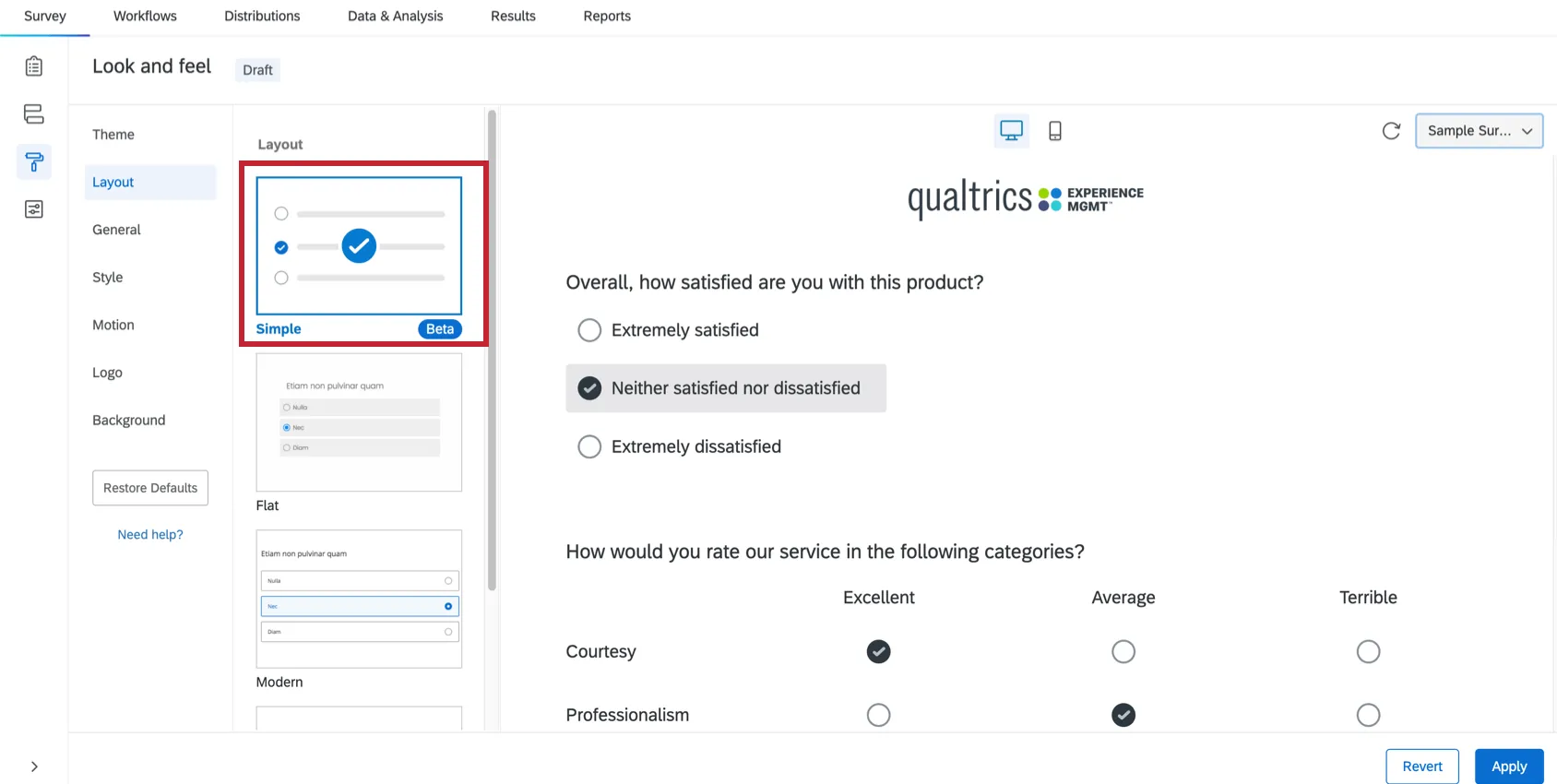
Qtip: Note that some features are not compatible with the New Survey Taking Experience. If you need to use an accessible question type not available with this layout, you can revert to the old experience.
General Tab
- The progress bar is not currently accessibility compliant. In order to indicate progress in your survey, you can adjust the question numbers to the left of the question to indicate, for example, Question 1 of 10, Question 2 of 10, etc. To show these numbers, go to survey options and turn on Question numbers. The check survey accessibility feature calls this suggestion “Enable survey option to show export tags,” since “export tags” is another term for “question numbers.”
If your compliance regulations require an h1 header, include a survey header and wrap the following HTML around your header text:
<h1>Header Text</h1>Qtip: Make sure you add this in the HTML view of the rich content editor.
If you want to add a logo to your survey, add it as a header or footer in the General tab, and add alt-text to the image. Screen readers can read alt-text out loud to visually impaired respondents.
Qtip: For multilingual surveys, make sure to translate the alt-text for any images in the translation window.
Style Tab
- In the Style tab, set the Foreground Contrast to High.
Ensure that the Primary Color has high enough contrast with the focus indicator.
Qtip: If you are unable to see the focus indicator with the New Survey Taking Experience, adjust your Primary and Secondary Color in the Style tab.
Motion Tab
- In the Motion tab, ensure that Autoadvance on Questions is not enabled.
- The “None” page transition is the best for accessible surveys.
Using the Check Survey Accessibility Tool
Qtip: Issues and tips will provide many of the same suggestions, plus additional advice on improving your survey’s quality.
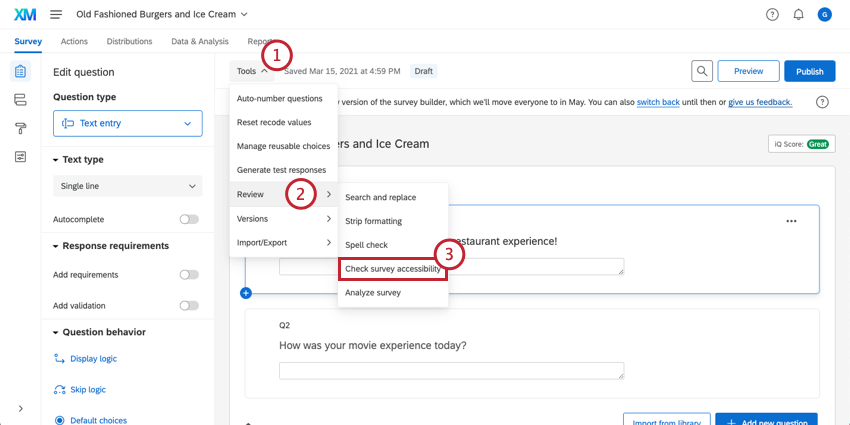
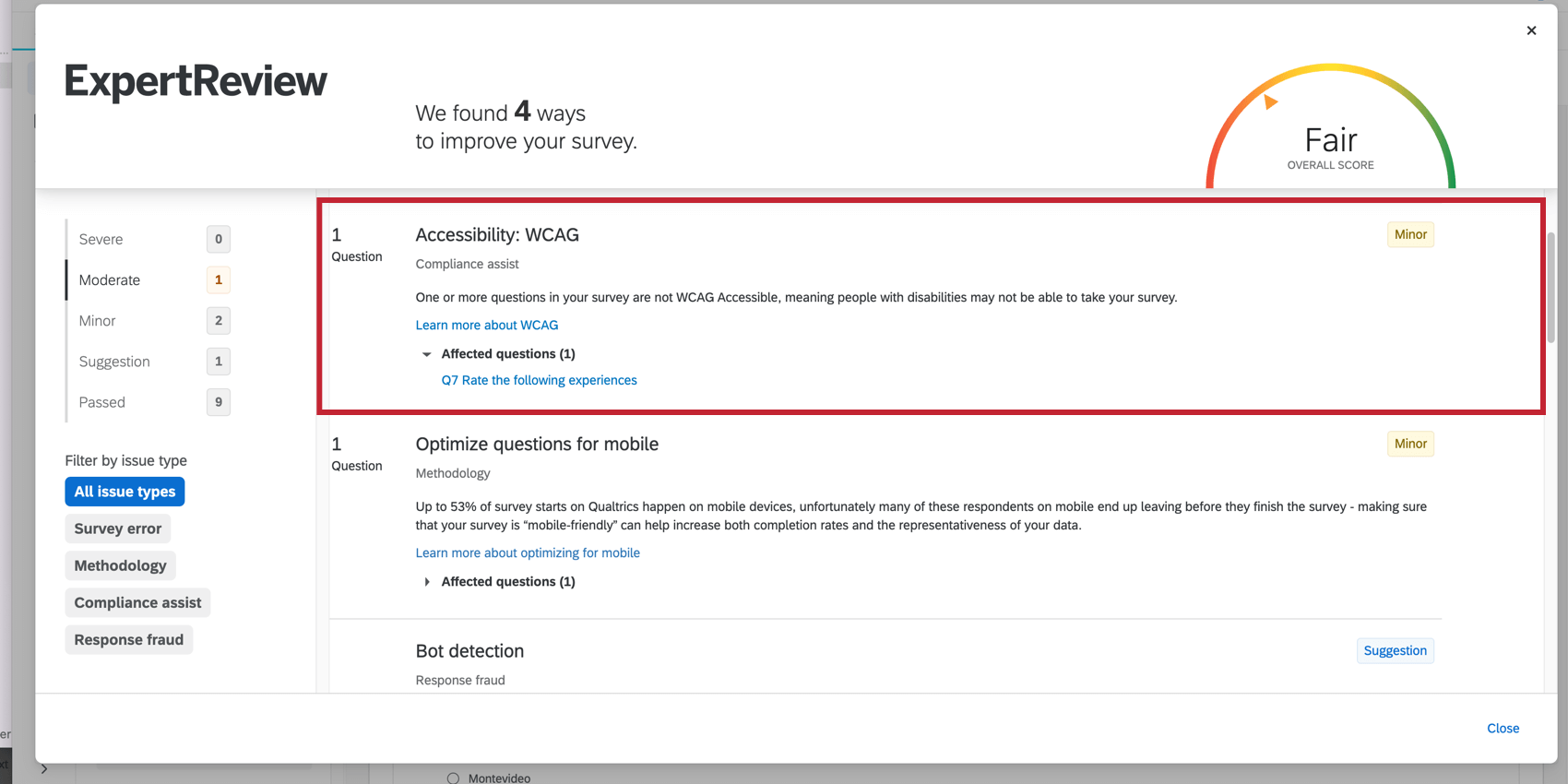
Qtip: Click Affected questions to see all questions that may not meet accessibility standards.
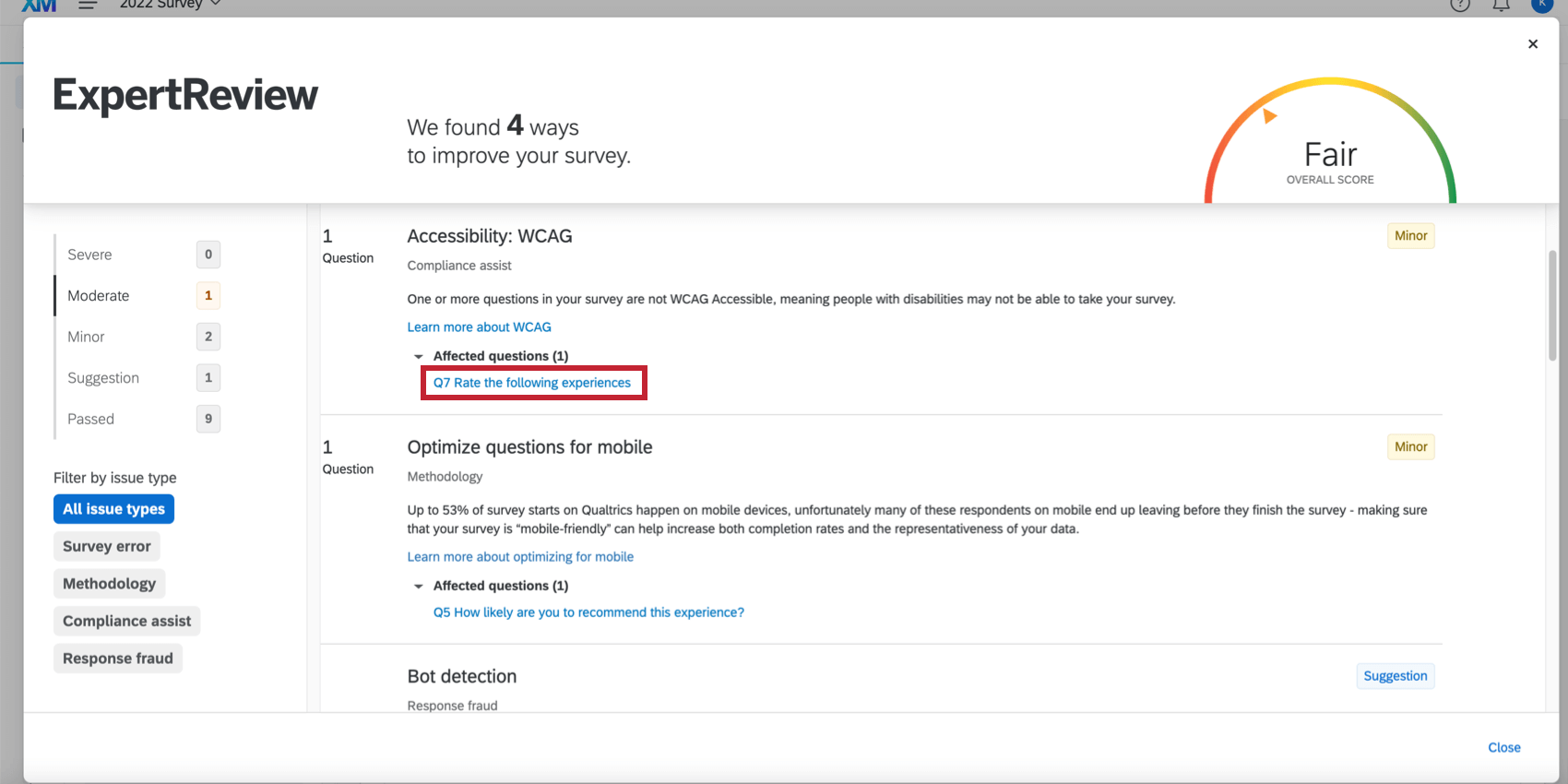
Qtip: Most suggestions will usually take you to your Survey Options or Look and feel. There are also additional suggestions we have described in the Survey Configuration section.
Requiring Accessible Surveys
Most organizations in Qualtrics are set up to allow survey builders to create non-accessible surveys. An Allow Non-Accessible Surveys permission is enabled by default, but a Brand Administrator can disable it, forcing every survey to be accessible before it can be distributed.
If this permission is disabled for your account, then you may see a pop-up that prevents you from publishing your survey.
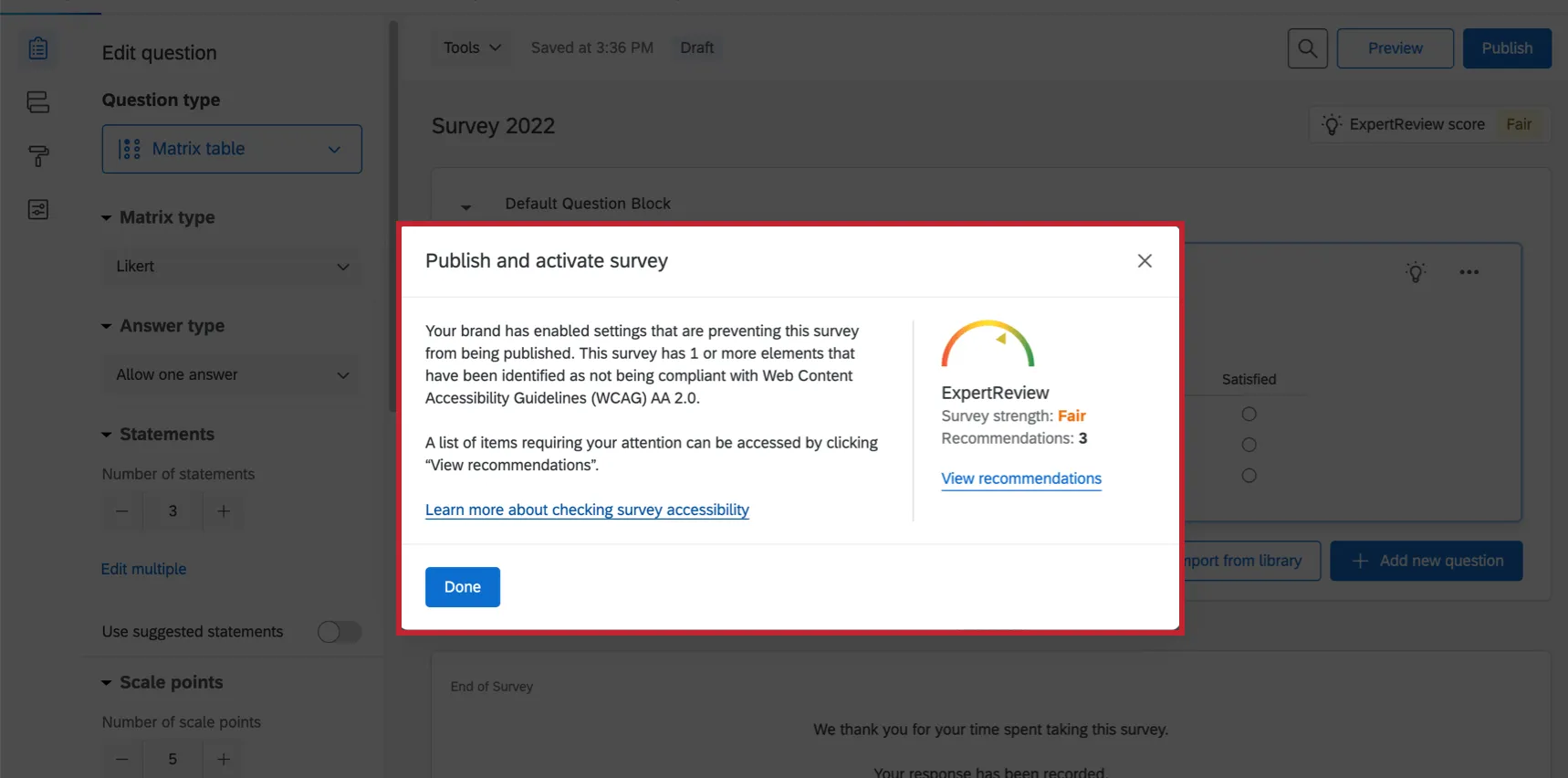
If you try to publish, activate, or distribute the survey without revising inaccessible features, you may get the message, “Your brand has enabled settings that are preventing this survey from being published. This survey has 1 or more elements that have been identified as not being compliant with Web Content Accessibility Guidelines (WCAG) AA 2.0.” This means you must make changes to your survey before you can activate, publish, or distribute the survey.
To determine what in your survey needs to be changed, use the Issues and tips or check survey accessibility tool.
Qtip: These tools will do their best to help you work towards WCAG 2.0 AA (and Section 508) compliant surveys; however, it is ultimately your responsibility to research your organization’s accessibility standards and meet them.
Qtip: If you think a mistake has been made, you can reach out to your Brand Administrator to ask if the Allow Non-Accessible Surveys permission can be enabled. However, if your company follows a standard of accessibility, there is no guarantee the Brand Administrator will agree to change this permission for your account.
That's great! Thank you for your feedback!
Thank you for your feedback!