-

Qualtrics Platform -

Customer Journey Optimizer -

XM Discover -

Qualtrics Social Connect
Creating Questions
About Creating Questions
Once you’ve created your survey, you’re ready to start building. This page outlines how to add, delete, copy, and edit multiple questions at once in the Survey tab.
How to Add New Questions
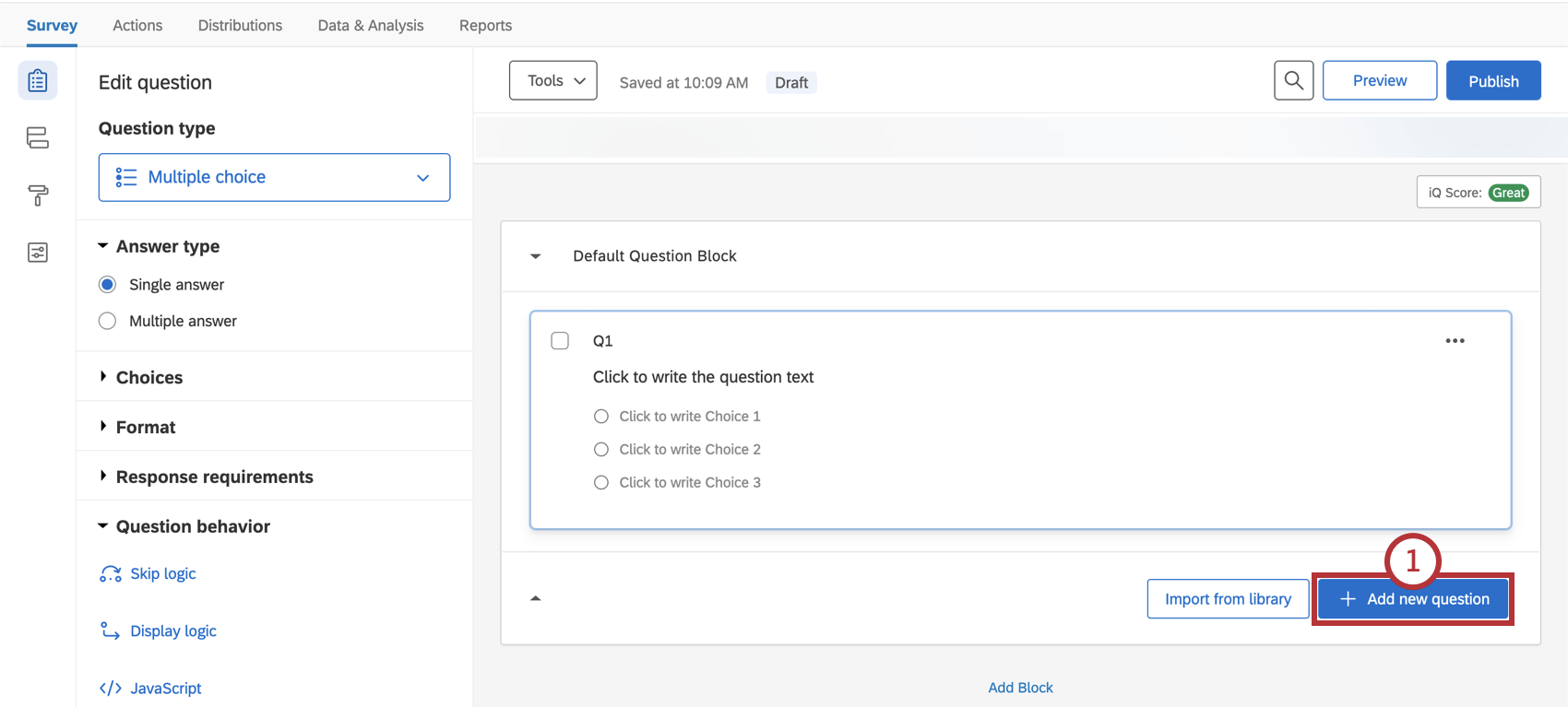
- Click Add new question.
 Qtip: Questions are numbered in the order they are created, not the order they appear in the survey. You can renumber your questions by using the Auto-Number Questions feature.
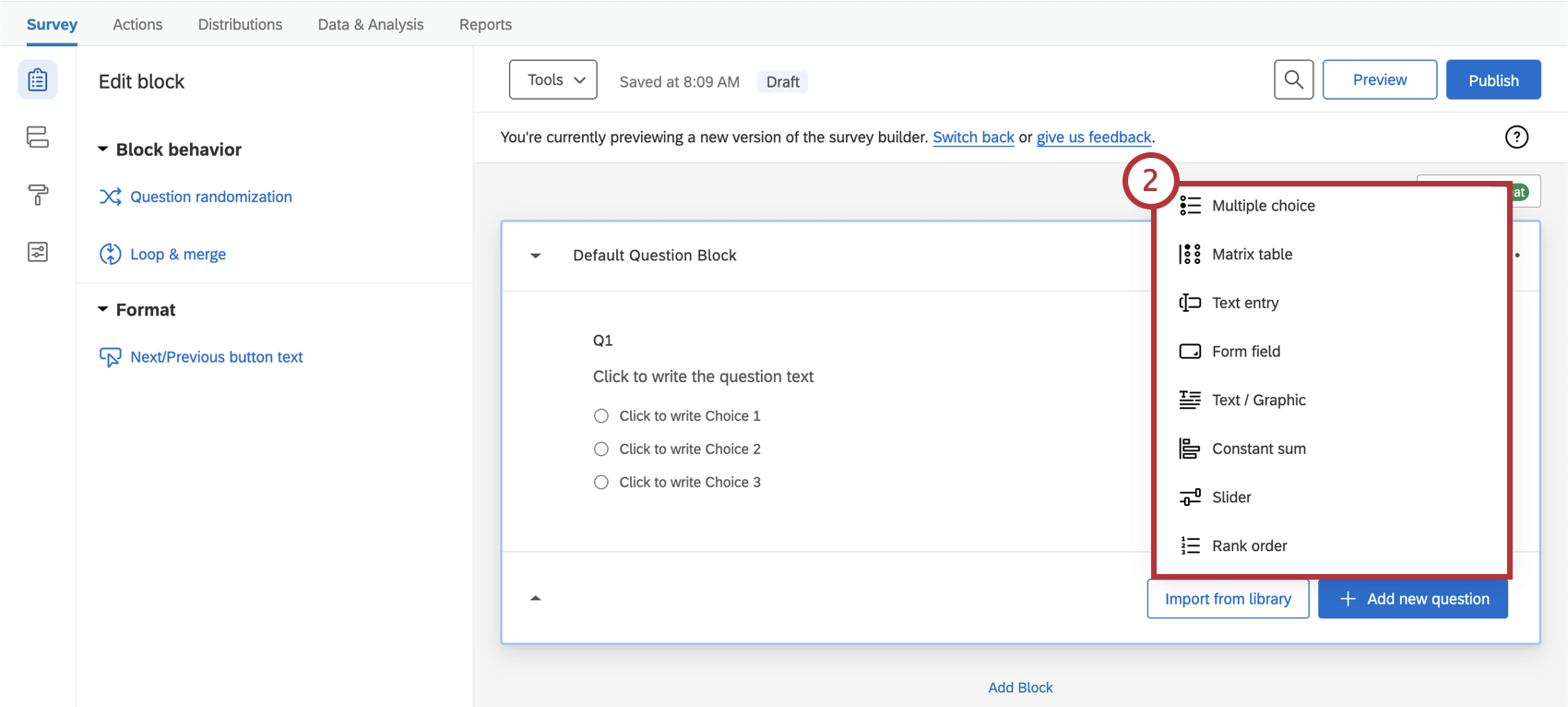
 - Select your desired question type from the dropdown menu that appears.
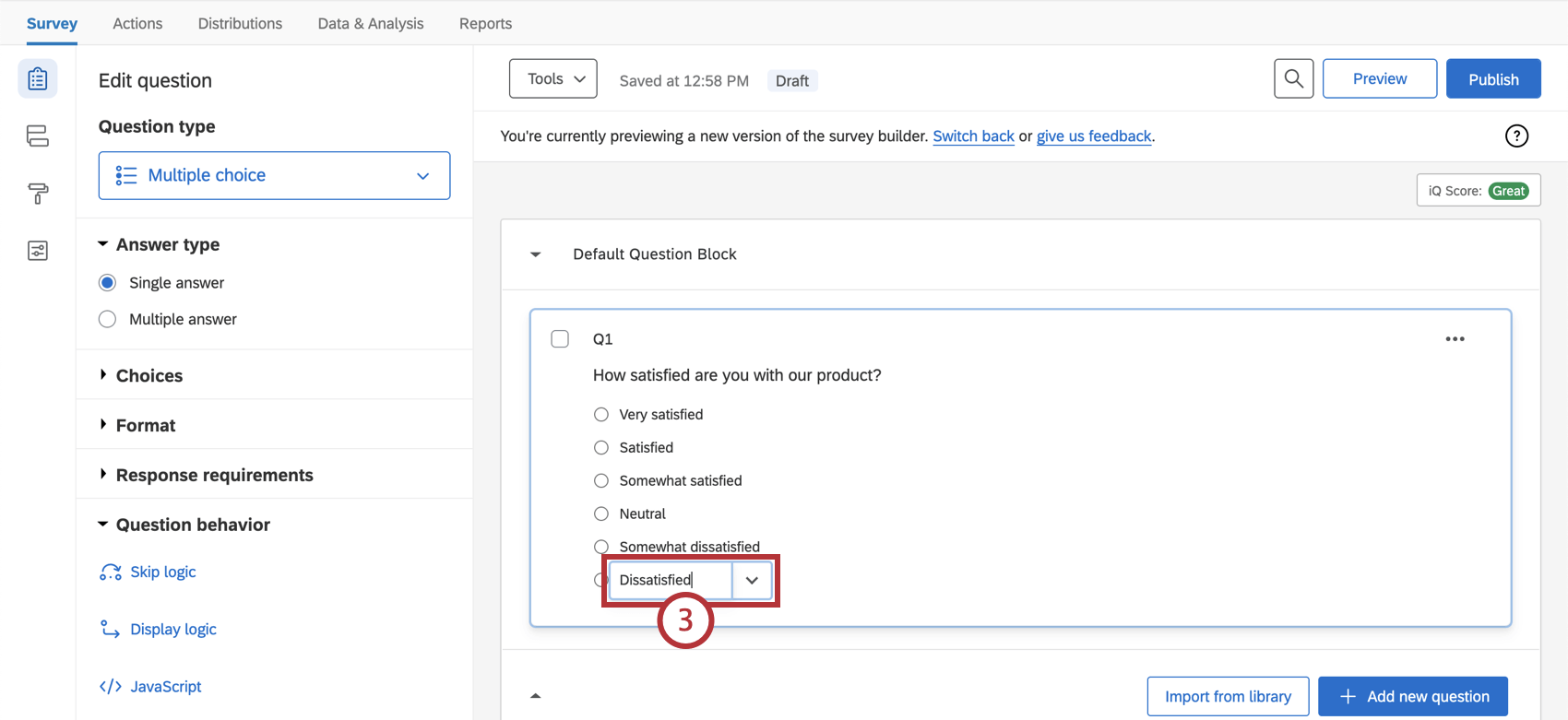
- Click on any text to begin editing your question or choices.
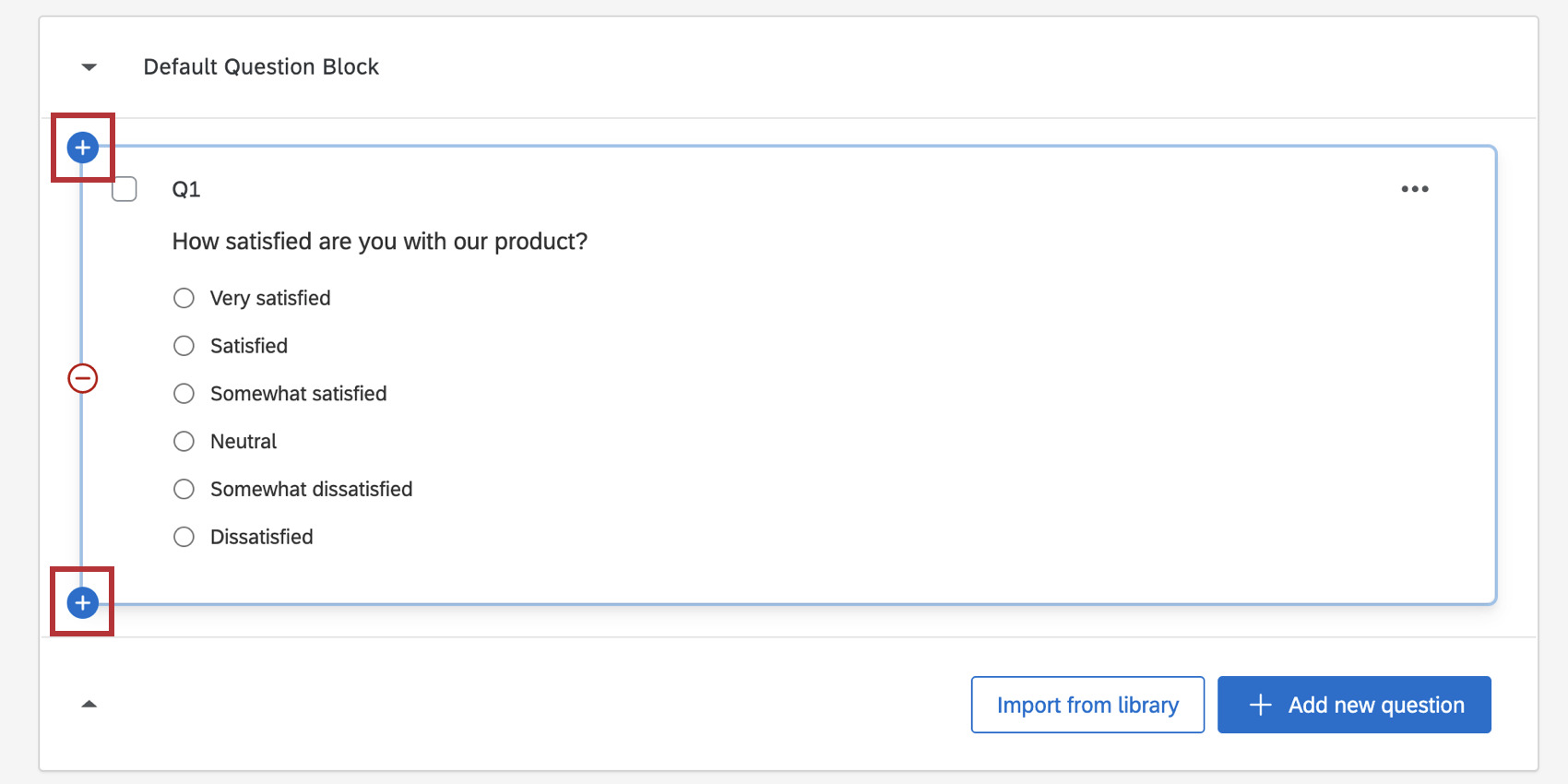
To add another question, you can hover over an existing question and click the green plus (+) buttons (either above or below the existing question), or you can select Add new question again.
Deleting Questions
If you no longer need a question, it can be deleted. A deleted question will be stored in your Trash at the bottom of the Survey tab screen until permanently deleted.
To delete a question
- Move your mouse over the question.
- Click the red minus sign ( – ) that appears to the left.
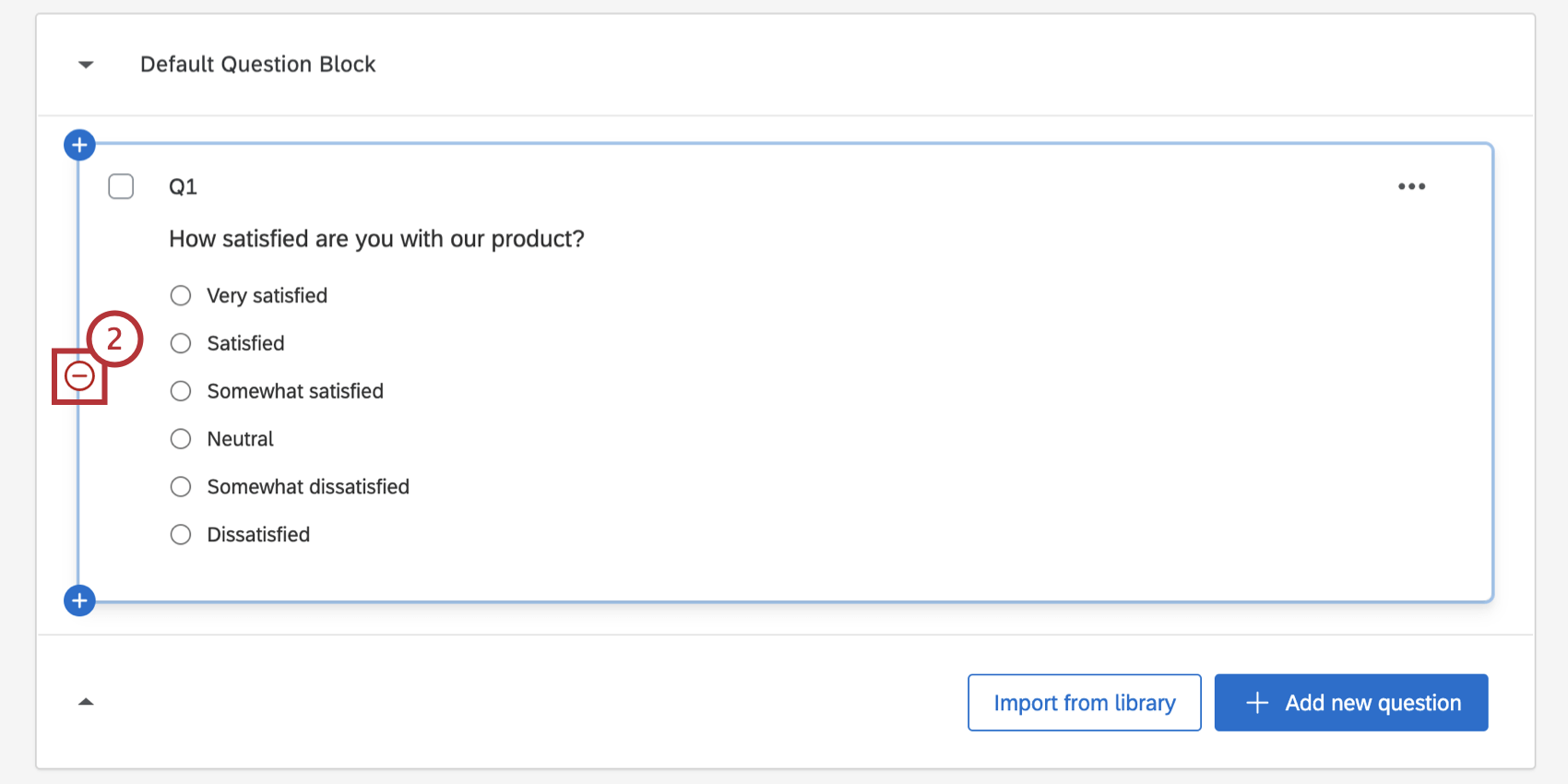
To undelete a question
- Click the dropdown arrow to expand the Trash and see the questions inside it.
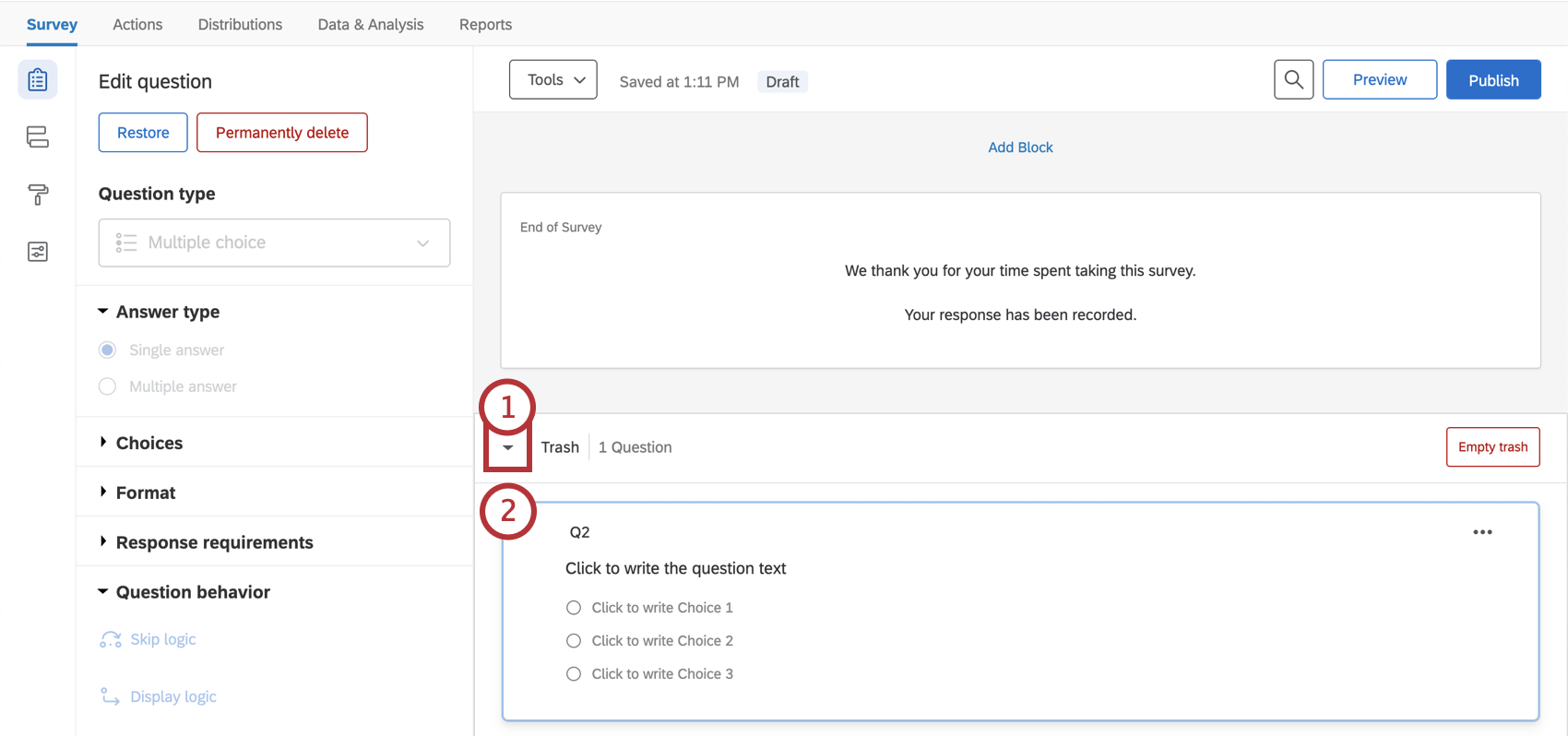
- Select the question you would like to undelete.
- Click Restore in the edit question pane.
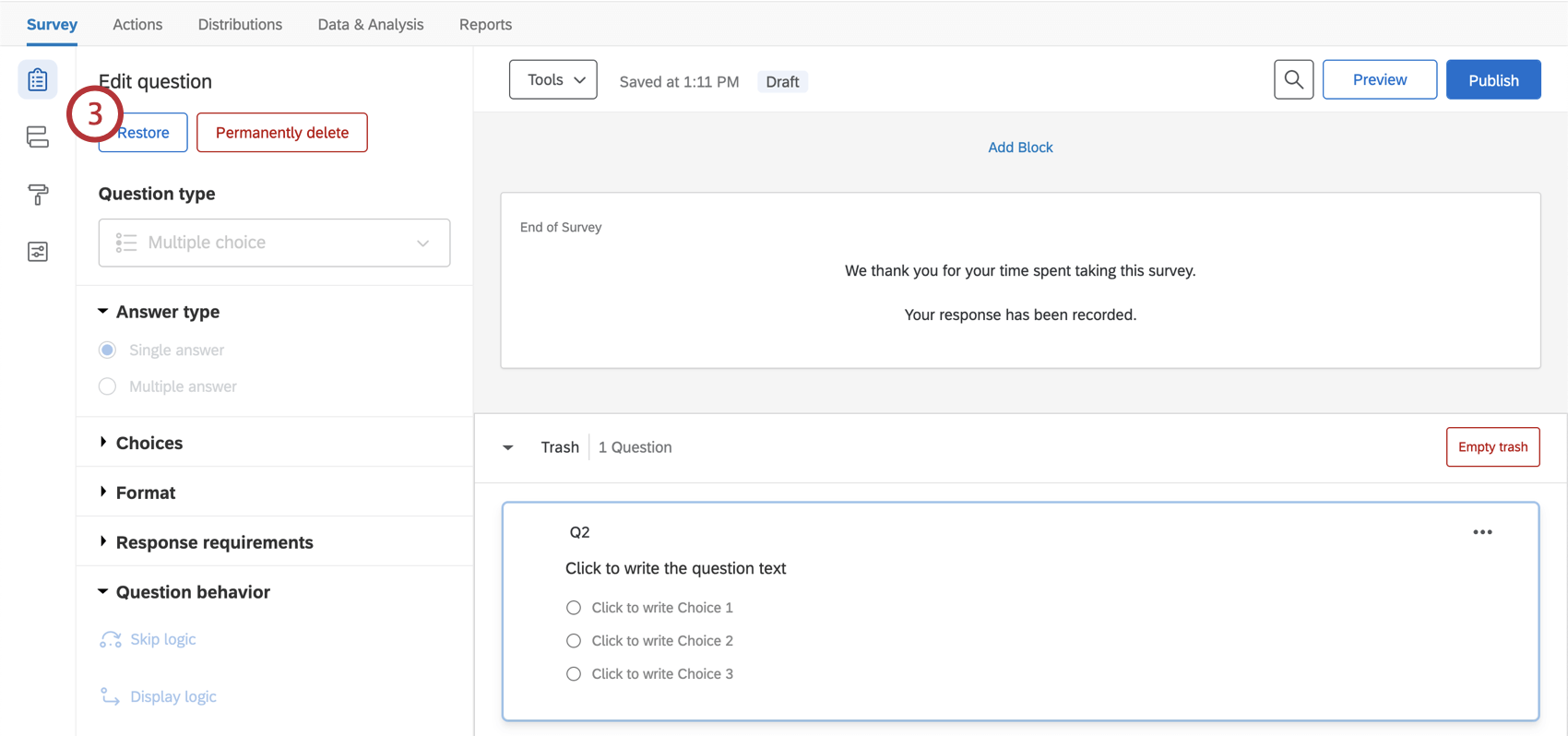
Permanently deleting a question
If you would like to permanently remove a question from your trash, select the question and then click Permanently Delete. To finalize the deletion, refresh your account. To permanently delete all questions from your trash at once, select Empty Trash.
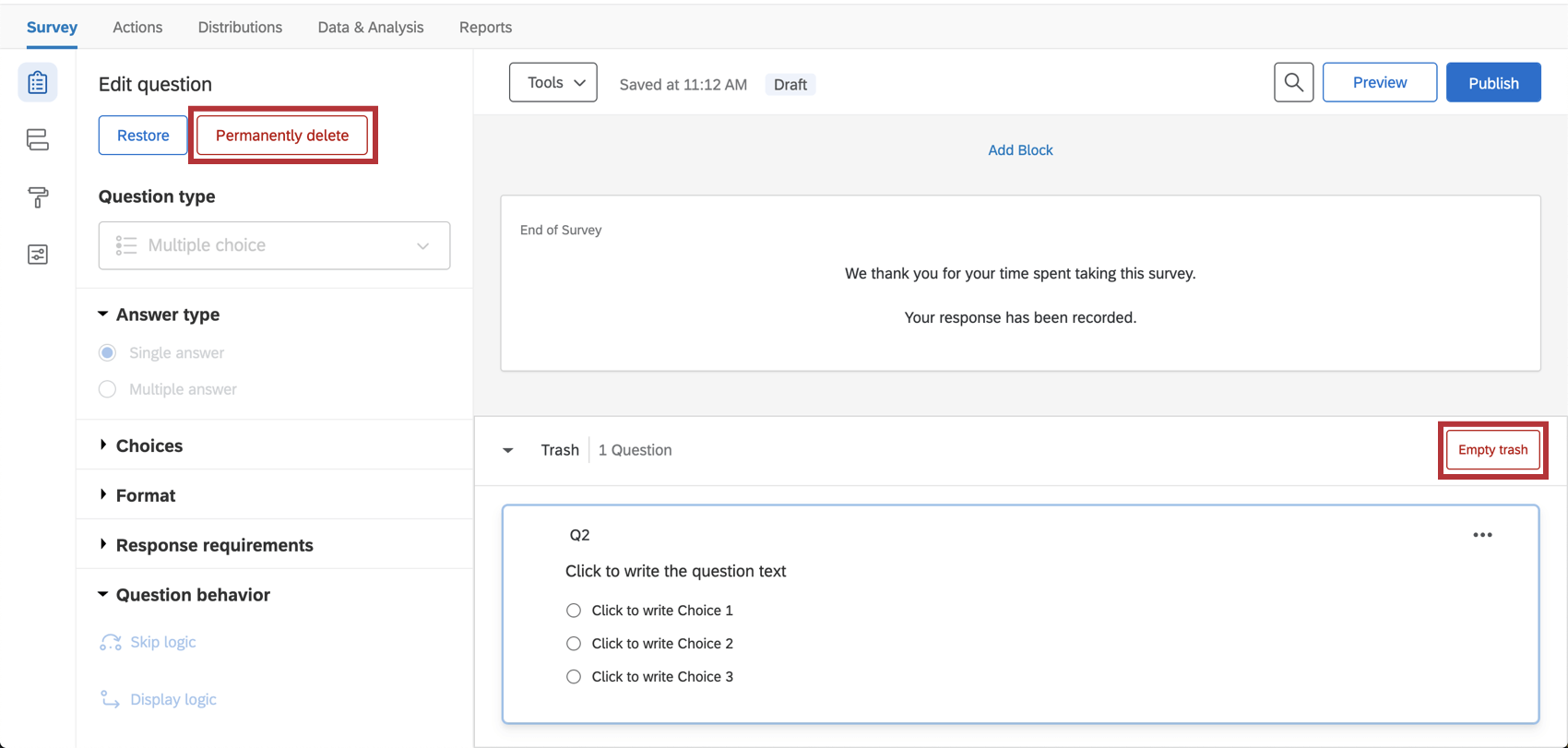
Editing Multiple Questions
Once you have selected multiple questions in your survey, a new menu will appear allowing you to delete, copy, and move questions in addition to other options.
You have three ways to select multiple questions:
- Select the checkboxes of the questions you want to group.
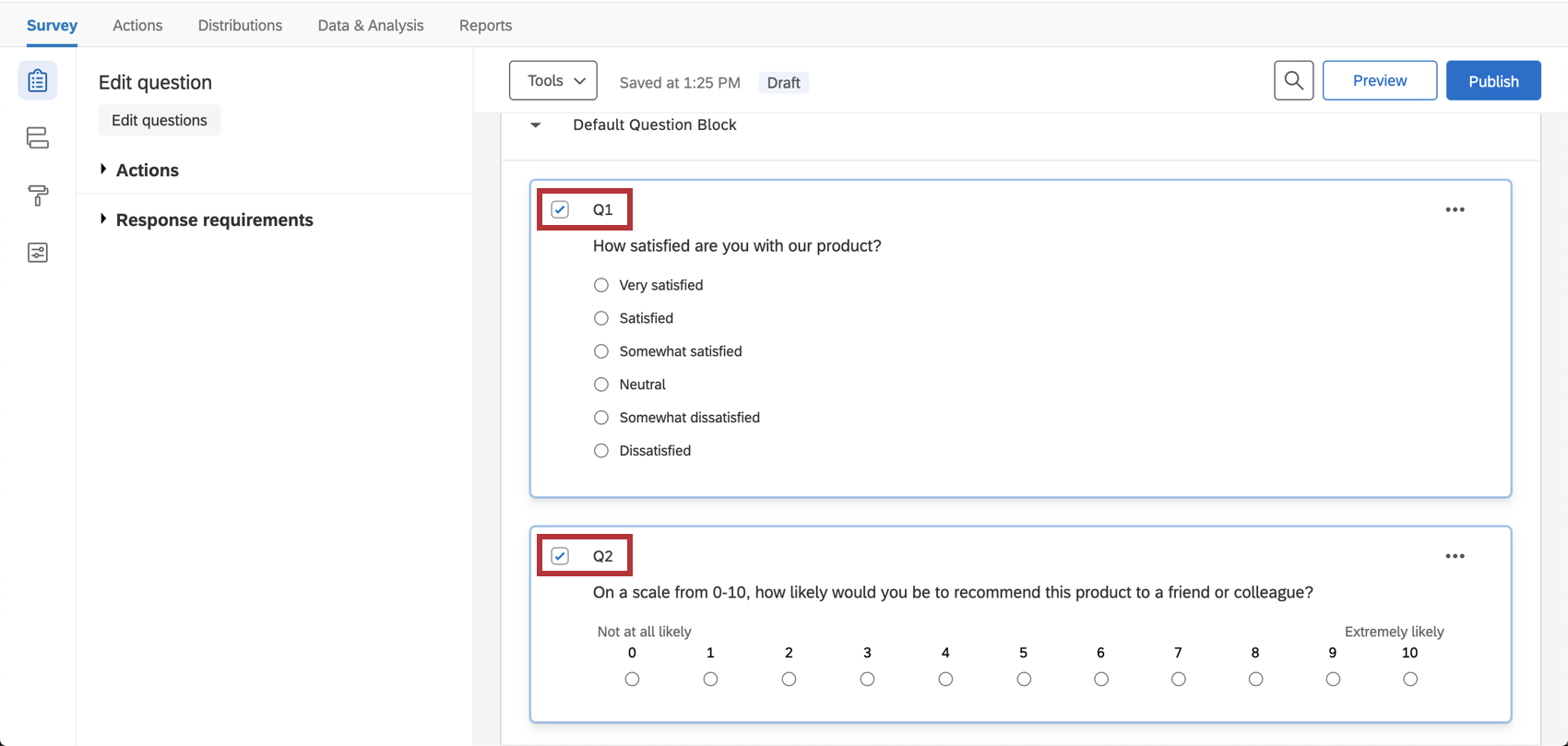
- Hold Ctrl and click the questions you want to group.
- Click the first question you want to select, hold Shift, and then click the last question you want to select. This will select both the questions you clicked and all the questions in between.
Once you have selected multiple questions, a list of group actions will appear to the left of the questions.
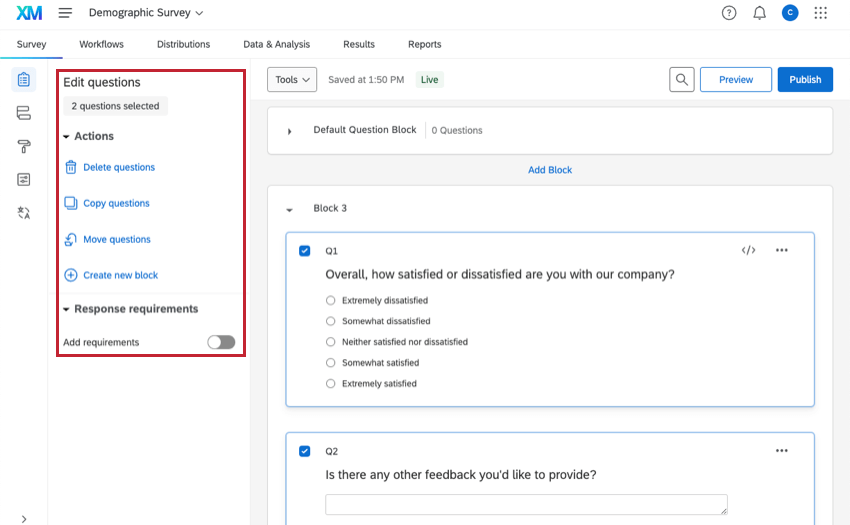
Group Actions
- Delete questions: Delete selected questions. Deleted questions will be stored in your Trash until permanently deleted.
- Copy questions: Copy all selected questions at once. Copied questions are placed below the currently selected questions.
- Move questions: Moves selected questions into an existing block within the survey.
- Create new block: Moves selected questions into a newly created block placed at the end of the survey.
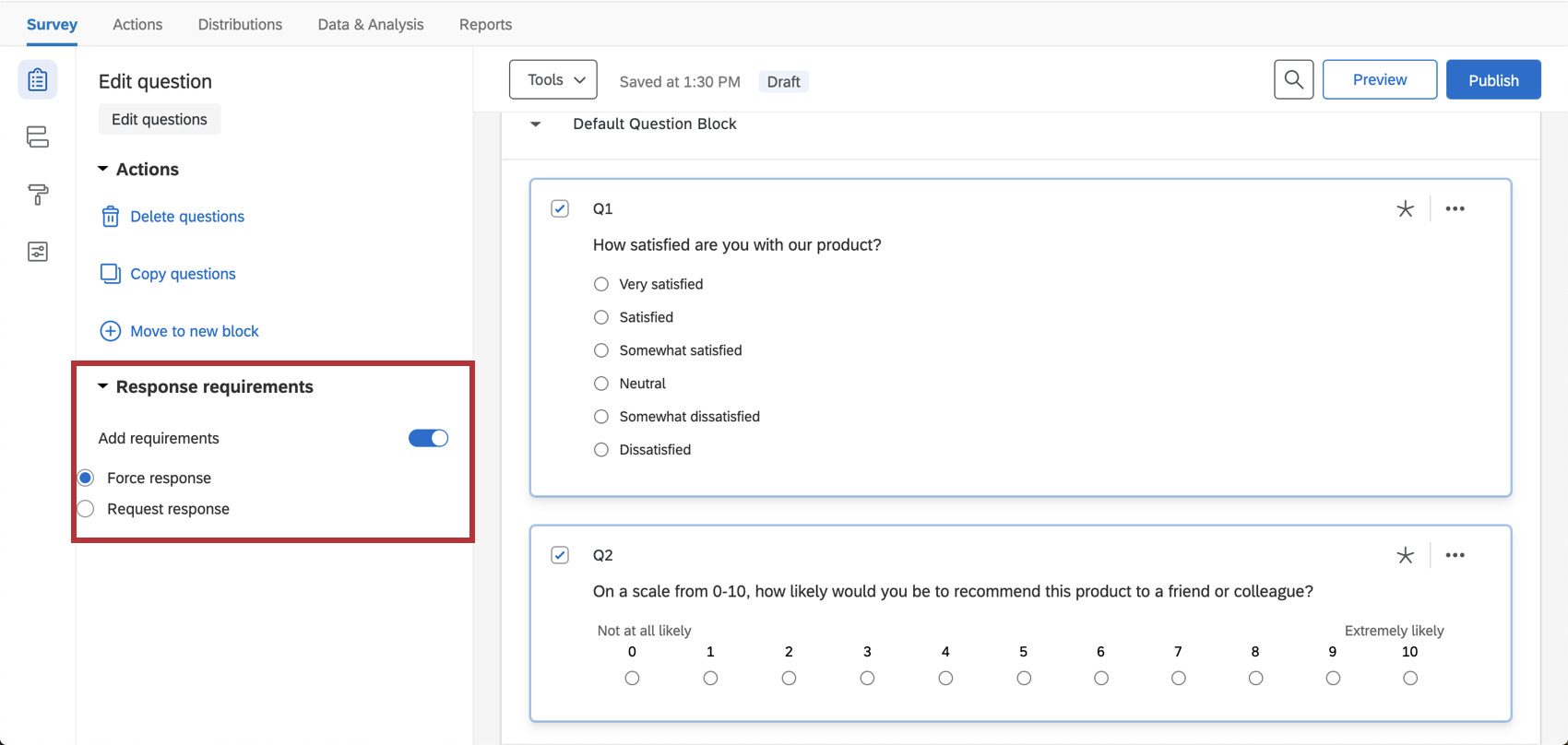
- Response requirements: If you select Add requirements, you will be able to force or request a response on all selected questions. See Response Requirements & Validation for more details.
Copying Questions
If you already have the question you need in another survey, you can save time by adding that question to your survey rather than re-creating it. You can also copy pre-built questions from the Qualtrics Library.
To copy a question from your current survey
- Select the question.
- Click the dots in the upper-right of the question.
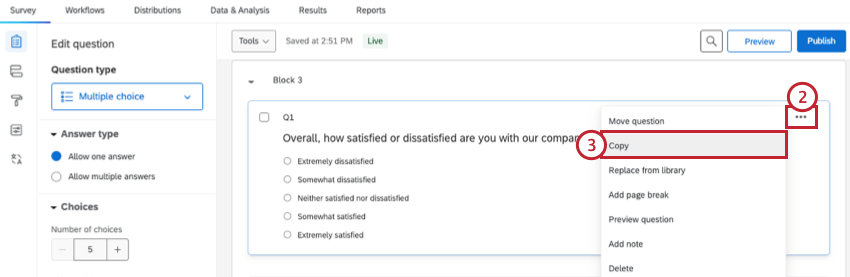
- Select Copy.
To copy a question from a previous survey
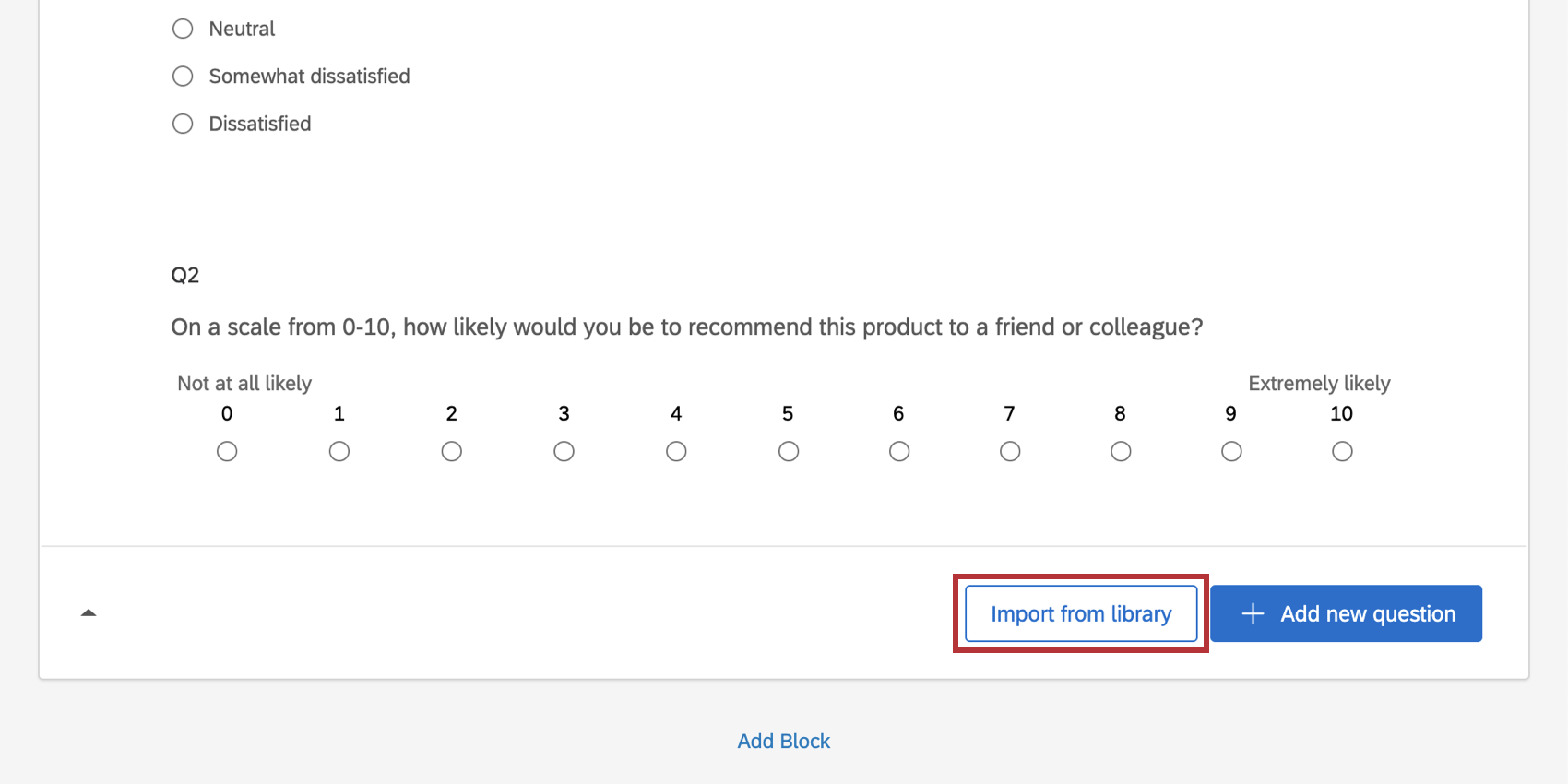
- Click Import from library.
- Select Copy from existing project.
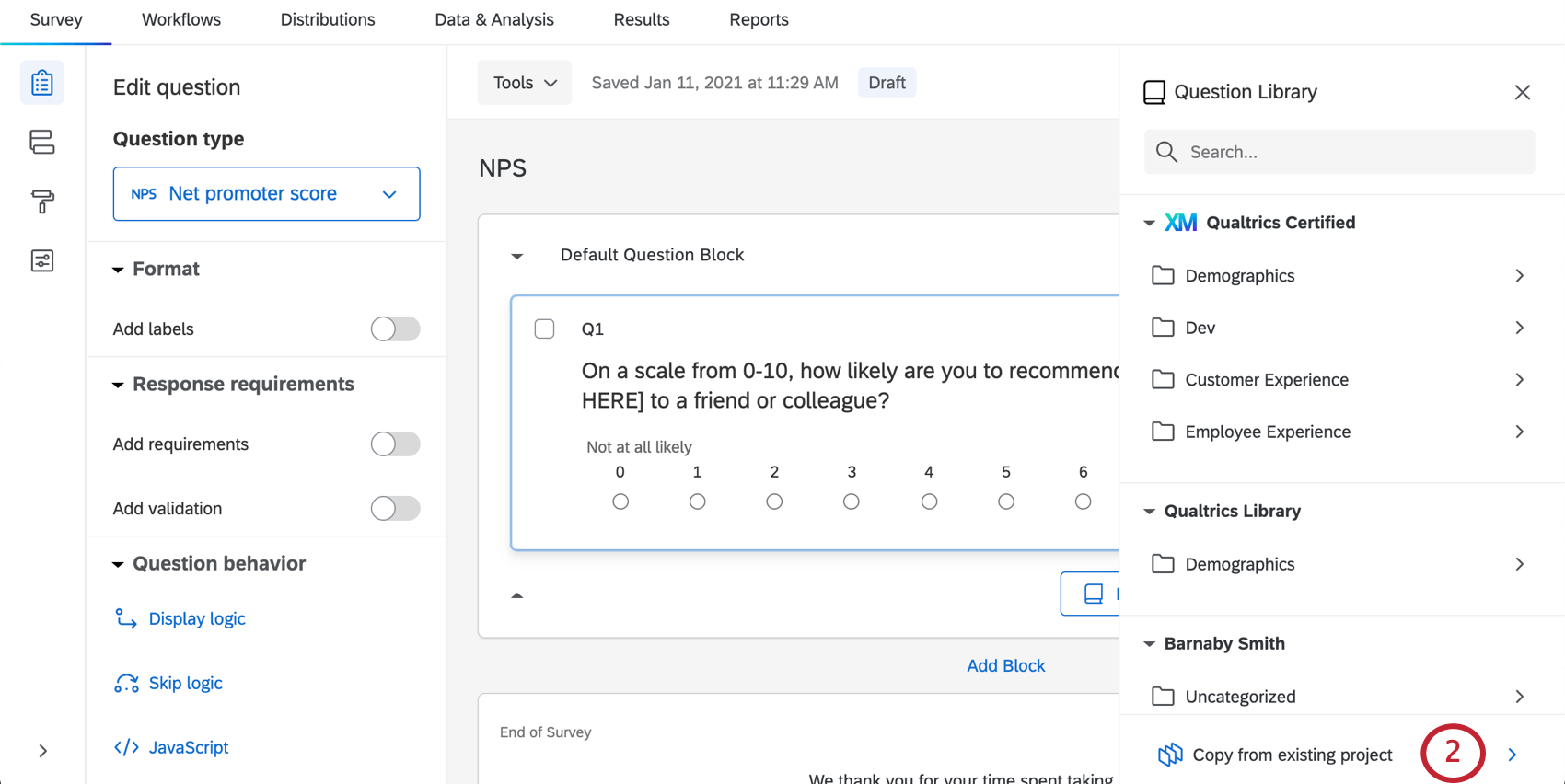 Qtip: You can also add questions from your library, use prebuilt Qualtrics content such as certified questions, or use the search bar to find what you need.
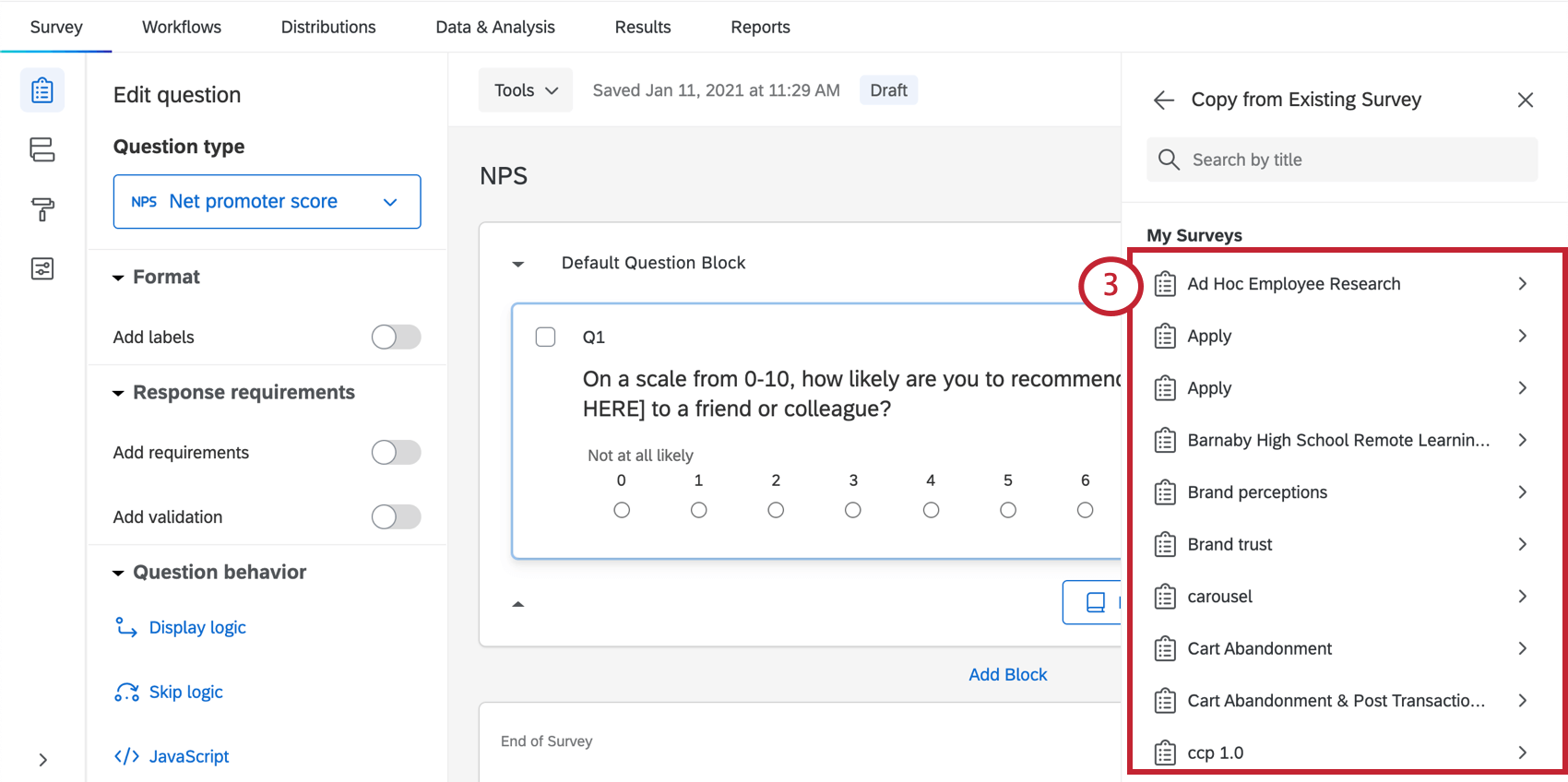
 - Select the survey you want to copy the question(s) from.
- Use the checkboxes to select the question(s) you would like to copy.
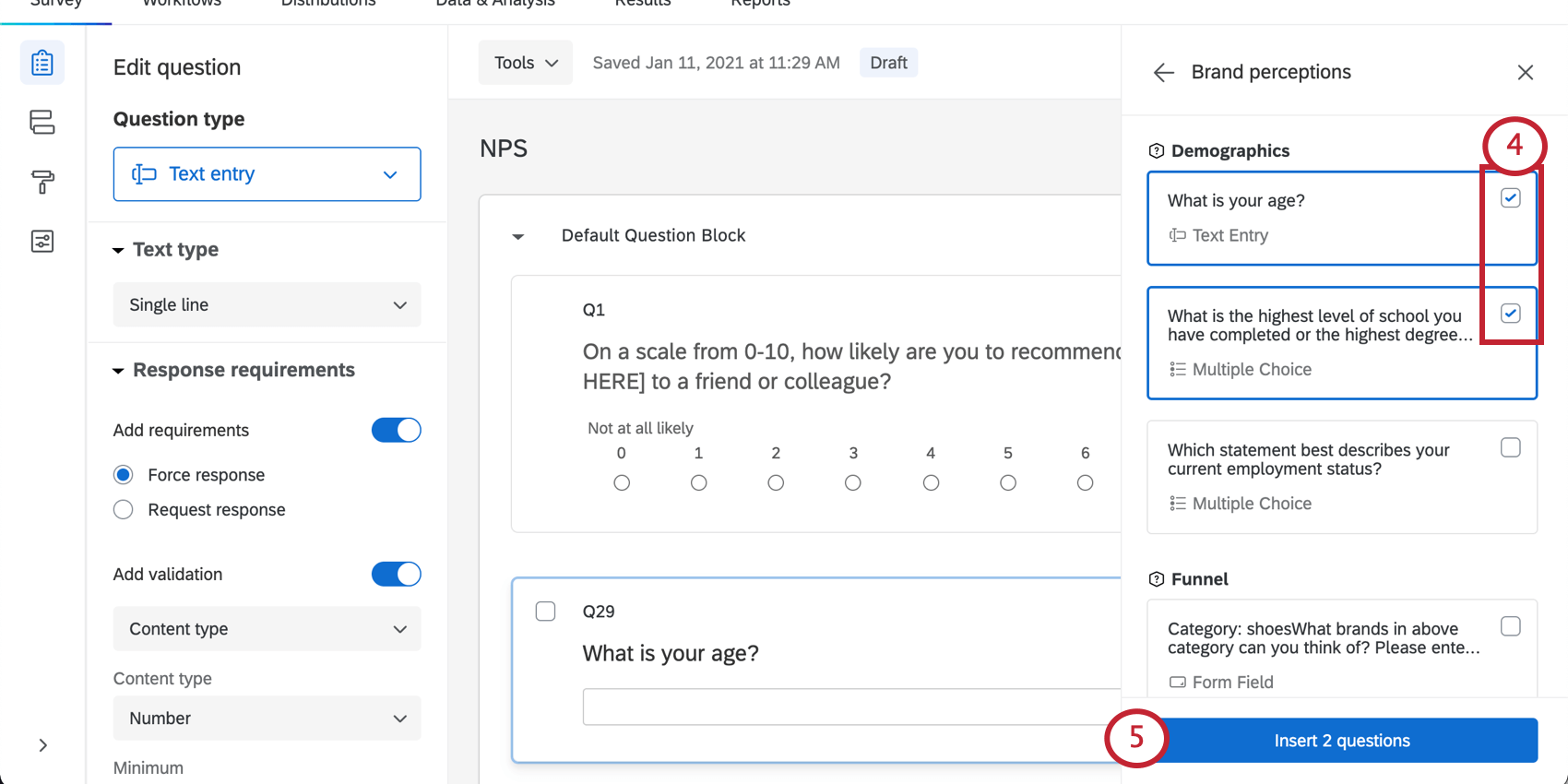
- Click Insert question(s).
To copy a question from the Qualtrics Library
The Qualtrics library comes equipped with all kinds of helpful, prebuilt content. To learn more about adding questions from the Qualtrics Library and the questions available, see the Pre-Made Qualtrics Library Questions support page.
Moving Questions
As you build your survey, you may find you need to change the order of your questions. Thankfully, moving questions around is easy, and can be done one-by-one, or with multiple selected at once. All of these methods allow you to move questions across blocks.
Moving One Question
This option allows you to move a question up or down one space at a time.
- Click on the question you’d like to move, which will be outlined in blue.
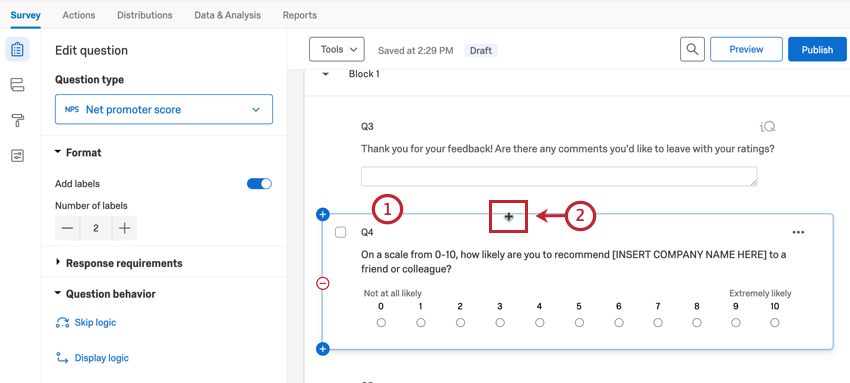 Qtip: You can select multiple questions at once by holding the Shift key on your keyboard when clicking on your questions.
 - Hover your mouse around the border of the question or block until it makes a four-way arrow.
- Click the left mouse button.
- Drag your mouse to where you want to move the question or block in your survey. A blue line will appear showing where the question is being moved to.
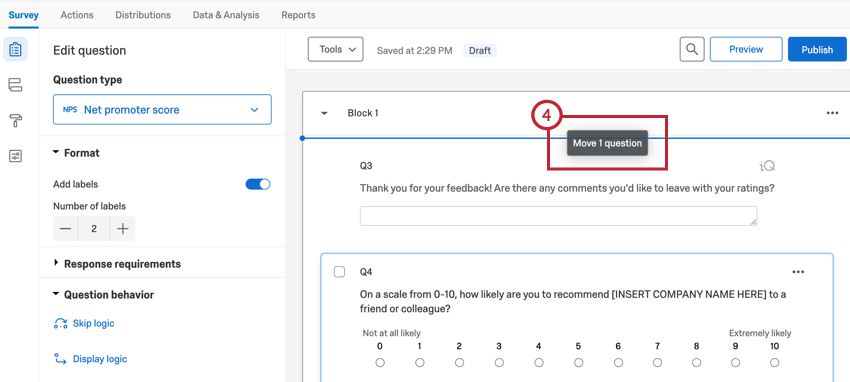
- Release the left mouse button.
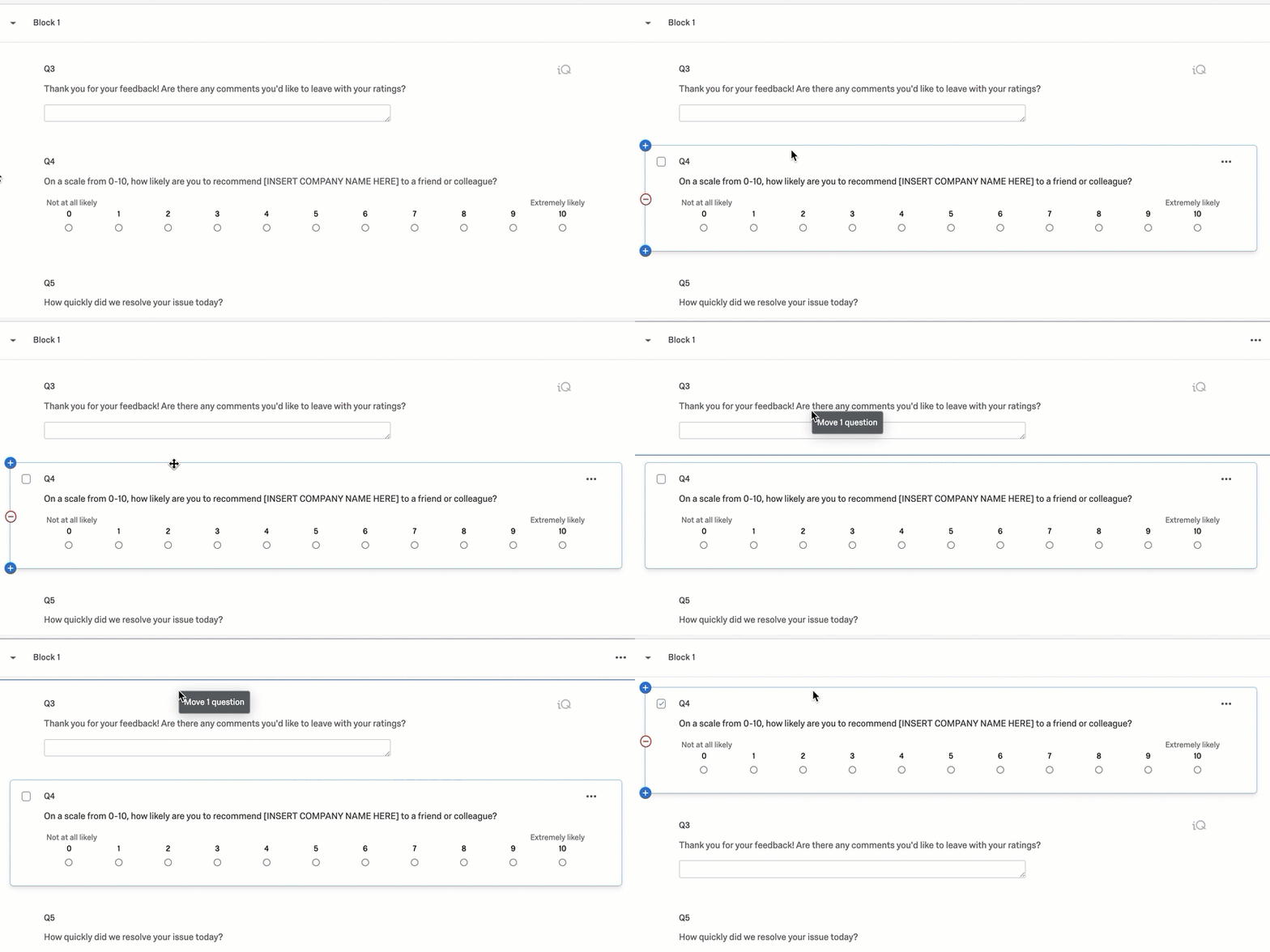
Example: Check out the below GIF demonstrating how to drag and drop a question in the survey builder.
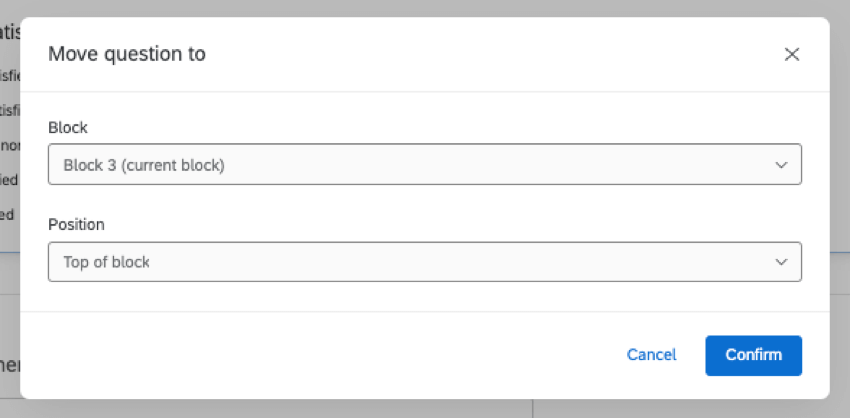
You can also move your questions to a specific part of the survey by clicking the dots in the upper-right of the question, selecting Move question, and selecting a new position in the survey.
Moving Multiple Questions
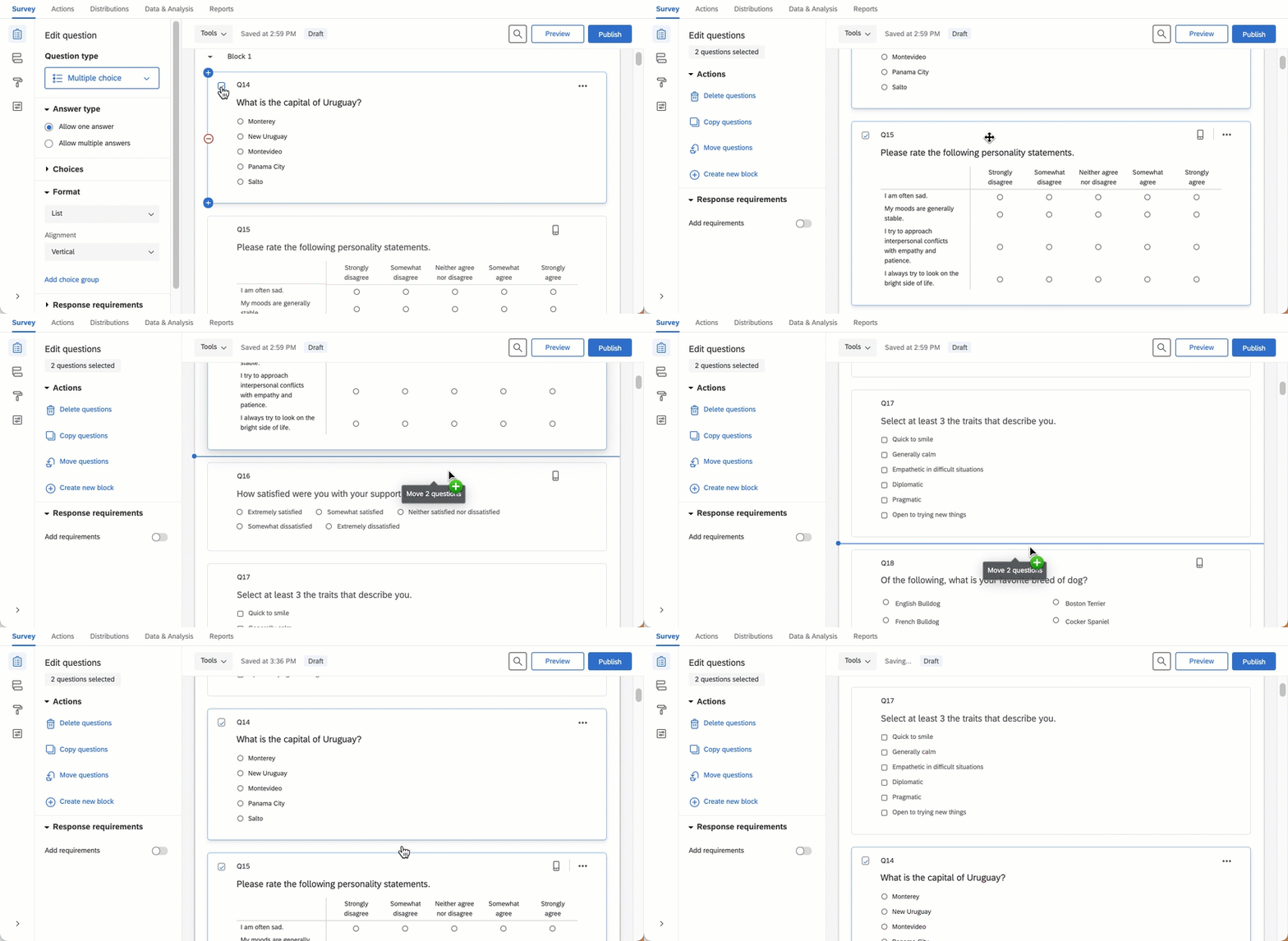
This option lets you move multiple questions at once. This option allows you to move questions as far across the survey as you need.
- Select the questions you’d like to move, which will then have a blue checkmark in the top left corner and be outlined in blue.
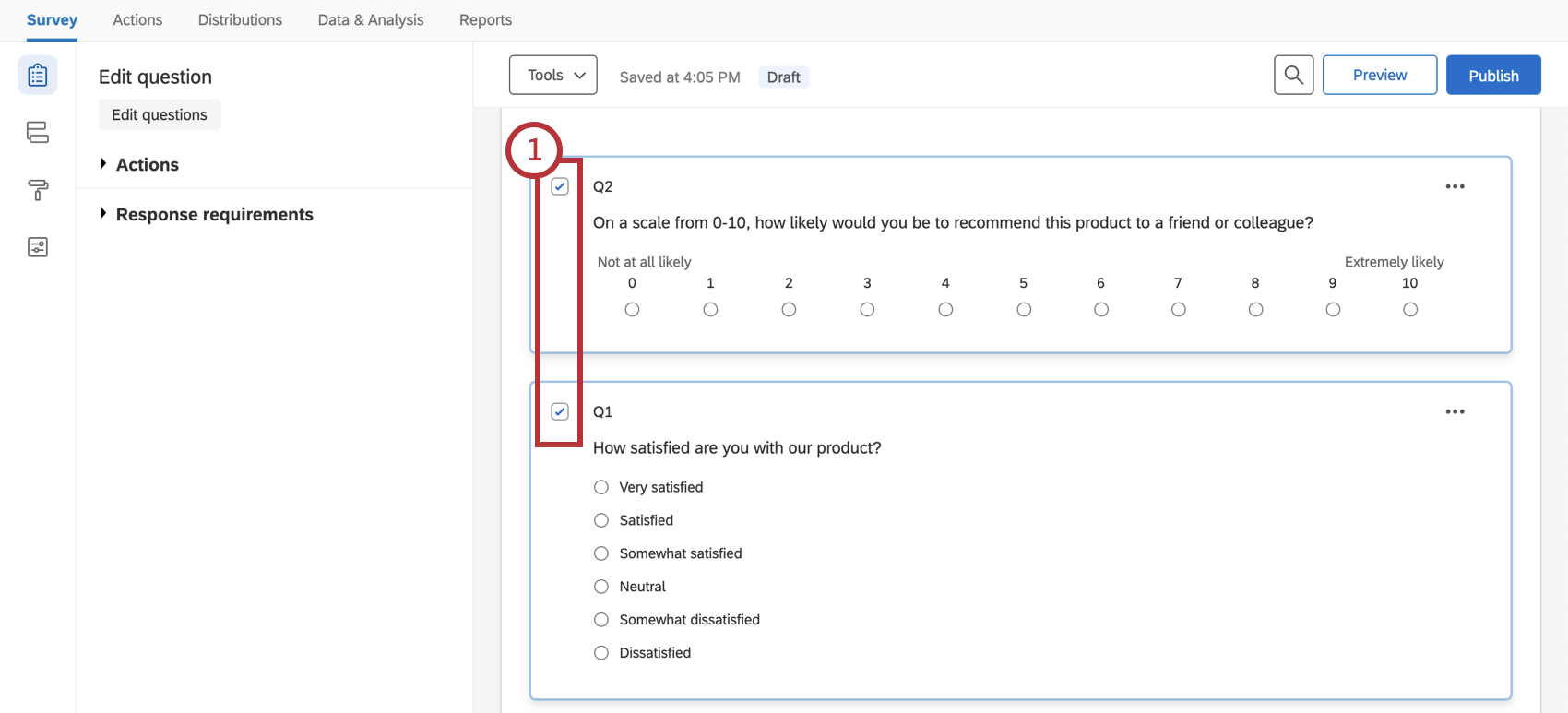 Qtip: You can select multiple questions at once by holding the Shift key on your keyboard when clicking on your questions.
 - Hover your mouse around the border of one of the questions until it makes a four-way arrow.
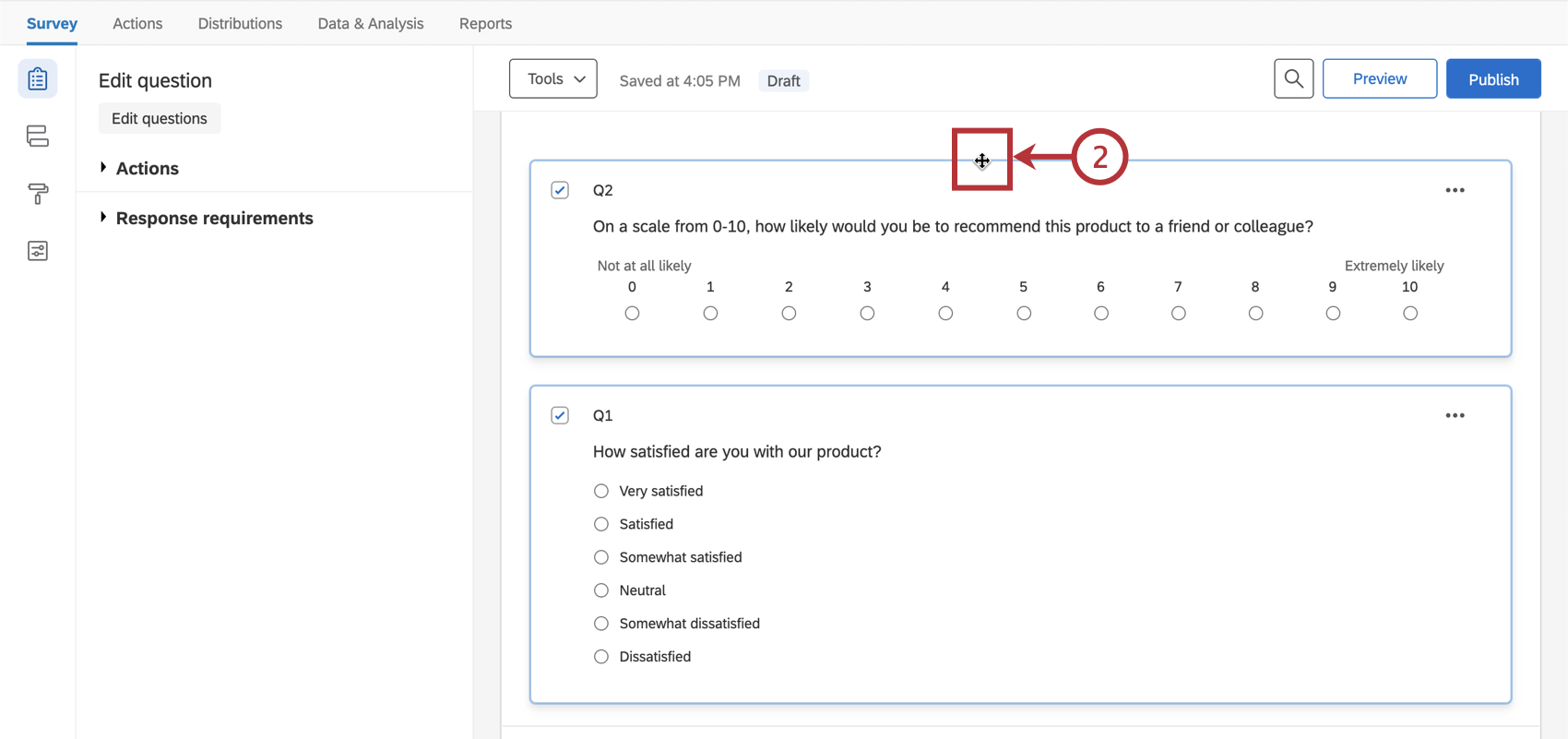
- Click the left mouse button.
- Drag your mouse to where you want to move the questions. A blue line will appear showing where the questions is being moved to.
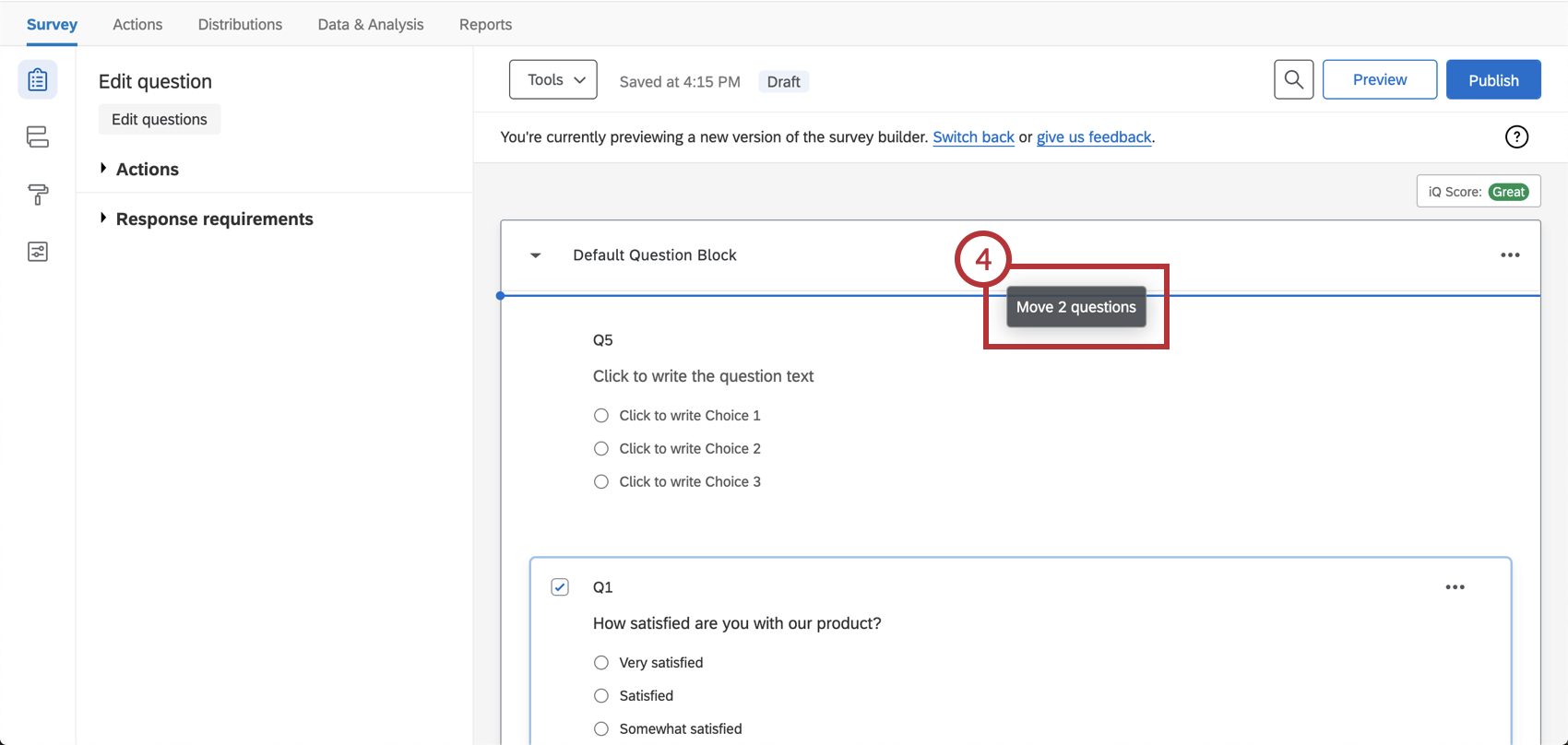
- Release the left mouse button.
Creating Questions in Different Project Types
This support page describes how to create, delete, and move questions in just about every type of project where you customize a survey. This includes:
- Survey projects
- XM Solutions
- Engagement
- Lifecycle
- Ad Hoc Employee Research
- Pulse
- 360
Qtip: For details on customizing 360 surveys, see Creating & Editing Questions (360).
- Conjoint
- MaxDiff