

Panel Company Integration
What's on this page
About Panel Company Integrations
Qtip: Qualtrics provides Panel Services for an additional cost to set up panel company integrations, recruit respondents, and facilitate data collection projects. Fill out this contact form for more information.

If you are using a panel company to distribute your survey to specific respondents, you’ll need to set up your survey to track respondents properly. This page outlines a step-by-step process for your panel company integration.
Understanding Panel Company Integration with Qualtrics
Panel company integration can be complex to set up, so let’s break it down a little before we walk through the setup.
The panel company you are working with is providing you with specific respondents without actually revealing the confidential personal information of each participant.
In order to accomplish this, the panel company has assigned identifying fields or IDs to each participant by using standardized fields such as id, pid, uid, ticket, or others to store the identifying information. The purpose of the integration process is to record each participant’s identifying information inside of Qualtrics and pass back that information to the panel company upon survey completion.
Once the participant completes the survey, the recorded identifying information will be sent back to the panel company through a redirect link. Participants are redirected to the panel company’s website in order to receive compensation, and their identifying information included in redirect link will be used to confirm that compensation.
Warning: The redirect to a URL features available in Qualtrics (which are critical in this setup) are not available to free account users.

As part of the panel company integration process, you will send the anonymous link of your survey to the panel company you are working with. Once the panel company is ready to invite respondents to take the survey, they will create a unique link for each potential respondent by taking the link you sent them and adding the participant’s identifying information to the end of the link. Later on, when a participant clicks the link to the survey, they will carry with them their own unique information into the survey.
In addition, the panel company will send you three or four “redirect” website addresses (or redirect links). Every respondent that comes from your panel company (and does not drop out of the survey early) should be redirected back to one of those addresses. Depending on whether the respondent finished the survey completely (Complete), got screened out because they did not qualify to take the survey (Screen Out), attempted to take the survey after you have collected the responses you need (Over Quota), or gave low quality responses (Quality Check), they should be redirected to a different link.
All survey participants should be redirected to the panel company’s website, but depending on their status, they may or may not receive compensation. The redirect links must be modified to insert each participant’s identifying information. All of these steps mentioned will be explained in the following sections below.
Providing the Panel Company Your Survey Link
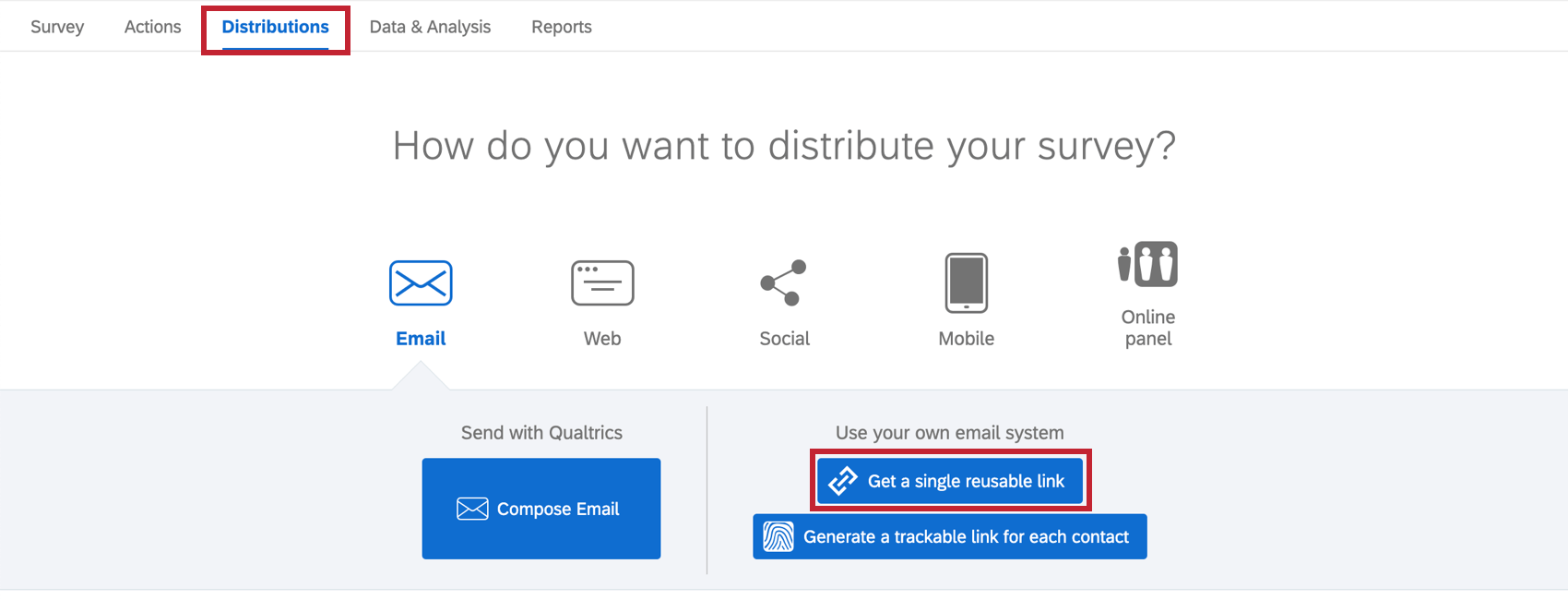
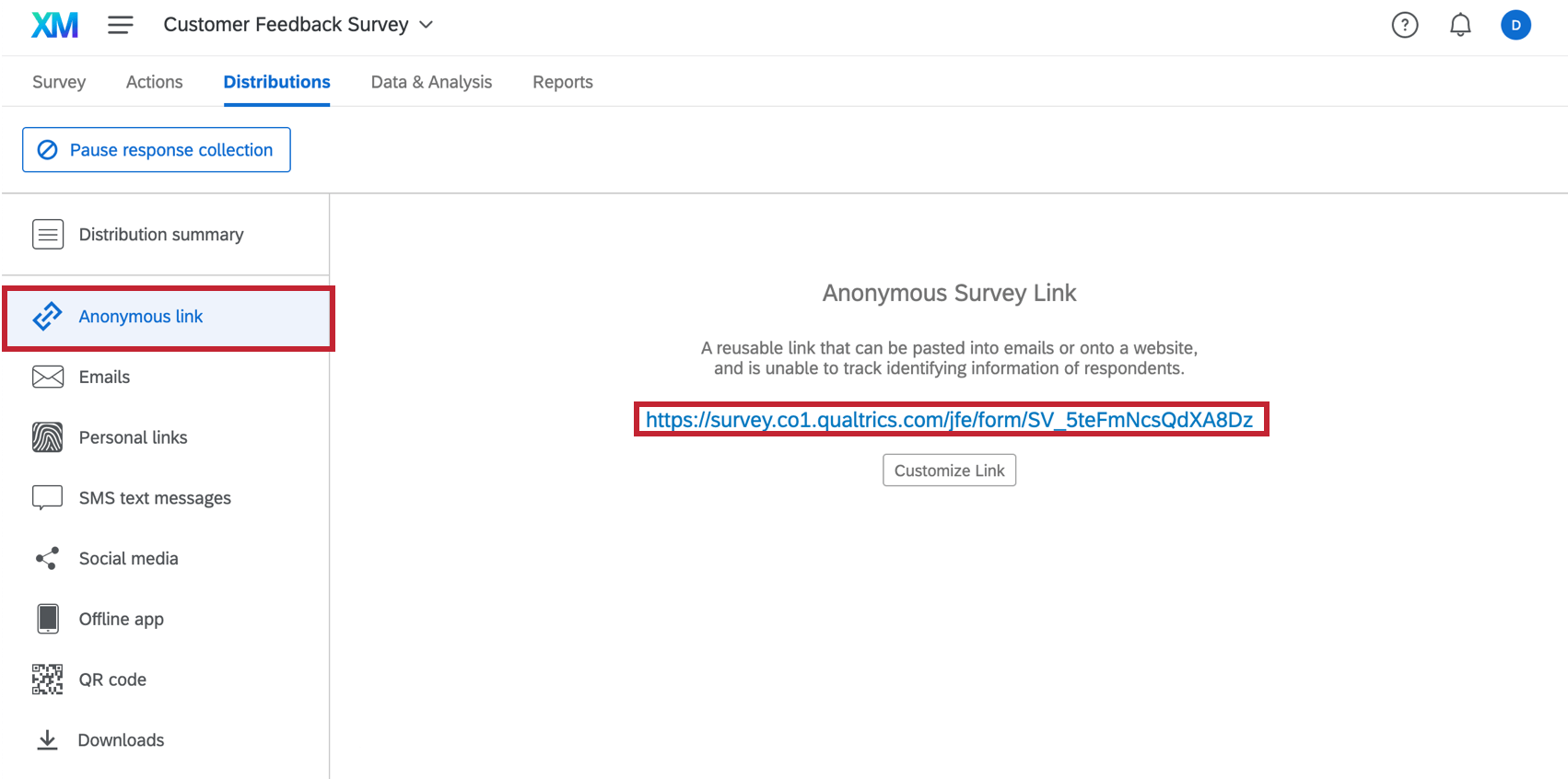
You will need to give the panel company your anonymous link. The panel company will attach identifying information to the end of this link when distributing the survey so that they can track respondents.
To provide the Anonymous Link
Modifying the Redirect Links Provided by the Panel Company
Your panel company may send you up to four redirect links to insert in your survey that correspond to different completion statuses: Screen-out, Over Quota, Quality Check, and Complete Response.
If you don’t have the redirect links, contact the panel company. These links will be used to send the respondents back to the panel company’s website for compensation upon completing the survey.
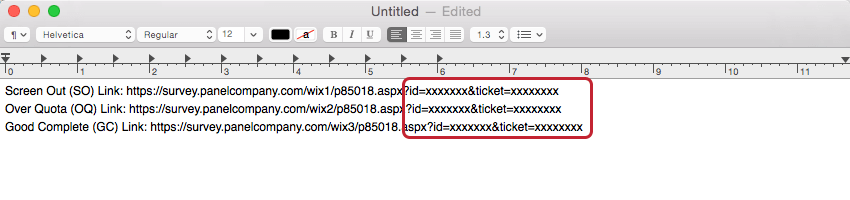
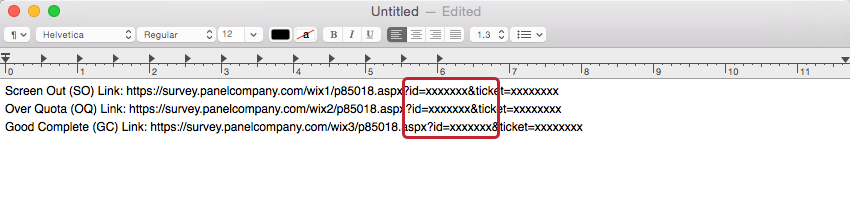
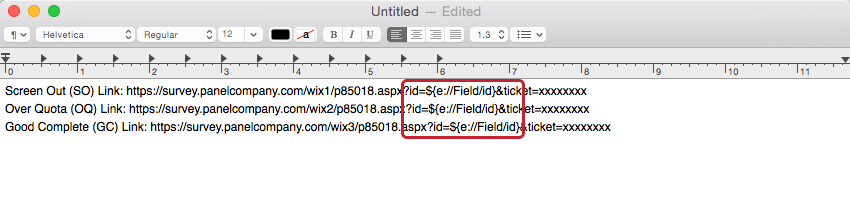
To modify the redirect links
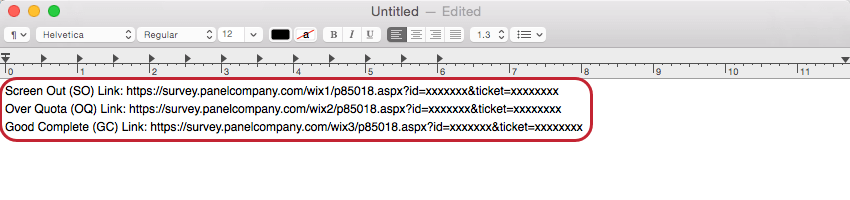
&id= &pid= &uid= &ticket= 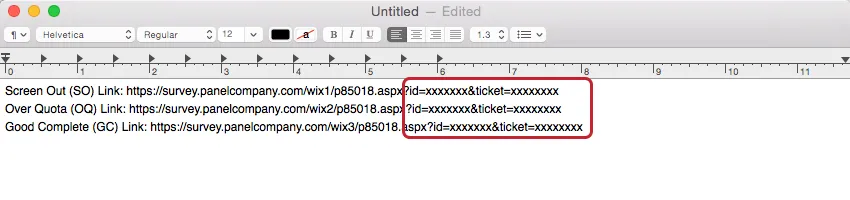
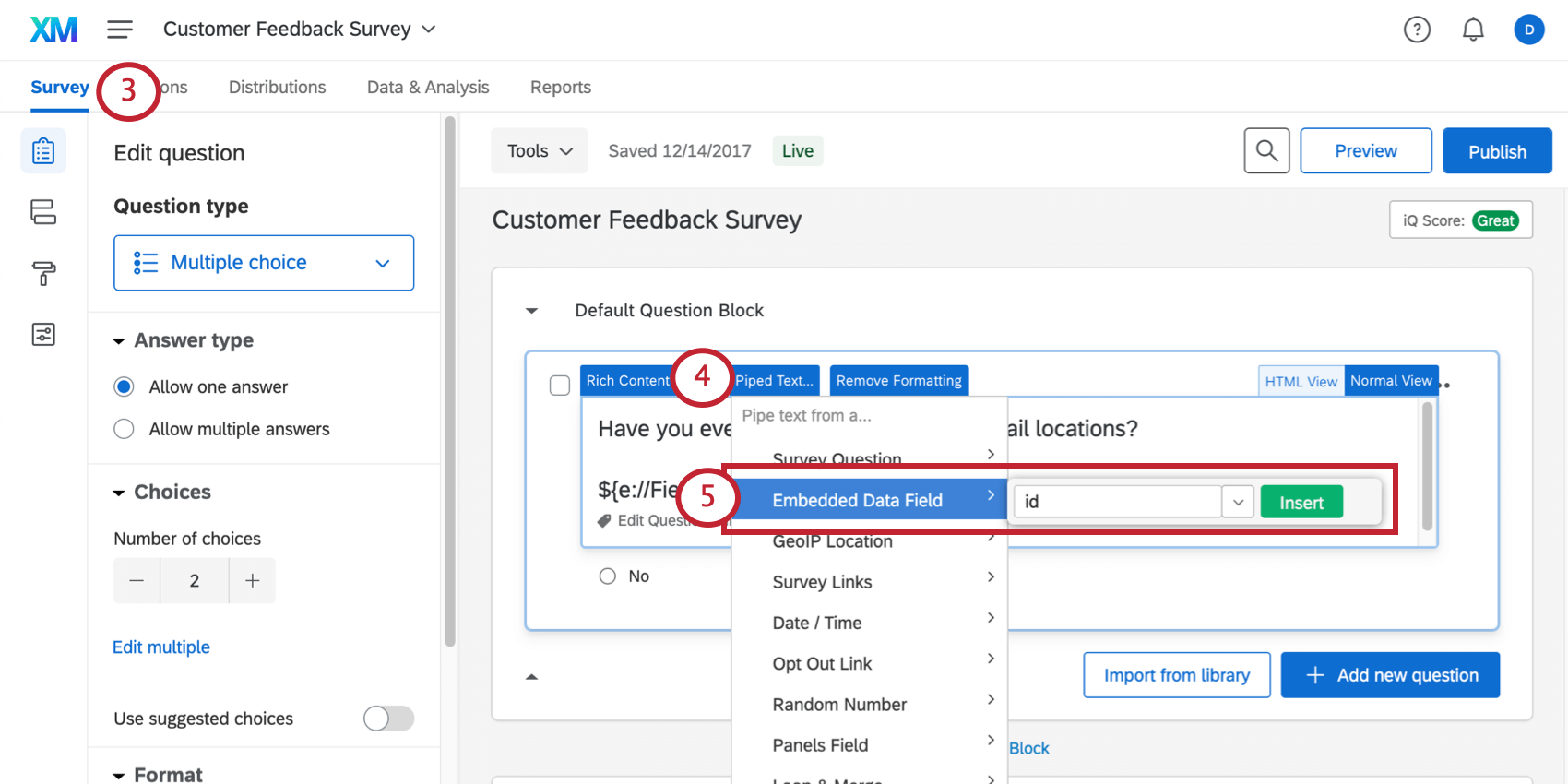
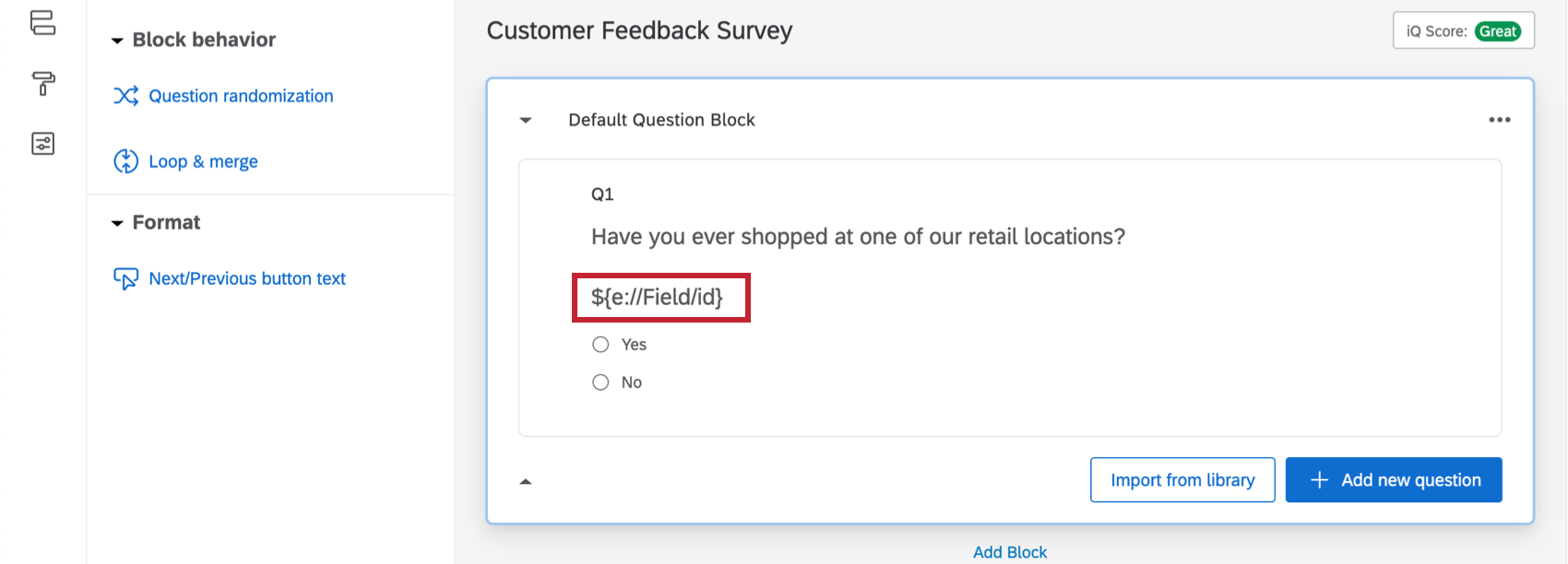
Qtip: These are identifying fields added to the end of the links and will be recorded in Qualtrics as embedded data (see Recording Identifying Fields below). Note that you might see other fields not included in the list above.
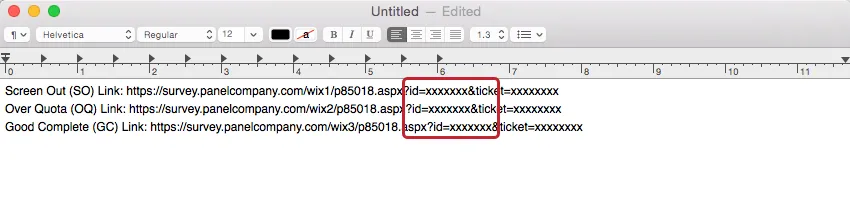
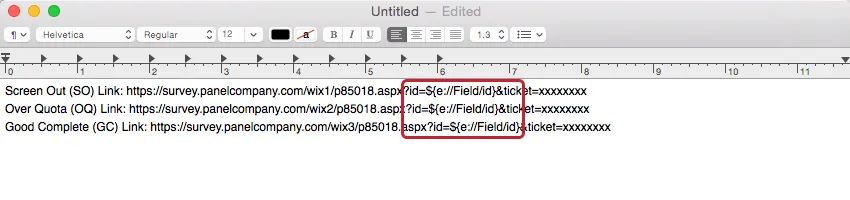
Example: a link with two fields at the end might look something like
https://survey.panelcompany.com/wix1/p8501.aspx?stat=1&id=${e://Field/id}&ticket=${e://Field/ticket}

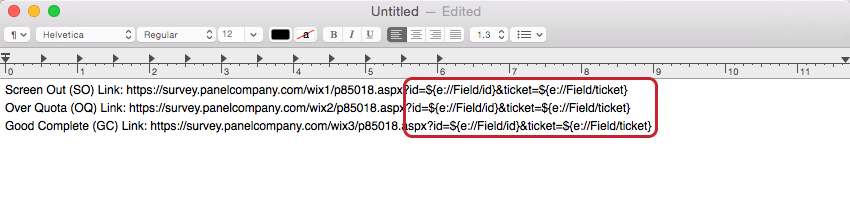
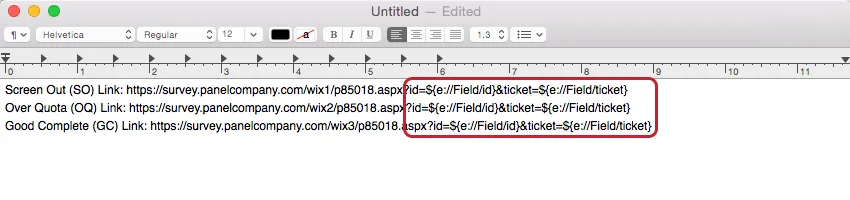
- Screen-out Link:
https://survey.panelcompany.com/wix1/p8501.aspx?stat=1&id=${e://Field/id}&ticket=${e://Field/ticket} - Over Quota Link:
https://survey.panelcompany.com/wix2/p8501.aspx?stat=1&id=${e://Field/id}&ticket=${e://Field/ticket} - Quality Check Link:
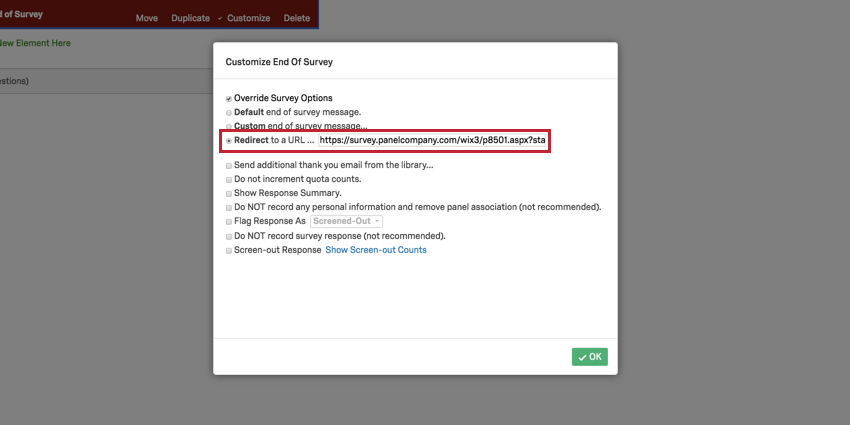
https://survey.panelcompany.com/wix3/p8501.aspx?stat=1&id=${e://Field/id}&ticket=${e://Field/ticket} - Complete Response Link:
https://survey.panelcompany.com/wix4/p8501.aspx?stat=1&id=${e://Field/id}&ticket=${e://Field/ticket}
Adding the Links into Your Survey
The panel company will have specified which redirect link is for Screen-outs, Over Quotas, Quality Checks, and for Complete Responses. If you don’t have any screening criteria in your survey, you won’t need the Screen-out link. Similarly, if you don’t have any quotas in your survey, you won’t need the Over Quota link, and if you don’t have any quality checks in your survey, you won’t need the Quality Check link.
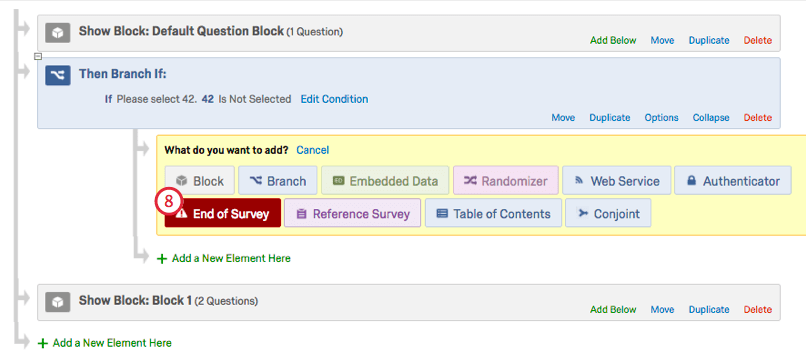
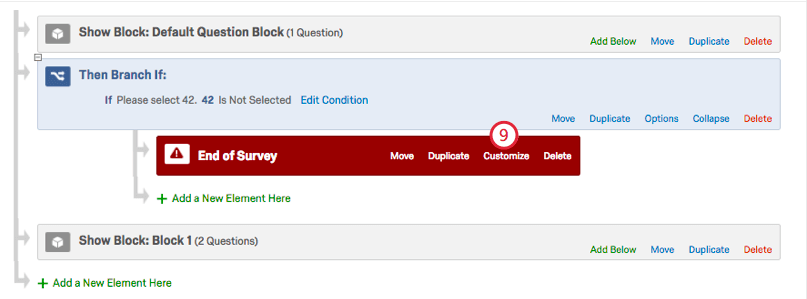
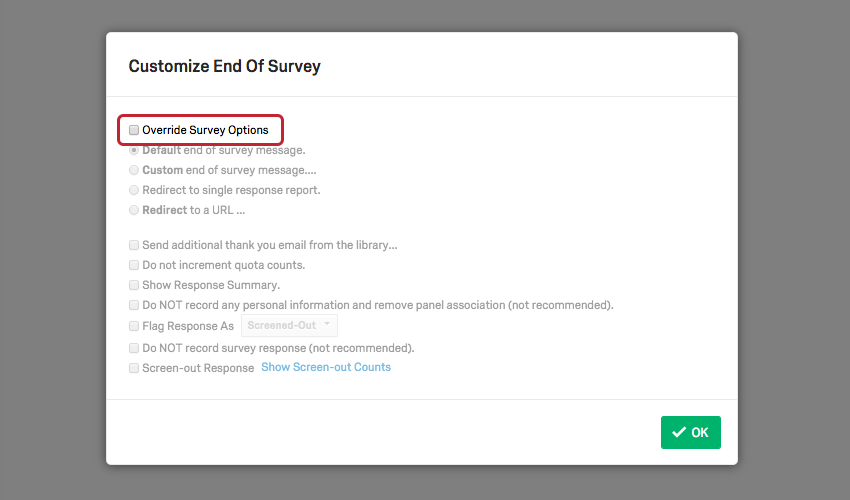
Warning: For participants to be guided to these redirect links correctly, it is imperative that your survey does not have any skip logic set to end of survey. Skipping participants directly to the end of the survey will bypass the integration.
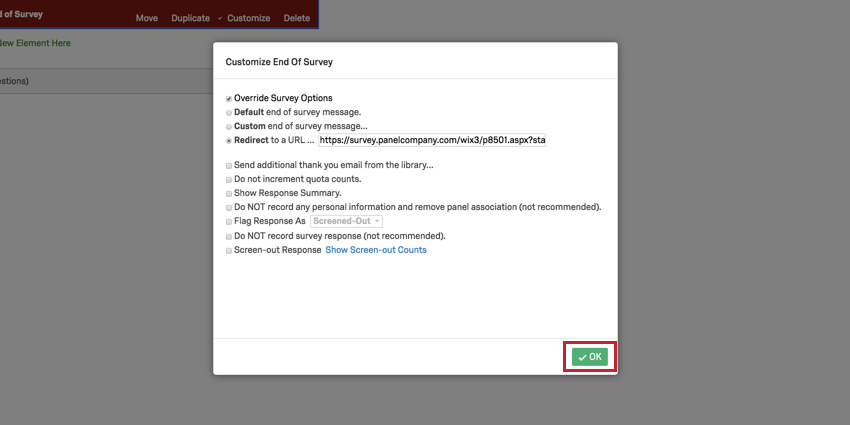
To insert a Complete Response link
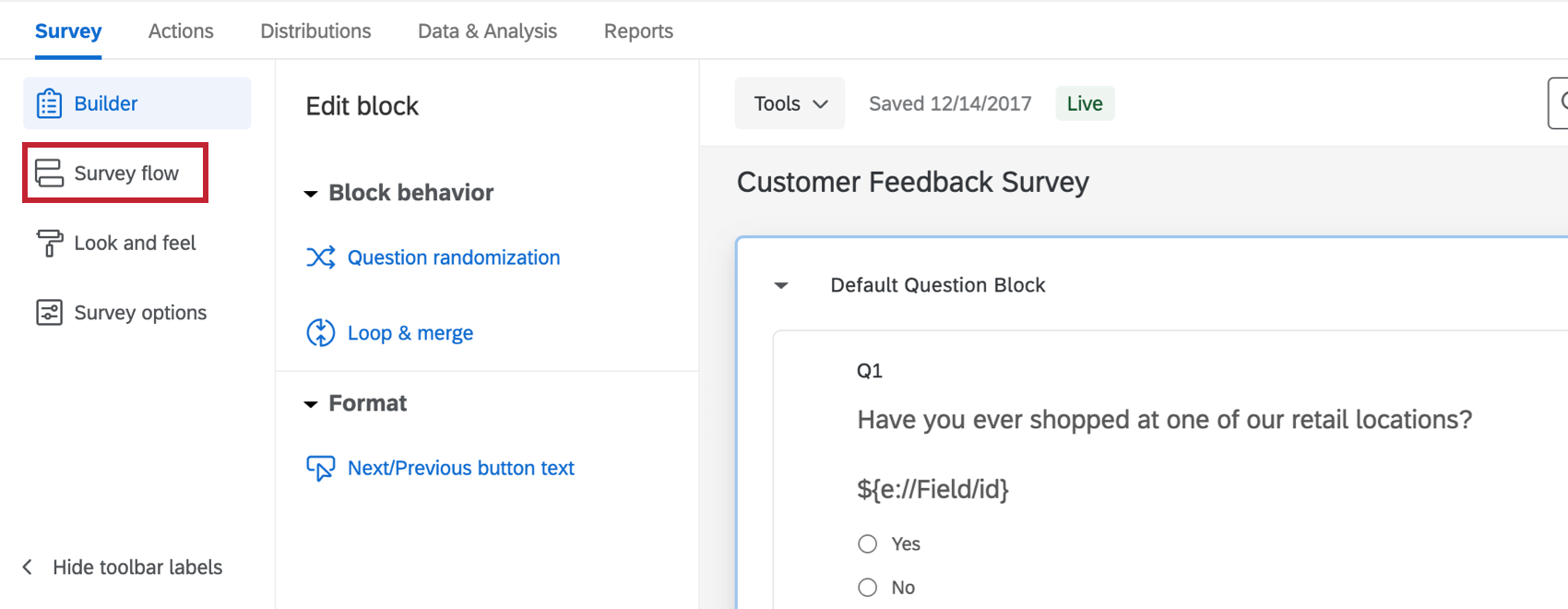
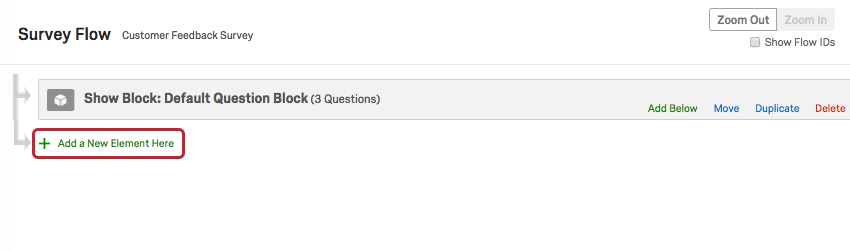
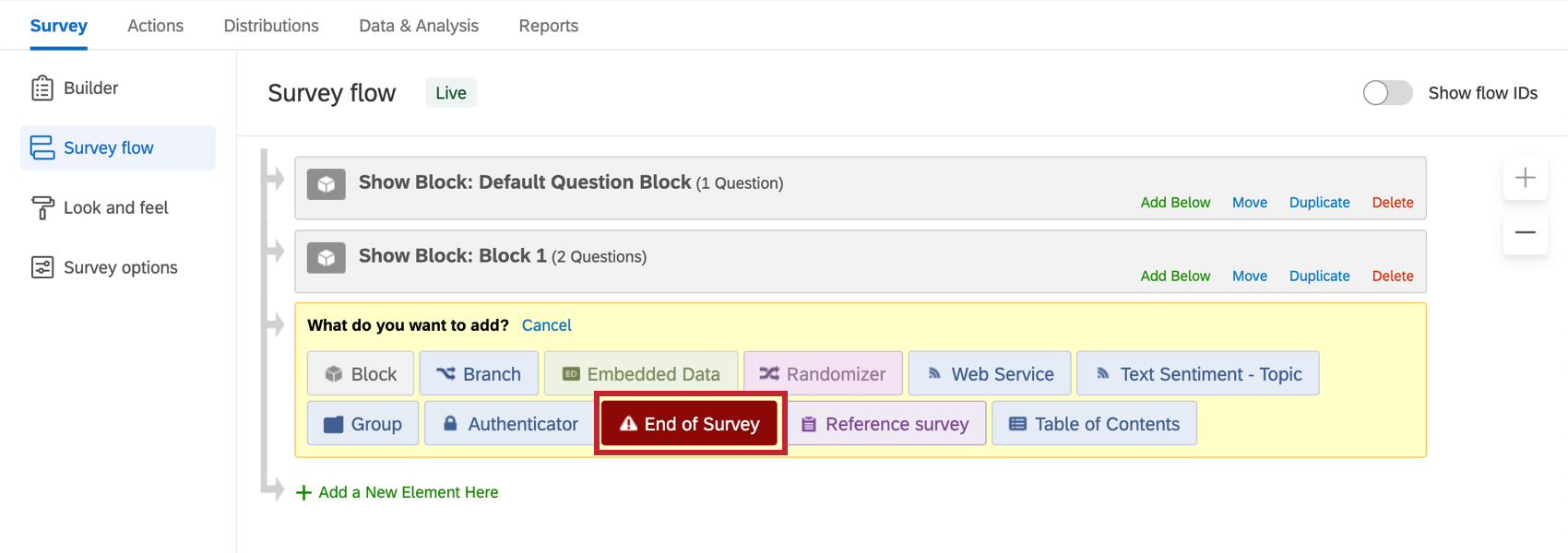
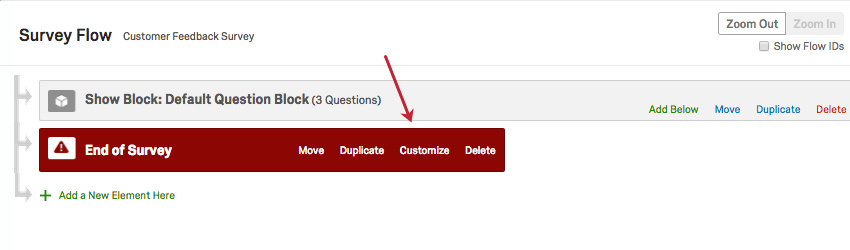
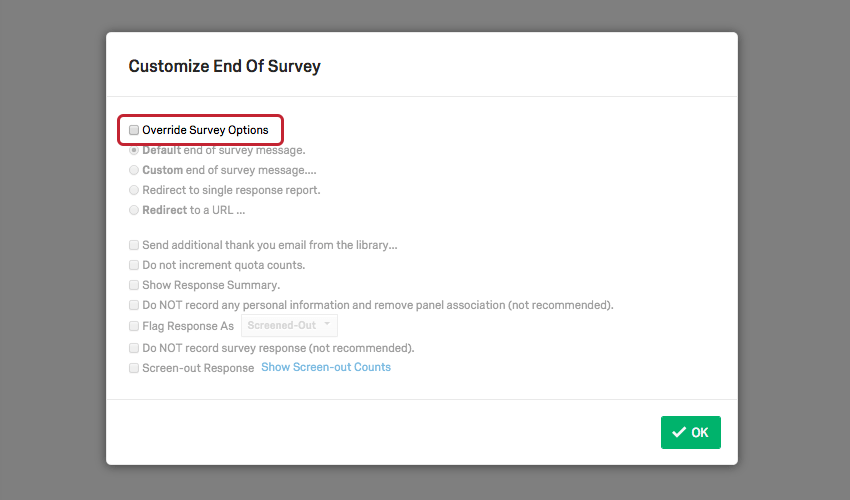
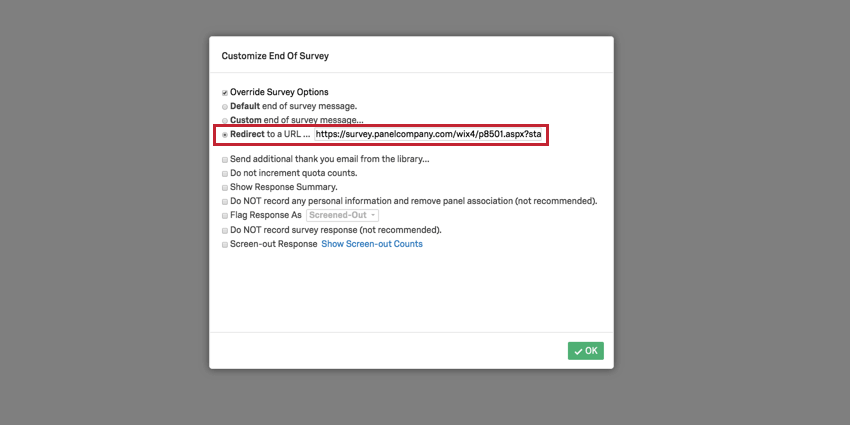
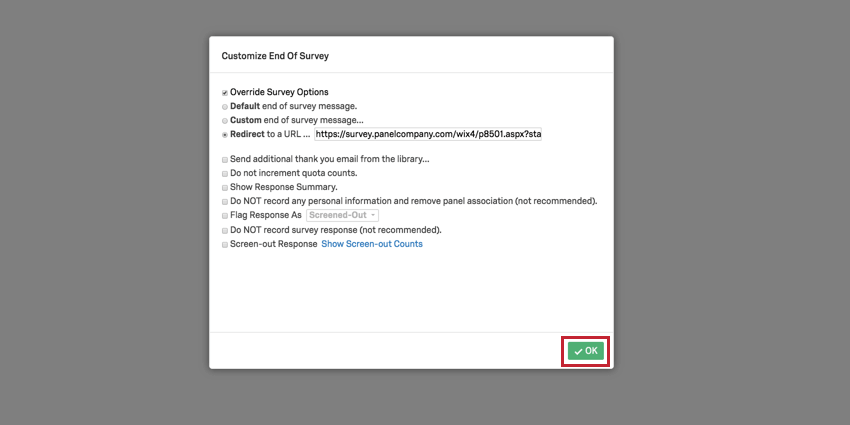
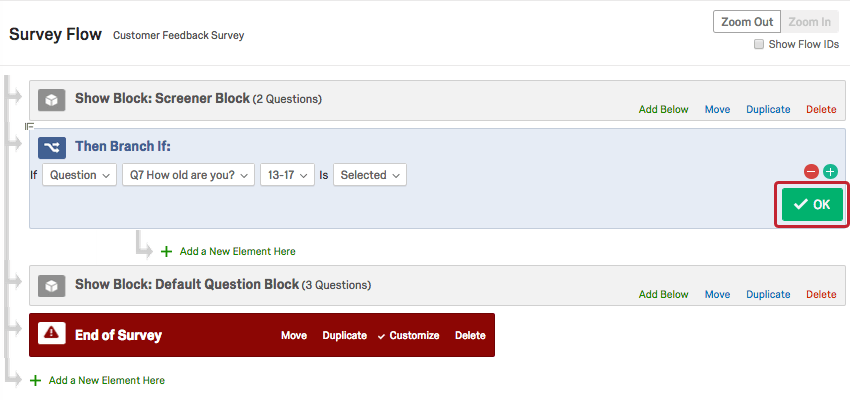
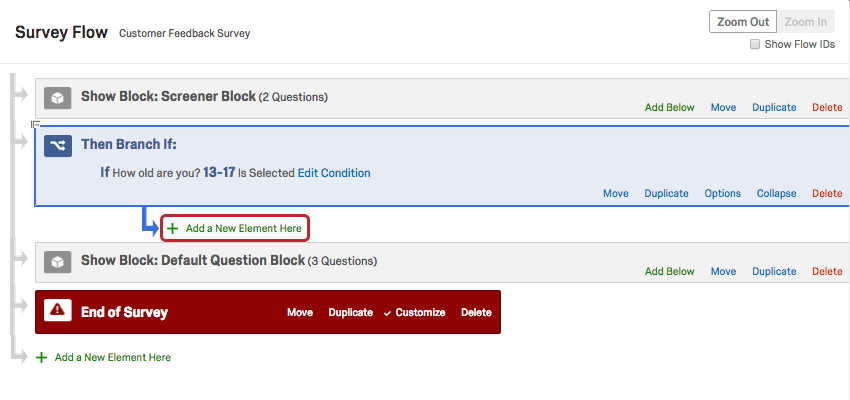
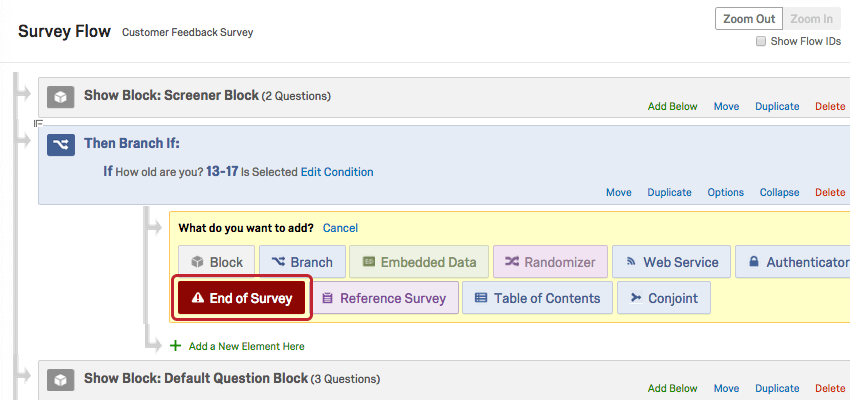
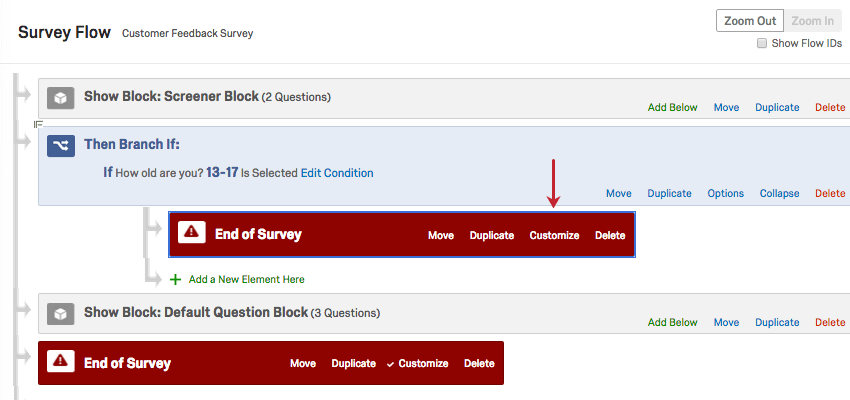
To insert a Screen-out link
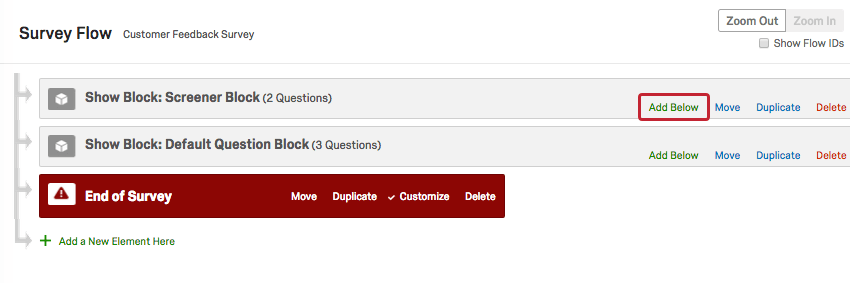
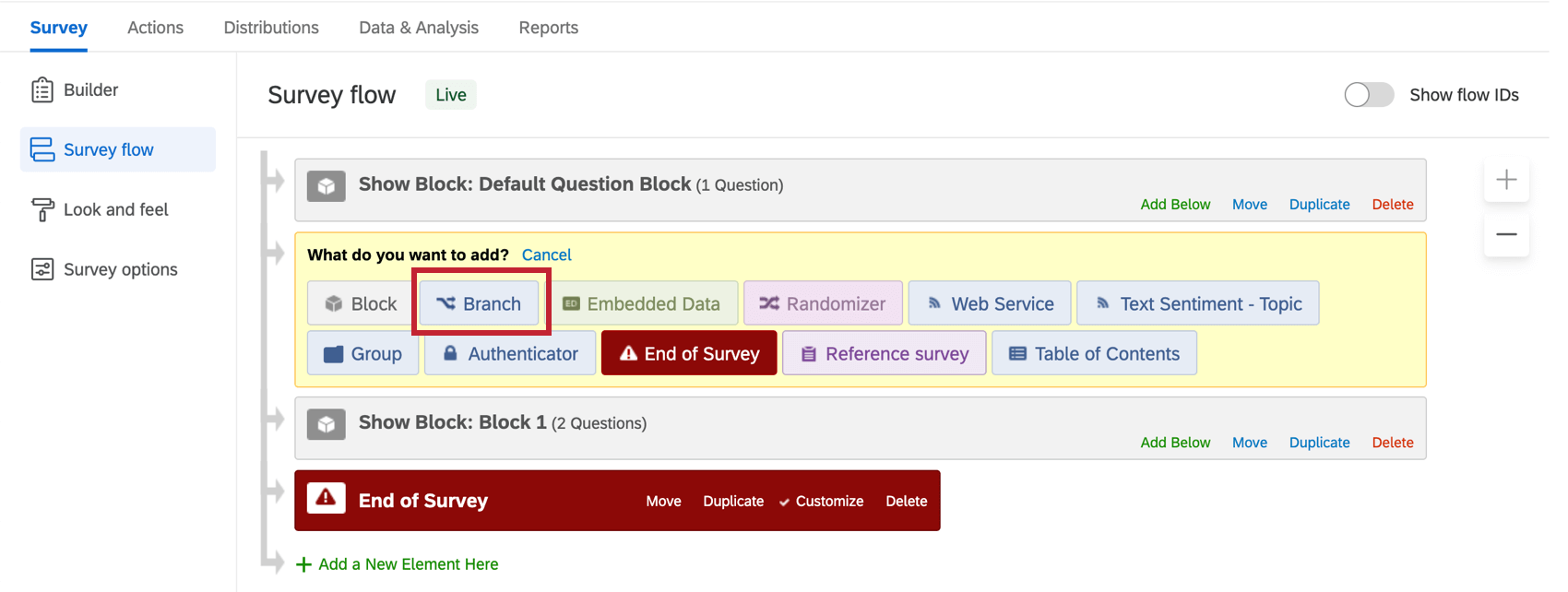
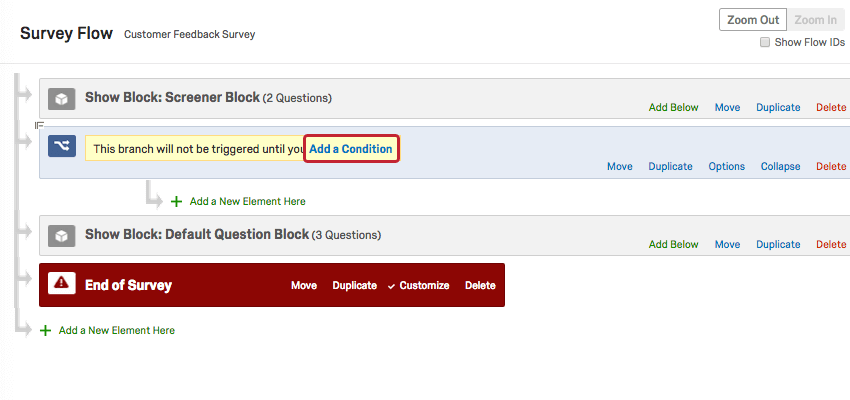
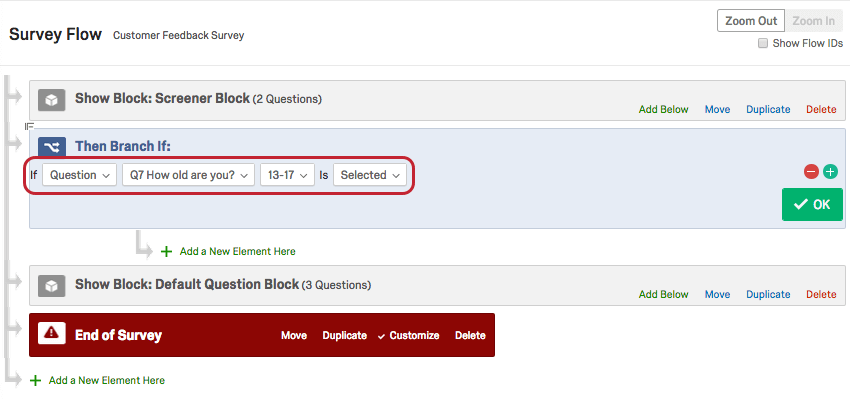
Qtip: For more information on working with branch logic, refer to our Branch Logic page.
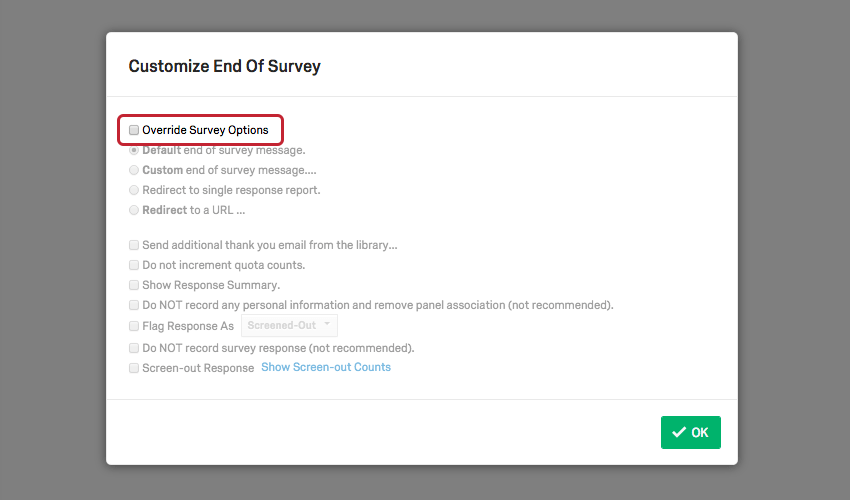
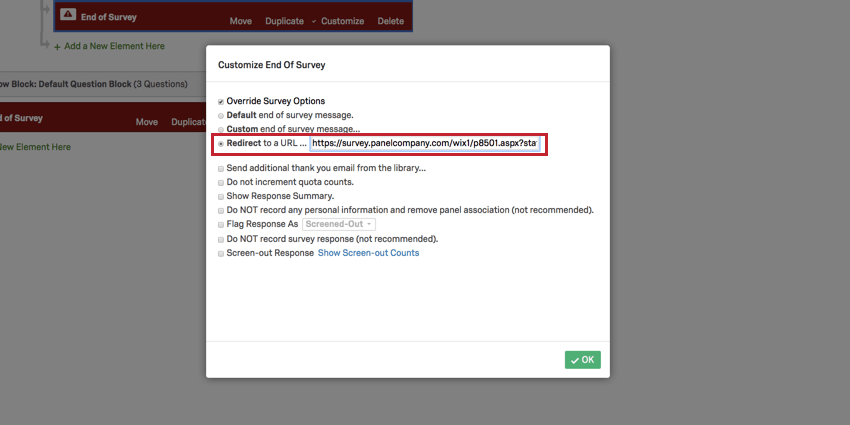
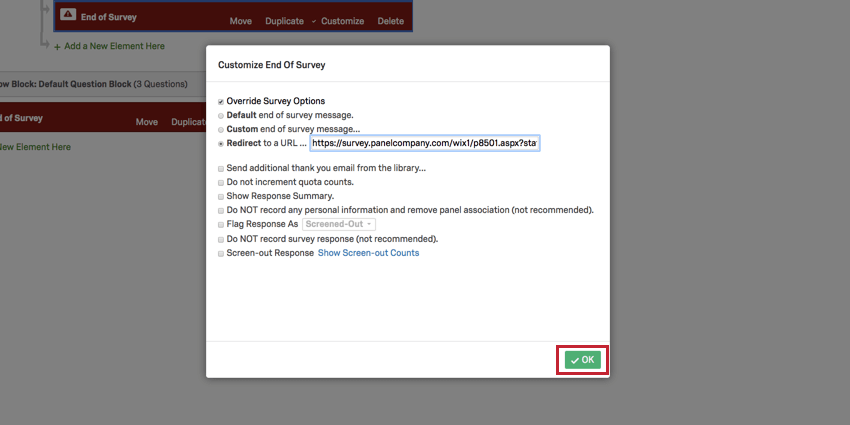
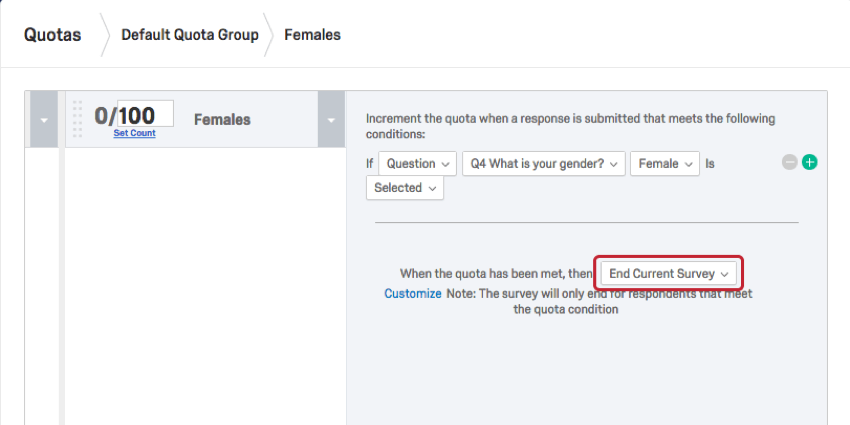
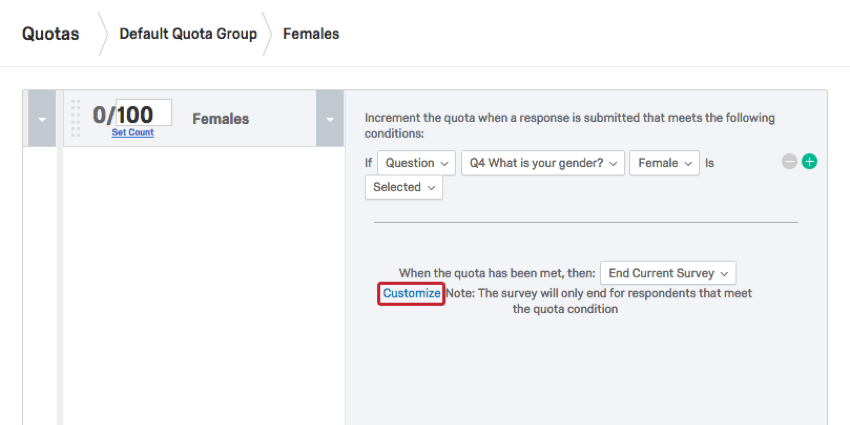
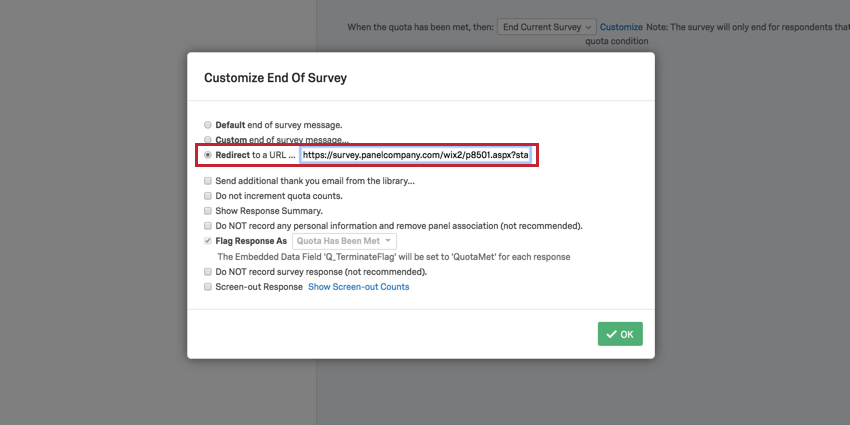
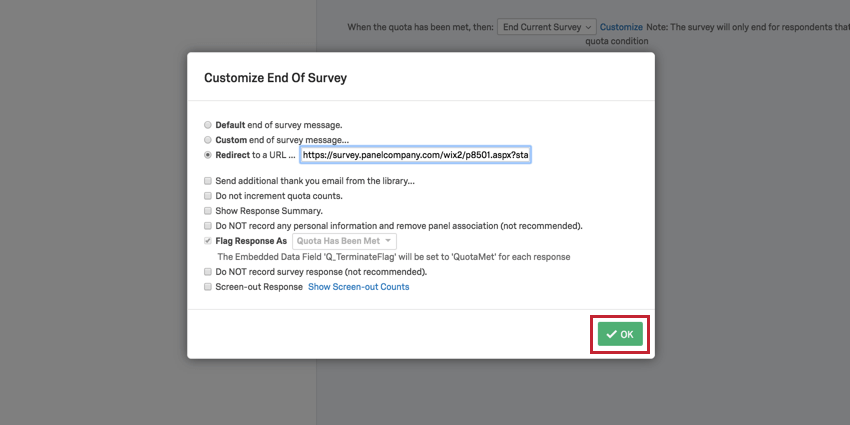
To insert an Over Quota link
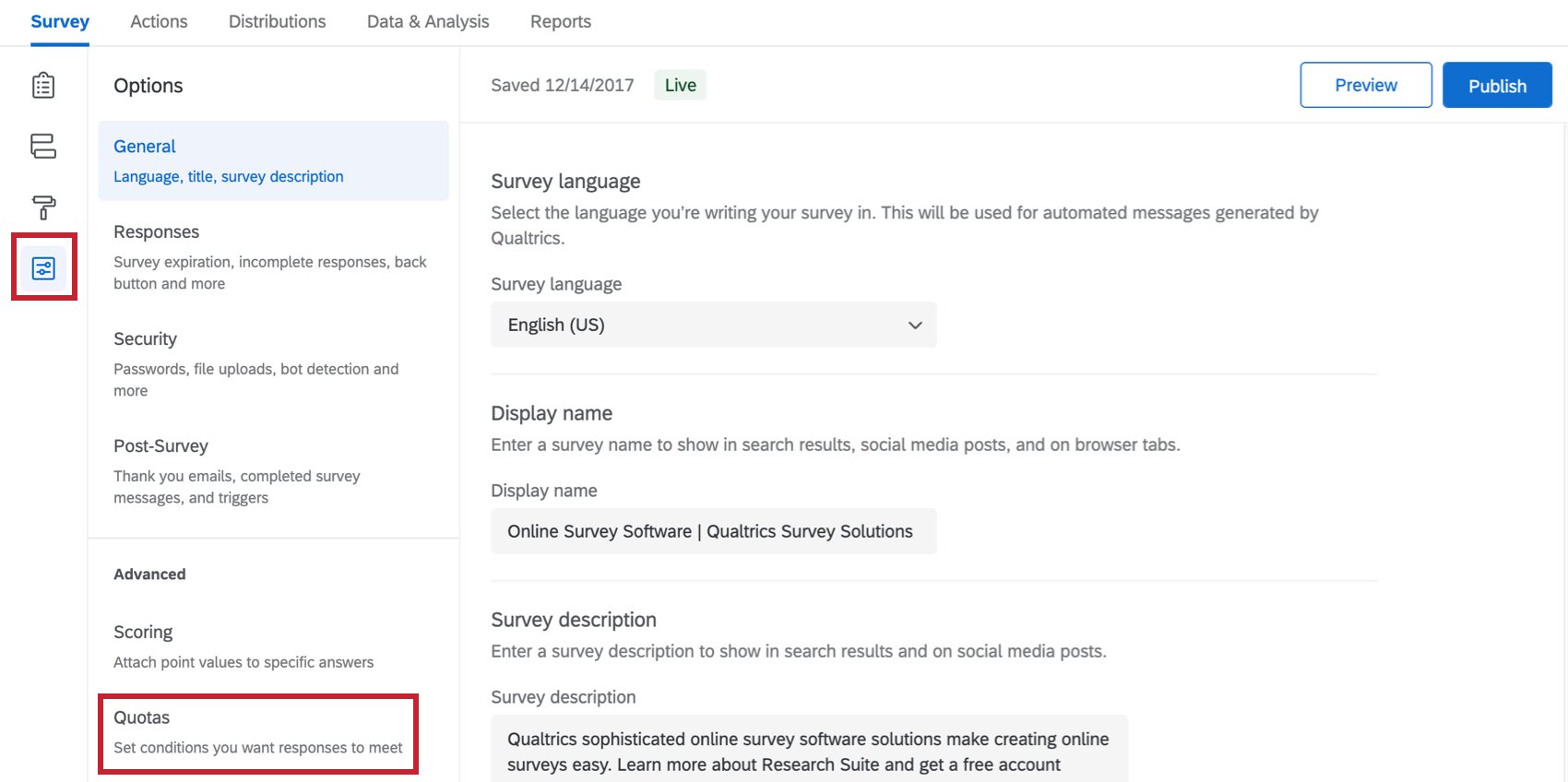
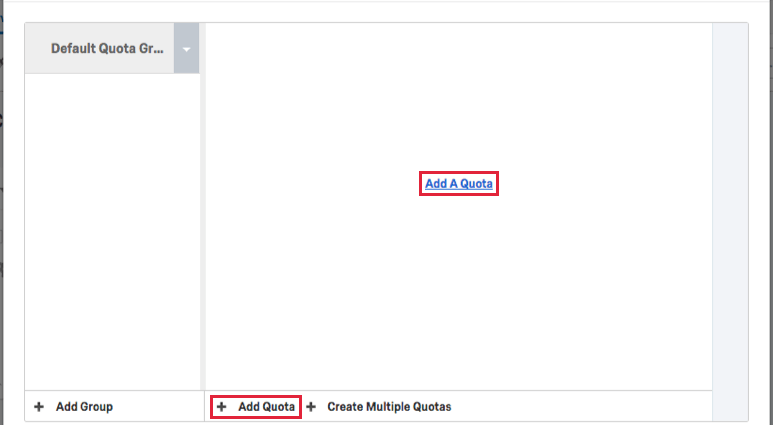
Qtip: For more information on setting up quotas, refer to our Quotas page.
To insert a Quality Check link
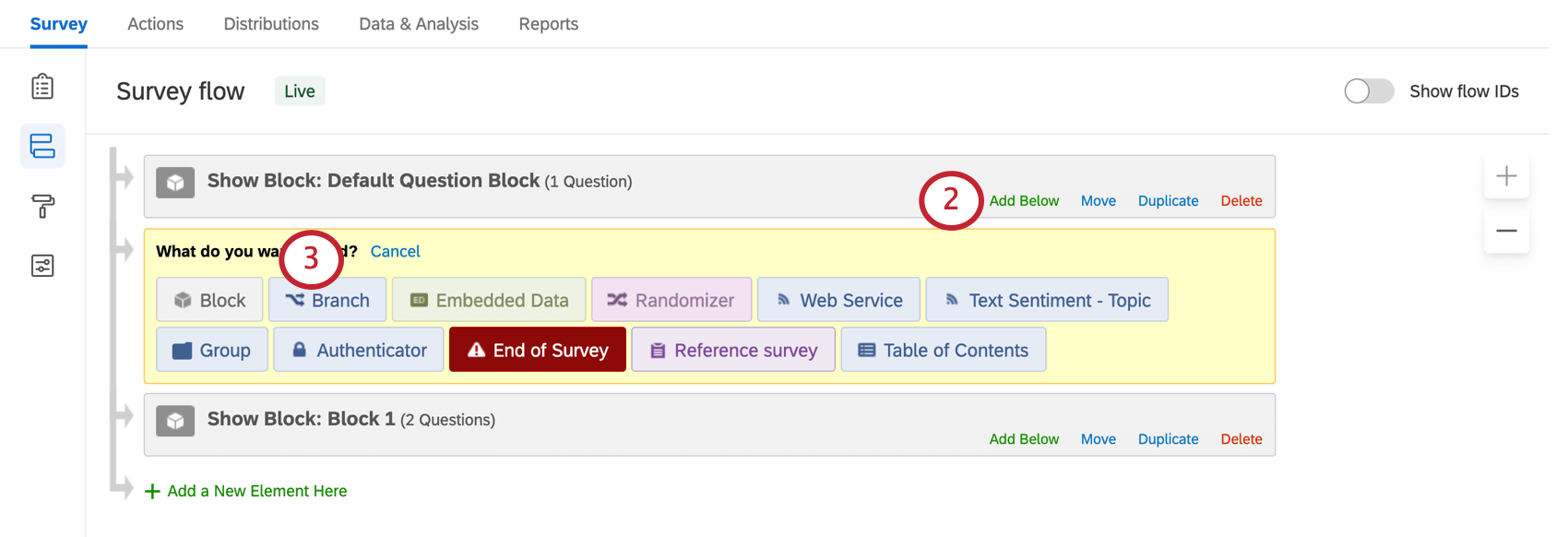
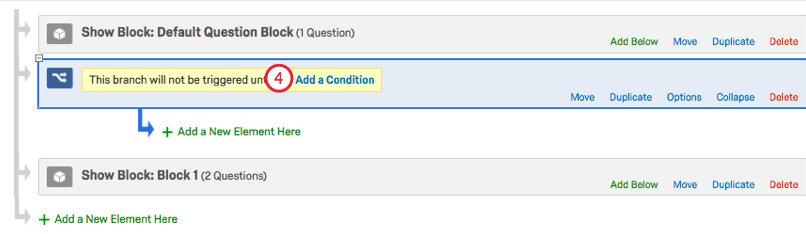
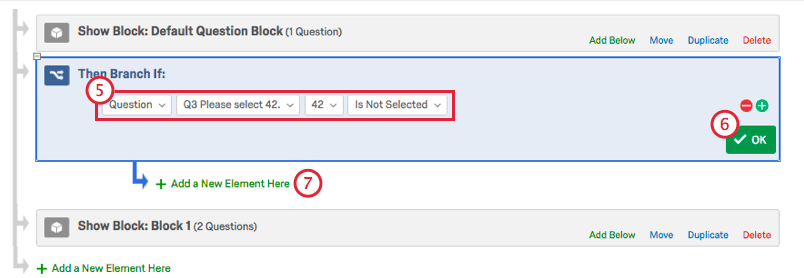
Qtip: For more information on working with branch logic, refer to our Branch Logic page.
Recording Identifying Fields
Once you have inserted your modified redirect links into the correct areas of your survey, you will need to make sure you are recording the correct identifying fields for the integration to work.
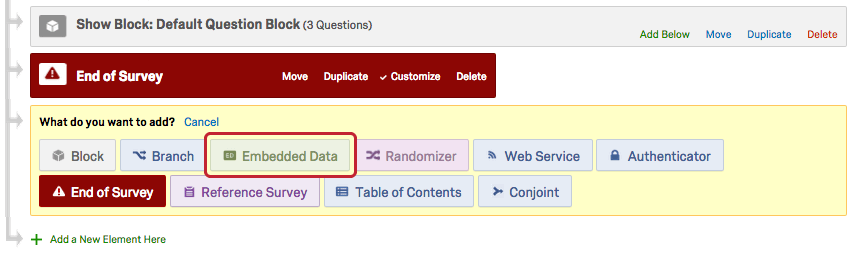
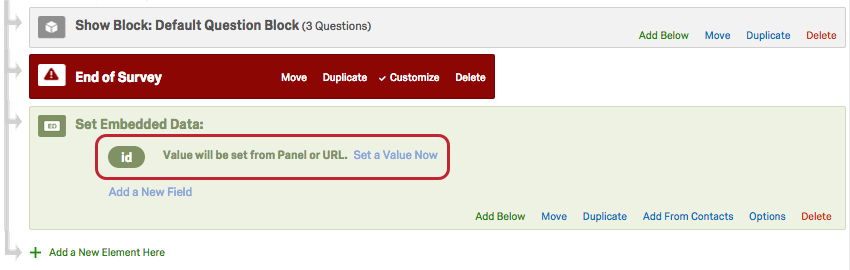
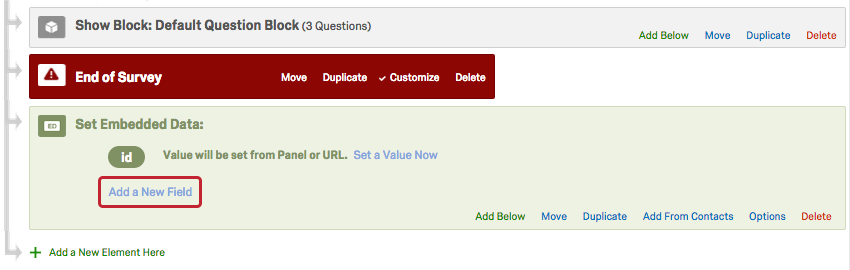
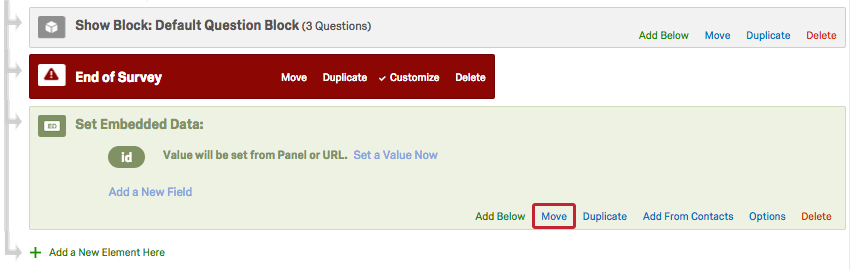
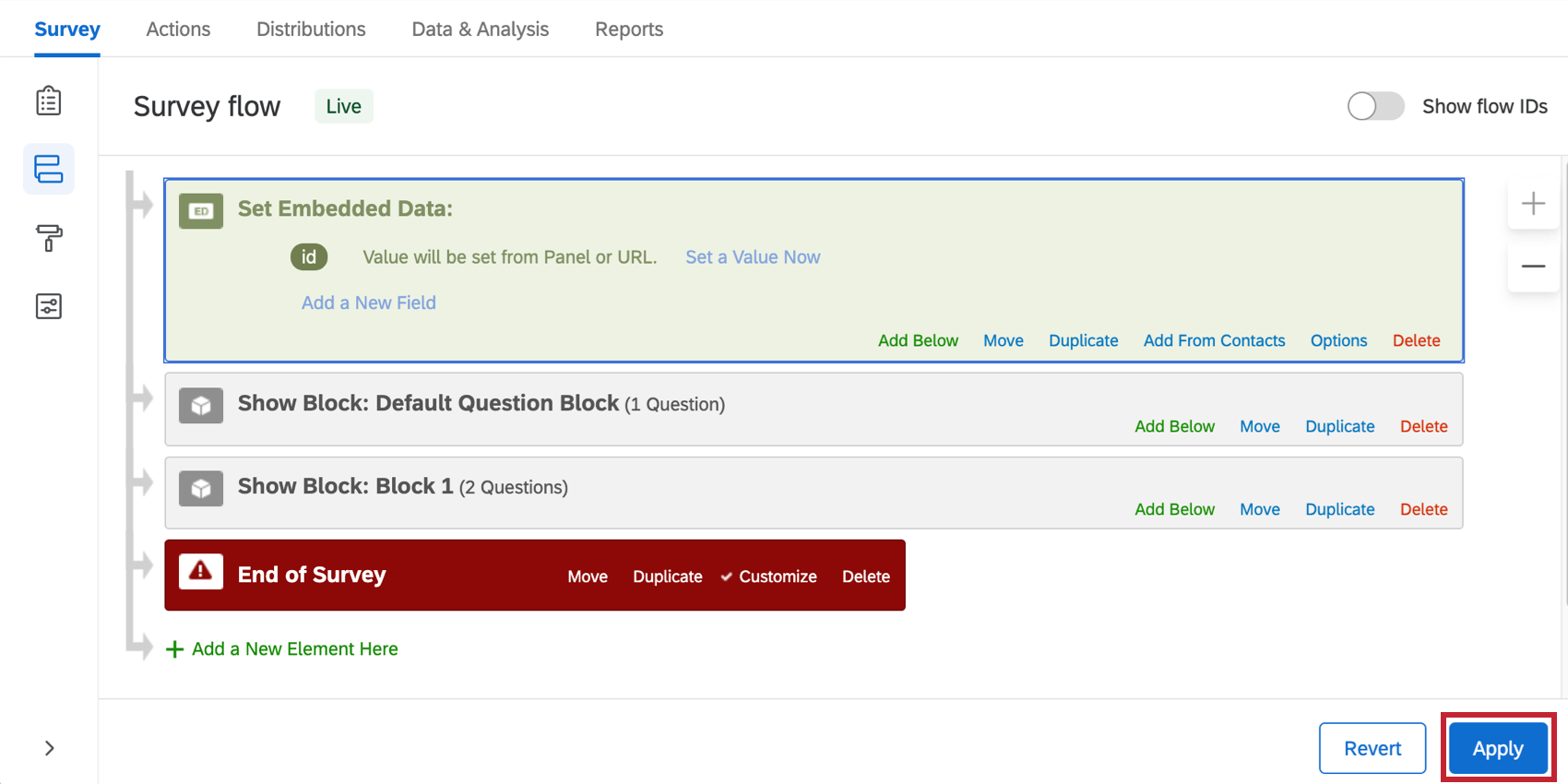
You can check this by adding embedded data to the survey flow so that all of the identifying fields are properly recorded and can be sent back to the panel company’s website when they are redirected by the modified links.
To record identifying fields

FAQs
I am working with an outside sample provider and they gave me an over quota link. What do I do with it?
I am working with an outside sample provider and they gave me an over quota link. What do I do with it?
Many third-party sample providers will provide you with an "over-Quota" link. This link enables the company you are working with to know which respondents met the conditions for your survey but were over the quota limit. You can use this link as part of the End current survey quota option. After selecting End Current Survey, choose Redirect to a URL and insert the link into the space provided.
Keep in mind that most companies will require you to customize the link they have sent you so that it captures and sends some kind of participant identifier.
To learn more about the process of formatting an over-quota link correctly, visit our Panel Company Integration page.
How can I use the information my panel company gives me in my Qualtrics survey?
How can I use the information my panel company gives me in my Qualtrics survey?
That's great! Thank you for your feedback!
Thank you for your feedback!