

Retake Survey Link
What's on this page
About the Retake Survey Link
Retake survey links allow you or your respondent to go back into a survey response and edit it after it’s been submitted. This is useful if a respondent wants to change their answer to a question, or if the respondent’s incomplete response was closed because of inactivity, but they would still like to finish the survey.
This page covers how retake links work in surveys, XM Solutions, Conjoints, and MaxDiff projects. For retakes in Employee Experience projects, see either Retake Survey Link (EX) or Retake Survey Link (360).
Qtip: Although you can issue retake links for any recorded response, responses in progress must be closed and moved to recorded responses first. See Responses in Progress for instruction on closing responses.

Warning: If you issue a retake link and the respondent completes it, the retake counts as a new survey session and will count towards your auditable responses.

Retake Link Types
There are 2 types of Retake Survey links:
- Retake Response: The edited response replaces the original response.
- Retake as New Response: The edited response is saved in addition to the original response.
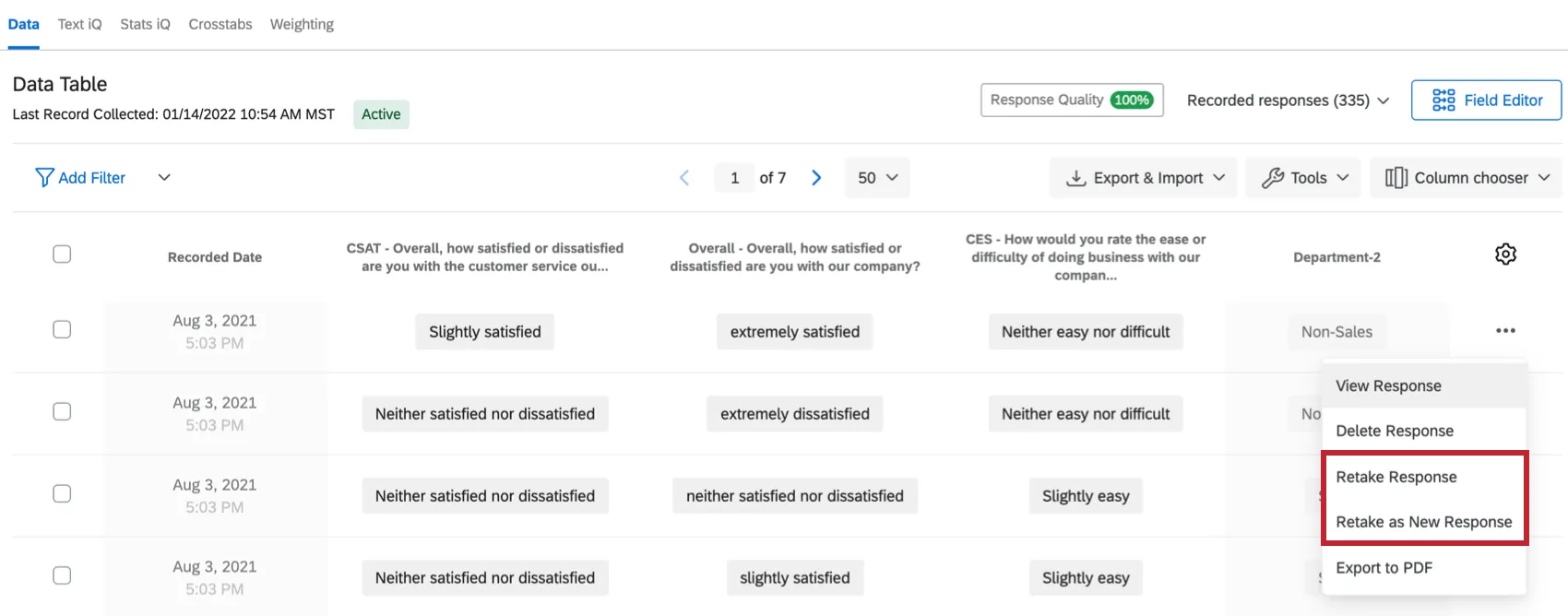
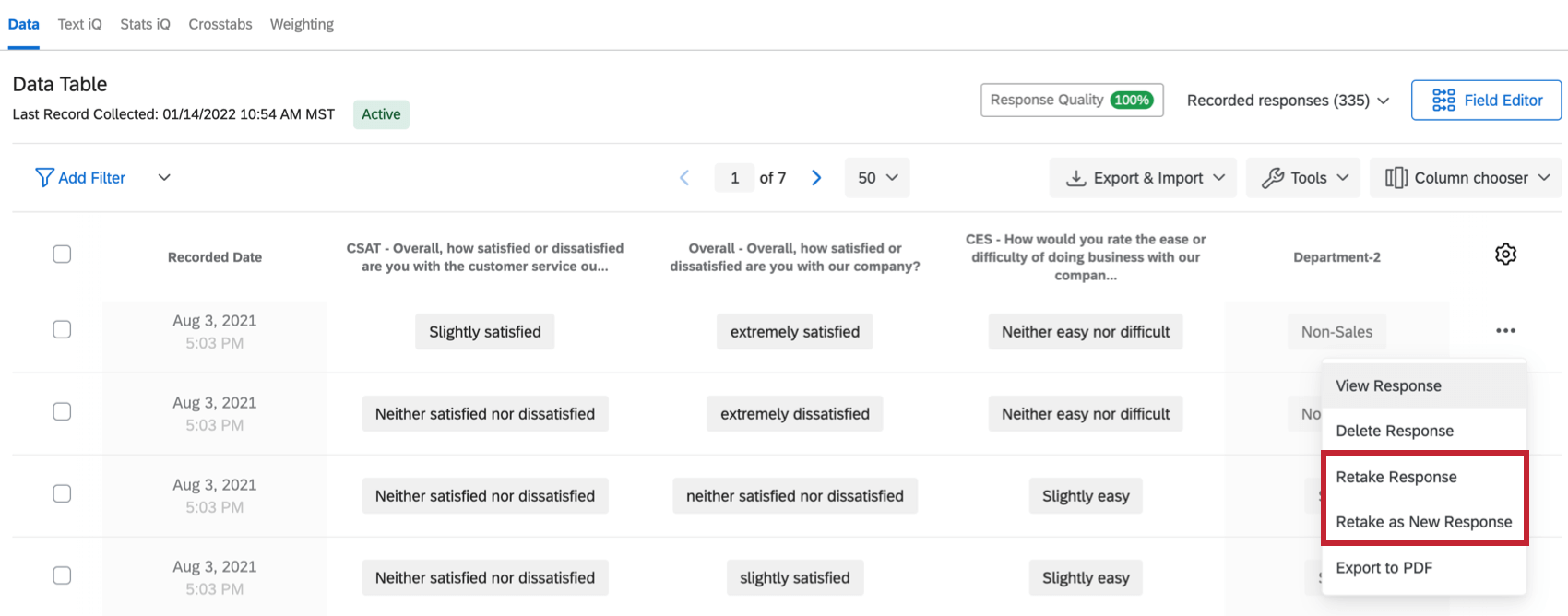
In both cases, the link starts the survey at the beginning. The respondent’s original answers are prepopulated in the survey, and any questions they didn’t answer will be blank. You can leave these answers as they are or make changes as you progress through the survey. In either case, the retake counts as a new auditable response for your license.
Issuing Retake Links
Qtip: You cannot issue retake links in bulk. Each response must have its own retake link issued manually.
Attention: If you edited a response or created custom fields before issuing a retake, your response edits and custom fields won’t carry through to the retake.
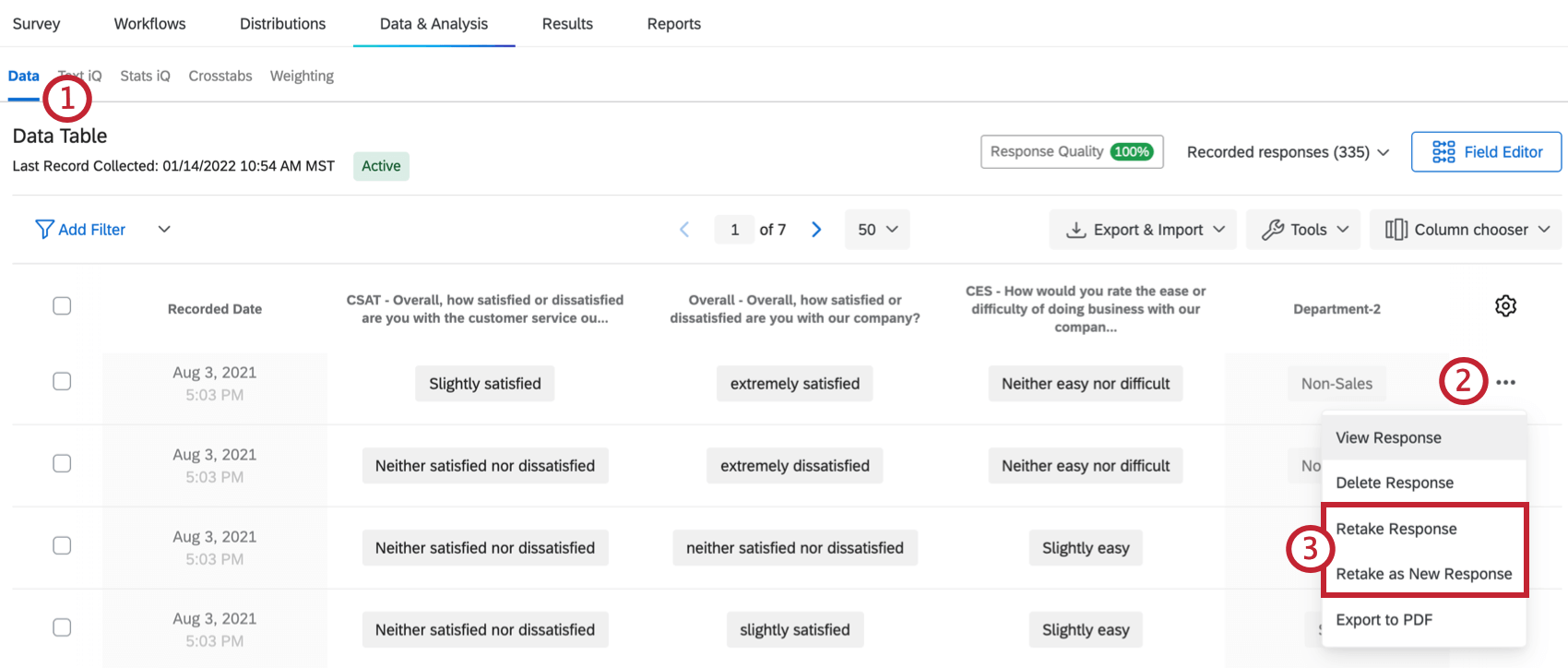
Qtip: To make finding the response easier, we recommend having a survey question that asks for some identifying information. You can then use response filtering to quickly locate the response.
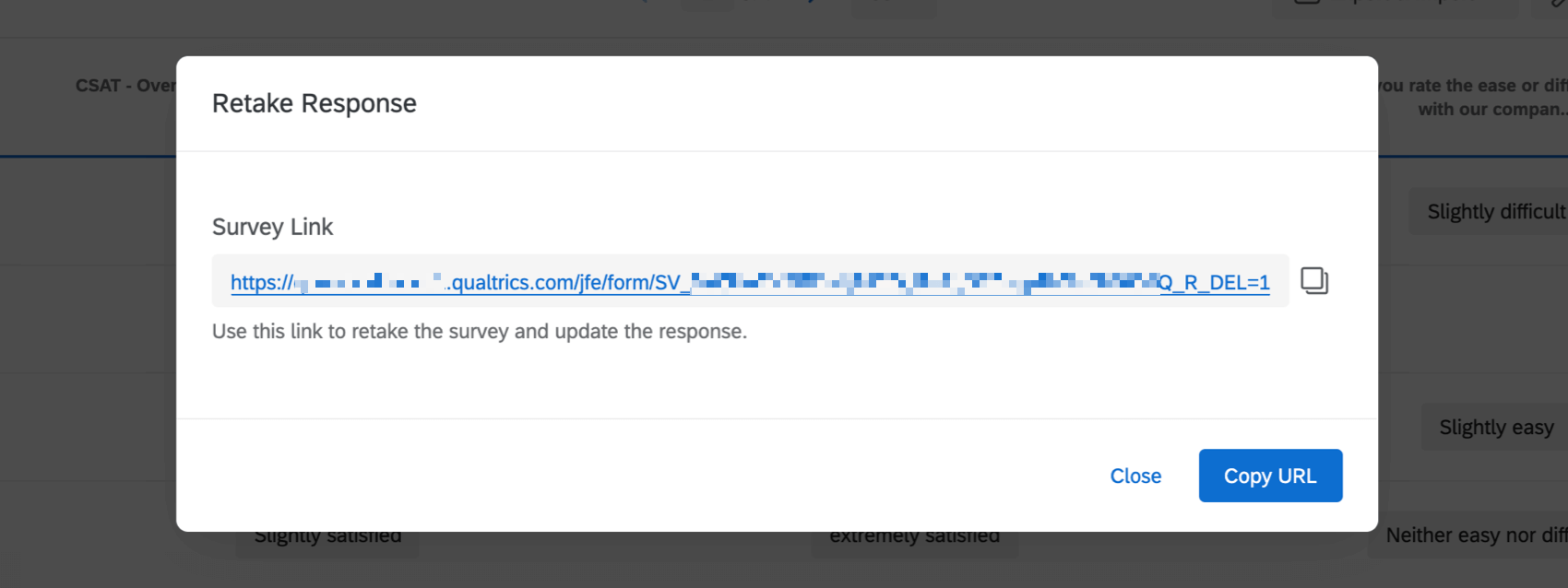
Qtip: If you have a large group of people you’d like to take the survey a second time and you want to collect new responses in addition to the old responses, then you won’t use the retake survey link. Instead, distribute the survey again through emails, personal links, or the anonymous link.
Qtip: If you have large edits to make to many different responses, try using the response editing feature instead.
Building a Retake Link
Sometimes it’s necessary to immediately send a retake link to a respondent or another person once the initial survey is submitted. For example, you might have a survey filled out by job seekers, which then triggers an email with the retake link to your Human Resources department. HR then fills out additional questions about the applicant and resubmits the information.
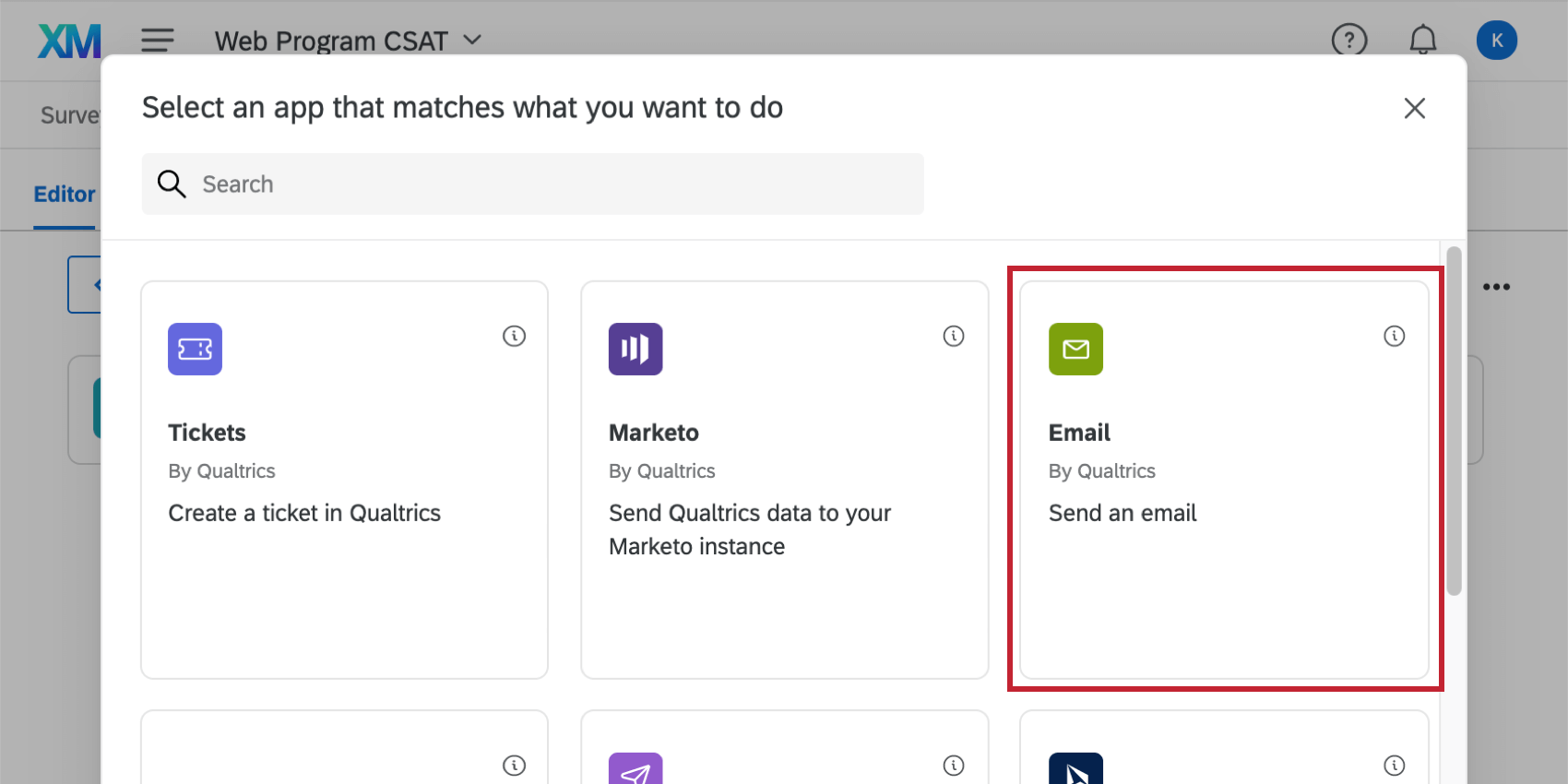
Qtip: The method outlined below is for sending the retake link in an email task, but this can be applied in a message at the end of the survey, including messages at the end of different survey branches.
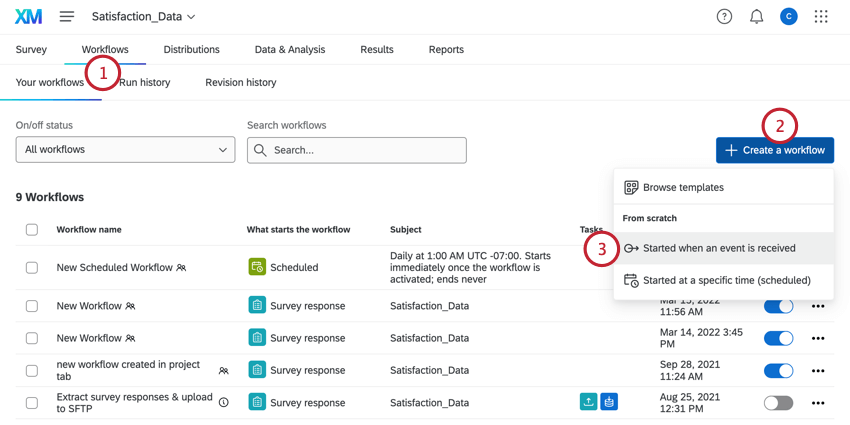
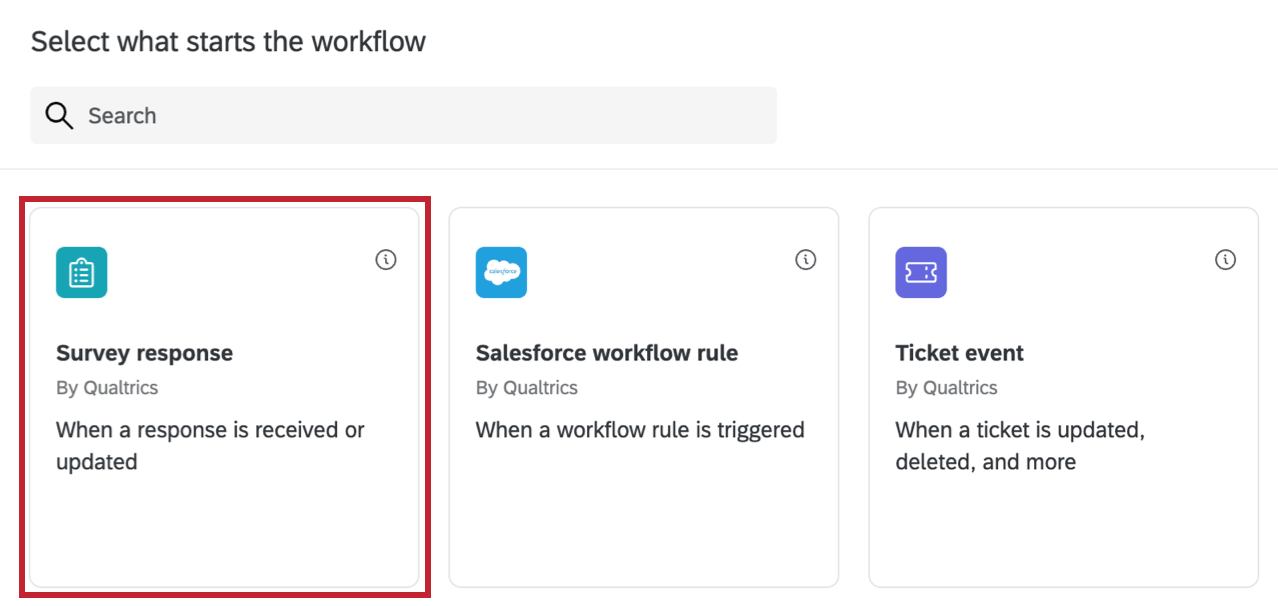
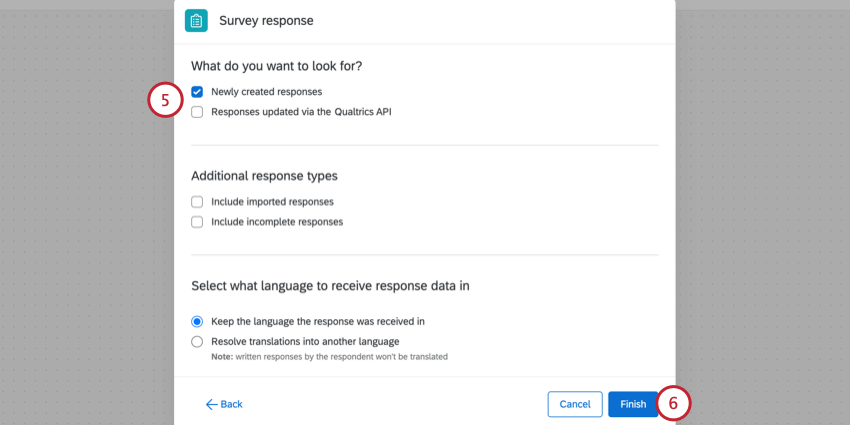
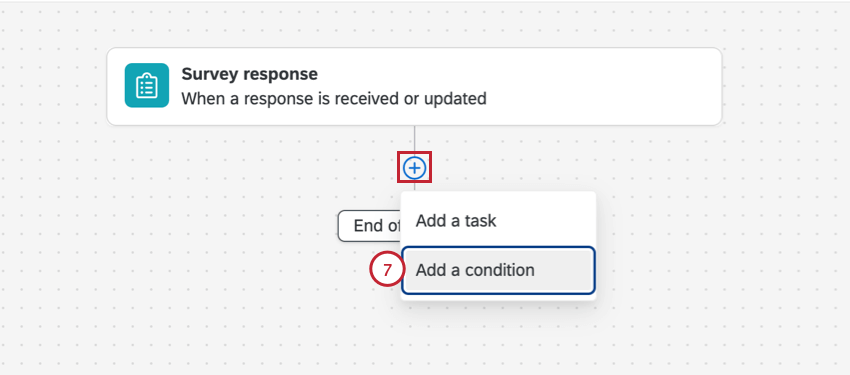
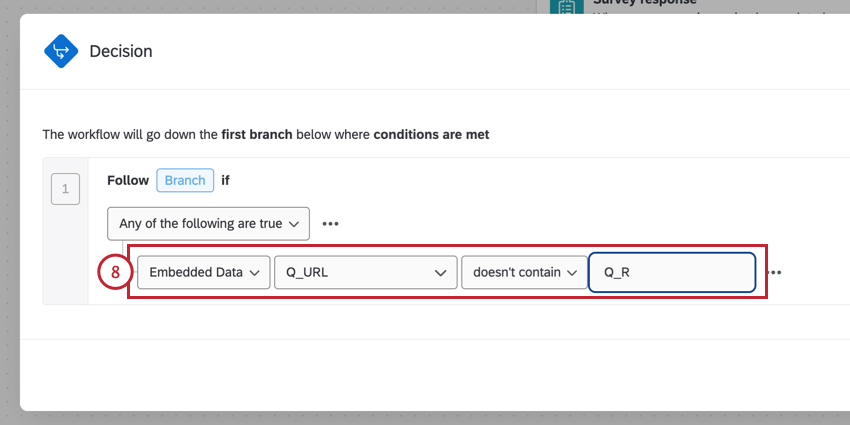
Attention: Adding this condition ensures that only the original survey response prompts a retake link by checking that the URL associated with this response doesn’t contain the retake tag. Without this condition, the respondent will also receive this email workflow after they take their retake link survey.
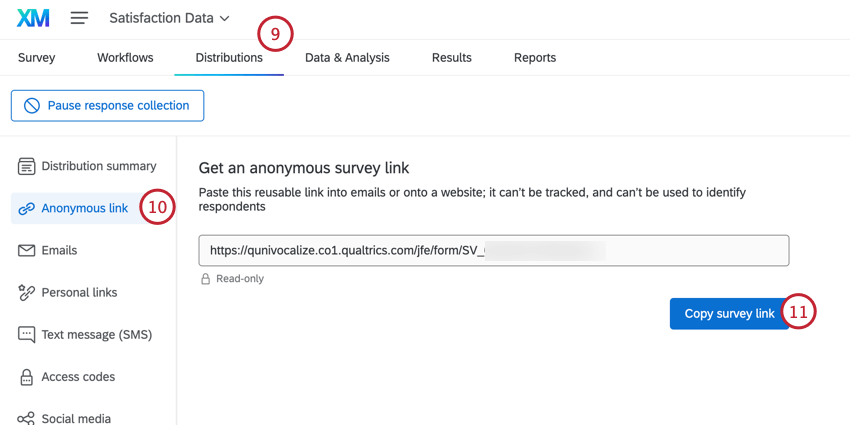
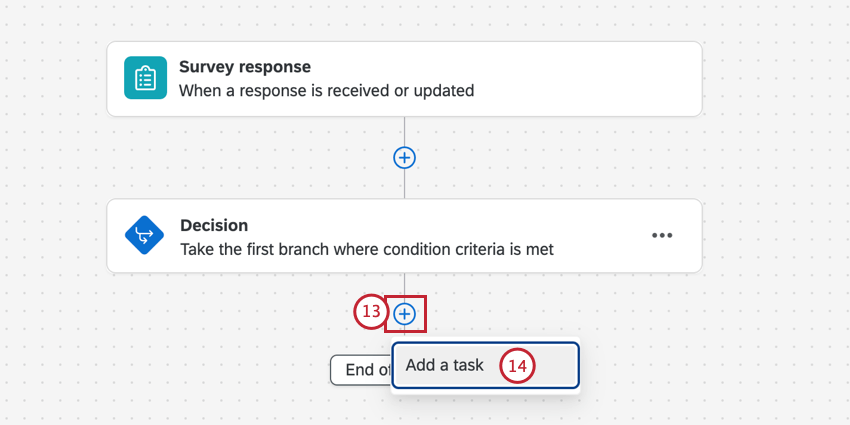
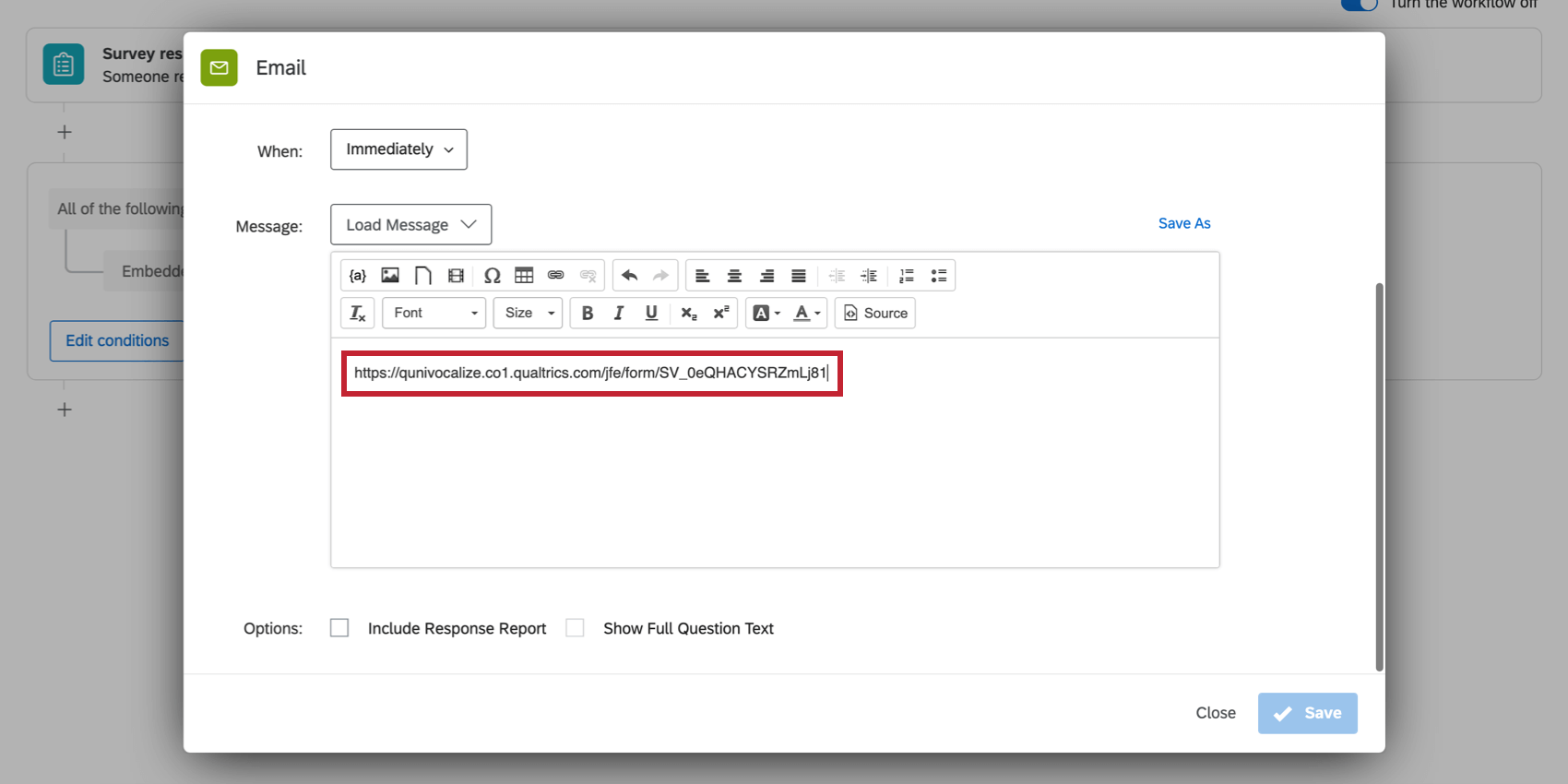
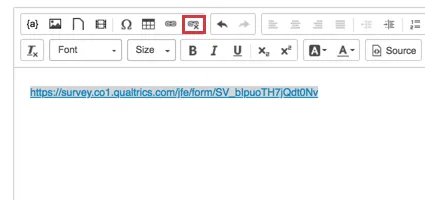
Qtip: Be careful that you don’t paste in a hyperlink here! This can prevent you from properly editing your link. If your anonymous link is blue and clickable, then highlight the text and click the break hyperlink icon.
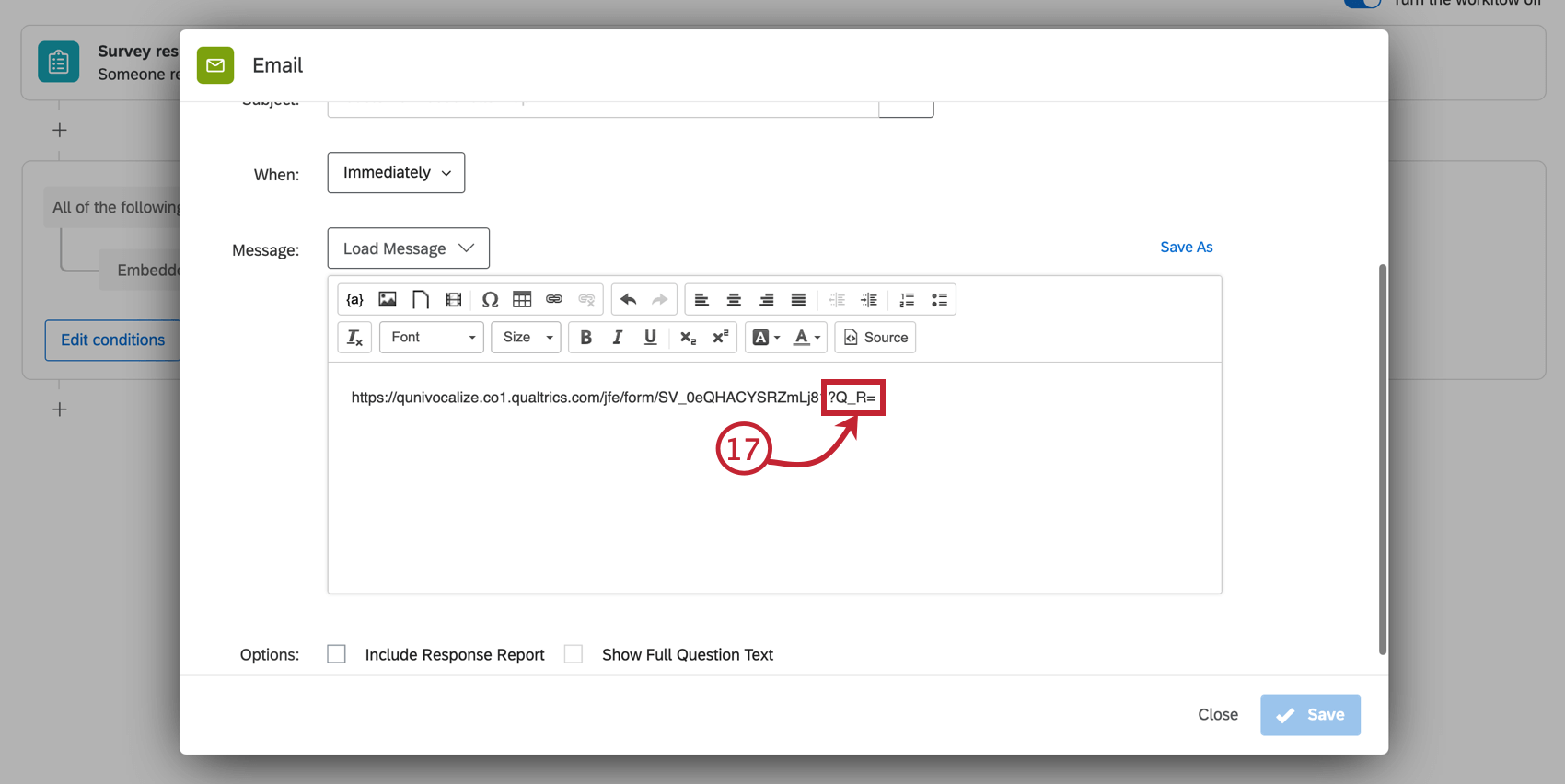
Example: If the URL was brandid.qualtrics.com/jfe/form/SV_1234567890, then the link is now brandid.qualtrics.com/jfe/form/SV_1234567890?Q_R=

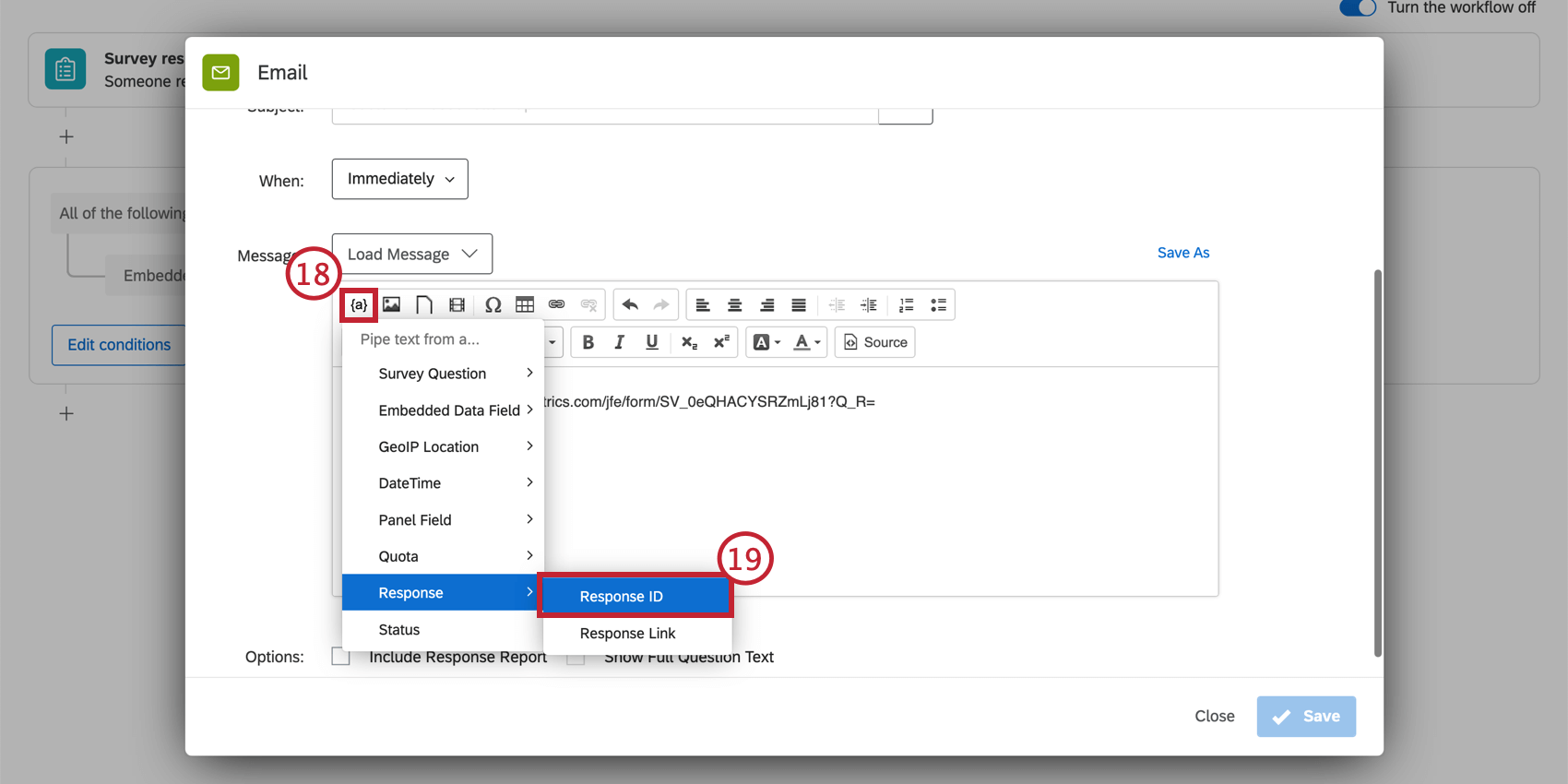
Example: After selecting Response ID, your link should look like this: brandid.qualtrics.com/jfe/form/SV_1234567890?Q_R=${e://Field/ResponseID}
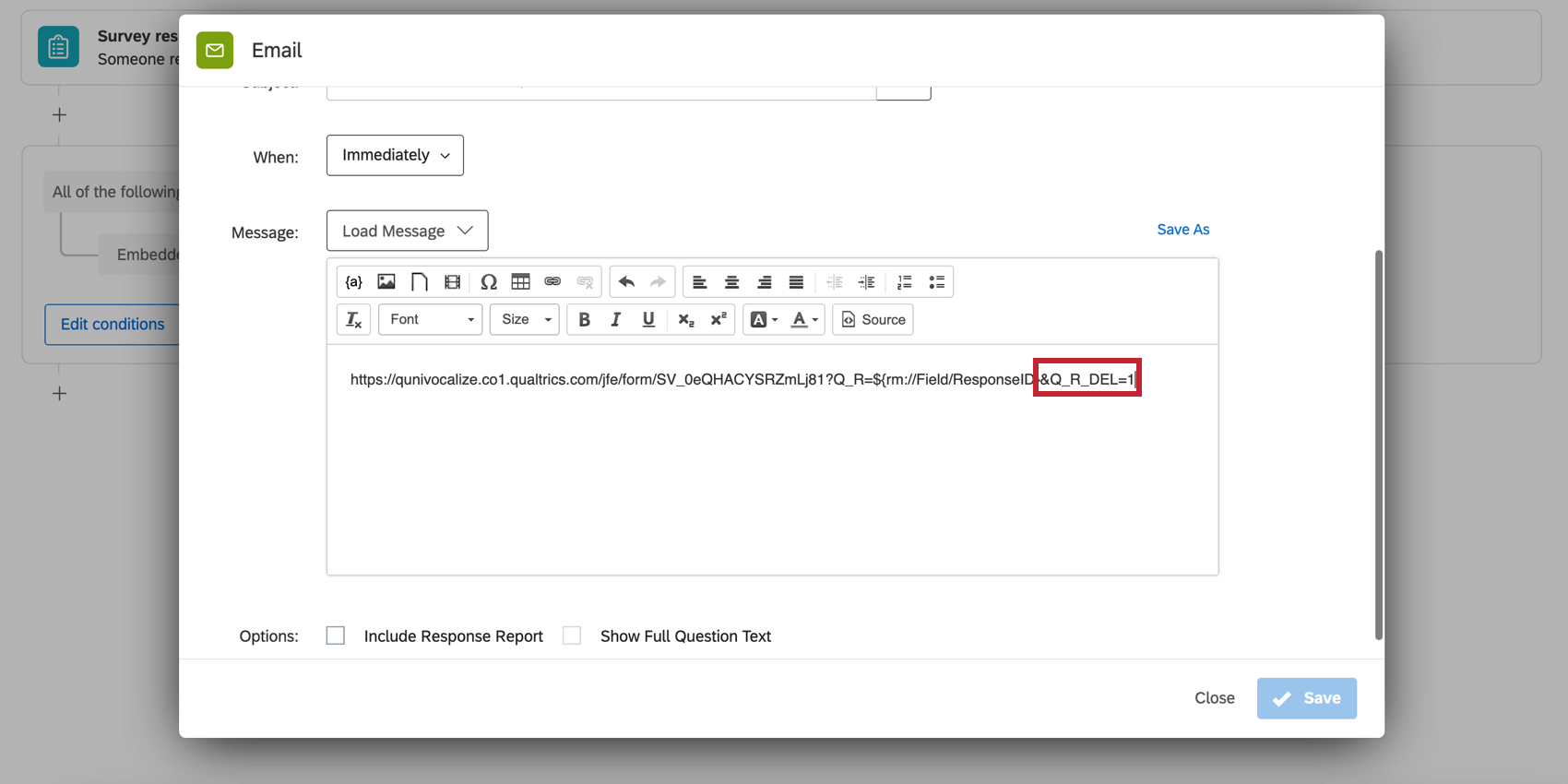
Example: If you wanted the retake to replace the original response, your link would look like this: brandid.qualtrics.com/jfe/form/SV_1234567890?Q_R=${e://Field/ResponseID}&Q_R_DEL=1
Qtip: If this new link seems too long, you can make a clickable word or phrase in your email instead by inserting a hyperlink.
Qtip: When a survey respondent uses this retake link with Q_R_DEL=1 at the end, their old response will be deleted as soon as they submit the last page of the survey. If a respondent just clicks the link without filling out the survey, their old response will not be deleted. If a respondent partially completes the retake but stops before submitting, and incomplete responses are set to record, the incomplete retake will eventually be recorded as a new, separate response that does not overwrite the original.
The individual who receives the email task will have a link that allows them to see the original response and change its answers.
Qtip: Use piped text in the “to” field for your email to ensure the respondent receives their own retake link. For example, pipe in contact information.
Displaying Certain Content During Retakes
It’s possible to set up your survey so that certain questions appear only when a retake link is used (for example, when you have a reviewer going over responses, or you’re sending a form to a manager to review and sign). This section walks through how to set your survey up this way.
Attention: If you would like to hide the initial survey taker’s response from the person retaking the survey instead, please see the Hiding Certain Content During Retakes section below.
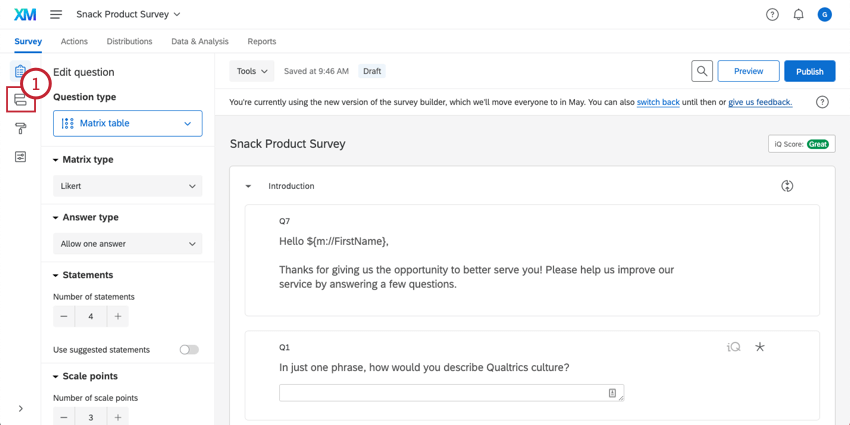
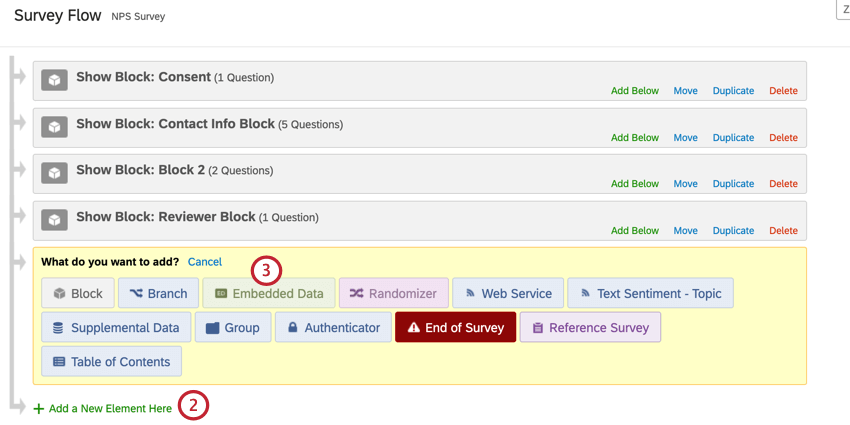
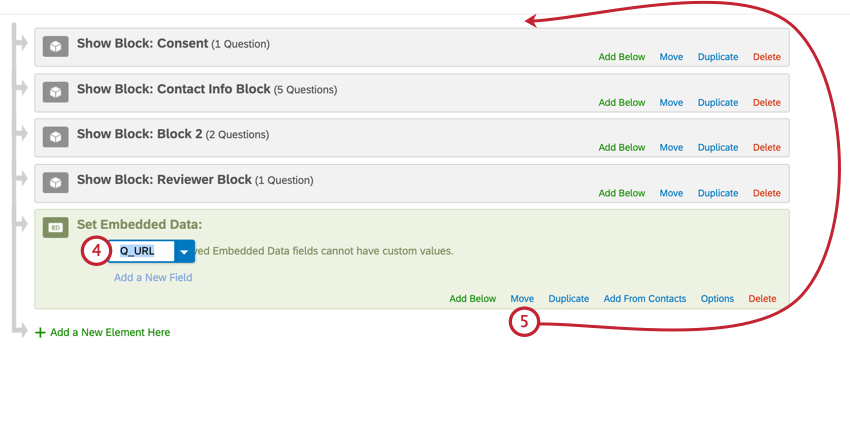
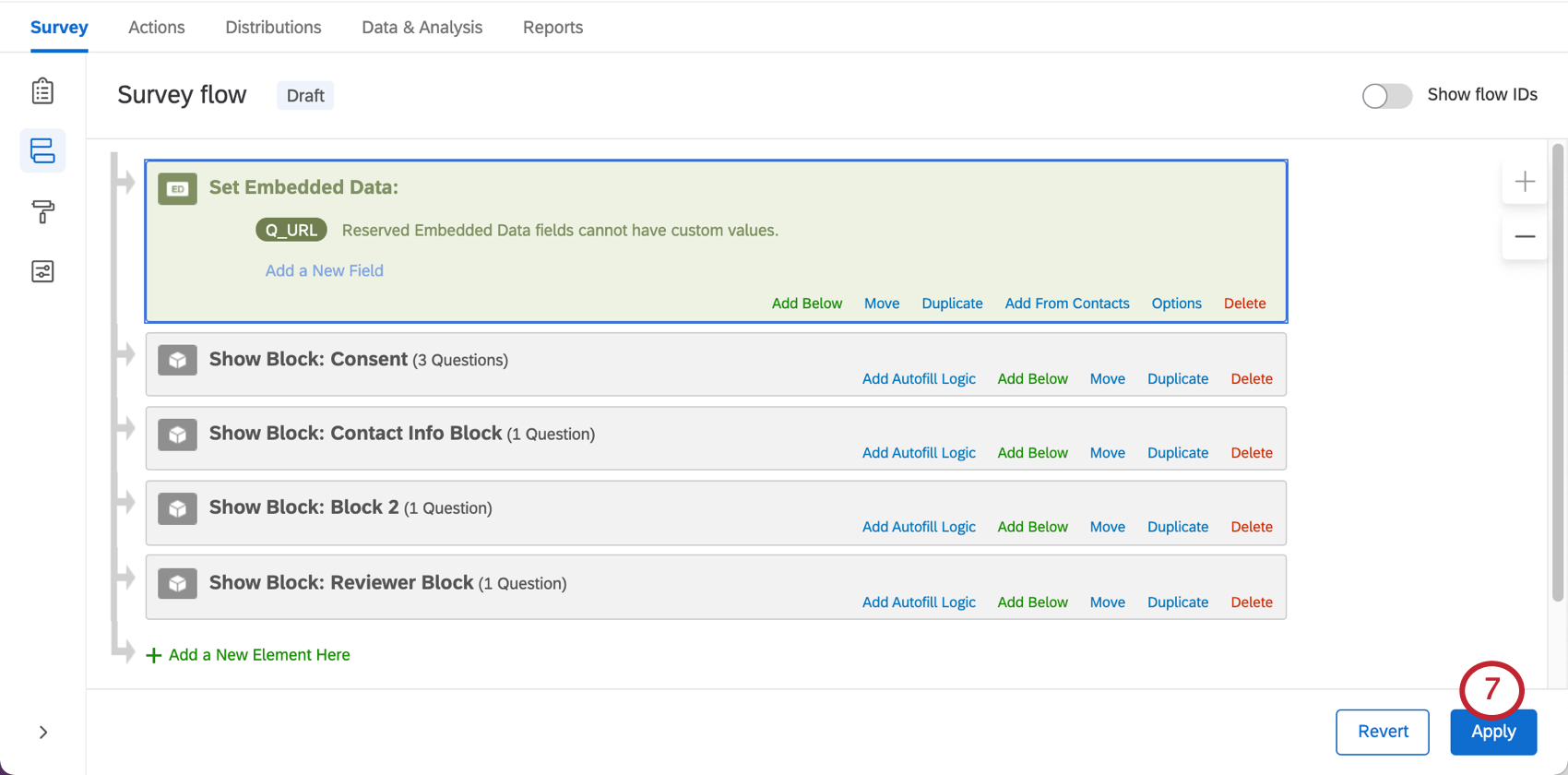
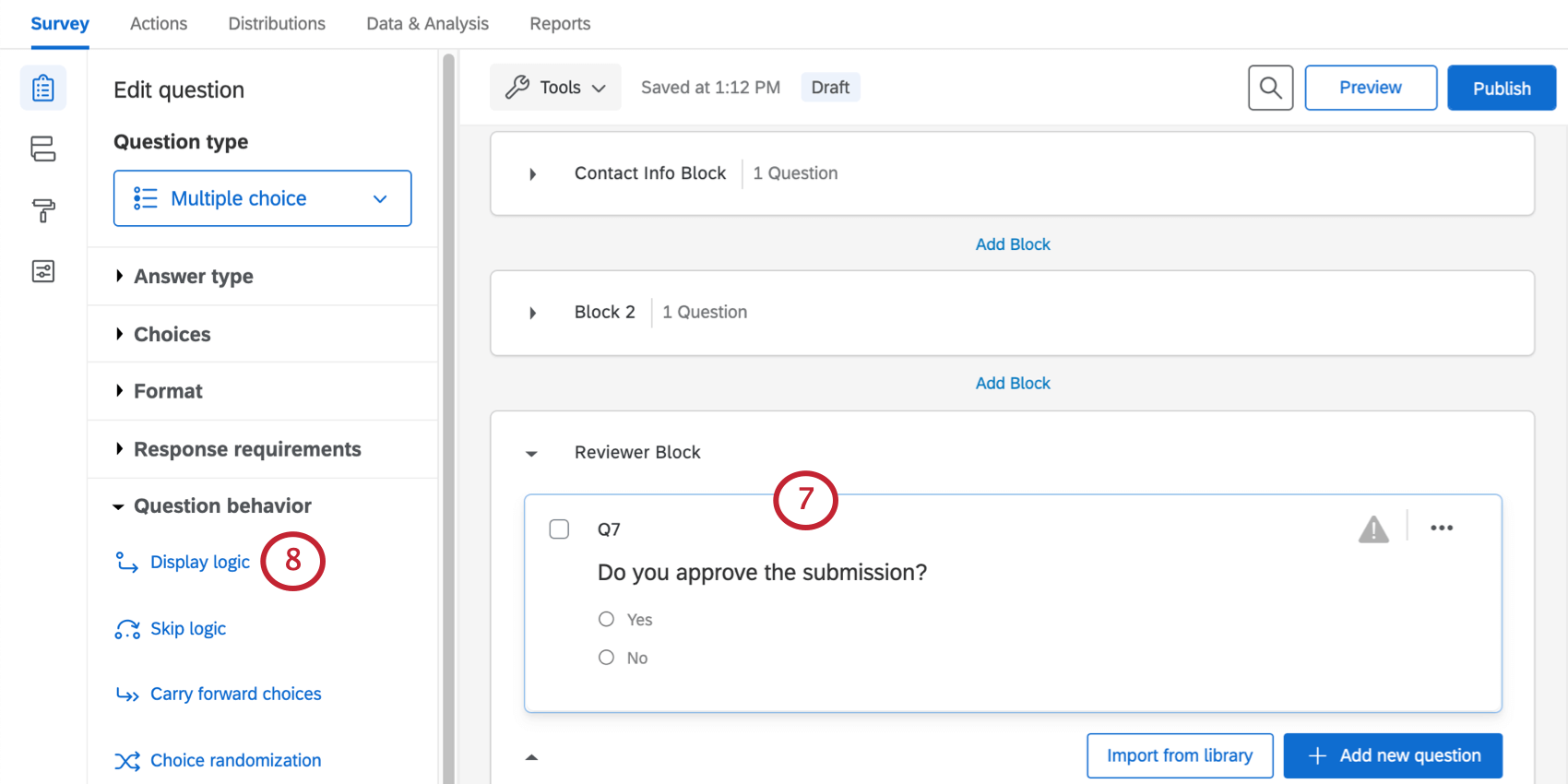
Warning: You should only add the display logic to additional questions you want the reviewer to see. You don’t want to hide any of your original questions from the reviewer, as the retake link will not save responses to any questions not displayed to the reviewer.
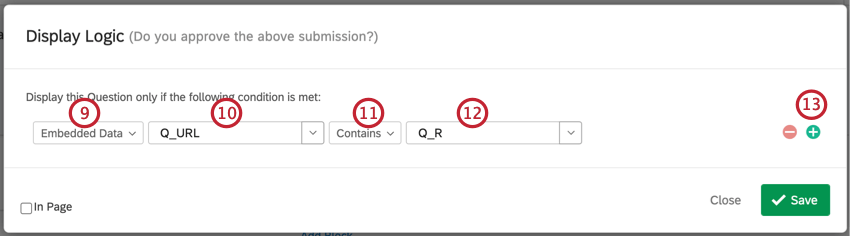
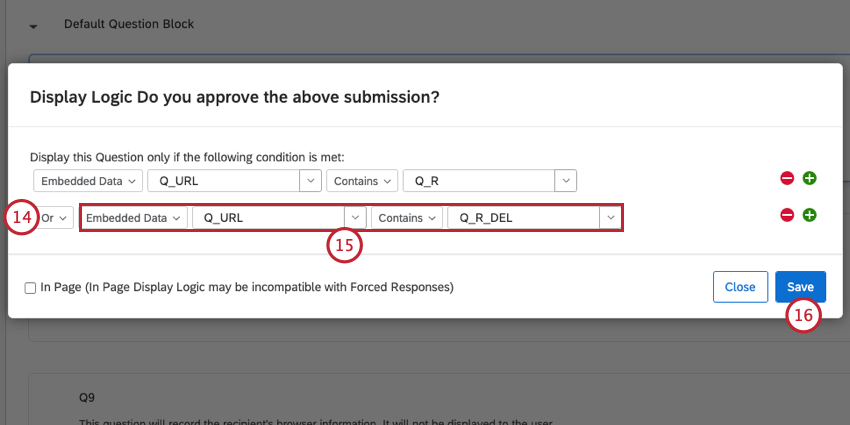
Warning: Make sure that you have only added display logic to additional questions you want the reviewer to see. You shouldn’t hide any of your original questions from the reviewer, as the retake link won’t save responses to any questions not displayed to the reviewer.
Qtip: If all the questions you want to display during the retake are contained in the same block, then you can use branch logic to display the questions instead.
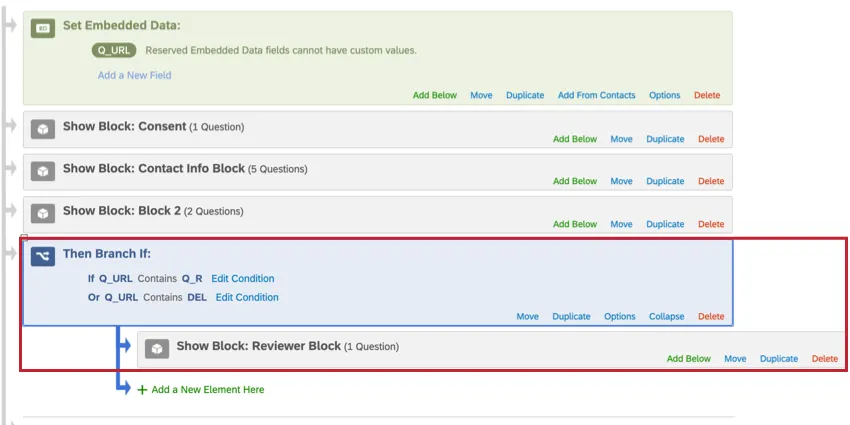
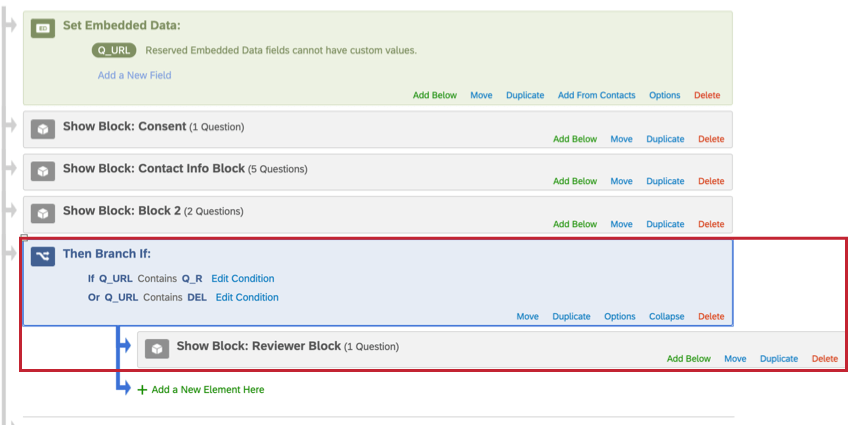
Hiding Certain Content During Retakes
To prevent the second survey taker (a reviewer or manager, for example) from viewing or changing answers entered by the initial survey taker, you can hide the questions with a timing question. This method will ensure that even though the second survey taker won’t see the questions you choose to hide, the initial response data will save properly with the response.
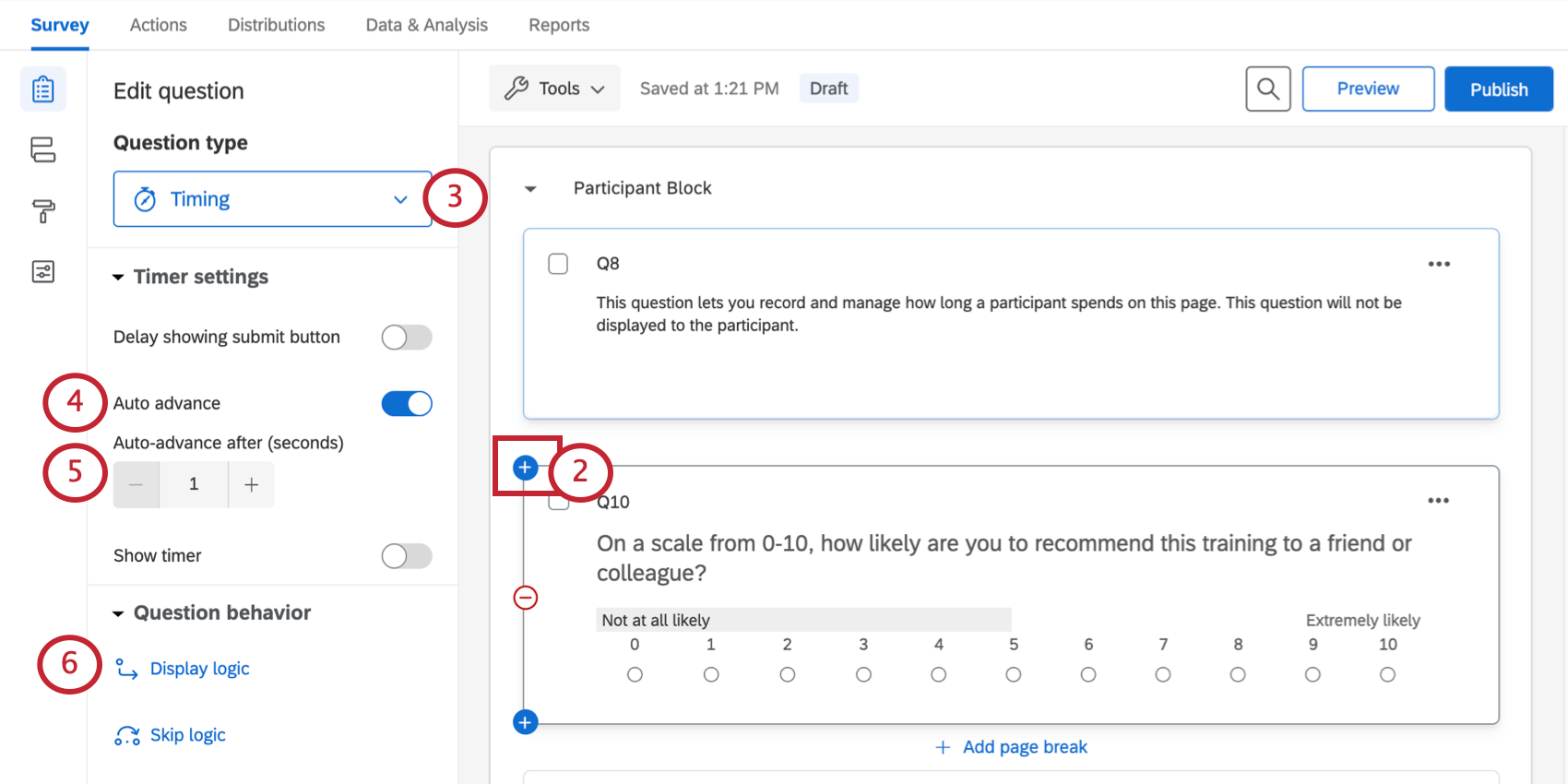
Attention: You must use display logic to selectively time the reviewer’s response. If you forget to add display logic to your timing question, the survey will skip these questions for everyone!
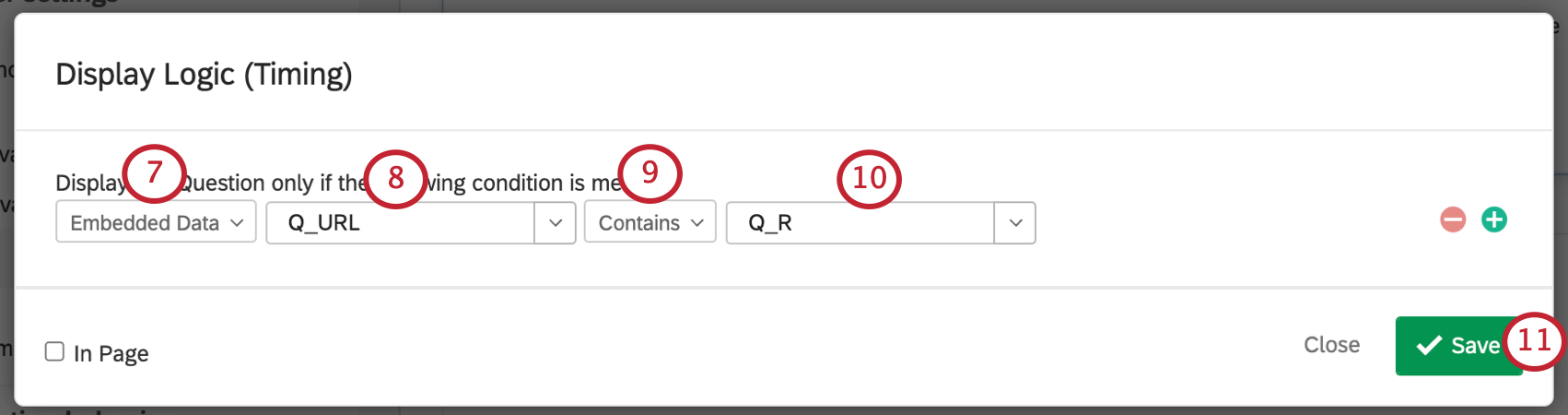
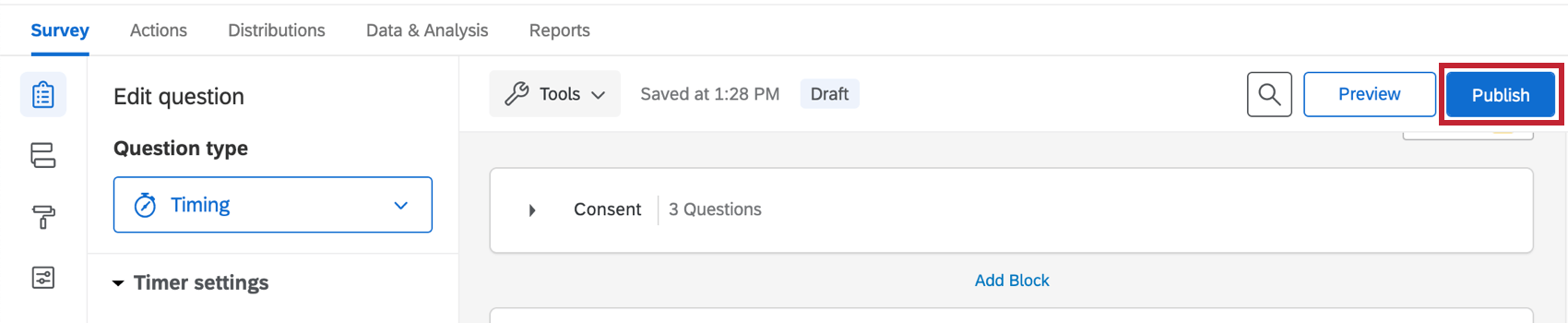
This setup will cause the page of questions to auto-advance after 0.1 seconds. This means that the questions won’t be displayed to or editable by the reviewer. However, since the original answers will be submitted through the auto-advance setting, those answers will be saved with the response.
FAQs
Can a participant retake their survey?
Can a participant retake their survey?
Note that in Retake Survey links, all of the participant’s original answers are prepopulated. If new questions have been added to the survey in the meantime, those questions will be blank.
What is the difference between Retake Survey and Retake Survey as New Response?
What is the difference between Retake Survey and Retake Survey as New Response?
With Retake Survey as New Response, the edited survey responses are saved in addition to the original responses.
Can I edit or add information to a response after it has been submitted?
Can I edit or add information to a response after it has been submitted?
If you would like an individual to retake their response instead, you can find instructions for this on the Retake Survey Link support page.
Can I let someone retake their response but also keep a record of their original response?
Can I let someone retake their response but also keep a record of their original response?
See the Retake Survey Link support page for additional information.
How do I get a retake link for a response so a respondent can change their answer or fill out a question they missed originally?
How do I get a retake link for a response so a respondent can change their answer or fill out a question they missed originally?
What happens if someone leaves their retake link in the middle? Will they be able to proceed with their new answers, or the old ones?
What happens if someone leaves their retake link in the middle? Will they be able to proceed with their new answers, or the old ones?
That's great! Thank you for your feedback!
Thank you for your feedback!