

Student View (Course Evaluations)
What's on this page
About the Course Evaluations Student View
In the Student View section of the Settings tab in course evaluations, you can preview how the evaluations portal will appear to your students, as well as edit the content in the portal. The evaluations portal is where students can access the links for all their evaluations in one place.
For more information on the Settings tab, see Settings Tab (Course Evaluations). For a course evaluations overview, see Course Evaluations Overview.
Previewing the Student View
The preview will be displayed in the default language you selected within Organization Settings, but you can choose any available language from the dropdown to preview language-specific content.
Editing the Student View
Click Edit student view to change the following features of the student view. Once you are satisfied with how the student view looks, click Save and exit to return to the preview.
Student Page Content
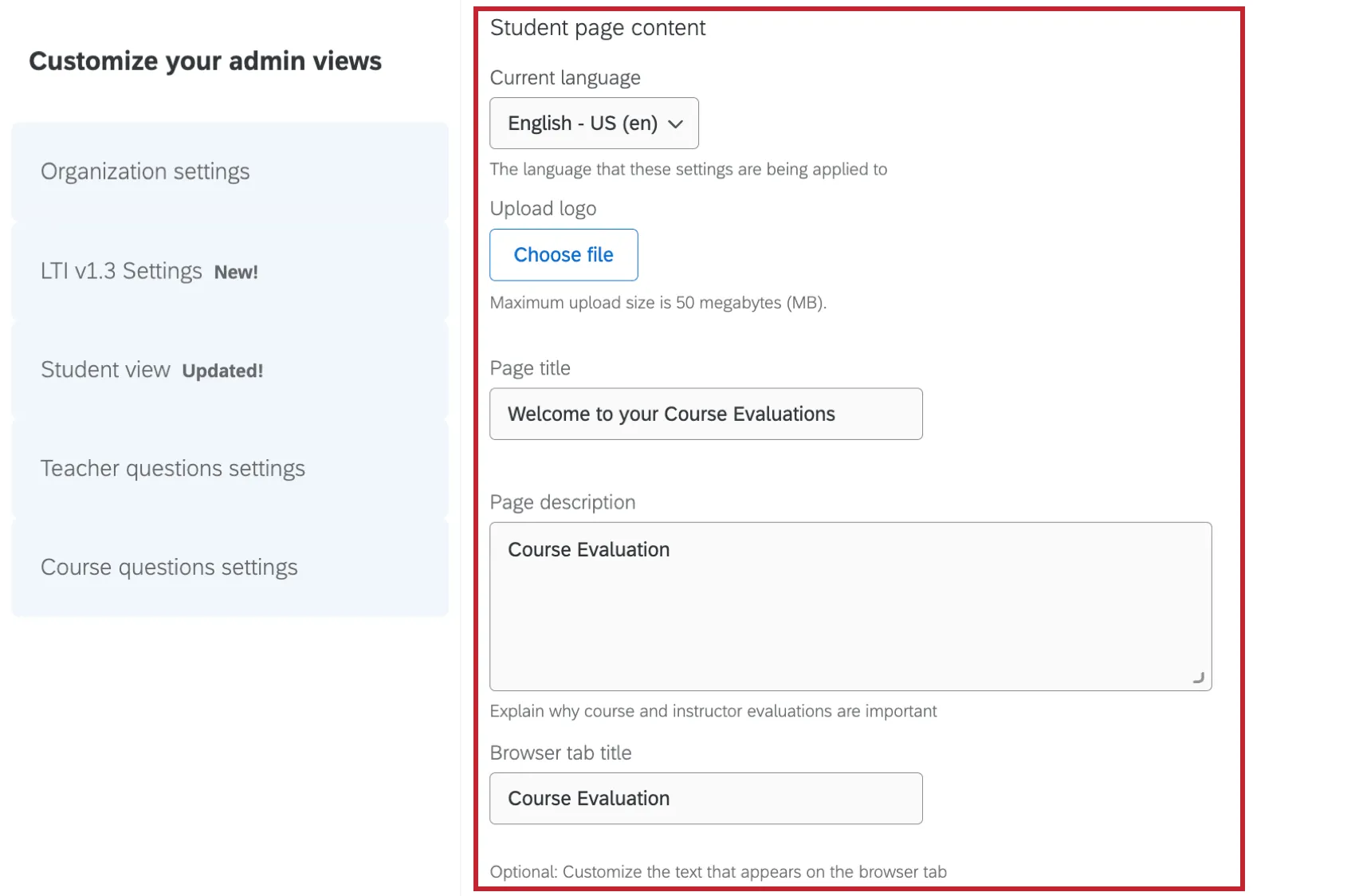
Current language: The language your changes are applied to. Selecting a different language allows you to edit the student view settings specific to that language.

Attention: Edits made to the student view will only apply to the language selected in this field. To edit multiple languages, select them from the dropdown one at a time and make your edits.
- Upload Logo: Add a logo for your school. The file must be less than 5MB and either a JPG or PNG.
- Page title: The title for the course evaluations page. This field is required.
- Page description: The description that will appear below the page title. This field is optional.
- Browser tab title: Customize the text that appears on the browser tab. This field is optional.
Evaluation Header Fields
These fields are the column headers for the evaluation table students will see. The preview at the bottom of the page will update as you edit them.
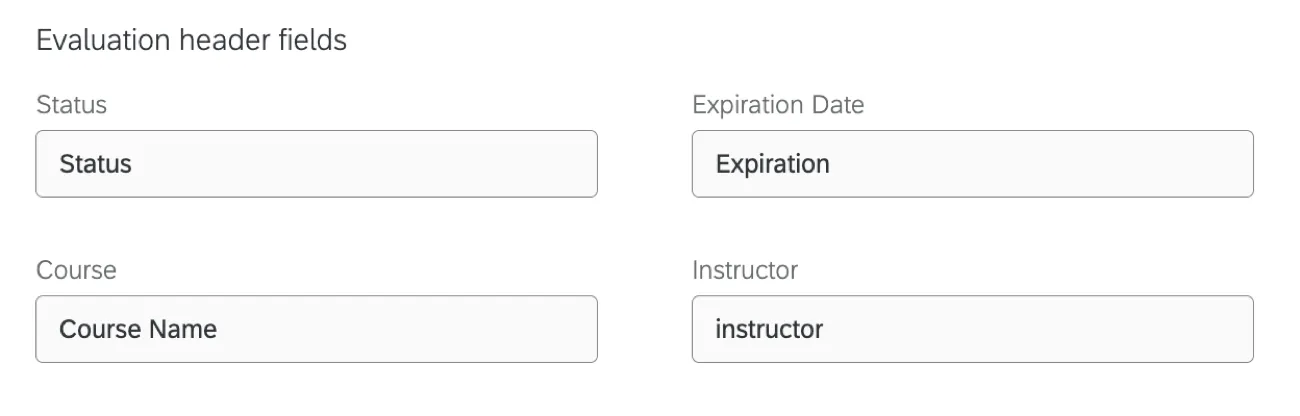
- Status: Header for the evaluation status column.
- Expiration Date: Header for the evaluation expiration date column.
- Course: Header for the evaluation course name column.
- Instructor: Header for the instructor name column.
Evaluation Status
These statuses show up in the evaluation table to reflect where a student is in their evaluation. The preview at the bottom of the page will update as you edit these fields. You can change these fields to have any name you want.

- Incomplete: The status when evaluations have not been completed.
- Complete: The status when evaluations have been completed.
Evaluation Experience Content
This content will show up when a student is taking an evaluation.
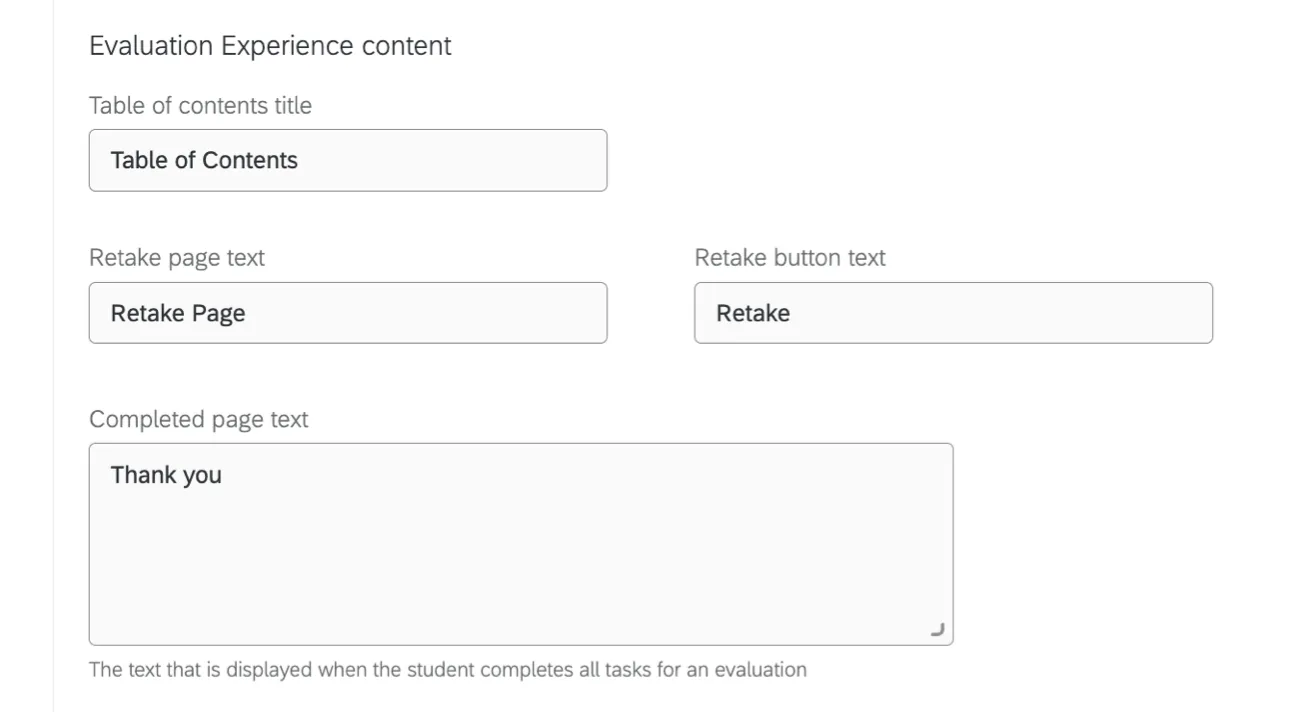
- Table of contents title: The title for the evaluation table of contents.
- Retake page text: The text that shows up when a student retakes an evaluation.
- Retake button text: The text of the button to let a student retake an evaluation.
- Completed page text: The text that shows up when a student completes an evaluation.
That's great! Thank you for your feedback!
Thank you for your feedback!