

Messages Options (360)
Suite
Employee Experience
Product
Qualtrics
What's on this page
About Messages Options
There are additional options for how your 360 email messages can be distributed.
Available Options
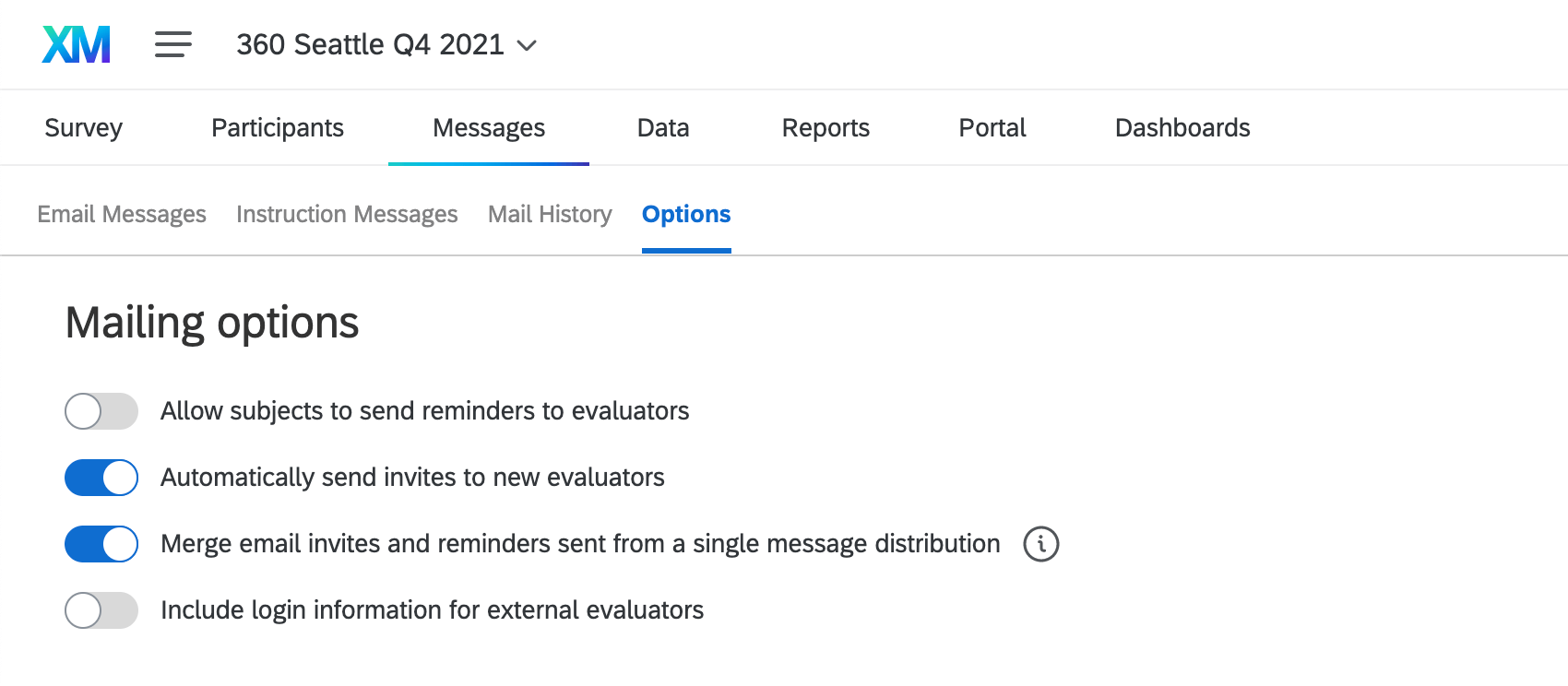
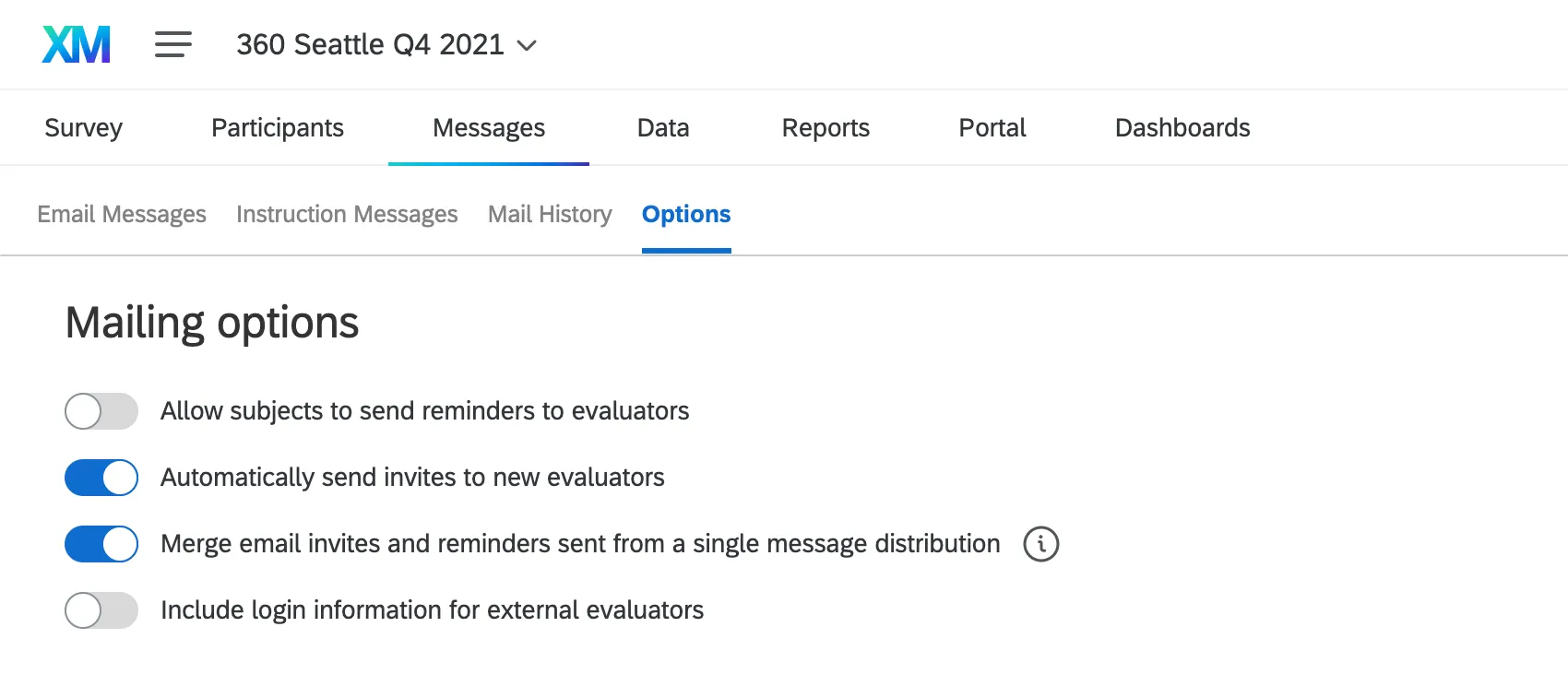
- Allow subjects to send reminders to evaluators: This option creates a button in the subject’s participant portal. They will be able to remind evaluators whenever they want. Only evaluators who haven’t finished their evaluation of the subject will receive a reminder.
- Automatically send invites to new evaluators: When enabled, evaluators who are nominated by subjects will get an email as soon as they are nominated (or as soon as a manager approves the nomination, depending on your settings). This setting must be turned on before evaluators are nominated. If you turn it on late, it will not retroactively invite evaluators nominated before the setting was enabled, but it will notify new evaluators going forward.
- Merge email invites and reminders sent from a single message distribution: If an evaluator is being invited to assess many subjects, or they’re being sent multiple reminders, this option will consolidate those messages, so long as they’re part of the same distribution. For example, instead of getting 5 reminders for all their subjects in the same 360, the evaluator would get 1 reminder per 360 project. Different information that is piped in about different subjects will be separated by line breaks. The same applies for survey links, unless the option below, Include login information for external evaluators, is selected; then, 1 set of login information will be included instead. Qtip: This setting will not consolidate messages sent due to the Automatically send invites to new evaluators setting. It will also not consolidate messages sent to external evaluators without logins. If Include login information for external evaluators is disabled, external evaluators will still receive multiple emails for multiple evaluations.

- Include login information for external evaluators: External evaluators can receive a direct link to their evaluations, and do not need to log in. However, if you want to consolidate their emails, or allow them to access a portal when they evaluate subjects, you can enable this setting to show them their login info. Disabling this option ignores login info piped text and only sends login info to subjects and managers – external evaluators will receive no login info and will instead get an email for each subject they’re supposed to evaluate, with a unique link in each message. Attention: We recommend you enable this option. If this option is disabled and the recipients’ email server contains a security software that modifies hyperlinks, then your external evaluators will not be able to access the assessment, and they will not have login information to access Qualtrics.

Qtip: Consider running your 360 invitations in phases. For example, you can have a phase for subject invitations, a phase where subjects must nominate evaluators, and then a phase where invitations are sent out to approved evaluators. This can be especially helpful if you think the same external evaluators will be nominated by multiple subjects, so you can use the Include login information for external evaluators setting to reduce the number of emails they receive. (You should also disable Automatically send invites to new evaluators in this scenario.)
FAQs
How do I send out invitations to subjects telling them to assign evaluators?
How do I send out invitations to subjects telling them to assign evaluators?
If you want an email to go out, rather than including instructions the user sees upon logging in, you have to include this information in a subject invite. See the page on sending emails to 360 participants for more information.
Can I set it up so that evaluators only receive one invitation email, even if they are evaluating multiple subjects?
Can I set it up so that evaluators only receive one invitation email, even if they are evaluating multiple subjects?
By default, evaluators will receive a separate invitation for each person they’re set to evaluate. If you’d like to avoid sending multiple emails, go to the Messages Options and select Merge email invites and reminders sent from a single message distribution. This will make it so that reminders and invites sent to the same evaluator will be condensed into as few emails as possible.
Can I schedule invitations to go out some date in the future?
Can I schedule invitations to go out some date in the future?
Yes.
I sent out an evaluator invite, but some of the evaluators didn‘t receive it. Why is that?
I sent out an evaluator invite, but some of the evaluators didn‘t receive it. Why is that?
If a subject only has a self-evaluation (i.e., they are not evaluating anyone else), then they will not receive an evaluator invite. Evaluator invites only go out to participants who are evaluating other participants. To send an invite to someone who is a subject, you will need to schedule a subject invite instead.
Additionally, if you know the participant should receive an evaluator invite, you can download the mailing history for your distribution to make sure that the email invite was actually sent to the individual and that the email did not bounce.
Additionally, if you know the participant should receive an evaluator invite, you can download the mailing history for your distribution to make sure that the email invite was actually sent to the individual and that the email did not bounce.
That's great! Thank you for your feedback!
Thank you for your feedback!