

Integrating Consent Managers with Digital Experience Analytics
What's on this page
About Integrating Consent Managers with Digital Experience Analytics
Attention: Please consult your own legal counsel to determine what consent, if any, you must obtain from website visitors prior to using Digital Experience Analytics.

It’s increasingly important for websites – especially those with visitors from the EU – to actively seek consent from their visitors prior to engaging in actions that might be considered “tracking.” Consent management solutions help you streamline how your website visitors manage what cookies or tracking technologies they want to allow on your site.
This page covers how to integrate your Digital Experience Analytics project with OneTrust, a widely-used consent management solution.
Example: Click Manage Cookie Preferences at the bottom of the Qualtrics website to see cookie consent management in action.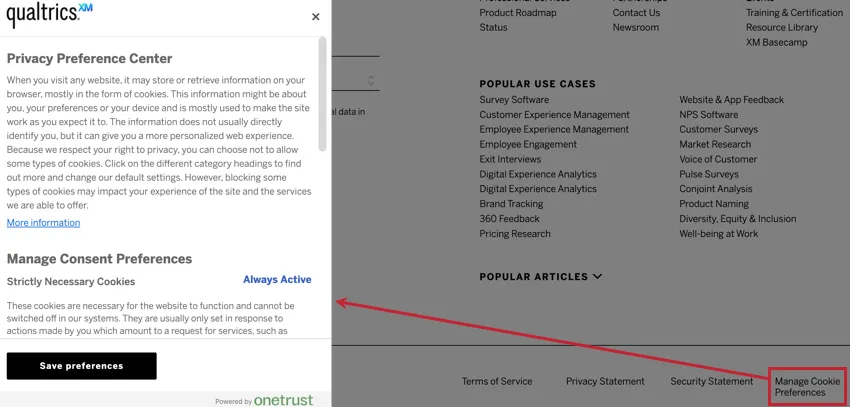

Requirements
Before following the instructions on this page, make sure you meet the following requirements:
- In your Website Insights project’s session replay settings, make sure the “Recording and Consent” option is set to “Record after the users opt-in (API required),” which is selected by default.
- You must already have OneTrust configured on your website.
- Integrating with your consent management solution will involve configurations outside of Qualtrics. Please work with your web development or analytics team to ensure proper implementation on your site.
Qtip: Qualtrics Support cannot assist with setting up OneTrust on your website. If you need assistance configuring OneTrust, please contact OneTrust Support.

Integrating with OneTrust and a Tag Manager
We recommend that you use a tag manager to reduce the amount of work required to integrate Qualtrics with OneTrust.
Qtip: The steps below use Google Tag Manager as the example, but the same setup can be completed with any supported tag manager.
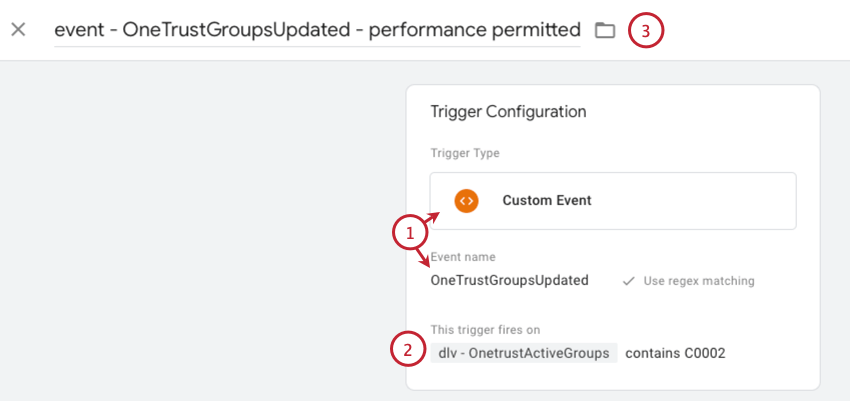
- Type: Custom event
- Event name: OneTrustGroupsUpdated
- The data layer variable is named OnetrustActiveGroups.
- Use the “contains” operator since there could be multiple active groups depending on what the user has consented to.
- The OneTrust category or group ID that corresponds to Qualtrics cookies on your site. The ID you’ll use depends on how your website classifies Qualtrics. For example, if your site considers Qualtrics a “Performance Cookie”, you would use the corresponding OneTrust category ID, “C0002.”
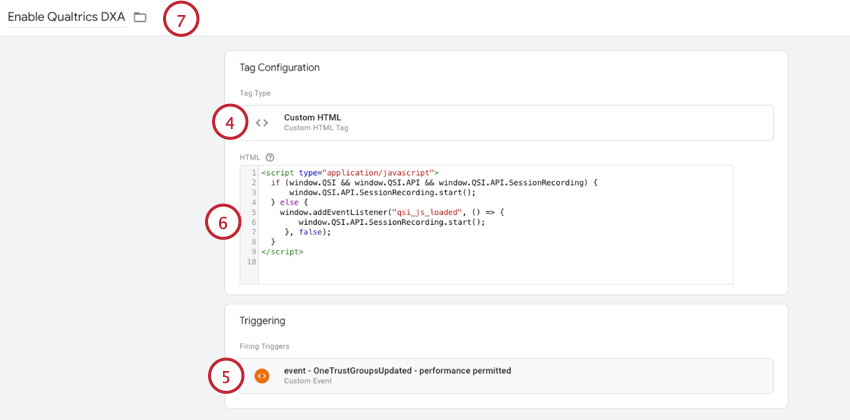
<script type="application/javascript">if (window.QSI && window.QSI.API && window.QSI.API.SessionRecording) {
window.QSI.API.SessionRecording.start();
} else {
window.addEventListener("qsi_js_loaded", function () {
window.QSI.API.SessionRecording.start();
}, false);
}
</script>Qtip: See OneTrust’s support documentation for additional help.
Integrating with OneTrust Auto-Blocking
OneTrust offers “auto-blocking” capabilities that can automatically prevent the Qualtrics tag from loading until the site visitor provides consent.
If you want to take advantage of this capability, then set the “Recording and Consent” option in your Website Insights project to “Record when the web page loads.”
Attention: By leveraging OneTrust’s auto-blocking feature, you’ll prevent the entire Qualtrics tag from loading until the visitor gives consent. Therefore, this blocks additional Qualtrics functionality such displaying intercepts or surveys to site visitors until consent is given. If you want the Qualtrics tag to load for all visitors, but only enable Digital Experience Analytics if visitors give consent, then please follow the steps in the tag manager section above.
That's great! Thank you for your feedback!
Thank you for your feedback!