

Connectors Account Settings
What's on this page
About Connectors Account Settings
While in the Connectors section of XM Discover, you can set various settings for your account. These settings only affect your experience while using Connectors.
Navigating to Account Settings
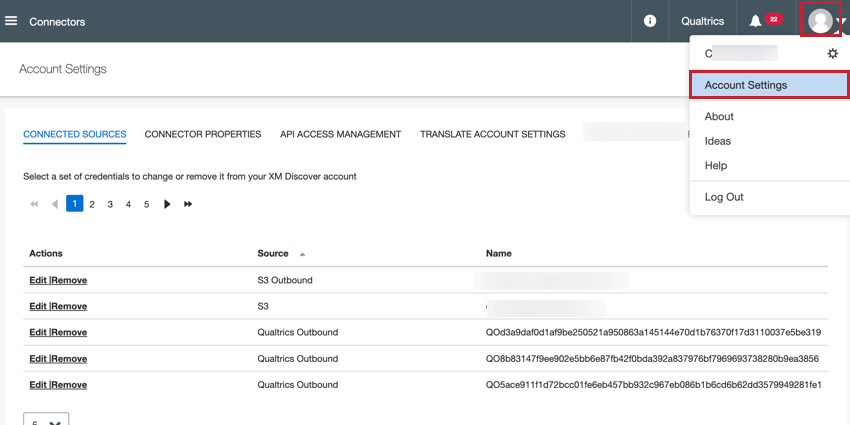
To access your account settings, click the user icon in the top right corner and then select Account Settings.
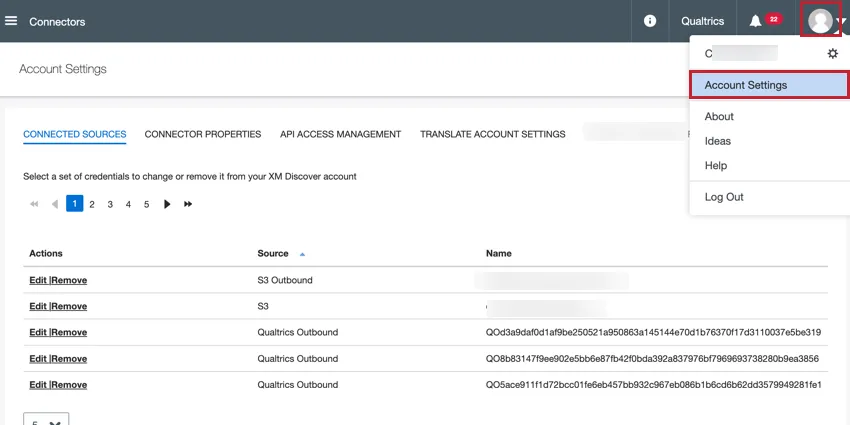
You can then navigate to the different sections of your account settings:
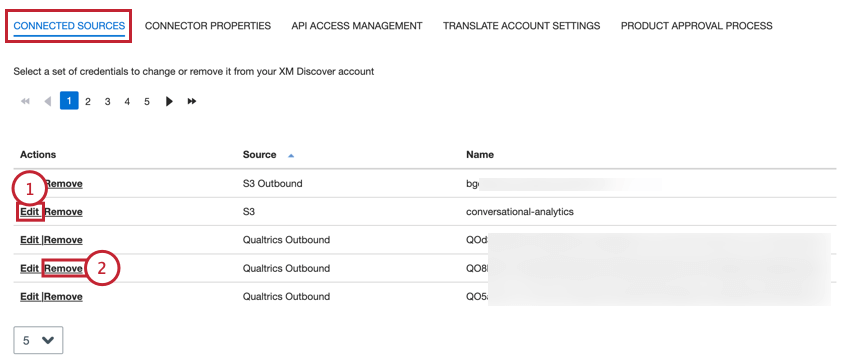
- Connected sources: Edit or remove credentials connected to your account.
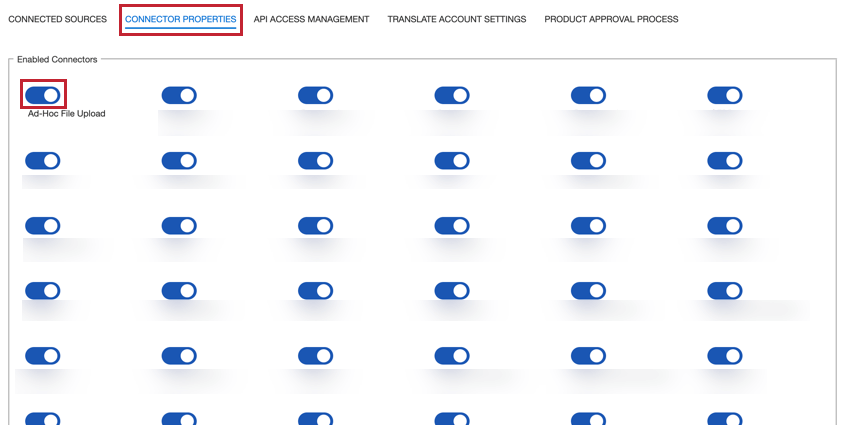
- Connector properties: Enable or disable the connectors available in your account.
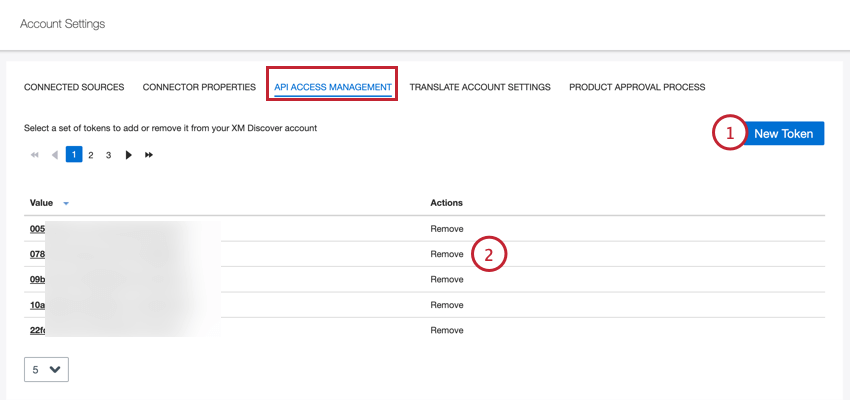
- API access management: Create and manage API tokens for your account.
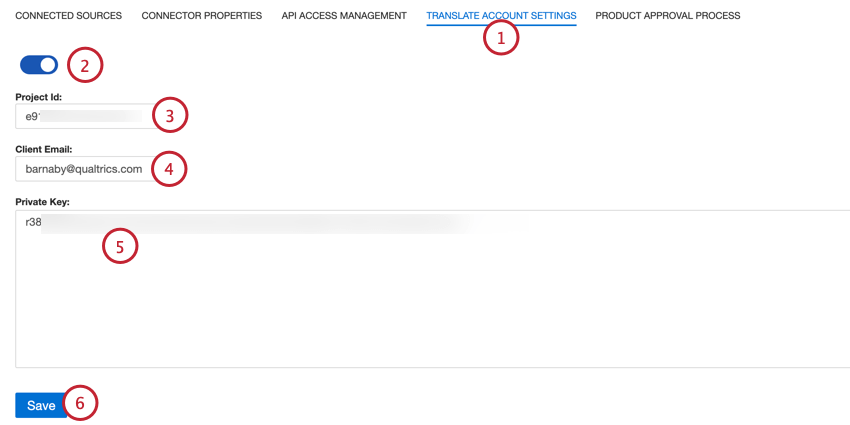
- Translate account settings: Allows you to translate incoming data using the Google Translate API
Qtip: You must have the “Administer Connectors” permission enabled to manage account settings.

Connected Sources
Account Administrators can manage the credentials used for integrations in the Connected Sources section of account settings.
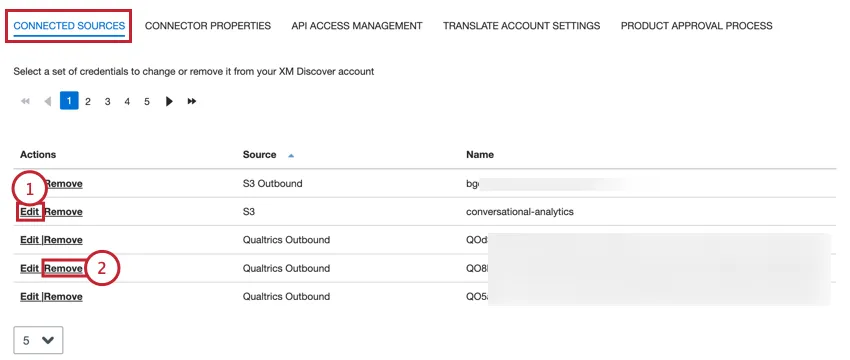
Qtip: The type of integration is listed in the “Source” field.
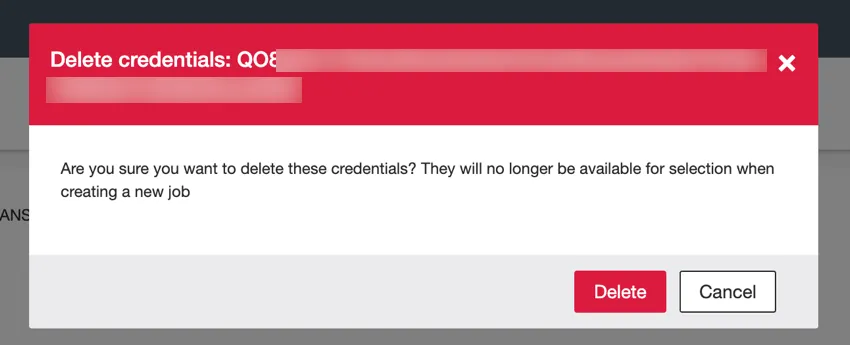
Attention: When you delete credentials, they will no longer be available to use when creating jobs for that integration. Click Delete in the pop-up window if you are sure you want to delete the credentials.

Connector Properties
Account Administrators can enable and disable the different integrations available in your account in the Connector Properties section of account settings.
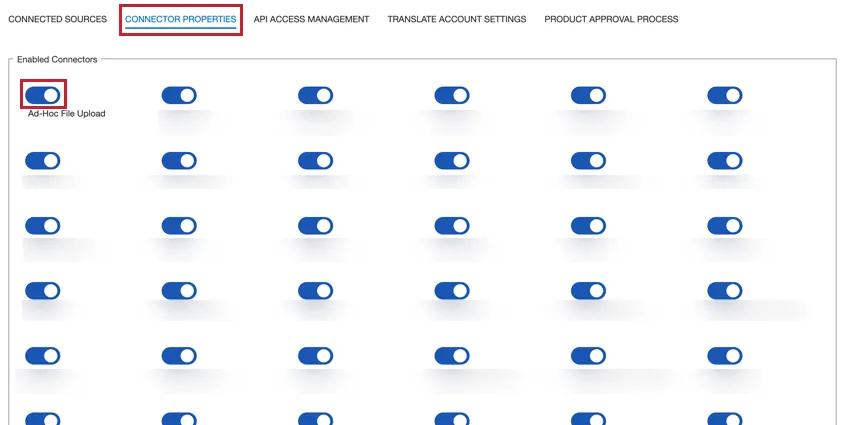
You can switch a toggle “on” to enable its associated integration or switch the toggle “off” to disable it.
API Access Management
You can manage the API tokens associated with your account in the API Access Management section of account settings.
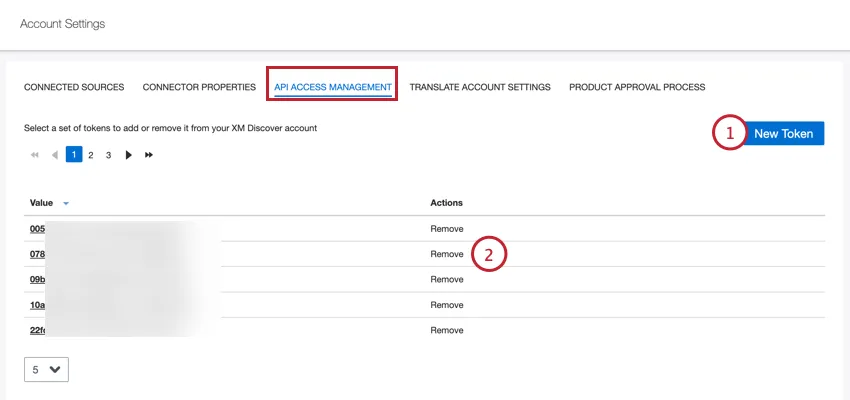
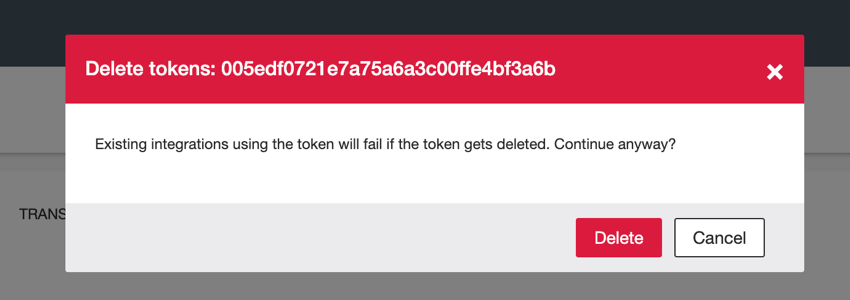
Attention: When you delete a token, all integrations that use the token will stop working. Click Delete in the pop-up window if you are sure you want to delete the token.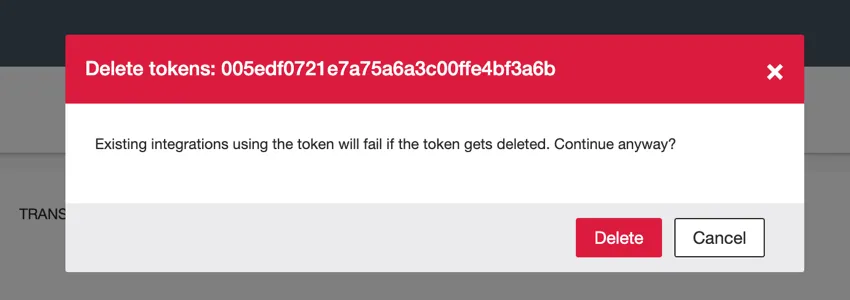
Translate Account Settings
You can translate incoming data before it is saved in XM Discover. This is useful if your collected data is in a different language than the one you’d like to analyze it in.
Attention: This feature uses Google Cloud to translate incoming data and is only available for non-conversational data (e.g., reviews, survey responses, social posts).
That's great! Thank you for your feedback!
Thank you for your feedback!