

Historical Job Runs
What's on this page
About Historical Job Runs
The Historical Runs section of the jobs page lists all of your past job runs.
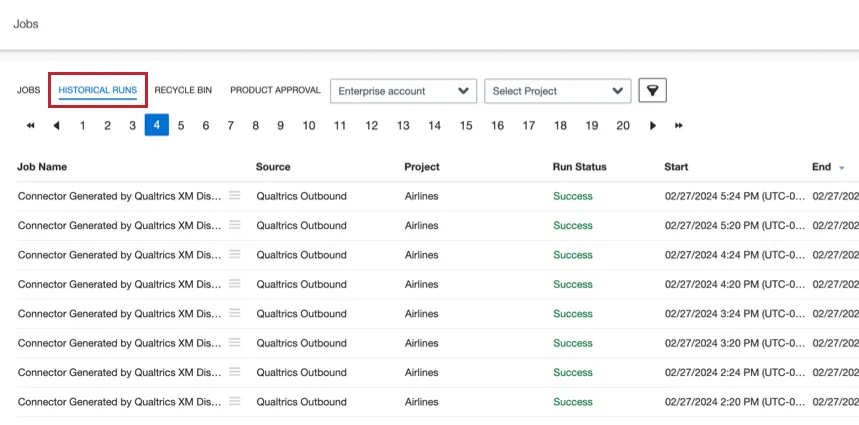
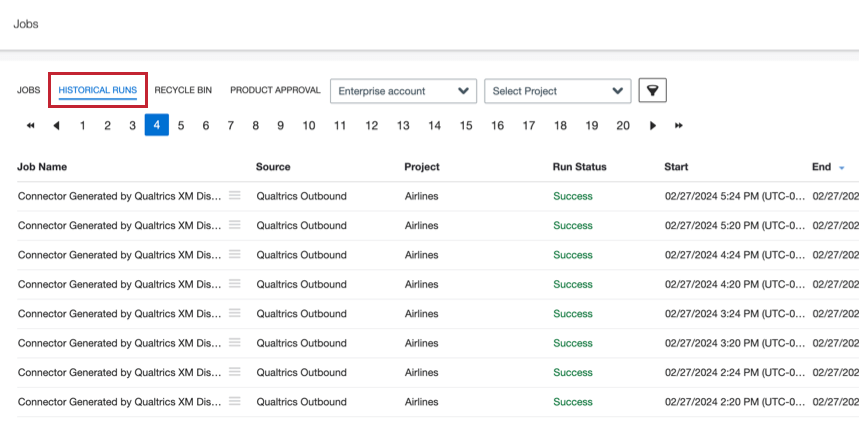
From this page, you can view statistics for past job runs and and delete records processed by past runs.
Viewing Job Run Statistics
You can review the results of historical job runs and upload sessions. Job statistics tell you information about the documents processed in the job, including how many documents were processed and how many were skipped and why.
For each job run, you can view the following information:
- Run statistics: An overview of the upload session.
- Processed documents status report: A CSV file with details about specific documents processed during the session.
- Processed files status report: A CSV file with details about specific files processed during the session. This report is only available for file-based connectors.
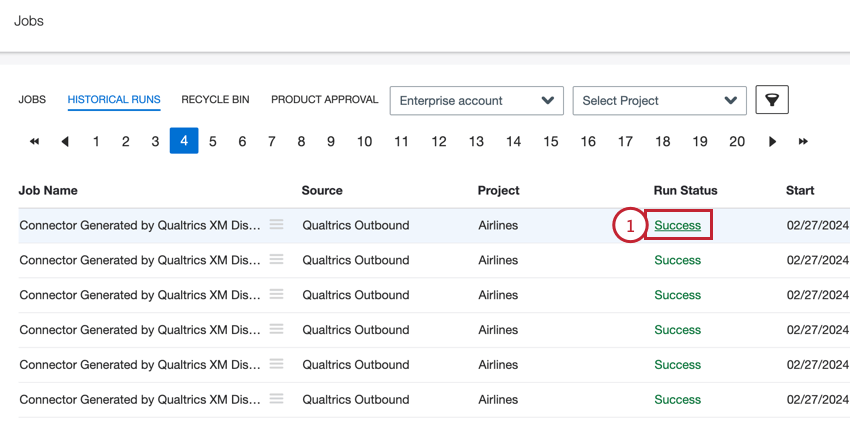
Qtip: If you’re interested in the job statistics for the most recent run of a recurring job, you can click the Last Run Status from the main Jobs page instead.

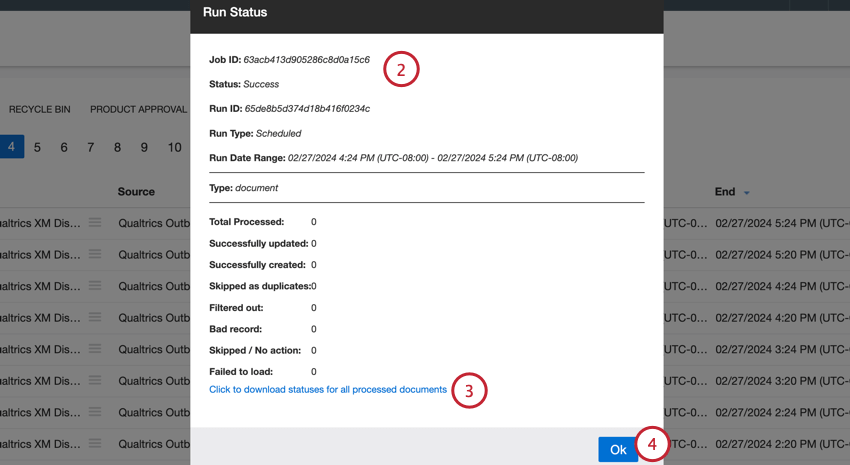
- Click to download statuses for all processed documents: This option is available for all jobs. You can click this link to download the run statuses for each document in a CSV format. See Downloaded Status Reports for more information about the data available in this download.
- Click to download statuses for all processed files: This option is only available for files-based connectors. You can click this link to download the run statuses for each file in a CSV format. See Downloaded Status Reports for more information about the data available in this download.
Run Statistics Overview
The Run Status window provides the following information about the job run:
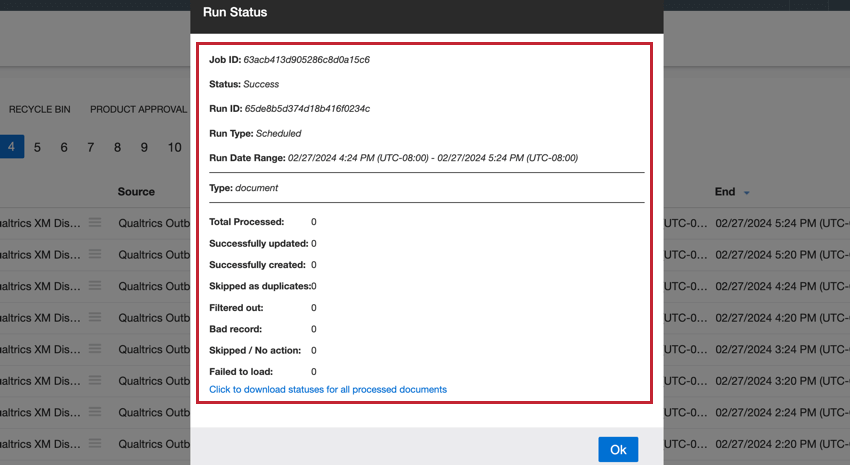
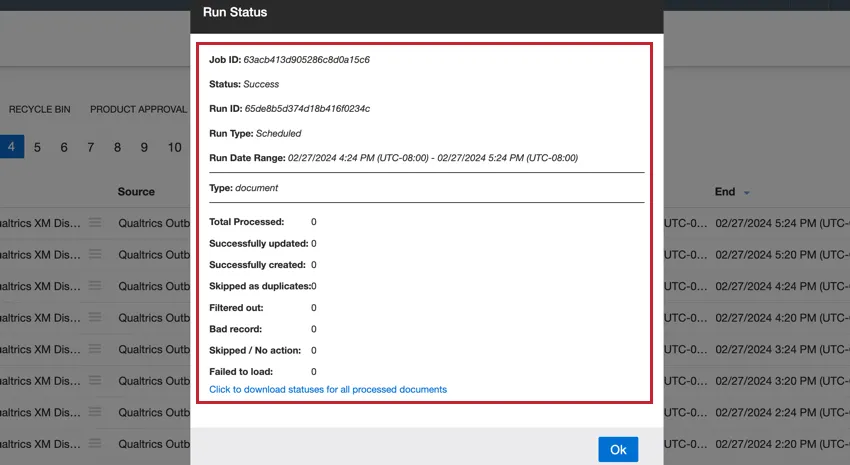
- Job ID: The ID of the job.
- Status: The status of the job run. For details, please see Job Statuses.
- Run ID: The ID of this specific job run.
- Run Date Range: The dates that the run started and finished running.
- Type: Indicates whether the remaining stats apply to documents or files. See the subsections below for more information about the stats for each type.
TYPE: DOCUMENT
The “Type: document” section of the “Run Status” window provides stats for documents processed during the job run:
- Total Processed: The total number of documents processed during this job’s run.
- Successfully loaded: The number of documents loaded successfully
- Successfully updated: The number of documents updated successfully.
- Successfully created: The number of documents created successfully.
- Skipped as duplicates: The number of documents skipped as duplicates.
- Filtered out: The number of documents filtered out by either a source-specific filter or regular connector filter.
- Bad record: The number of digital interactions submitted for processing that did not match the Qualtrics conversational format.
- Skipped / No action: The number of documents skipped as non-duplicates.
- Failed to load: The number of documents that failed to load.
TYPE: FILE
The “Type: file” section of the “Run Status” window provides stats for files processed during the job run and only appears for file-based connector jobs:
- Total Processed: The total number of documents processed during this job’s run.
- Successfully loaded: The number of documents loaded successfully
- Successfully updated: The number of documents updated successfully.
- Successfully created: The number of documents created successfully.
Downloaded Status Reports
Qtip: The type of status report available to you will depend on the connector job. For example, files inbound jobs include a file status report.
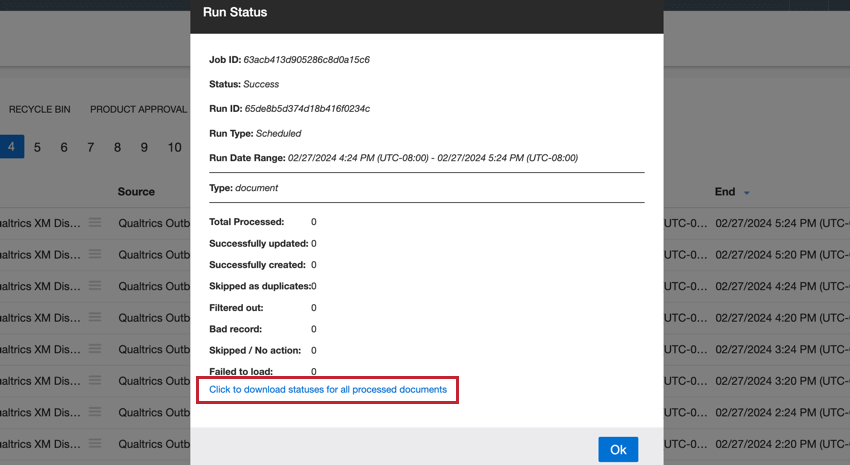
If you click the one of the status report links, you will download a CSV file containing the following information about the files or documents processed by the job:
- historicalRunId: The ID of the upload session.
- record_date: The primary document or file date.
- load_date: The date the document or file was added to XM Discover.
- jobId: The ID of the job.
- record_id: The ID of the document or file.
- status: The status of the document or file. Possible values are:
- Success: Document or file was processed successfully.
- Duplicated: Document or file was not processed because a document or file with the same ID already exists.
- Filtered_Out: Document or file was not processed because it didn’t match the job’s filter.
- Error: Document or file was not processed.
- failureReason: The reason the document or file was not processed, if it exists. This field is empty for documents or files with the “Success” or “Duplicated” status.
Purging Job Run Records
You can delete records loaded through a specific job run by purging that job’s run records.
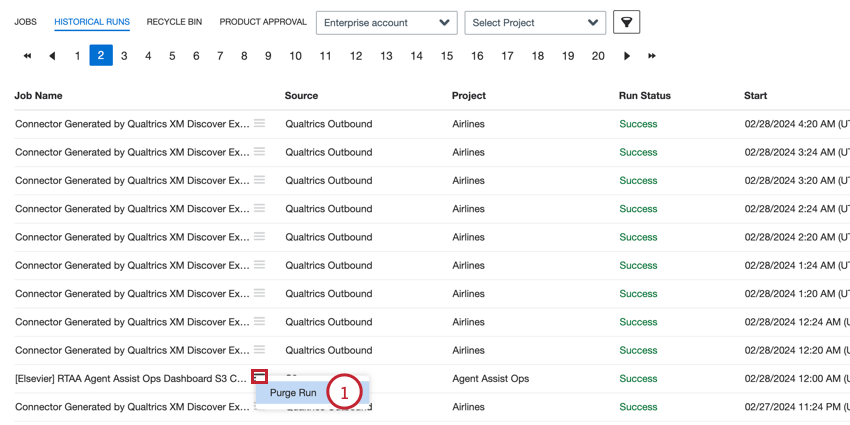
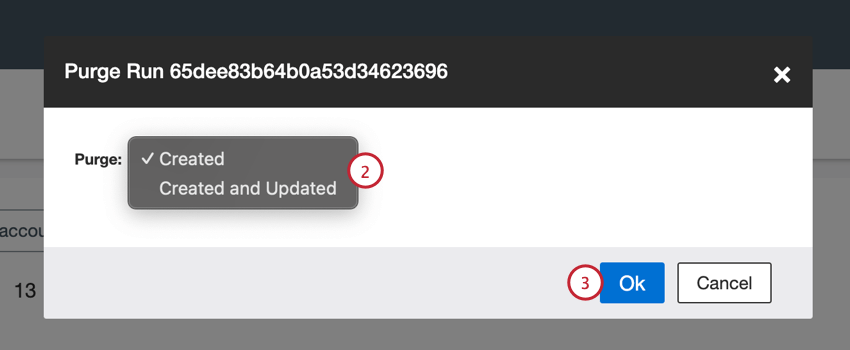
- Created: Only purge newly created records. Existing records that were updated will be unaffected.
- Created and Updated: Purge both newly created records and existing records that were updated.
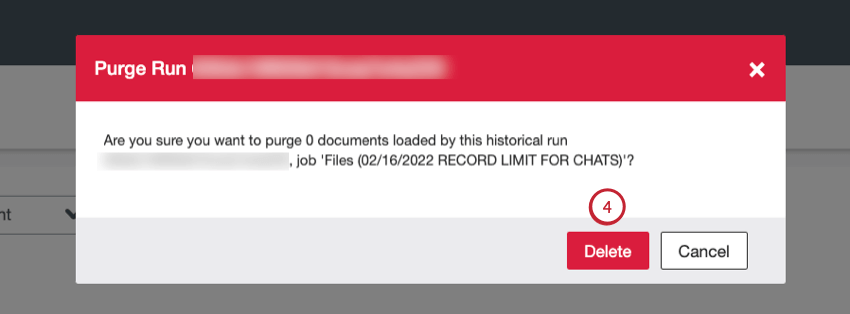
After clicking “Delete,” the requested records will be purged. The original job will still exist and will not be deleted. The purge history is not viewable as a separate job in XM Discover.
That's great! Thank you for your feedback!
Thank you for your feedback!