

Filtering Inbound Data (Connectors)
What's on this page
About Filtering Inbound Data (Connectors)
You can filter the data you import into XM Discover. This allows you to only import the data that meets your filter conditions.
There are 4 different types of data filters:
- Connector filters: Connector filters are available for all data connectors. They allow you to define an expression that is either true or false which determines if data is imported.
- Record limits: Record limits allow you to set a maximum number of documents imported in 1 job.
- Source filters: Some connectors also allow you to add a source filter, which allow you to set up additional filters specific to that data source.
- Query configurations: Some connectors allow you to add a specific query that the data must match to be imported.
Connector Filters
Connector filters are available for all data connectors. They allow you to define a Boolean expression that determines if data is imported.
You can access a job’s connector filter when setting up the job for the first time, or by selecting Data Filter from the job options menu.
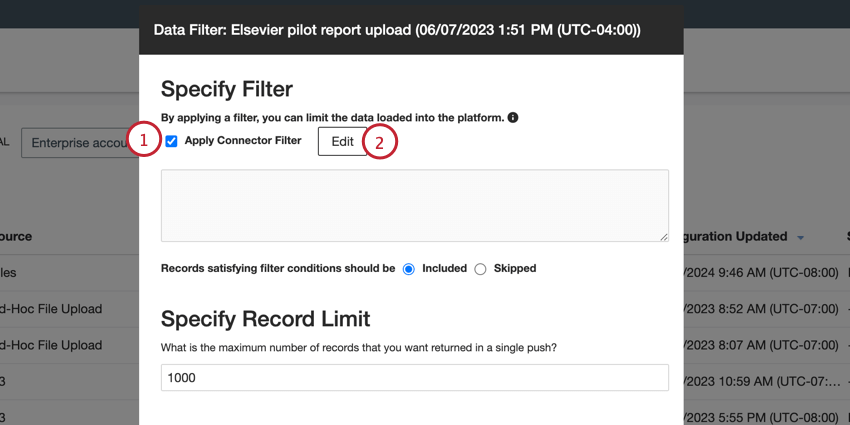
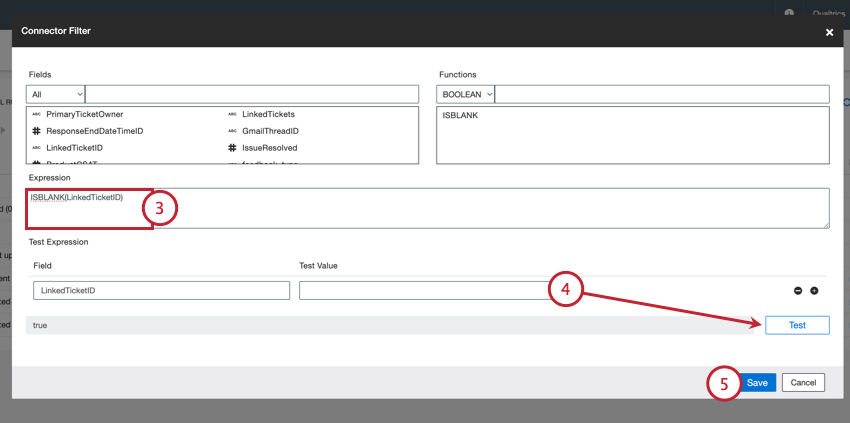
Example: In the above image, the expression “ISBLANK(LinkedTicketID)” was created, which evaluates the “LinkedTicketID” field for a value. Therefore, only data with a empty value for “LinkedTicketID” will be imported.

Qtip: Use the “ISBLANK” and “CONTAINS” functions for connector filters.

Qtip: Since you’re creating a Boolean expression, the result should be either “true” or “false.”
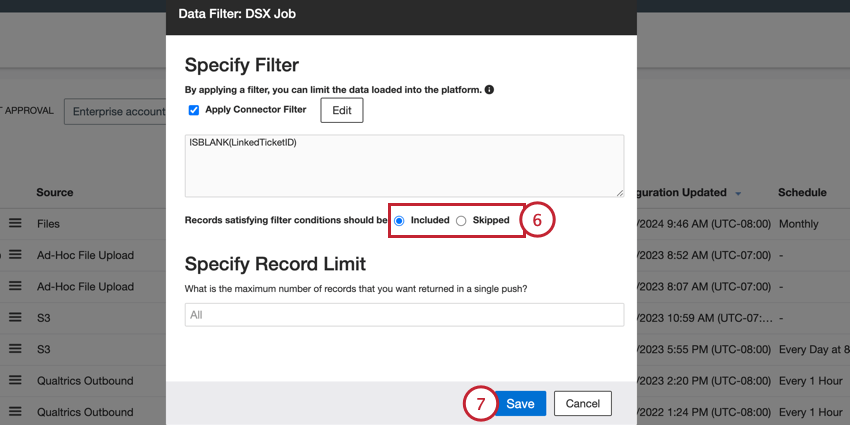
- Included: Records that match the expression will be imported.
- Skipped: Records that match the expression will not be imported.
Record Limits
By default, there is no limit to the number of documents that can be processed in a single job run. Record limits allow you to set a maximum number of documents that can be processed in a single job.
You can access a job’s record limits when setting the job up for the first time, or by selecting Data Filter from the job options menu.
Then, enter a number in the Specify Record Limit box. To remove the limit and process all documents, enter “All” in this box.
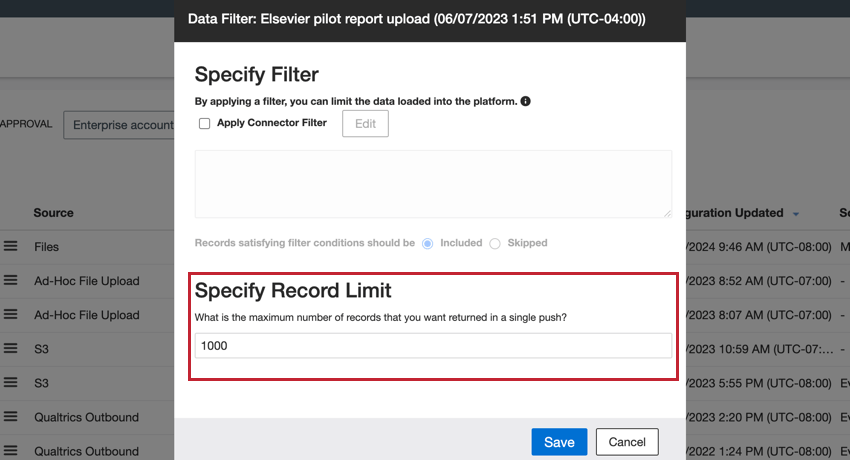
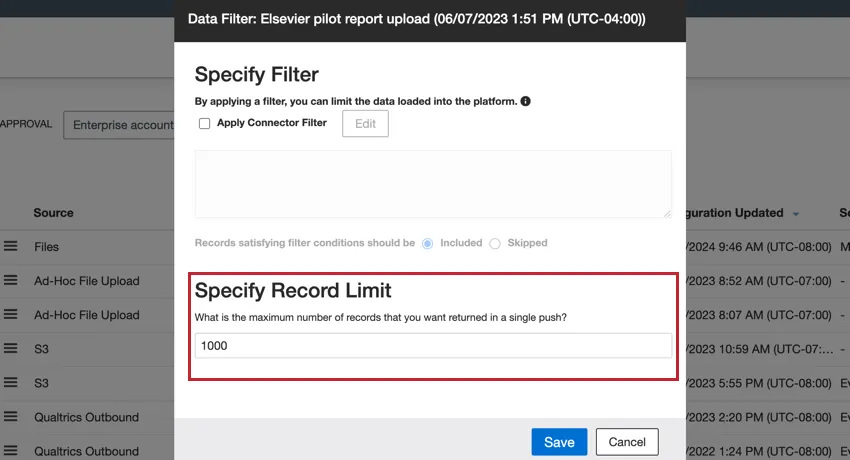
Qtip: The record limit applies to each individual job run. For example, if the limit is set to 1,000, then the job will run at whatever schedule you set, and will stop after pulling 1,000 records. For conversational data, the limit is applied based on conversations rather than rows.
Source Filters
Some connectors allow you to further filter their incoming data by specifying what data should be included or using one of the preconfigured filters.
The following connectors support source filters:
- Brandwatch inbound connector
- CFPB inbound connector
- Safer Products (CPSC) inbound connector
- Synthesio inbound connector
You can access your source filter when setting up a job for the first time, or you can edit the source filter for an existing job by selecting Data Source Filter from the job options menu. Follow the steps below to build your filter:
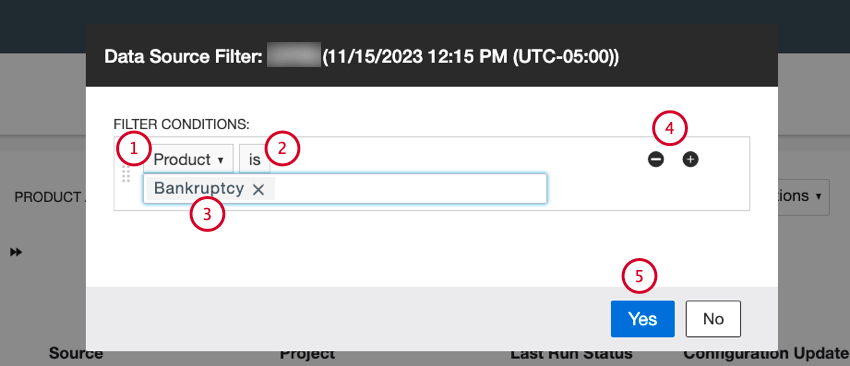
Qtip: If you have multiple values for a condition, they are separated by an implicit “or,” meaning a record needs to have only 1 of these values to meet the filter criteria.
Qtip: If you have multiple filter conditions, they are separated by an implicit “and,” meaning all conditions must be true.
Qtip: Depending on the data source, you may have a dropdown menu to choose data filters defined via that data source instead.
Query Configurations
Some connectors let you set up a search query to load only the data that matches the query. This allows you to control which documents get uploaded into XM Discover via these jobs.
The following connectors support query configurations:
- Facebook inbound connector
- Khoros inbound connector
- Salesforce inbound connector
- Twitter inbound connector
You can access the query configuration when setting up a job for the first time, or you can edit the query configuration for an existing job by selecting Query Configuration from the job options menu.
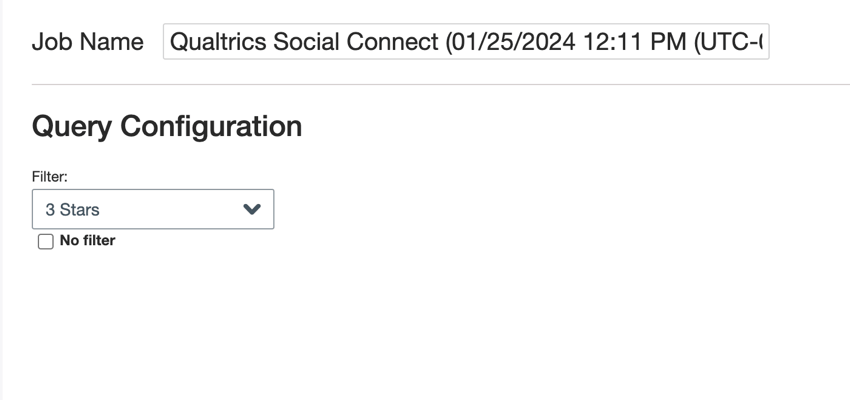
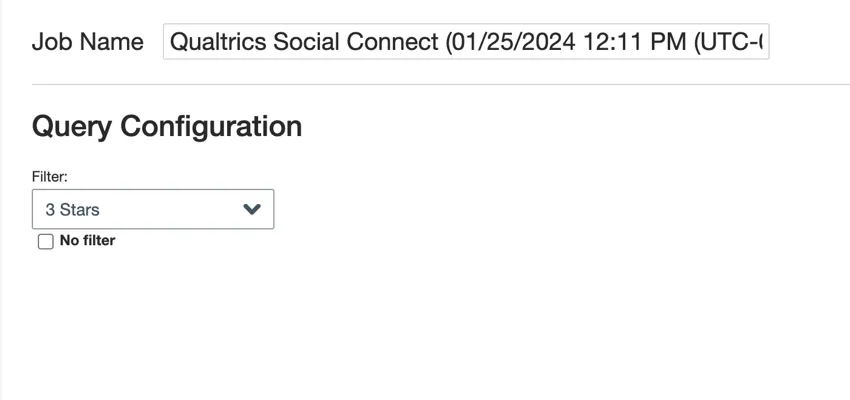
You can then set up the query for your job. The specific instructions for setting up a query vary depending on the inbound source. For example, Facebook inbound queries allow you to limit data to a specific Facebook profile or page, while Twitter inbound queries allow you to manually define a search term that must be included in the data. See the documentation for your inbound connection for specific instructions.
That's great! Thank you for your feedback!
Thank you for your feedback!