

Sentiment Tuning (Designer)
What's on this page
About Sentiment Tuning in Designer
Sentiment is an out-of-the-box enrichment that evaluates how positive or negative an individual comment is. Using sentiment tuning, you can adjust how sentiment is applied in a specific project. This helps you increase the precision of sentiment scores that appear in your reporting results.
Example: Even words that seem positive or negative may need to be re-examined (for example, “ice-cold” is negative when applied to “hot coffee,” but positive when applied to “soda”).

Qtip: As of August 14, 2019, changes to sentiment thresholds made in Designer are no longer reflected in 2.0 widgets in Studio. The best practice for changing sentiment bands is to edit the sentiment metric in Studio rather than through project settings in Designer.
Sentiment Tuning Process
This section covers a general process for tuning sentiment in your project. Sentiment values should be tuned after the data has been processed but before the reports are finalized. For example, values can be tuned while creating categories in your category model and reviewing sentences during the classification process.
Qtip: Words are tuned at the project level, so the sentiment applied to a word is the same for everyone using the same project.
Qtip: Do not adjust obvious words (like “terrible” or “wonderful”).
Example: In the sentence “I took an adventure to get support,” the word “adventure” carries a negative connotation.
Qtip: Double check ambiguous words, such as those that have multiple parts of speech (verb and adjective). The fewer times a word occurs, the less benefit you get from tuning it. As a rule, if a word occurs fewer than 50 times in a data set, the benefit from tuning is negligible. Use the Word Rank filtering on the Sentiment page.
Example: For example, if your company’s name is “Bad Cat Comics,” you can set up an exception rule for this phrase to exclude it from sentiment since “bad” is typically considered negative.
Tuning Word-Level Sentiment
You can tune the sentiments for individual words on a project level.
Qtip: Once you tune your sentiment, you can export and import it between projects.
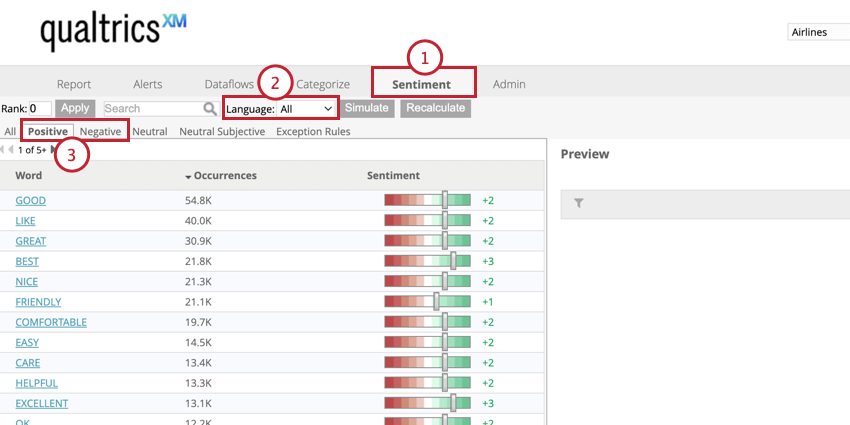
Qtip: The Neutral tab contains words that have a score of 0. The Neutral Subjective tab shows words from the Neutral tab that are subjective in nature which could be scored as either positive or negative depending on your data. The Rank value is ignored on this tab.
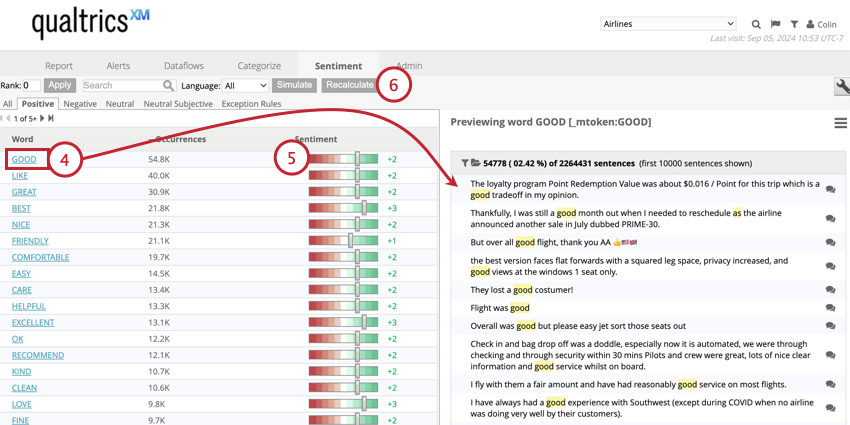
Qtip: You can also define sentiment exception rules for phrases. Please reach out to the Discover support team or to one of your Discover representatives for more information.
Sentiment Preview Options
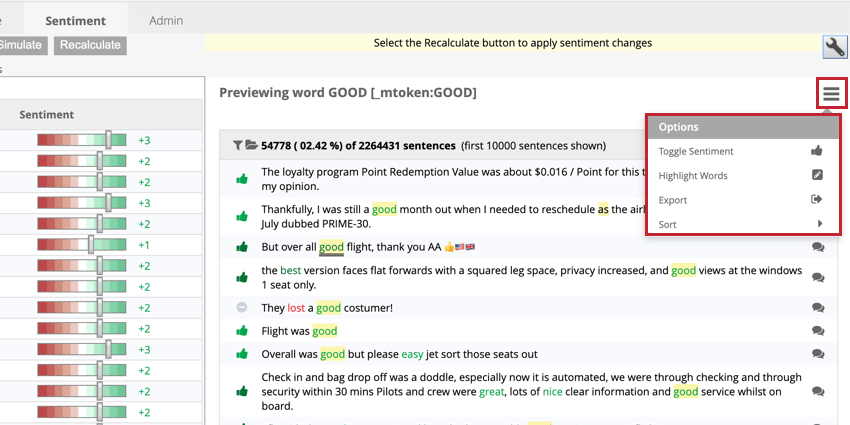
While tuning the sentiment for a word, you can preview individual instances of when that word appears in your dataset. You can customize how the preview looks using the preview options below.
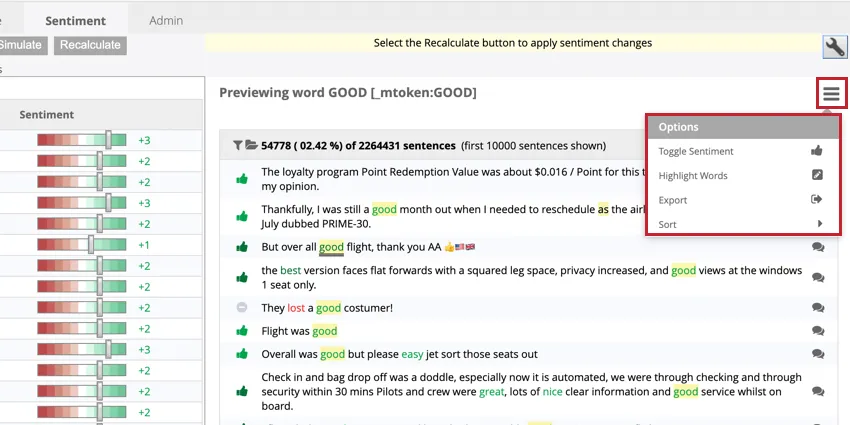
These options include:
- Toggle Sentiment: Enable or disable the sentiment icon at the beginning of the comment.
- Highlight Words: Highlight the words that contribute to the comment’s sentiment.
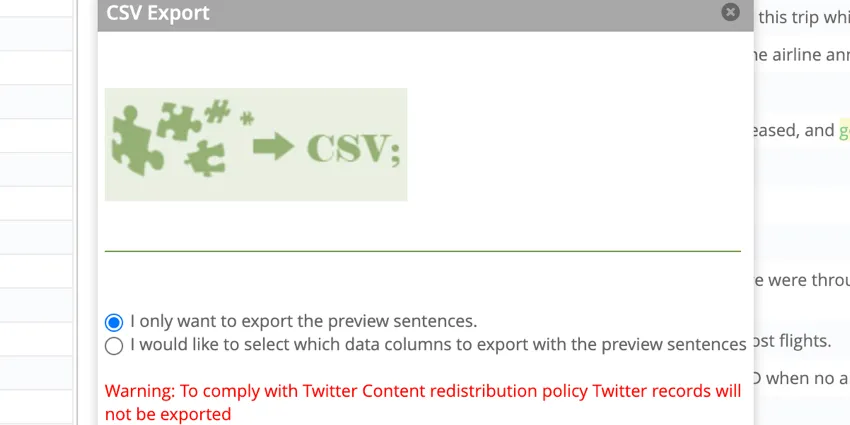
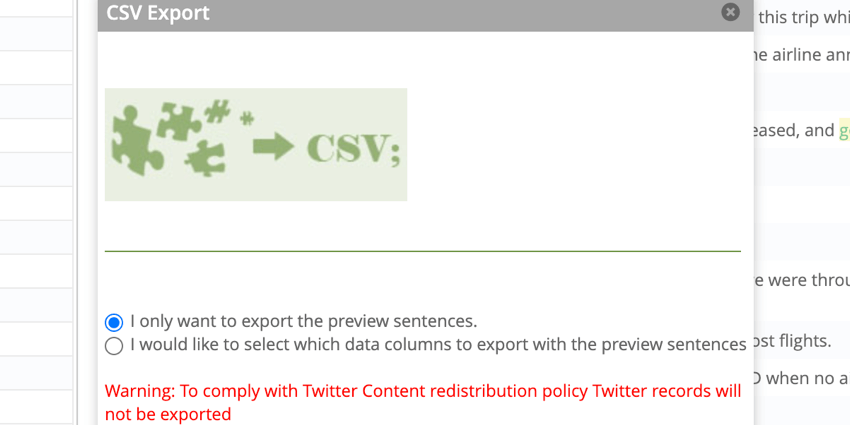
- Export: Export the sentence previews for the selected word. You can choose to only export the sentences, or export sentiment data fields of your choice.
- Sort: Sort the sentence previews by:
- Indexing Data Descending: Sort by when the sentence was indexed into XM Discover, with newest sentences at the top.
- Sentiment Descending: Sort by sentence sentiment from highest to lowest.
- Sentiment Ascending: Sort by sentence sentiment from lowest to highest.
Recalculating Sentiment
Whenever you make changes to your project sentiment settings, such as tuning words or adding sentiment exception rules, you need to run sentiment recalculation for the changes to take effect on your historical data. The following actions require sentiment to be recalculated:
- Tuning word-level sentiment
- Importing sentiment
- Activating, deactivating, editing, or deleting sentiment exception rules
Attention: Sentiment recalculation applies all sentiment changes on all data currently in the project (historical data). There is a distinction between historical data (already processed in the project) and future dataflows. Any changes to sentiment will be applied on data going forward (future dataflows), but to have changes apply to historical data, you have to recalculate sentiment.

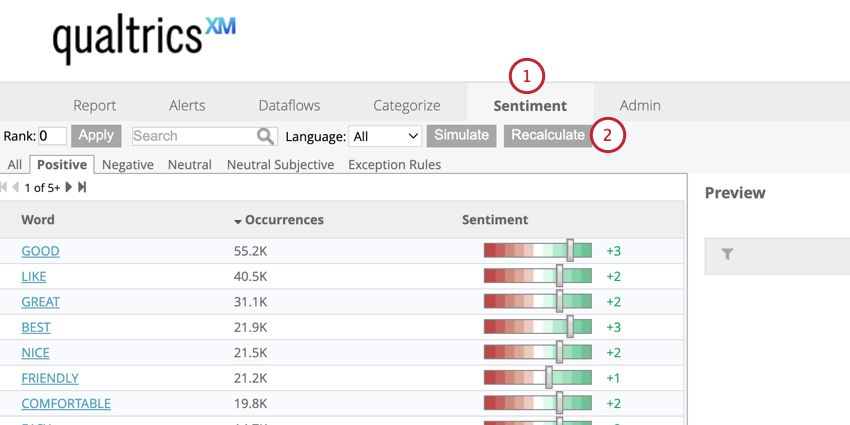
To recalculate sentiment:
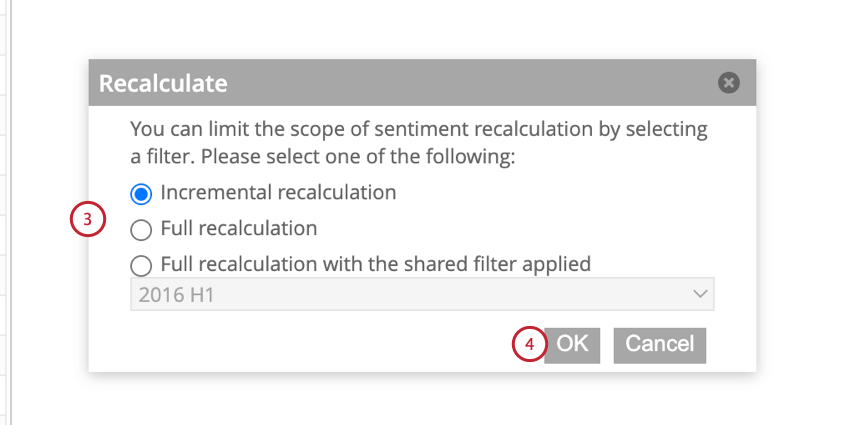
- Incremental recalculation: Recalculate sentiment for all sentiment changes since the previous incremental recalculation. This is the default option since it recalculates sentiment only on records where rule changes need to be applied.
- Full recalculation: Recalculate sentiment for the entire project.
- Full recalculation with the shared filter applied: Recalculate sentiment for a dataset defined by a shared or predefined sentiment filter. Qtip: We recommend using this option when creating or changing sentiment exception rules if you can pin down the dataset affected by the rule.

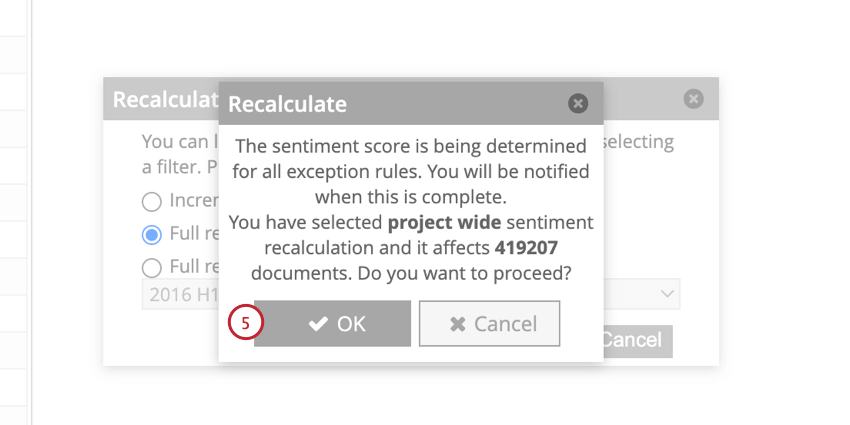
After the sentiment recalculation job finishes, the new sentiment scores are reflected in reports and previews.
That's great! Thank you for your feedback!
Thank you for your feedback!