

Studio Troubleshooting Tips
What's on this page
About Studio Troubleshooting Tips
If you run into problems with Studio, here are a few tips that might help.
If the problem you are experiencing is not covered on this page, please reach out to our support team in the Customer Success Hub.
Updates in Designer are Not Reflected in Studio
If you haven’t logged out of Studio in a while, you may need to clear your browser’s cache to make sure recent Designer changes show up in Studio. You can do this by clicking your browser’s Reload button or hitting F5 on your keyboard.
Studio caches things like model topics and available attributes to improve reaction speed when you are editing widgets, filters, and other objects. If you or another user makes a change in the data (for example, creates or deletes a topic in a model) since the last time you logged in or switched from Designer to Studio, consider reloading Studio in your browser.
No Audio Playback in Document Explorer
Attention: Audio playback is only available for accounts that use XM Discover’s Voice Transcription Service.

In some cases audio playback may be unavailable in Document Explorer. Depending on the message that is displayed, the reason for this can be one of the following:
- Audio Out of Date Range: The document date falls outside of the retention period specified in your contract (45 days by default).
- Audio Unavailable: Indicates that the retention period has increased and the document date occurs between old and new limits.
- Audio Missing: Indicates the audio file is missing. We recommend contacting Qualtrics Support to figure out why.
Not Receiving a Reset Password Email
If you don’t promptly receive an email after requesting a password reset, check your spam folder. We also recommend adding no-reply@clarabridge.com to your safe senders list.
Sign-in Issues Related to Application Switching
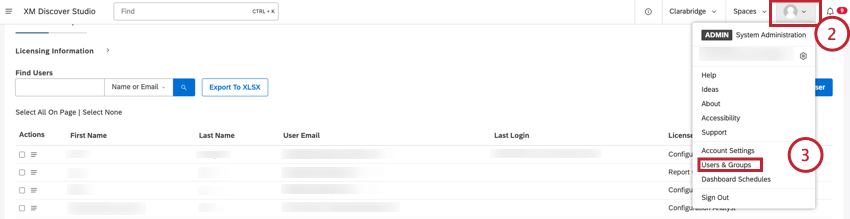
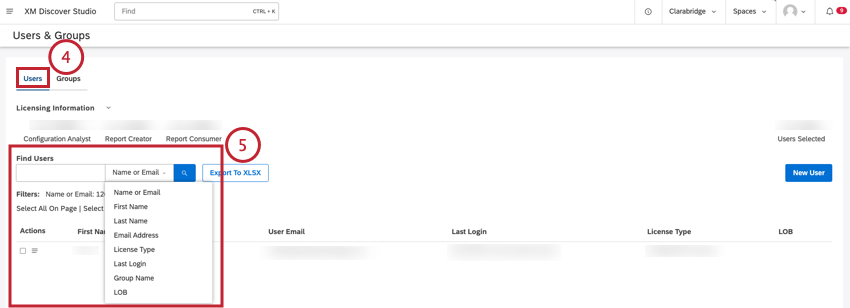
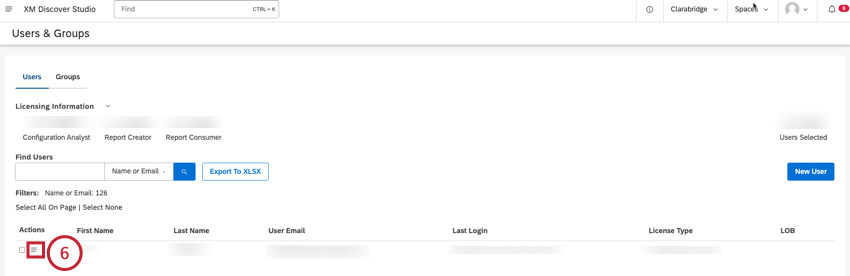
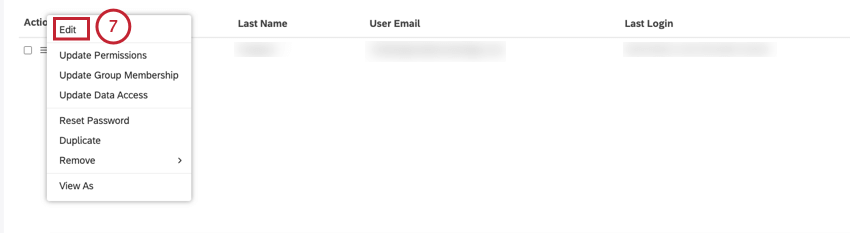
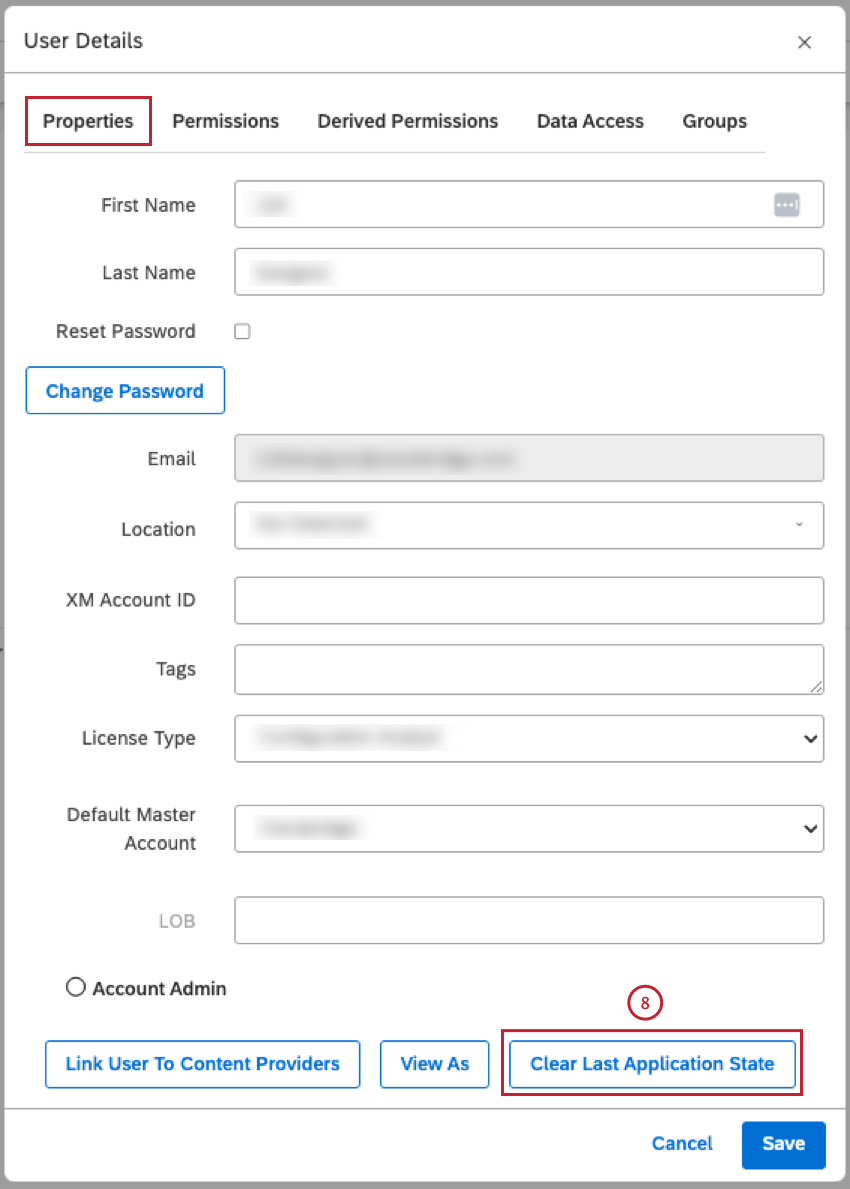
If a user experiences sign-in issues when accessing the last application they were working with, clearing their last application state can help.
How To Clear a User’s Last Application State
Attention: This action is available only to Account Owners and Account Administrators.
Embedded Widget Not Displaying in an External Tool
If an embedded widget is not displaying in the external tool, but works in Studio, try the following troubleshooting steps:
- Add net domain to your browser’s allowlist.
- Turn off ad blockers or accept net in your ad blocker.
- Enable third-party cookies in your browser, since Studio acts as a third-party when you embed widgets into another application.
That's great! Thank you for your feedback!
Thank you for your feedback!