x

HTML and CSS

Home > Coder’s Corner > HTML and CSS
Survey Research Suite

Guide

Add additional content to your survey using HTML, or change the style of existing content with CSS.

Add HTML that displays on one page of your survey

  1. Click on the text of the question where you would like to add HTML.
  2. Click the blue HTML View tab.
  3. Alternatively, click the blue Rich Text Editor tab, and click the Source icon in the Rich Text Editor.
  4. Add your custom HTML as needed within the text.
Add HTML that displays on every page of your survey

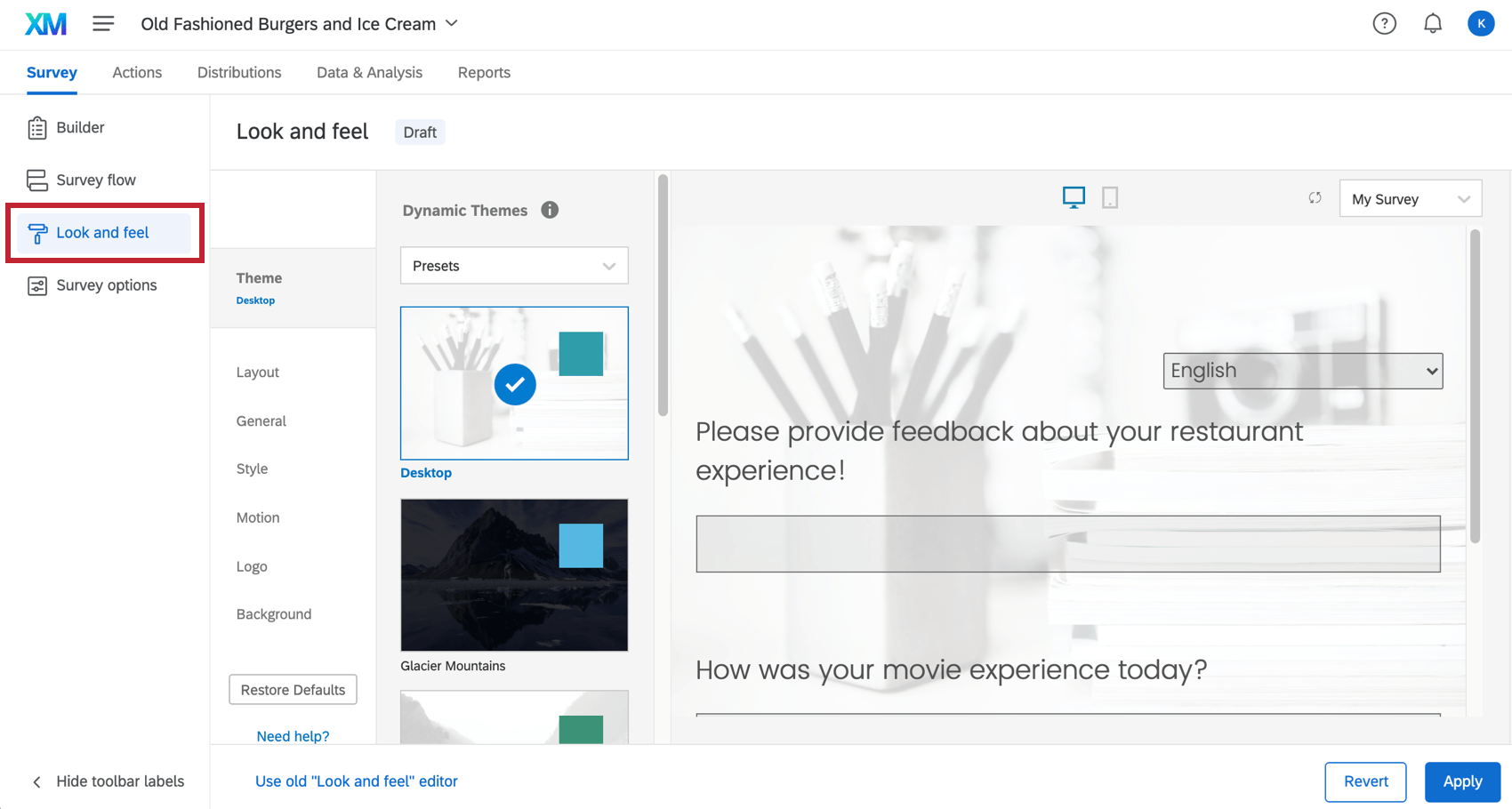
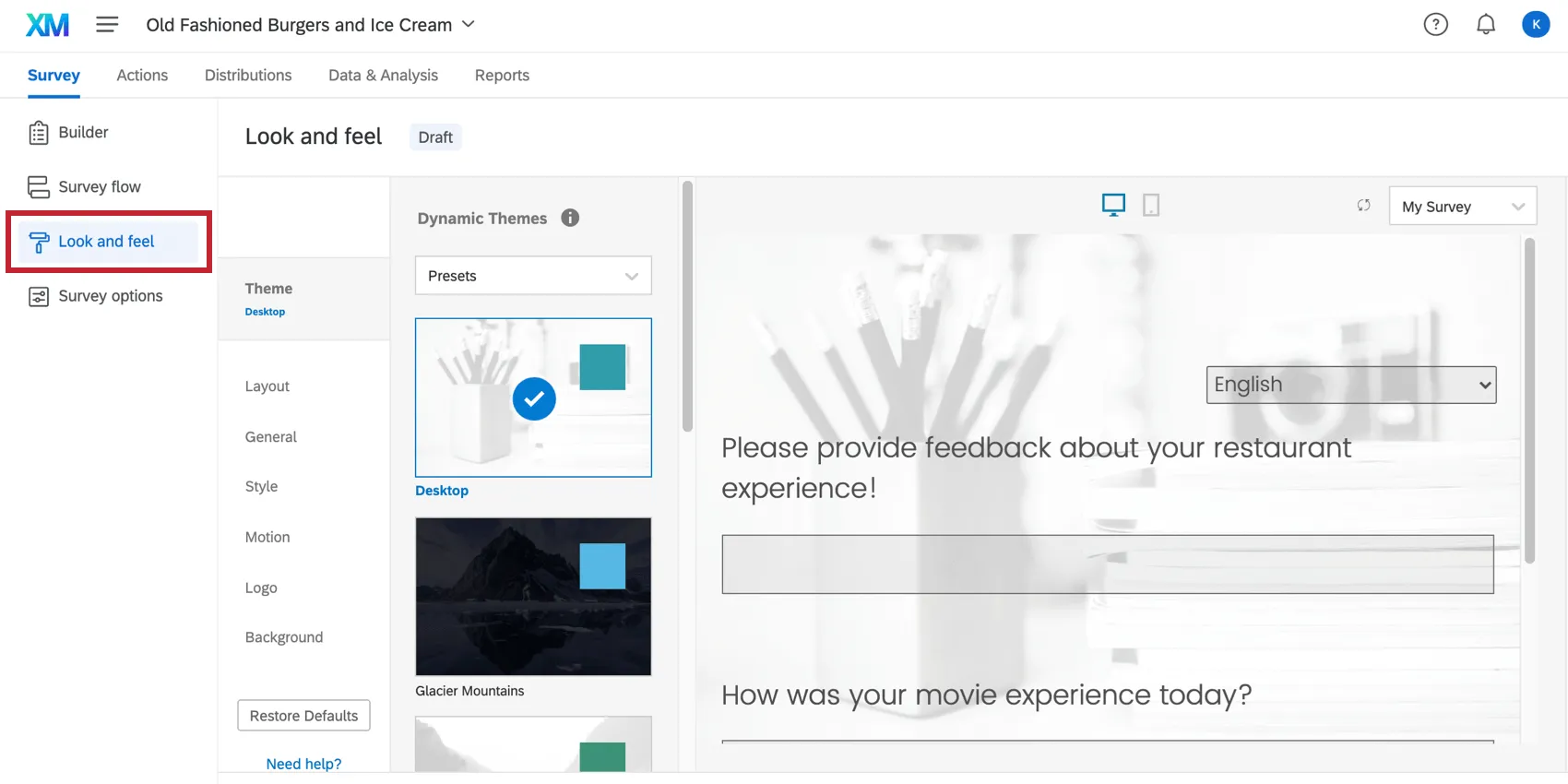
  1. Select Look and Feel on the gray toolbar.
  2. Open the Advanced section of Look and Feel.
  3. Paste your HTML into the Header text box.
add CSS that applies to your entire survey

  1. Select Look and Feel on the gray toolbar.
  2. Open the Advanced section of Look and Feel.
  3. Select to Add Custom CSS.
  4. Type in your CSS.
add CSS that applies to only a specific page of your survey

  1. Click on the text of the question where you would like to add HTML.
  2. Click the blue HTML View tab.
  3. Type in your CSS, surrounding it with the

    <style>

    and

    </style>

    HTML tags.

Common Qualtrics CSS Classes

The following are commonly used Qualtrics classes and IDs which can be modified through CSS. Additional classes and IDs can be found using the Inspect Element option in your browser, or through a third party extension such as Firebug.

  • #SurveyEngineBody: The background of the entire survey page.
  • .Skin .SkinInner: The container for the questions area as well as the header and footer.
  • .Skin #SkinContent: The background for the questions area of the survey.
  • .Skin #LogoBar: The container for the logo on your survey.
  • html .Skin #Logo: The logo for your survey.
  • .Skin #Buttons: The next and previous buttons.
  • .Skin .QuestionText: The question text.

Please view example style sheet page if you are looking to create and upload your own style sheets.

Example HTML and CSS

Add an Additional ‘Next’ Button

This code allows you to add an additional “Next Button” to your survey. This might be helpful if you would like a button both at the top and the bottom of the page.

HTML Code

Add an Additional ‘Next Button’

<div id="Buttons">
<input id="NextButton" type="submit" value=" >> " name="NextButton" title="Next" onclick="Qualtrics.SurveyEngine.navClick(event, 'NextButton')">
</div>

Add an Additional ‘Back Button’

<div id="Buttons">
<input id="PreviousButton" type="submit" value=" << " name="PreviousButton" title="Back" onclick="Qualtrics.SurveyEngine.navClick(event, 'PreviousButton')">
</div>

Move the ‘Next Button’ to the Top of the Page

<div id="New" style="text-align: right; ">
<input id="NextButton" type="submit" value=" >> " name="NextButton" title="Next" onclick="Qualtrics.SurveyEngine.navClick(event, 'NextButton')"></div>
<style>
.Skin #Buttons {
visibility:hidden;
}
</style>

Move the ‘Next Button’ and the ‘Back Button’ to the Top of the Page

<div id="New" style="text-align: right; ">
<input id="PreviousButton" name="PreviousButton" title="Back" type="submit" value="Back"/>
<input id="NextButton" name="NextButton" title="Next" type="submit" value="Next" /></div>
<style>
.Skin #Buttons {
visibility:hidden;
}
</style>

Instructions

Paste the code into the header of your survey if you would like it to apply on every page, or into the text of any question if you would like it to apply on just one page.

Add a ‘Close’ Button

This code will place a Close button on your survey page. It will not affect how Qualtrics saves participant data, but in some situations clicking a Close button rather than exiting out of the browser may give participants more peace of mind when they need to leave the survey early. Unfortunately, this code does not work in Internet Explorer. Click here to see an example.

HTML Code

Add a Close Button

<button id="NoButton" onclick="javascript: window.close();" 
name="NoButton" value="Close">Close</button>

Close Automatically

<body onload="window.close()">

Close Automatically With a Delay (time is in milliseconds)

<body onload="setTimeout(window.close, 5000)">

Instructions

To have the button appear on only one page of the survey, paste it into the Code View of a question on that page. To have it appear throughout your survey, paste it into your header.

Add a ‘Print’ Button

This code will enable you to add a Print button to a survey page. Note that this button performs the same function as clicking File, then Print in your browser. Also note that it does not work in Internet Explorer. Depending on the study, having an actual print button may be easier for participants. Once you have added the code, the survey will look like this: Click here to see an Example.

HTML Code

<div style="text-align: right;">
<input type="button" onClick="window.print()" value="Print"/>
</div>

Instructions

This code can be added to your question’s Code View, or into the Header of the survey, depending on where you’d like the ‘Print’ button to appear.

Add Social Media Links

Social media, such as a Facebook Like or a Twitter Tweet button can be added to your survey. Here are a few examples:


Instructions

Visit your preferred social network’s website for information on the appropriate HTML to use. Some good resources for this include:
http://developers.facebook.com/
http://twitter.com/
http://addthis.com/
Paste the HTML code into the Code View of your question or into the header or footer. You can also paste it into the source view of a custom end of survey message.

Click on Image or Text to Display Extra Content

This code is useful when you have text that you would like to display only when the participant clicks on an image or on a piece of text. For instance, you could have a picture of a product, and have a product description appear below when the participant clicks on it. Click here to see an example.

HTML Code

Click on Image, Text Appears Below

<img onclick="$('divID').toggle();" src="INSERT IMAGE URL HERE”>
<div id="divID" style="display: none;">INSERT TEXT HERE</div>

Click on Text, Image Appears Below

<a href="#" onclick="$('divID').toggle();">INSERT TEXT TO CLICK ON HERE</a>
 <div id="divID" style="display: none;"> <img src="INSERT IMAGE URL HERE" /> </div>

Click on Text, Text Appears Below

<a href="#1" onclick="$('divID').toggle();">INSERT TEXT TO CLICK ON HERE</a>
<div id="divID" style="display: none;">INSERT TEXT TO BE TOGGLED HERE</div>

Instructions

Place this code into the Code View of your Question Text. You can find the URL for your images by adding them into your questions using the Rich Text Editor, and then clicking on the Source or HTML View to get the URL.

Display a Timer

With this code, you can add either a countdown or a countup timer on a survey page so participants know how long they are taking with their answers. Note that these timers are only visual representations to help the participant. Click here to see an Example. (To automatically move participants forward after a set amount of time, add a timing question to your survey.)

HTML Code

Code for a Countdown Timer

Time: <span id=time>30</span>
<script> 
  started = false;
  function countDown()
  {
      if (!started)
          started = true;
      else
      {
          var value = parseInt($('time').innerHTML);
          $('time').innerHTML = value - 1;
      }
      setTimeout(countDown, 1000);     }
  Event.observe(window, 'load', countDown);
 </script>

Code for a Countup Timer


Time: <span id=time>0</span>
<script>
   started = false;
  function countUp()
  {
      if (!started)
          started = true;
      else
      {
          var value = parseInt($('time').innerHTML);
          $('time').innerHTML = value + 1;
      }
      setTimeout(countUp, 1000);     }
  Event.observe(window, 'load', countUp);
 </script>

Instructions

Place the code in the Code View of your question text. For the countdown timer, replace ’30′ with how many seconds you would like to allow.

Fixed Reference Box

This will add a text box that you can fill with reference information on the side of your survey. It will stay in the same position when participants scroll down so that they’ll always see it. Click here for an example.

HTML Code

CSS For a Box on the Right

.banner {
background-color: white;
padding: 3px;
border: 2px solid black;
height:100px;
width:80px;
margin-left: 775px;
position:fixed;
text-align:center;
}

CSS For a Box on the Left

.banner {
background-color: white;
padding: 3px;
border: 2px solid black;
height:100px;
width:80px;
margin-left: -130px;
position: fixed;
text-align:center;
}

HTML for the Content of the Textbox

<div class="banner">PLACE YOUR TEXTBOX CONTENT HERE</div>

Instructions

Add either of the CSS styles into the CSS editor, and add the HTML to your header. Modify the HTML and CSS as needed to change the reference box.

Hover-over Text Box

When a participant hovers over a specific word, a text box will appear with additional information. Click here to see an example.

HTML Code

<span style="color:blue;" title="INSERT TEXTBOX TEXT HERE">INSERT DISPLAYED TEXT  HERE</span>

Instructions

To use this, paste the code into the Code View of your question text.

Increase Image Size on Click

This code allows you to increase the size of an image when clicked on.

HTML Code

Lightbox Link

<script type="text/javascript" 
src="../WRQualtricsShared/JavaScript/Libraries/lightbox/js/lightbox.js"></script>
<link href="../WRQualtricsShared/JavaScript/Libraries/lightbox/css/lightbox.css" 
rel="stylesheet" />

Image Code

<a href="LARGE IMAGE URL" rel="lightbox" title="Image Title">
<img src="SMALL IMAGE URL" border="0"></a>

Instructions

Paste the lightbox link into the header of your survey, and paste the image code into any question where you would like the image to display.

If you do not have a URL for your images, you can upload your images into the Qualtrics Graphics Library and use the URL created by Qualtrics. Simply upload your image into the library or into a question and use the Rich Text Editor to view the source code of that image. You will see a link for that image embedded in the source code.

Increase Spacing Between Questions

This code allows you to increase the spacing between the questions in your survey. Click here to see an example.

CSS Code

.Skin .Separator {
height:1px;
}

Instructions

Add this code to the CSS editor, and change the height property to reflect how much spacing you would like.

Increase Size of Radio Buttons

This code allows you to increase the size of radio buttons and check boxes throughout your survey. Click here to see an example.

HTML Code

.Skin .MC input.radio, .Skin .MC input.checkbox {
width: 2em;
height: 2em;
}

Instructions

Paste this code into the CSS editor and modify the width and height as needed.

*Note – Modified buttons are not compatible with all browsers. Participants who are not able to have the larger buttons will see the standard ones.

Move Choices Beside Question Text

This code allows you to place choices or boxes beside your question text rather than underneath it. Click here for an example.

CSS Code

.Skin .ChoiceStructure {
float: right;
}
.Skin .QuestionText {
float: left;
}

Instructions

Paste this code into the CSS editor.

Move Labels on a Slider Scale

This code allows you to move the slider scale labels over the endpoints. Click here to see an example.

HTML Codes

For Your First Label to be Moved

<div class=new>INSERT LABEL TEXT HERE</div>

For Your Second Label to be Moved

<div class=new2>INSERT LABEL TEXT HERE</div>

CSS

.new {
position:relative;
left:-50px;}
.new2 {
position:relative;
right:-50px;

Instructions

Type the code for your labels directly into the scale points. Paste the CSS style into the CSS Editor. Modify the left and right properties as needed to shift the labels.

Move Progress Bar to Top of Survey

This code allows you to move the progress bar to the top of your survey. Click here for an example.

HTML Code

<script>
Event.observe(window, 'load', function()
{
var pb = $('ProgressBar');
var sc = $('Questions');
Element.insert(sc, {top:pb});
});
</script>

Instructions

Paste this code into the header of your survey. Note that even though this is technically JavaScript, it has been wrapped in script tags so it can be placed in the Header as HTML.

Resize Text Entry Boxes

This code allows you to change the size of text entry boxes. Note that regardless of the size of the text entry box, participants can type as much as they like unless a maximum length is set. This code will only affect the visual presentation of the text box. Click here to see an example.

HTML Code

‘Essay Text Entry’ boxes

<style>
.Skin .TE .ESTB textarea{
height:500px;
width:800px;
}
</style>

‘Single Line Text Entry’ boxes

<style>
.Skin .TE textarea, .Skin .TE input {
width:40px
}
</style>

‘Form’ boxes (Medium)

<style>
.Skin .TE .ChoiceStructure .Medium {
width:40em;
}
</style>

‘Allow Text Entry’ option (‘Other’ boxes) on choices

<style>
.Skin .QuestionBody .TextEntryBox {
width:30em;
}
</style>

‘Side by Side’ boxes (Long)

<style>
.Skin .SBS .Long {
width:20em;
}
</style>

Instructions

To affect the size of all textboxes within a survey, paste this code into the CSS Editor omitting the

<style></style>
tags. To only modify text boxes on one page, paste it into the HTML view of any question on that page.

Add a Subheading in a Multiple Choice or Constant Sum Question

With this code, you can add headings between choices of a multiple choice or constant sum question to visually group choices into categories. Option Number 1 is simpler and is best for most situations. Option Number 2 is appropriate when you need greater precision or if you need a header above the first choice and can’t add it within the question text. Click here to see an example.

HTML Code

Option Number 1

<div class="QuestionText">Subheading Text1<br>Subheading Text2<br>Subheading Text3</div>

‘Single Line Text Entry’ boxes

<div class="QuestionText">Subheading Text1<br>Subheading Text2<br>Subheading Text3</div>

Option Number 2

<style> 
#QR\~QID13\~1 {display:none}
   #QR\~QID13\~4 {display:none}
   #QR\~QID13\~6 {display:none}
</style>

Instructions

Option Number 1

To insert a subheading, click on the answer choice above where you want the header to appear, and paste this code at the end of the choice.

Option Number 2

This code will go in the Code View of your question. The \~x numbers represent the answer choices that will be turned into headers. You will also need to have the appropriate QIDx for your question.

Widen the Survey Skin

This code allows you to widen the skin for your survey. It is especially useful when you have wide images or questions that you are trying to accommodate. Click here to see an Example.

CSS Code

.Skin #SkinContent {
width:1140px;
}

Instructions

Place this code into the CSS Editor of the survey you’d like to widen. Change the width (measured in pixels) as needed.

Use Iframe to embed your survey

This code allows you to embed your survey into a webpage. Please note that when you embed a survey into a webpage, each visit to to the webpage counts as a response.

<iframe src="Paste Survey Link Here" height="450px" width="600px"></iframe>