

Library Graphics
What's on this page
About Library Graphics
You can use the library to store and manage any images you’ve uploaded to Qualtrics. You can use these graphics in your surveys and messages.
Example: Store graphics in your library to use in survey headers or questions.

File Requirements for Graphics
You can upload images in the following formats:
- JPG (or JPEG)
- PNG
- GIF
For the best experience, we recommend using PNG files.
Images must be 16 MB or smaller. See more library limits.
Adding a Graphic
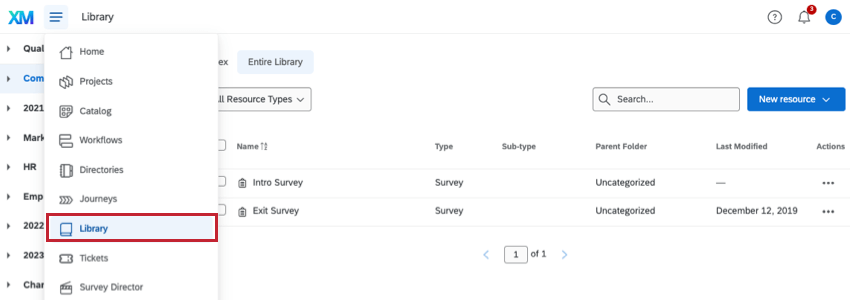
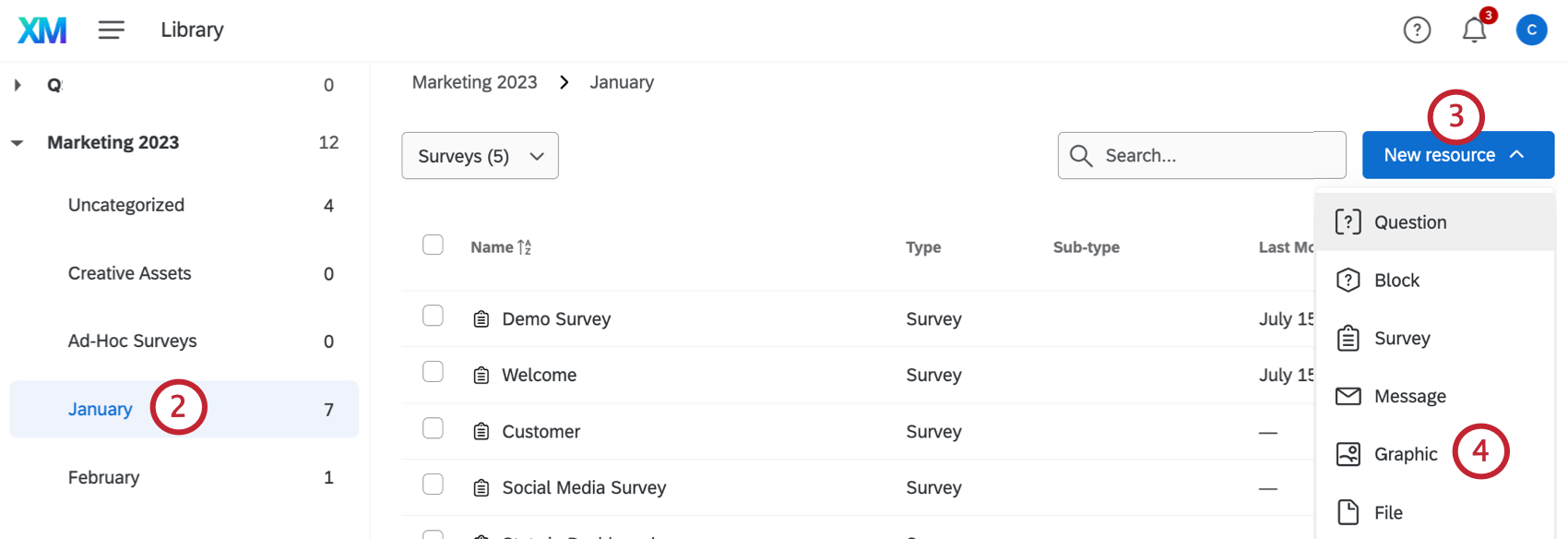
Qtip: For help accessing group libraries, please contact your Brand Administrator as they are the only ones who can edit or create groups.

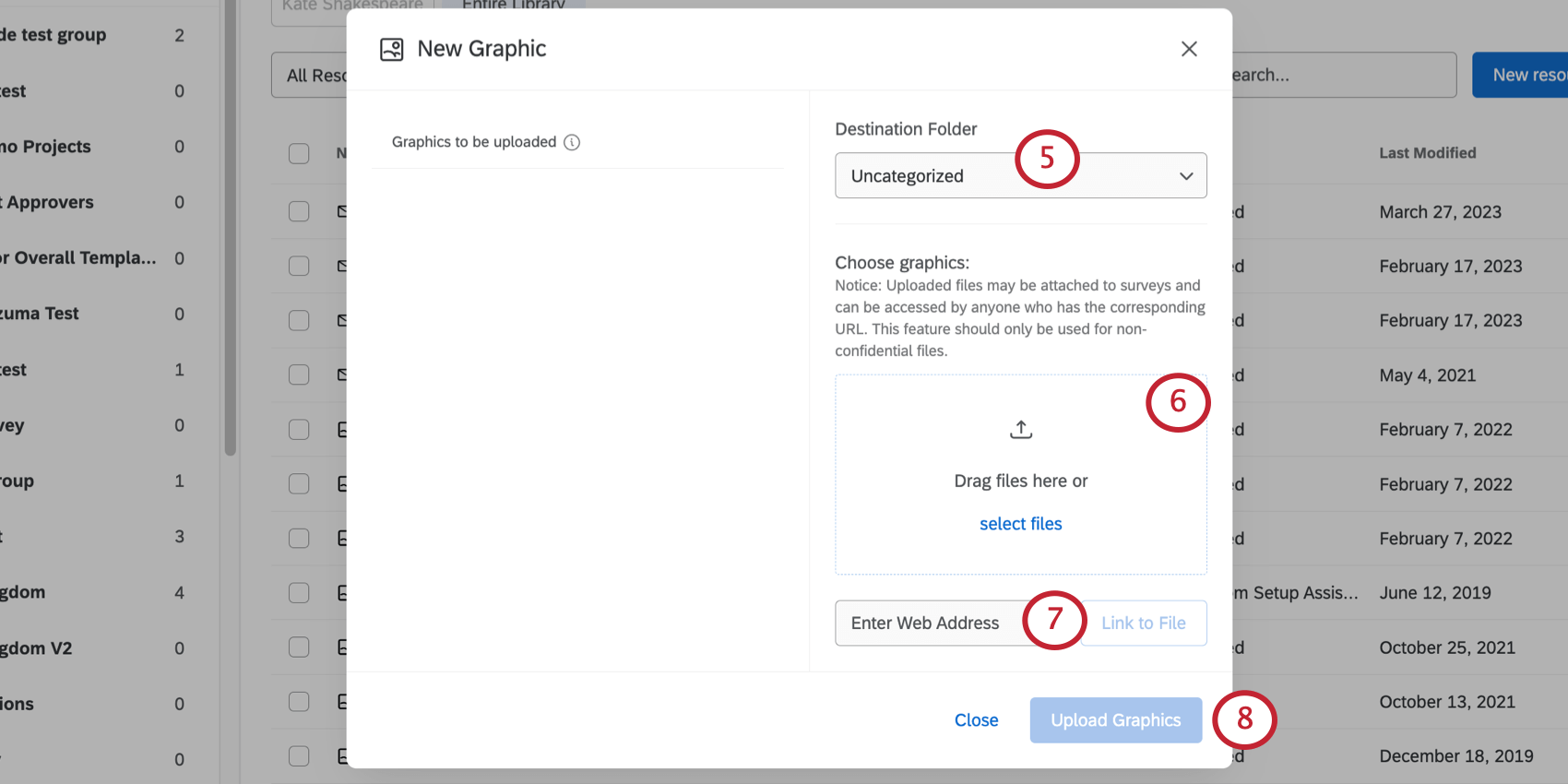
Qtip:You can upload multiple graphics at once by selecting multiple graphic files when browsing files from your desktop, or by dropping multiple files into the drag and drop box.
Attention: Uploaded files may be attached to a survey, then accessed by anyone with the survey URL. You should only upload files that are not confidential.

Warning: Only use this option for graphics you own or host yourself. If you host your own graphics, changes you make to the hosted graphic will be reflected in Qualtrics (and vice versa, if you don’t own the graphic, changes the owner makes to the graphic will also be reflected here).
Copying Graphics From Your Library to a Group Library
See Copying Content From Your Library to a Group Library for instructions on how to copy graphics from your library to a group library.
Graphics Options
See Library Options for information on the resource item menu.
Using a Graphic
See Insert a Graphic for instructions on how to add your graphics to your surveys.
Copying a Graphic URL
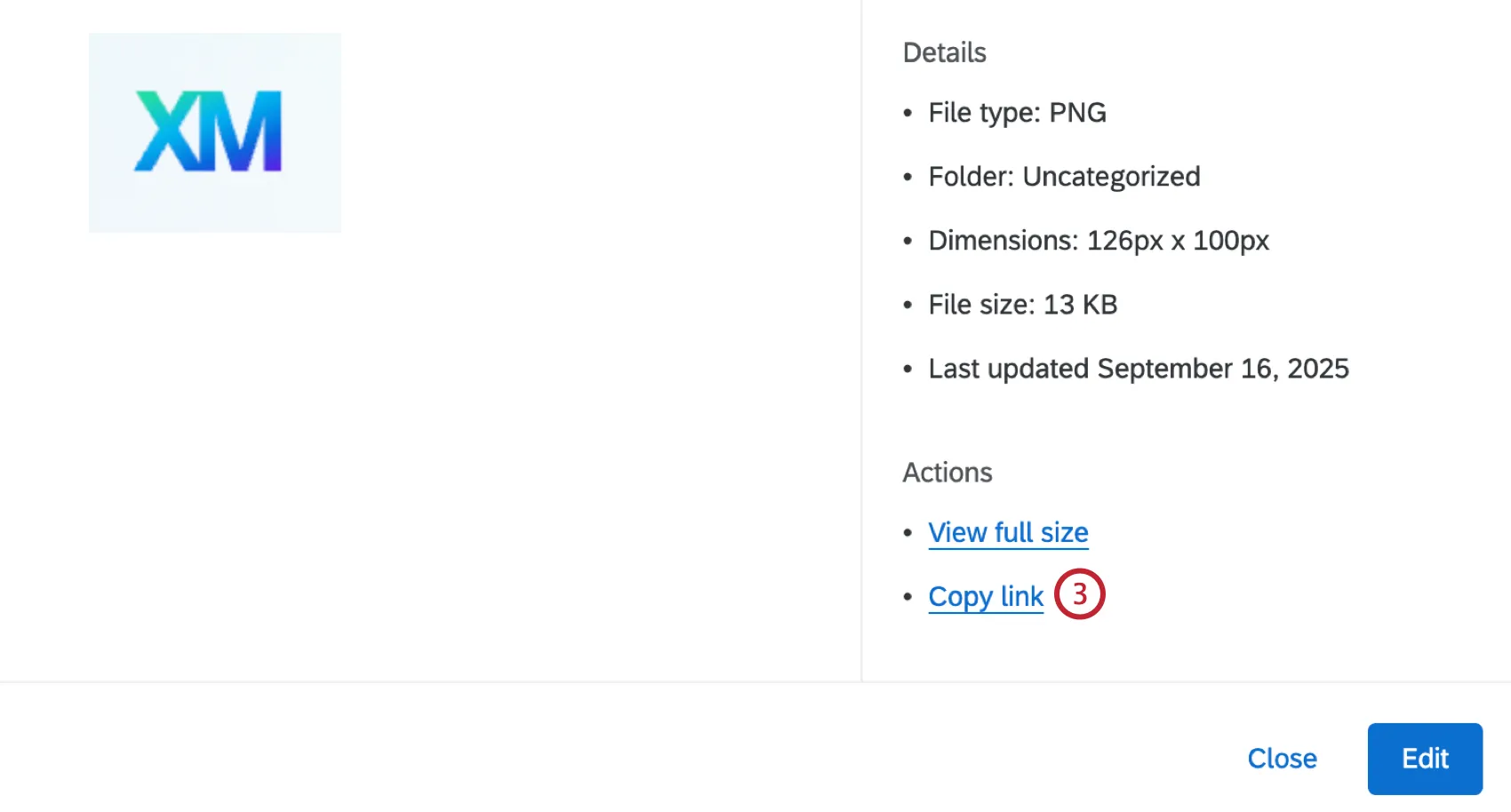
Once a graphic is uploaded to your library, you can copy its URL. This URL can then be used to display the graphic in other parts of the platform, like the Image Widget.
Click the 3 horizontal dots to the right of your graphic to open the options menu.
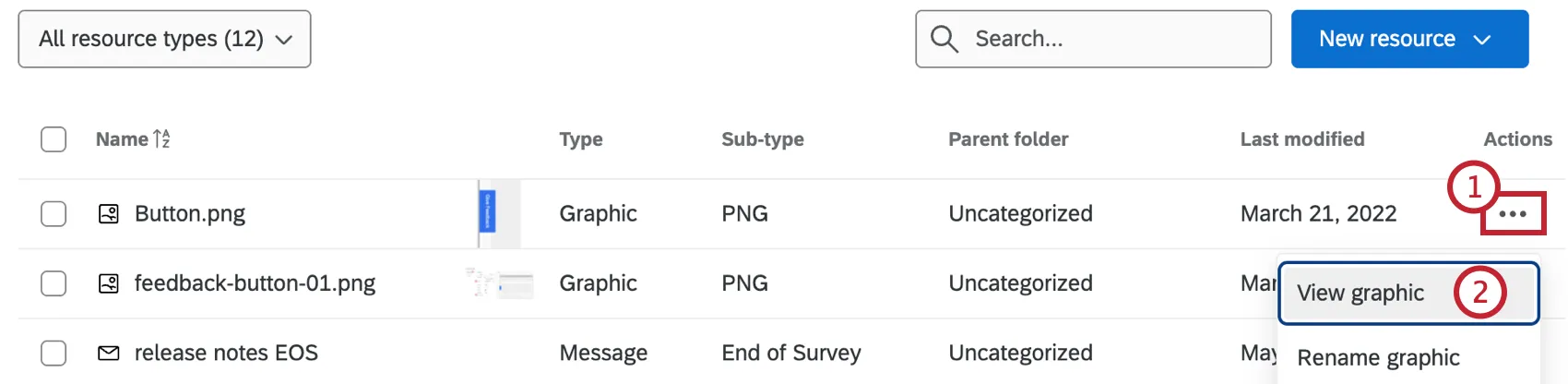
- Click View graphic.
Click Copy link.
FAQs
What is the max file size I can upload to my Library?
What is the max file size I can upload to my Library?
Why can’t I copy a survey or add a graphic to my libraries?
Why can’t I copy a survey or add a graphic to my libraries?
How do I change the dimensions of a graphic once it is uploaded?
How do I change the dimensions of a graphic once it is uploaded?
That's great! Thank you for your feedback!
Thank you for your feedback!