

Integrating with Five9
What's on this page
About Integrating with Five9
Integrating with Five9 enables you to consolidate and analyze all of your contact center data in one place. You can then analyze your data using any Qualtrics analysis method, including Text iQ in a CX dashboard.
Attention: Custom coding features are provided as-is and require programming knowledge to implement. Qualtrics Support does not offer assistance or consultation on custom coding. You can always try asking our community of dedicated users instead. If you’d like to know more about our custom coding services, please contact your Qualtrics Account Executive.

Step 1: Creating the Qualtrics Workflow
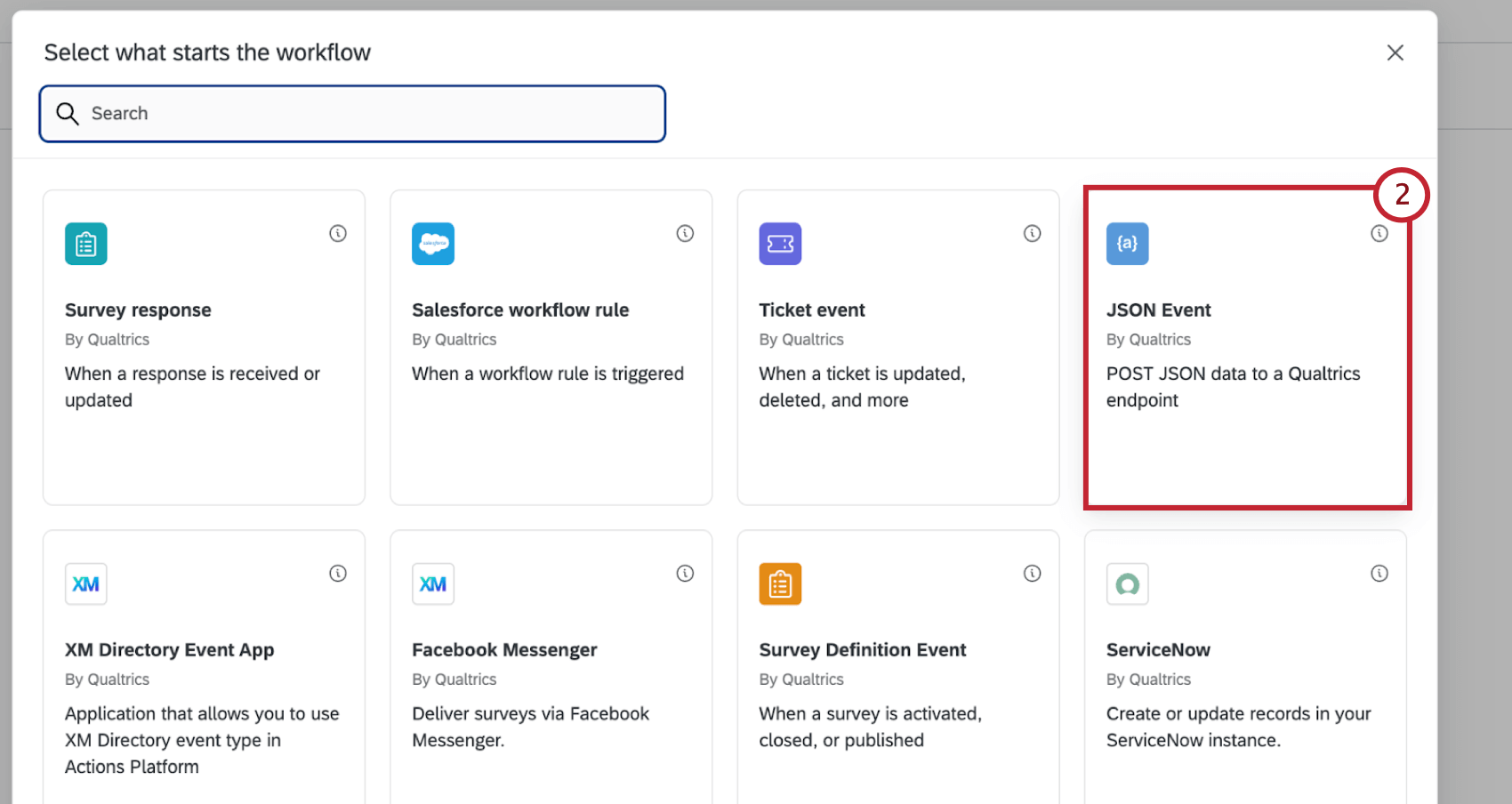
This section covers how to create a Qualtrics workflow started by a JSON event. This workflow will be used to send data to Five9.
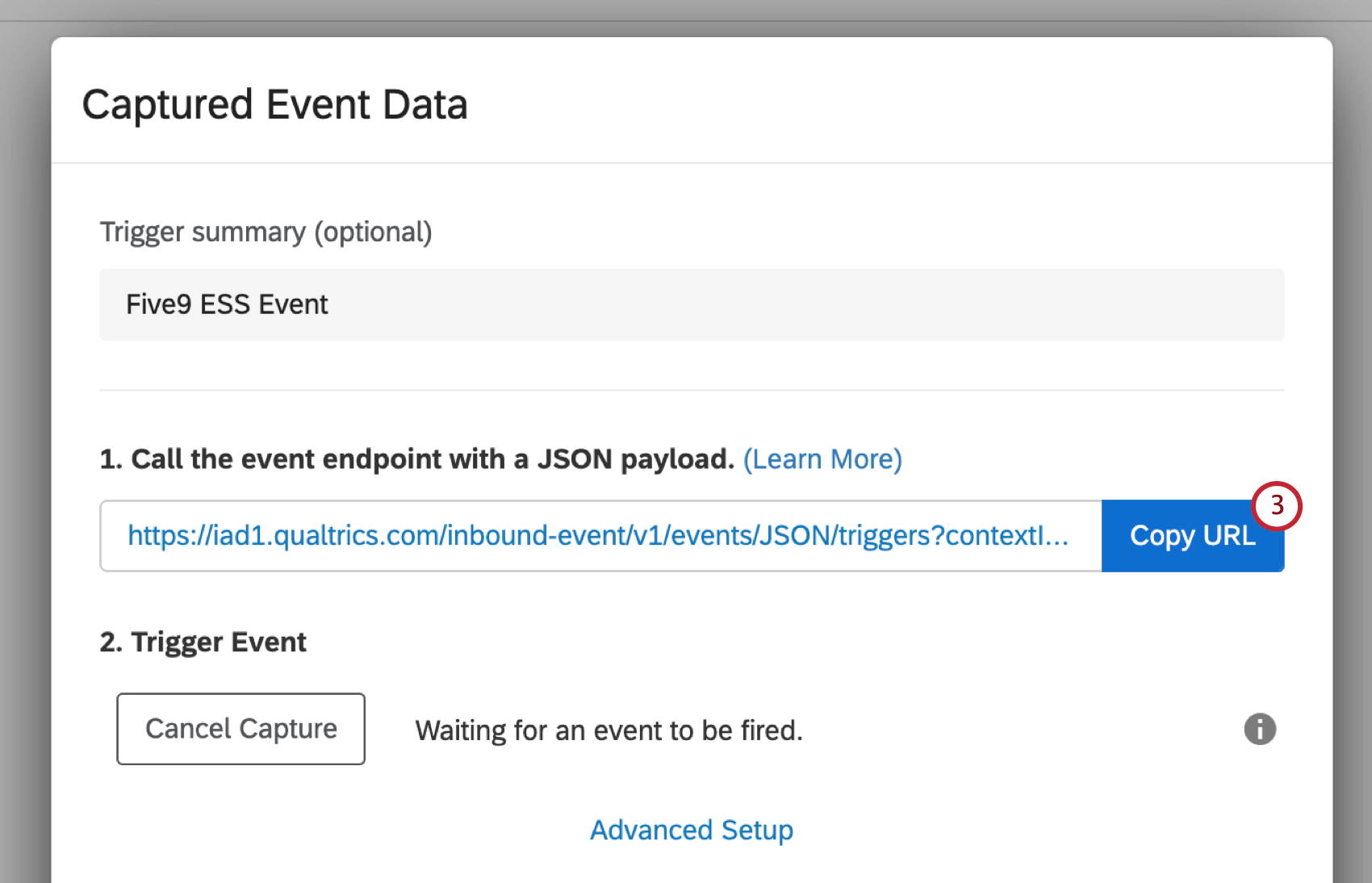
Attention: Do not close this window while you complete the remaining steps in Five9.
Step 2: Generating an API Token
To successfully integrate your Qualtrics data with Five9 you’ll need to generate an API token. See Generating an API Token for instructions on creating your API Token for use in Five9.
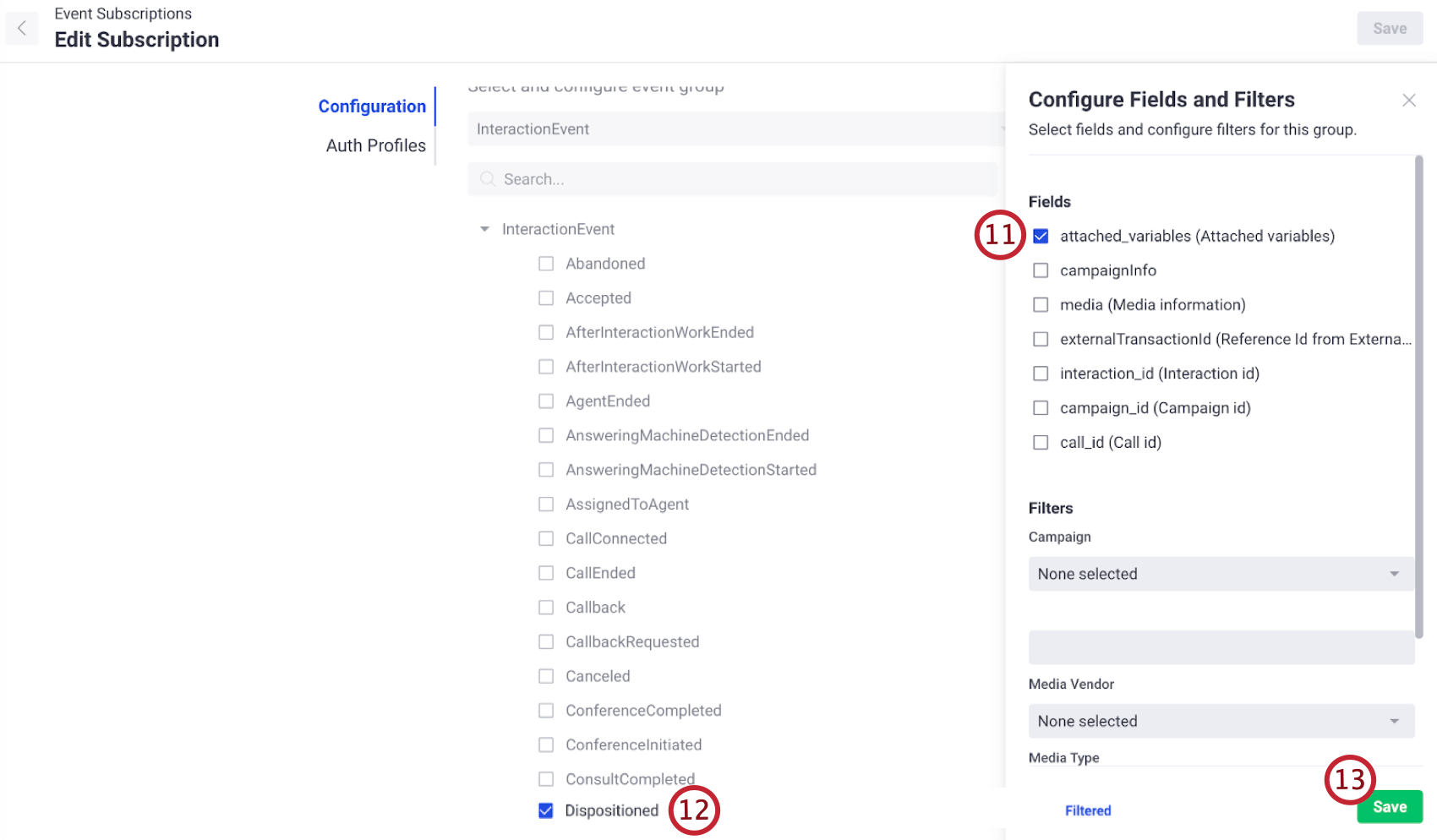
Step 3: Creating the New Five9 Event Subscription
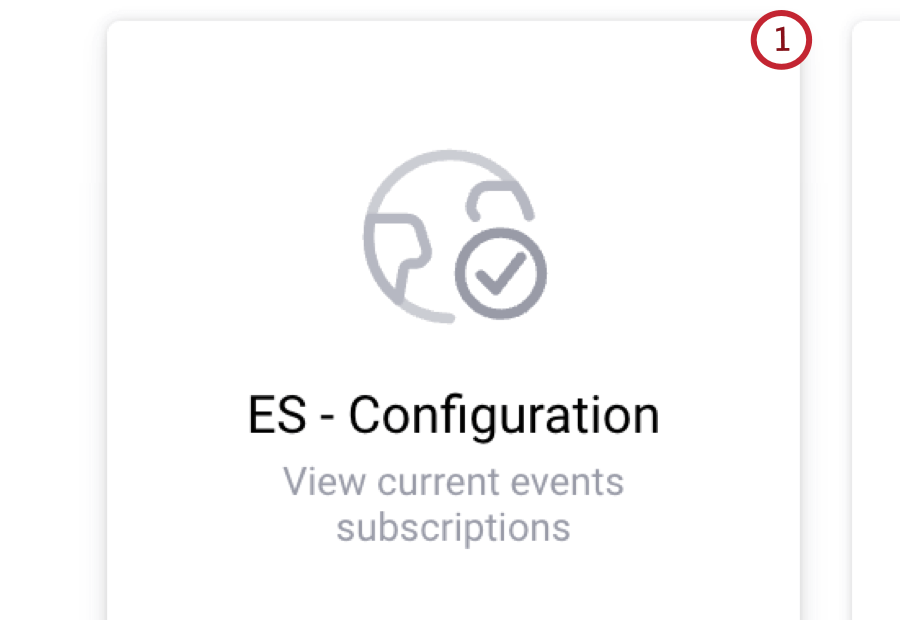
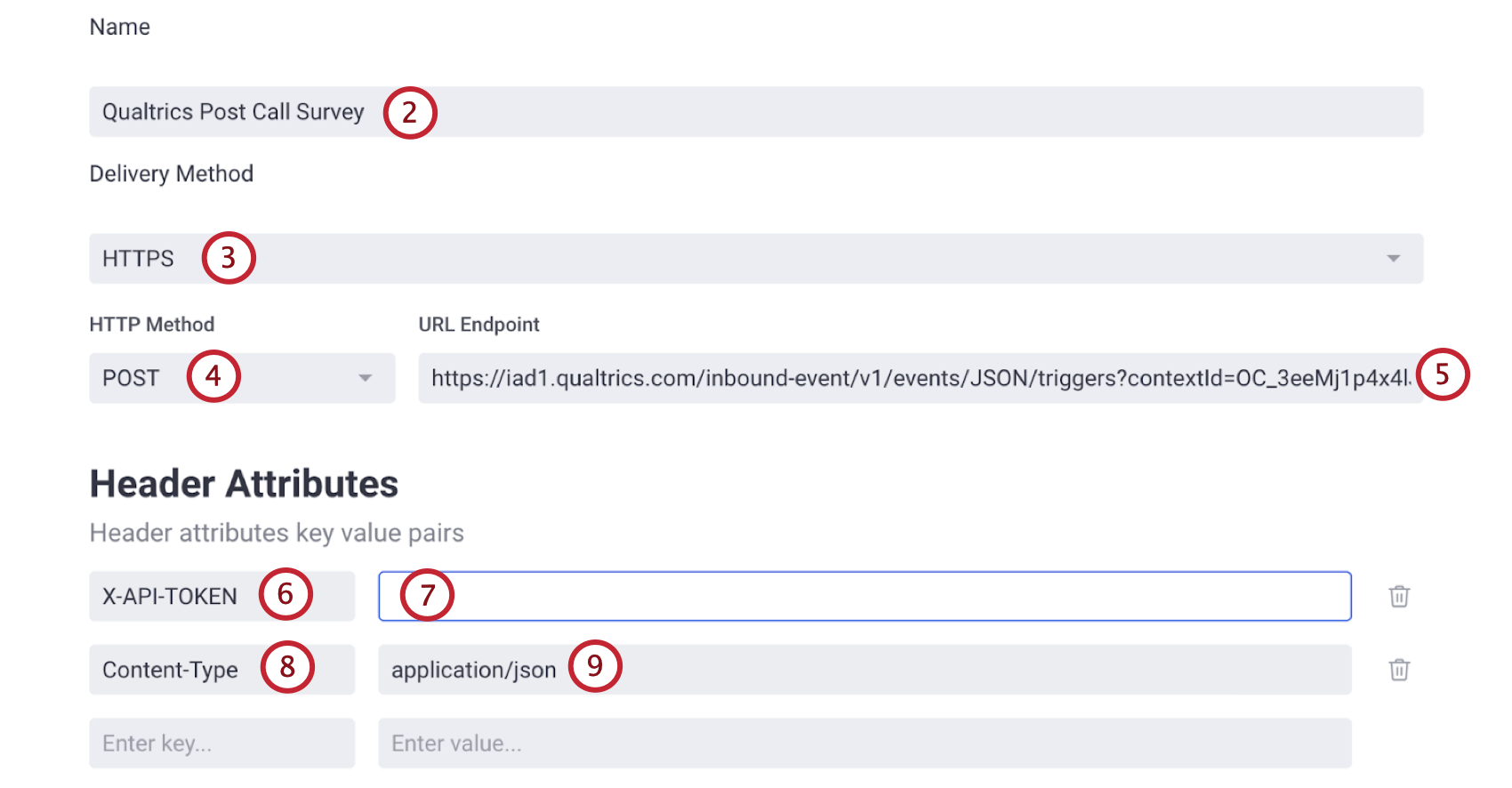
This section covers the initial setup you’ll need to complete in Five9 to set up the integration. To begin the setup, you’ll first need to create an event subscription in Five9.

Step 4: Testing the Integration
After you’ve created your Qualtrics workflow and set up an event subscription in Five9, you need to send a test event to make sure the integration is configured correctly.
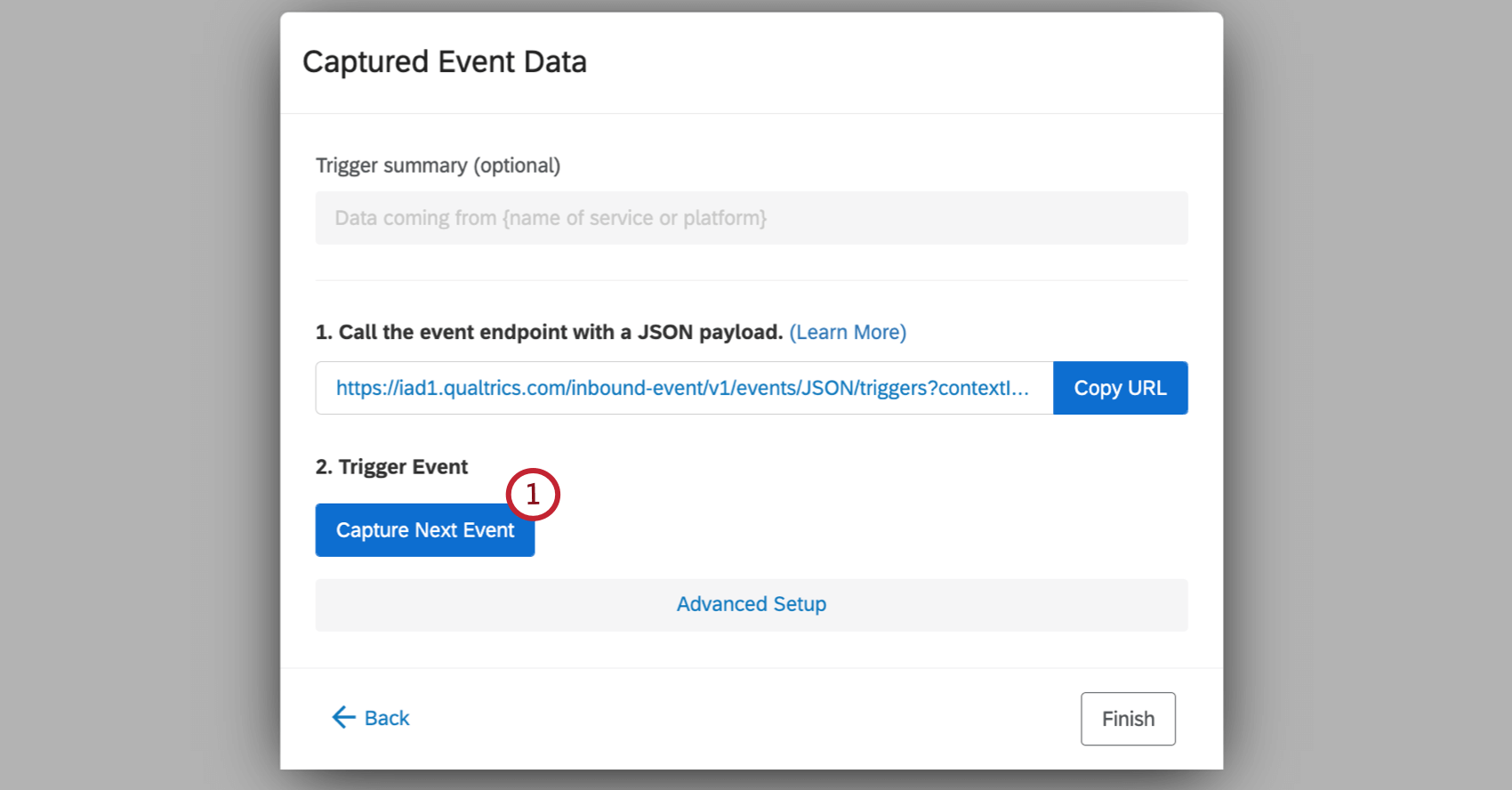
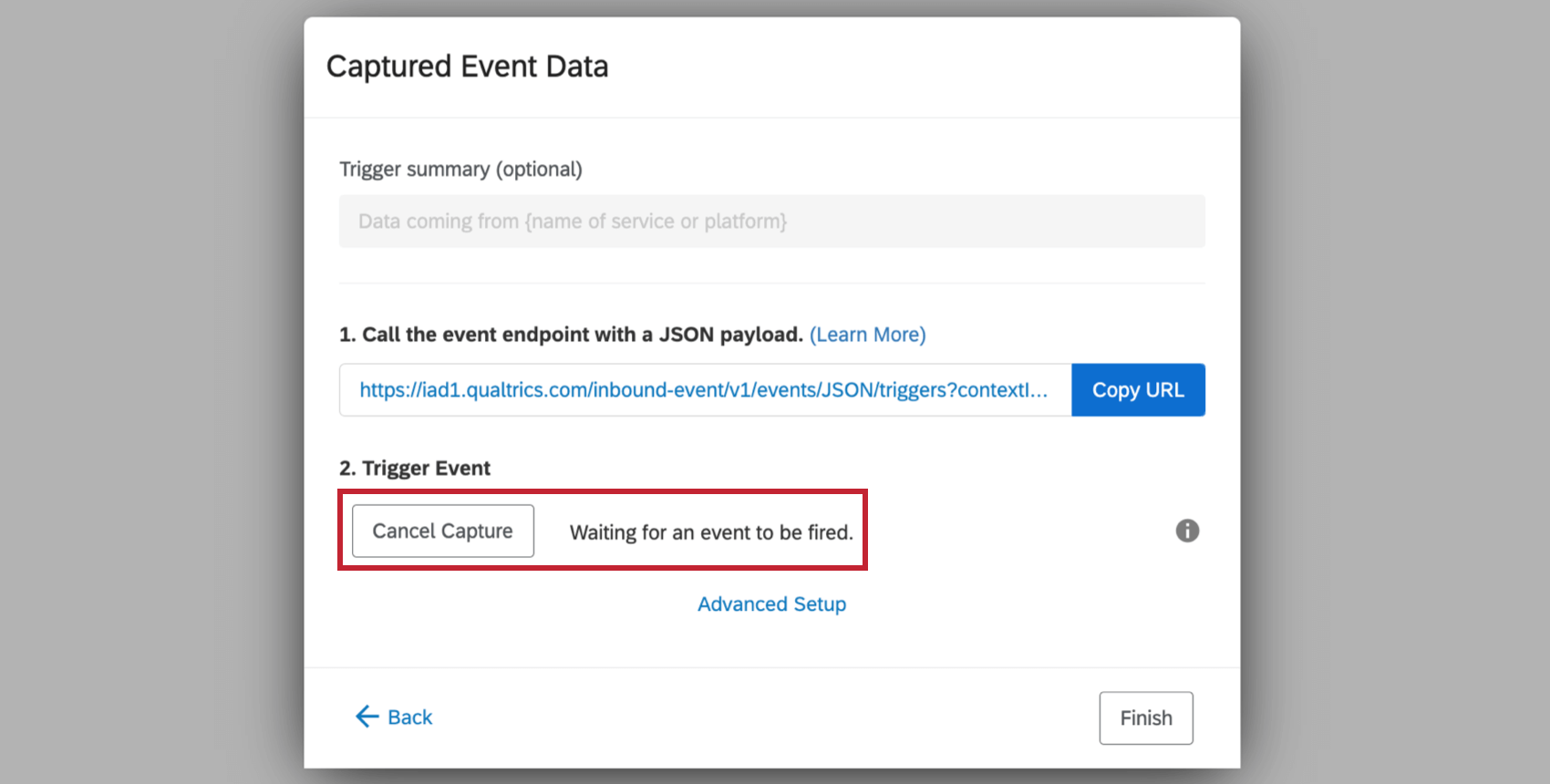

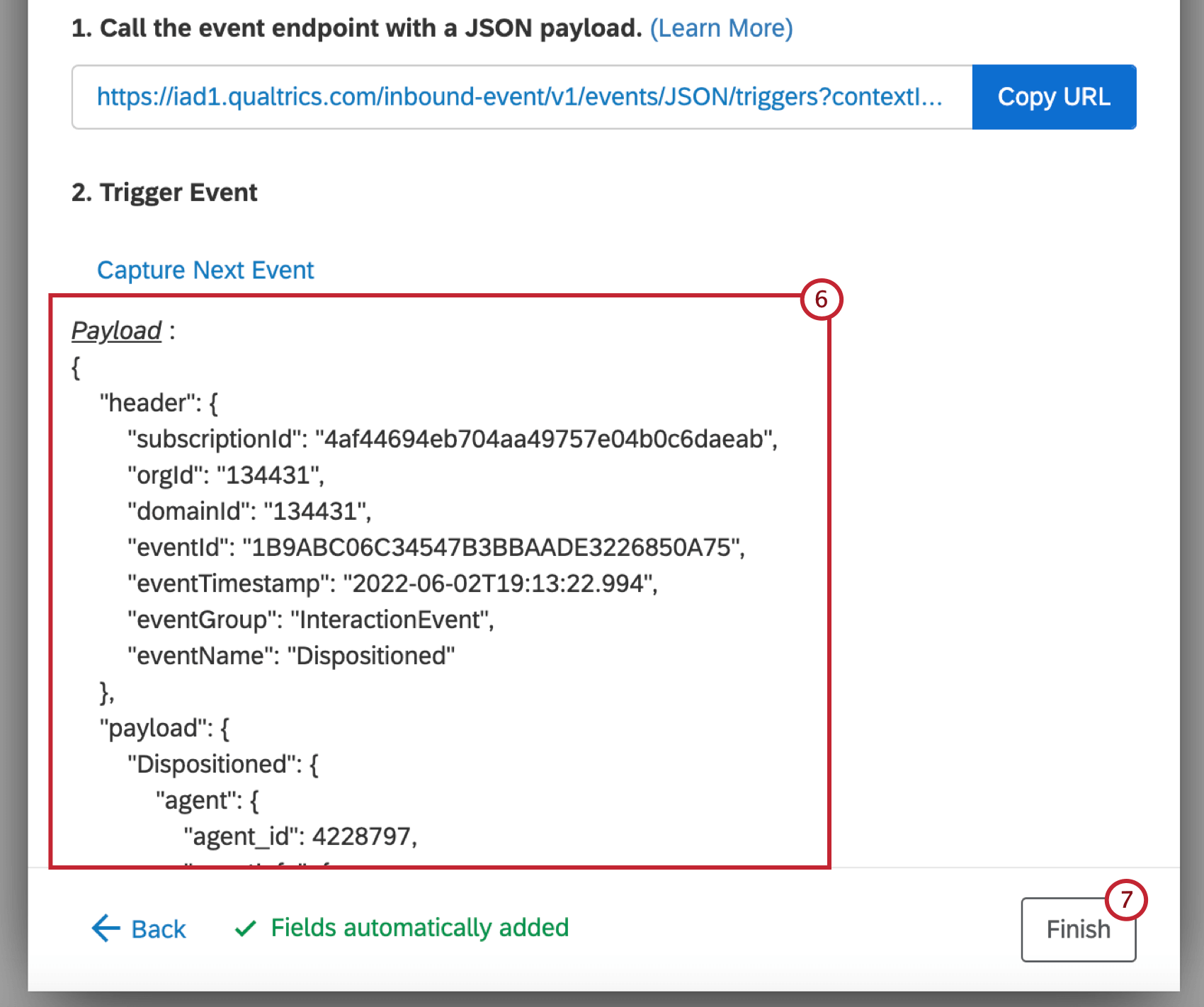
Qtip: If you want to pause your event subscription while you finish setting up the integration, return to Five9, select your event subscription, and click Stop.

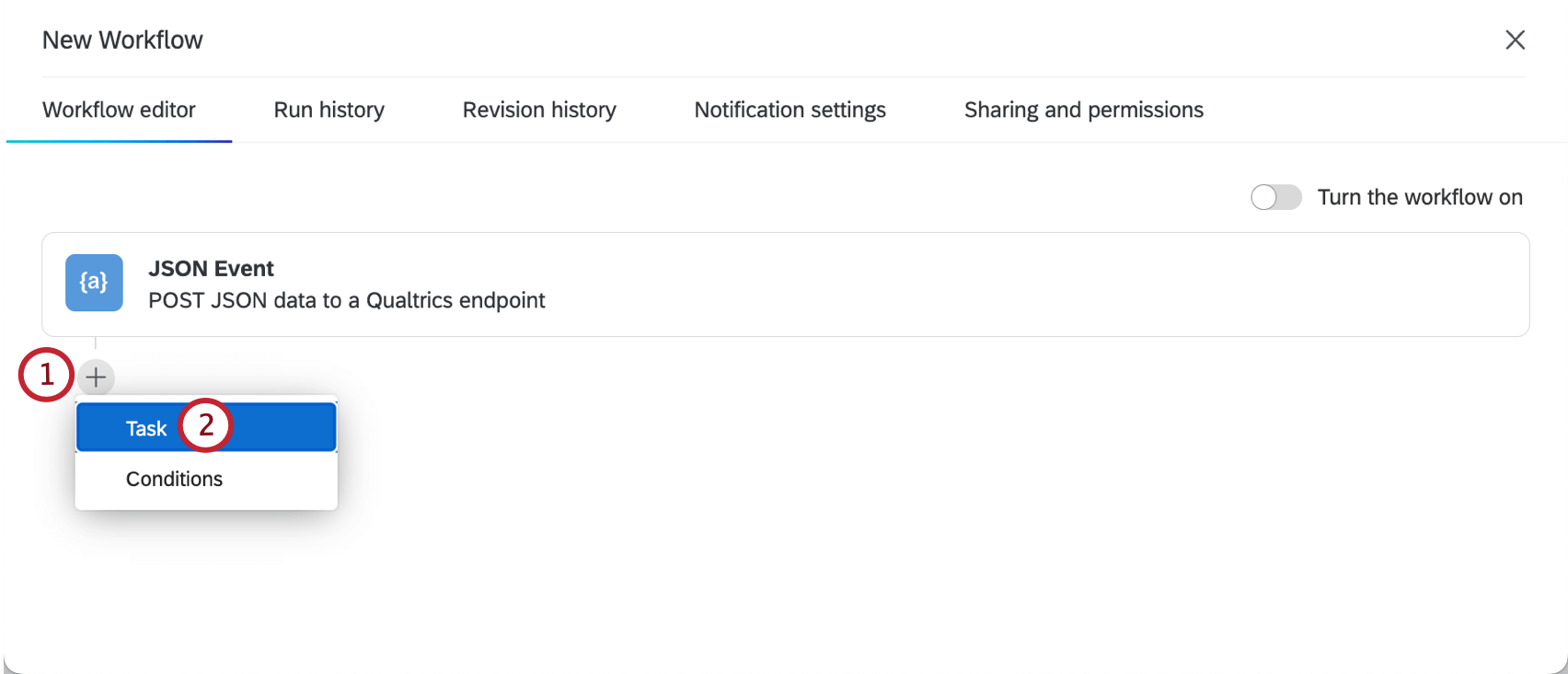
Step 5: Creating the Update XM Directory Contacts Task
Now that you’ve established a connection with Five9, it’s time to map data from Five9 to Qualtrics. To do this you’ll need to add a task to the workflow you created in Qualtrics.


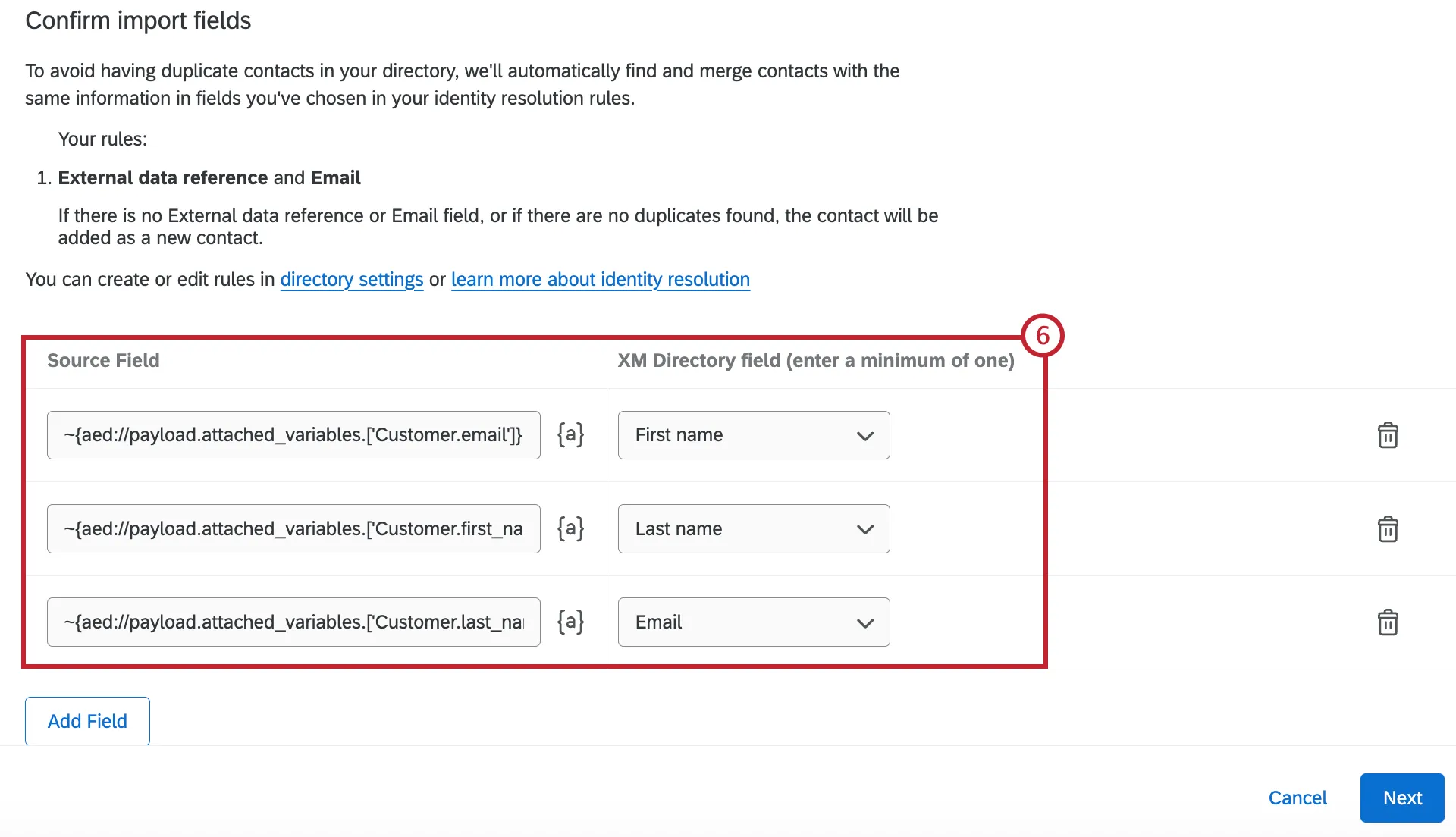
- First name: ~{aed://payload.attached_variables.[‘Customer.email’]}
- Last name: ~{aed://payload.attached_variables.[‘Customer.first_name’]}
- Email address: ~{aed://payload.attached_variables.[‘Customer.last_name’]}
Qtip: If you are saving phone numbers, use the syntax ~{aed://payload.attached_variables.[‘Customer.number1’]} or ~{aed://payload.attached_variables.[‘Call.DNIS’]} for the Phone number field

Step 6: Validating Your Workflow
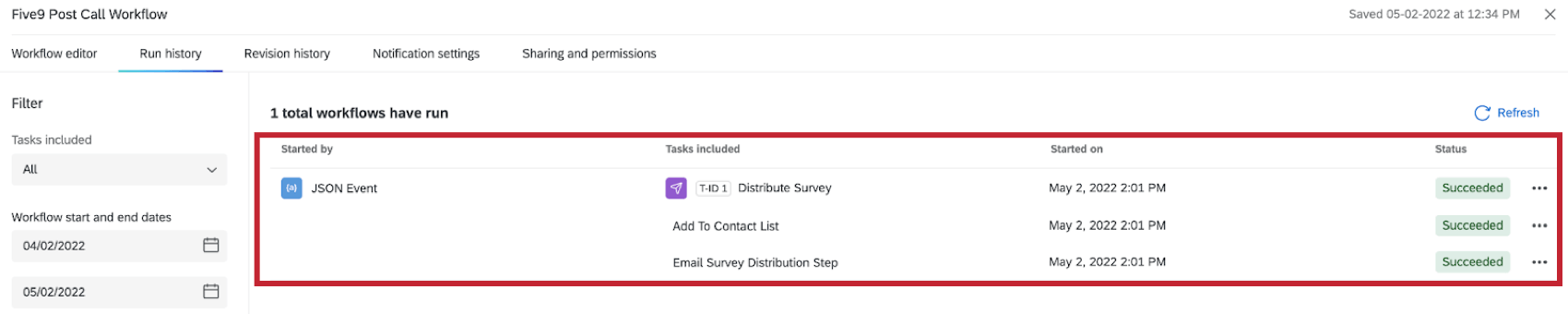
Now that your data is mapped, you can run a test to verify the integration is working. This step is optional.
That's great! Thank you for your feedback!
Thank you for your feedback!