

Digital Assist Sessions
What's on this page
About Sessions
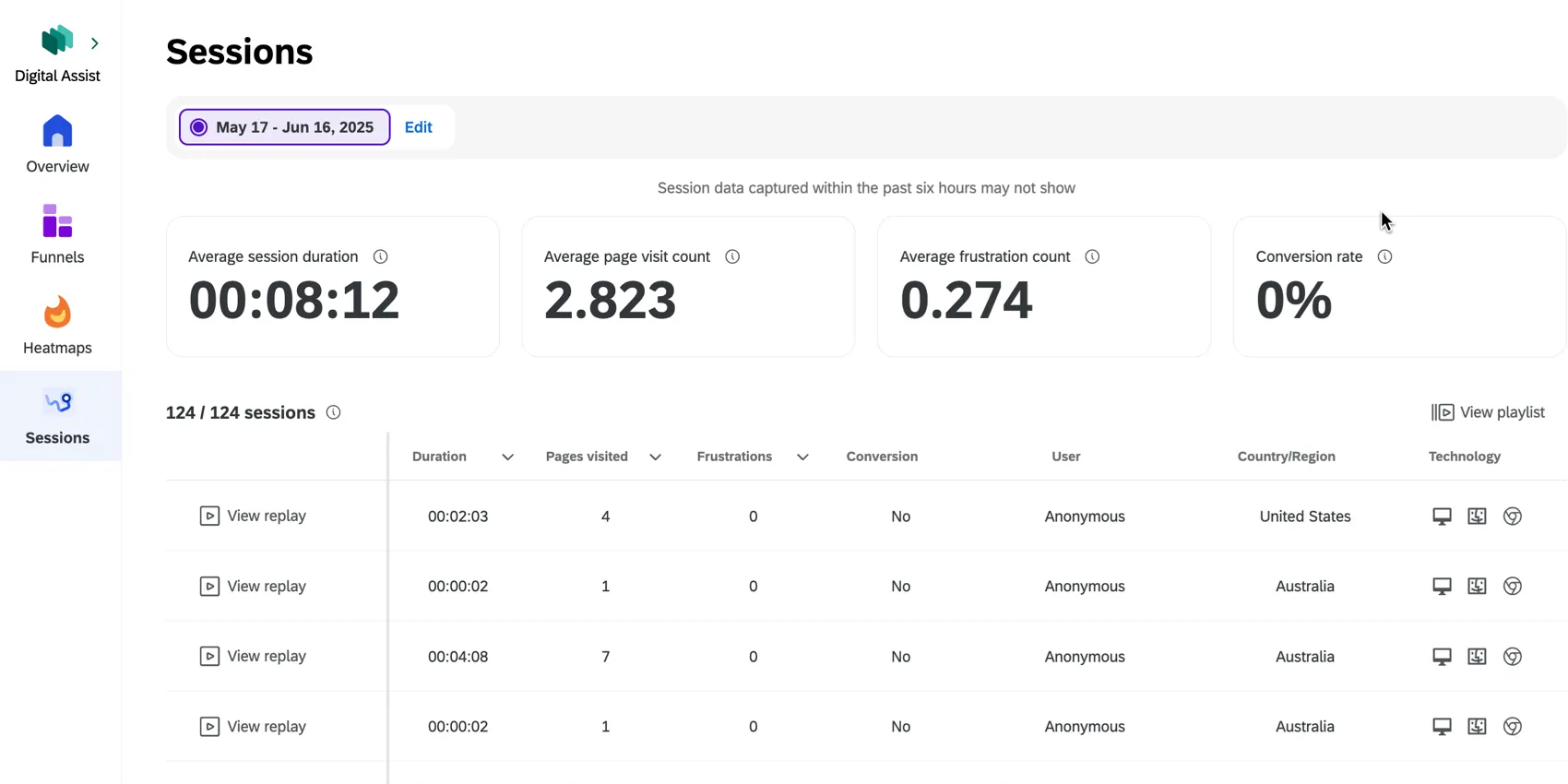
Within the Sessions tab of Digital Assist you can view session replays. A table displays all user sessions that have been recorded for your project. You can view details about each session, as well as watch a replay of individual sessions across your website.
Qtip: Sessions may take about a day before they appear in Digital Assist.
For more information about session replays, see the Managing Sessions support page.
Viewing Replays
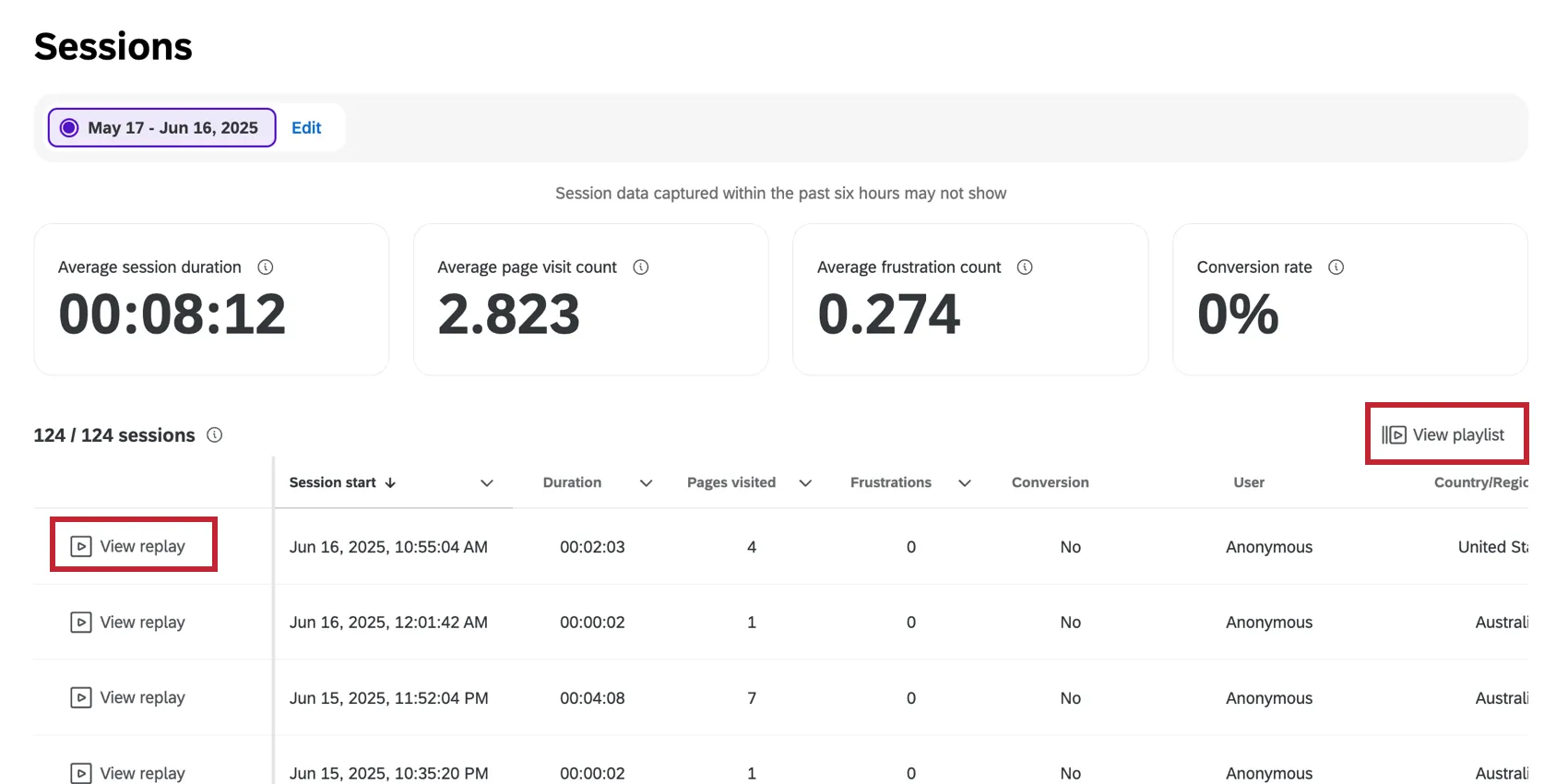
To view an individual session, click View replay. To view all sessions on the page, click View playlist. For more information on viewing sessions, see Viewing Replays.
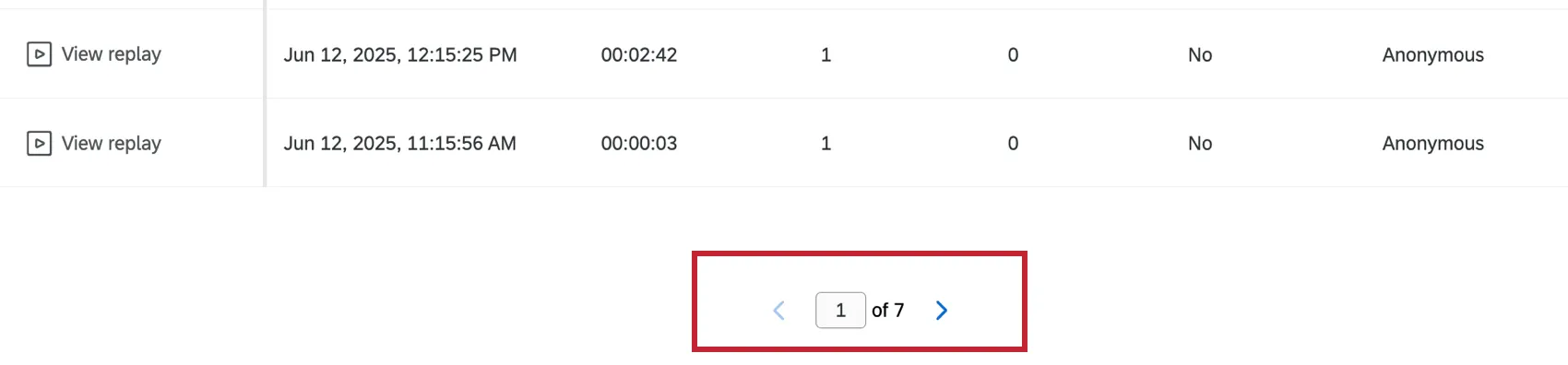
Qtip: You can use the arrows at the bottom to navigate between pages of sessions.
Qtip: When viewing a session in the replay player, you can change the session ID in your browser URL to watch a specific session that you have the session ID for.
AI Summary
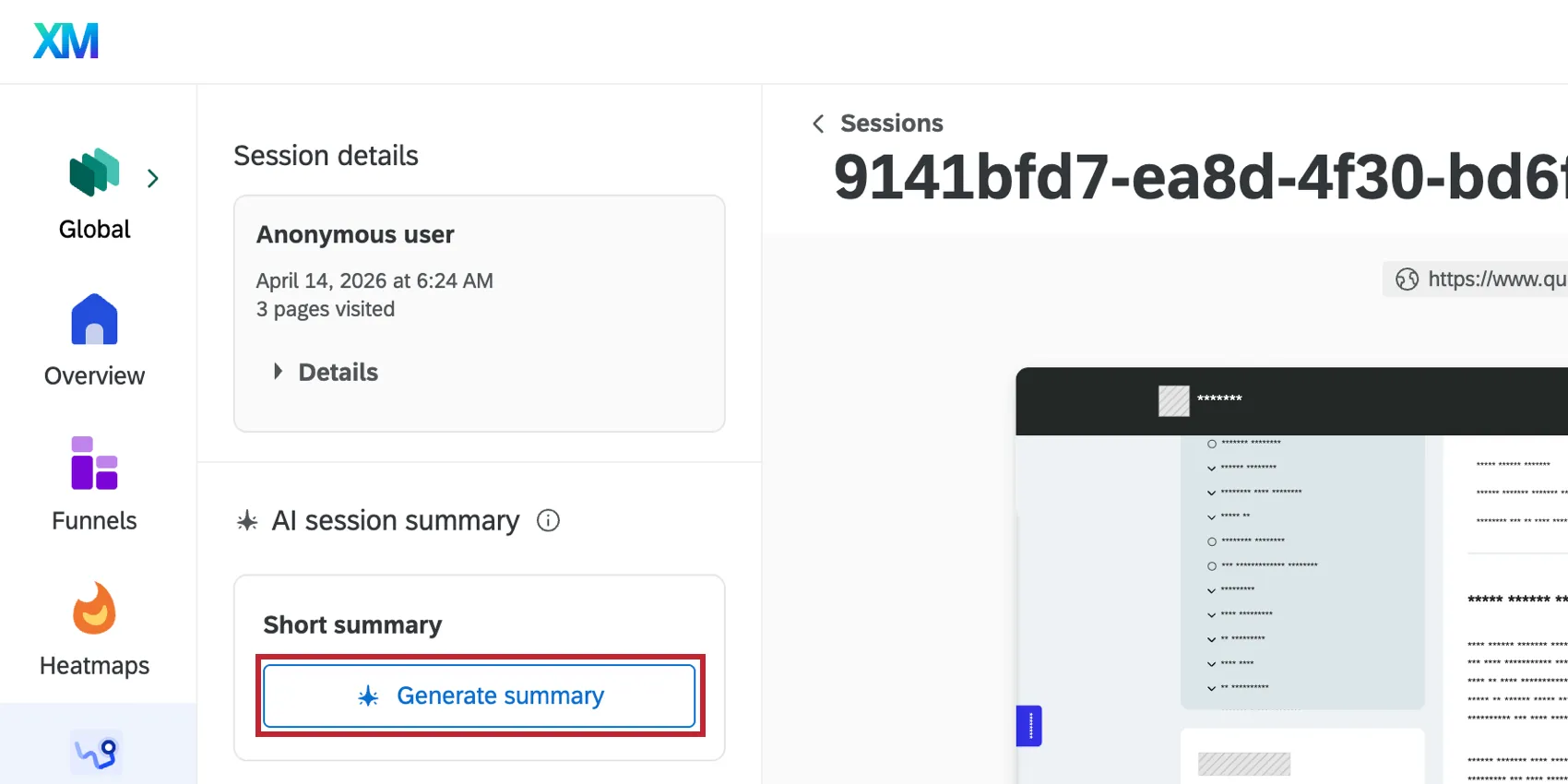
If you have the "AI Powered Session Replay Summary" permission enabled, you can use AI to generate a summary of a session. See Generating an AI Summary for Session Replays for more information.
Available Fields
The following fields are available in the session replay table within the Replays tab:
Session start: The date and time the session started.

Qtip: The date and time is displayed in the timezone of your account.
- Duration: The length of the session. The maximum duration is 60 minutes.
- Pages visited: The number of pages visited in the session.
- Frustrations: The number of frustration behaviors that occurred in the session. This includes dead clicks, mouse thrashes, rage clicks, and error clicks.
- Survey response: If a user provided a survey response during the session.
- Conversion: Whether the user converted during the session.
- User: The session user. This may be anonymous.
- Country: The country the session occurred in.
- Technology: Details of the users’ device, operating system, and browser.
- Session Id: The unique ID of a specific session.
Qtip: Click the down arrow next to a field name to sort the table ascending or descending by that field.
Filtering Sessions
By default, sessions have a filter set to the last 30 days. Click Edit at the top of the Sessions tab to edit the existing filter or add a new one.
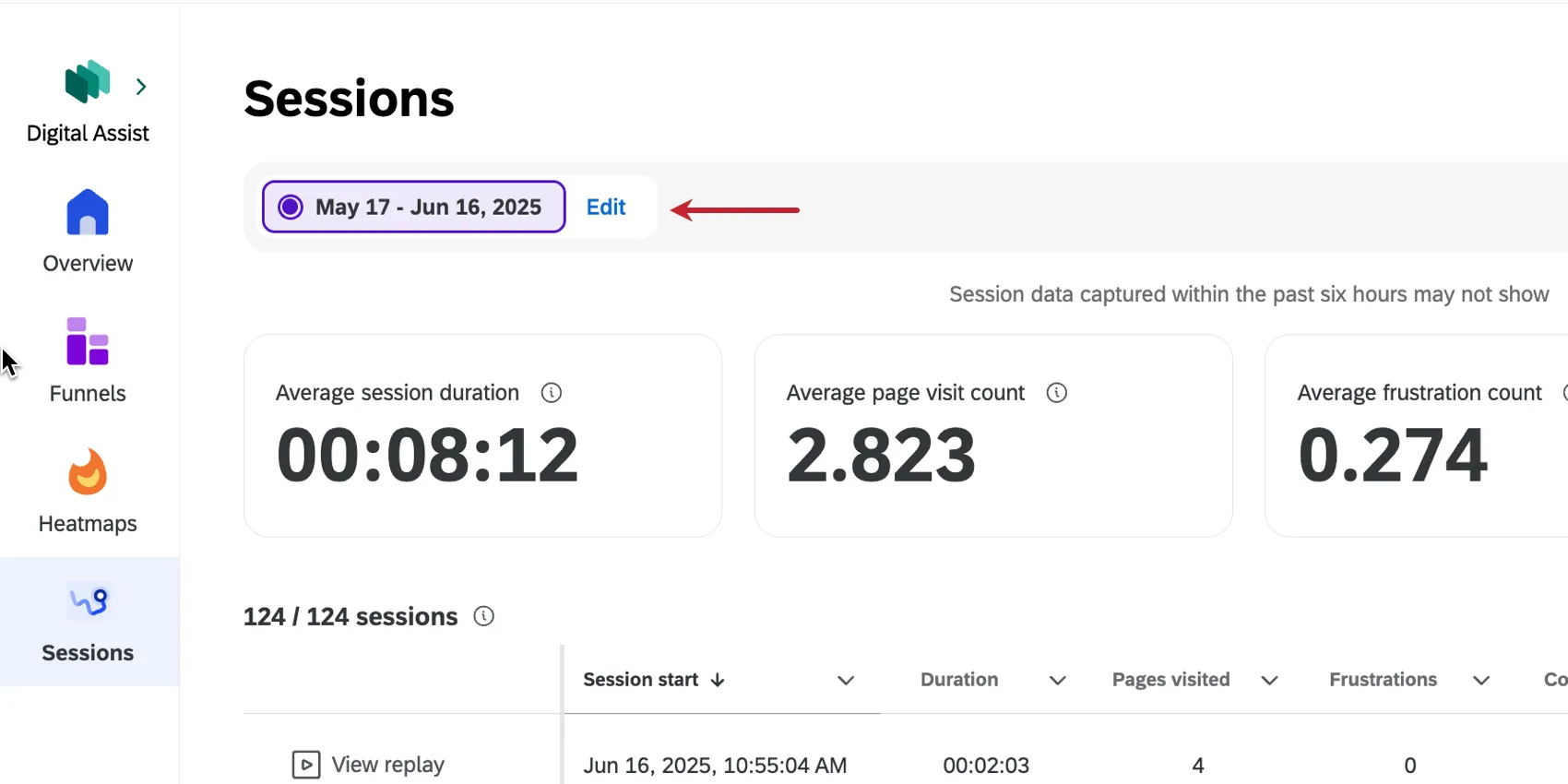
Click Add to filter to add additional fields to the filter.

Example: If you’re only interested in sessions from specific pages of your site, you can filter by URL or page tags.

Qtip: Multiple filter conditions are joined by and, meaning all of the filter conditions must be met for data to be included in results. (E.g., sessions must be from the selected date range AND the selected country.) The only exception is if you’re selecting multiple values for the same filter condition; these are joined by or, meaning any of the selected values can apply. (E.g., sessions can be from any of the selected countries.)
Fields you can filter by
- Custom signals
- Custom event
- Visitor details
- Country/Region
- Pages
- Referrer URL
- Page tag
- Tech
- Device type
- Browser
- Browser height
- Browser width
- Screen resolution height
- Screen resolution width
- Operating system
- Session
- Duration
- Page count
- Survey
- Survey response
- Frustration signals
- Frustration signal total
- Rage clicks
- Error clicks
- Mouse thrashes
- Dead clicks
- Channels and UTMs
- Campaign
- Content
- Generic
- Medium
- Source
- Term
New filters and comparisons
On the Sessions page, you can create multiple filters at once and switch between them. This can be valuable for comparing metrics and replays between different filter groups.
Example: You create a filter for the last 30 days, then another separate filter showing the same 30 days last year. Switching between these filters, you can see how average session duration, average page visit count, average frustration count, and conversion rate differ between the two time periods.
Click Edit next to your filter.

- Set up your first filter how you want.
- To add a complete new filter from scratch, click Create new filter.
To add a new filter by copying the first, click the 3 dots, then select Duplicate comparison.

Finish setting up your comparison filter.

- Click Apply changes.
- Use the menu at the top to switch between your filters.
Qtip: To remove filters, click Edit, the 3 dots, and select Delete comparison on each comparative filter you want to remove. Make sure to apply your changes.
Generating an AI Summary for Session Replays
If you have the "AI Powered Session Replay Summary" permission enabled, you can use AI to generate a summary of a session. The AI summary is available within Digital Assist and when viewing a session within a Digital Experience Analytics project.
Click Generate summary to view a short summary of an individual session.
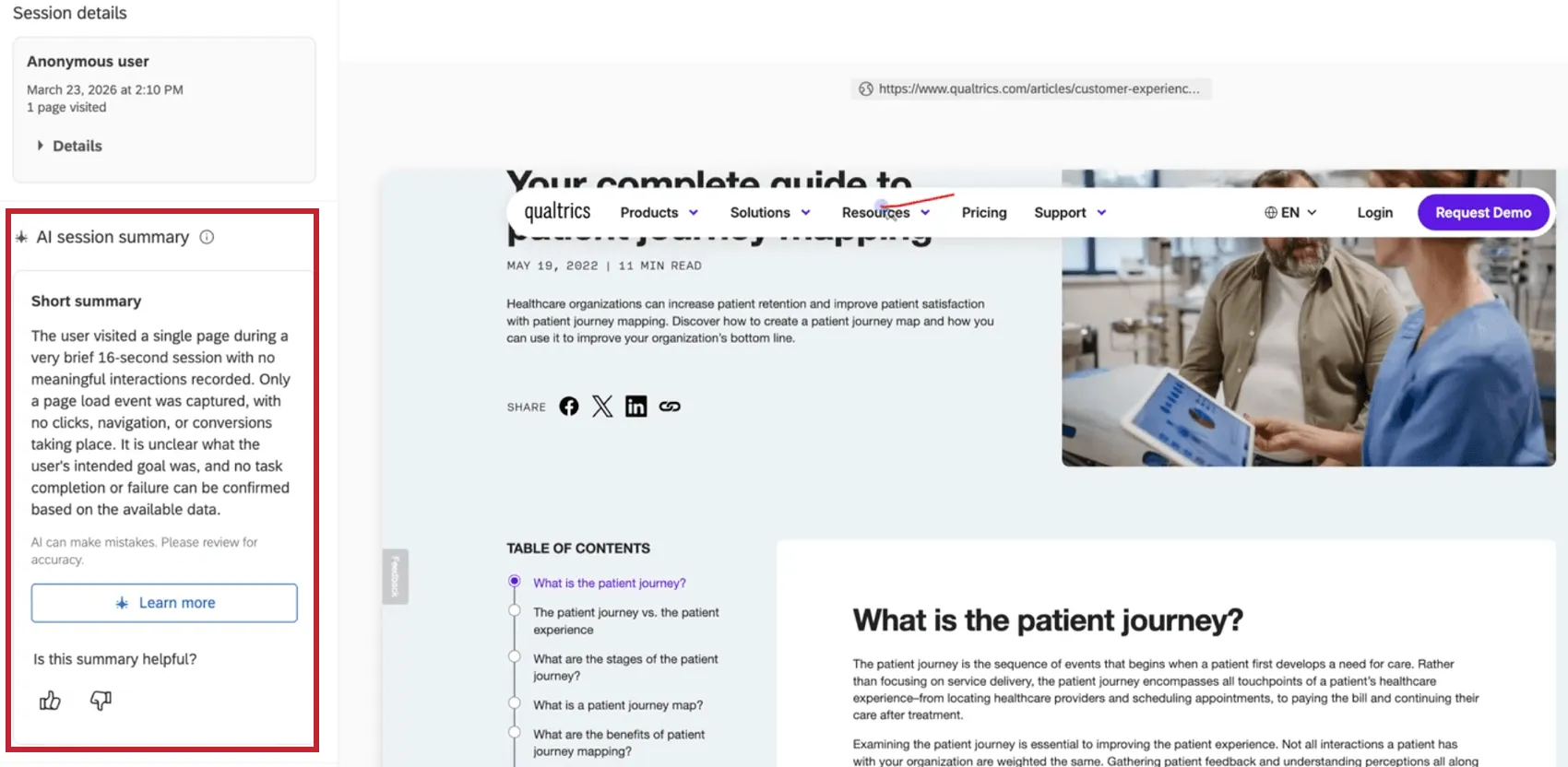
The summary contains an overview of key behaviors and friction points within the session so you can gather insights without having to watch the full recording. Click Learn more to view a summary with more detailed information containing page URLs and timestamps from the user's visit.
That's great! Thank you for your feedback!
Thank you for your feedback!