

Org Hierarchy Questions
What's on this page
About Org Hierarchy Questions
The org hierarchy question type allows participants to associate their response with a place in the hierarchy by either selecting from a hierarchy structure, using a search box, or both. The hierarchy must be generated first (see the Generating a Parent-Child Hierarchy or Generating a Level-Based Hierarchy pages). This can be useful for large organizations or organizations where the anonymous link and authenticator are used (e.g., when participants do not have email addresses).
Qtip: Remember, hierarchies are only in Engagement, not Lifecycle or Ad Hoc Employee Research. For more details on each, see Types of Employee Experience Projects.

Qtip: “Update Responses with Current Metadata” in the Participants tab updates all responses connected to a participant with the participant’s current metadata. If a response’s associated participant is either not in the hierarchy, or in a different place in the hierarchy than the user specified in the Org Hierarchy question, their hierarchy data will be overwritten with the participant’s hierarchy data.
Setting Up an Org Hierarchy Question
Once you add an org hierarchy question (see Creating & Editing Questions for instructions on how to create a question), you will have three additional settings in the question editing pane.
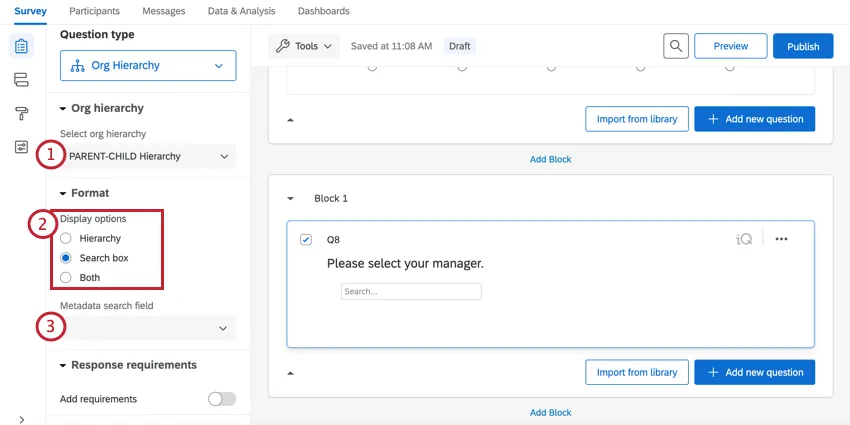
Qtip: In the search box, participants will only be able to use their manager’s name or their unit’s name.
Example: In this example, we selected the UnitDescription field for out Org Unit Metadata.
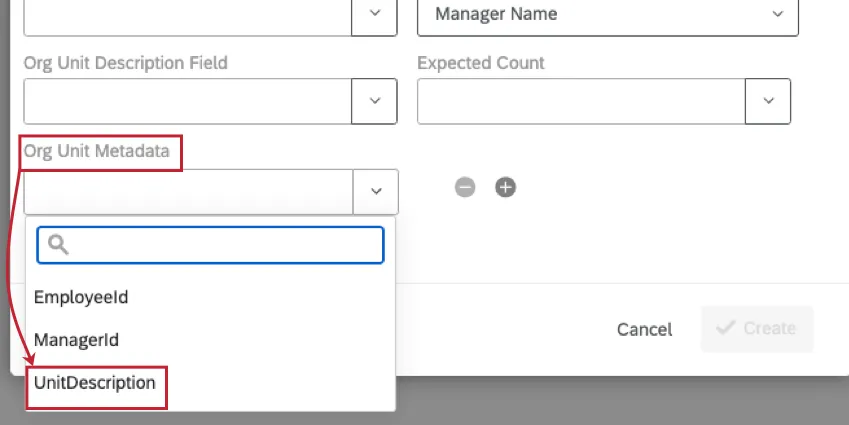
You can then select the UnitDescription as the metadata search field, allowing participants to search by this field.

Using the Org Hierarchy Question Type
How the org hierarchy selector functions depends on the types of hierarchy it is connected to.
If it is connected to a parent-child hierarchy or a skeleton hierarchy, the participant will often search for their manager’s name.
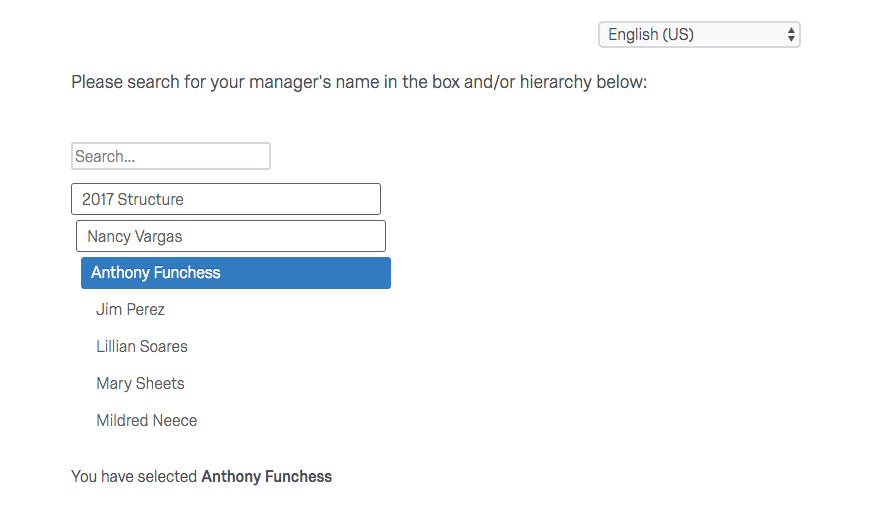
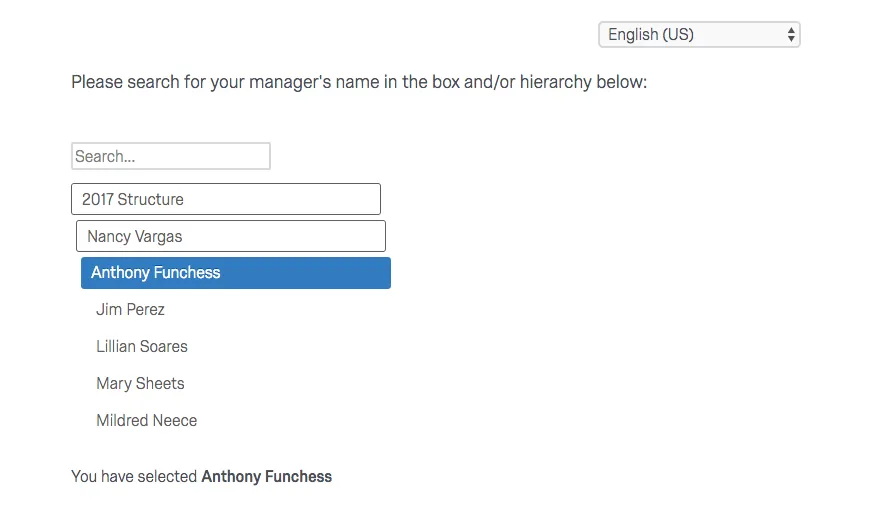
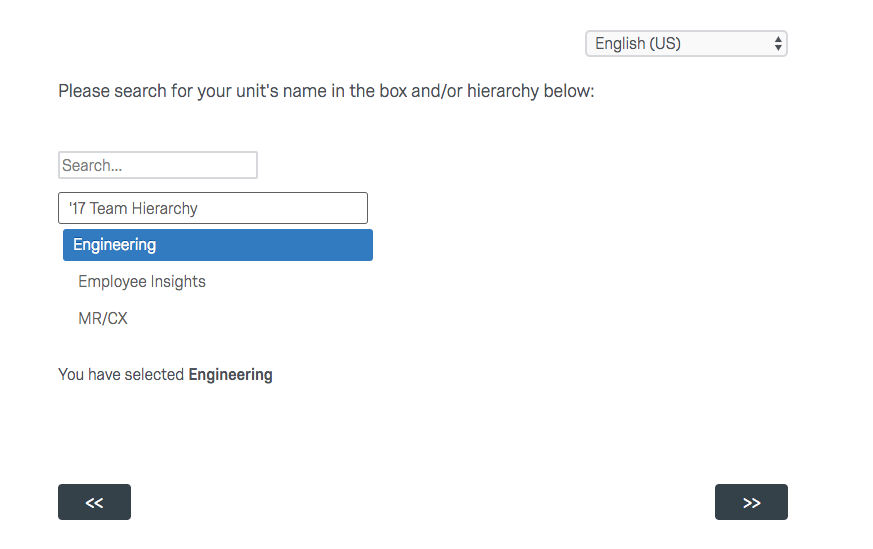
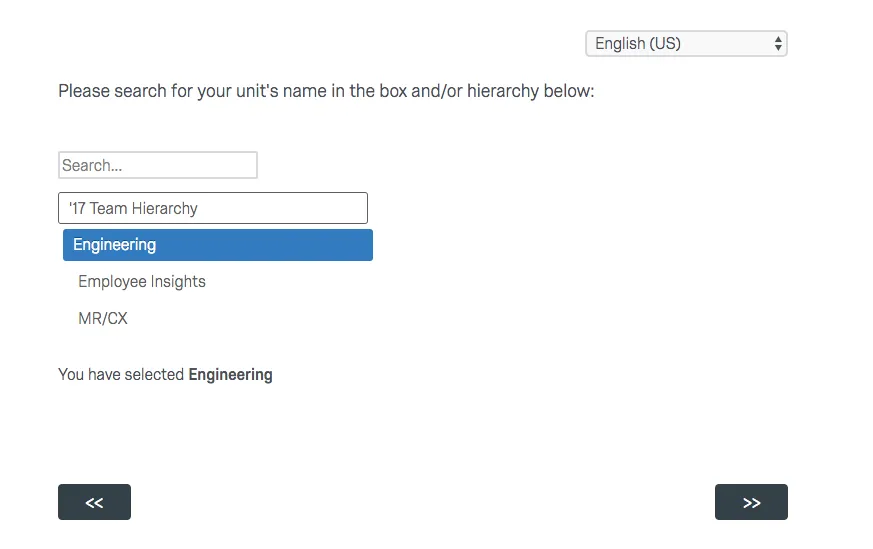
If it is connected to a level-based hierarchy (or a parent-child hierarchy with org unit descriptions), the participant will search for or select the unit in which they belong.
Qtip: This question relies on participants to select the correct manager or unit. It is possible for participants to make a mistake.
FAQs
Can I use custom validation on org hierarchy questions?
Can I use custom validation on org hierarchy questions?
How come I cannot see my org hierarchy question when setting up display logic on a following question?
How come I cannot see my org hierarchy question when setting up display logic on a following question?
What kind of project can I use this type of question in?
What kind of project can I use this type of question in?
That's great! Thank you for your feedback!
Thank you for your feedback!