

Step 4: Setting Up Your Messages
What's on this page
About Messages
Setting up clear and unambiguous messages is key to a successful 360 project. A strong internal communication strategy prior to launch can help improve response rates. Also, clear communication in email messages and system messages is particularly important, especially for certain workflows, such as where evaluators may be nominated.
The first step is taking steps towards ensuring the successful delivery of emails. See the Using a Custom From Address support page for options to customize your email’s “From” address. Contact Qualtrics Support should any configuration be required.
Message Options
Before you send out your first invitations, you will need to configure several options. These can be found in the Options section of the Messages tab, and include the following:
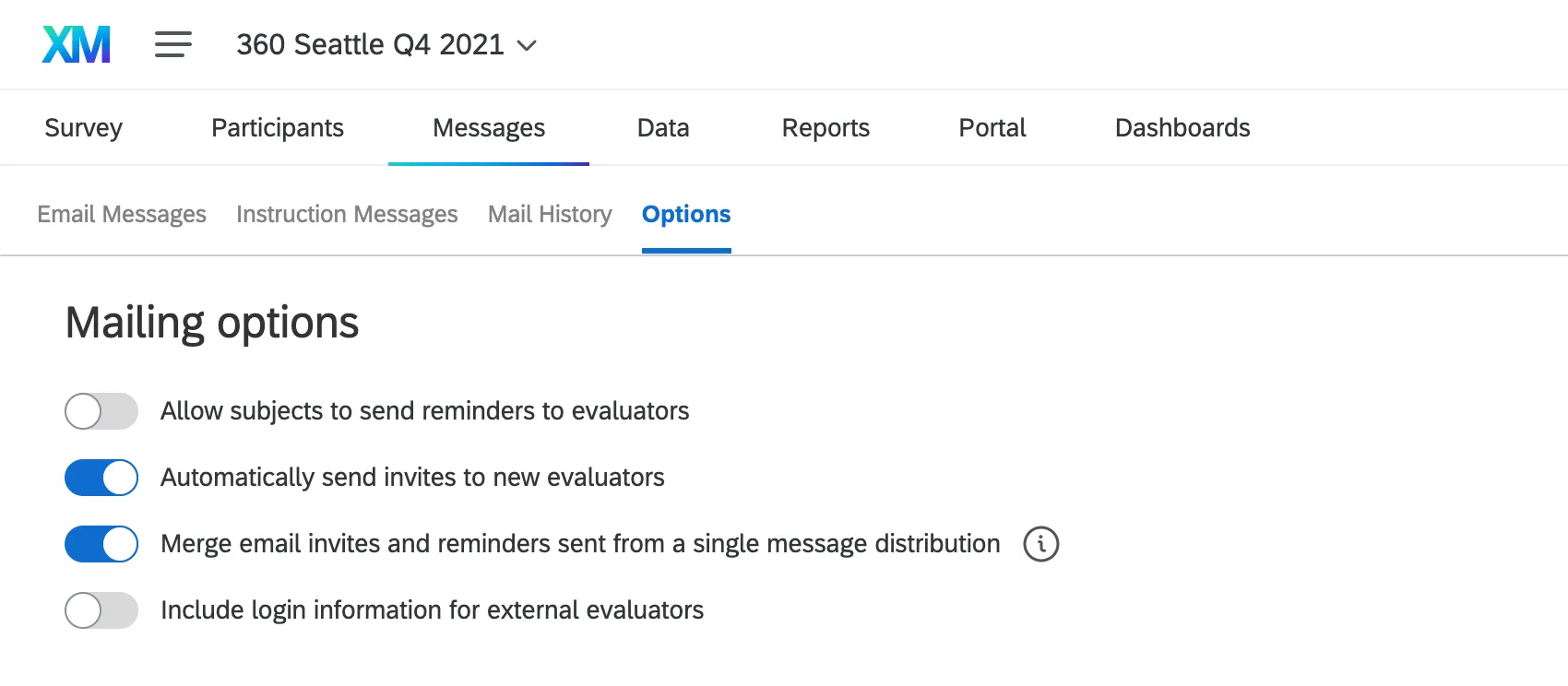
- Allow subjects to send reminders to evaluators.
- Automatically send invites to new evaluators.
- Merge email invites and reminders sent from a single message distribution.
- Include login information for external evaluators.
To learn more about these settings, see Message Options.
Invite & Reminder Messages
The most commonly used emails for almost all workflows are the Subject Invite, Evaluator Invite, and their associated reminders. See this document for useful templates to help you get ideas for your messaging.
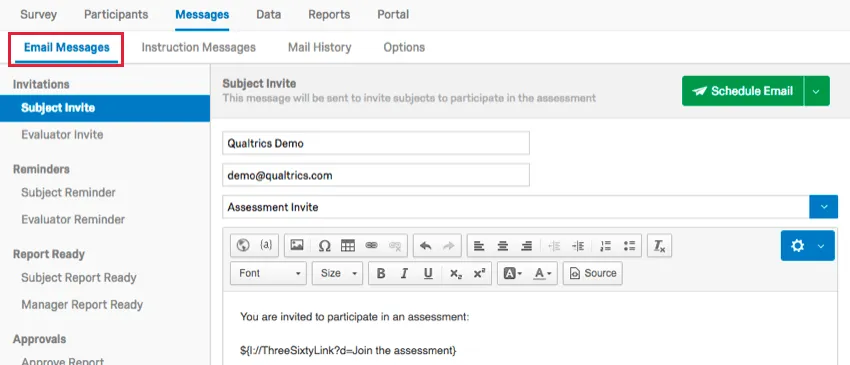
The key components of these messages should include:
- Deadline for completing the survey
- Workflow-specific requirements (e.g., “You must nominate ‘X’ evaluators.”)
- Link to access the survey
- Any specific information related to the survey access (e.g., unique links or passwords)
- Where to go if participants have questions
Qtip: If you include login info in your messages, then for security purposes, the password will not be displayed to the participants who have logged into their portal and changed the password. we advise including a blurb in your email to cover this, such as, “Note: If you have already logged into your participant portal and changed your password, your password will be omitted from this email for security purposes. If you do not remember your password, please visit the login link and select Forgot your password? to reset it.”

For full details on all components of the Messages tab, see the Email Messages support page.
Qtip: Note that there are additional messages available that are linked to different options in the nomination approval and report access workflows. Once enabled in the Participants Options, the Edit Email icon will appear next to the option, which, when clicked, will redirect you to the Email Messages section for configuring.
FAQs
How can I stay up to date on new Qualtrics features?
How can I stay up to date on new Qualtrics features?
To access these release notes, you need an XM Community account. These accounts are free for any users with a Qualtrics account. This support page contains information for how to register an XM Community account.
Once you're logged into the XM Community, head over to the Weekly Product Updates Introduction Post. This post contains all the information you need to get started with subscribing to product updates!
That's great! Thank you for your feedback!
Thank you for your feedback!