

Question Rotation
What's on this page
About Question Rotation
You can create rotating sets of questions for your pulse program. Switching out different questions can be helpful if your program needs feedback on a lot of topics, but you want to keep pulses short and prevent survey fatigue.
Example: If your pulse survey has questions on multiple topics (e.g., trust in leadership, communication, manager effectiveness), you can set it up so 1 question from each topic is asked each time. Once all of the questions have been asked, the questions will repeat.

Attention: Once your program’s started, you can only edit question rotation for the next round of surveys. Past and currently running program surveys will not be affected.

Before You Set Up Question Rotation
In your survey template, make sure to add every possible question you plan to eventually rotate through.
Qtip: The same question can be included in multiple question sets.

Qtip: Although it’s not required, one way you can make question rotation sets more easily is by organizing each set into a different block in your survey. This can also help you imagine what these different question groups will look like.
Setting Up Question Rotation
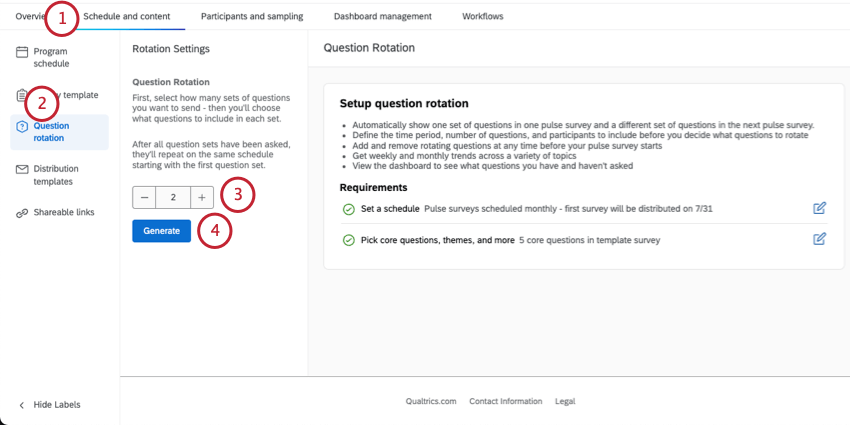
Qtip: A question set is the group of questions that will be asked in each pulse. Defining the number of question sets means defining how many groups of questions you’ll send throughout your pulse program, in each pulse survey.
Example: We have created many questions matching 3 primary themes: trust in leadership, communication, and manager effectiveness. We create 3 question sets.
Qtip: If you need to change the number of question sets later, make sure to hit Generate again.
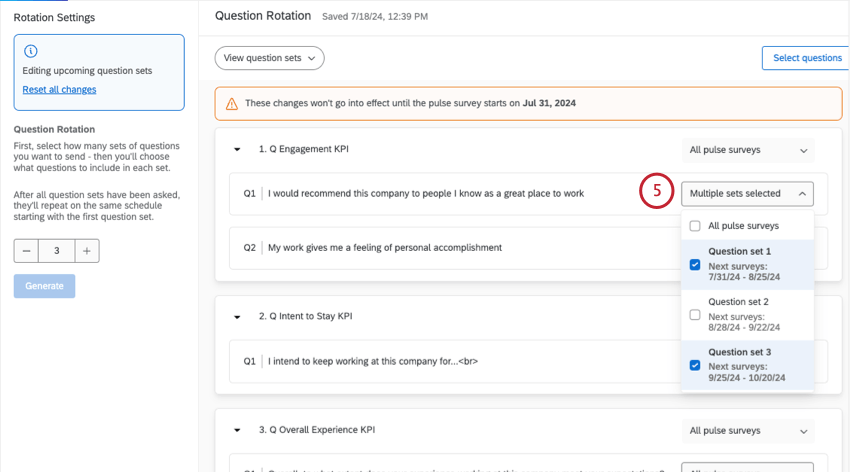
Qtip: You can assign the same question to multiple question sets. Select All pulse surveys to make sure a question appears in all question sets.
Attention: Changes are saved automatically.
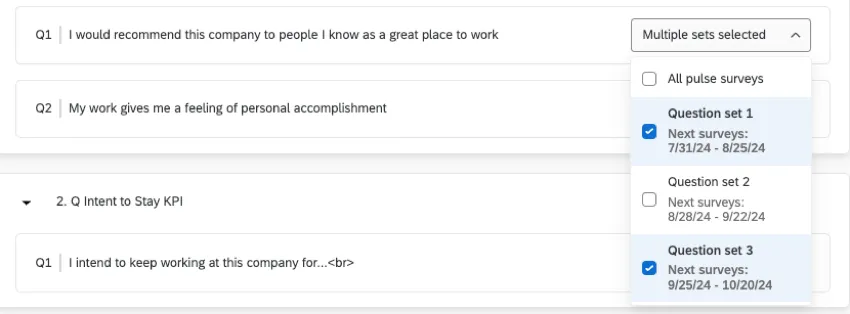
Qtip: You can see the date each question set will appear in a live survey by using the set assignment menu.
Changing Question Sets in Bulk
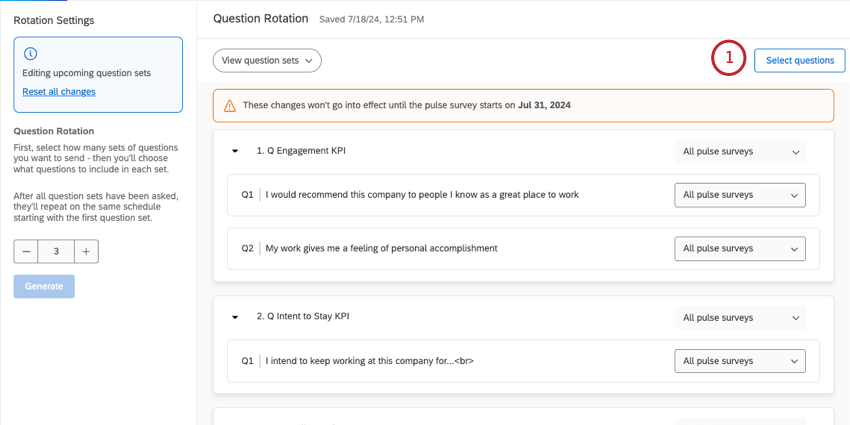
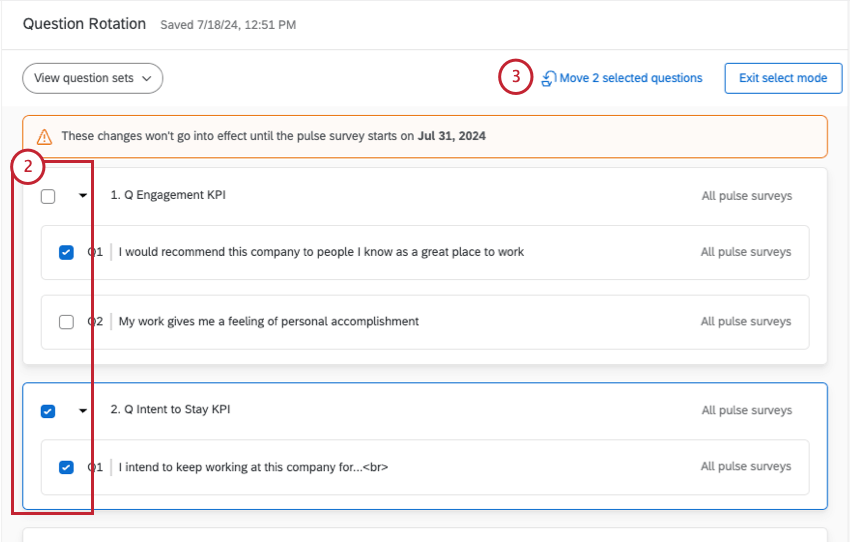
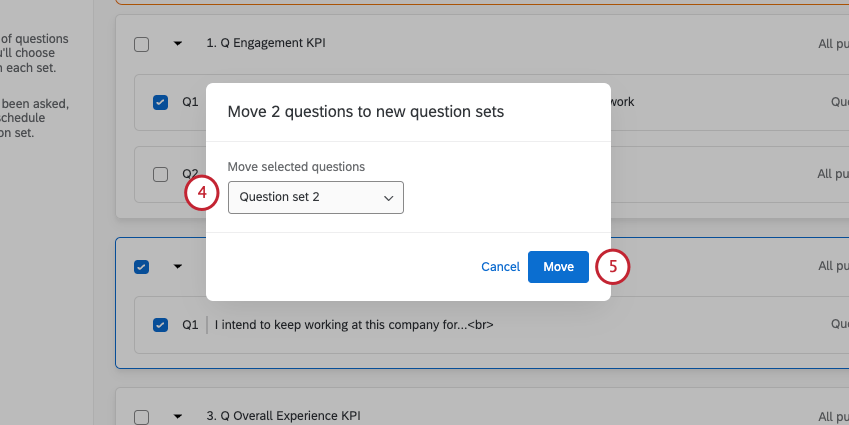
You can select and move multiple questions and blocks into question sets at a time. This can be helpful if you need to sort a lot of different items into different groups.
Viewing Question Sets
You can preview your different question sets and make sure you’ve assigned them correctly.
Use the View question sets menu to choose the set you want to preview.
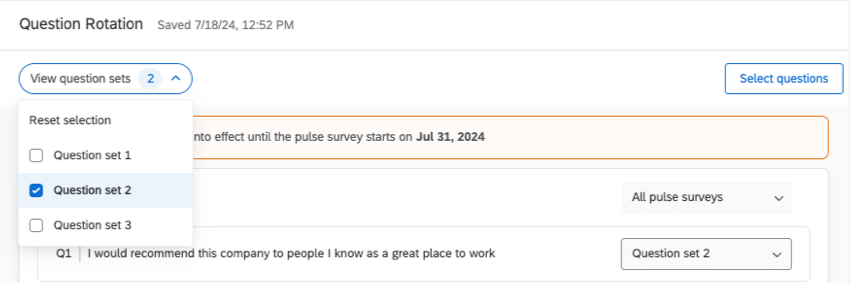
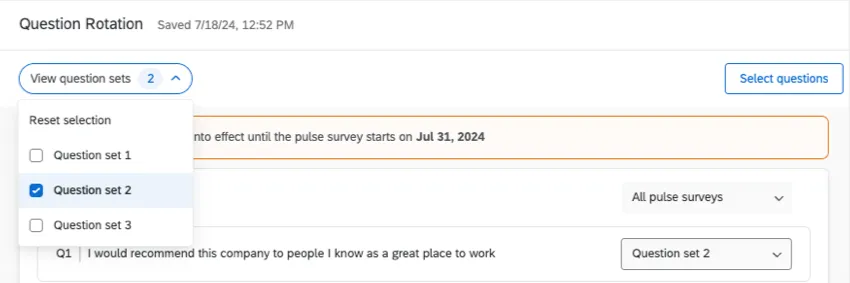
Qtip: You can use this filter while viewing and editing question sets.
To remove filters and go back to viewing all of your questions, click Reset selection.
That's great! Thank you for your feedback!
Thank you for your feedback!