

Twilio Segment Task
Suite
Customer Experience
Strategy & Research
Product
Qualtrics
What's on this page
About the Twilio Segment Task
The Twilio Segment task allows you to send Qualtrics data to the Twilio Segment customer data platform, enabling you to keep your customer information up to data in a singular place.
Finding Your Twilio Segment Token
To use the Twilio Segment task, you must connect your Twilio Segment workspace to Qualtrics. You will need to create a Token within Twilio Segment to connect your account.
Attention: Qualtrics support cannot assist with the setup within Twilio Segment. For help with setup with Twilio Segment, please contact Twilio Segment Support.

Setting Up a Twilio Segment Task
Follow the linked instructions to create a new workflow. Usually you will update customer information with data from a survey, so your workflow will most likely begin with a survey response event.
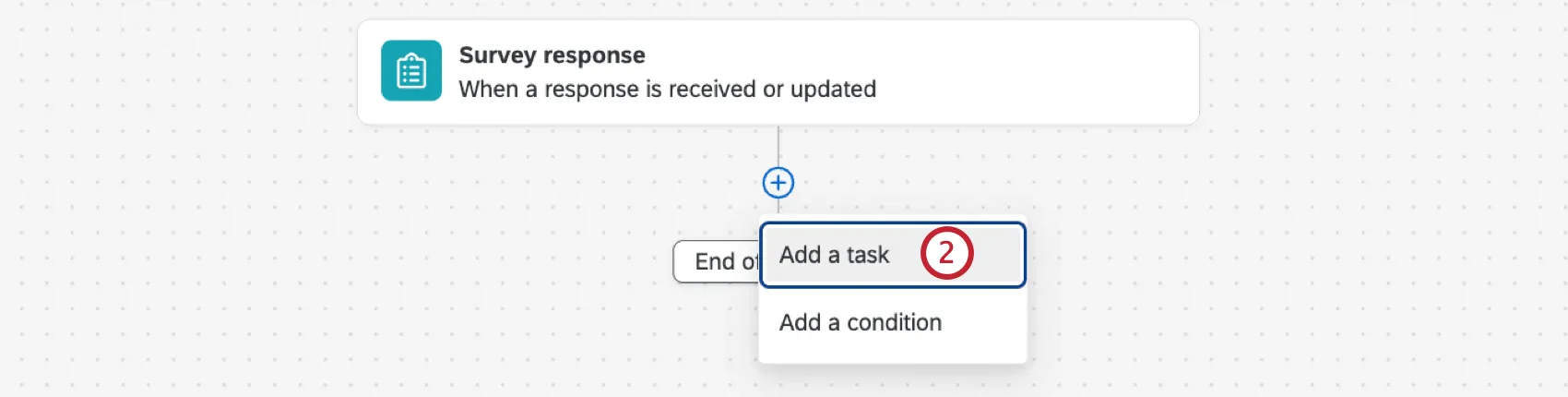
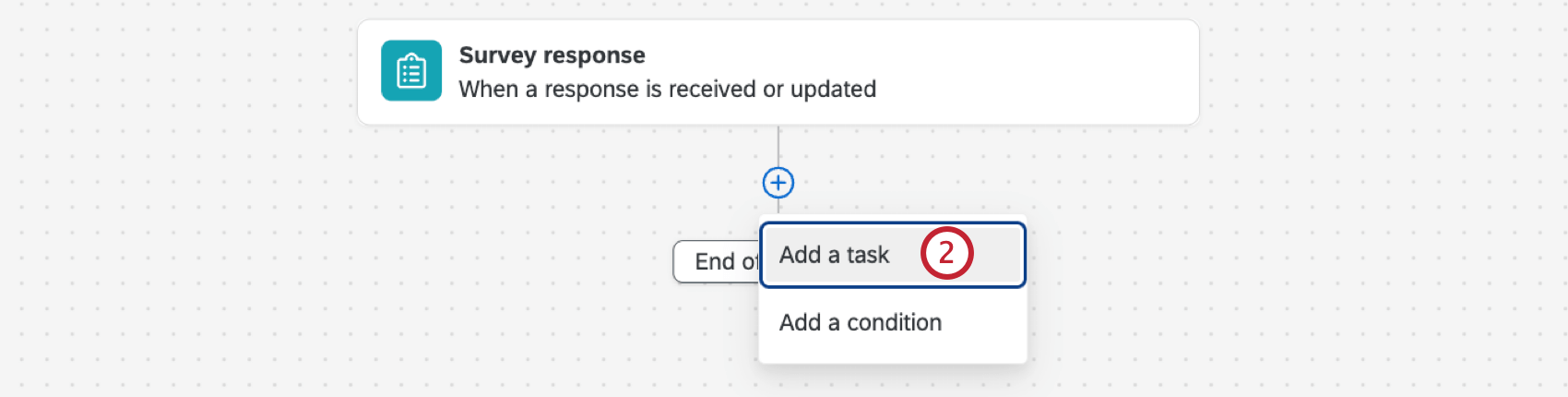
Click the plus sign ( + ) and select Add a task.
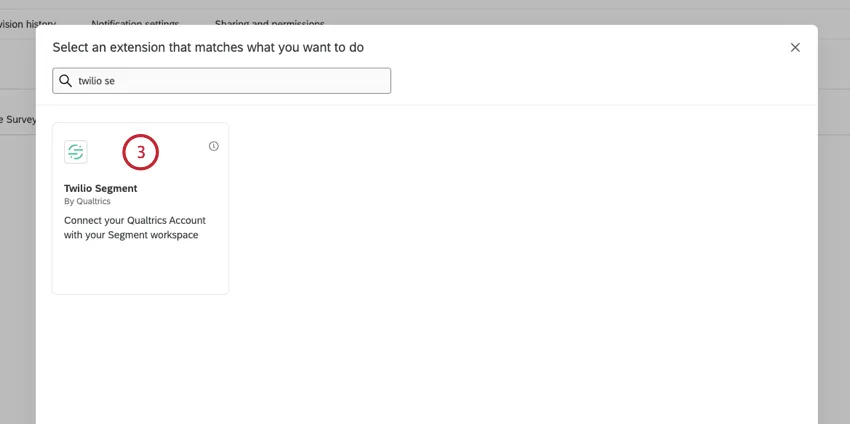
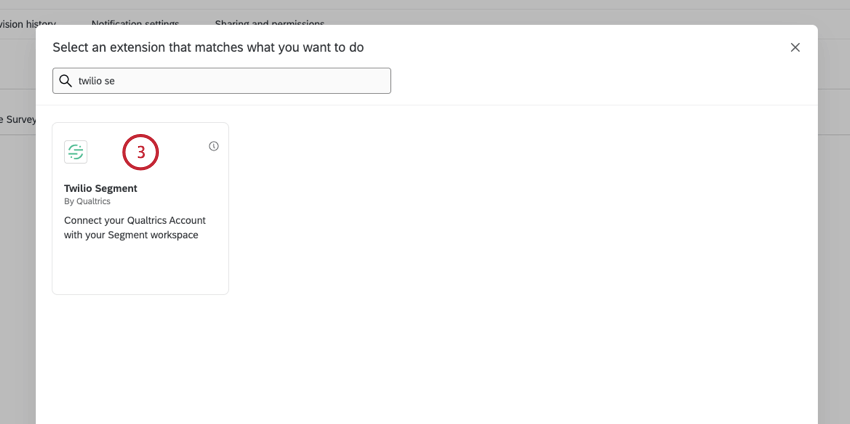
Choose the Twilio Segment task.
Choose the Twilio Segment account you want to send data to. You can choose any accounts you’ve previously connected along with any accounts set up by your Brand Administrator.
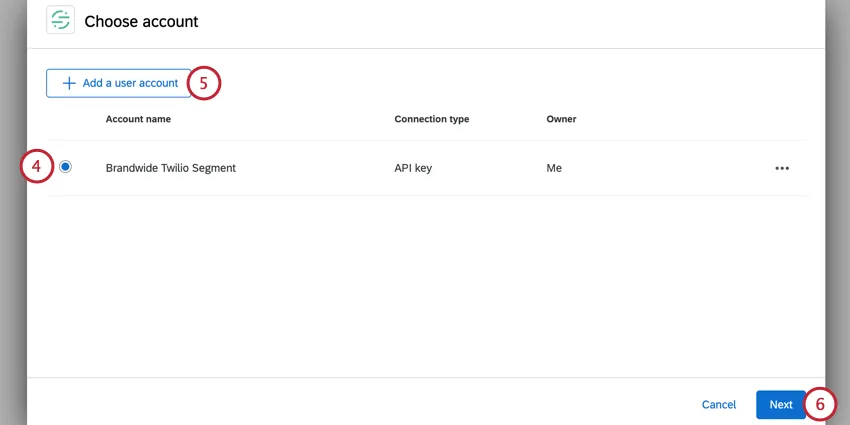
To add a new account, click Add a user account. When adding a new account, give your account a name, and enter your Twilio Segment Token.
Qtip: If you’re a Brand Administrator, you can add the account in the Extensions tab to give access to other users in your brand.

Click Next.
Select the workspace in Twilio Segment you want to send data to.
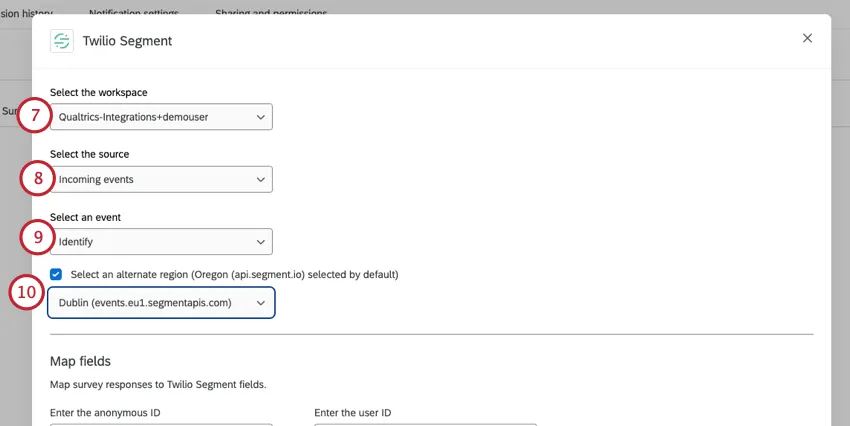
Select the source that should receive the data. You also have the option to create a new source.
Qtip: When creating a new source, the name can only contain: lower case letters, numbers, periods ( . ), dashes ( – ), and underscores ( _ ). Once you’ve added your new source, click Create.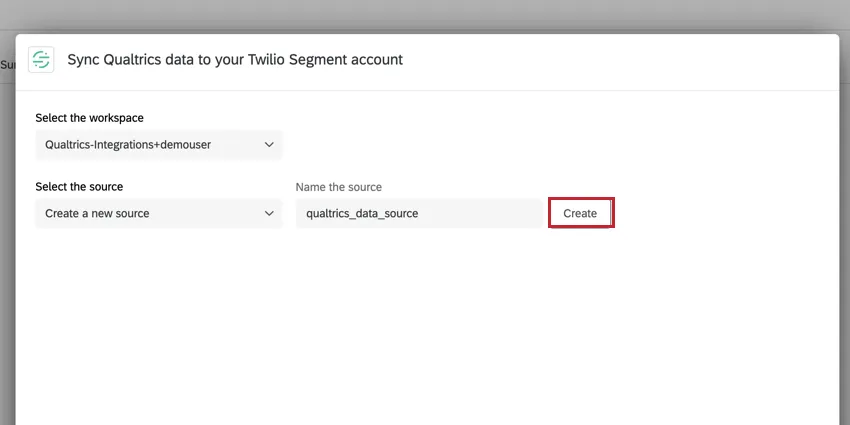
Choose the type of event that describes the data being sent to Twilio Segment. Your options include:
- Identify: Use this option to add details and information about a user.
- Track: Use this option to record actions and the properties of those actions.
Twilio Segment allows you to choose where your data resides. By default, this task processes data in the Oregon data region. If you use the Oregon region, then you can skip this step. If you are a Twilio Segment user who uses the Dublin region, enable the Select an alternative region option. Then, select Dublin in the dropdown menu that appears.
Map fields from Qualtrics to the fields in Twilio Segment. Use the piped text menu, {a}, to choose values from your survey. For the values, we recommend using the following mappings:
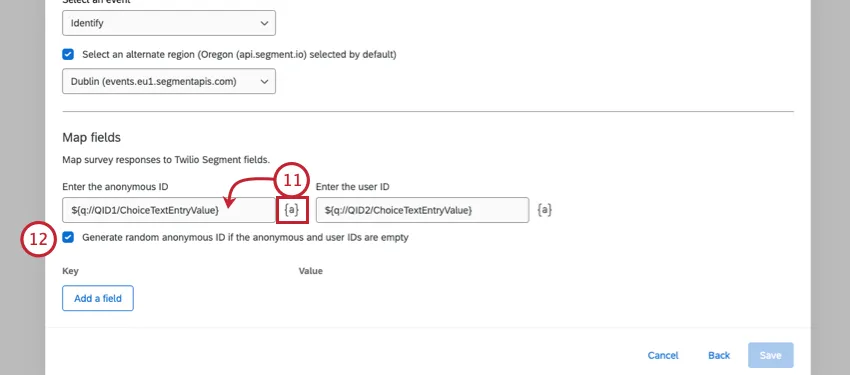
- Enter the anonymous ID: This should map to some sort of pseudo-identifier for the user. This field is used in situations where you don’t know exactly who your user is. One common source for anonymous ID is the session ID used for visitors to your website.
- Enter the user ID: This should map to a unique identifier for the user, usually email address or a unique ID.
If desired, enable the Generate random anonymous ID if the anonymous and user IDs are empty option. When enabled, this option will assign a randomized ID for the “anonymous ID” field if both fields are empty when the workflow runs. Note that the user ID will still remain empty.
To add additional fields, click Add a field.
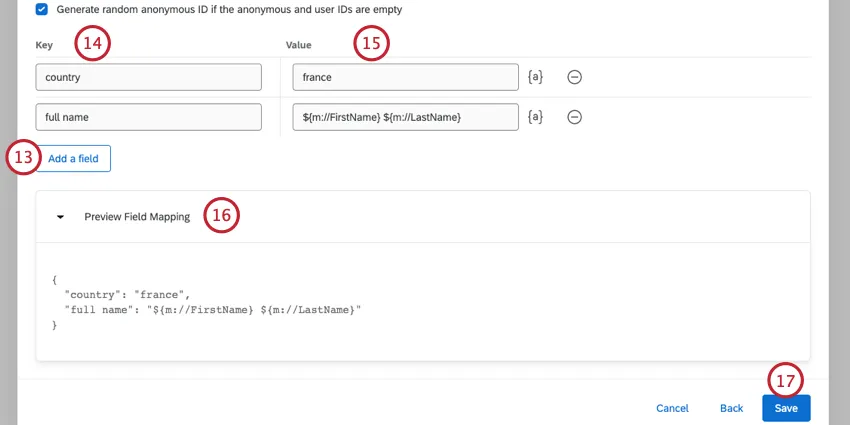
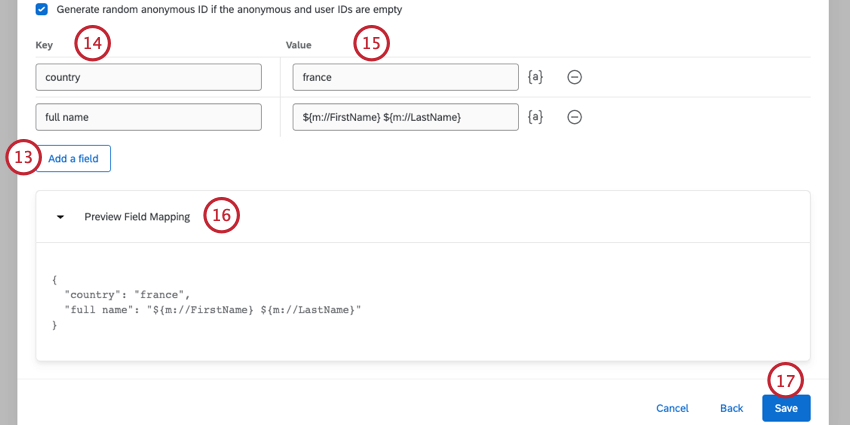
In the Key column, add the field’s name.
In the Value column, add the field’s value. Use the piped text menu, {a}, to choose values from your survey.
Click Preview Field Mapping to see the data being passed to Twilio Segment. Note that this mapping only contains the additional fields you are adding.
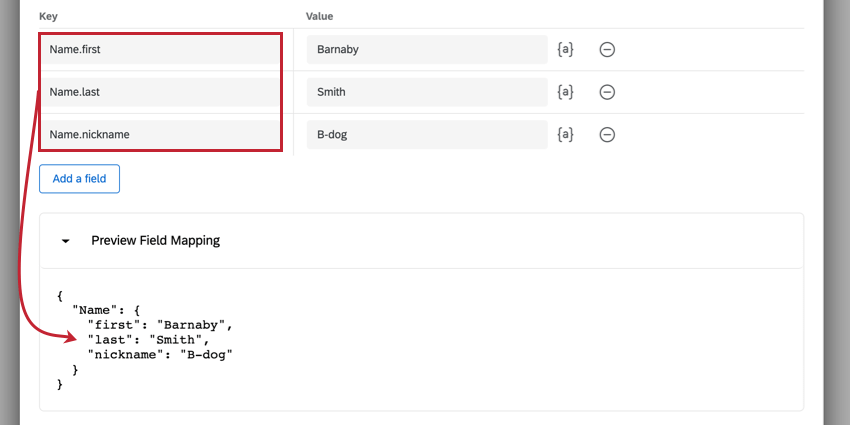
Qtip: Twilio Segment supports complex data objects. You can create a new object by using a period ( . ) as a delimiter.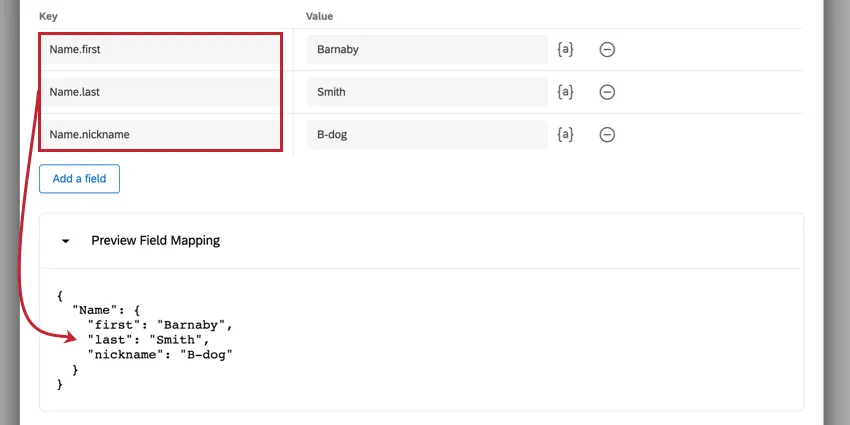
When finished, click Save.
That's great! Thank you for your feedback!
Thank you for your feedback!