

Data Formula Task
What's on this page
About Data Formula Tasks
Data formula tasks in workflows help you transform your data so it can be more easily used later in your workflow. One common example is calculating how long a customer spent on your website based on when they first loaded the page and when exited the site. You can then use the calculated time spent in your workflow conditions or subsequent workflow tasks.
With the data formula task, you can:
- Change the case of string fields (e.g., transform text from lowercase to uppercase).
- Change the format of date fields.
- Calculate the difference between 2 dates.
Setting Up a Data Formula Task
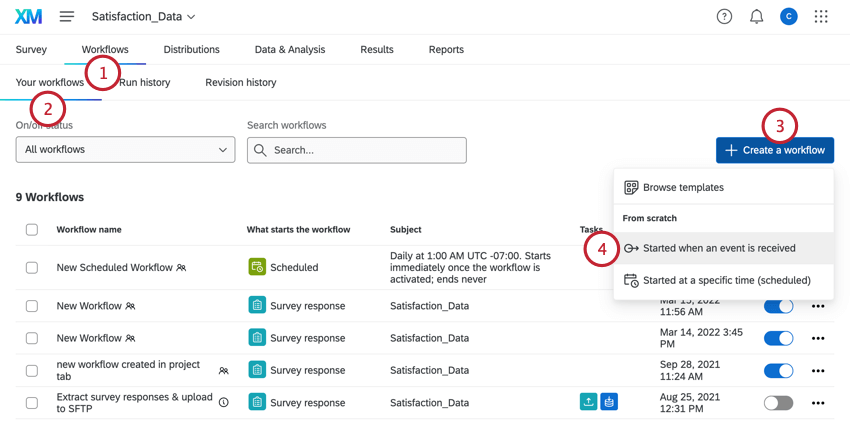
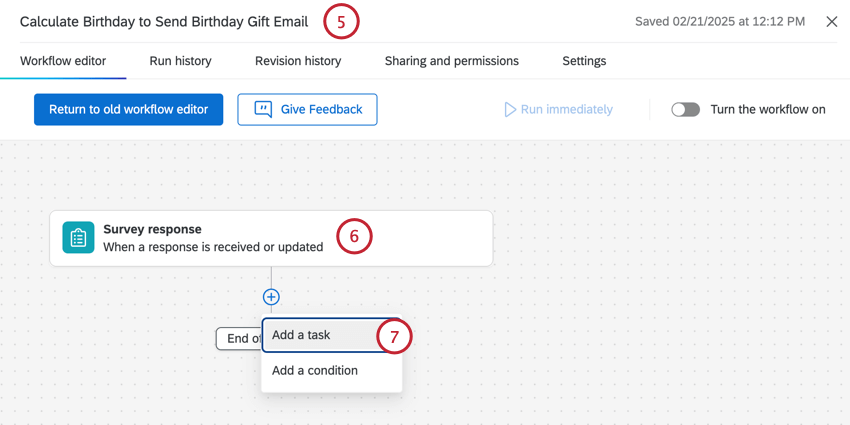
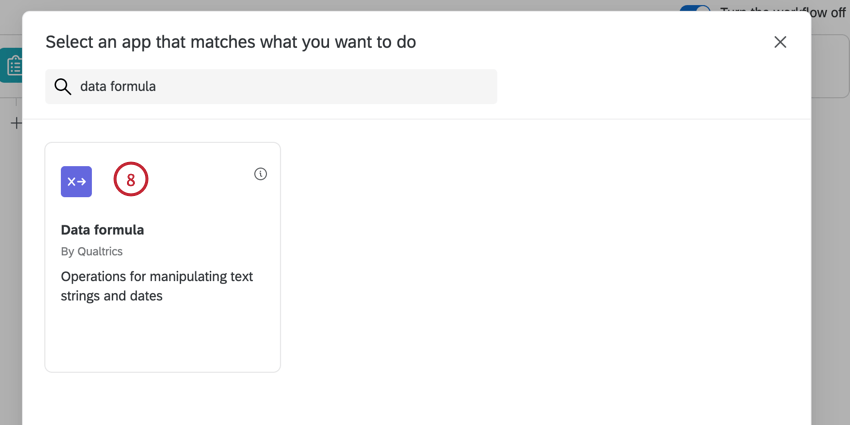
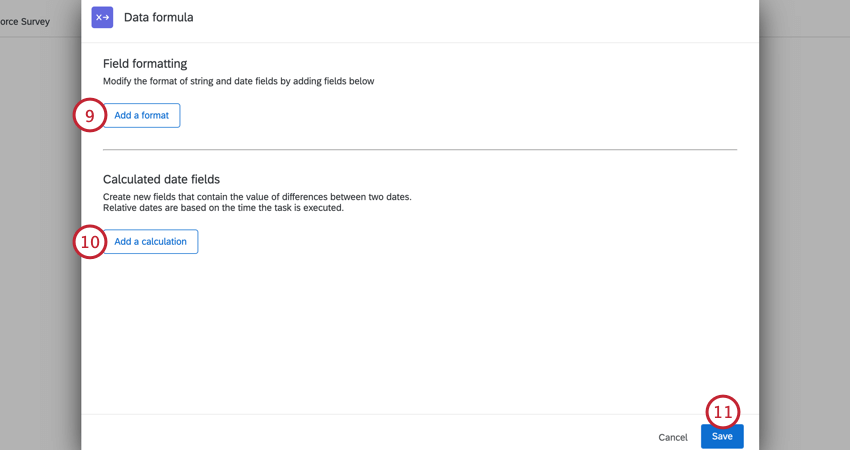
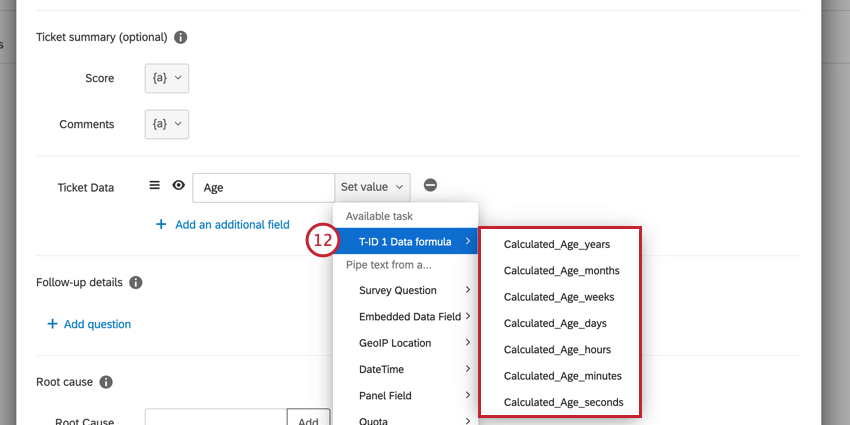
Modifying String Field Formatting
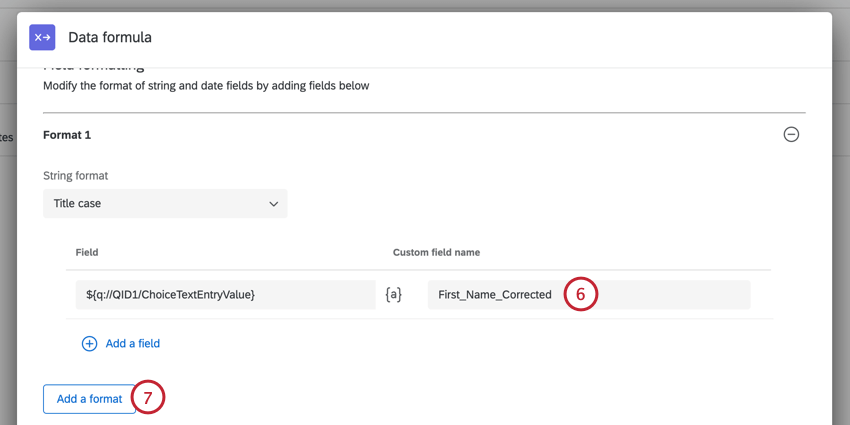
With the data formula task, you can transform a text string into another case. For example, some employee data systems store information in all uppercase letters. However, when ingesting that data into Qualtrics, you want to transform it to title case (only the first letter of every word is capitalized) so it looks better on your Qualtrics dashboards.
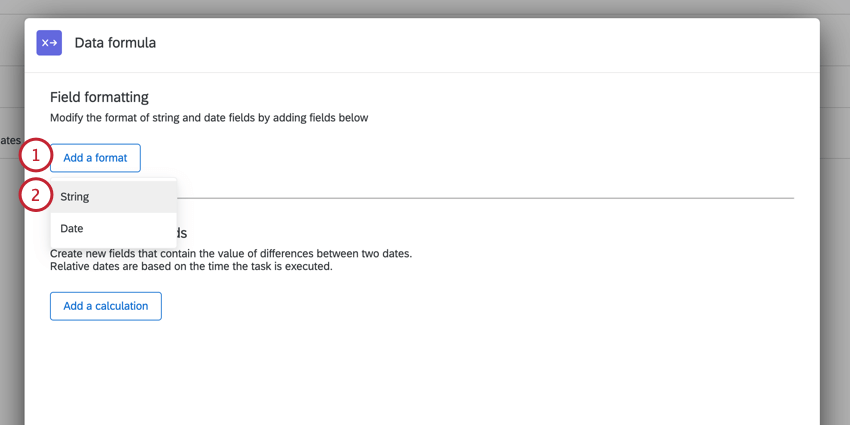
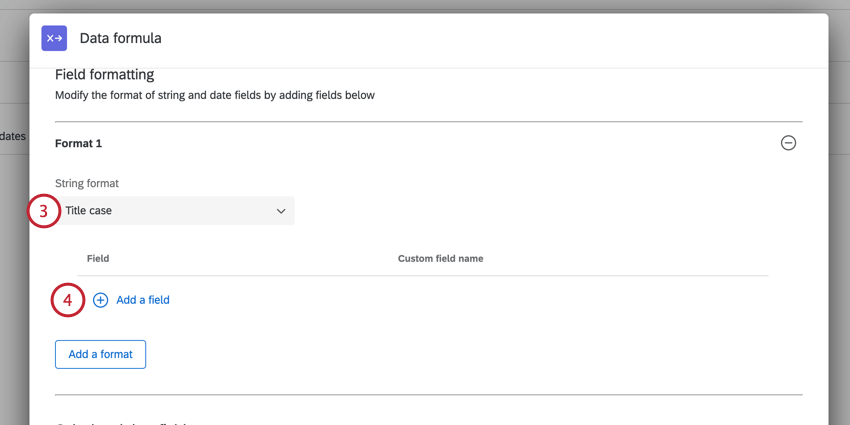
- Title case: The first letter in each word is capitalized (e.g., “Hello World”).
- Upper case: All letters are capitalized (e.g., “HELLO WORLD”).
- Lower case: All letters are in lower case (e.g., “hello world”).
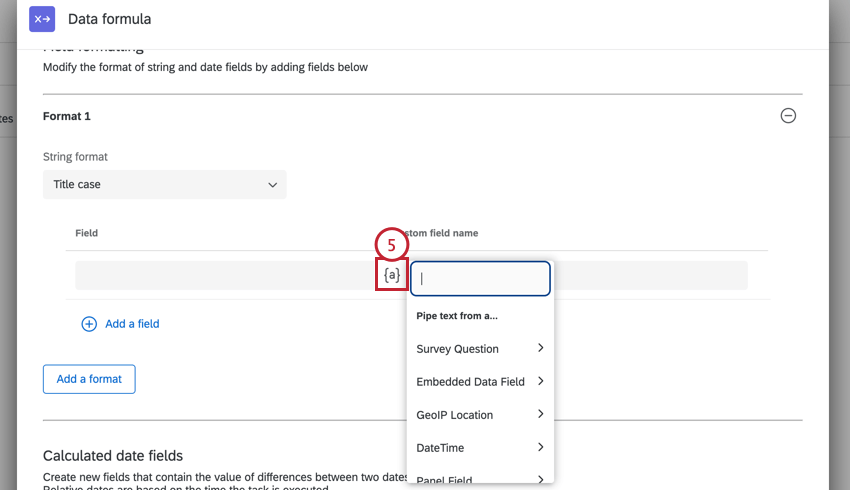
Modifying Date Field Formatting
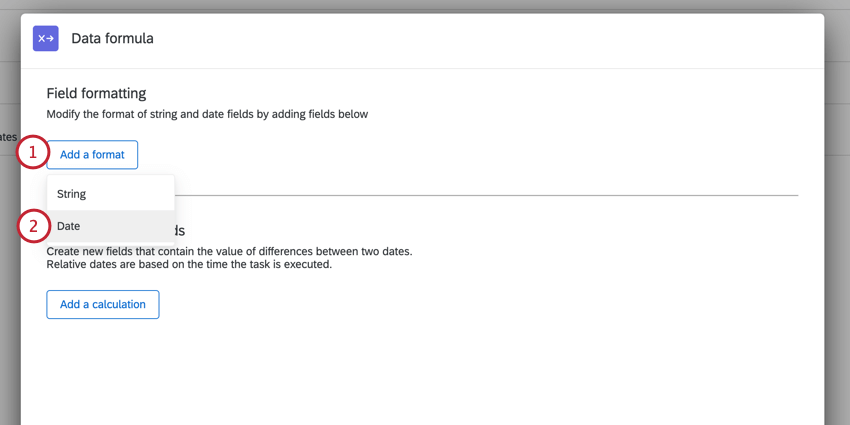
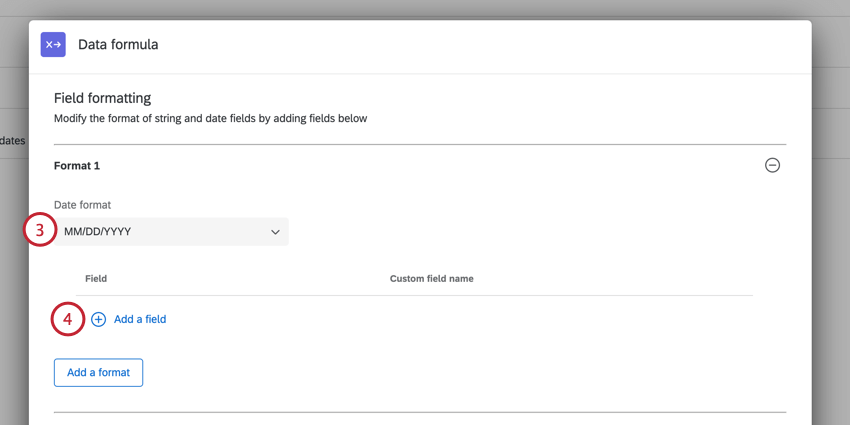
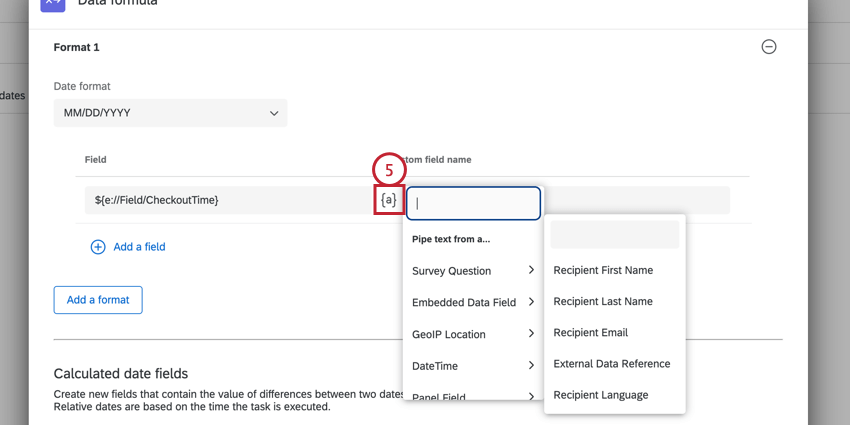
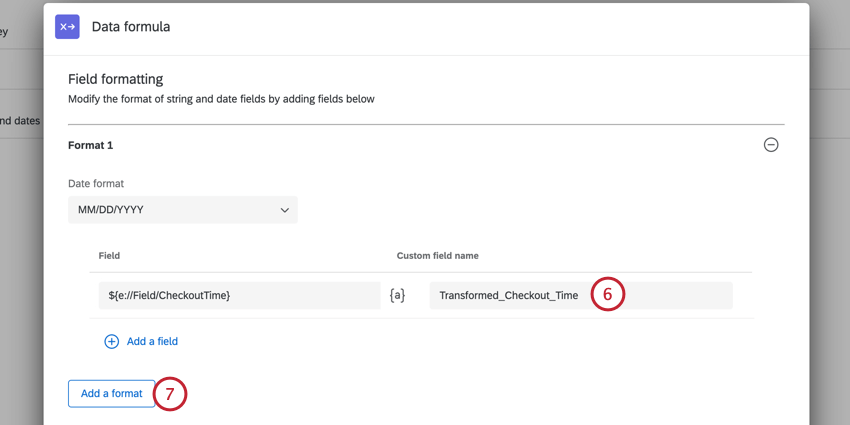
With the data formula task, you can change the format on date fields. For transforming date fields, the original date format must be ISO-8601 format.
Calculating Differences Between Dates
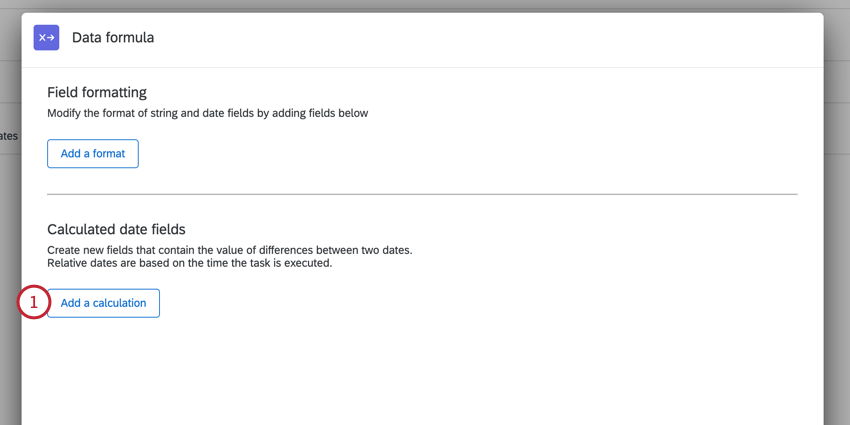
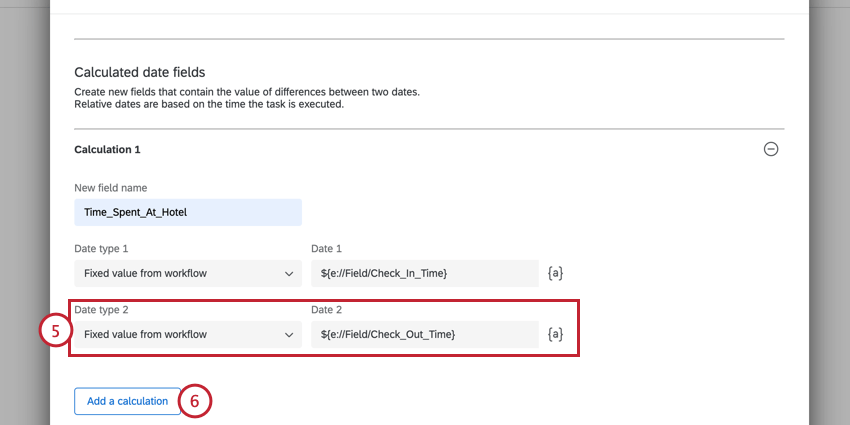
With the data formula task, you can calculate the difference between 2 dates. The task will return the difference in a variety of units, allowing you to choose the one that is most useful for you. Dates must be in ISO-8601 format to calculate the difference between them.
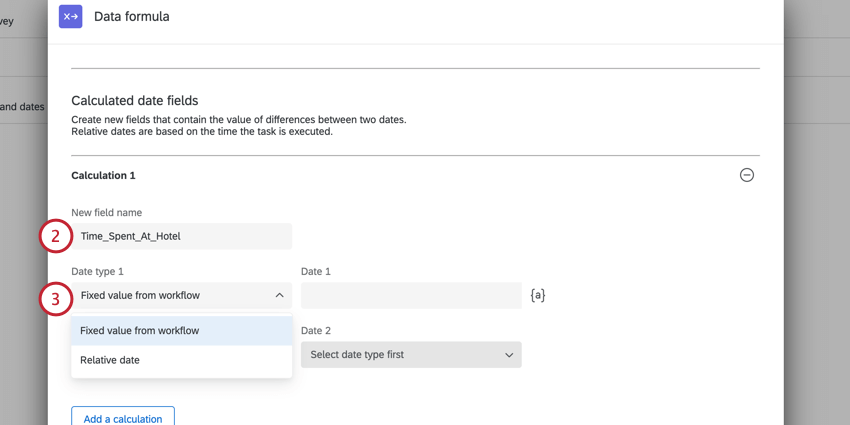
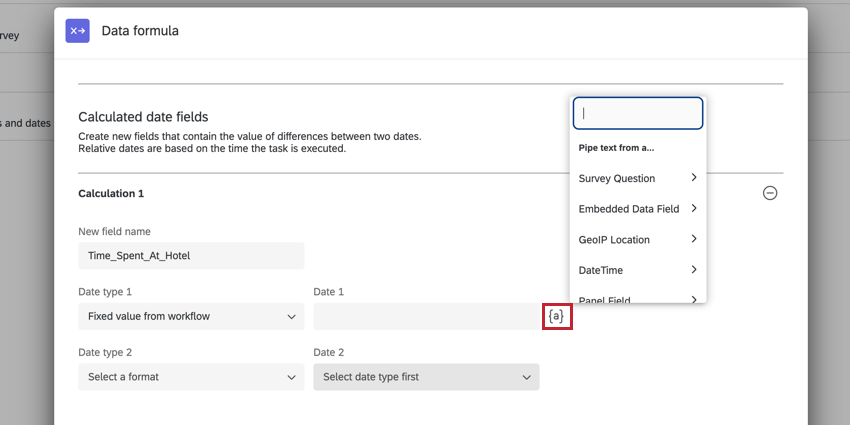
- Fixed value from workflow: Choose a field from your workflow to use as the date.
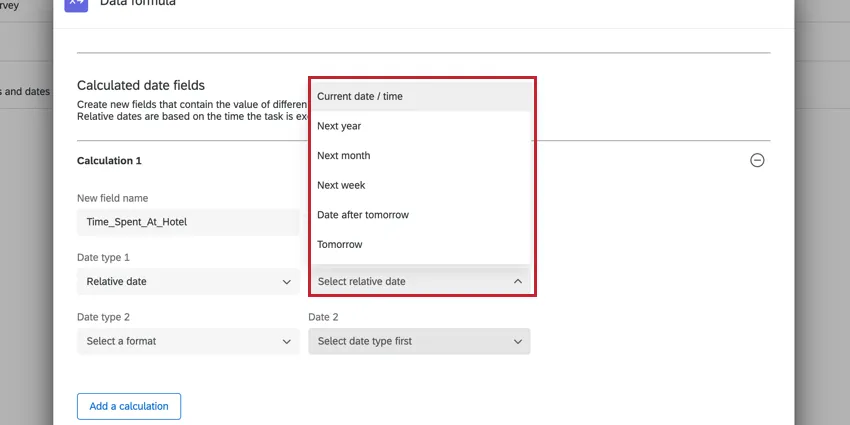
- Relative date: Choose a date relative to the current date (e.g., “tomorrow”). Qtip: Relative dates are calculated when the data formula task processes. For example, if the task begins running at 2022-01-26T20:14:02.000Z and you select “tomorrow,” the date used in the calculation will be 2022-01-27T20:14:02.000Z.

- Fixed value from workflow: Use the piped text menu, {a}, to choose a field from your workflow to use as the date.
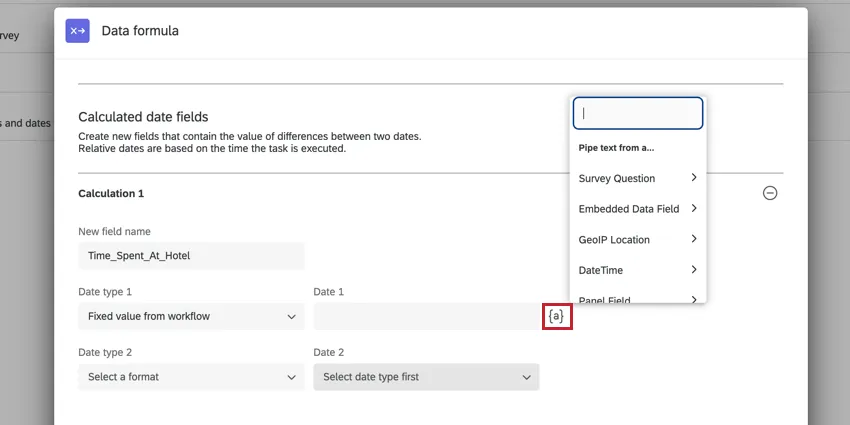
- Relative date: Use the dropdown menu to choose a relative date.
Qtip: The output of this calculation is an integer rounded down. For example, if calculating the difference between yesterday and today, the workflow would return the value 1.
That's great! Thank you for your feedback!
Thank you for your feedback!