

Managing the Sessions List
What's on this page
About the Sessions List
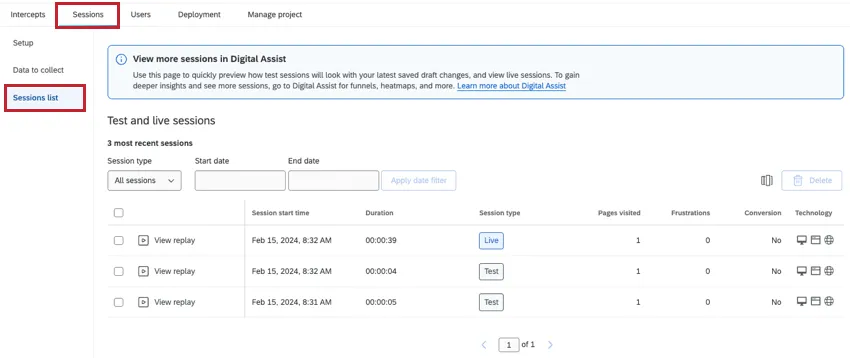
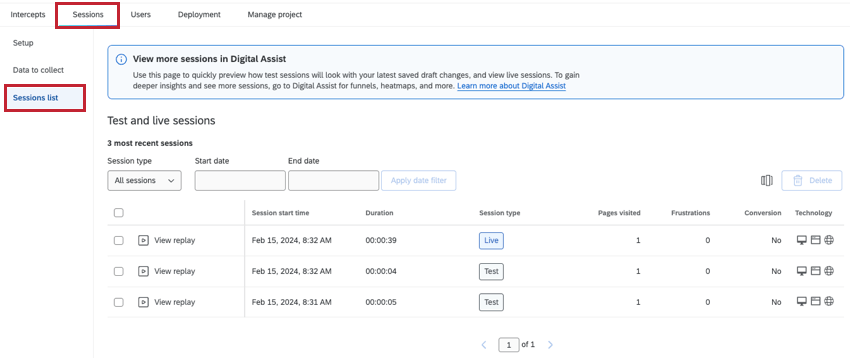
In the Sessions list section of the Sessions tab, you’ll find a table displaying all test and live sessions recorded for your project. You can view details about each session, as well as watch a replay of individual sessions across your website.
Attention: Session replay data will eventually expire. Timeline files will expire after 3 years, and playback files will expire after 6 months.

Qtip: This tab will display a maximum of 1,000 sessions.
Qtip: Session replays have a 5 second delay to combat bot traffic on your site. Sessions less than 5 seconds will be discarded.
Attention: Digital Assist only shows live sessions, no test sessions, so you can make the most of your results without having to clean data. Digital Assist will also show any sessions recorded beyond the first 1,000.
Filtering Sessions
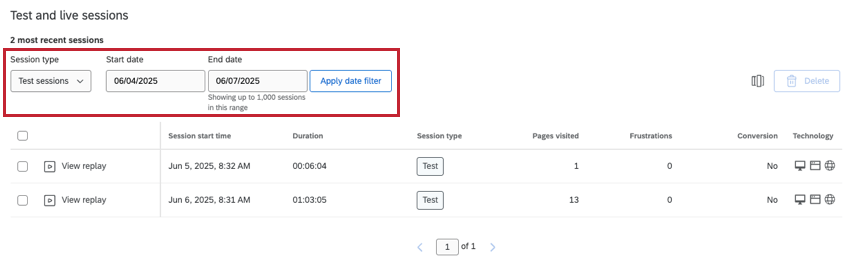
You can narrow down the sessions you want to view, filtering by session type and date.
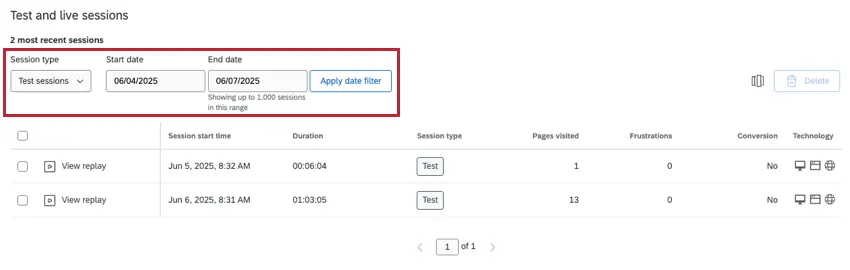
- Session type: Decide the type of sessions you want to view. This filter is applied immediately. Options include:
- All sessions: Include both test and user sessions.
- Test sessions: Only show test sessions. These are sessions generated when you test your session replay settings.
- Live sessions: Only show sessions of real website visitor activity. These are sessions generated when you have session replay code live and running on your website.
- Start date and End date: Only sessions that were recorded between these two dates will be shown. Make sure you click Apply date filter to generate results.
Running Test Sessions
Before the Sessions list will show any data, you need to either collect live data or run test sessions.
Go to the Setup tab to start a test. For steps, see Test Sessions.
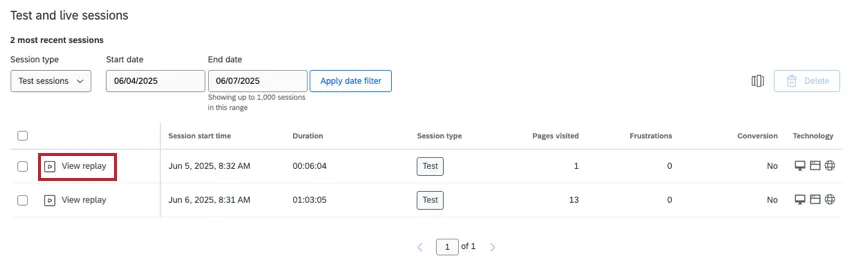
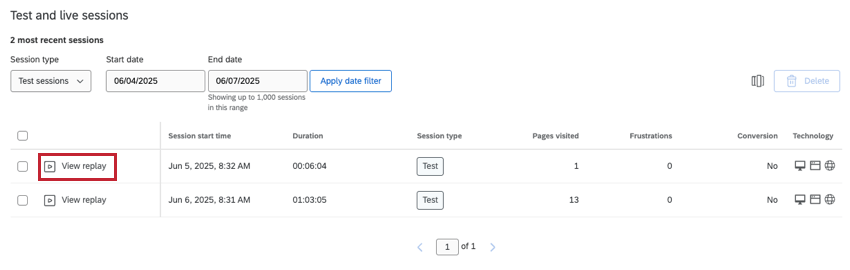
Test sessions may take up to 30 minutes to appear in the sessions list. Once they do, you can view recordings of sessions by clicking View replay. This will open the session in a new tab.
Choosing Columns to Display
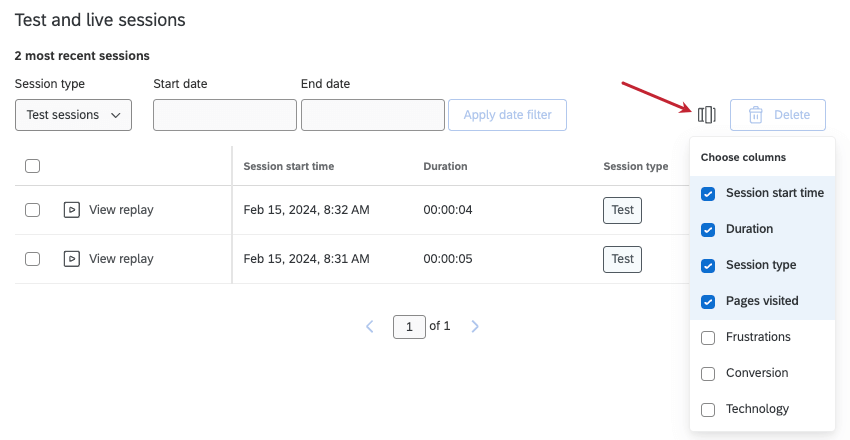
You can use the column chooser to change the session replay fields that are displayed. The column options include all data recorded for each session, such as frustration behaviors, device information, and more, listed below here.
To choose columns, click the column icon, then select the session replay fields you want to display.
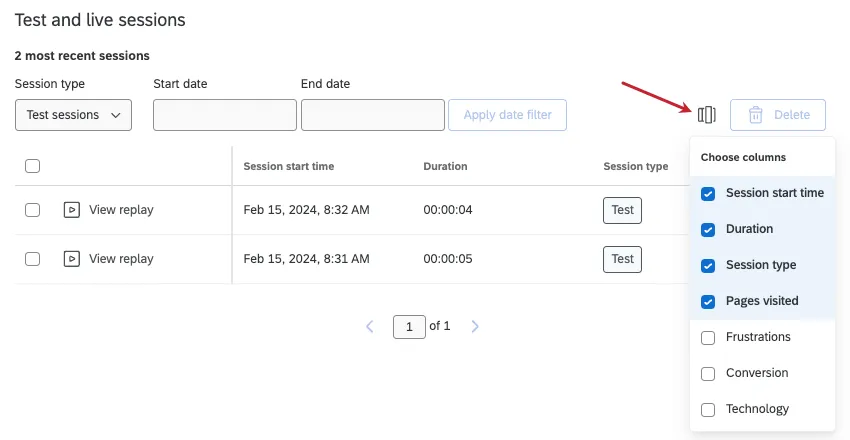
You can deselect a column to remove it. Columns currently displayed on the page will be noted with checkmarks.
Qtip: When you select a field, it will be added on the right side of the table.
Available Session Information
The session replay table displays details about sessions, such as frustration behaviors, time spent, or the pages visited. The following fields are available in the session replay table:
- Session start time: The date and time the session started. Qtip: The date and time is displayed in the timezone of your account.

- Duration: The length of the session. The maximum duration is 24 hours.
- Pages visited: The number of pages visited in the session.
- Frustrations: The number of frustration behaviors that occurred in the session. This includes dead clicks, mouse thrashes, rage clicks, and error clicks.
- Conversion: Whether the user converted during the session. Qtip: Conversions are when a user completes a desired action on your website, like making a purchase, signing up for email, or any other event important to your business. In this case, it means a custom event marked as a conversion was completed during the session.
- Technology: Details of the users’ device, operating system, and browser. Hover over icons to learn what each one is.
Viewing Replays
In addition to viewing session information displayed in a table, you can view recordings of sessions by clicking View replay. This will open the session in a new tab.
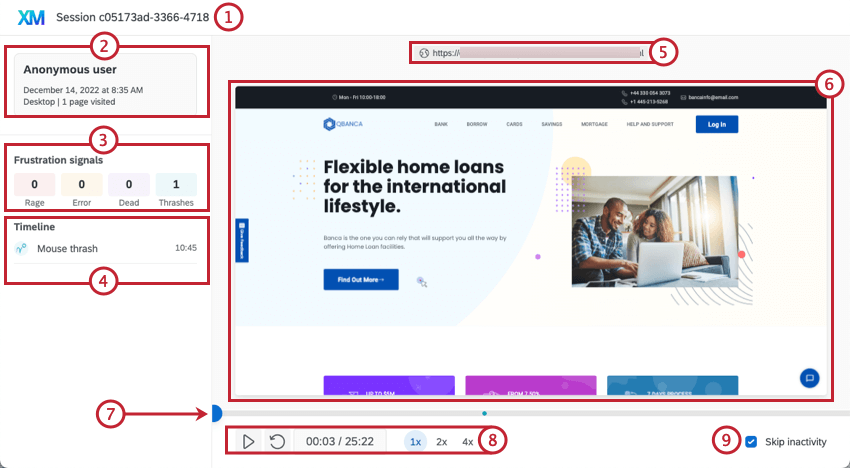
Once the replay is opened, you can view session details and watch a recording of the session. The main features on this tab include:
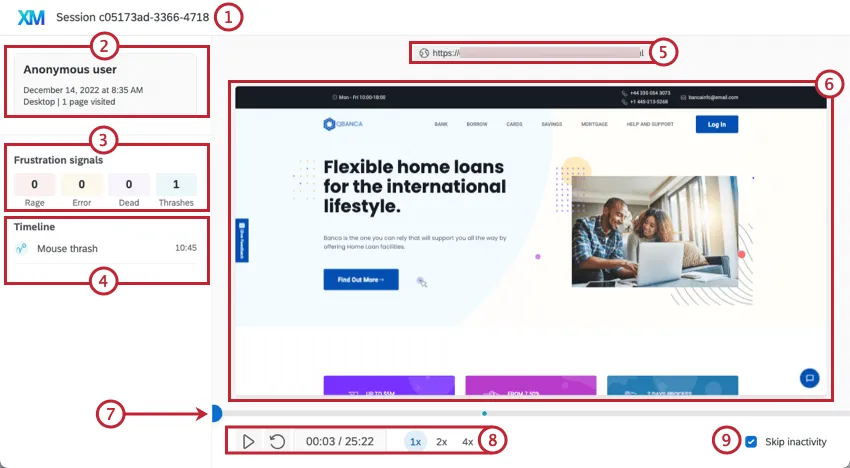
Qtip: If there is a survey response in the timeline, click View survey response to open the survey response in a new tab.
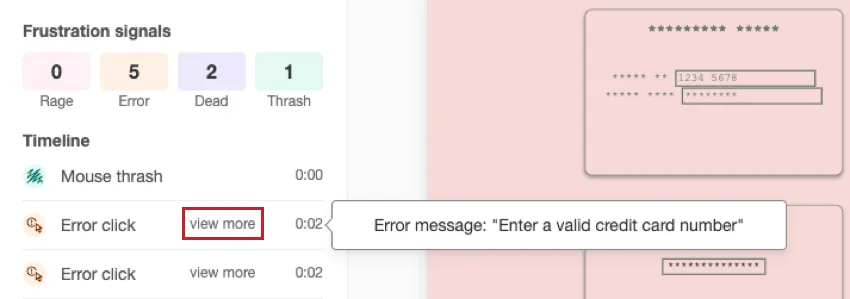
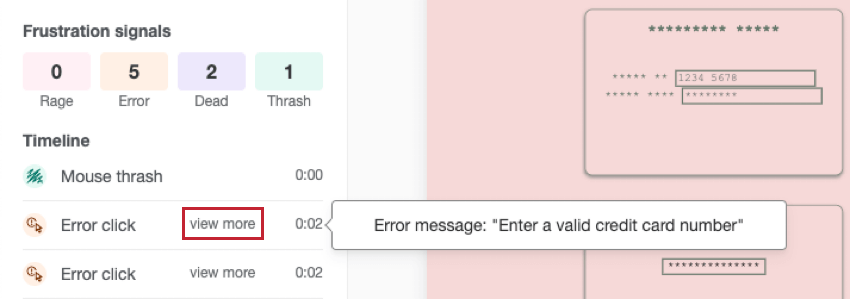
Qtip: To view details about the error message a user saw, click view more next to the specific error message in the timeline.
Features Incompatible with Session Replay
The following items will not be fully captured by session replay:
- Iframes: Iframes will appear as empty spaces on the site in a recorded session.
- Canvas elements: Canvas elements will appear as a rectangle containing an error message in a recorded session.
- Browser-specific elements: These are interactions handled natively by the browser or operating system and are not recordable. These include choosing an item from a dropdown, browser permission requests, and more.
- Cursors: The cursor in a recorded session will not reflect any custom stylings that may have been visible to the site user during the session. The cursor is also mainly transparent, which may make it difficult to see against dark backgrounds.
- Custom fonts: Custom fonts will not be displayed in a recorded session; default fonts will be displayed instead.
- Images: Images that require authentication will not be displayed in a recorded session. Images that are updated or re-uploaded will reflect the newest image in a recorded session.
- Date-time input: The pop-up calendar that displays when interacting with a date-time input field will not appear in a recorded session.
- Videos: Videos within a recorded session may not reflect the exact state of the video a user saw.
- Audio: Audio within a recorded session may not reflect the exact state of the audio a user heard.
- Highlighted text: Highlighting from clicking and dragging across elements will not display in a recorded session.
- Dropdown: Dropdown menus implemented with the <select> html tag will not display the list of items in a recorded session.
- Progress bar: Progress bars implemented with the <progress> html tag will continue to move forwards in a recorded session even if the playback is paused.
Deleting Sessions
Attention: Only users who have the permission to delete sessions are able to delete sessions.
If you want to delete a session for any reason, click the checkbox to the left of the session and select Delete.
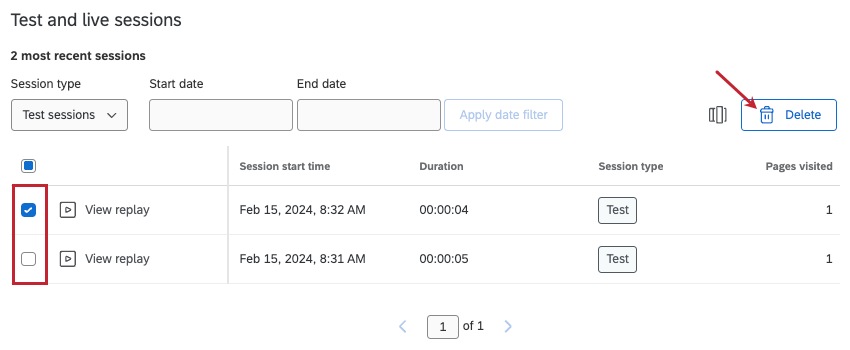
You can select multiple checkboxes to delete multiple sessions at the same time, or select the checkbox at the top of each page to select all sessions on that page.
That's great! Thank you for your feedback!
Thank you for your feedback!