

Data Substitution and Redaction
What's on this page
About Data Substitution and Redaction
When creating a job in XM Discover, you can set up data substitution and redaction rules. These rules enable you to hide sensitive data or automatically replace certain words and phrases in customer feedback and interactions.
You can set up a job’s data substitution and redaction rules in 2 ways:
Preparing Data Substitution and Redaction Files
Data substitution and redaction rules are updated by uploading a TXT file containing the rules. This section covers formatting requirements for these files.
Qtip: You can download template files by clicking the Template button.
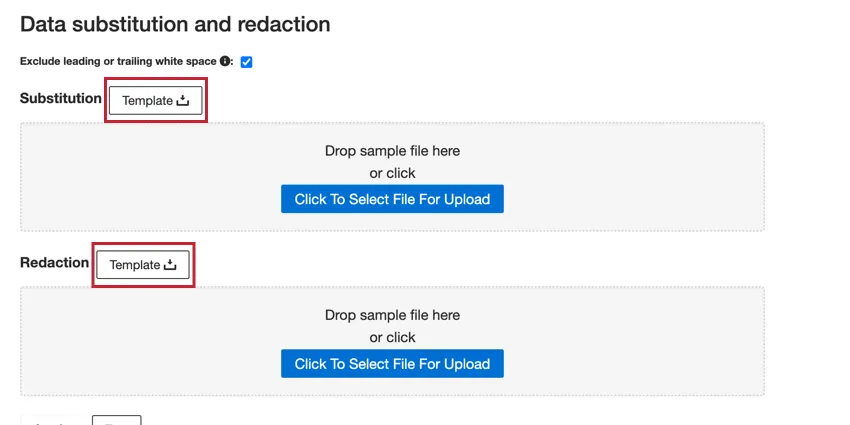
Substitution Files
You can define substitution rules in a text file using the following format:
- Each line is a substitution rule.
- Substitution rules follow the general format “phrase to be replaced” : “phrase to substitute”
- Substitution rules are case-sensitive.
- To add a comment, start the line with the # symbol.
Example: This substitution rule contains a comment and will replace some common misspellings of the word “Coronavirus”:
# replace common Coronavirus misspellings
corroded virus: Coronavirus
caronna virus: Coronavirus
crooner virus: Coronavirus

Redaction Files
You can define redaction rules in a text file using the following format:
- Each line is a redaction rule.
A redaction rule consists of a regular expression that defines a data pattern to be masked.

Qtip: A regular expression is a sequence of characters that define a search pattern. For a brief introduction, please see Microsoft’s .NET Regular Expressions.
- Negative lookaheads and lookbehinds are not supported.
- To add a comment, start the line with the # symbol.
Example: The following redaction rule contains a comment and will mask all instances of a consecutive group of 3, 2, and 4 digits separated by hyphens:
# mask social security numbers
\d{3}-\d{2}-\d{4}
Attention: Custom coding features are provided as-is and require programming knowledge to implement. Qualtrics Support does not offer assistance or consultation on custom coding. You can always try asking our community of dedicated users instead. If you’d like to know more about our custom coding services, please contact your Qualtrics Account Executive.

Applying Data Substitution and Redaction
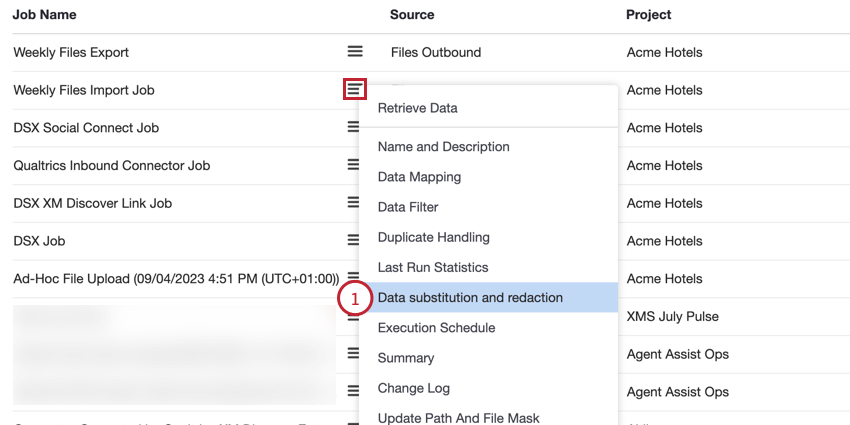
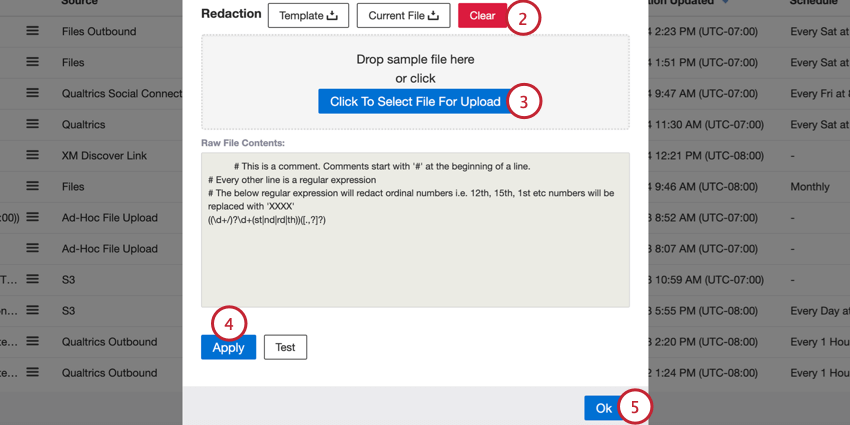
Follow the steps in this section to add data substitution and redaction rules to your job:
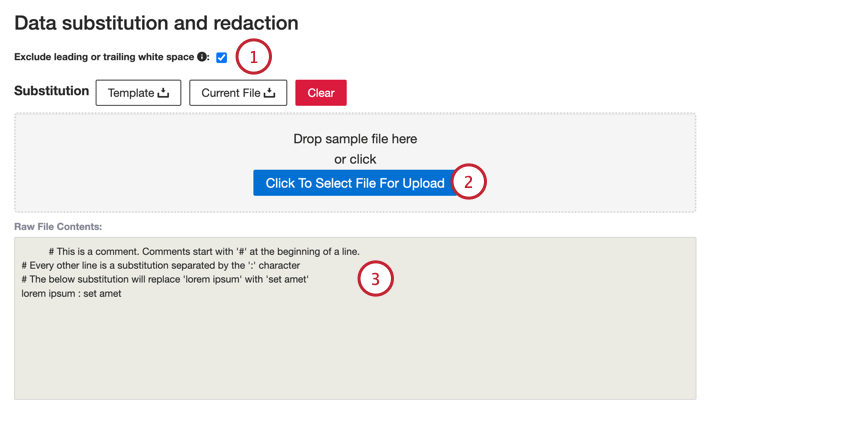
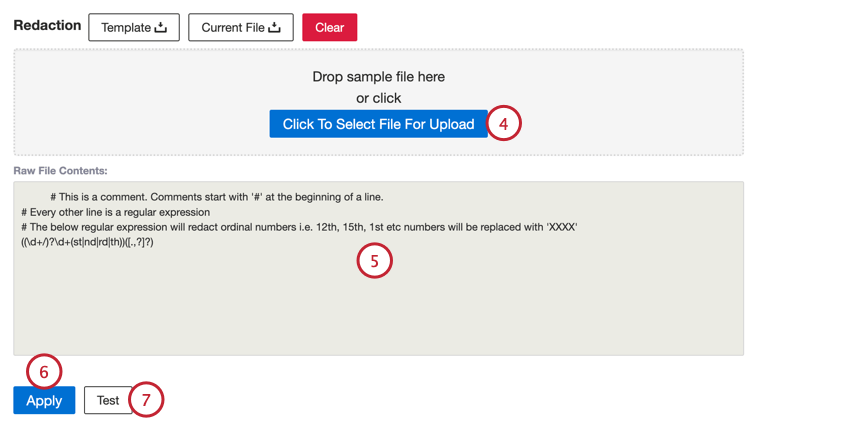
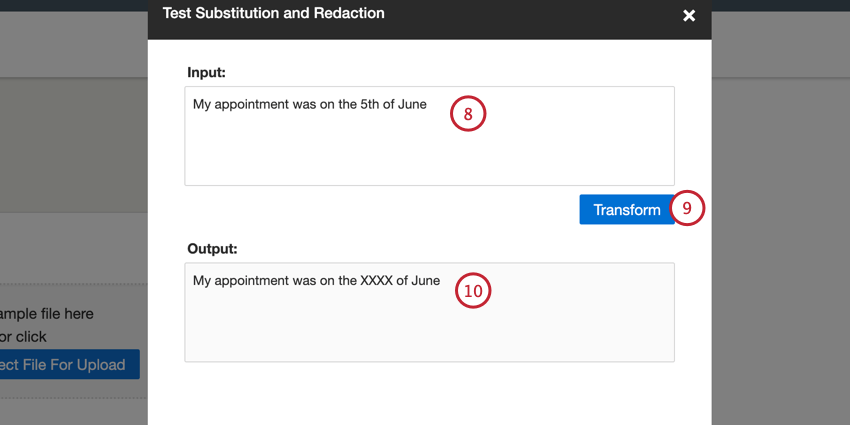
If everything looks correct, click Ok to close the testing window. You can then continue setting up or editing your job.
Editing and Removing Data Substitution and Redaction
You can edit or remove the data substitution and redaction rules for a job:
That's great! Thank you for your feedback!
Thank you for your feedback!