

Importing and Exporting Sentiment (Designer)
What's on this page
About Importing and Exporting Sentiments
XM Discover allows you to export your custom sentiment tunings as a Microsoft Excel file. You can modify this file to enable or disable sentiment exception rules, or change sentiment values.
This file can then be imported into your Designer project to update your sentiment, or you can import it into a different Designer project to quickly share rules across projects.
Qtip: Make sure to export sentiment before making any changes and keep detailed notes of the changes you make. Keep in mind that default sentiment values are not exported. To revert unintended changes to your sentiment rules, you can restore old rules by accessing your past exports and reimporting an older file.
Exporting Sentiment Tunings
You can export your custom sentiment tunings by following the steps below.
Qtip: This export does not include out-of-the-box sentiment values. It only includes the project’s custom sentiment tunings.
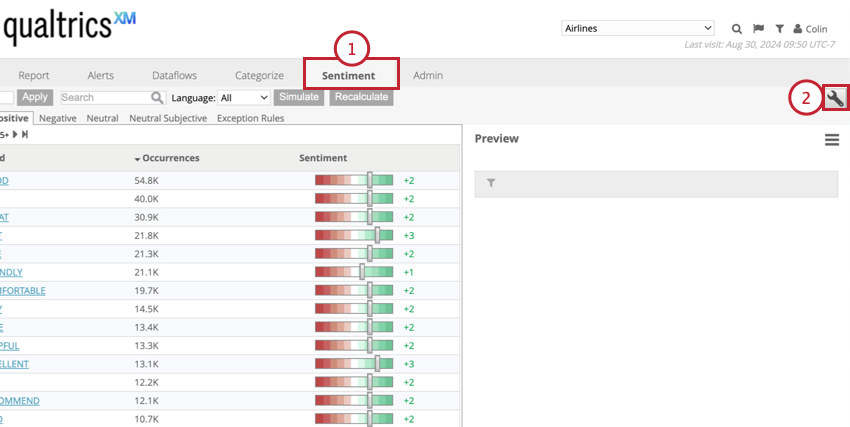
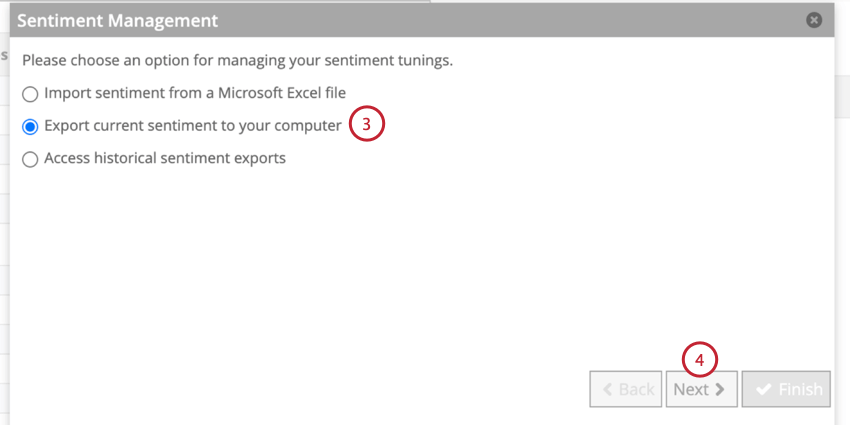
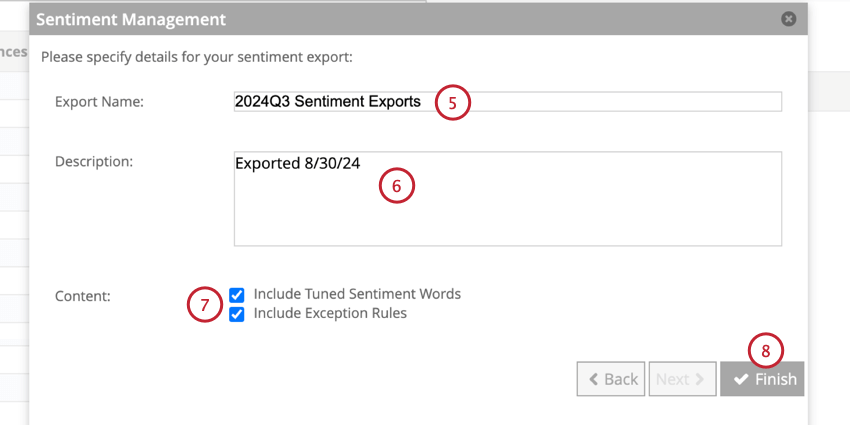
- Include Tuned Sentiment Words: Export words with sentiment values different from the default Designer values.
- Include Exception Rules: Export exception rules
- All custom rules are fully exported.
- For standard rules (with a CB or CBCONCEPT prefix) only ID, language, and status are exported. Qtip: Please reach out to the Discover support team or to one of your Discover representatives for more information about exception rules.

Sentiment File Format
The following sheets are in the exported sentiment file:
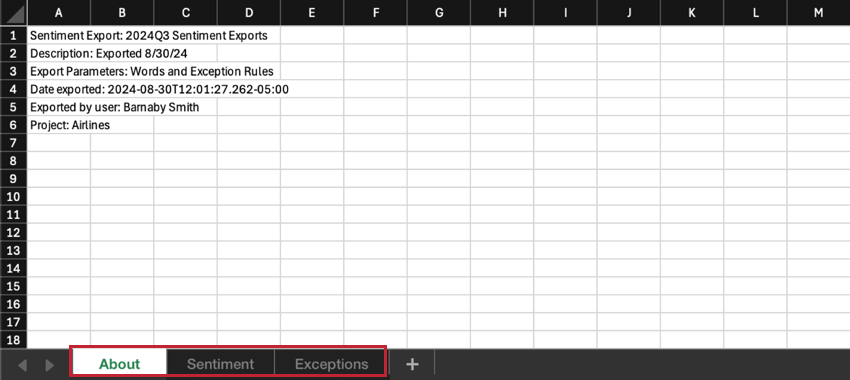
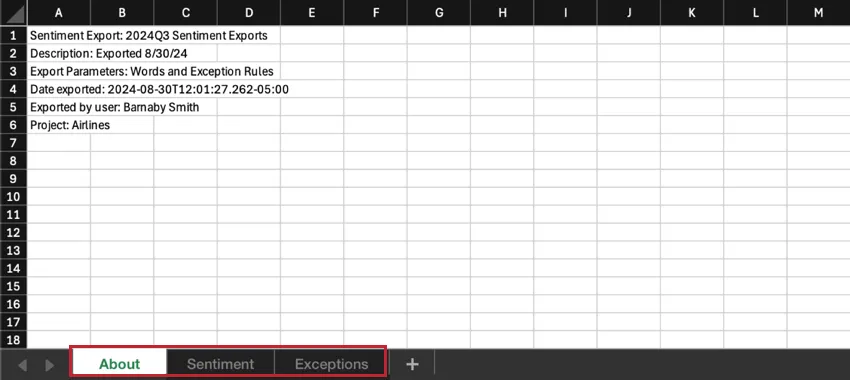
- About: Contains the export overview, including its name and description, export parameters, date of export, user who ran the export, and the name of the project.
- Sentiment: Stores tuned words with their new sentiment values.
- Exceptions: Contains custom and standard Designer exception rules, defined by the following columns:
- CB_ID: This is a text field that contains the readable name of the exception rule. Standard Designer exception rules start with a CB or CBCONCEPT prefix.
- LANGUAGE: This is a text field that contains the language code. Language codes are 2 lower-case letters (for example, “en” for English or “@a” for all languages).
- RULE: This is a text field that contains the custom exception rule conditions. Example: M1 IN (‘TO’) AND CENTER IN (‘DIE’) AND P1 IN (‘FOR’).

- BINARY_SENTIMENT: This field has been deprecated.
- BINARY_NEGATION: This field has been deprecated.
- DEGREE_SENTIMENT: This is a numeric field that contains the sentiment. This ranges from -5 to +5.
- DEGREE_RELATIVE_SENTIMENT: This is a numeric field that contains the sentiment modifier that was caused by a rule. For example, if a rule raises sentiment by 2 points, set this field to “2.”
- DEGREE_NEGATION: This is a text field that indicates if the rule negates sentiment. If this column contains “NEGATED,” then sentiment was negated. If this column is empty, then it was not negated.
- PRIORITY: This is a numeric field that contains the rule priority. This ranges from 0 to 500.
- STATUS: This is a text field that can be used to enable and disable rules. Enter ENABLED to turn a rule on or DISABLED to turn it off. Qtip: These values are case sensitive.
- RULE_TYPE: This is a text field that describes the type of rule. Enter NGRAM for N-GRAM (positional) rules or CONCEPT for concept rules.
- FILTER: This is a text field. Use this field to specify shared filters applied to a rule. Separate multiple filters with commas.
Importing Sentiment Tunings
After exporting a sentiment file, you can adjust the file and reimport it back into Designer to update your sentiment rules. You can also import the file into a different Designer project to change the rules there instead.
Qtip: For information on how to edit a sentiment file, see the list of fields in the Sentiment File Format section.
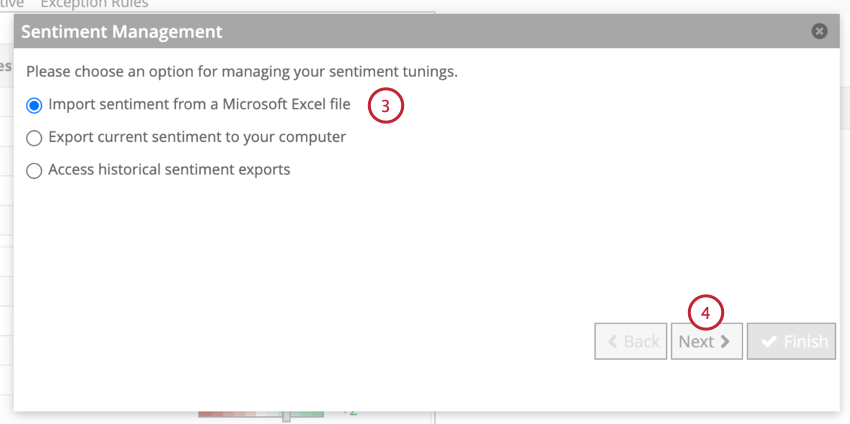
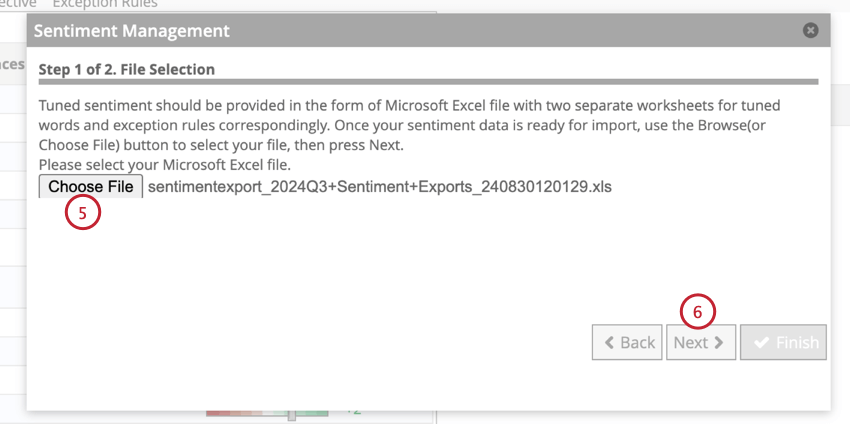
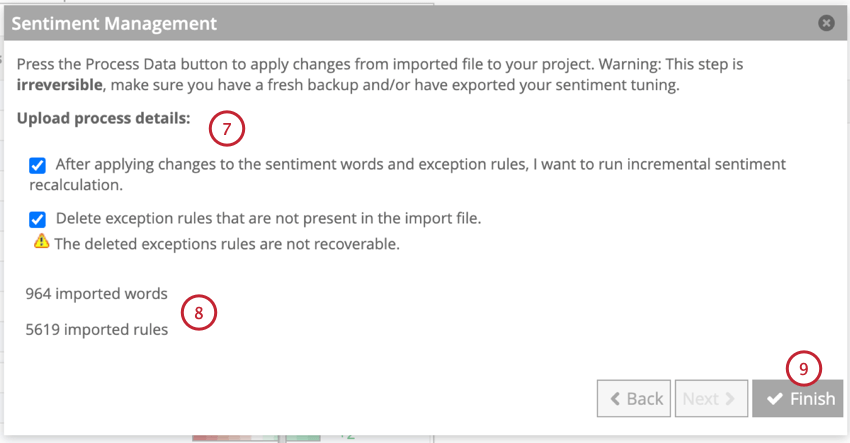
- After applying changes to the sentiment words and exception rules, I want to run incremental sentiment recalculation: Select this option to run incremental sentiment recalculation as soon as the import finishes. Qtip: You can run sentiment recalculation later, but until you do, imported changes will not take effect.
- Delete exception rules that are not present in the import file: Select this option to completely replace the current custom exception rules with the ones present in the import file. Attention: Deleted rules cannot be restored.

After you click Finish, the following changes will take effect:
- Word sentiment values in your project will be substituted with those explicitly defined in the import file.
- Default Designer exception rules will be turned on or off according to their values in the STATUS column in the import file.
- Custom exception rules will be replaced with those in the import file.
Example: If you change the word “good” to +4 in Designer, you could later upload a file that has “good” = +1, and it would override back to +1.
Viewing Past Exports
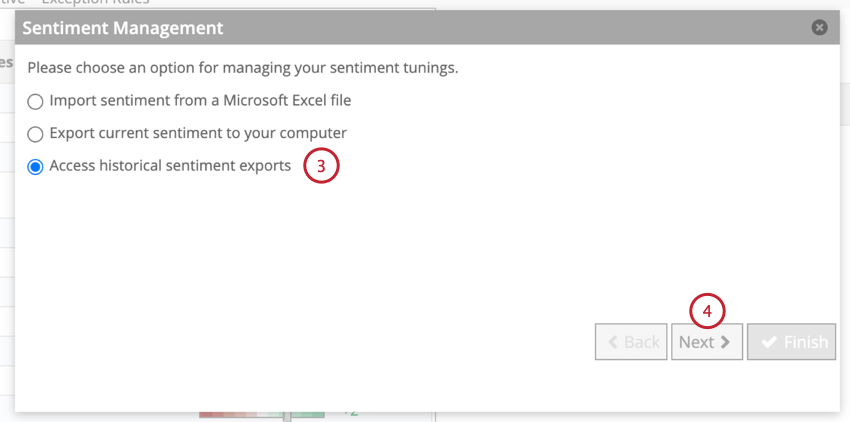
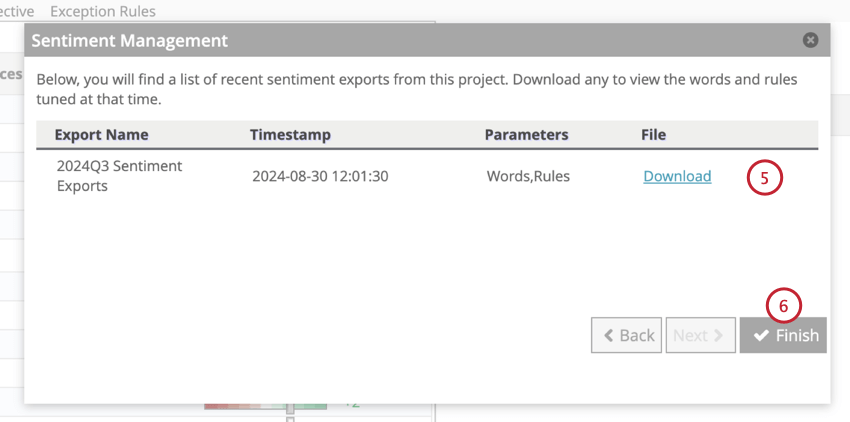
Designer keeps a record of the 15 most recent sentiment exports in your project. To view these exports:
That's great! Thank you for your feedback!
Thank you for your feedback!