

Best Practices for Organization Hierarchies (Studio)
What's on this page
About Organization Hierarchies in XM Discover Best Practices
This page provides examples of defining organization levels, mapping data filters to organization levels, mapping users to organization levels and mapping enrichment parameters to organization levels in MS Excel and CSV formats, together with best practices and troubleshooting tips when defining organization hierarchies in XM Discover.
Defining the Organization Levels Examples
You can define your organization levels using MS Excel or CSV files.
MS Excel Format Example
Acme operates 4 hotels, 2 in Chicago and 2 in Detroit. This is an example of how the Acme Hotels structure is defined using the MS Excel template:
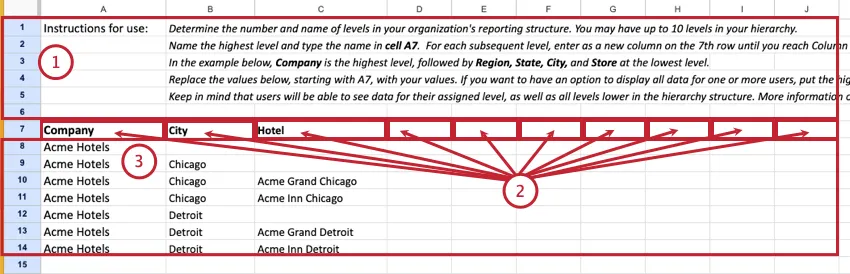
Attention: When defining hierarchy levels, at least one column should contain the names of hierarchy levels.

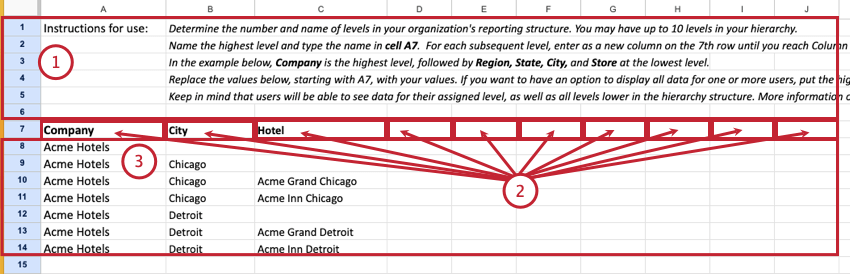
Qtip: Personalization menu items will follow the order of rows defined in this file.
Qtip: The highest level of your organization hierarchy should reflect the overall organization you are trying to capture rather than any of its branches. For example, if you create an ACME or ALL organization level at the top, this lets you assign users that will be able to see all the lower levels.
CSV Format Example
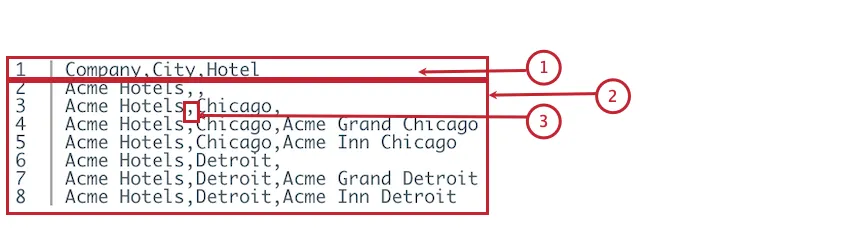
This is an example of how the Acme Hotels sample structure is defined in a CSV file:
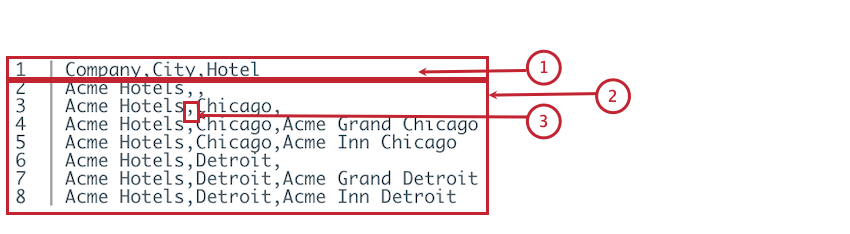
Attention: The maximum number of hierarchy levels is 10.
Attention: All rows must have the same number of columns.
Qtip: Personalization menu items follow the order of rows defined in this file.
Mapping Data Filters to Organization Levels Examples
You can provide data filters mapping in 1 of these formats: MS Excel or CSV.
MS Excel Format Example
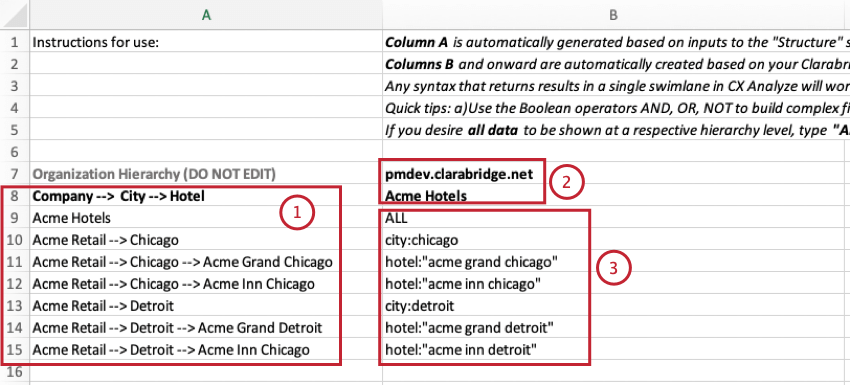
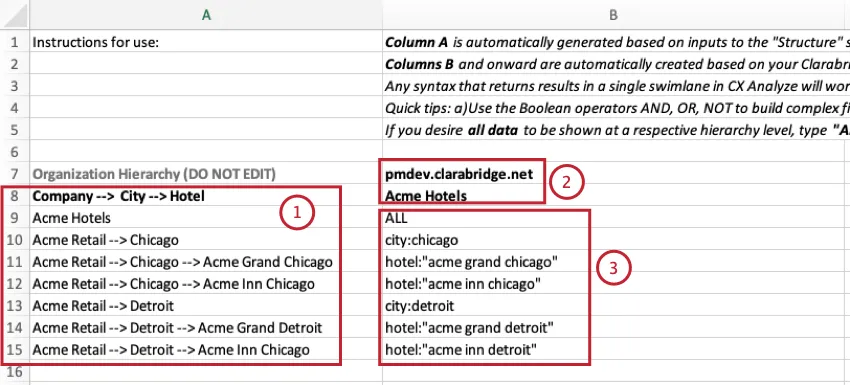
This is how filters should be mapped in MS Excel, based on the Acme Hotels example:
CSV Format Example
This is how filters should be mapped in a CSV file, based on the Acme Hotel example:
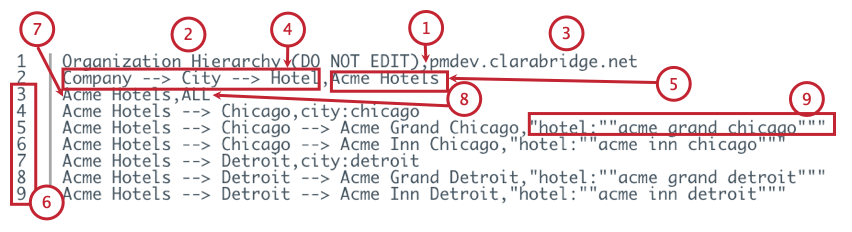
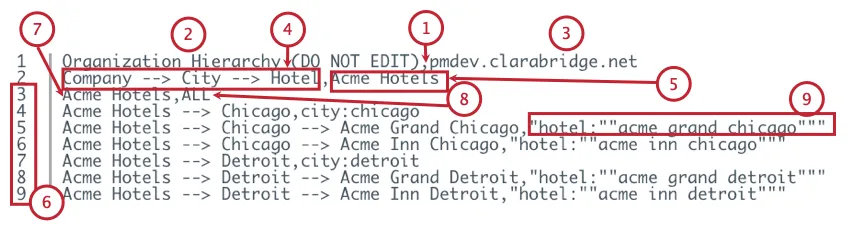
Attention: All rows should have the same number of columns, in the same order.
Example: Company –> City –> Hotel.
Example: Acme Hotels
Example: Acme Hotels
Example: ALL
Filter Types
You can define the following filters:
- Filter by Structured Attributes:
- To define an organization level using structured attributes, use the same syntax as you would in Designer’s category rule lanes. Example: Use the following filter to filter data by brand:

BRAND_DESC:”acme hotels” - If you wish to define several filter conditions (with an OR relationship), they need to be comma-separated. Example: BRAND_DESC:”acme hotels”, BRAND_DESC:”comfy hotels”
- To define an organization level using structured attributes, use the same syntax as you would in Designer’s category rule lanes.
- Filter by a Word Query: To define an organization level using a word query, use the same syntax as you would in Designer’s category rule lanes. Example: You can use any of the following filters:
Acme
acme, east
((“acme”) AND (“east”)) - Show All Data: To show all data for a certain level, type ALL into a cell.
- Show No Data: To show no data for a certain level, type NONE into a cell or leave it empty. All empty filter cells will be automatically filled in with the “NONE” placeholder after you upload a file.
Mapping Users to Organization Levels Examples
You can provide user mappings in 1 of these formats: MS Excel or CSV.
MS Excel Format Example
This is an example of how user emails are mapped in MS Excel:
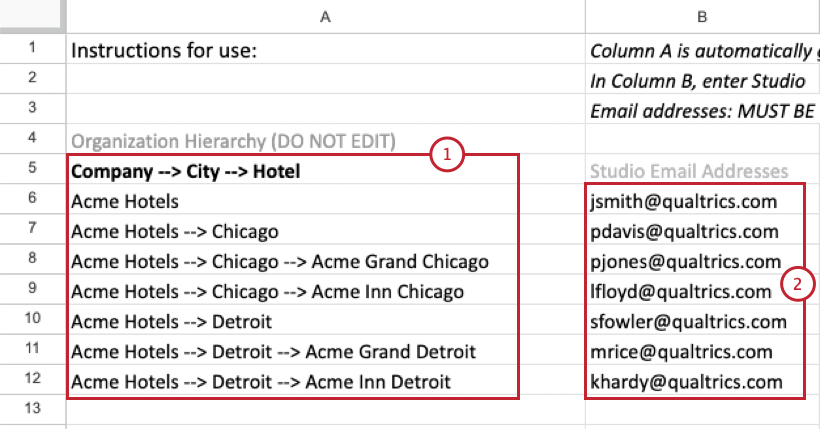
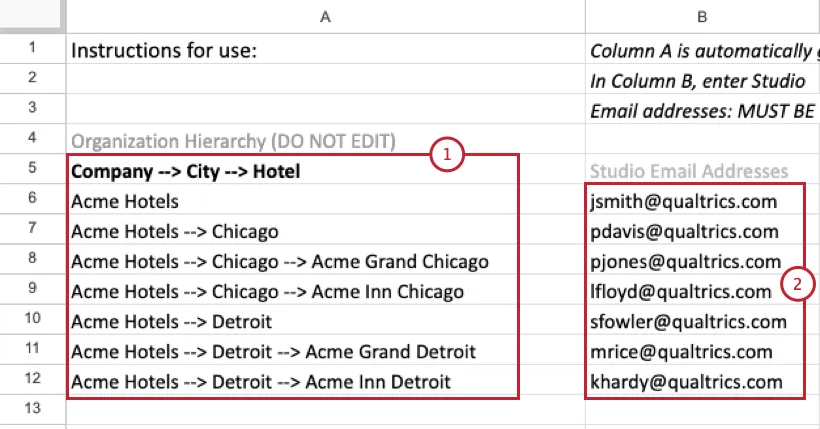
CSV Format Example
This is an example of how user emails are mapped in a CSV file:
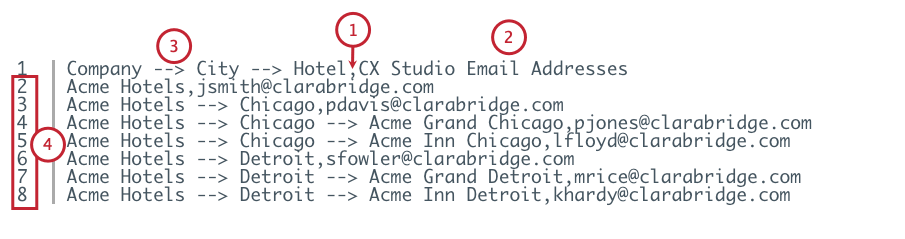
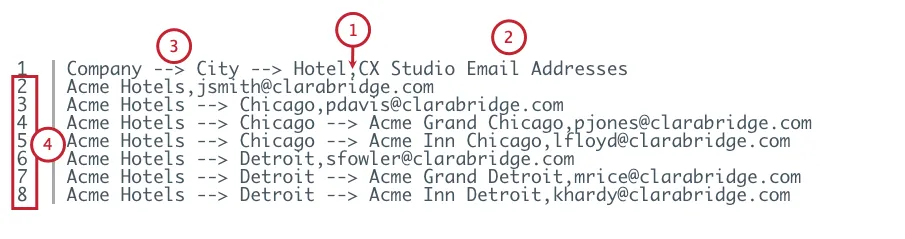
Example: Company –> City –> Hotel.
How User Mapping Works
- Only registered Studio users can be mapped.
- Mapping a user to a parent level automatically gives access to all children levels. Qtip: Add analysts and other power users to the top level for full access.

- If a user is not identified in the hierarchy, that user will not see any data in a personalized dashboard and will encounter an error message.
- You can assign the same user to several different levels, in which case the user will be able to switch between the levels using the up and down buttons in the organization hierarchy control panel.
- When opening a personalized dashboard for the first time, users who are assigned to several different levels within the hierarchy will initially see the first level they are assigned to (going from top to bottom in the Excel file).
- On subsequent views, users will see the level they viewed last for that organization hierarchy.
Mapping Enrichment Parameters to Organization Levels Examples
You have the option to provide enrichments mapping in 1 of these formats: MS Excel or CSV.
MS Excel Format Example
Provide enrichment parameters for each organization level using the following format:
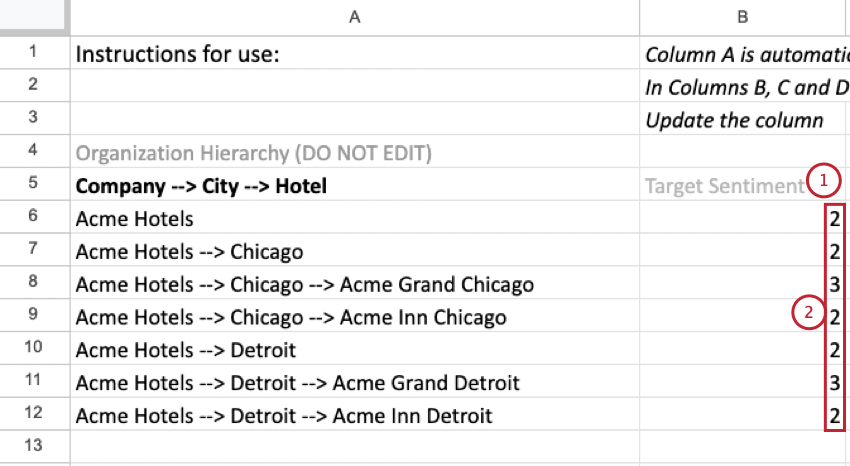
Qtip: You can map up to 6 columns with enrichments for the corresponding hierarchy level.
Qtip: If needed, provide more enrichment parameters using Columns C, D, E, F, and G.
Qtip: Only numeric parameters will be available for reporting.
CSV Format Example
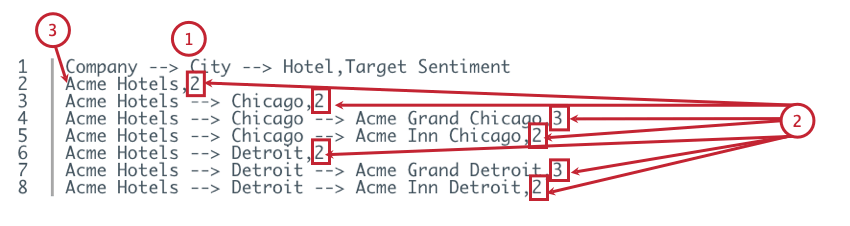
Qtip: Columns 2 through 7 should contain the names of enrichment parameters.
Qtip: The maximum number of enrichment parameters is 6.
Qtip: Separate columns by a comma.
Defining Organization Hierarchies Troubleshooting
Qtip: If a file upload fails, you will see an error message that specifies the row number and the problem.
Defining the Organization Structure Troubleshooting
- File contains duplicate rows: Remove duplicate rows.
- Wrong header specified in the Structure file: Remove the headers that have no values. Make sure the structure follows the correct format.
- Organization must not be more than 10 levels deep: Make sure your hierarchy contains no more than 10 levels.
Mapping Data Filters
- Specified path in left column does not exist in the hierarchy: Remove the path that is not present in the hierarchy or add the path when defining the organization structure.
- Please close all quote marks: Use closing quotation marks.
- Field declarations (:) must be preceded by at least one alphabet or number and followed by at least one alphabet or number: Make sure filter definitions follow the correct format.
- Parentheses must be closed: Use an opening and a closing parenthesis. Example: (:).
- The allowed characters for filter’s rules are a-z A-Z 0-9. _ + – : () ” & * ? | ! {} [ ] ^ ~ @ = # % $ ‘ . : Remove the filters that use special characters or replace them with a single-character wildcard (?).
- Quotes must contain at least one character: Remove the filters that contain empty quotation marks.
Mapping Users
- Specified path in left column does not exist in the hierarchy: Remove the path that is not present in the hierarchy or add the path when defining the organization structure.
- Syntax error in email address: Make sure the emails you provided are valid.
- Hierarchy path is present more than once: Make sure each hierarchy path is present only once.
Mapping Enrichment Parameters
- Specified path in left column does not exist in the hierarchy: Remove the path not present in the hierarchy or add it when defining the organization structure.
- Exceeds number of allowable parameters: Make sure your hierarchy contains no more than 6 enrichment parameters.
- Repeated parameter names: Make sure the names of enrichment parameters are unique.
That's great! Thank you for your feedback!
Thank you for your feedback!