

Viewing & Subscribing to Verbatim Alerts (Studio)
What's on this page
Subscribing to Verbatim Alerts
Once a verbatim alert has been created in Designer, you can subscribe user groups to it in Studio.
The information shown in the alert matches the data permissions of the group’s owner.
A user newly added to a group will only receive alerts triggered after they joined the group; they won’t receive historical alerts sent before they joined.
Qtip: You need the Manage Groups permission to subscribe users to verbatim alerts. You also need access to the correct content provider.
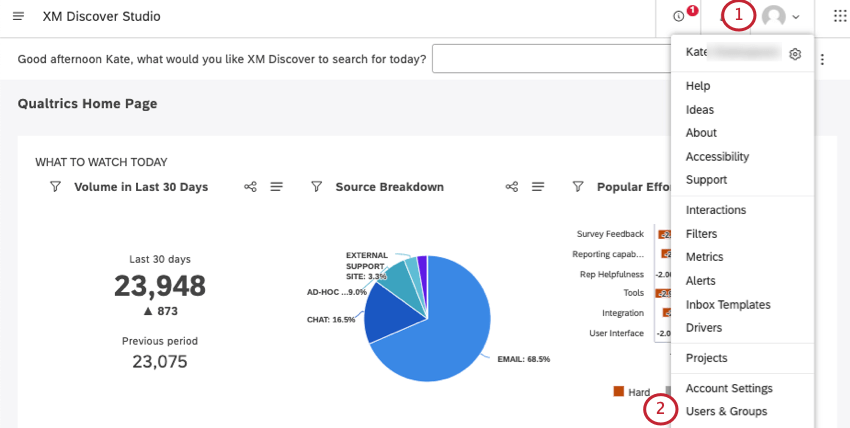
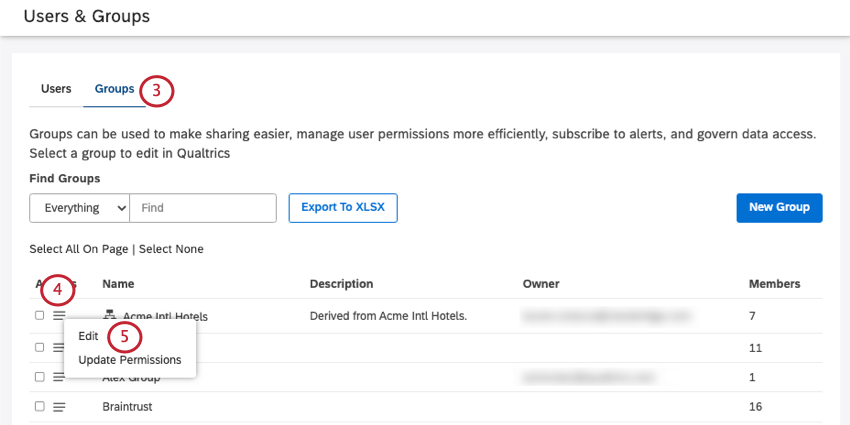
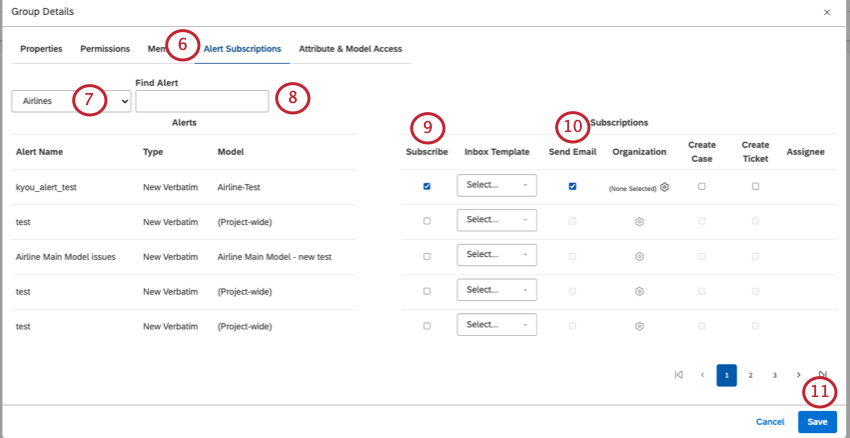
Qtip: You can search 1 project at a time. You may also need to select a content provider and an account, depending on what you have access to.
Qtip: If you belong to the root node (very top) of an organization hierarchy, and that hierarchy has been made into a group, you’ll see an Organization column. Click the gear to select a level of the org hierarchy that should receive an email when this verbatim alert is sent.
Viewing Verbatim Alerts
Any in-app alerts you’ve received can be found by clicking the Notifications icon on any page of Studio. Metric alerts appear in the Notifications tab, while verbatim alerts appear under Alerts.
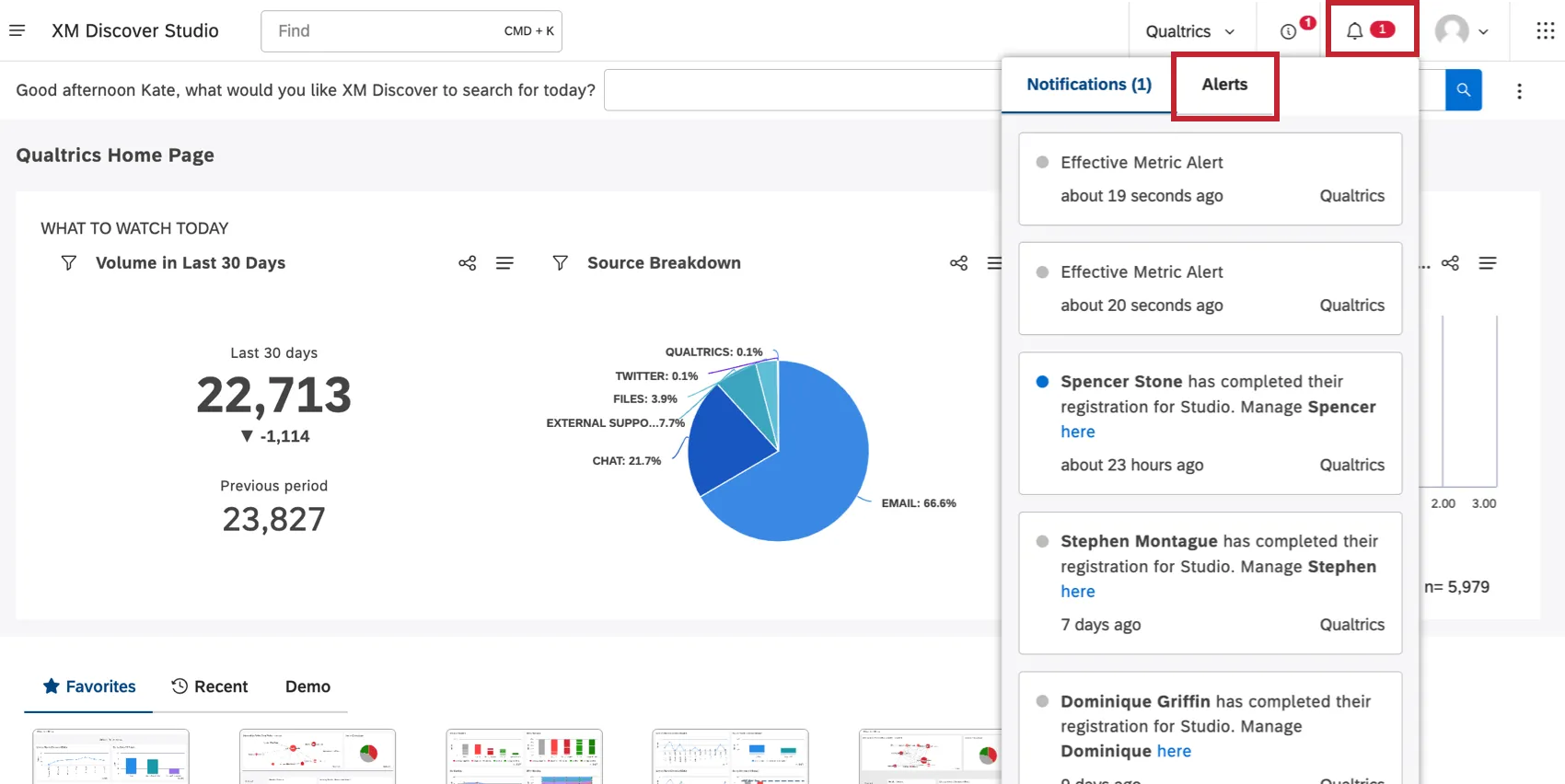
Attention: Alert notifications over 180 days old are automatically deleted.

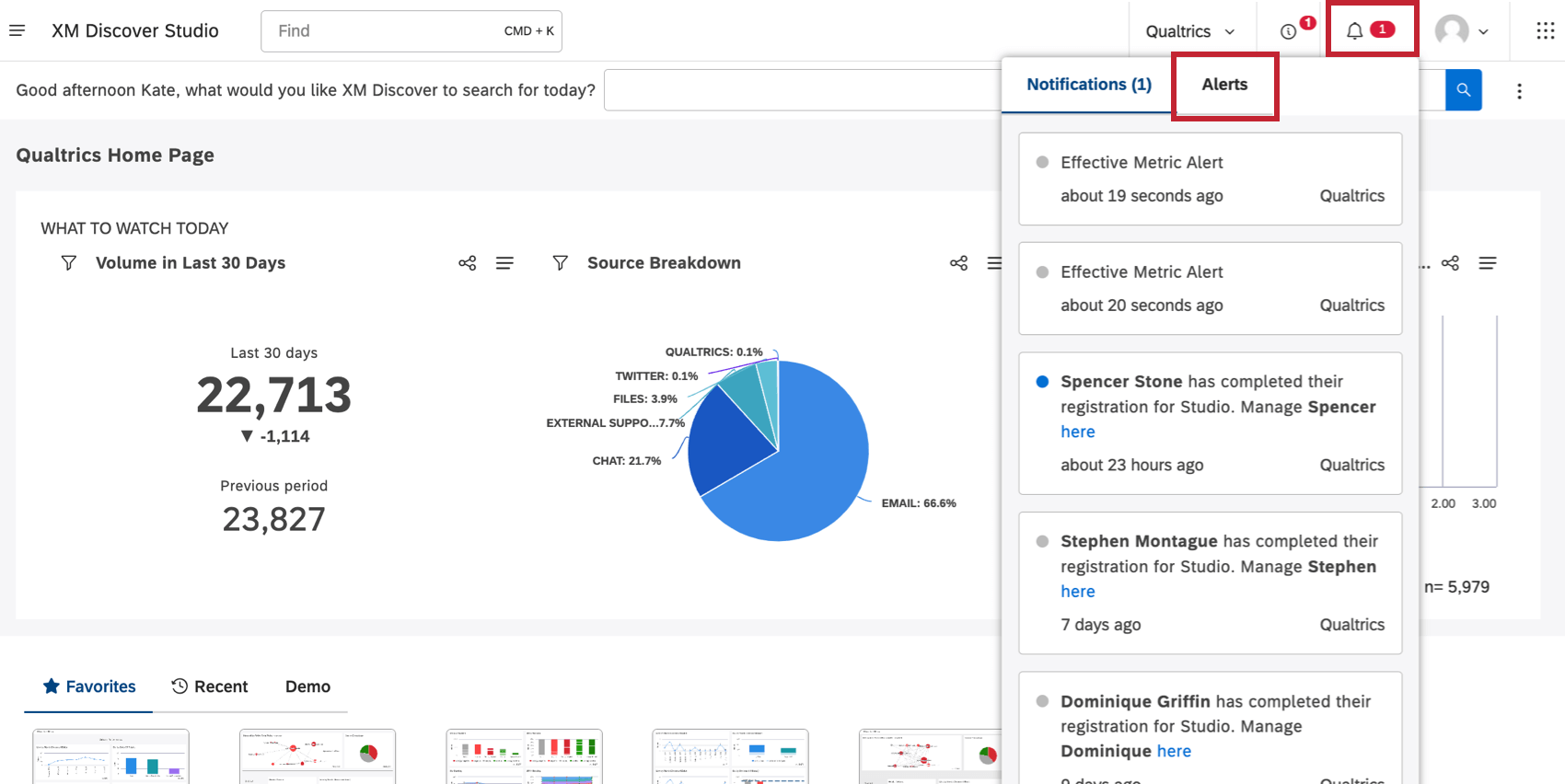
You’ll be able to see the time the alert was triggered.
Qtip: Clicking Mark All Read marks all alerts as read. As you look through alerts, they’re marked as read automatically. Unread alerts are displayed on a light gray background.
Clicking the alert link opens its details in document explorer, where you can view the following information:
- The sentence that triggered the alert. Qtip: If a single record contains multiple sentences that are related to the alert’s topic, you’ll only get a single alert notification / email, rather than multiple alerts.

- The sentence in the context of a full record. This can be a Facebook post, a Twitter comment, or a survey response.
- The attributes available for this record, such as time of writing, or author’s name. Some attributes are common to all records, while others are source-specific.
- The topics assigned to sentences in this record. You can limit topics to a selected category model or choose All Models using the drop-down list.
See more on how to use the document explorer on the Document Explorer page.
Email Alerts
If you’re sending email notifications, each alert will also be delivered as a separate email message to all group members. (The only exception is when multiple sentences in the same document are combined into one email.)
The email presents alert details similar to document explorer. Clicking the “View in Studio” link opens the document behind the alert in Studio’s document explorer.
That's great! Thank you for your feedback!
Thank you for your feedback!