

Auto-Number Questions
What's on this page
About Auto-Numbering Questions
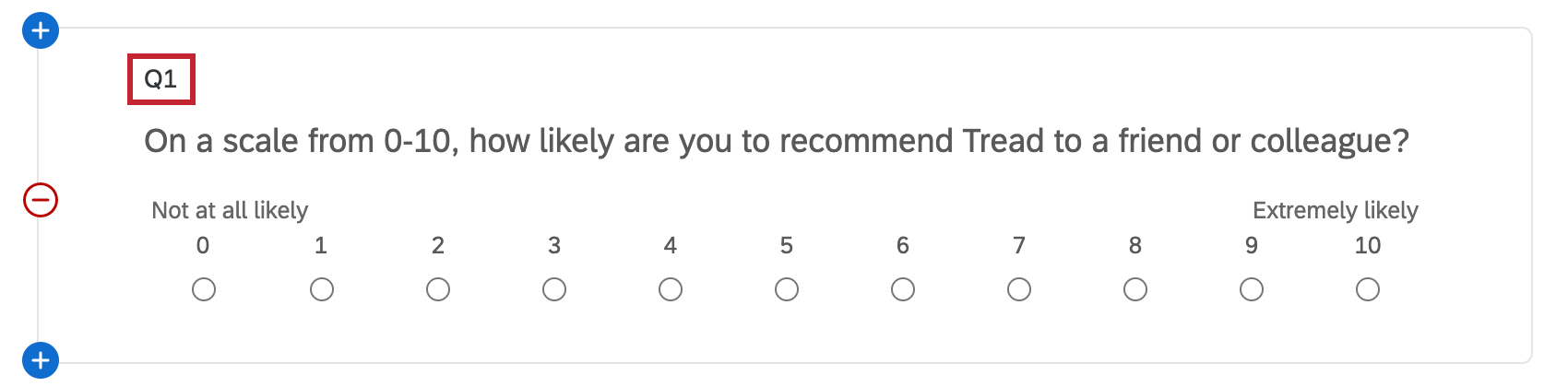
Question numbers are the numbers to the left of each question in the survey builder. By default, they’re preceded by a “Q,” and in their unmodified state, they act as a question creation counter (e.g., “Q15” represents the 15th question you have created for the survey).
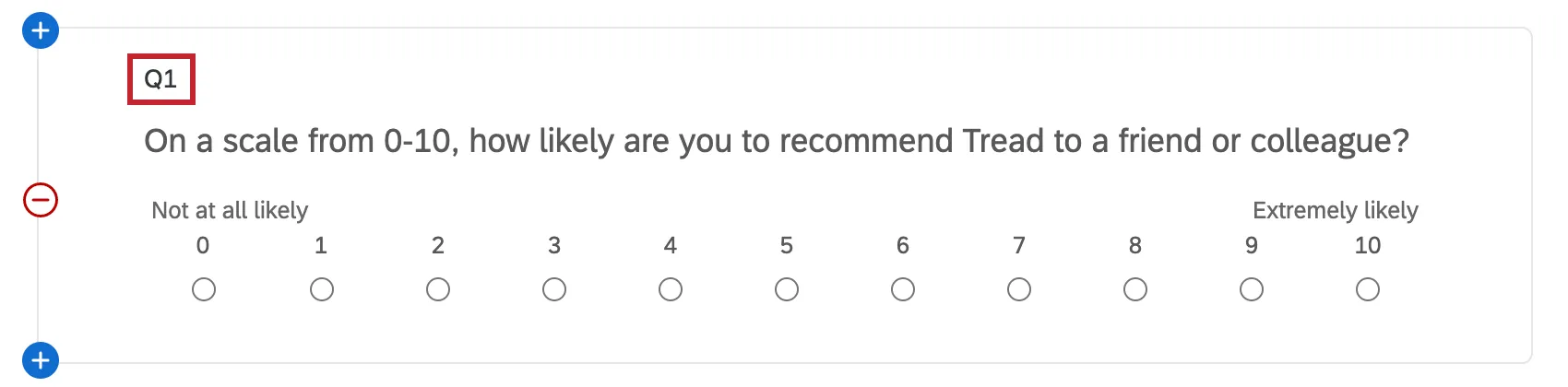
You can change an individual question number by clicking on the number and editing it within the text box that appears. Note that in almost all cases, question numbers don’t need to be unique, and you can use both letters and numbers. The exception to this is if you are exporting responses in the JSON format via API. The API requires question numbers to be unique for JSON response exports, and duplicates will not export.
If you’d rather not edit each question number individually or you’d like all your numbers to be in order, you can use Auto-Number Questions. This feature sequentially orders all the question numbers in your survey at once. Note that just the question numbers are changed; questions themselves aren’t moved.
Qtip: This feature only auto-numbers the question numbers. Other values, such as recode values, variable names, and question export tags aren’t auto-numbered.

Auto-Numbering Questions
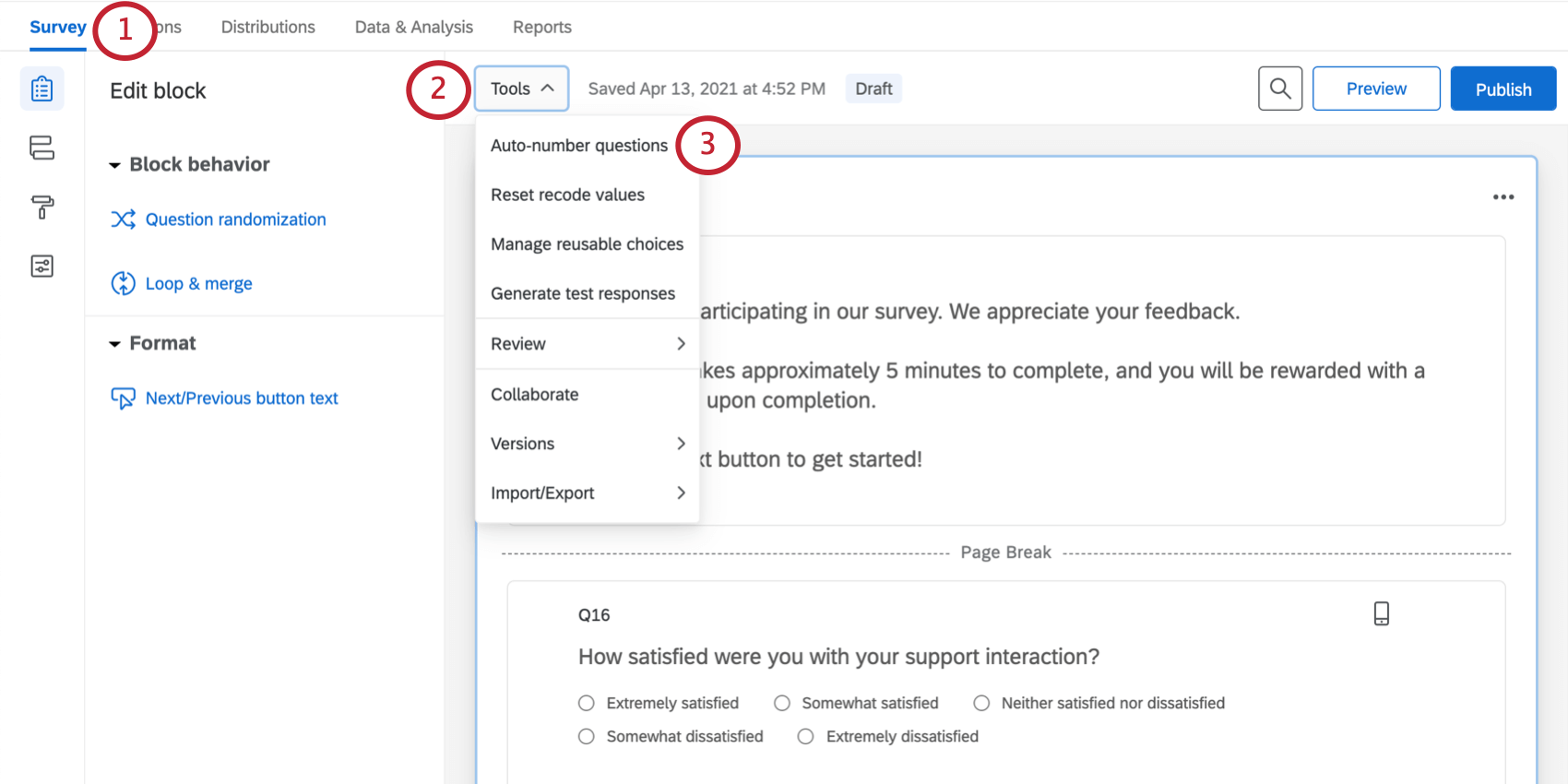
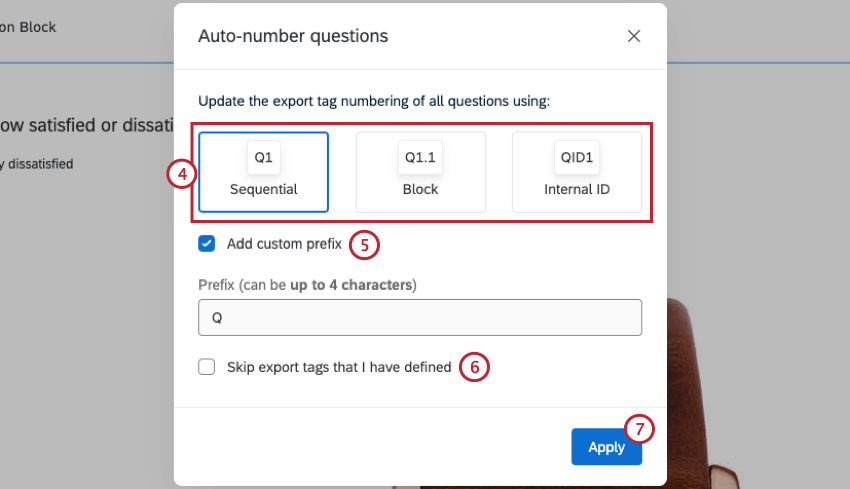
Qtip: This option is useful if you have an introductory text / graphic. For example, you can label this as “Intro” or “Description1” and then select this option to prevent the label from being changed to Q1.
Qtip: Tags that have a format of 4 or fewer characters with trailing numbers won’t be recognized as user-defined. The tags Q0, Int1, CARS10 will not be skipped as user-defined. These tags will be skipped as user-defined: QQ, Intro, CARSALES10, Description5.
Numbering Options
There are 3 numbering options for you to choose from:
- Sequential Numbering: Automatically rewrites the question numbers in numerical order.
- Block Numbering: Automatically rewrites the question numbers in numerical order, starting the numbering over with each block. (Q1.1, Q1.2, Q2.1, etc.).
- Internal ID Numbering: Automatically rewrites the question numbers to match the internal question ID. This QID is seen in piped text and used with the JavaScript Question API.
Displaying Question Numbers
By default, question numbers aren’t seen by respondents; instead, they are used to identify your questions when you are reviewing your downloaded data or referencing questions within the Qualtrics platform.
If desired, you can display the question numbers to respondents as they are taking the survey. Simply open your survey options and enable Question numbers. Note that these numbers don’t reorder when you use logic to skip the respondent ahead in the survey or when you use randomizers.
As an alternative to showing question numbers, you can use a progress bar to give respondents a better idea of how far along they are in the survey.
Qtip: If you’re seeing periods at the beginning of your questions and want to remove them, you can disable Question numbers in survey options.
Auto-Numbering Questions in Different Project Types
You can auto-number questions in just about every type of project where you customize a survey. This includes:
- Survey projects
- XM Solutions
- Engagement
- Lifecycle
- Ad Hoc Employee Research
- Pulse
- 360
- Conjoint
- MaxDiff
Qtip: For Conjoint and MaxDiff-projects, only standard survey block questions can be numbered. Conjoint and MaxDiff-specific questions won’t be included in auto-numbering.
FAQs
How do I renumber the questions in my survey?
How do I renumber the questions in my survey?
Note that renumbering will not harm your data, and you can renumber questions at any time.
That's great! Thank you for your feedback!
Thank you for your feedback!