

Editing the End of the Survey
What's on this page
About Editing the End of the Survey
When your respondents finish taking your survey, you may need to redirect them to another web page, show them a custom thank you message, or even anonymize their response. You can use the end of survey settings to adjust what will happen when your respondents finish the survey.
You can navigate to the end of survey options by clicking the End of Survey element at the bottom of the survey editor.
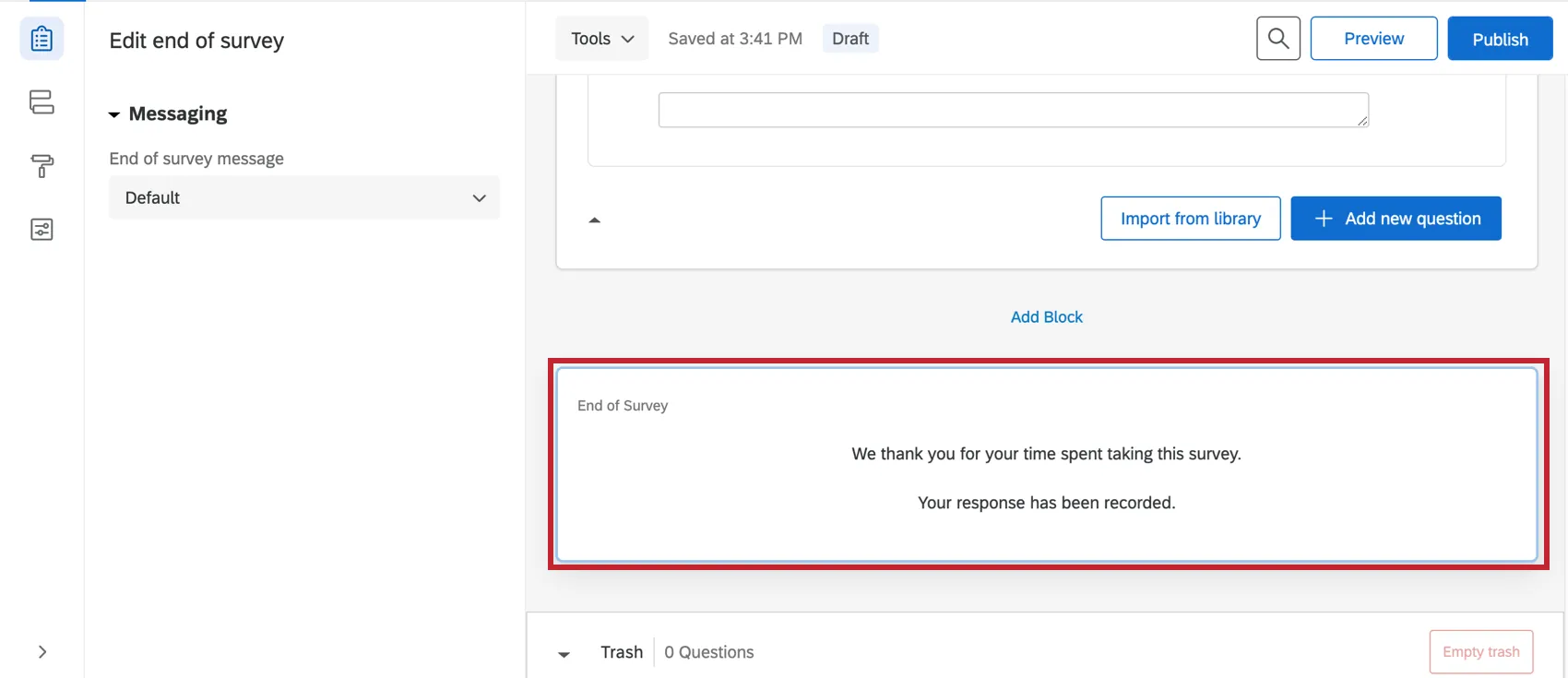
Qtip: The end of survey options available at the bottom of the survey editor are the default settings for all respondents. To customize the ending experience for just a subset of respondents, you can set a unique branch with its own end of survey element for each possible ending in your survey flow. Note that the settings in the end of survey element will override your main end of survey options when Override Survey Options is selected.

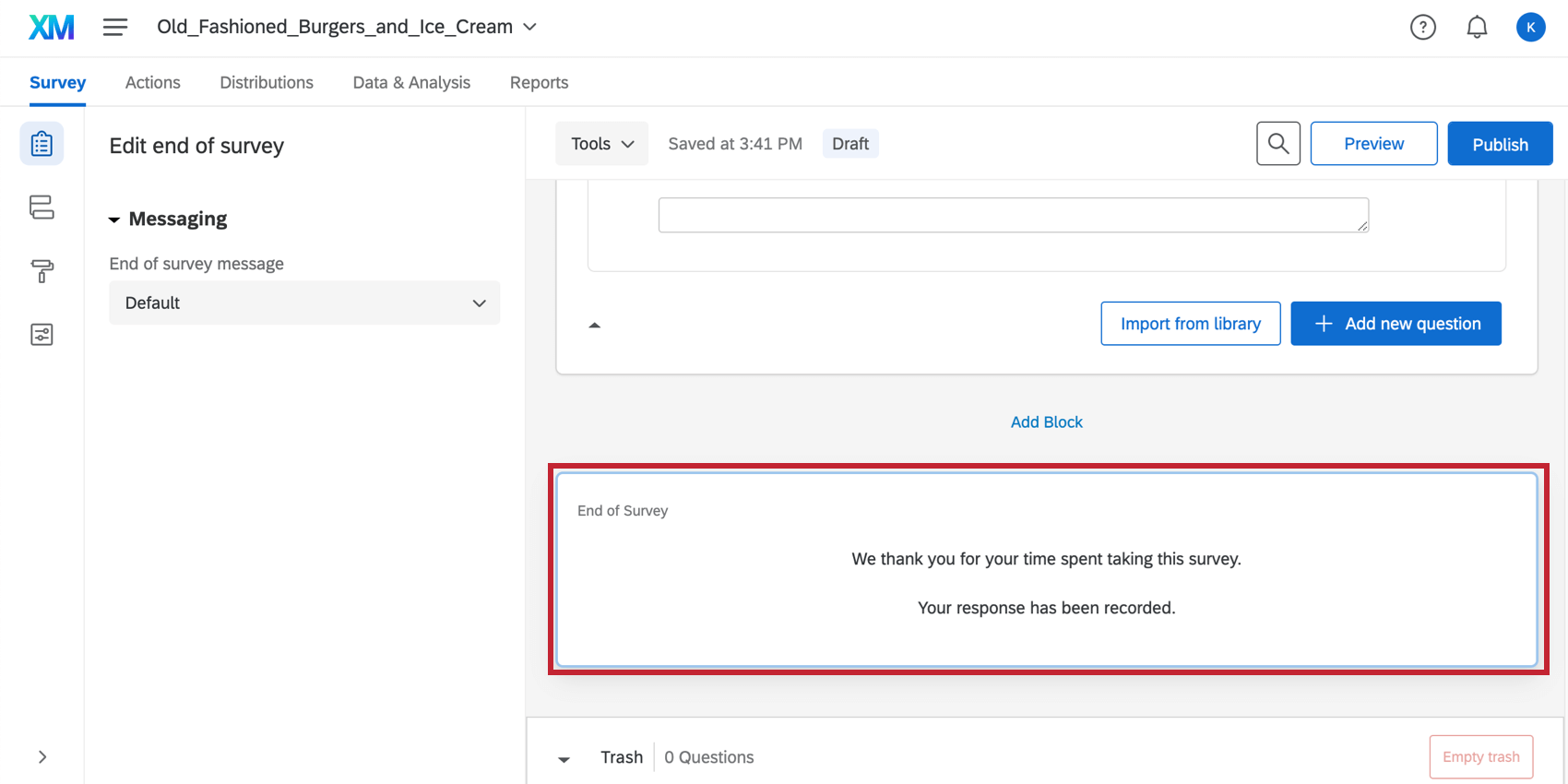
Changing the End of Survey Message
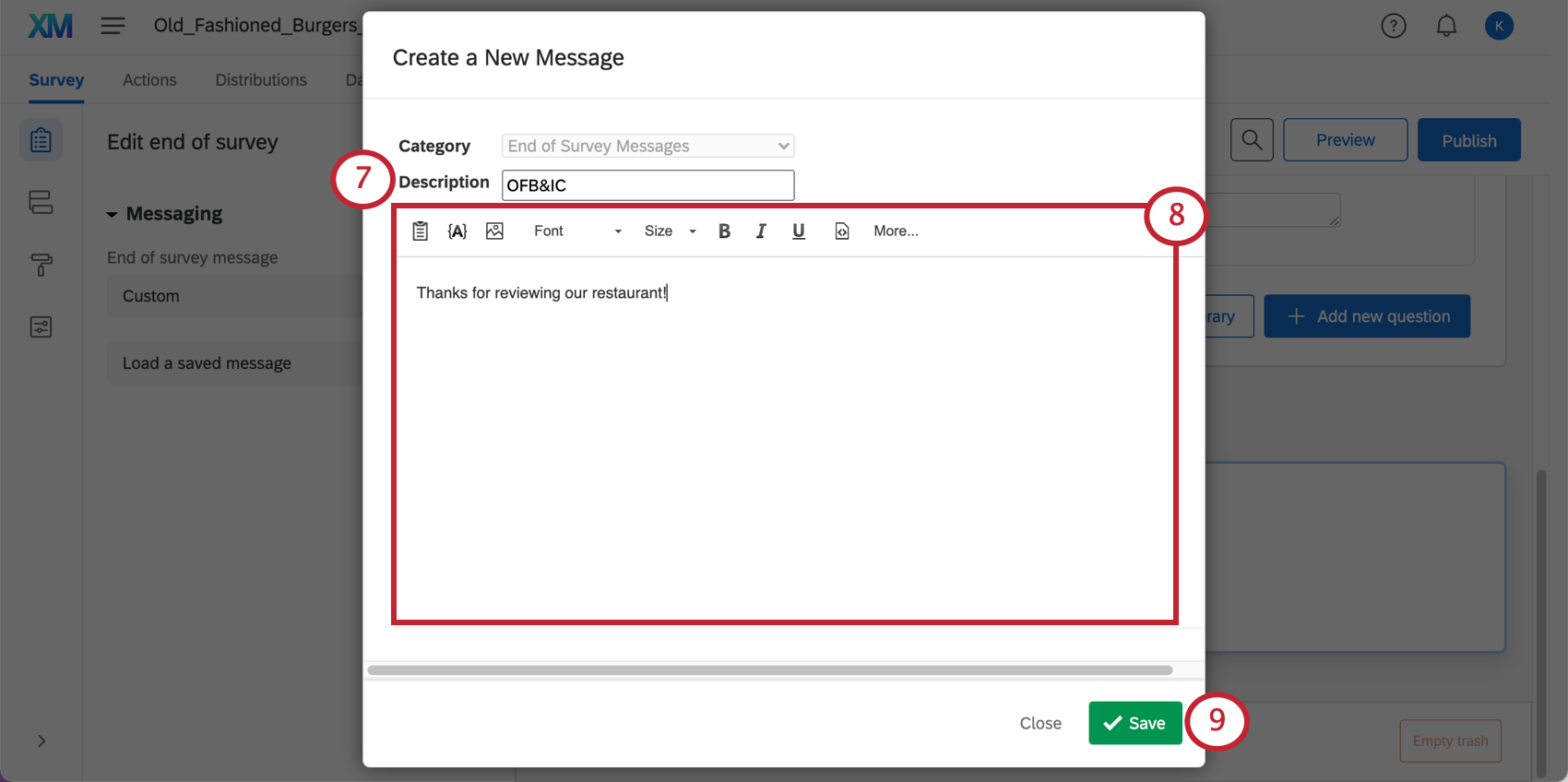
By default, each respondent sees the following message upon successful survey completion: “We thank you for your time spent taking this survey. Your response has been recorded.” However, you can create a custom message to tailor the survey completion experience to your respondents.
Customizing the End of Survey message
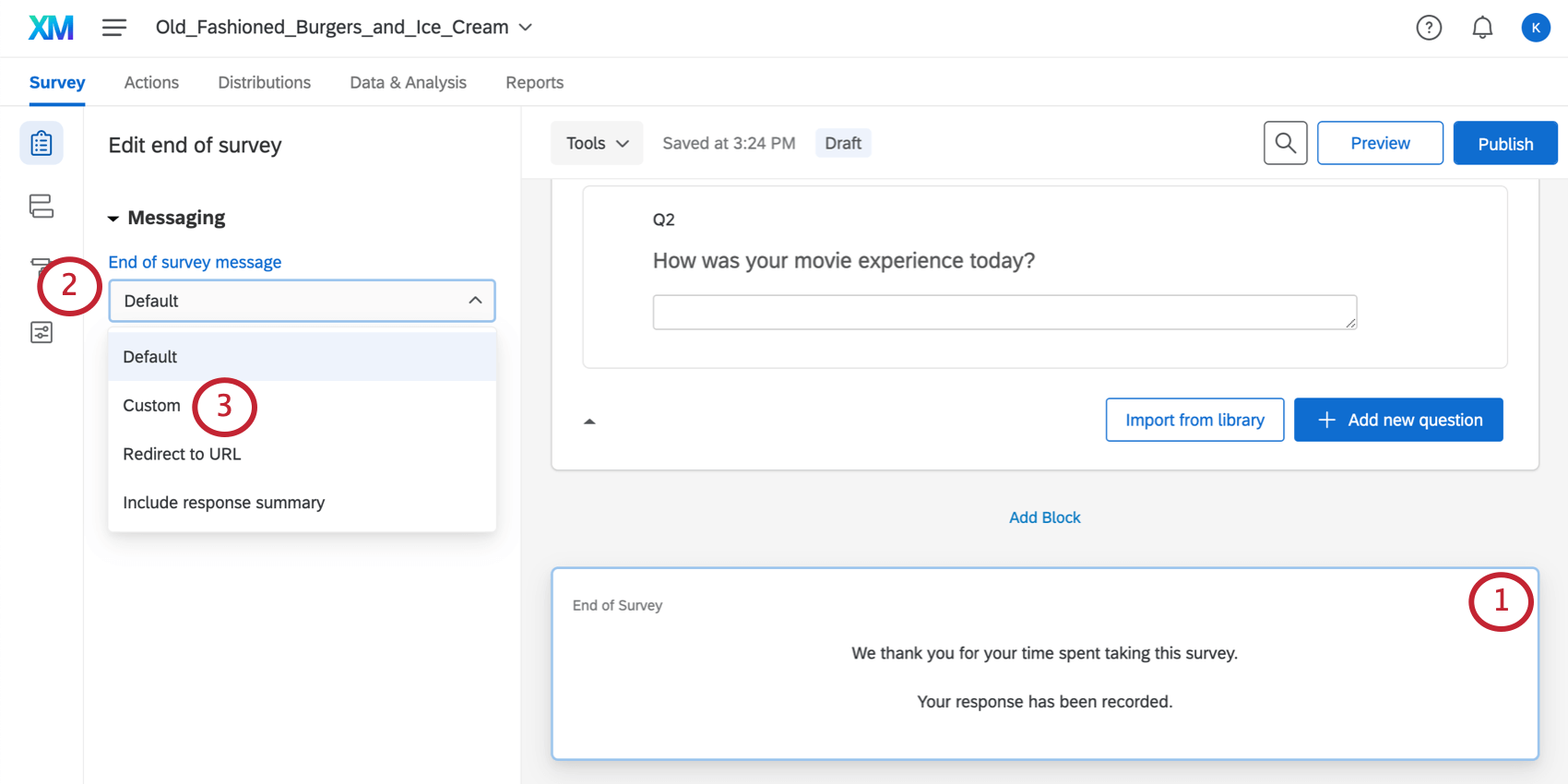
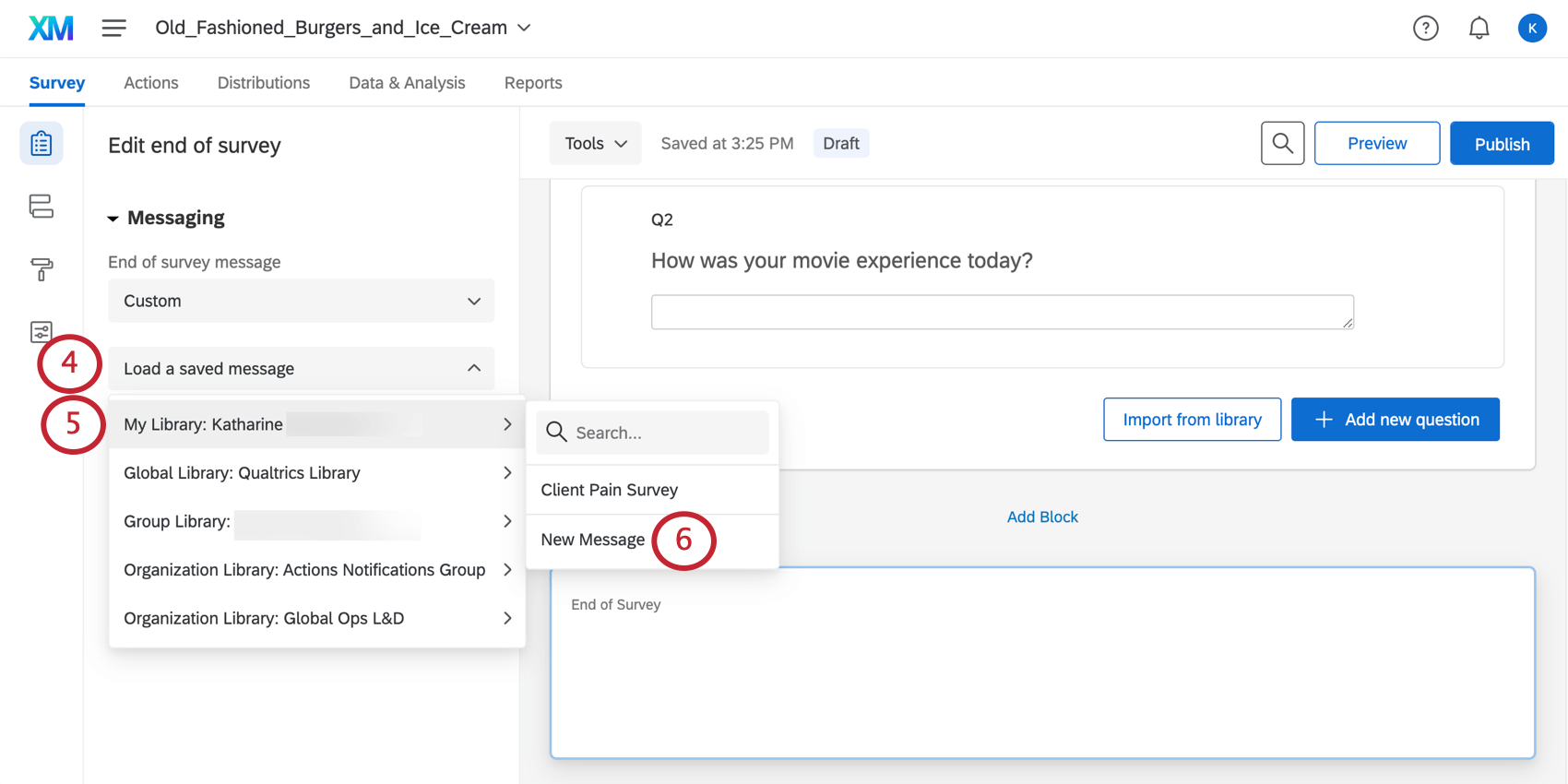
Qtip: Alternatively, if you have messages that you have saved previously, select an existing message for use.
Qtip: End of survey messages can also be created and edited in the library.
Qtip: The end of survey message’s language must exactly match the survey’s base language for it to display.
Showing a Response Summary
Rather than showing participants a message, you can automatically redirect them to a summary of their responses. This response summary can be downloaded by the respondent as a PDF. Please note that this response summary appears after the respondent submits their survey.
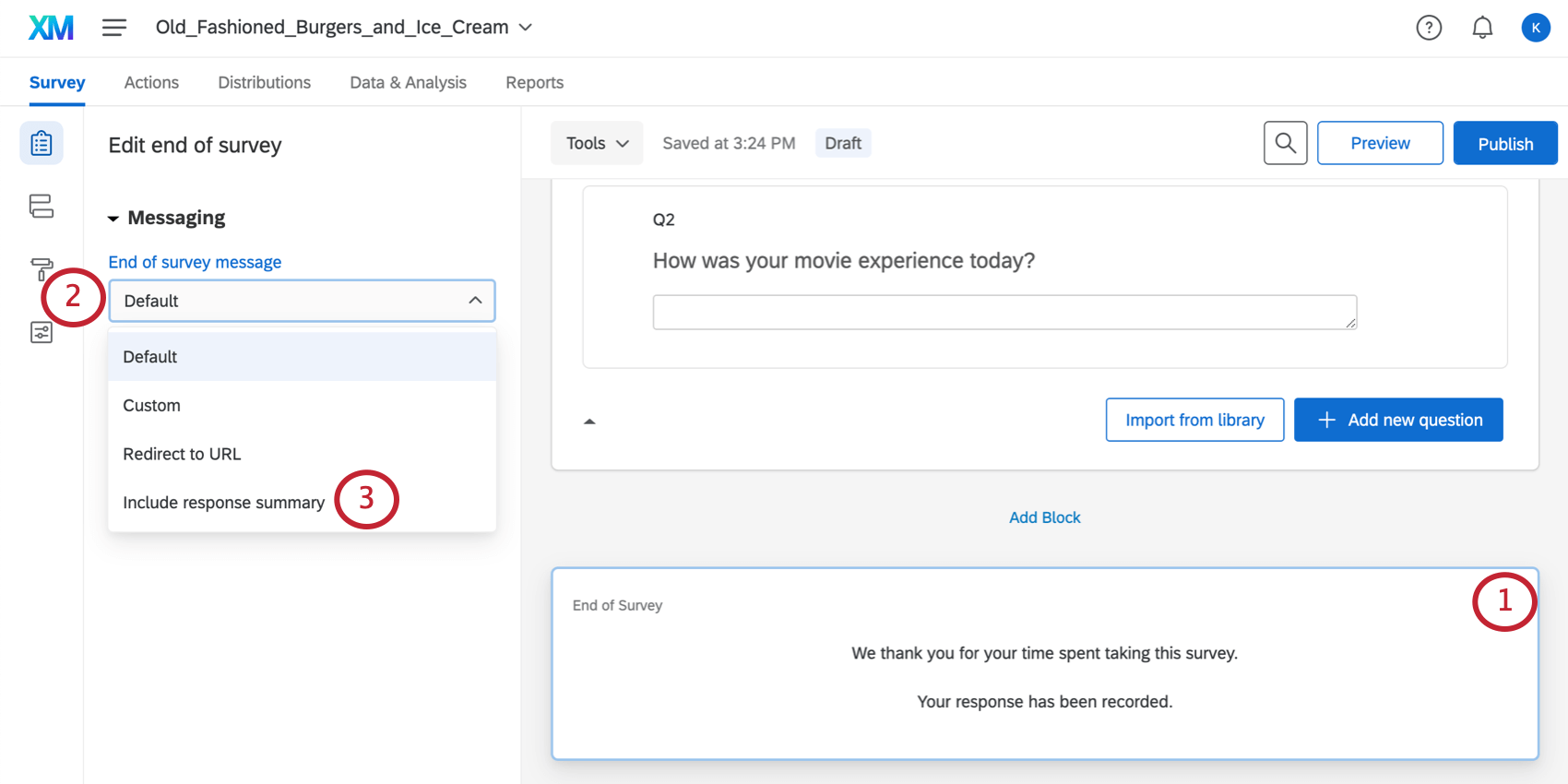
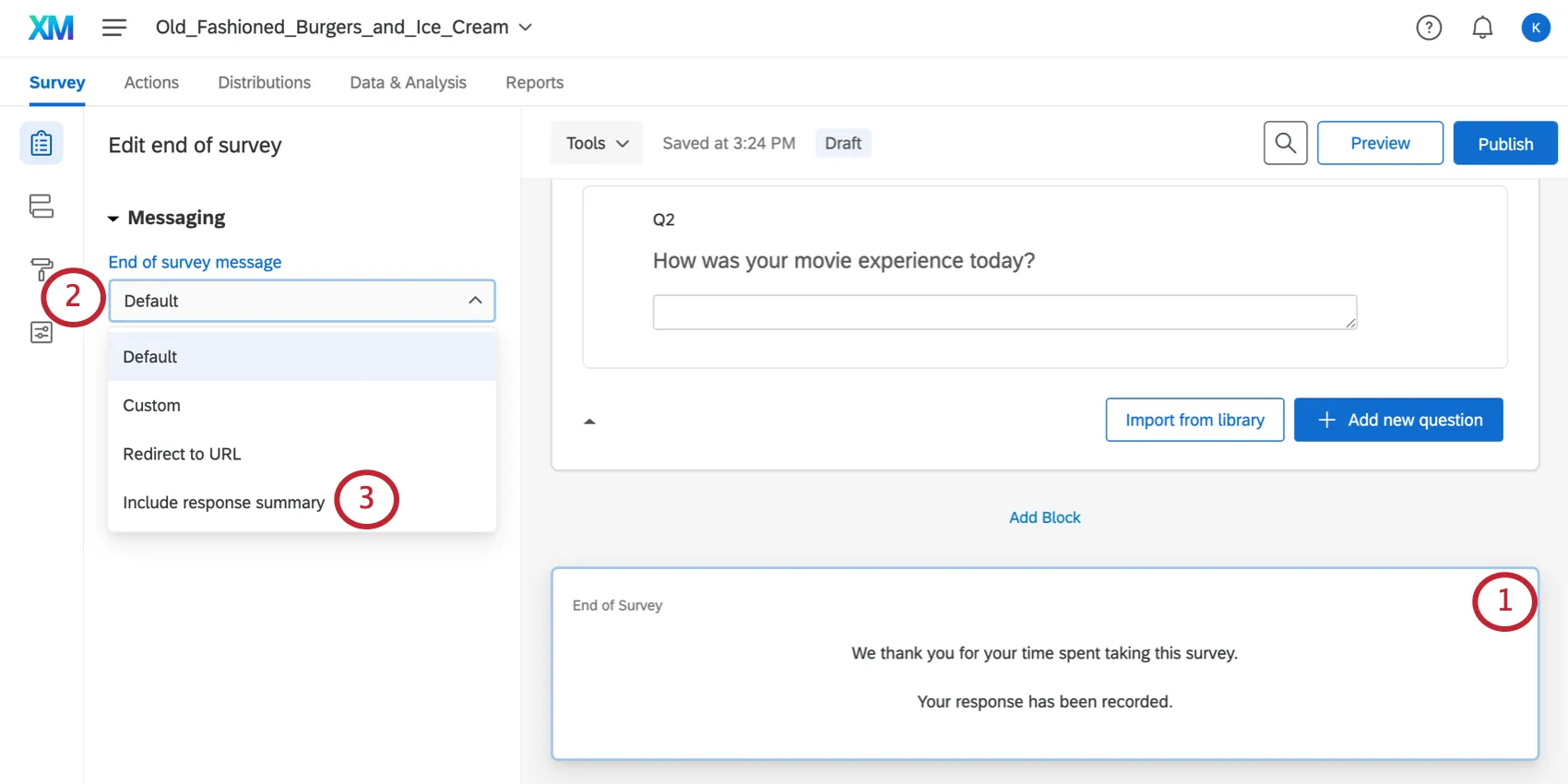
Qtip: You can show a summary of their responses before they submit the survey if you use an end of survey element in the survey flow. Just make sure to select Show Response Summary and then select Show Response Summary before completing the survey.
Redirecting Respondents to a URL
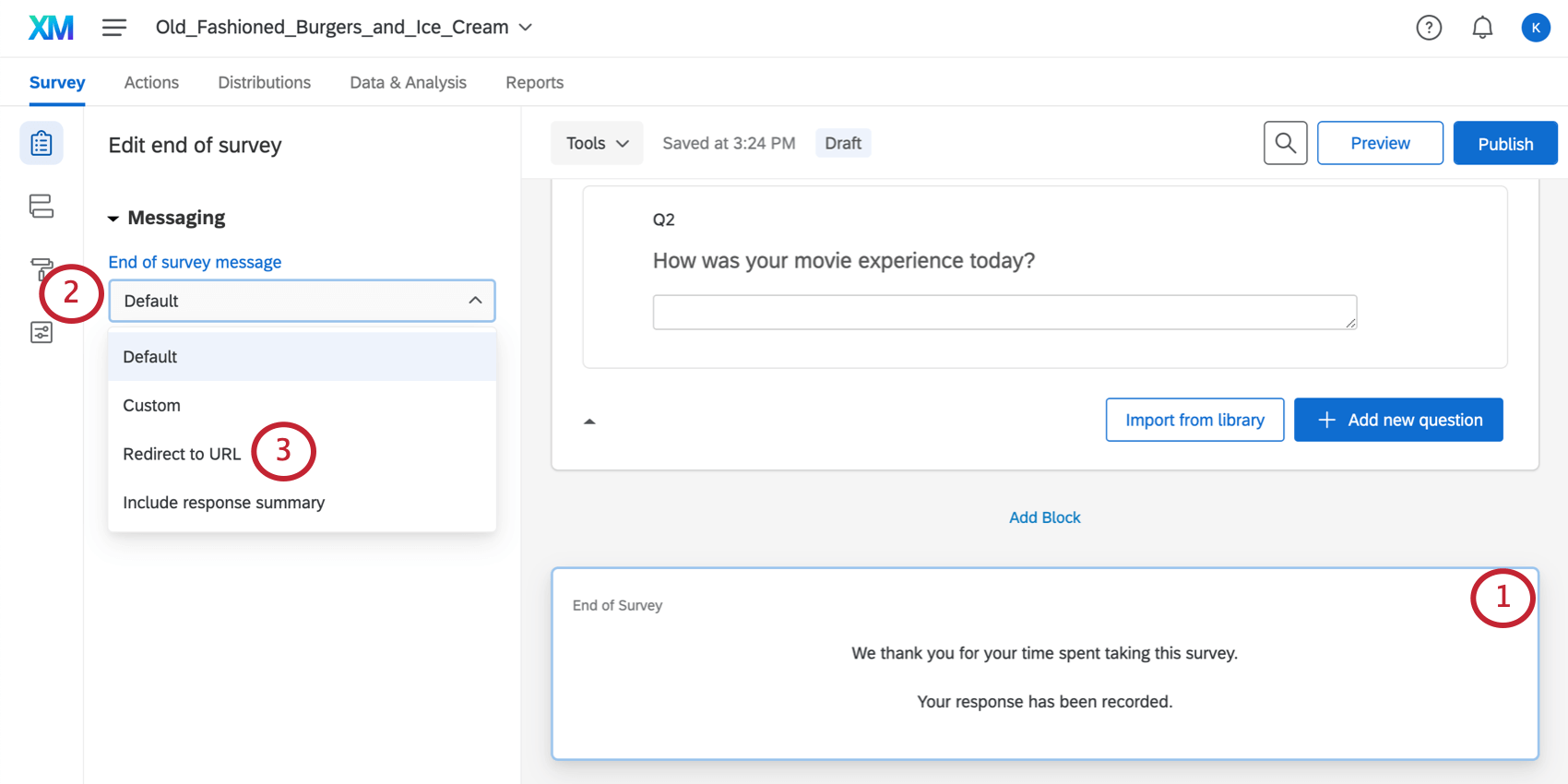
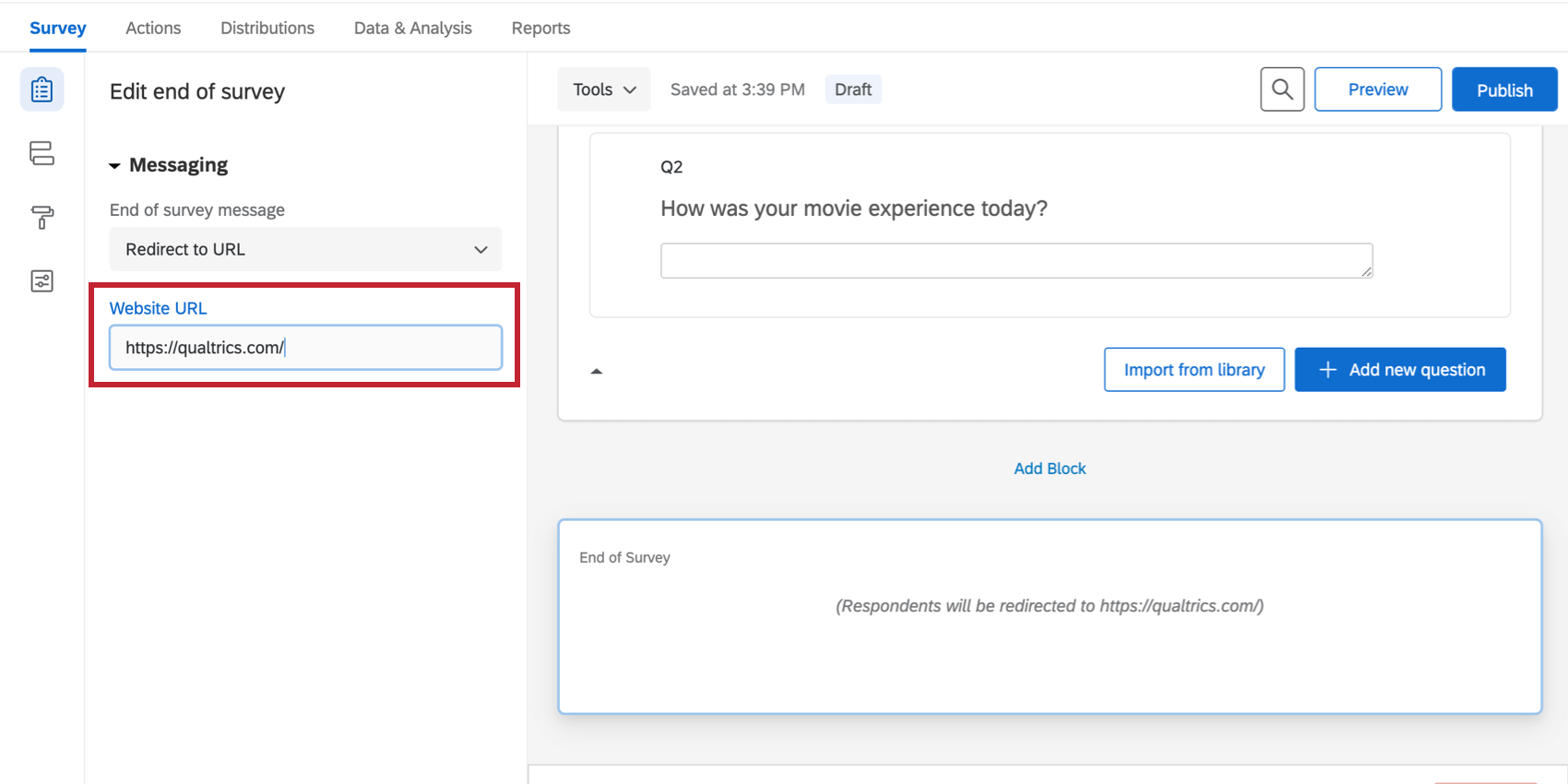
In some cases, you may want to ensure respondents make it back to your website or another web page at the end of the survey, rather than simply showing them a message. You can use the Redirect to a URL option to accomplish this. As soon as a respondent clicks the submit button in the survey, they’ll automatically be redirected to your chosen site.
Qtip: Only 1 redirect option can be selected. You cannot redirect to a URL and then redirect your respondent to a single response report or scoring summary. Additionally, this feature is not available for free accounts.
FAQs
How do I display different messages for different participants at the end of the survey?
How do I display different messages for different participants at the end of the survey?
How can I redirect respondents to another website or survey after they have submitted their response?
How can I redirect respondents to another website or survey after they have submitted their response?
If you would like to send different subsets of respondents to different pages, you can create branches for the different subsets and customize end of survey elements with different redirect URLs.
I want to offer the opportunity to enter a raffle following the end of my survey for my participants. I want participants to submit their email address, but keep it separate from their response so it remain anonymous. Is this possible?
I want to offer the opportunity to enter a raffle following the end of my survey for my participants. I want participants to submit their email address, but keep it separate from their response so it remain anonymous. Is this possible?
That's great! Thank you for your feedback!
Thank you for your feedback!