

Creating & Managing Conjoint & MaxDiff Projects
What's on this page
About Conjoint and MaxDiff Projects
Both Qualtrics conjoint and MaxDiff (Maximum Difference) projects let you get to the core of your customers’ product experience.
Conjoint projects identify the perceived importance and preference for each feature within a product or service. This is done by presenting respondents with a combination of choices in a package and analyzing their discrete choices. Another version of the conjoint project, called conjoint dynamic images projects, allows users to associate images with specific packages in their conjoint studies.
MaxDiff projects obtain preference and importance scores for multiple items. This is done by presenting respondents with samples of the full list of items you wish to assess, and then having them mark the items they prefer the most and the items they prefer the least in each set.
Creating a Conjoint or MaxDiff Project
Qtip: Choice-based conjoints and conjoint dynamic images projects are only available if you purchase these solutions for the PX or EX line, or if you have a CX license that includes the journey optimizer. There is a limit on 5 conjoint projects at a time. If you are interested in purchasing this solution or increasing the number of projects you can make, contact your Account Executive or see the XM Marketplace for more details.

Qtip: There are 2 different versions of conjoint and MaxDiff projects. One focuses on optimizing the employee experience, while the other focuses on optimizing the product experience. While these projects have slightly different focuses, the underlying conjoint and MaxDiff functionality is the same.
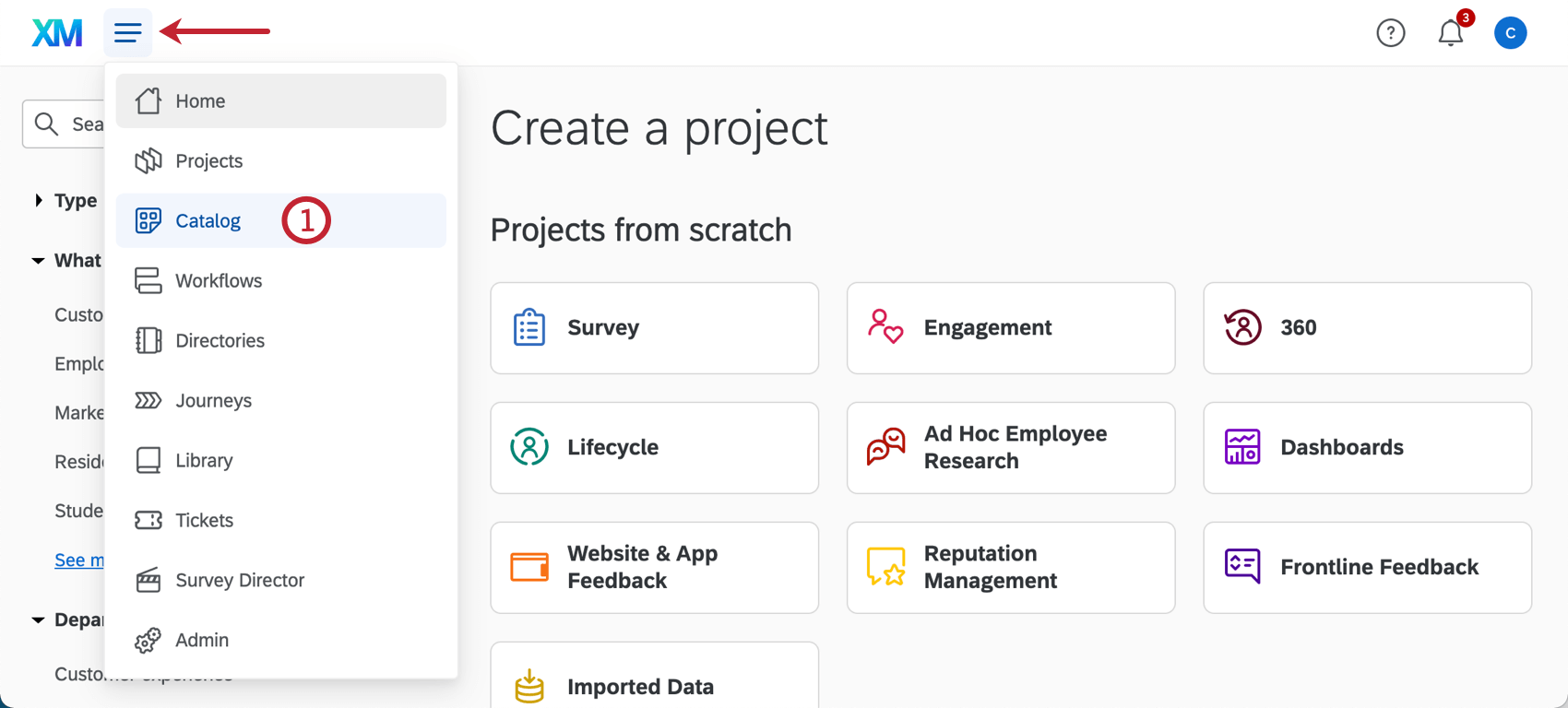
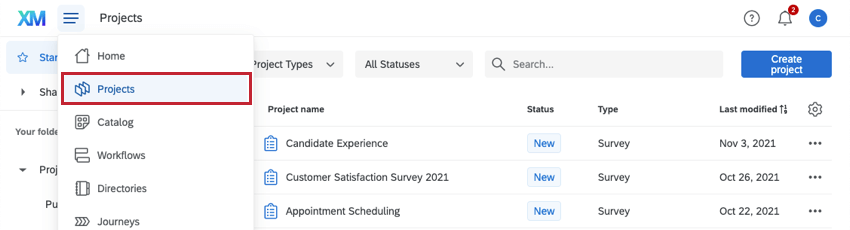
Qtip: A project can also be created from the Projects or Homepage.
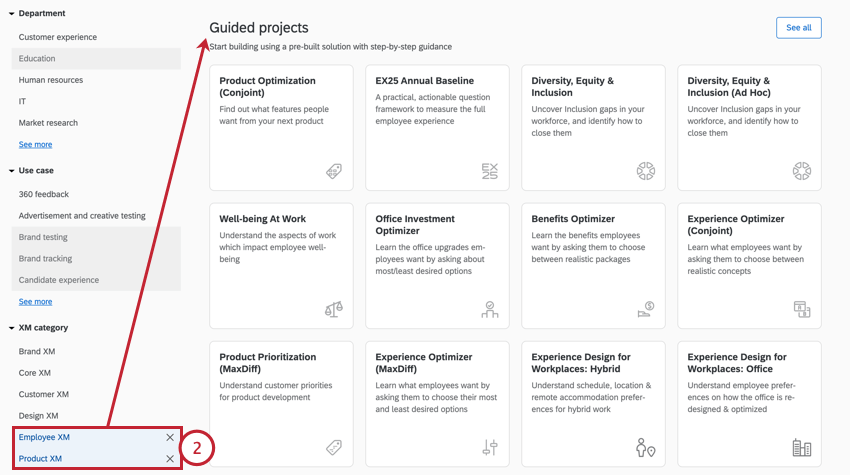
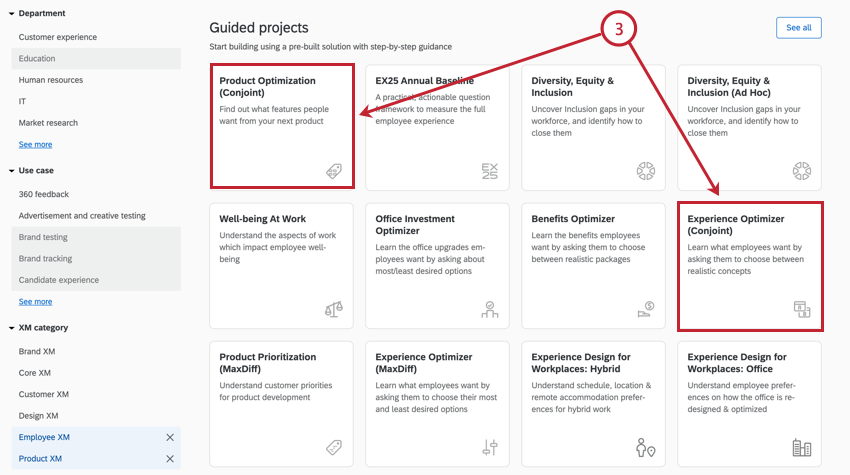
Qtip: Depending on your license type, you may only have access to one of these projects. Use whichever project you have access to.
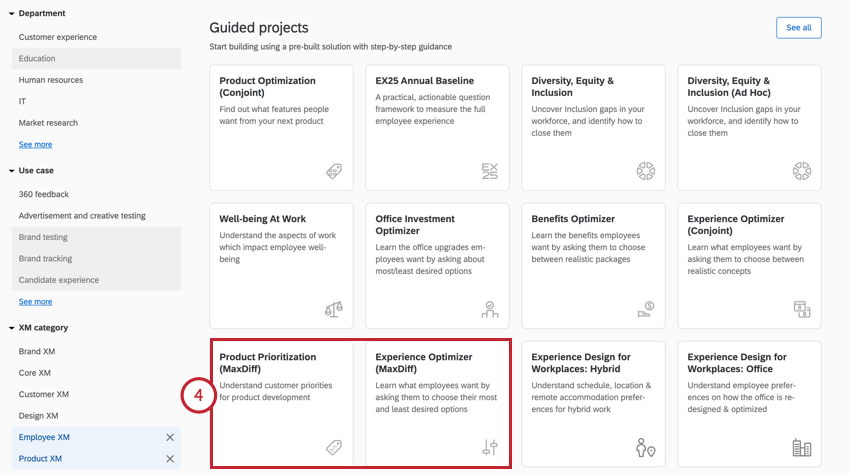
Qtip: Depending on your license type, you may only have access to one of these projects. Use whichever project you have access to.
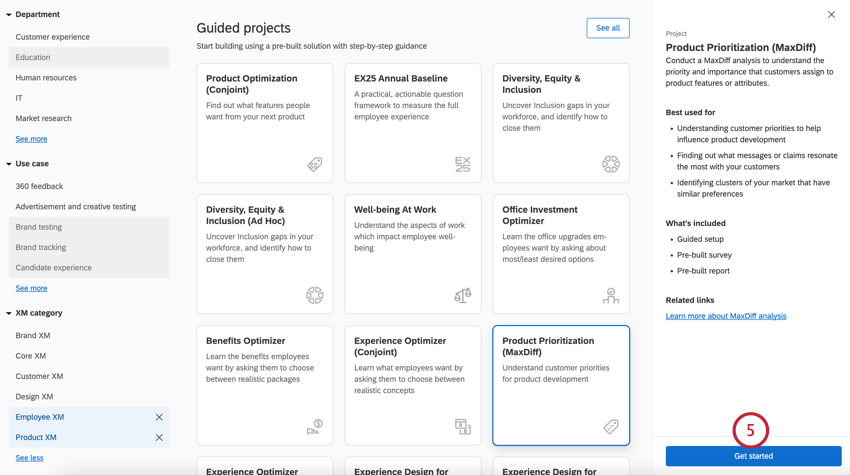
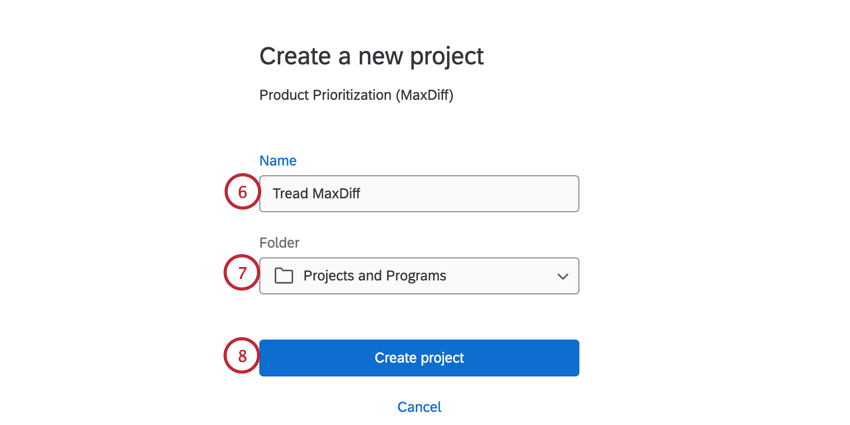
Once you’ve made your project, you will be able to find it on your Projects page in the future. It will be labeled as either a Conjoint, Conjoint Dynamic Images or MaxDiff, depending on what you made.

Collaborating on Conjoints & MaxDiffs
Just as with other Qualtrics projects, there are times when you will want to give another user the ability to edit, distribute, or view the data in your conjoint or MaxDiff project.
Qtip: Any user you collaborate with will be able to edit, copy, publish, distribute, view results for, and view reports for the chosen project. At this time, there is no way to limit which of these the user has access to.
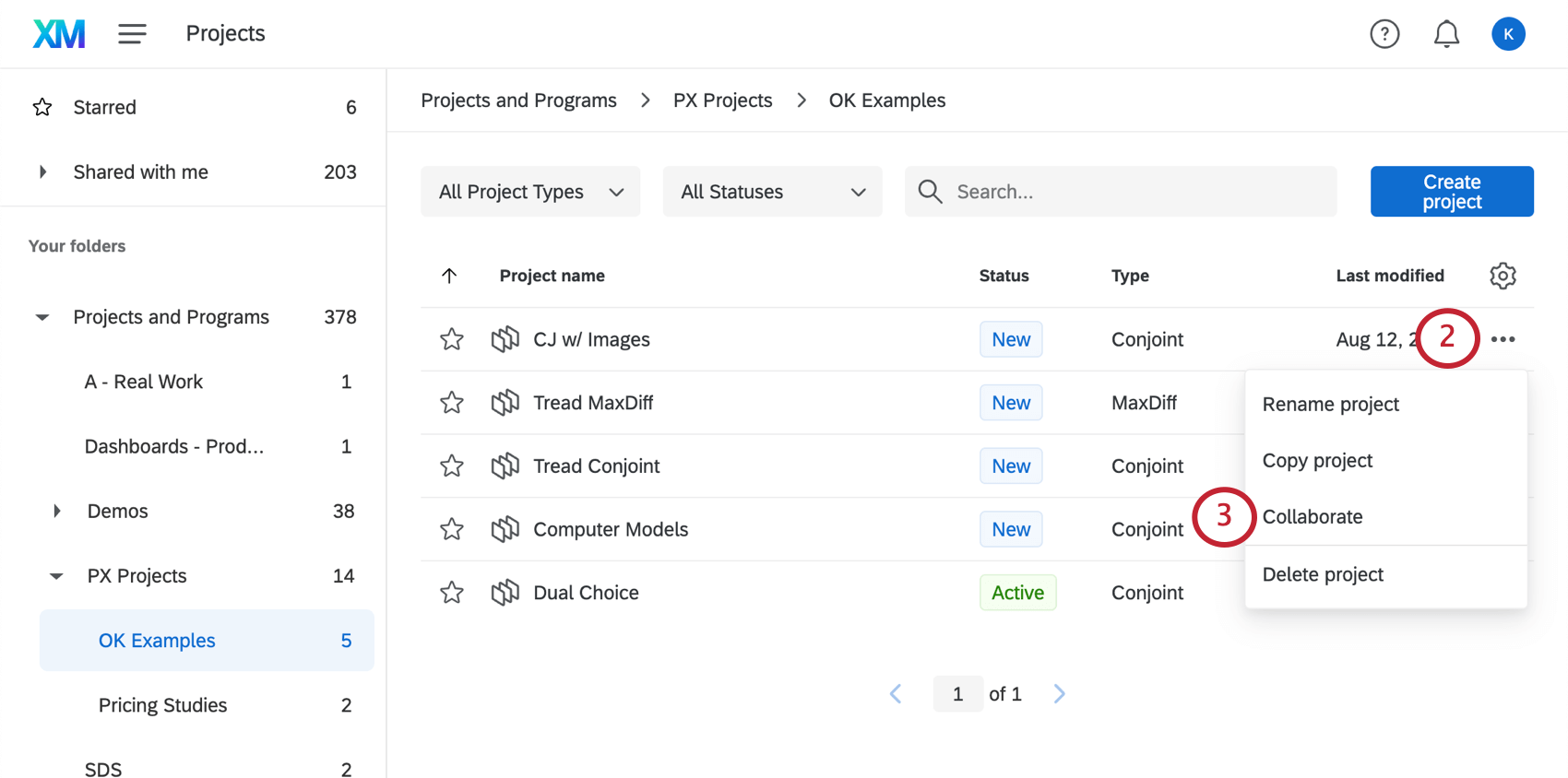
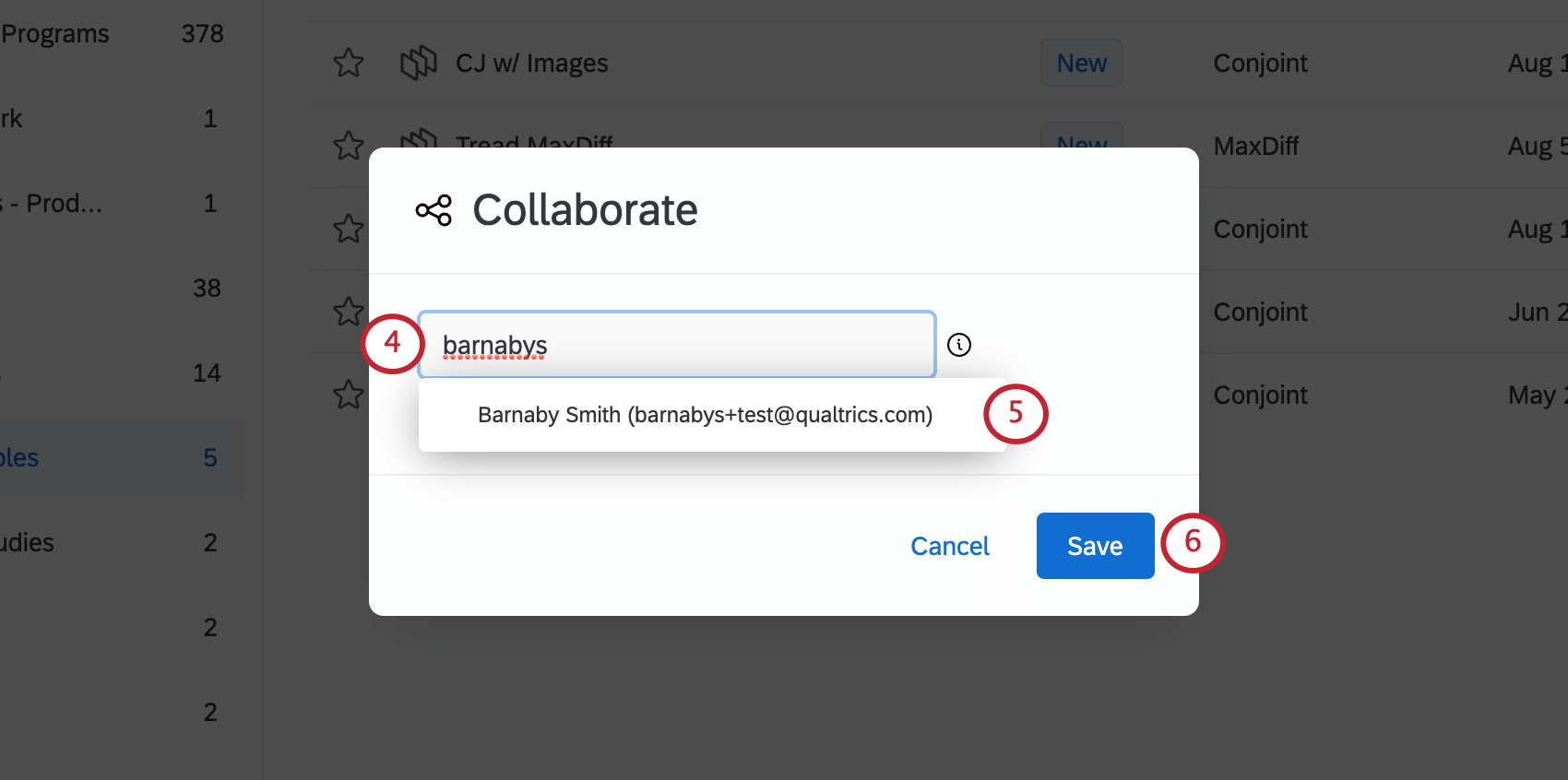
Qtip: You can only collaborate with other users in your license. You must type the full username or email address before the user will appear as an option.
Qtip: You can reopen the collaborate window and click the X next to a user to remove them from a project at any time. Note that removing a user from a project will not remove any copies they may have made.
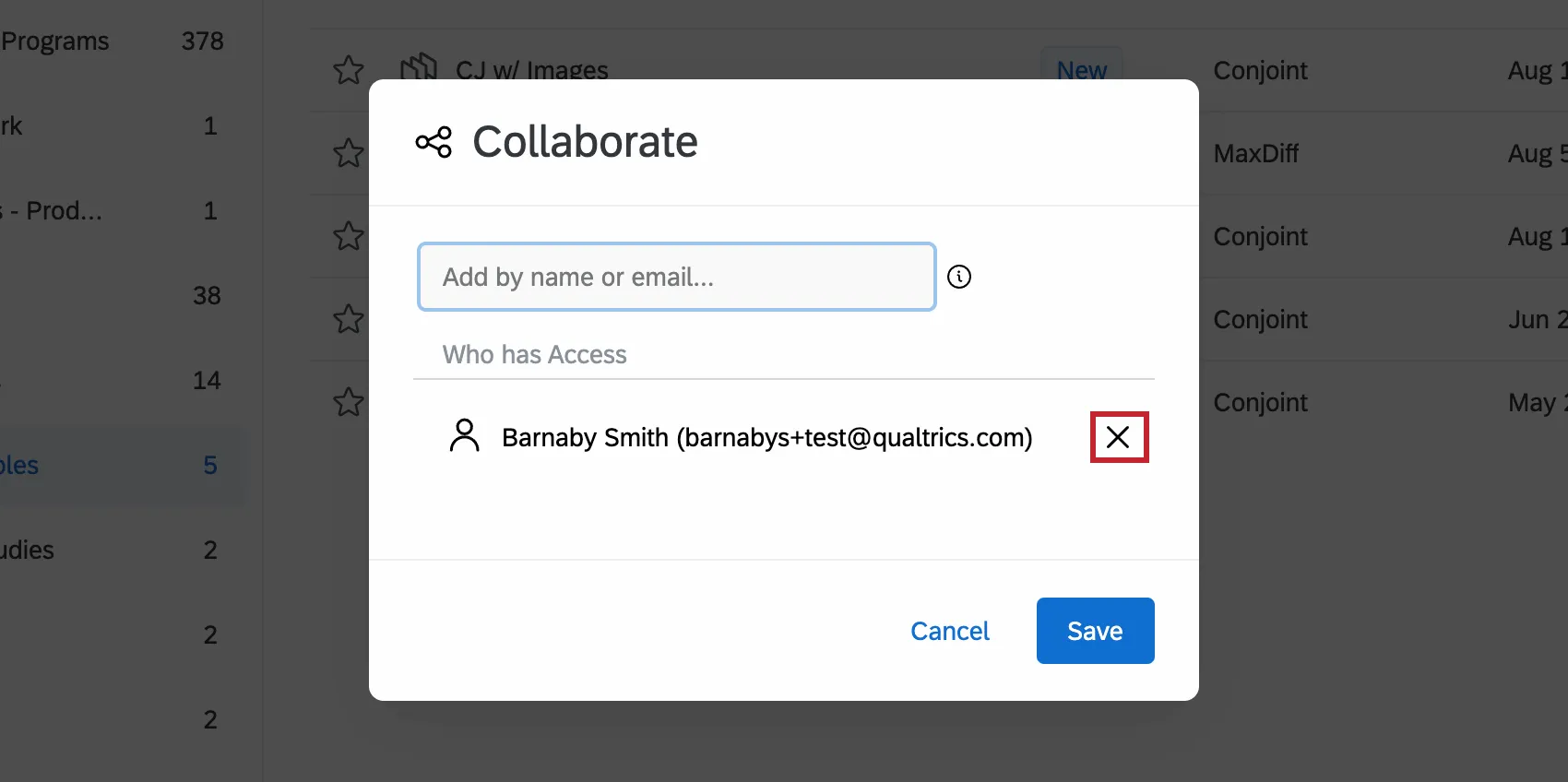
Accessing Shared Projects
The project will appear in your colleague’s account when they log in and look at the Shared with me folder.
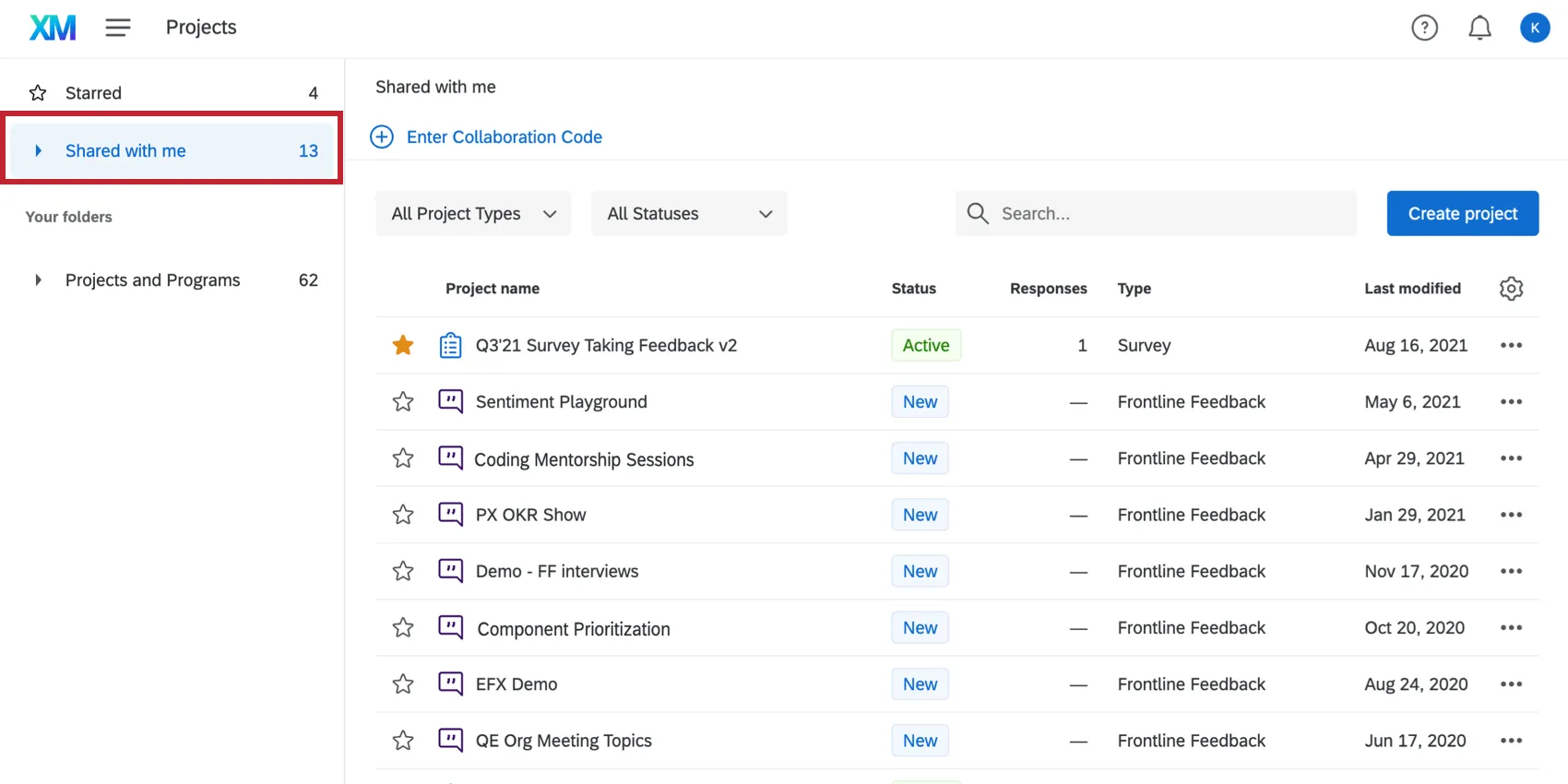
If the project has been shared but can’t be found in the account, click the profile icon and select Refresh Account.

Renaming the Project
To rename a conjoint or MaxDiff, click the dropdown next to the project and select Rename project.
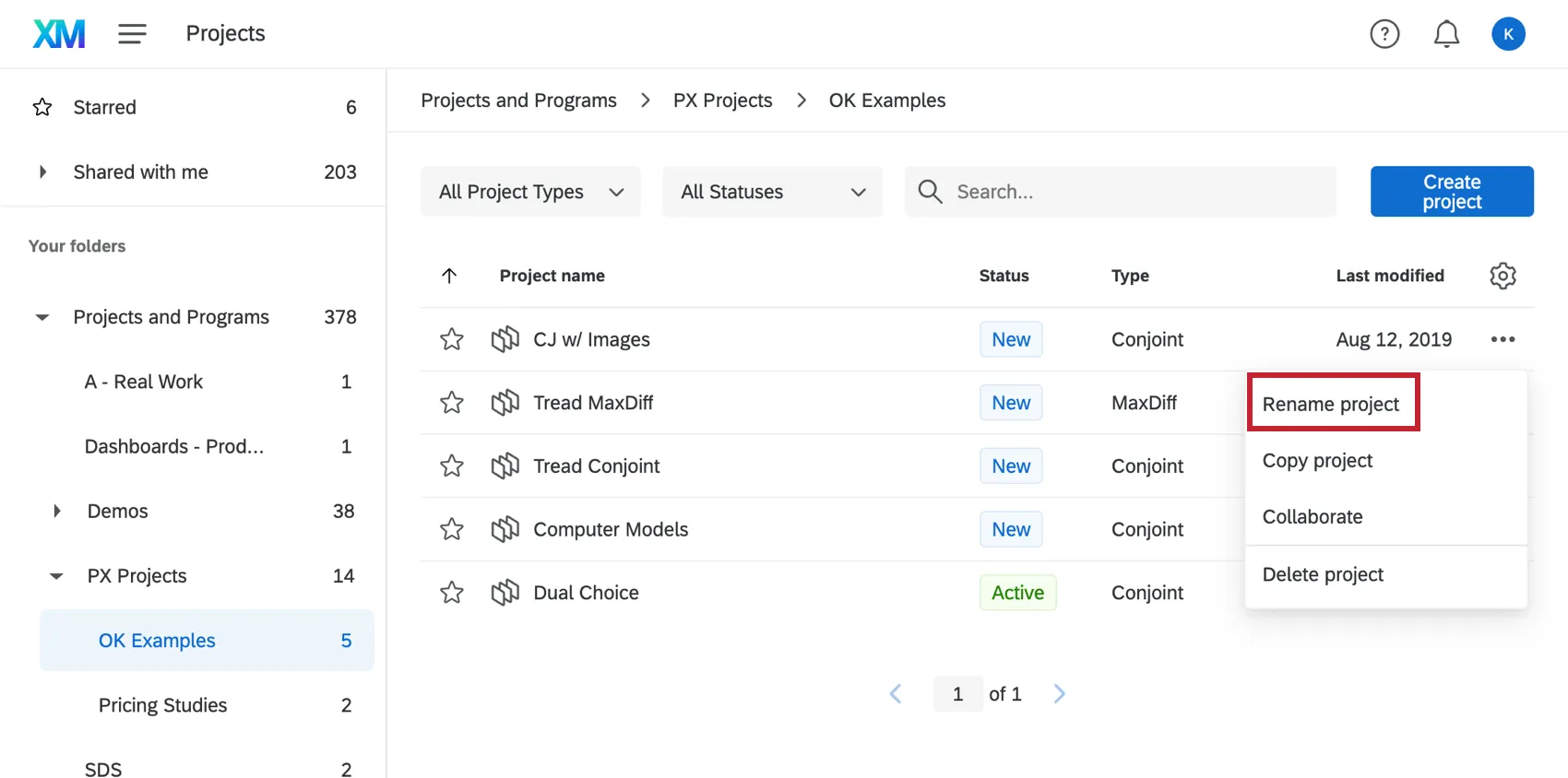
Qtip: Rename the conjoint on the Projects page. Renaming it from the Survey tab will not change the project’s name or the survey’s name.
Deleting the Project
Attention: Deleting a MaxDiff or conjoint project will delete all its associated data, reports, and simulator! Once deleted, this content will be irretrievable.

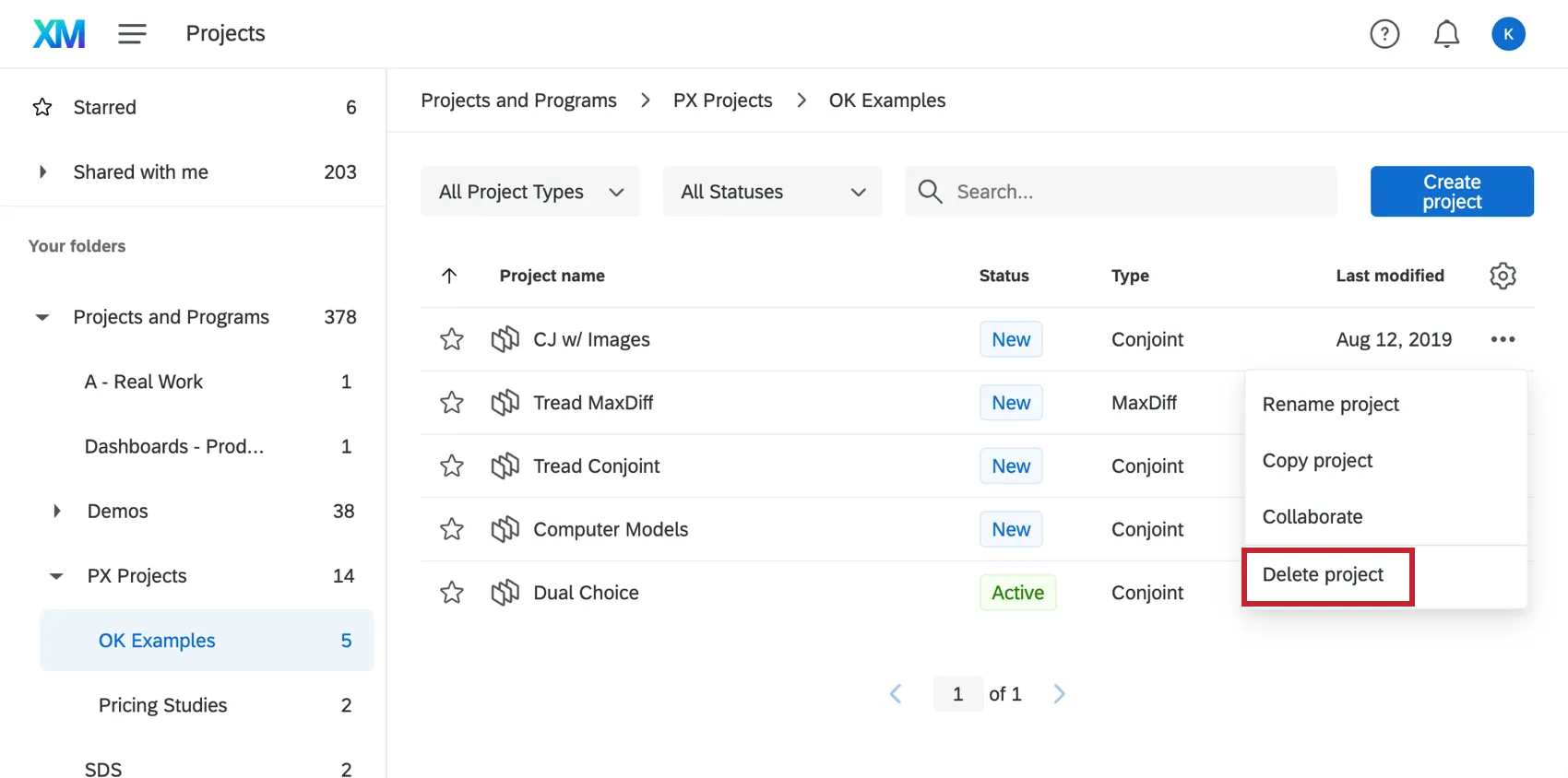
To delete a conjoint or MaxDiff, click the dropdown next to the project and select Delete project.
That's great! Thank you for your feedback!
Thank you for your feedback!