

Regenerating 360 Reports
What's on this page
About Regenerating 360 Reports
If you’ve made changes to your 360 project and aren’t seeing them reflected in the subject report, you can regenerate your reports. Depending on the size of your project and number of participants, it may take a few hours to regenerate reports.
The Report Generation page is also valuable to EX Admins as a place to track and resolve reporting issues. You don’t have to wait for participants to reach out with issues, as you can see which specific reports haven't been generated.
Qtip: You cannot edit subject reports while reports are in the process of being generated.

When Reports are Generated
Reports are immediately generated for all 360 participants once the project is closed.
If a feedback recipient has no responses, their report will not be generated.
Warning: Make sure all of your edits are final before you close your project. Once you close your project, reports are generated. Any changes you make to the report after it’s generated will not be reflected in the participant portal until you regenerate reports.

Qtip: Report regeneration tools are not available until your 360 project is changed to a status of Closed.
Feature Availability
This support page describes 360 functionality. That means this is behavior only available in:
- Standard 360 projects
- Employee Led 360
Furthermore, the Report Regeneration tab, complete with detailed Report Generation Summary, is only available for standard 360.
For both standard 360 and Employee Led 360, you can generate reports in the Participants tab.
Regenerating Reports
You can generate just one report, selected reports, or all reports for all participants in the project.
Navigate to a closed 360 project.

- Go to Reports.
- Go to Report Generation.
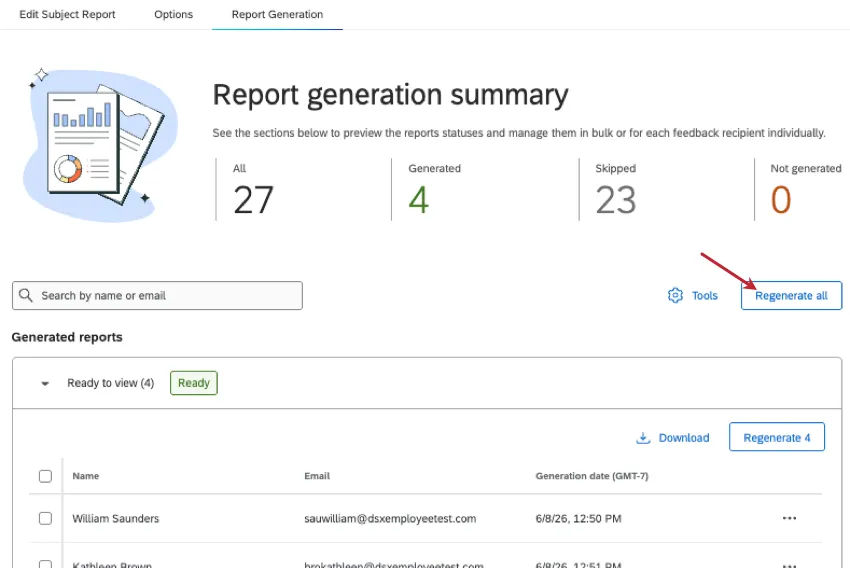
From here, you have the option to select Regenerate all in the top-right. This will attempt to regenerate every feedback recipient’s report.
You can also select specific participants, then select Regenerate (Number).
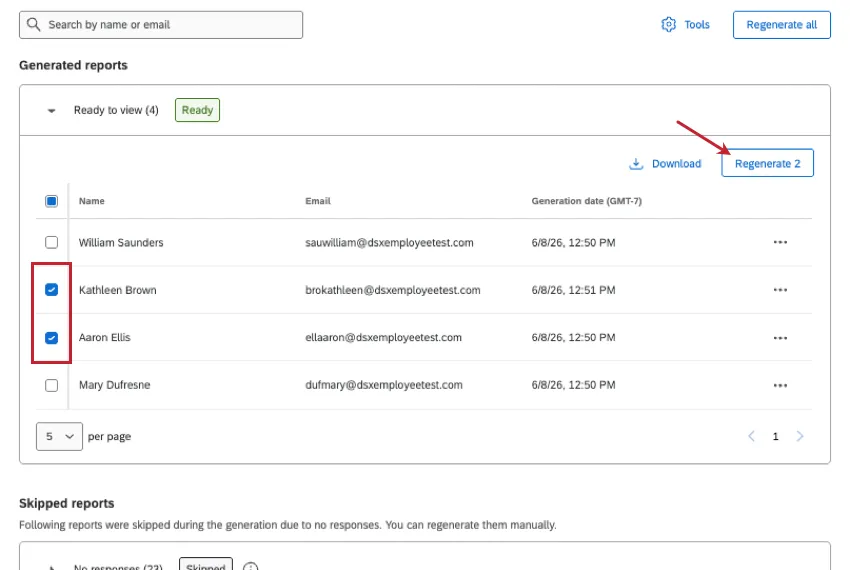
Qtip: You can try to regenerate reports of any status – including Generated, Skipped, or Not generated (failed).
Qtip: Learn more about skipped reports and regenerating them in the Report Generation Summary section.
Lastly, you can click the 3 dots next to an individual feedback recipient, then select Regenerate.

Report Generation Summary
At the top of the Report Generation page is a summary of which reports were successfully generated, which were skipped, and which could not be generated.
Qtip: In general, only projects with all reports generated after September 2, 2026 will have access to the Report Generation Summary.
Qtip: These statuses are up-to-date with the latest report generation performed in the project. Statuses update whether you press generate all, some, or an individual report. The Participants tab regeneration tool also updates these statuses. The status can also change if a participant accesses their report in the portal.
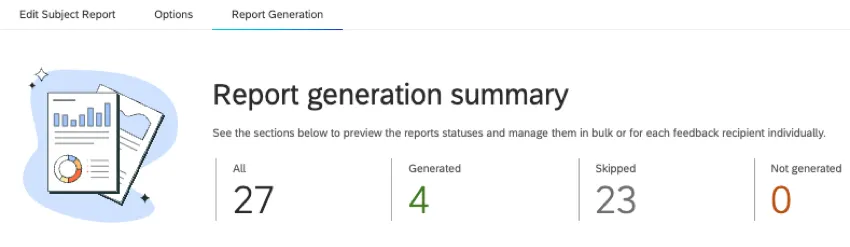
- All: How many total potential reports are there. This is Generated + Skipped + Not generated, or the number of total feedback recipients in your project.
- Generated: How many reports were successfully generated. These are also called “Ready to view” because these reports can be viewed in participants’ portals.
- Skipped: How many feedback recipients had zero responses. These reports are accessible for participants, although they will be generated upon viewing. When you bulk download reports, skipped reports won't be included.
Qtip: Many reports include summaries and other valuable information, regardless of whether data was collected. If you’d like to pre-generate these reports for faster results, regenerate skipped reports.
- Not generated: How many reports were not generated. This is usually due to a widget or template issue.
Below this summary, the page is split into the same groups: Generated, Skipped, and Not generated.
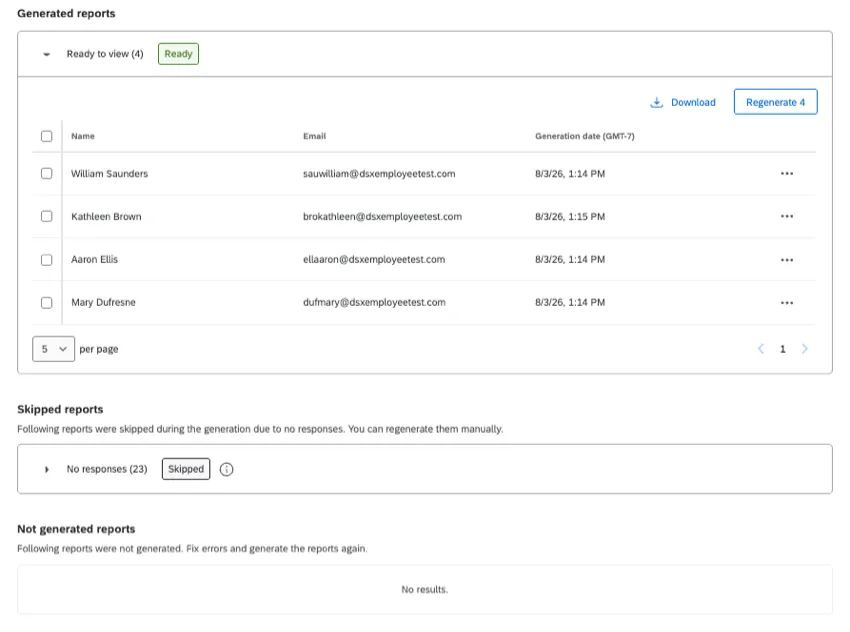
For each report, you can see the name of the feedback recipient, their email, and the exact date and time the report was last generated.
Troubleshooting Failed Reports
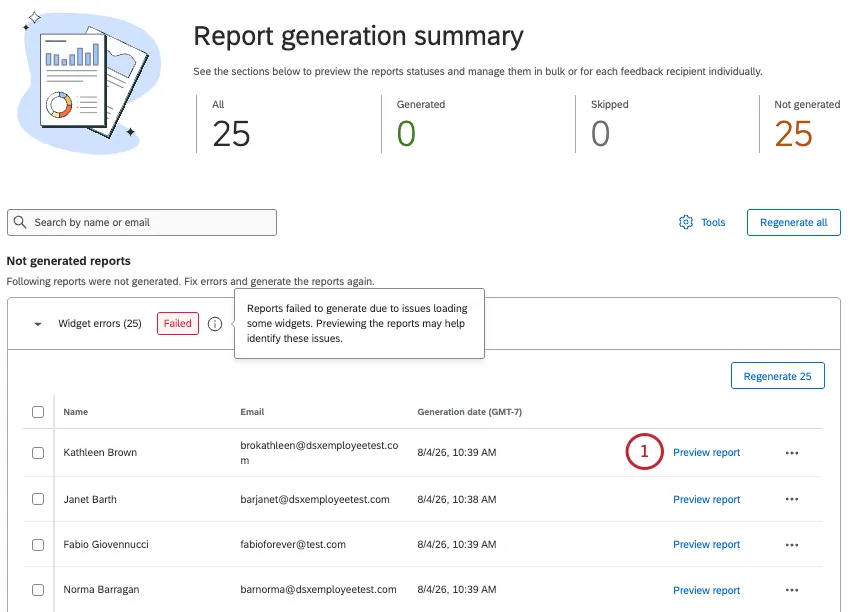
When reports fail, the “Not generated” list of reports will appear above the others to draw your attention. The failed reports list comes with a couple of tools to make resolving issues easier.
Click Preview report to see one of the failed reports.
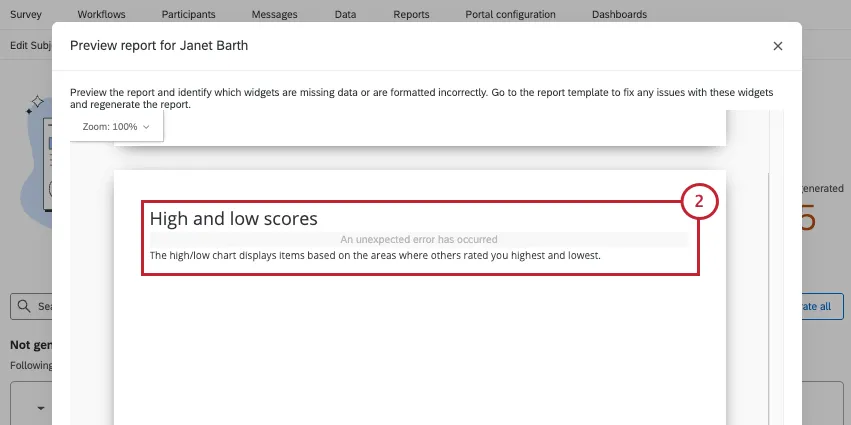
As you scroll, search for error messages. In this example, we can see our High and low scores chart has an “unexpected error.”
Go back to Edit Subject Report and check out the issues you identified. Be sure to check all the visualization’s settings, including the source, metric, and filters.
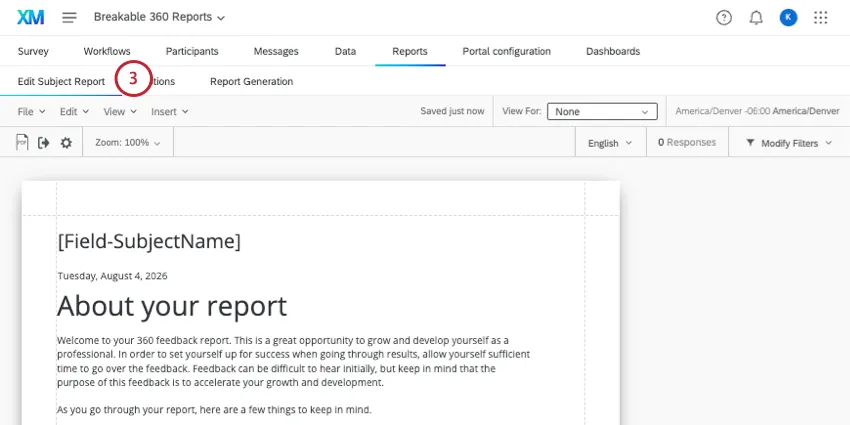
Example: In this example, the visualization failed because the filter on it uses a question that was deleted.

If you think you’ve fixed the issue, go back to Report Generation.
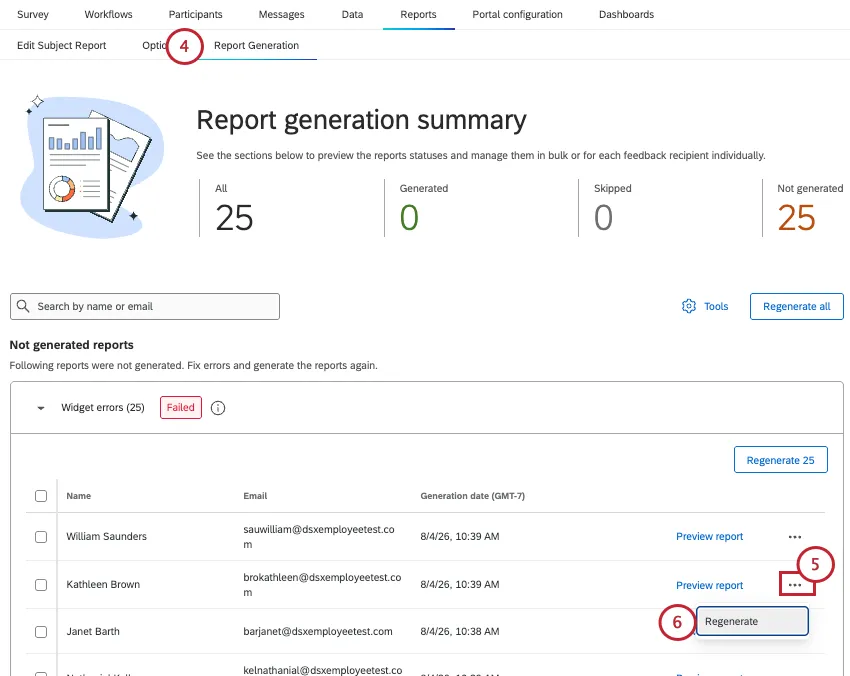
Click the 3 dots next to the report you checked earlier.
Click Regenerate.
If the report regenerates successfully, try regenerating the other failed reports.
Repeat troubleshooting steps as needed until errors are resolved.
Additional Tools
Search: Search generated, skipped, and failed reports by a feedback recipient’s name or email.
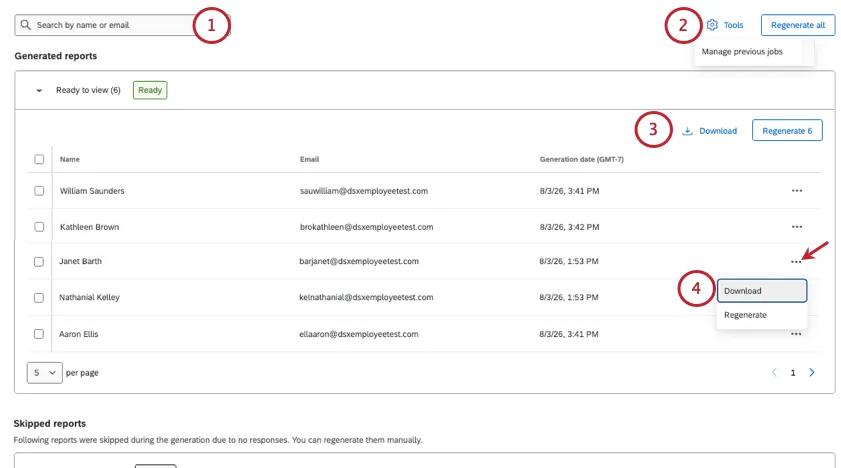
Manage previous jobs: Under Tools, you can select Manage previous jobs to see recent regenerations you’ve performed and reports you’ve downloaded. You can see the User ID of the person who performed the job, and you can click the trashcan icon to cancel a job that’s in progress.
Qtip: If you cancel an attempt to regenerate all reports, no reports will be available. You will need to try to generate them all again.
Download all generated reports: Use the Download button in the upper-right of Generated reports to export all of your successful reports at once. These will come in a zip file of PDFs.
Download individual reports: In the Generated reports section, click the 3 dots next to a participant, then click Download to export the individual report.
Qtip: You can only download successfully generated reports. You cannot download skipped or failed reports. Try our Failed Report Troubleshooting Tools.
Regenerating Subject Reports from the Participants Tab
If you’ve made changes to your project and aren’t seeing them reflected in the report, you can regenerate your reports here in the Participants tab. Depending on the size of your project and number of participants, it may take a few hours to regenerate reports.
This tool is available in both standard 360 projects and Employee Led 360.
Qtip: Learn more about when reports are generated.
Qtip: You can also select specific participants’ whose reports you want to regenerate.
Go to Participants.
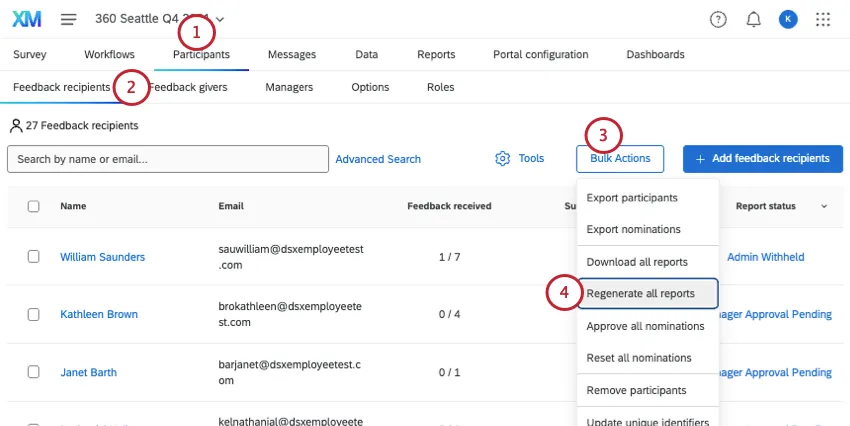
- Select Feedback recipients.
- Click Bulk Actions.
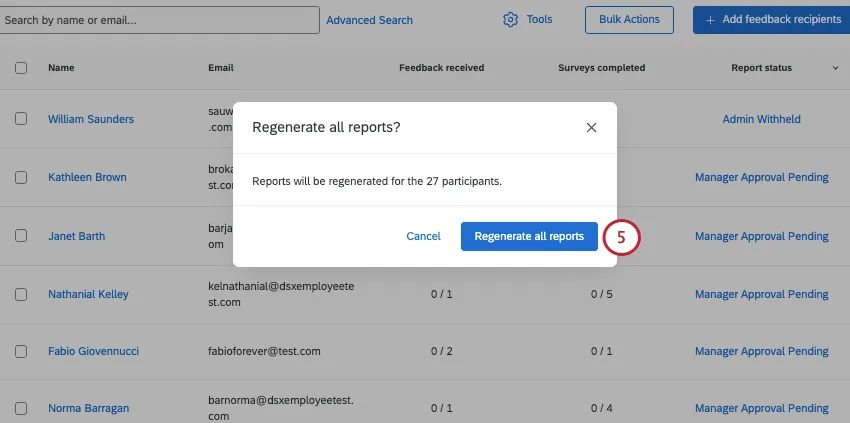
- Select Regenerate all reports.
Confirm Regenerate all reports.
FAQs
Can I use the Report Generation Summary on an older 360 project?
Can I use the Report Generation Summary on an older 360 project?
In general, only projects with all reports generated after September 2, 2026 will have access to the Report Generation Summary. If your project doesn’t meet this setup, you’ll access the report generation button inside Report Options.
Is this page’s content still available while I generate reports?
Is this page’s content still available while I generate reports?
That depends. If you’re generating all reports, the Report Generation page will be unavailable, and the usual summary statistics won’t appear. If you are generating individual reports (one at a time or a few selected), the page and statistics will still be accessible.
If lots of reports were skipped, can I invite those users back to the survey?
If lots of reports were skipped, can I invite those users back to the survey?
You will need to reopen your 360 project if you want to collect more responses.
That's great! Thank you for your feedback!
Thank you for your feedback!