

Program Participants (Pulse)
What's on this page
About Pulse Program Participants
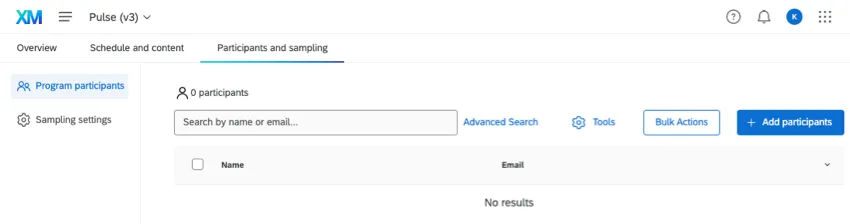
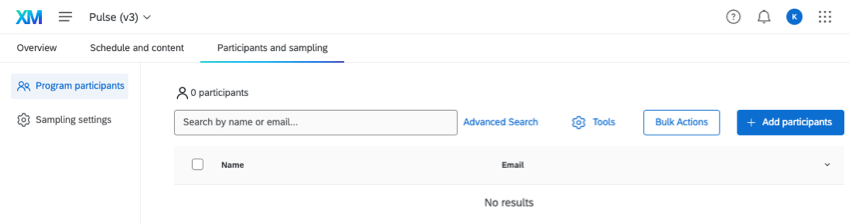
You can manage pulse program participants by going to Participants and sampling and staying in the Program participants section.
Warning: The following are reserved field names. You should not use these names for participant metadata.
- projectStartDate
- ProjectStartDate
- Project Start Date

Adding Participants to a Pulse
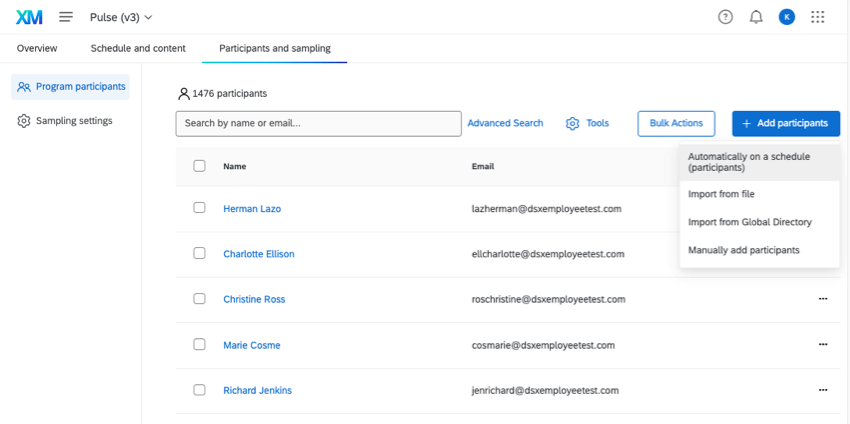
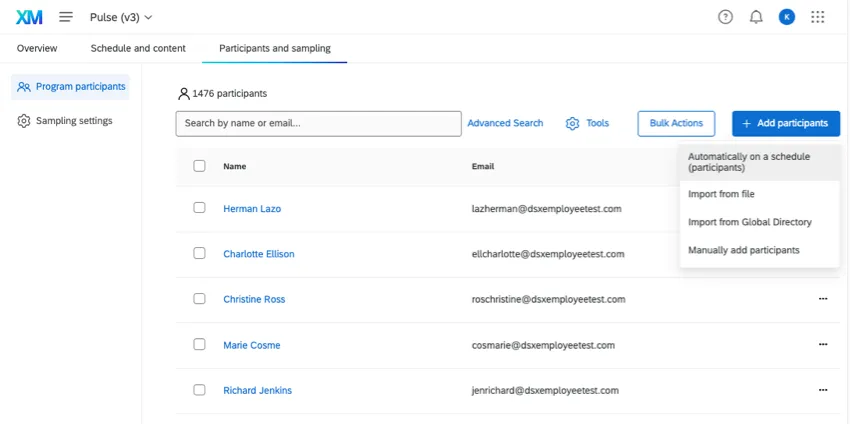
We highly recommend using a participant import automation with your pulse. This feature regularly uploads participants from your employee directory to your program. Not only does that ensure all your employees receive the pulse, but that as new people are added to your company, they too will receive pulses.
Qtip: You don’t have to include every employee in your directory in this automation. You can narrow down what participants you include using metadata conditions. See the Participant Import Automation page for more details.
The following is a list of pages covering other ways to add participants to a pulse.
Qtip: These pages also discuss other Employee Experience projects. This means you might see functionality that is not available in pulses yet.
- Automatically on a schedule (participants)
- Import from file Qtip: See also Preparing Your Participant File for Import.

- Import from Global Directory
- Manually add participants
Bulk Actions
Bulk actions allow you to manage multiple participants at a time.
Pulses have the following bulk actions when you select participants:
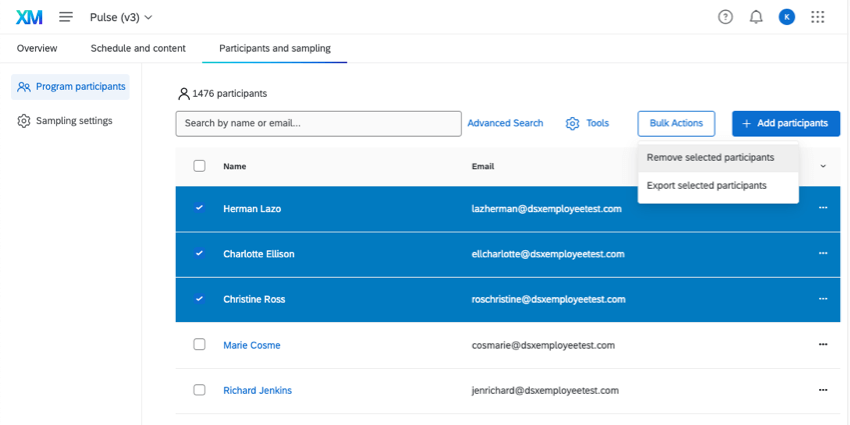
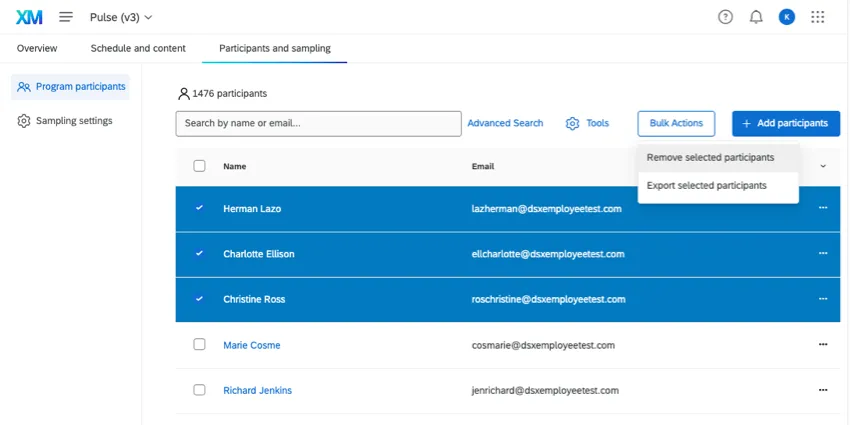
- Remove selected participants: Removes all of the selected participants from the program list. See Removing Participants for all the ways to delete participants from a project. Note, removing participants from the program list does not remove them from pulse survey projects and therefore will not remove any responses from these participants within the pulse program.
- Export selected participants: Export a CSV containing first name, last name, unique identifier, and metadata for only the selected participants. See the next section for further details on various export options.
In addition, if you select no participants and click Bulk actions, you’ll get the following options:
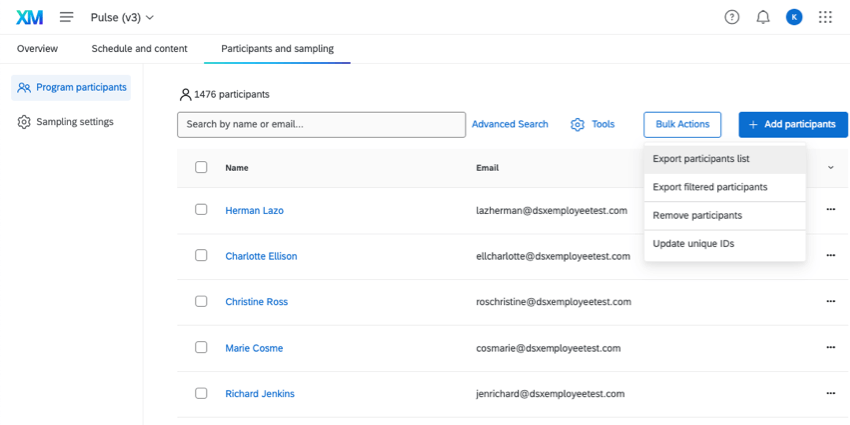
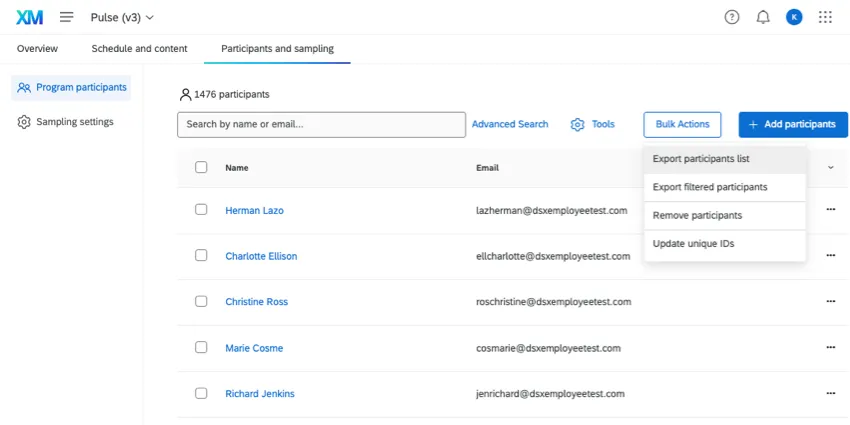
- Export participants list: Exports all participants.
- Export filtered participants: Instead of exporting all the participants in your project at once, you can narrow down who should be included in the export by metadata. See Export filtered participants.
- Remove participants: Use a file to remove participants from the project. See Removing Participants for all the ways to delete participants from a project.
- Update unique IDs: Update the unique identifiers for any of the participants in your project. See Updating Multiple Employees’ Unique Identifiers.
Participant Tools
In pulses, there’s a button called Tools that lets you manage the participants uploaded into your project.
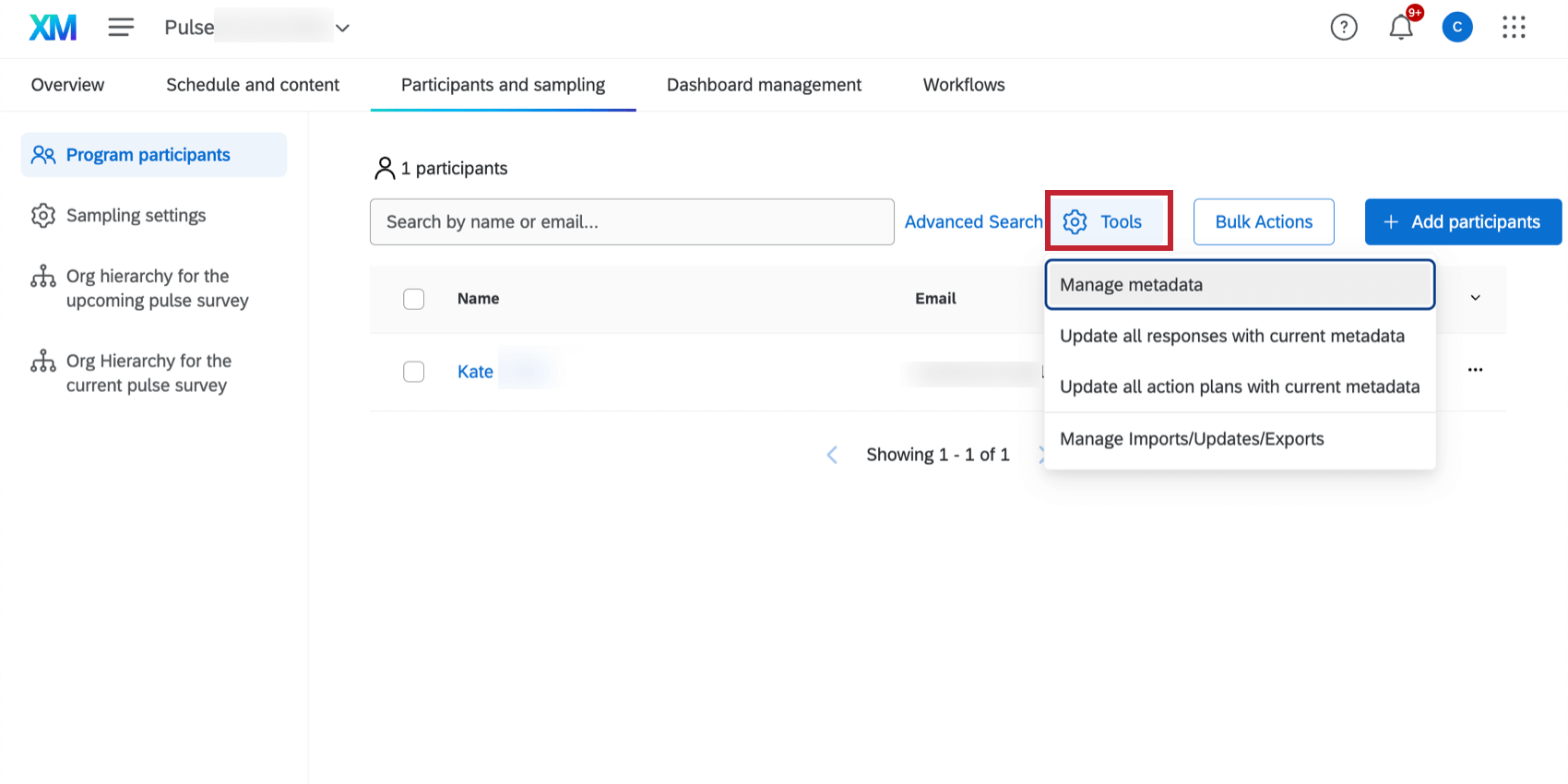
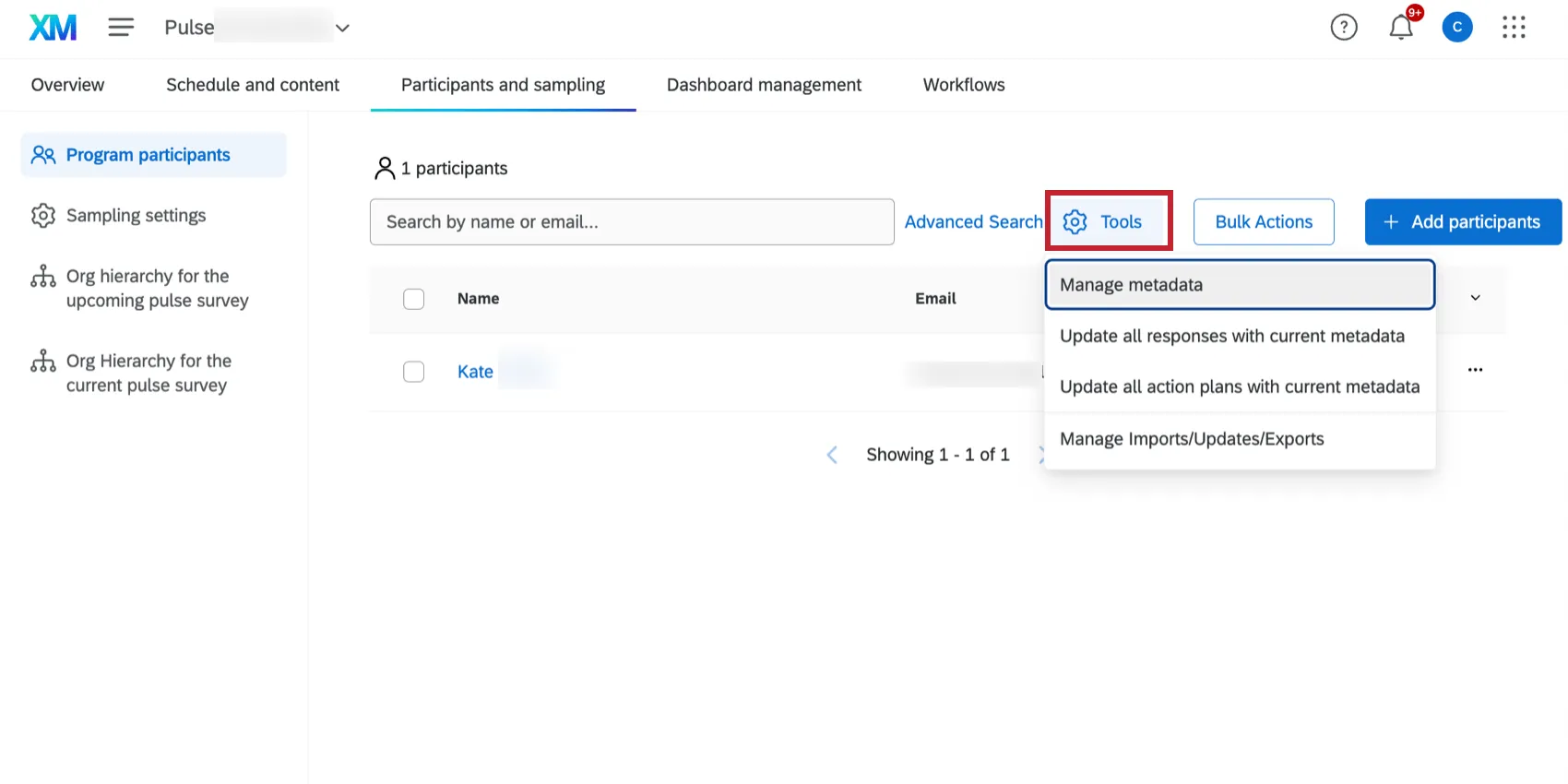
Pulses only have the following tools. You can click each link to learn more.
- Manage metadata
- Update all responses with current metadata
- Update all action plans with current metadata
- Manage Imports/Updates/Exports
Managing Participants
Once your participants are uploaded, you may want to make changes, view information about them, and more. Check out the following pages for different actions you can take in the Program participants tab.
Qtip: These pages also discuss other Employee Experience projects. This means you might see functionality that is not available in pulses yet.
FAQs
What happens to my hierarchy if I delete a program participant?
What happens to my hierarchy if I delete a program participant?
What happens to my hierarchy if I delete participants in one of my surveys?
What happens to my hierarchy if I delete participants in one of my surveys?
That's great! Thank you for your feedback!
Thank you for your feedback!