

Comparisons & Collections
What's on this page
About Comparisons & Collections
Qtip: Frontline Feedback projects are an additional purchase. Please contact your Account Executive for more information about this product.

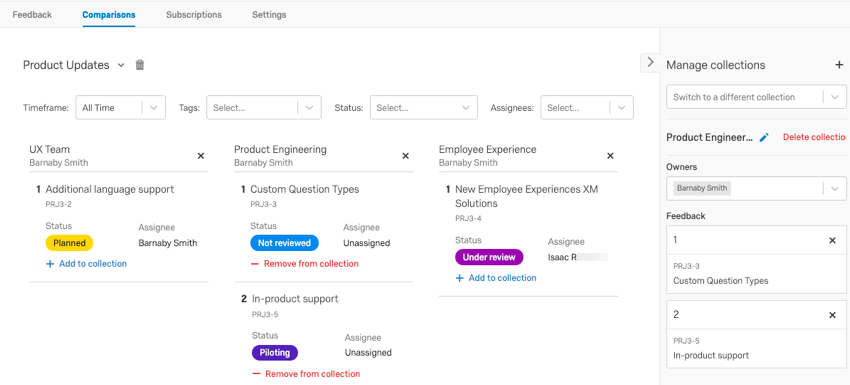
Comparisons and collections are used to organize feedback requests so that they’re easier to track and action. The Comparisons tab allows you to see feedback side-by-side to help you prioritize how to action upon feedback. You can create collections to group similar feedback requests, such as grouped by your different products.
Creating Comparisons
To create your first comparison, go to the Comparisons tab.
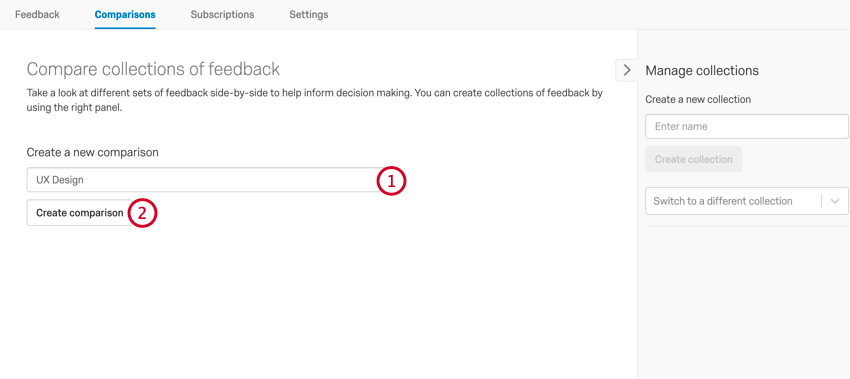
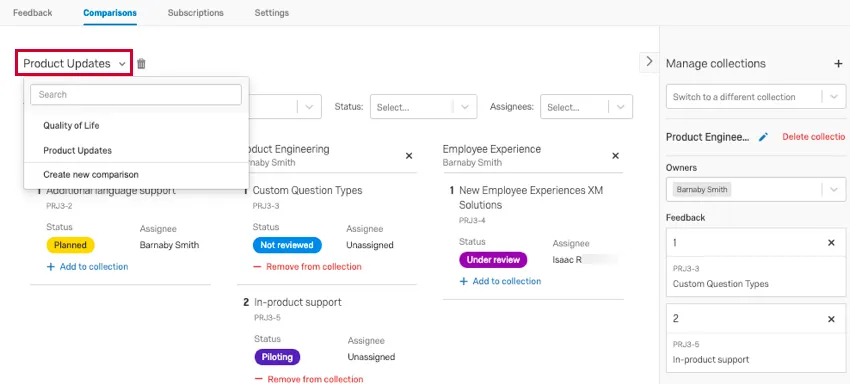
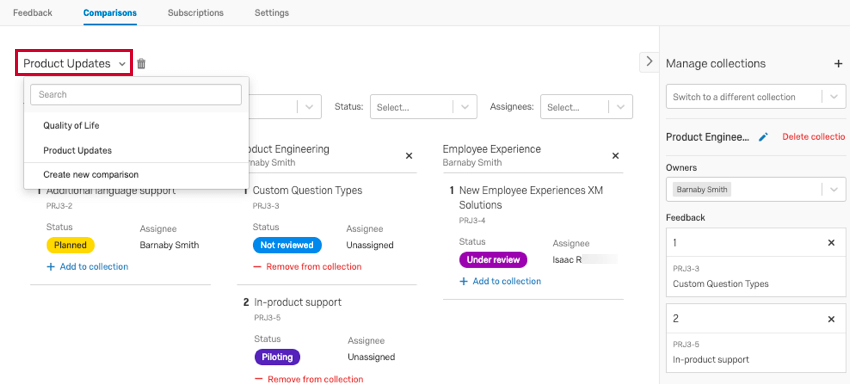
Once you’ve created a comparison, you’ll be able to make additional comparisons by clicking the comparison name in the top left hand corner and selecting Create new comparison. You can also navigate between existing comparisons in this menu.
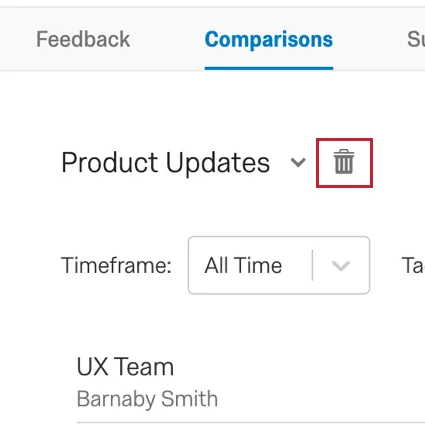
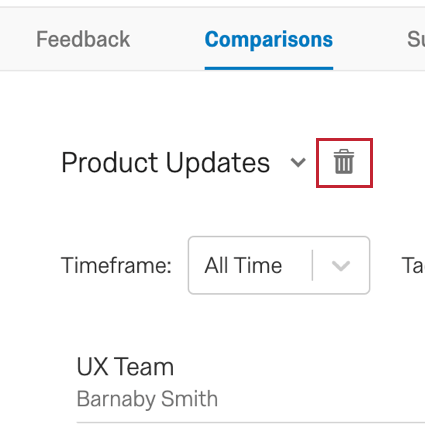
Qtip: Click the trash can icon next to the comparison name to delete it. Proceed with caution! Once a comparison is deleted, it cannot be recovered.
Creating Collections
Collections are used to group feedback requests together on another level past comparisons. Let’s say you’ve created comparisons for your different product lines. You can then create collections to organize the feedback requests into groups for your different teams (e.g., marketing, product development, user testing).
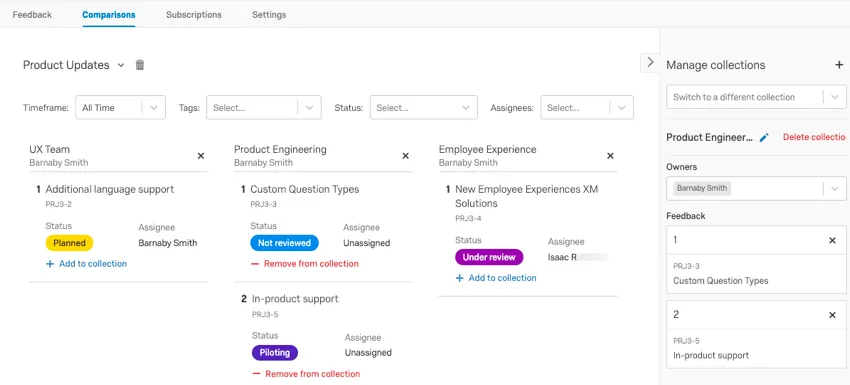
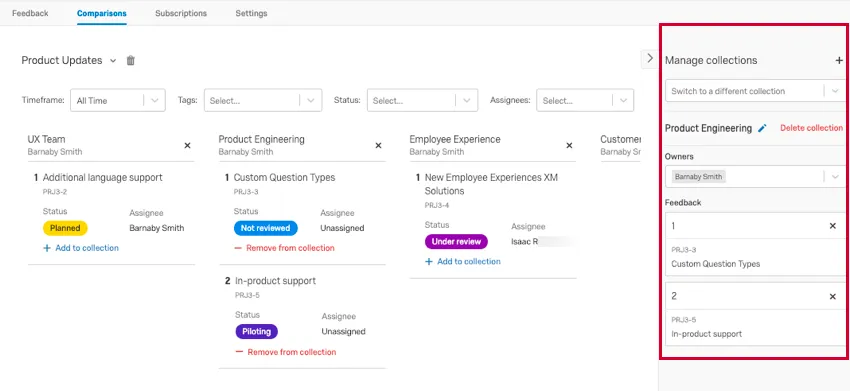
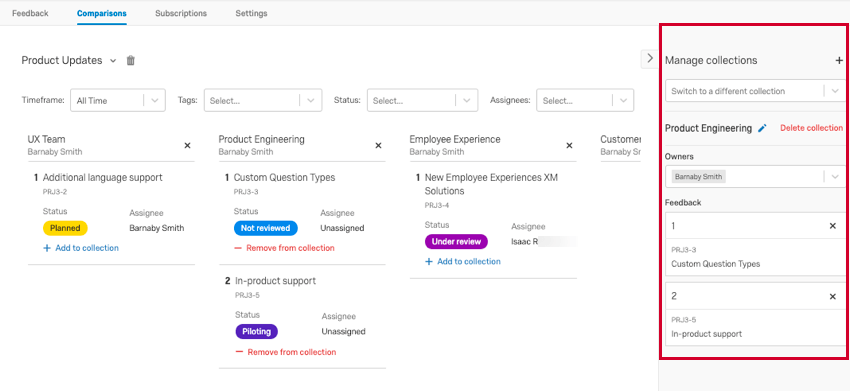
The Manage collections panel appears on the right hand side within both the Comparisons and Feedback tabs. Here you can create, manage, and delete collections. Additionally, you can sort feedback requests into different collections.
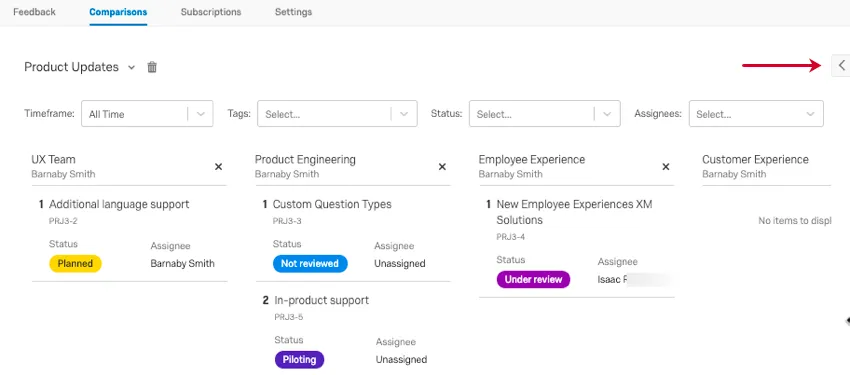
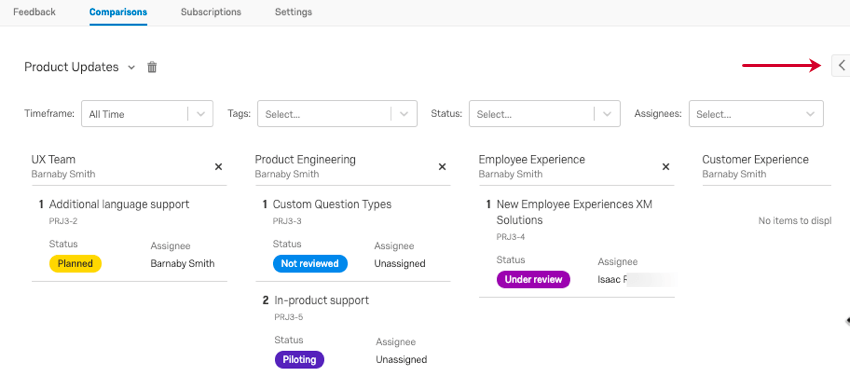
Qtip: If you don’t see the “manage collections” window, it may be minimized. Click the arrow on the right hand side of the page to expand the window.
To create a new collection:
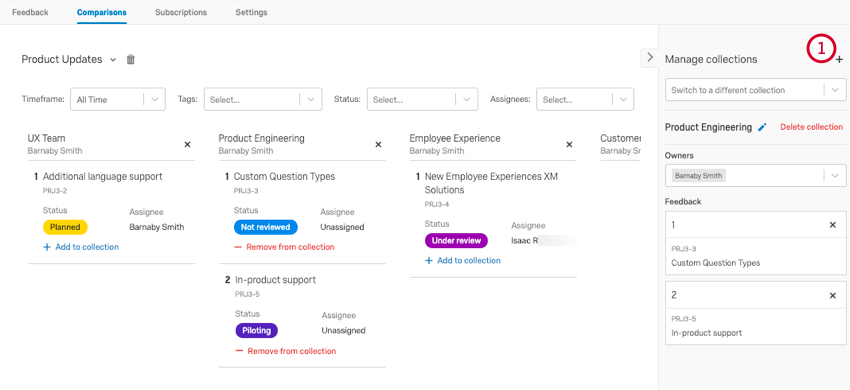
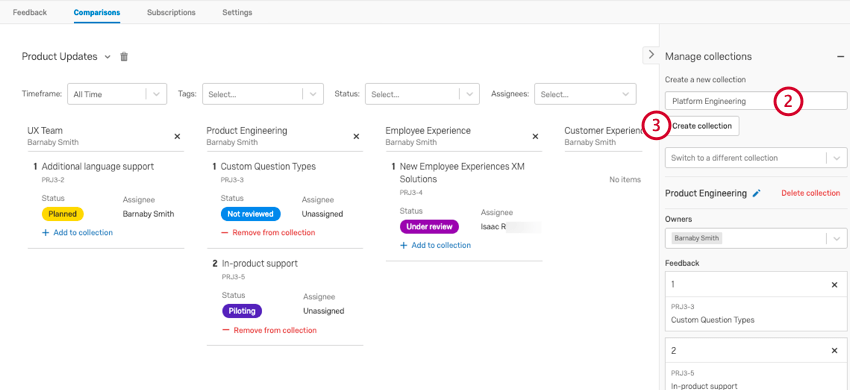
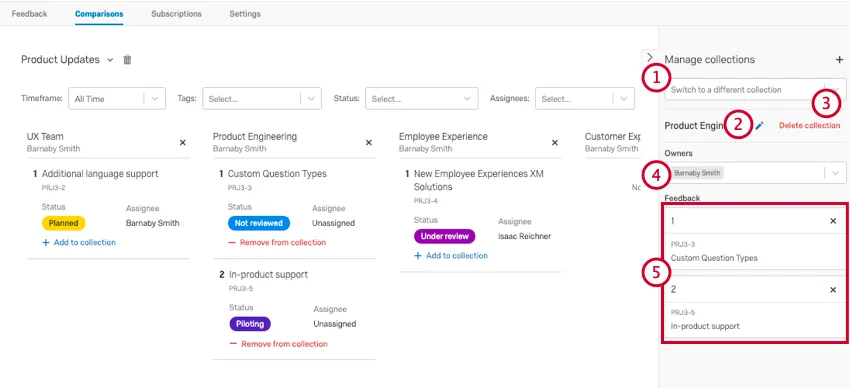
In the above example, we’ve created multiple collections, such as UX Team, Product Engineering, and Employee Experience. The Product Engineering collection is selected, as shown on the in the “manage collections” panel.
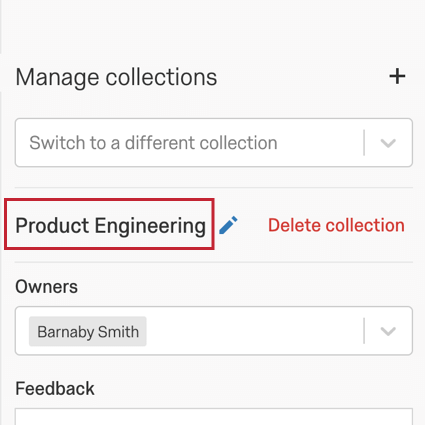
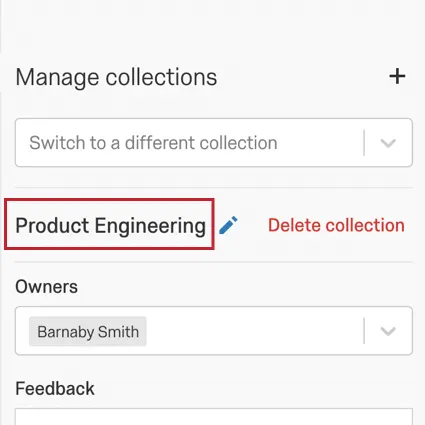
Managing Collections
Once you’ve created your collections, you can perform the following actions in the “manage collections” panel:
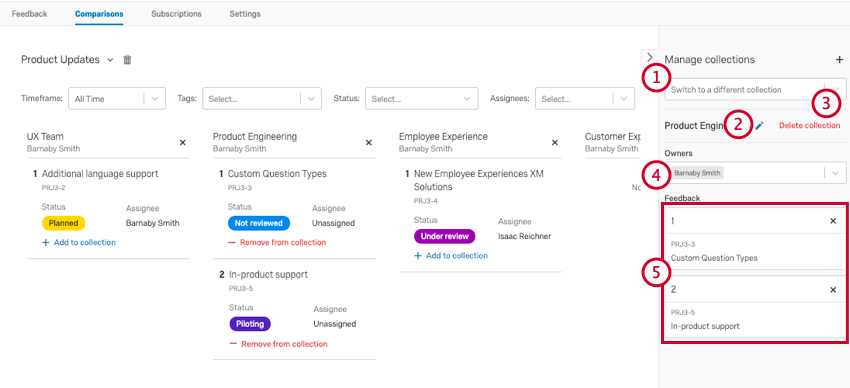
Sharing Comparisons & Collections
Moderators and Owners can view all comparisons and collections in a project, even if they aren’t the original creator. Contributors can only see the collections that they created or were added to as an owner.
While comparisons are public, meaning anyone can see them, the collections contained in them are not. To ensure your intended audience can view all collections, make sure they are shared as a Moderator or Owner.
That's great! Thank you for your feedback!
Thank you for your feedback!