

Marketo Extension Basic Overview
What's on this page
Overview
The Marketo extension allows you to quickly and easily generate links in Qualtrics and immediately assign them to leads from a static or smart list in Marketo. Once the extension is set up, you can see your Marketo lists from within Qualtrics and choose to generate unique links for each contact inside a given list. Each generated link is immediately stored in a Marketo Lead Field. From within the Marketo platform, you can insert a token into your email campaign to assign personalized survey links to each unique lead.
Qtip: The Qualtrics-Marketo extension is an add-on feature not included in the standard Qualtrics license. Please contact your Qualtrics Account Executive for more information.

Setting Up the Extension
Before you begin using the extension, you’ll need to meet 2 requirements:
If you don’t meet either of these requirements, reach out to your Brand Administrator or Qualtrics Account Executive.
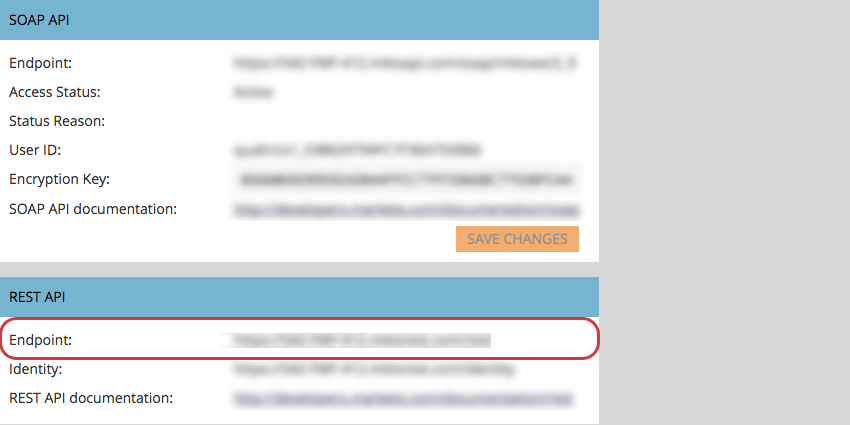
To set up the extension, you’ll need to create an API-only user role, add a new service, and enter several Marketo IDs into your Qualtrics account. These processes are detailed below.
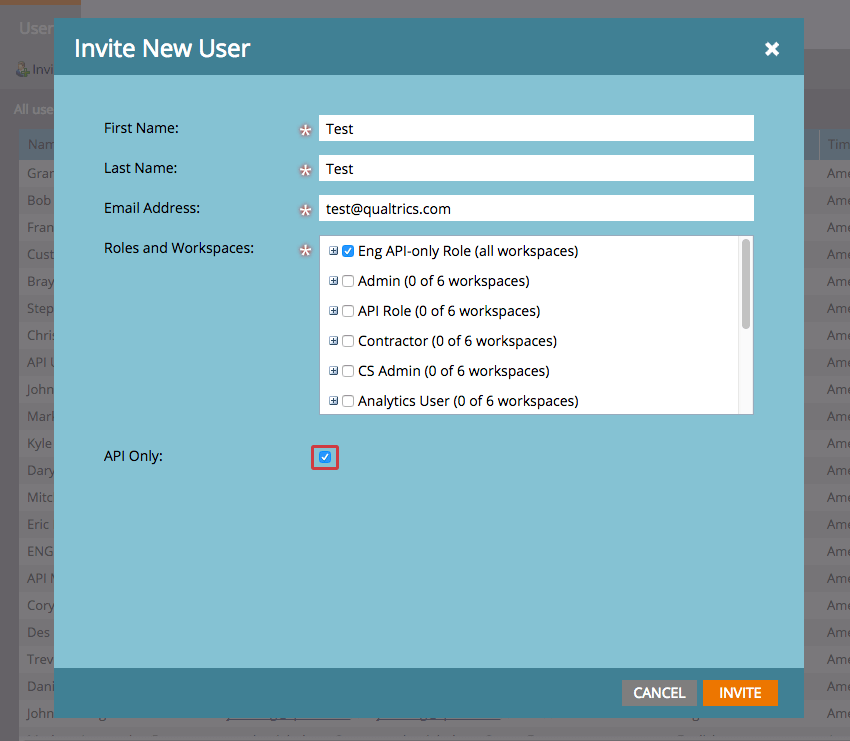
Creating a new API-only user

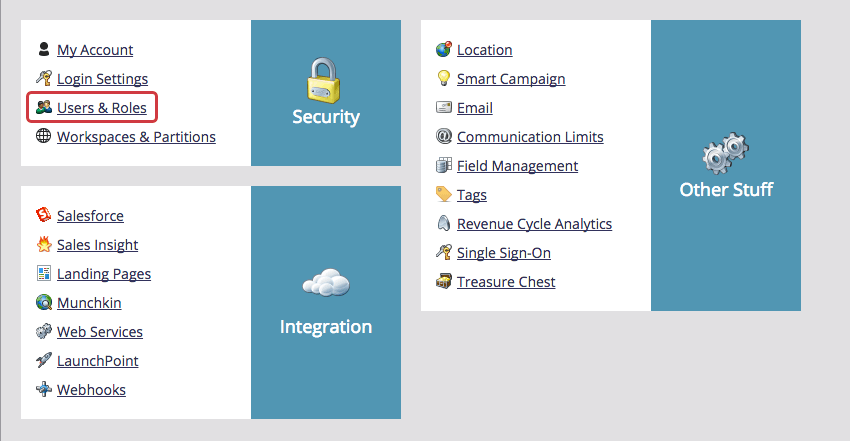

Qtip: Roles and Workspaces in the Admin section of Marketo allow you to customize permissions for users (e.g., enabling Access API, Access Lead Database, and Access Marketing Activities).
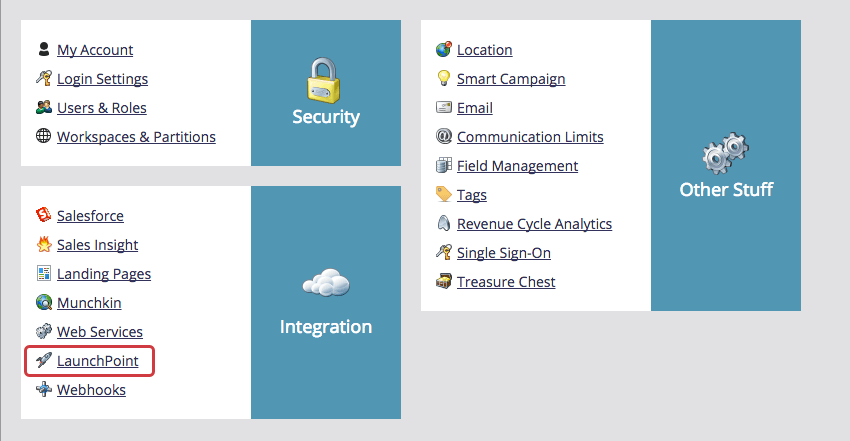
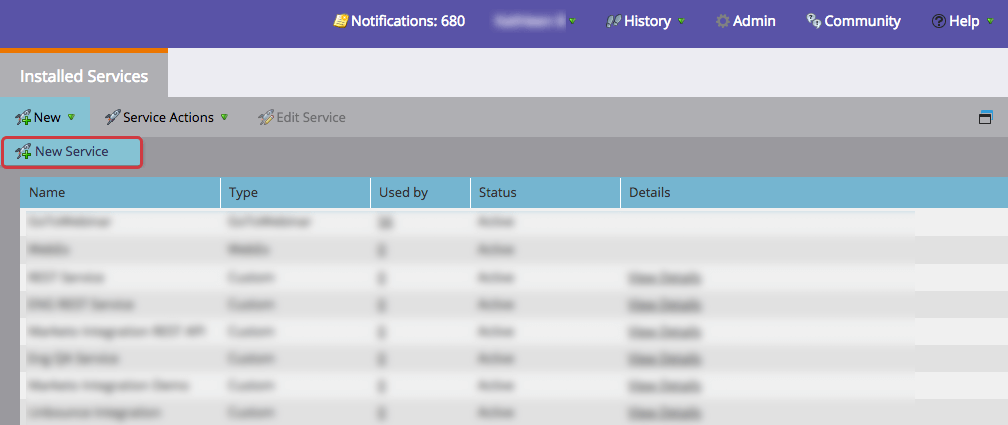
Creating a New Service
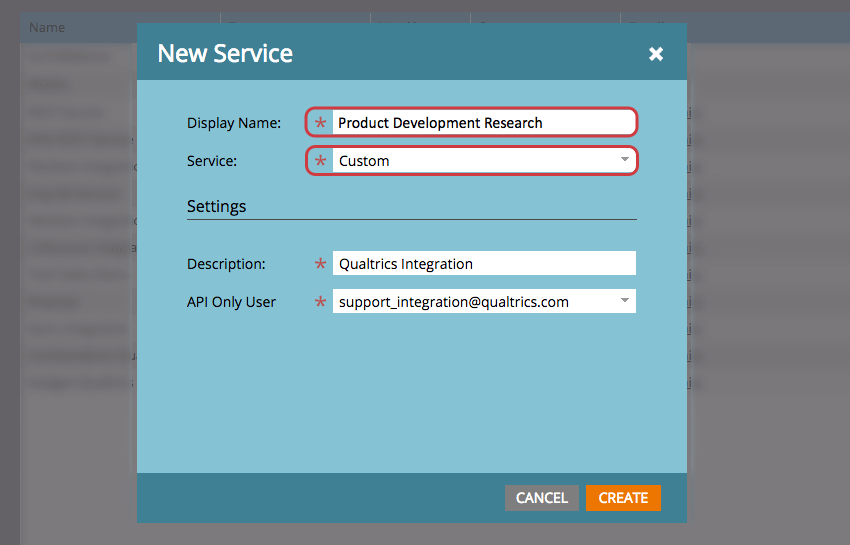
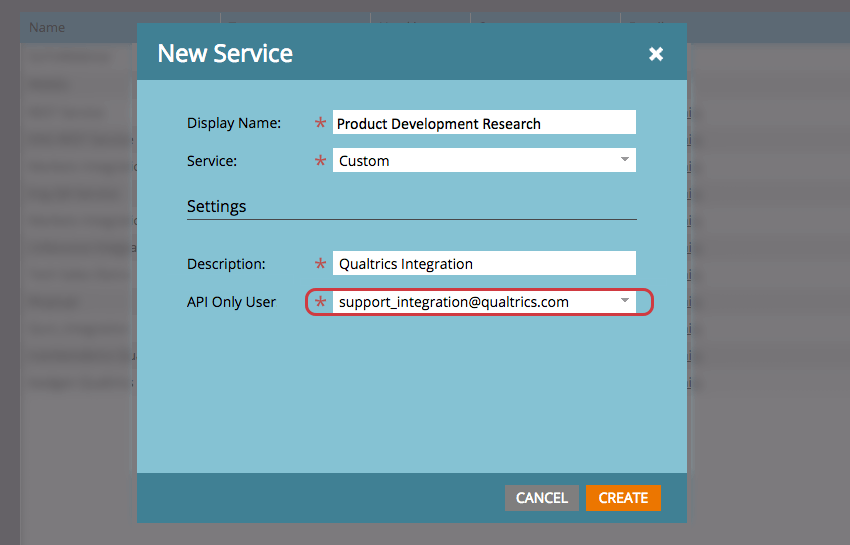
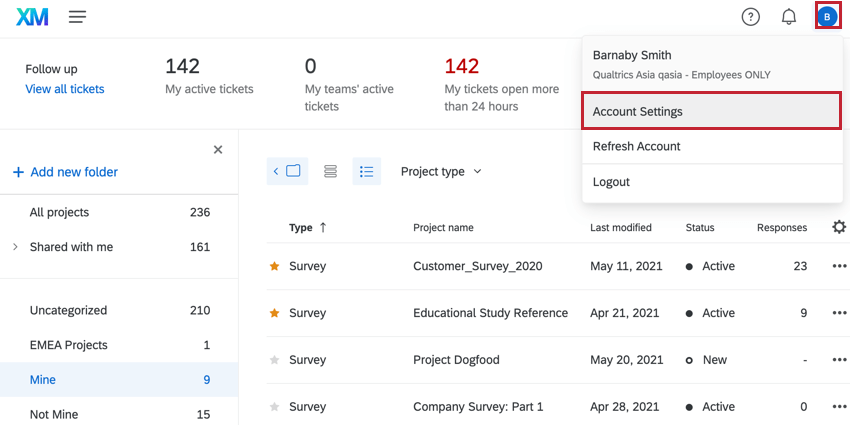
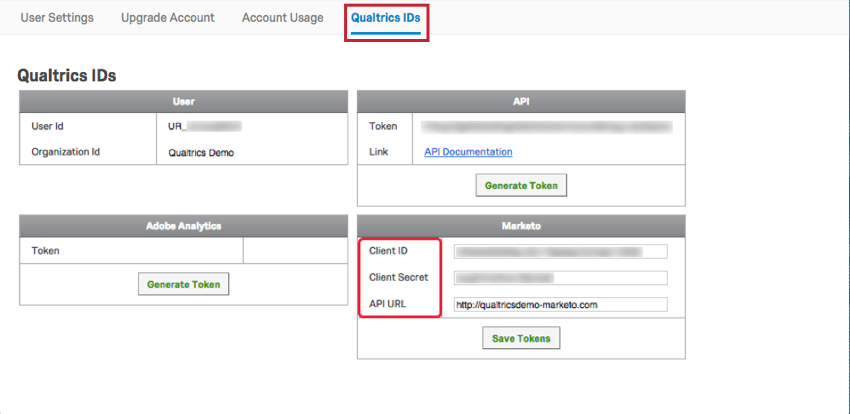
Entering Marketo IDs into Qualtrics
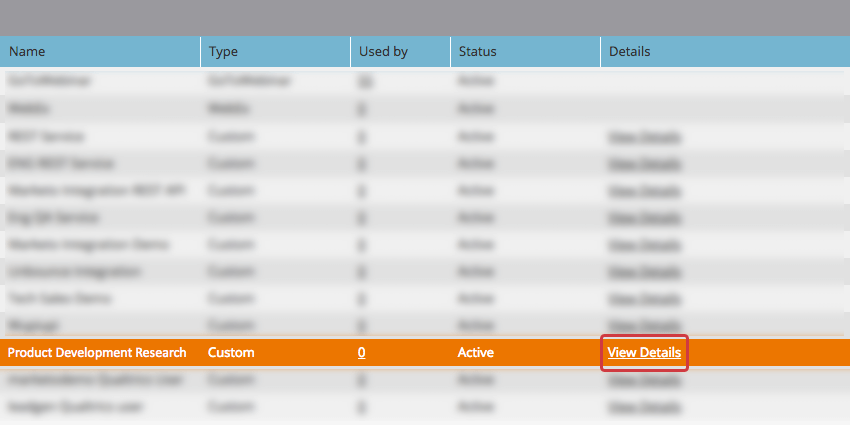
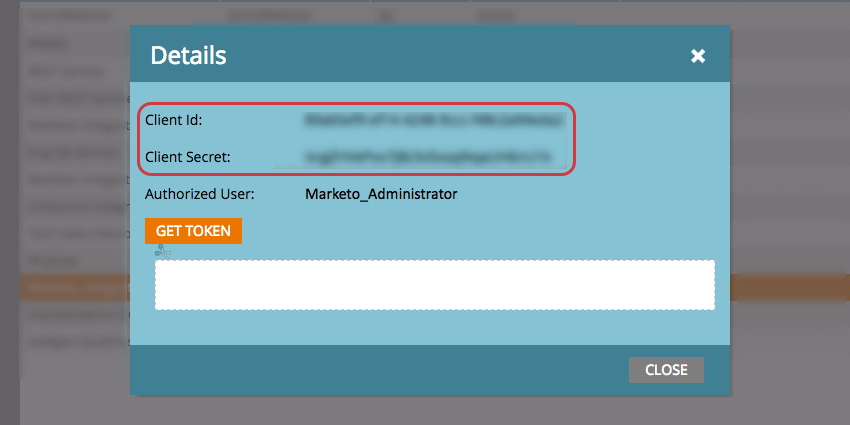
That's great! Thank you for your feedback!
Thank you for your feedback!