

PGP Encryption
What's on this page
About PGP Encryption
PGP stands for Pretty Good Privacy. It is a widely accepted industry option for file encryption.
PGP encryption is optional for response import automations, response export automations, and some workflow ETL tasks. PGP is an extra means of encrypting and protecting your data before you proceed with your automation, and will require you work with your IT team. They will need to select a PGP encryption software, such as the PGP Tool, the GPG Tools, or the GPG utility. If you are generating the import files from a script, they should utilize a GPG/PGP library particular to the language of the script.
Encryption and decryption steps can vary slightly by feature.
Qtip: Qualtrics Support cannot set up your PGP encryption for you, or un-encrypt files you have encrypted.

Encrypting Files (Public Key Not Provided)
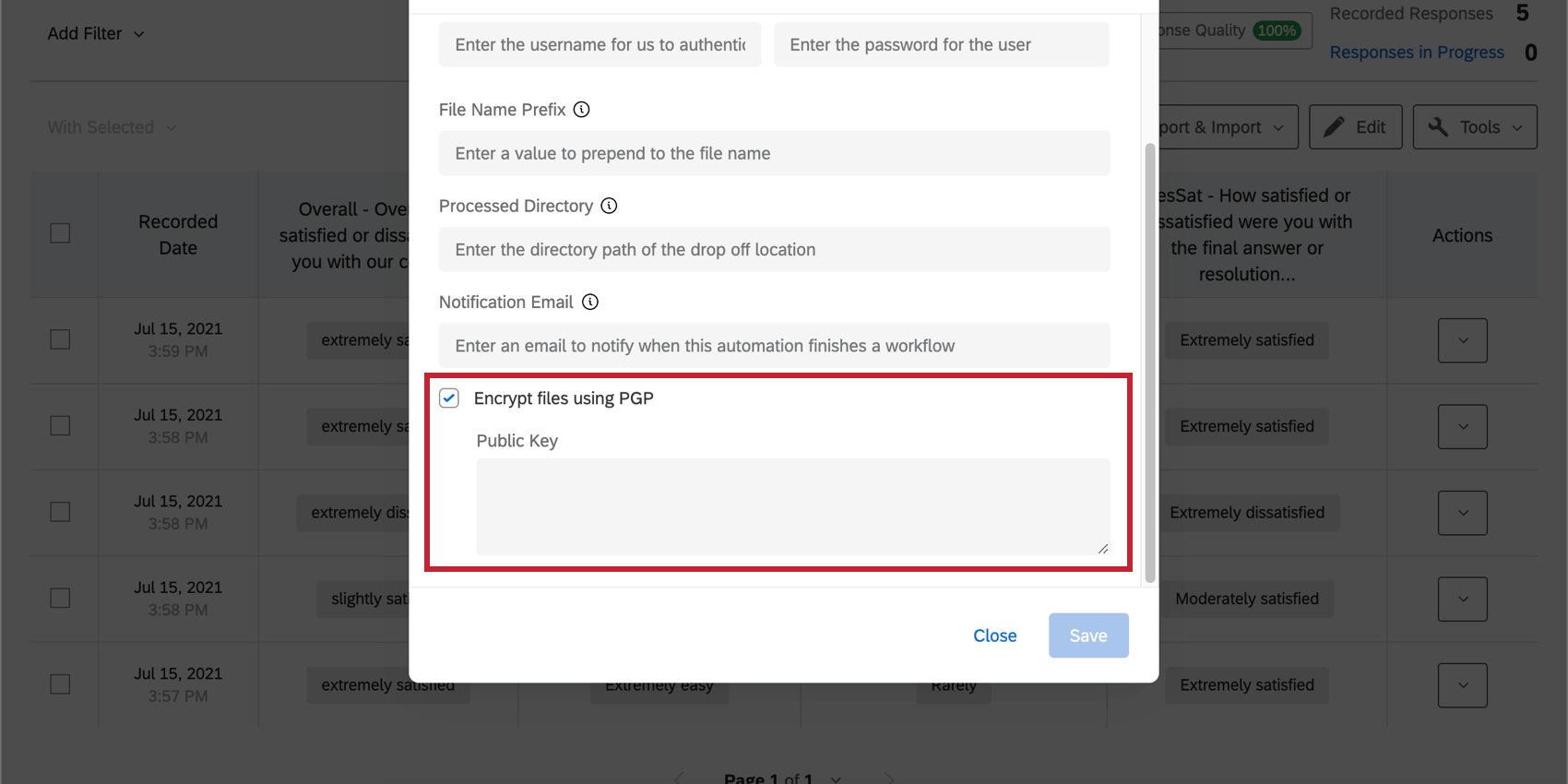
Select Encrypt files using PGP. Paste the public key for your method of PGP encryption. This key must be either 2048 or 4096 bit in size.
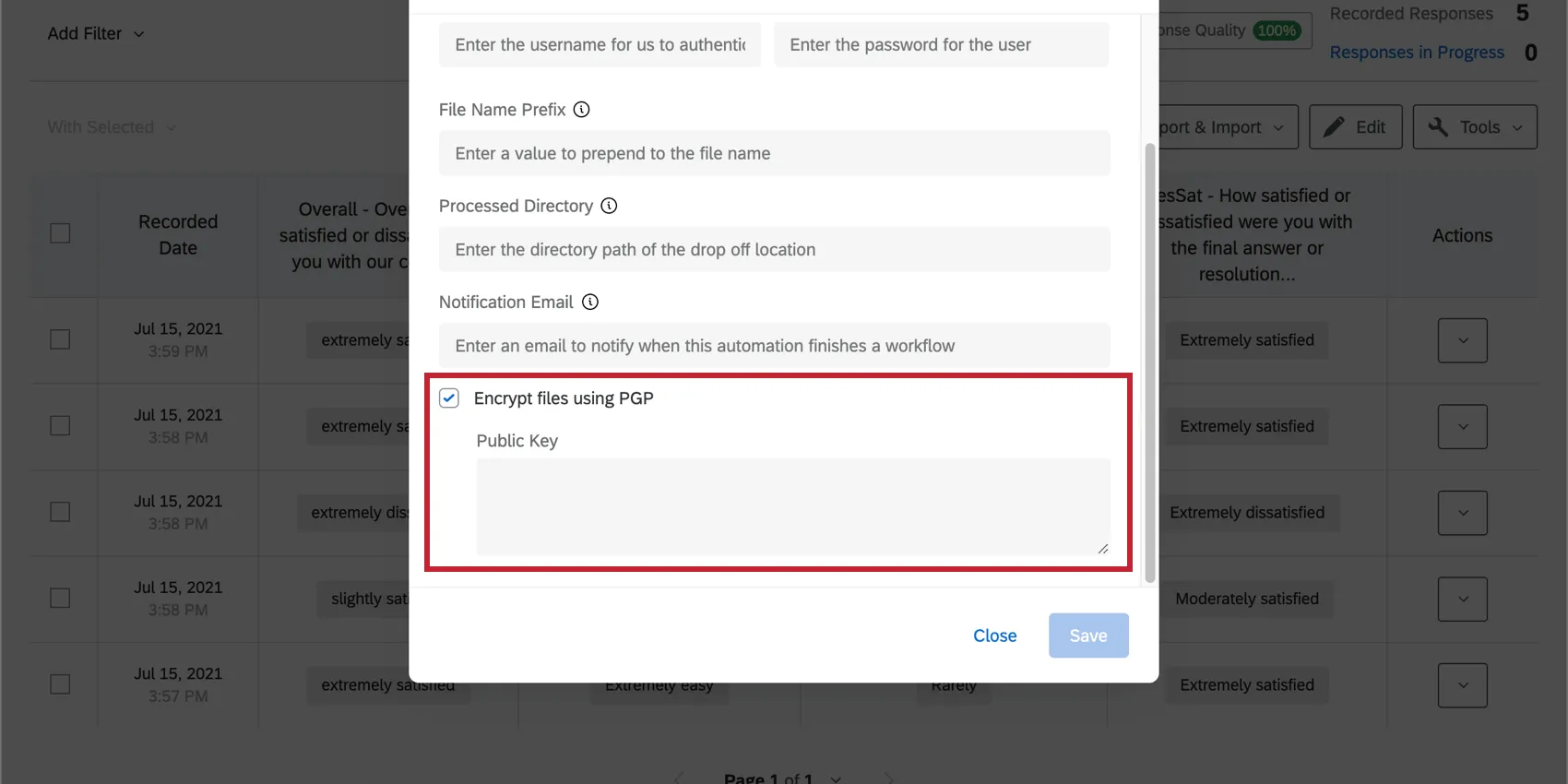
Features that have this functionality:
Example of PGP Public Keys
Here is an example PGP Public Key. Note the spacing and line breaks, which must be correct in the pasted key. The key must also be either 2048 or 4096 bits.
-----BEGIN PGP PUBLIC KEY BLOCK-----
mQENBGSIvakBCADOB9j61pr1MljBJMxNJyD9/YjZ9DPTEdGvrBfGmChT98qE0oDr

MQHqbQadS0IUrE7euAEDdi9fG8pvnrGC8DPE10GUqSHjJwLx8xBwwNqDzokIjPdS

EF3n0GXS5Tf2yZ4DqRibgXSVcWIMJe6buYlBxe/bplIFwIGFS0v7hj6LLmbNT5UU

fV5rJ59+XsUVszABQp/2rJnxB2SQX1TcGa6vYggauyiQfE7jZc7Sh0p6Mdm26Cw+

tc0gn9ieAMXk+5zX7Q3dH4r4RuBqXXe+6e+7vPvG5f4djFzMFBGCAaHcpT8dIXAR

OaUWI8YK4QFaOx2JXiS+g3wbSGTBPmQDe/6DABEBAAG0I3F1YWx0cmljcyB1c2Vy

IDxxdWFsdHJpY3NAdXNlci5jb20+iQFRBBMBCAA7FiEEKFzPzXYLHa7wbrQRNpHW

dVydlO8FAmSIvakCGwMFCwkIBwICIgIGFQoJCAsCBBYCAwECHgcCF4AACgkQNpHW

dVydlO9DPAf8DAcyPE+RBAv8p3nBYx7gZC53CBtun3s041jLHqAAYzbqgplCK4PE

YKdegymiGfhq50lrEMo1ttJRh3zo24VQRBbZZOUG0TtAnN07HuLwpj2fHuBlQ0wd

Yc1tzYCoXRAFe0Hu575uZWvDc8zlpkCv5WPcY8G9cvNIIt7aohZFUVHTn7HKsLbq

pUPIcJ3t5T7ZKMvwXUUeeeuuccrmXAltzt23mu7okmt2cJBuP98BGtuHZXF4aD7b

9xQzeJaTS02aICtByfd12nMGg+uYSzSzXWTLEbpRWS4+csbcLXq5UNmniEyxUUoY

y7OGylwQ+X5VHPkvKFZ2M5zANqyfaUu3NbkBDQRkiL2pAQgA4svIWyGUIroUsrsz

oo8Exvbu4ZEWJrJKhumMDa7iDYW7uGIRwwRj3g3jBU7auAmuYykpqoH1664MWR6d

+d6POSa7GvpyamUoxjdowfNHm9YBynk5Va0zpCt6FFF1tbyHHWSeWVsJ4X9ByZ0/

bvr1P2sTztmqzM/JmFuunjgmMYtzw3gvla6UMie8yOYWCBVbW/M8Zoyh3t4VXVWx

hIg2htVLA1HY4c/xsdoyqbS46ltJ/KvmIo5dfkRUyxvPJG2gcNlcJQZDK6EWvovh

Smp79LYwXDuD2+V1UENuHmR6aMgu4W4F3iD0+VELRbcJ7B5t4z8/agW+cXfugbTM

qdjXEQARAQABiQE2BBgBCAAgFiEEKFzPzXYLHa7wbrQRNpHWdVydlO8FAmSIvakC

GwwACgkQNpHWdVydlO8K4AgApH4FL9c26cJZ8uLGAFy7ygf6UVoJ3O2ToSdD6NEI

kPDNRxkC+crU68tFs3xE4Gc1+AhC2R/fvvBKCtJLLgVqchD/22tQUQF1Dh0zMXrY

MYoKWqhunApToPGD7BrQ+ZPYipdsTIOubFkCCLHc5FlKdXD8LlMWUr7yyqx53+Uj

oinfwzq28UYNkchofC5iVSt3W+PIRgdN5eWENuIG6WHicCyuOn2YF3TsYOxzOCTC

iLI9Y7NVnbtYcDTB0wAS5pylyG/EKo9A4iJVMELp3hLxgCNgA/lOscVPC3tX6xoN

csMXYqcPRgcKUu9J5Z3PcwNncPy1c/CPGEGk7Ltl0WXY+g==

=+IG/
-----END PGP PUBLIC KEY BLOCK-----
Decrypting Files (Public Key Provided)
Qtip: Make sure the files you want to import are encrypted with Qualtrics’ public key before uploading them to your SFTP server. To do this, you may need to talk to your IT team.
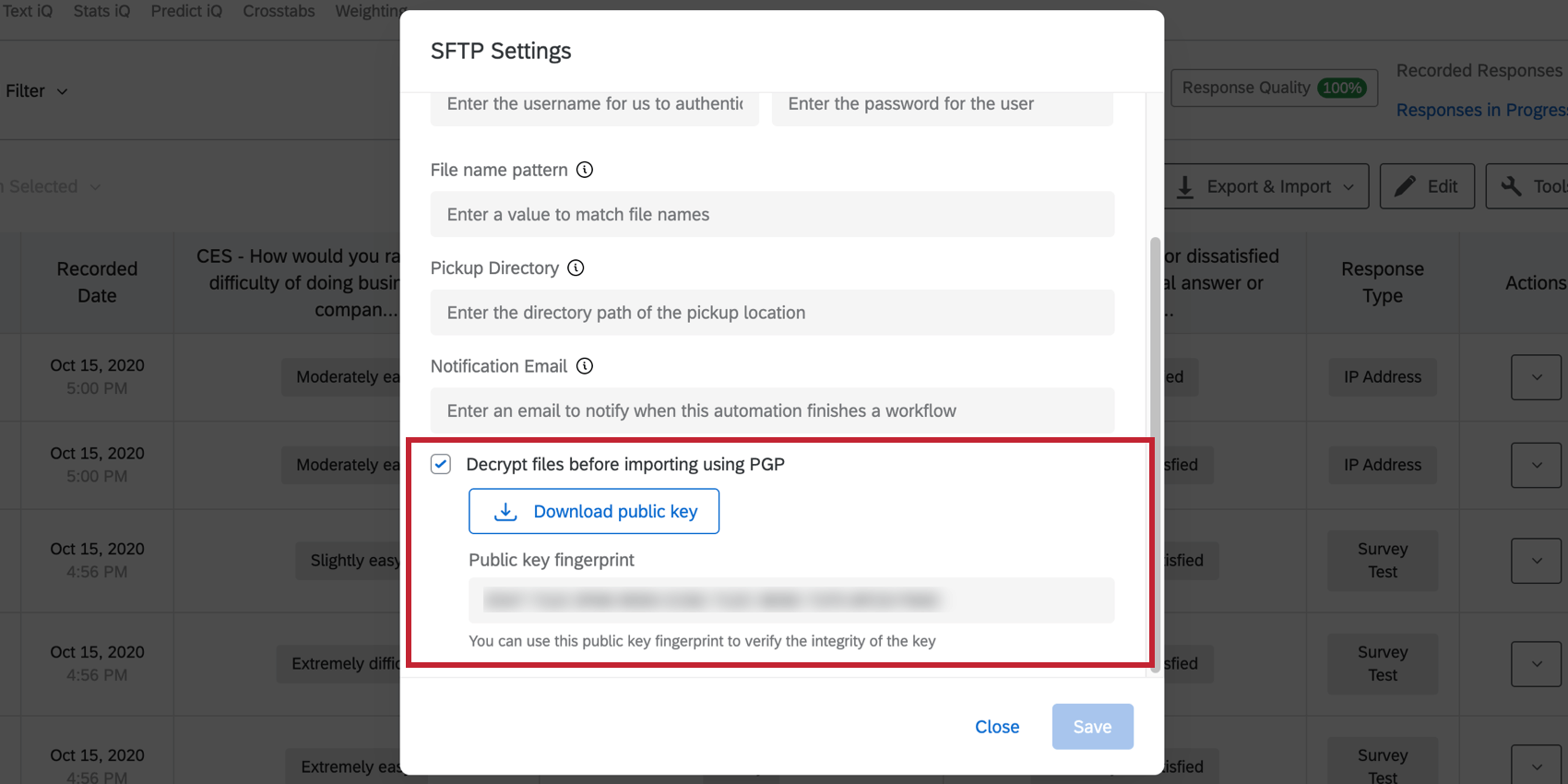
Select Decrypt files before importing using PGP and then Download public key. Your IT team will need to use that public key to encrypt import files before uploading them to the SFTP server.
You can verify the integrity of the key using the public key fingerprint presented in the gray box.
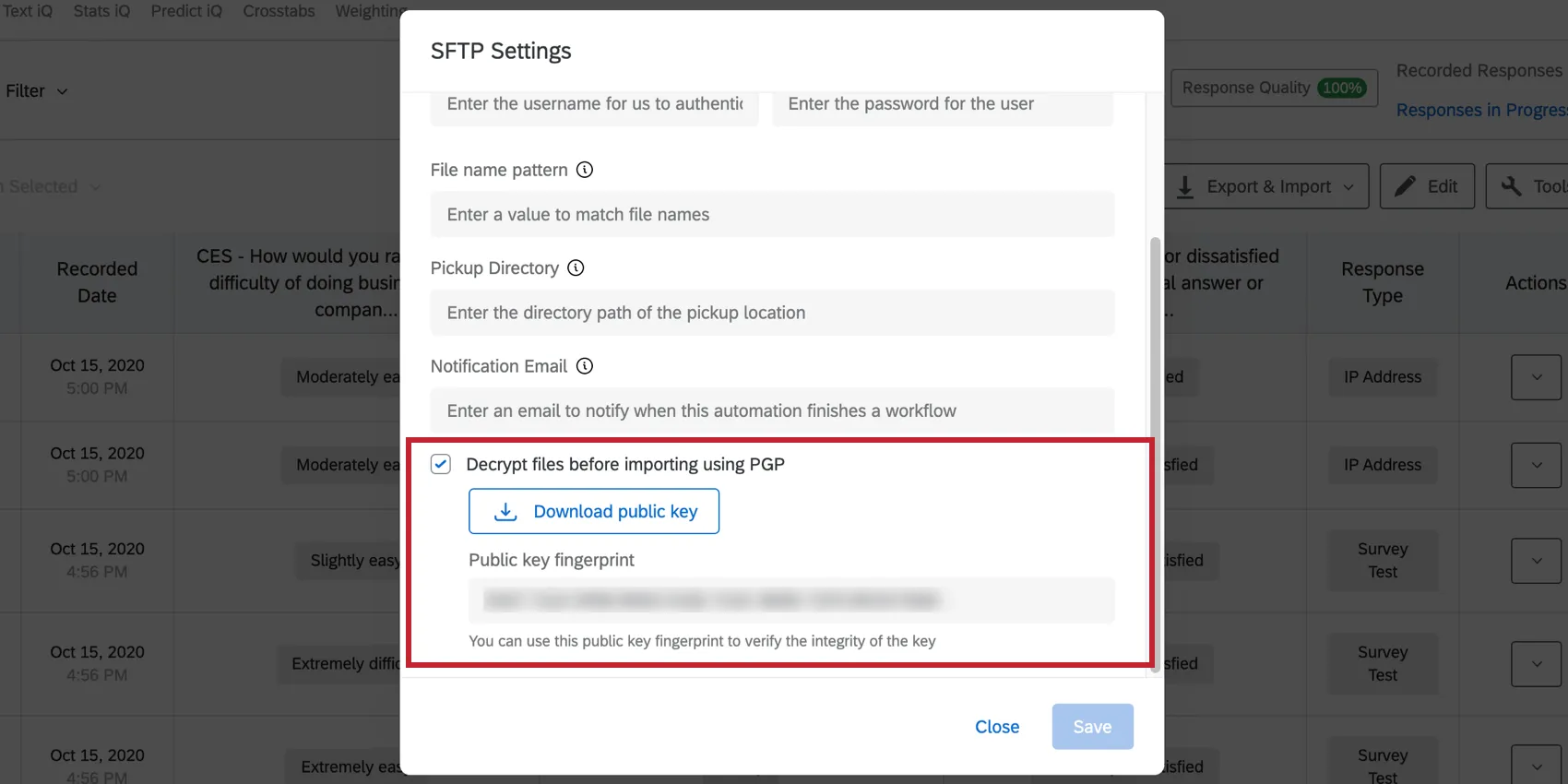
Features that have this functionality:
Qtip: If a response import automation is configured to use PGP encryption but receives an unencrypted file, it will fail and notify the email recipients, as per the notification preferences in the automation.
Qtip: The PGP public key and fingerprint will rotate every few months. However, all previous public keys can be used for existing and new automations as long as the key is not compromised.
Attention: Any version of GnuPG after version 2.4.0 uses an unsupported encryption process which will result in errors upon decrypting.

Features with PGP Encryption
The following features have the option to use PGP encryption:
- Response import and export automations
- Extract data from SFTP files task
- Extract data from Qualtrics files service task
- Load data to Amazon S3 task
- Extract data from Amazon S3 task
Encrypting Files (Public Key Provided)
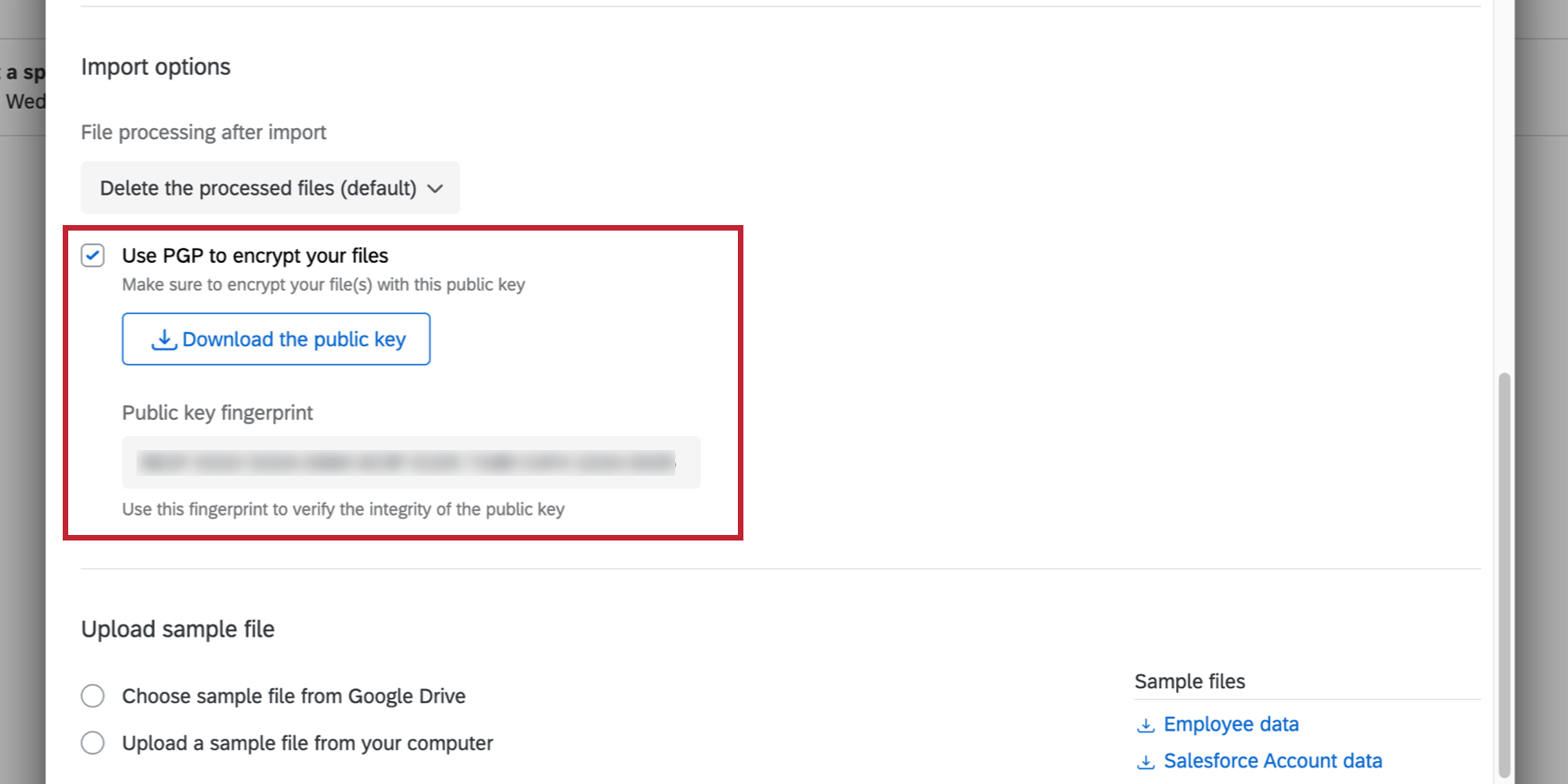
Select Use PGP to encrypt your files and then Download public key. Your IT team will need to use that public key to encrypt import files before uploading them to the Qualtrics File Service or Google Drive. Then, when Qualtrics executes the task, we will decrypt the files with the key provided.
You can verify the integrity of the key using the public key fingerprint presented in the gray box.
Features that have this functionality:
Armoring PGP Files
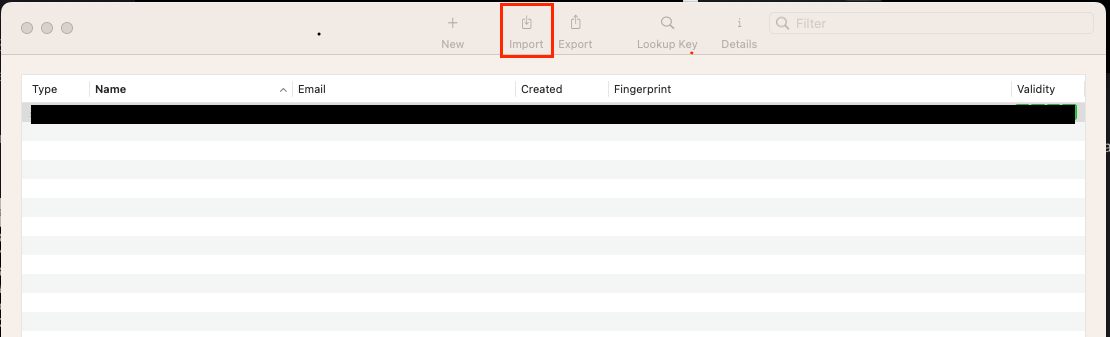
Qualtrics has multiple Workflow extractor and loader tasks that allow for PGP encryption to securely transport data into and out of Qualtrics. This section walks through how to PGP encrypt a file, use a Qualtrics public key to decrypt the file, and then use this file with loader tasks.
Qtip: Armoring files for PGP encryption is no longer required for using PGP encryption with Workflow tasks.
Attention: The instructions in this section are based on the current version of GPG Suite. While Qualtrics attempts to keep the instructions on this page current, if you have issues configuring PGP encryption using GPG Suite, you will need to reach out to GPGTools GmbH for support. Qualtrics does not endorse or recommend in any way GPG Suite – these instructions provide a repeatable example of how to accomplish PGP encryption. You must perform your own review prior to using GPG Suite. Use of GPG Suite is not covered under your agreement with Qualtrics – it may be subject to separate terms between you and GPGTools GmbH.
Attention: Do not forget your password. There is no way to recover it.
defaults write ~/Library/Preferences/org.gpgtools.gpgservices UseASCIIOutput -bool YES.That's great! Thank you for your feedback!
Thank you for your feedback!