

Extract Data from Discover Task
What's on this page
Qtip: This feature offers improved functionality over the base Discover Export API and should be used instead.
About Extract Data from Discover Task
XM Discover analyzes customer feedback across various platforms including websites, social media, and more. Integrating Discover data into a Qualtrics workflow can give you access to greater capabilities, allowing you to perform helpful tasks like transforming your data or creating an SFTP task. With the Extract data from Discover task, you can use your Discover data in your Qualtrics workflows.
Attention: Users must have their Engage and Discover accounts linked in order to use this task. For more information, see Linking XM User Accounts. This feature is only available for Discover accounts with Engage Brand integrations enabled.

Qtip: For information on general limits that apply to ETL workflows, see Workflow Limits. This task has the following additional limits:
- Each run can process up to 30GB of data in total.
- If a run exceeds 5GB, the data will be split into multiple files of around 1GB each.
Discover Requirements
Before you get started extracting data from Discover, you need to export an API token. These expire every year, so ensure that it hasn’t expired before creating your task.
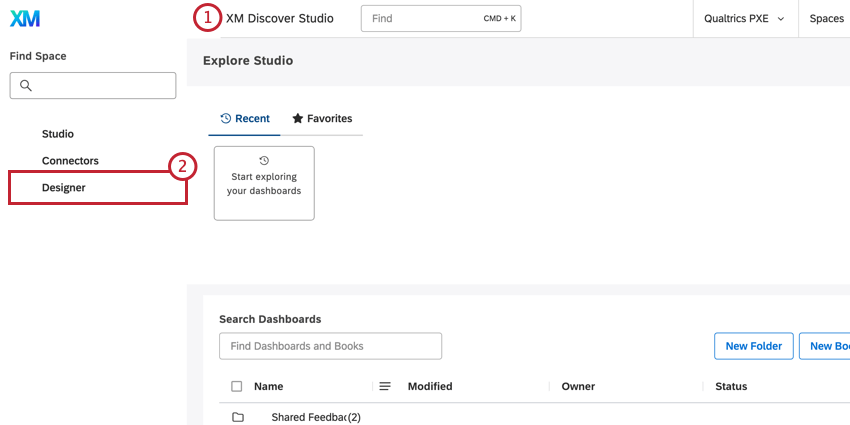
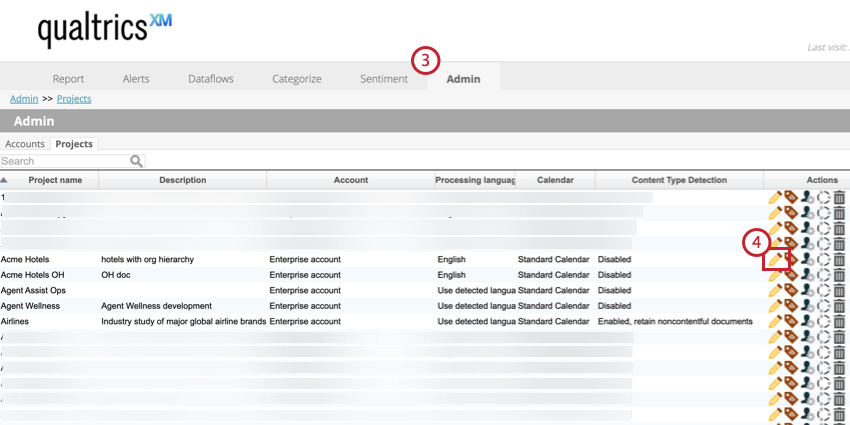
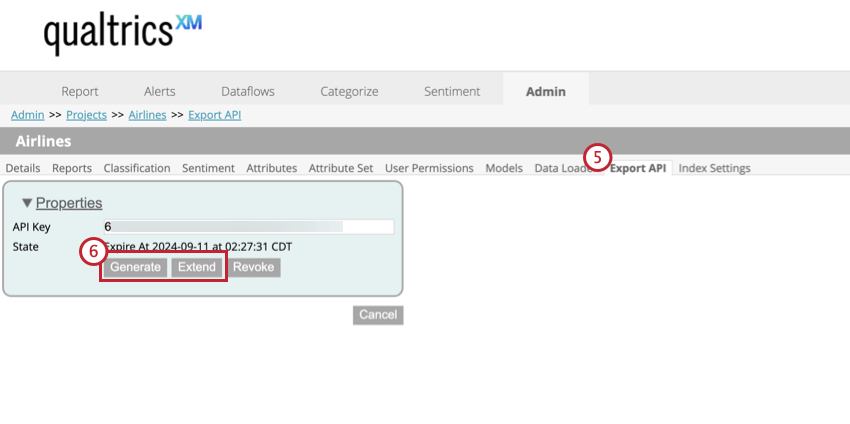
Setting Up an Extract Data From Discover Task
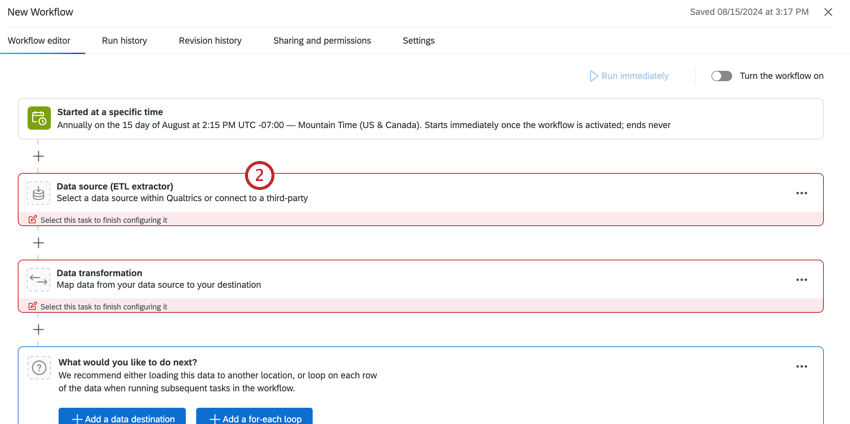
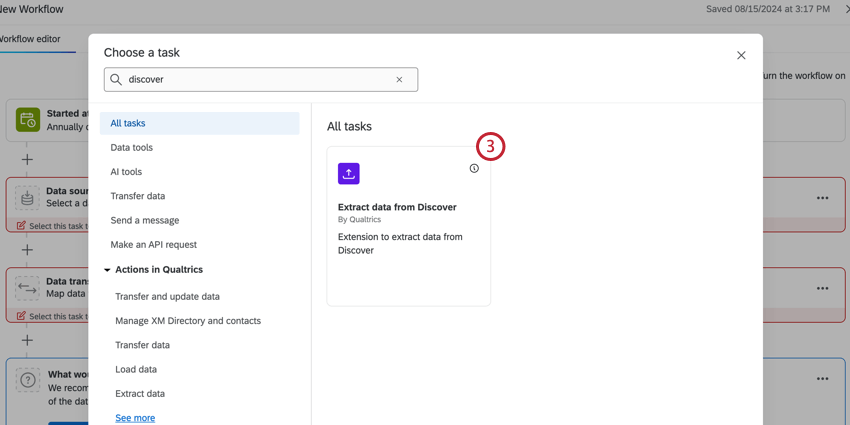
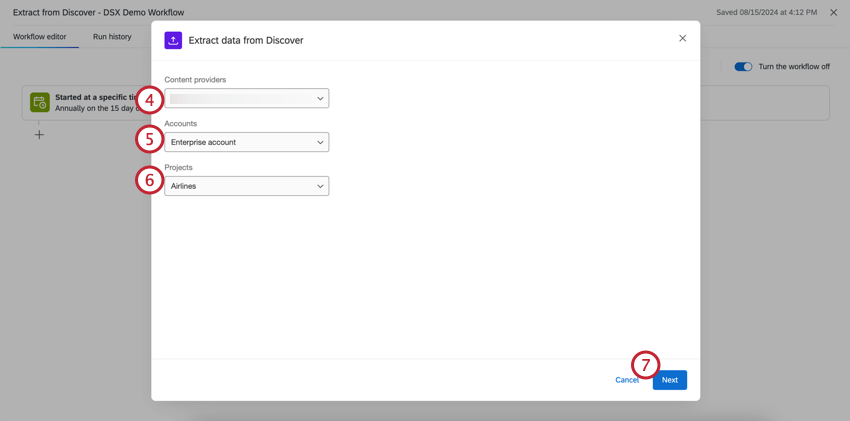
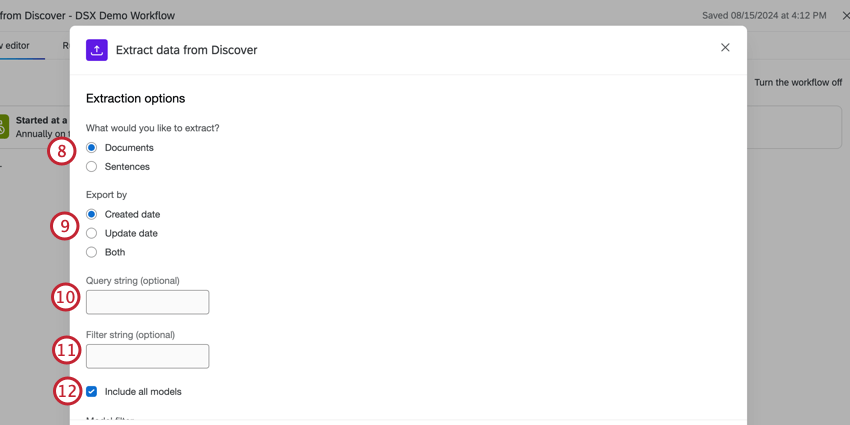
- Created date: The date that the record was created in Discover.
- Updated date: The date that the record was last updated in Discover. Qtip: If you export by created date, you will receive the record once. If you export by updated date, you might retrieve the record multiple times if it was edited since the last export.

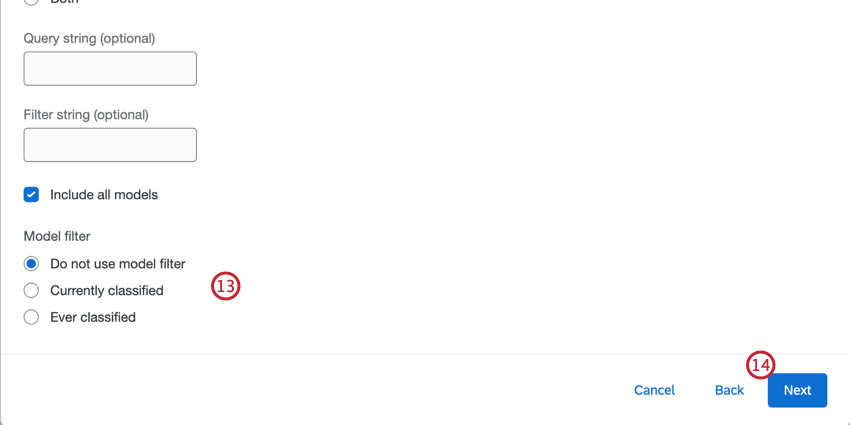
- Do not use model filter: No model filter is applied to the data export.
- Currently classified: Only documents that are currently classified by the specified models will be exported.
- Ever classified: Any documents that were ever classified by the specified models will be exported.
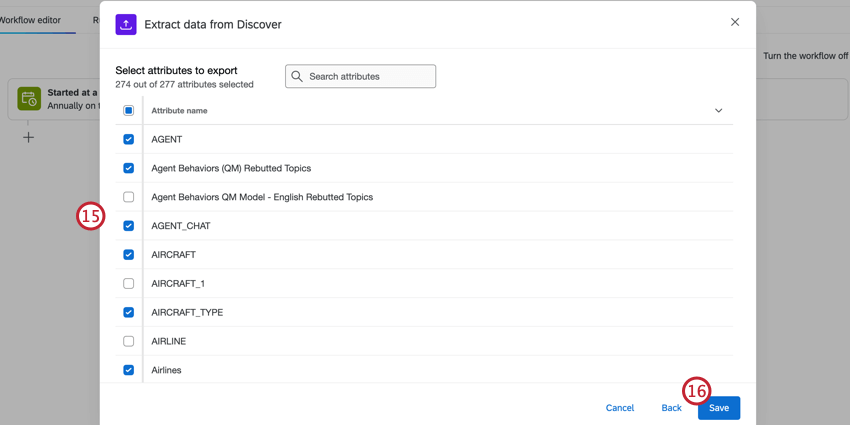
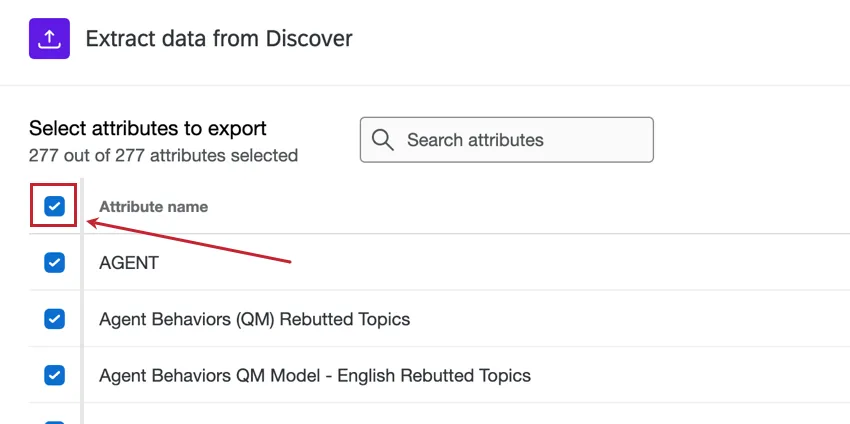
Qtip: To select all attributes, click the checkbox next to Attribute name. This task supports up to 500 attributes.
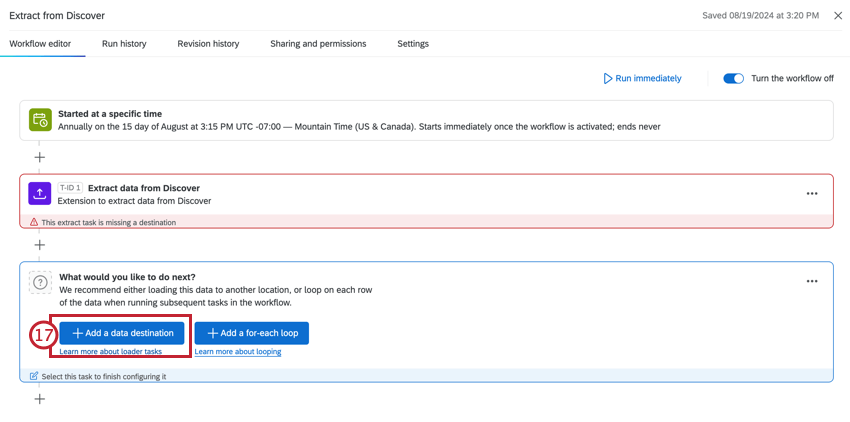
Qtip: The Extract data from Discover task will only pull new data since it last ran. If you want to retrieve all data again, you must recreate the task.
Query Strings
Queries let you control which data is imported into your workflow. In this task, you can enter a query to filter the data that is extracted from Discover. Only records that match the query will be included in the export.
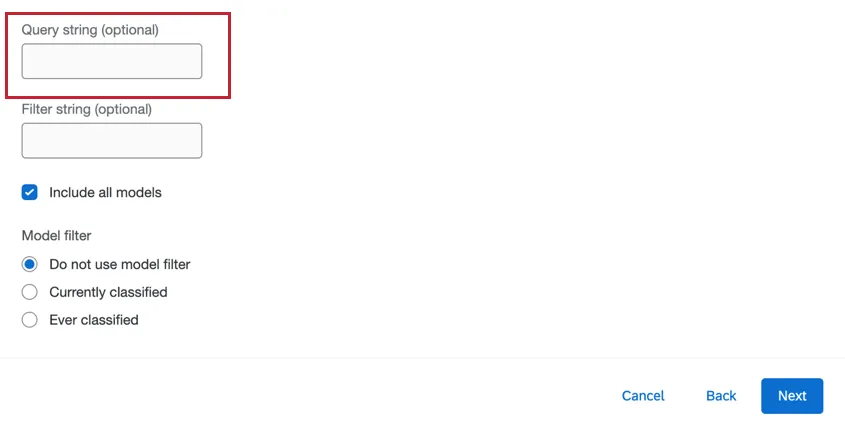
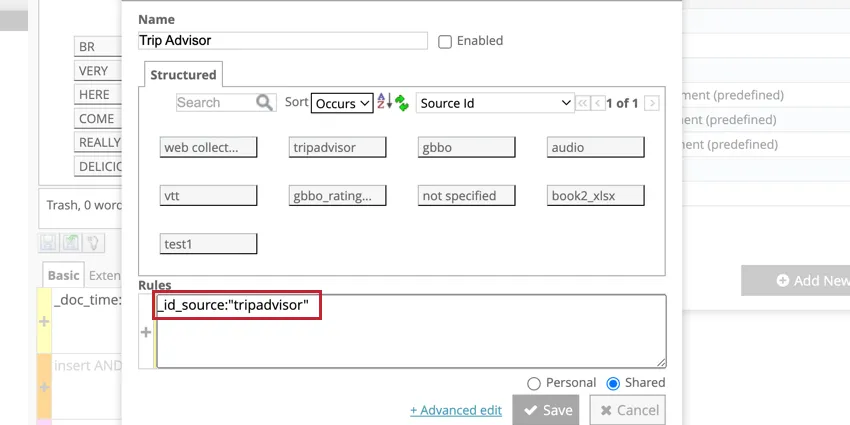
Qtip: Queries are built using lucene syntax. This is the same syntax that appears in the rules box when you create a filter in Designer.
Filter Strings
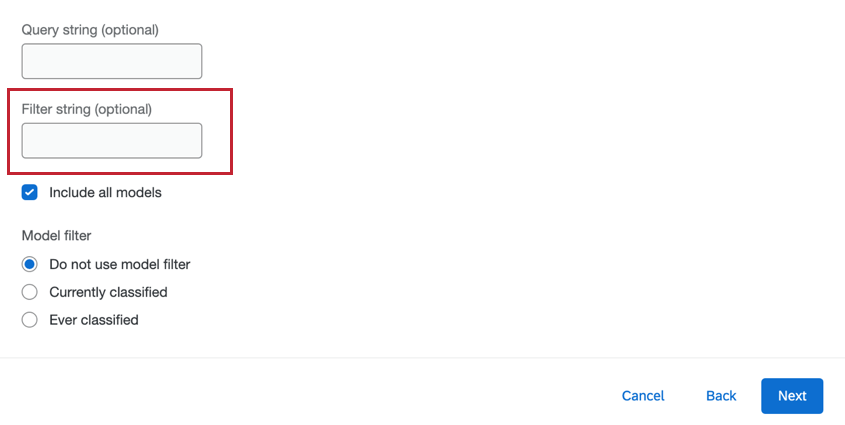
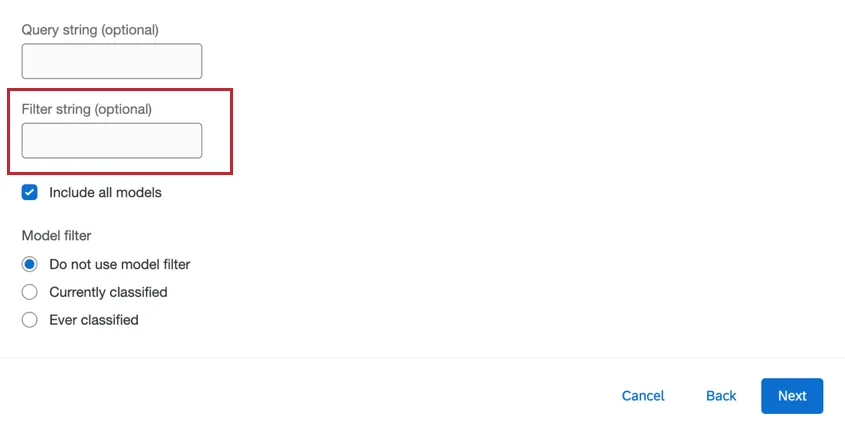
Filters are built in Discover and can be used in the extractor to control what data is imported into Qualtrics. To use a filter, enter the title of the filter into the task.
Qtip: For information on creating filters in Designer, see Filtering Data (Designer).
Attention: Only shared filters can be added to the Extract Data from Discover task. Filters created in Designer are not set to “shared” by default. Make sure to enable the shared setting if you encounter issues with your filters.
That's great! Thank you for your feedback!
Thank you for your feedback!