

Load Data into Location Directory Task
Suite
Customer Experience
Product
Qualtrics
What's on this page
About the Load Data into Location Directory Task
Using Workflows, the Load data into Location Directory task allows you to save imported data to a Qualtrics location directory. For example, you can use an Extract data from SFTP files task to import data from your SFTP server and then map that data to a Qualtrics location directory.
Qtip: This task must be paired with an extractor task that contains the data to be loaded. See Building ETL Workflows for more information.
Qtip: For information on general limits that apply to ETL workflows, see Workflow Limits. For any task-specific limits, refer to the information on this page.
Creating a Load Data into Location Directory Task
Follow the linked instructions to create a new ETL workflow.
Configure the extractor task for your workflow. This is the source that contains the data you’d like to load into your location directory.
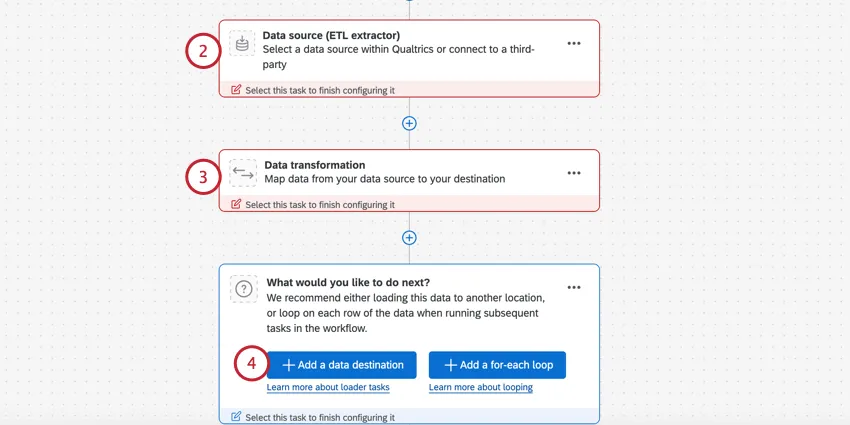
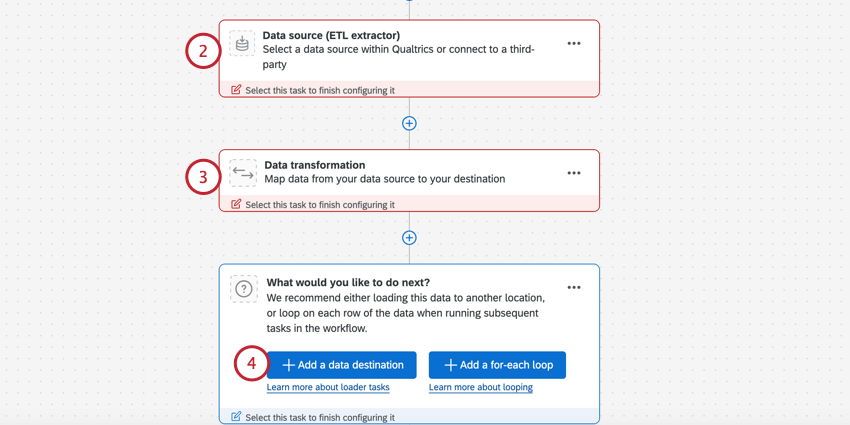
Qtip: Common extractors used with this loader task are Extract data from SFTP files and Extract data from Google Drive.
If needed, you can add a basic transform task to transform incoming data to fit Qualtrics formats.
Click Add a data destination.
Select the Load data into Location Directory task.
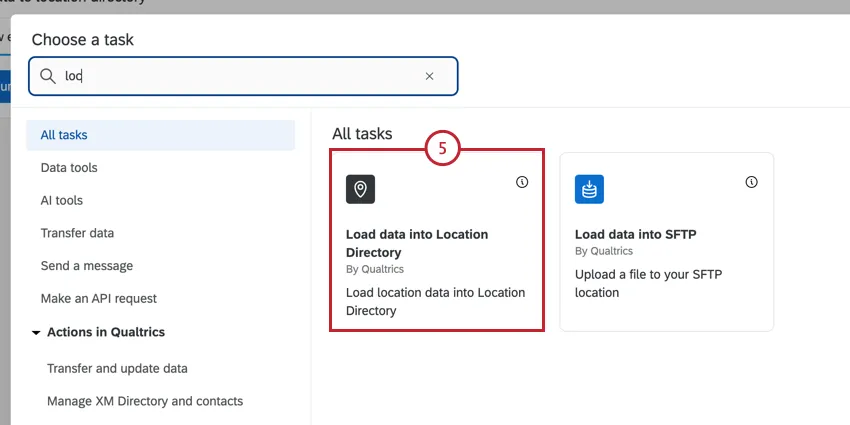
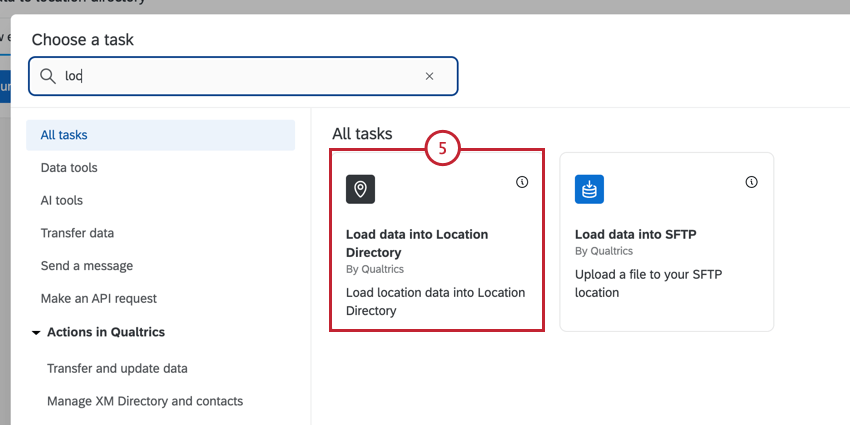
Choose the directory you’d like to load locations into.
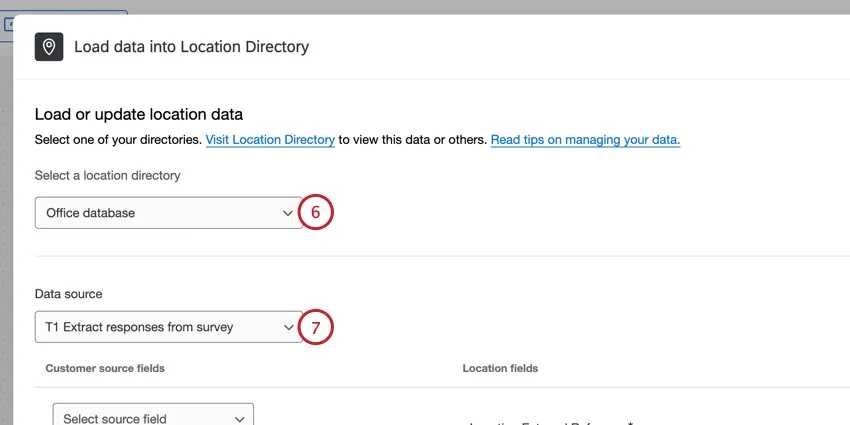
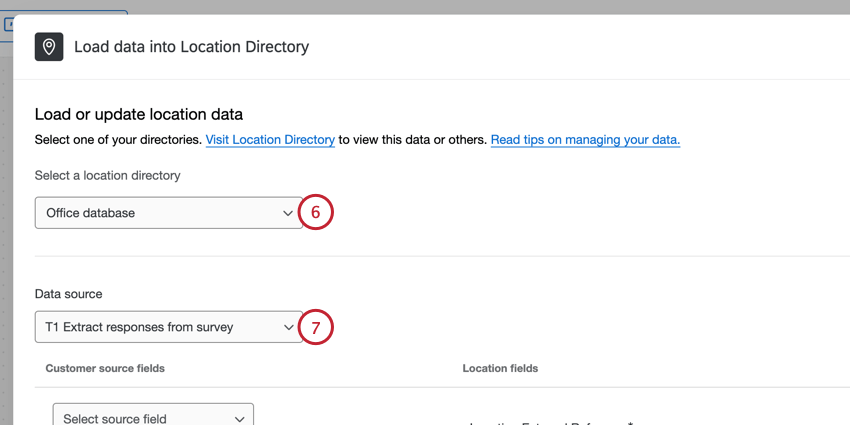
Qtip: If you need to create a new location directory, click the “Visit Location Directory” link displayed in the task.
For the data source, select the extractor task you set up earlier.
Map your data source fields (left) to location fields (right).
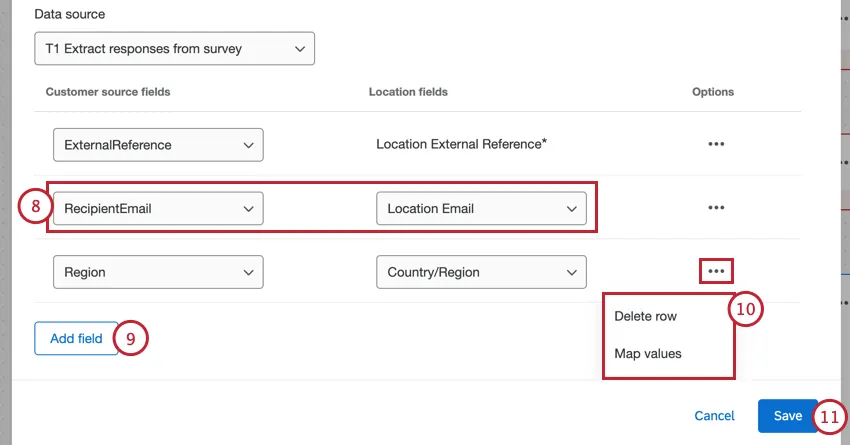
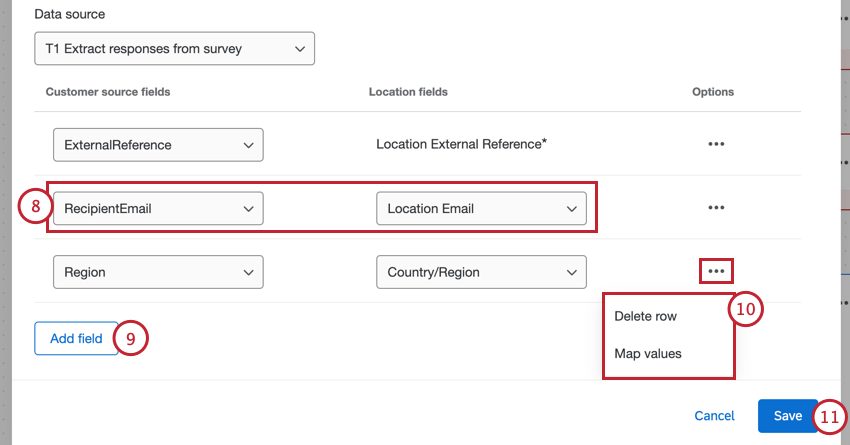
You can click Add field if you need to map additional fields.
Click the more options menu to view the following options:
- Delete row: Delete the selected field mapping. Attention: The “Location External Reference” field is required and cannot be deleted. This field is used to deduplicate locations. When the workflow runs, Qualtrics will search for the location based on the external reference and either update the existing location if it exists, or create a new location if it doesn’t exist. Do not alter the Location External Reference mapping after the first successful workflow run since this may result in duplicate records in your dataset.

- Map values: Map individual field values (for example, Y to Yes and N to No). See Mapping Field Values for step by step instructions. Qtip: This is particularly useful for mapping values to the “Location Status” field. The values accepted by this field are active, inactive, and closed.

Click Save.
Qtip: If you import data for an existing location and leave an existing field blank, the current value will be kept, not erased.
That's great! Thank you for your feedback!
Thank you for your feedback!