

UX Testing App
What's on this page
About the UX Testing App
The Qualtrics UX Testing app lets researchers run unmoderated testing studies directly on participants' mobile devices. It captures screen recordings paired with audio, so researchers can watch you navigate their product while narrating your thought process.
Attention: This page describes the download process and user experience of the app for individuals taking unmoderated user testing studies. For information on setting up an unmoderated user testing project as a researcher, see Unmoderated User Testing Overview.

Qtip: This app is different from the Qualtrics XM App and the offline app.

Downloading the App
The minimum operating system requirements for the Qualtrics UX Testing App are iOS 18.0+ or Android 11.0+. Any devices that run on these or later systems will be compatible with the app.
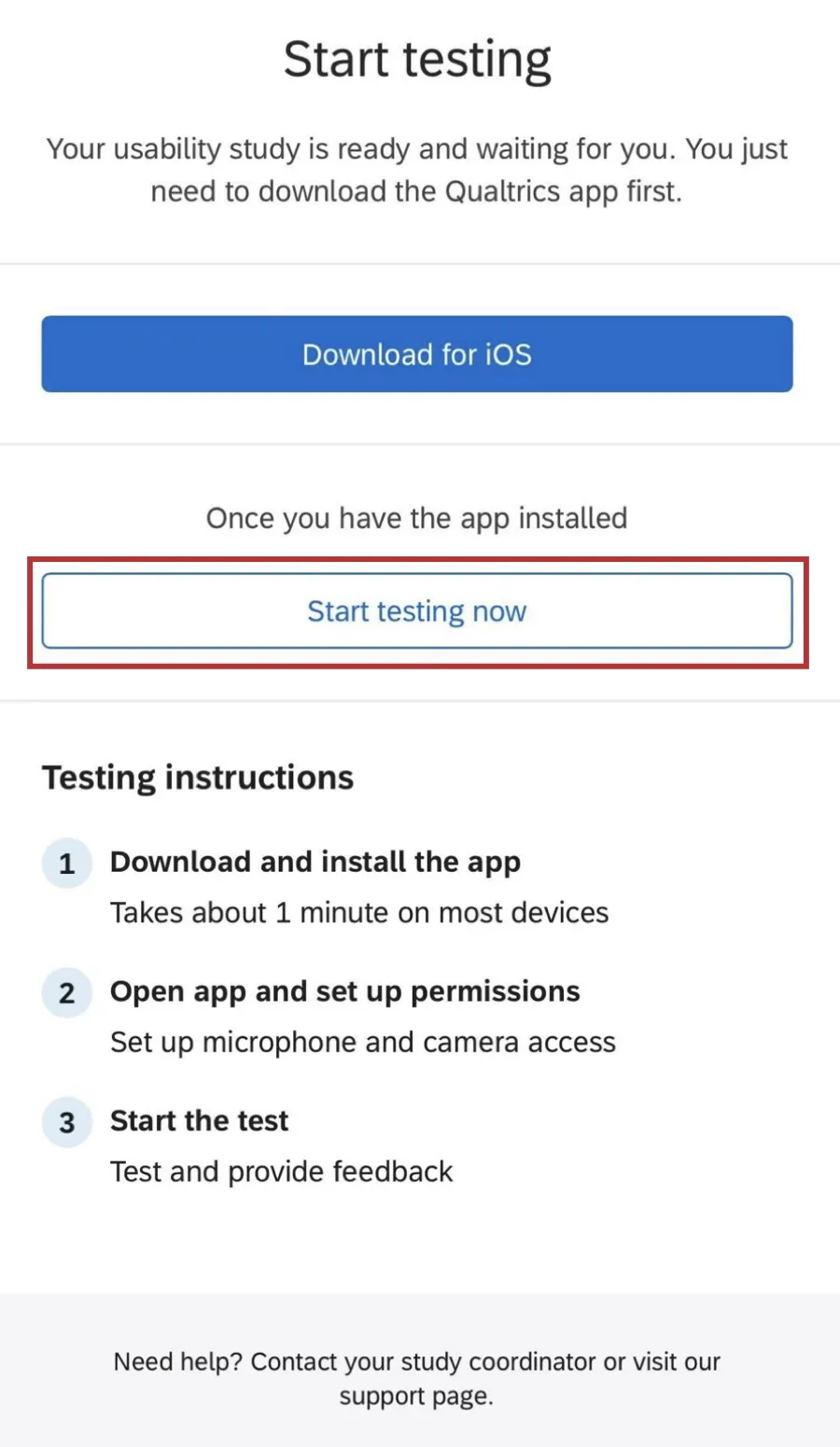
When you are invited to participate in an unmoderated user testing study, you will receive a link to begin testing within the app. Click Start testing now to be redirected to the app.
You can also open the app and input a survey link to begin testing.
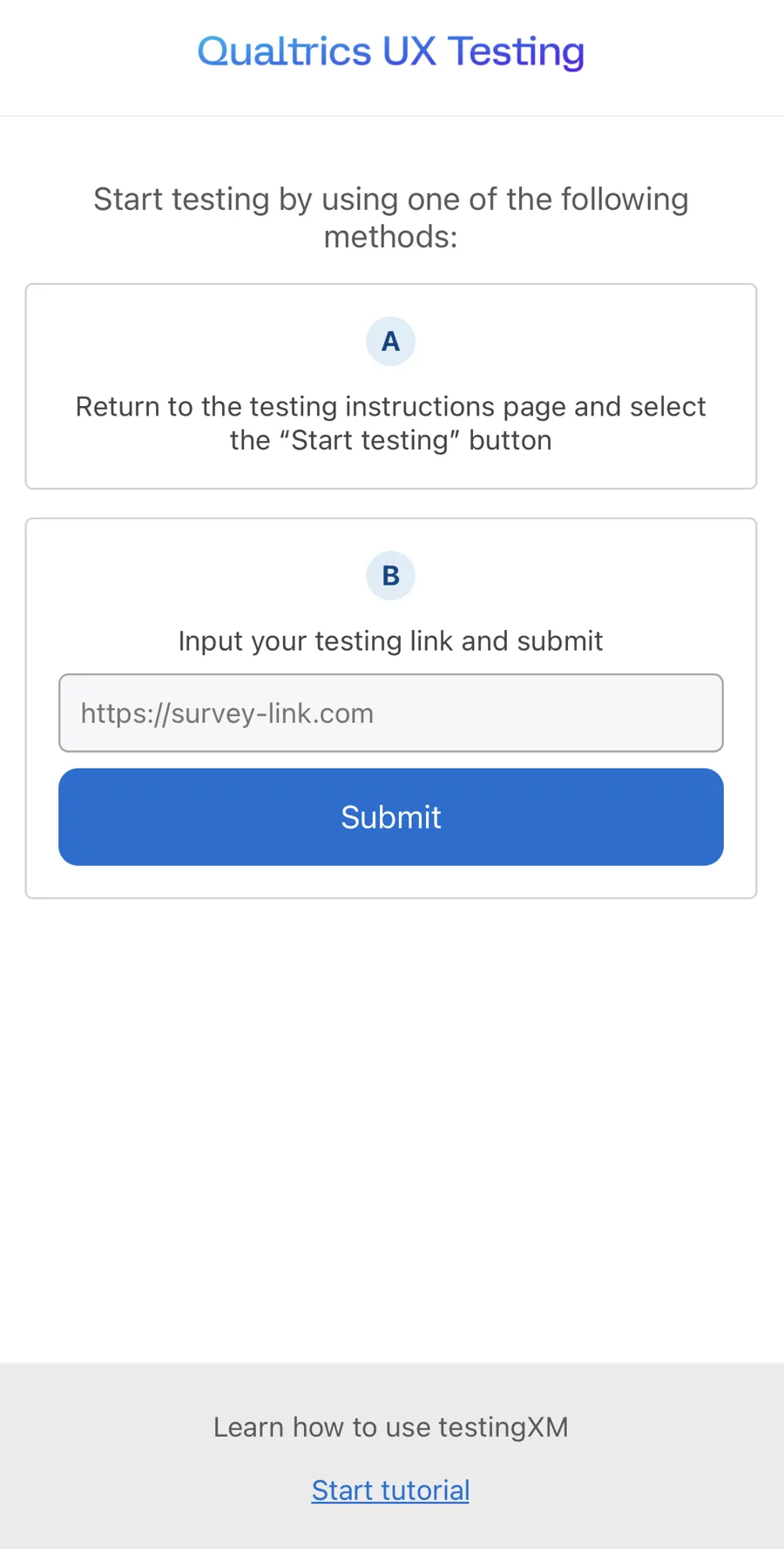
Qtip: In addition to downloading the app from a study invite, you can find the app in the Android or Apple store. Here is a link to the UX Testing App in the Apple store, and here is a link to it in Google Play.
Qtip: The UX Testing App is not compatible with any desktop browsers.
Using the App
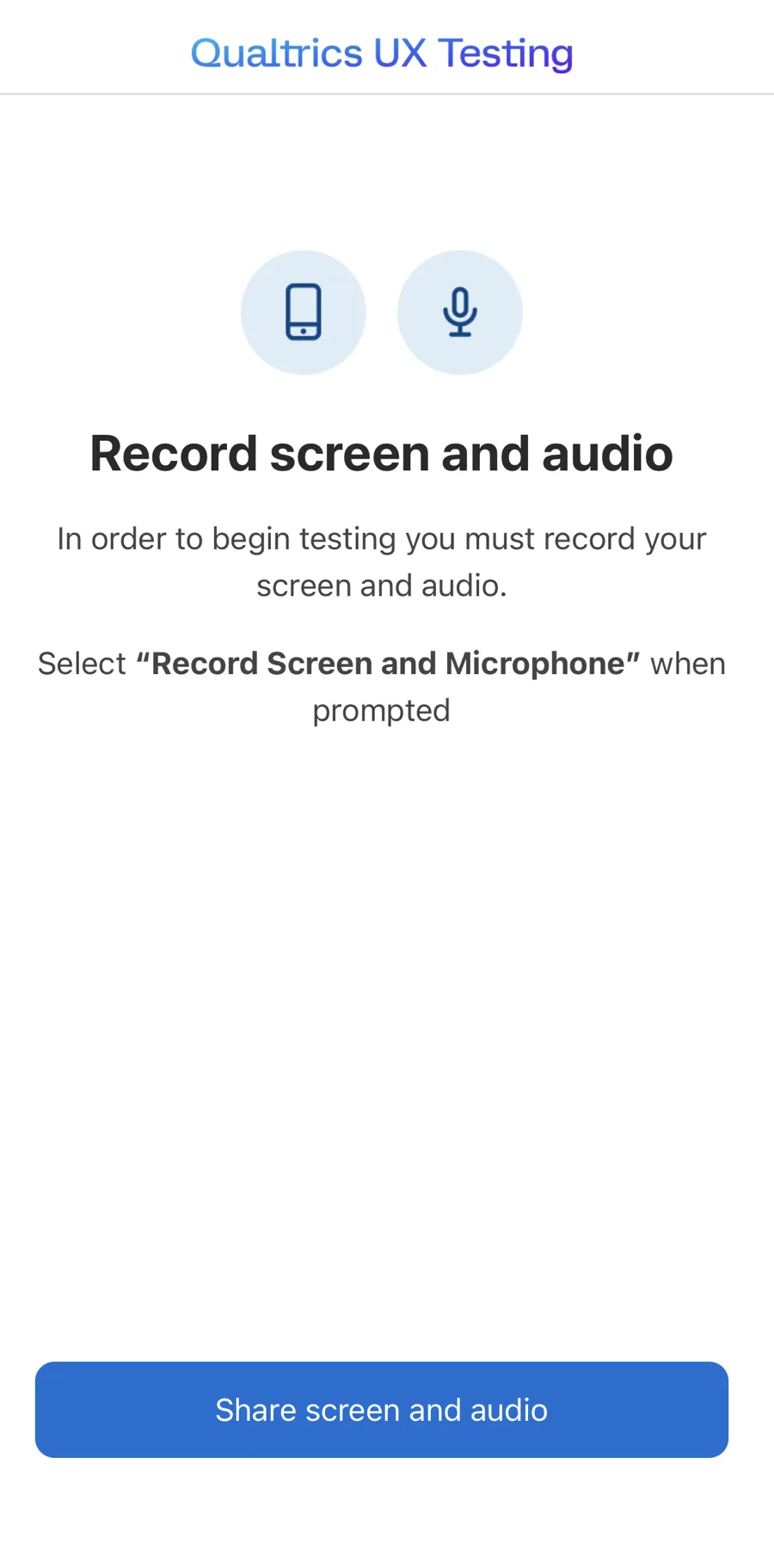
When you download and open the app, you will be taken through a tutorial on how to use the app. After the tutorial, you will be prompted to give the app permission to record your screen and microphone. This allows researchers to collect your feedback about what they are testing.
Click Share screen and audio to open the permissions window.
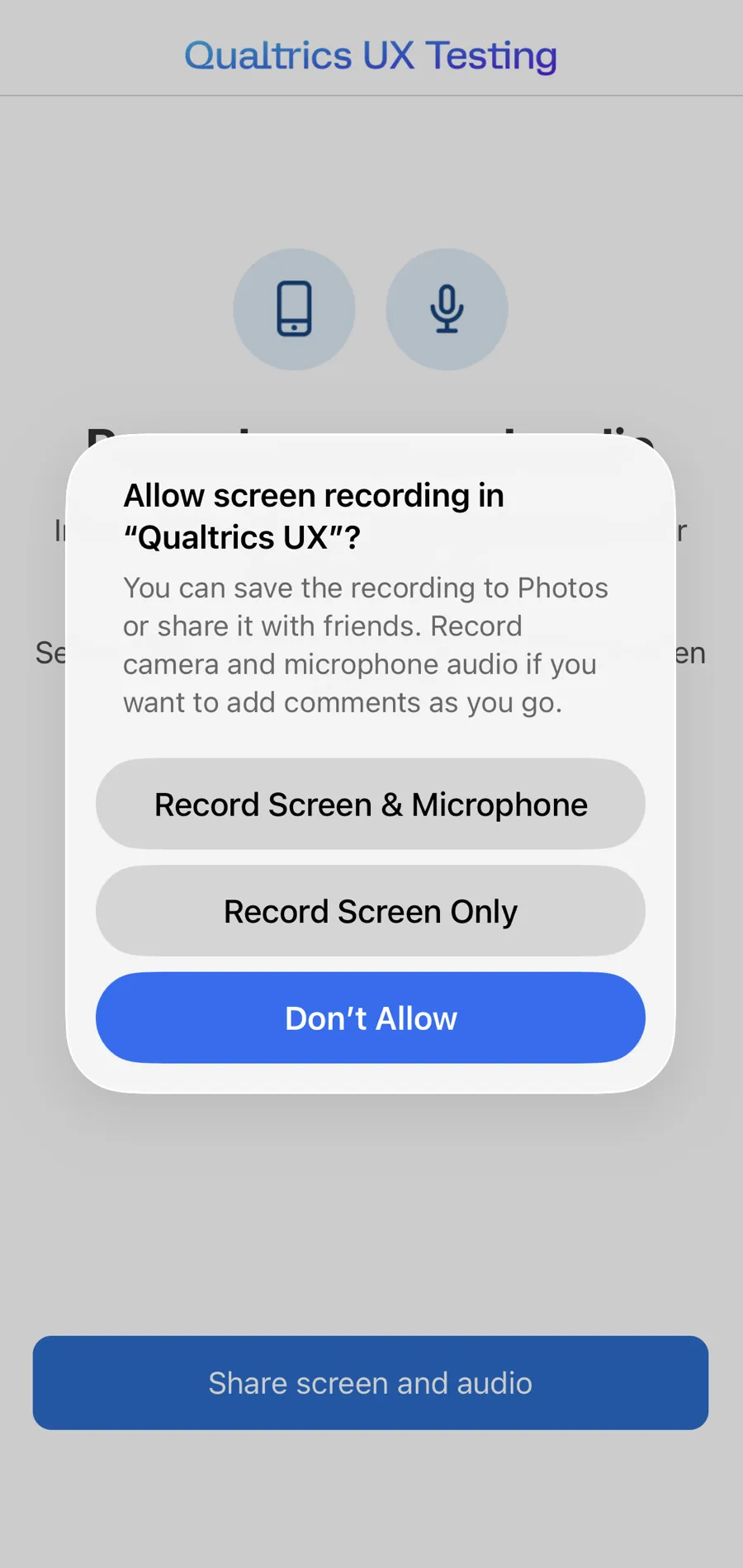
Agree to the prompt that allows the app to record your screen and microphone. This may look different on Android devices.
After allowing screen recording you can begin your test. Open or close the task pane at any time to interact with the survey. When your survey is complete it will be uploaded to Qualtrics. Do not close the app or navigate away from it while your recording is uploading.
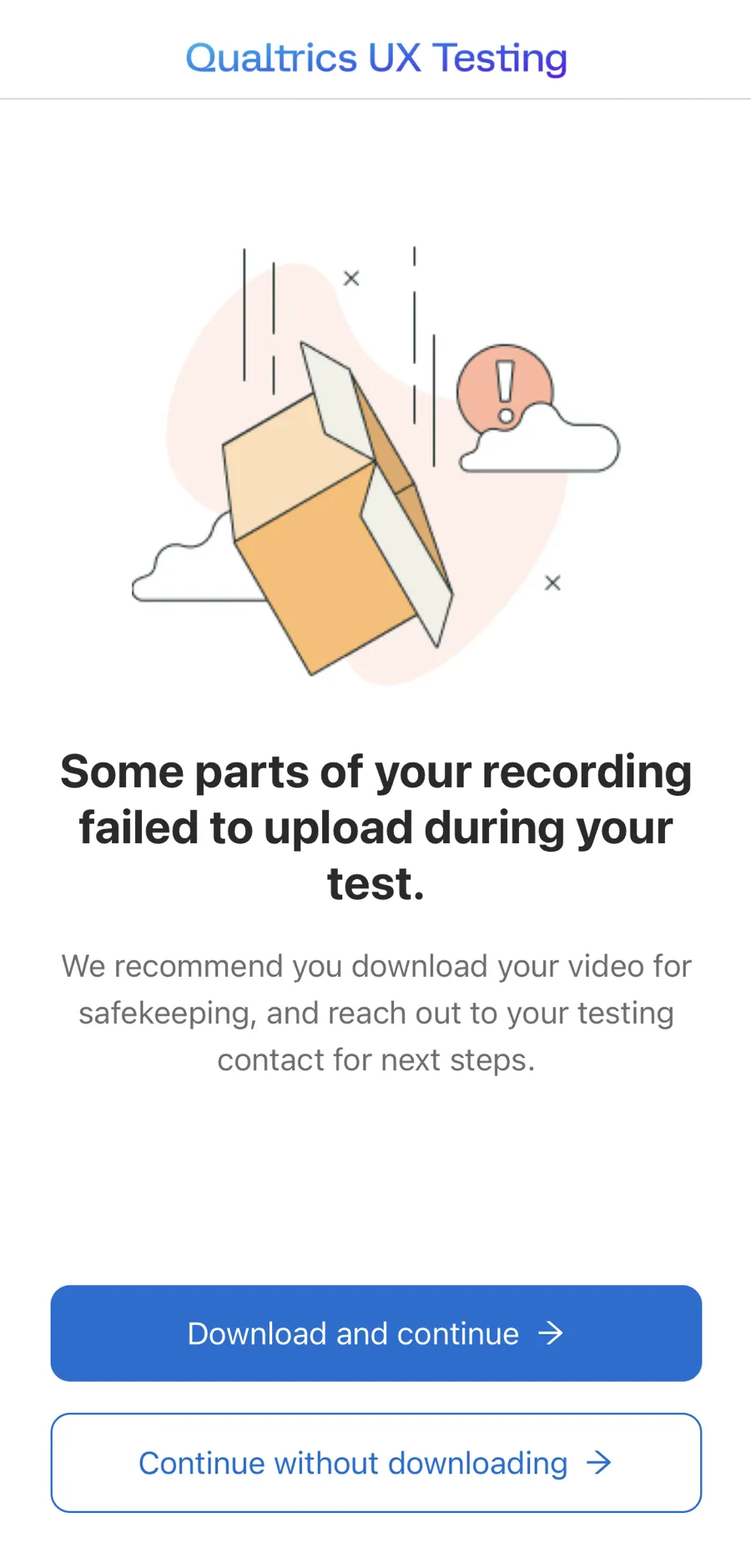
Qtip: If your recording cannot be uploaded, you can download it to your device so it can be shared with the researchers.
Application Testing
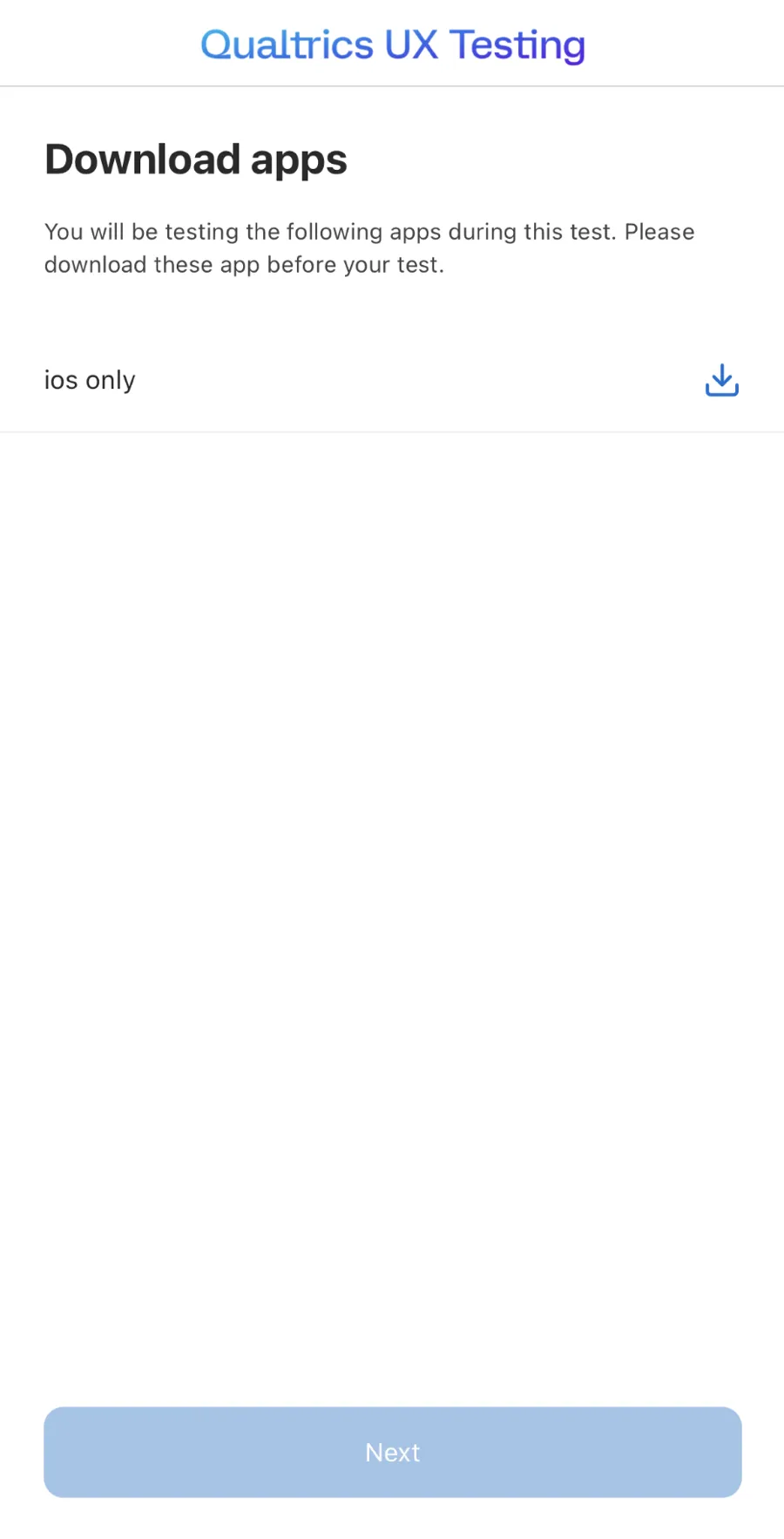
If you are testing an app prototype, you will see the same tutorial and instructions as above, but an additional Download apps screen will appear before you begin the study. On this screen you can download the required testing apps.
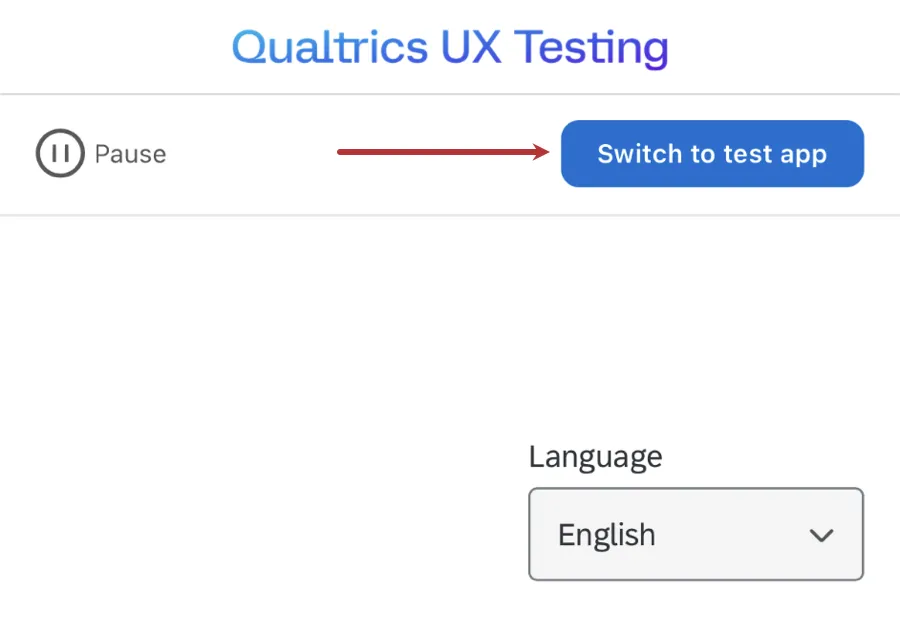
When you reach the test, click Switch to test app to navigate to the app you are testing.
That's great! Thank you for your feedback!
Thank you for your feedback!