

Global Advanced-Reports Filters
What's on this page
About Global Advanced-Reports Filters
Sometimes, you only want to create a report about a particular group of respondents. Maybe you’re interested in how respondents from a certain country rated your product, or maybe you only want your report to include data from the last month. You can narrow down the data presented in your reports by using filters. A global filter is a filter that applies to the whole report.
Qtip: The filters you build in a survey project‘s Data & Analysis are also accessible in Advanced-Reports and Results-Reports!

Qtip: You can also add filters to visualizations! That way you don’t have to filter the whole report, and can instead include many separate filtered items on the same report.
Saving and Reloading a Global Filter
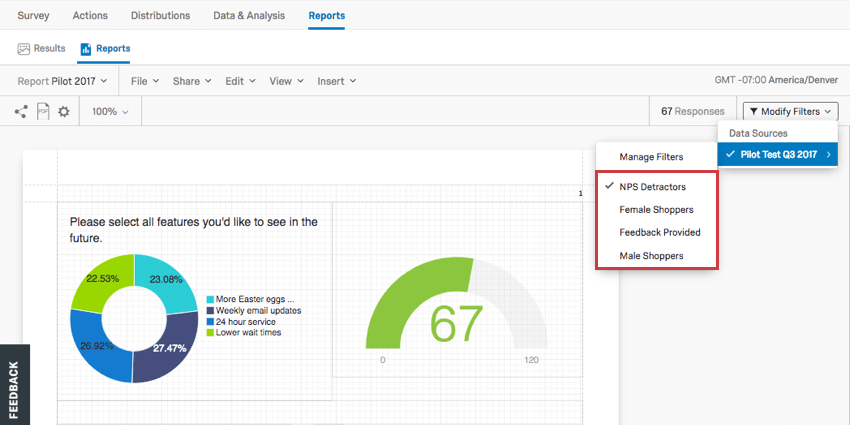
Here, we go over how to add a filter (which automatically saves it) and how to use filters you’ve created in the past.
Saving a Filter
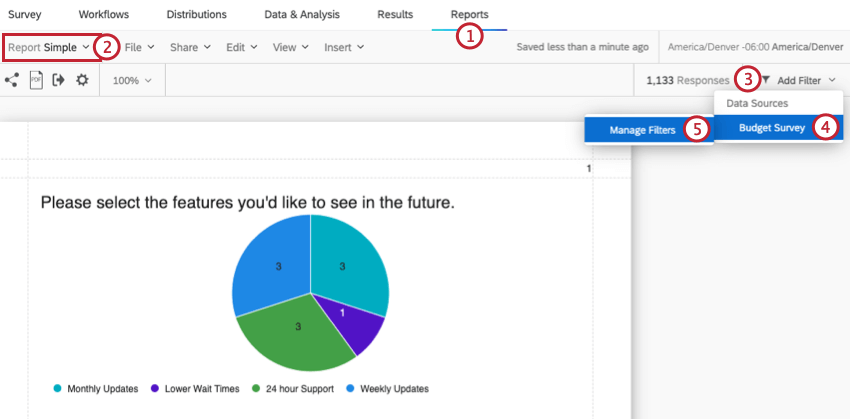
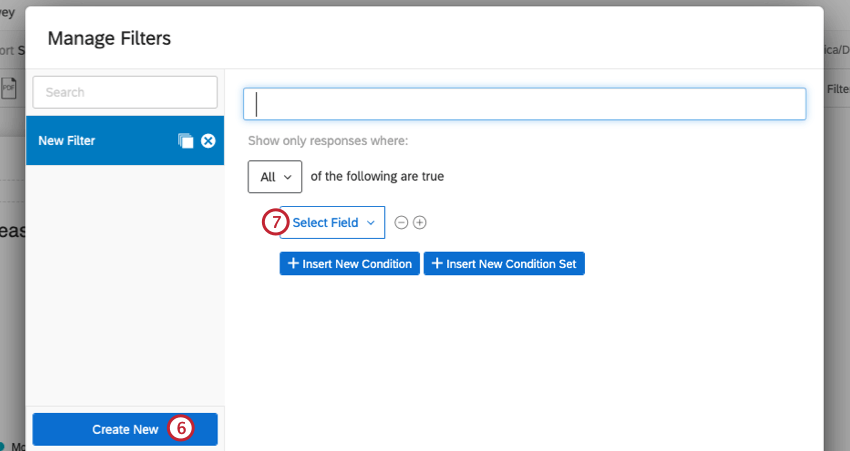
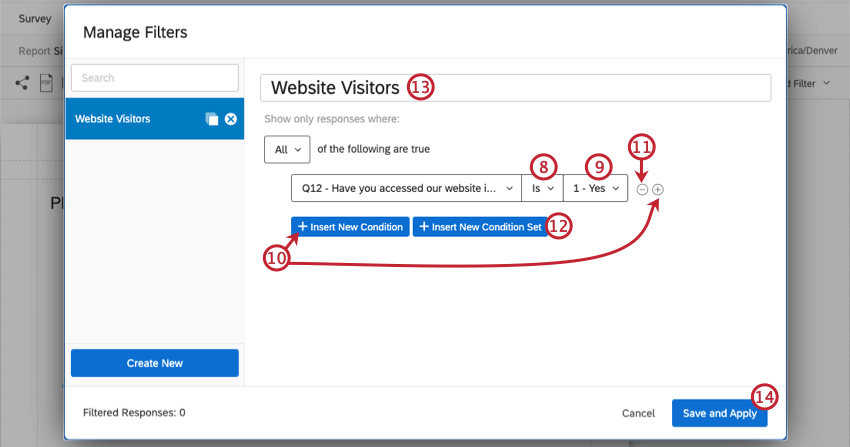
Reloading Filters
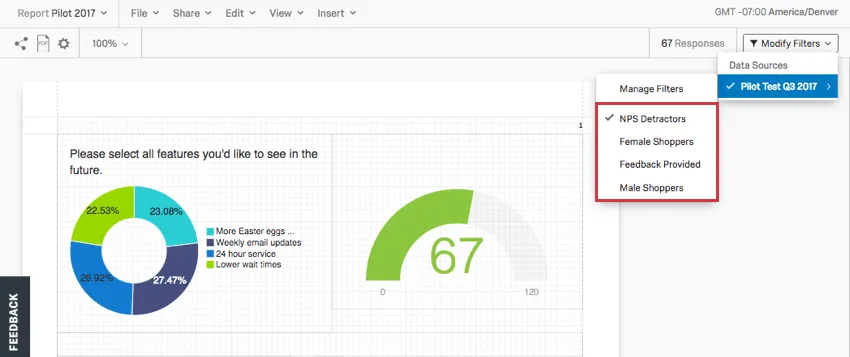
Deselecting a Filter
To view your unfiltered data again, follow the steps in the Reloading a Filter section to deselect your current filter.
Conditions and Condition Sets
Filters work the same in Data & Analysis as they do in Reports – in fact, the filters you create there also appear in Advanced-Reports, and vice versa!
To learn more about building the conditions of your survey, see the following sections of the Filtering Responses support page:
- Fields You Can Filter By
- Basics of Building Conditions
- New Conditions and Condition Sets
- All vs. Any
- Nesting Logic
Managing Filters
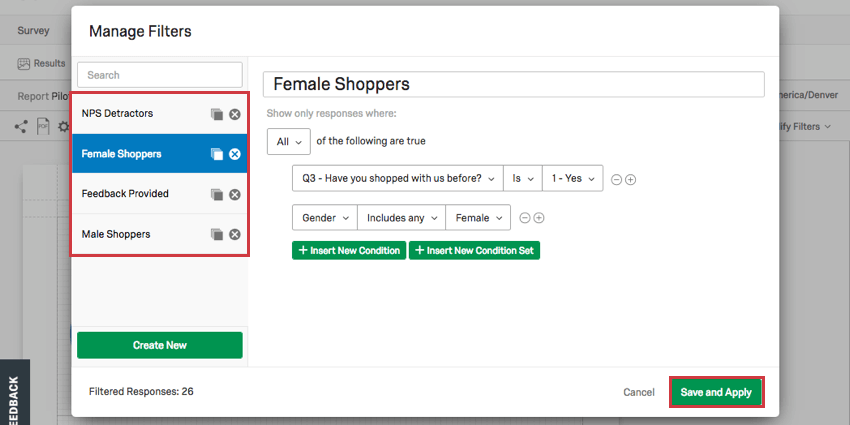
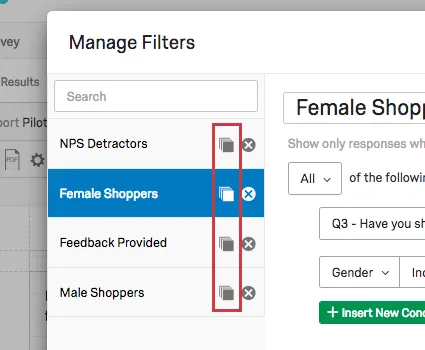
Copying a Filter
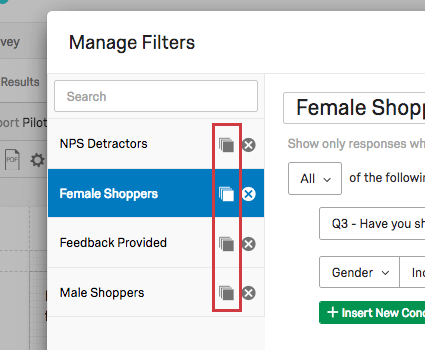
Once on the Managing Filters window, click the copy icon to the right of a filter to create an exact duplicate of it.
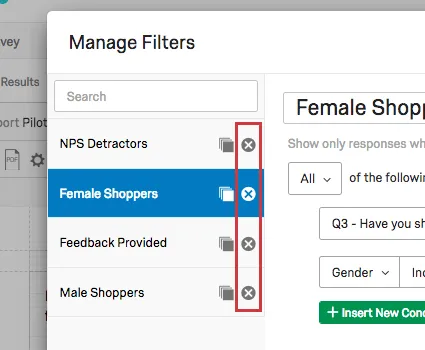
Deleting a Filter
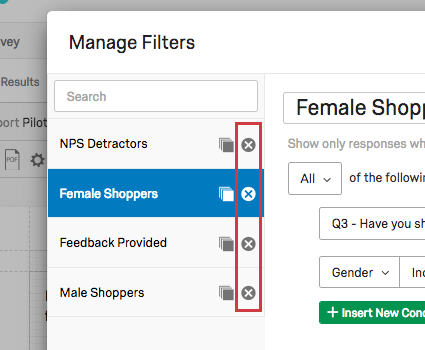
Once on the Managing Filters window, click the X to the right of a filter to delete it permanently.
Attention: If you delete a filter and the filter is used as a visualization filter or as part of a filter group breakout, then the filter will remain on the visualization until you edit the visualization or interact with it. Once you interact with your visualization, the filter will be automatically removed.

Setting Filters for Additional Data Sources
Every visualization has a Data Source. However, this source doesn’t have to be the survey you’re currently working on. It can be any survey in your account. This is useful if, for example, you want to have a table with your 2018 survey’s data next to a table with your 2017 survey’s data.
When your report contains at least one visualization with a different survey source (e.g., 2018 instead of 2019 data), you are then allowed to manage and reload filters for that survey.

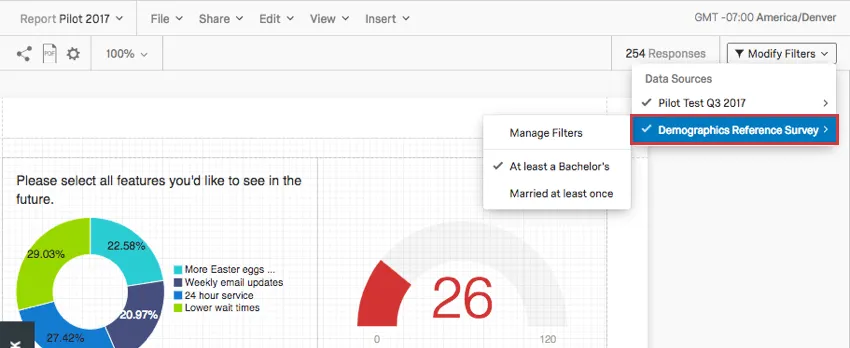
To create or manage these filters:
Attention: These data sources will only be accessible from the Toolbar after you’ve created at least one visualization with a different data source. See Data Sources for more information.
Qtip: Any filters you create in that survey are available in any other report you pull the data into.
That's great! Thank you for your feedback!
Thank you for your feedback!