

Creative Options Section
What's on this page
Qtip: If you don’t have access to any of the features described on this page, reach out to your Account Executive. For more information about the differences between Digital Feedback and CustomerXM for Digital, see Digital Feedback vs. CustomerXM for Digital.

About the Options Section
The Options section is reserved for animation effects, position on the webpage, and other options that will make your creative pop.
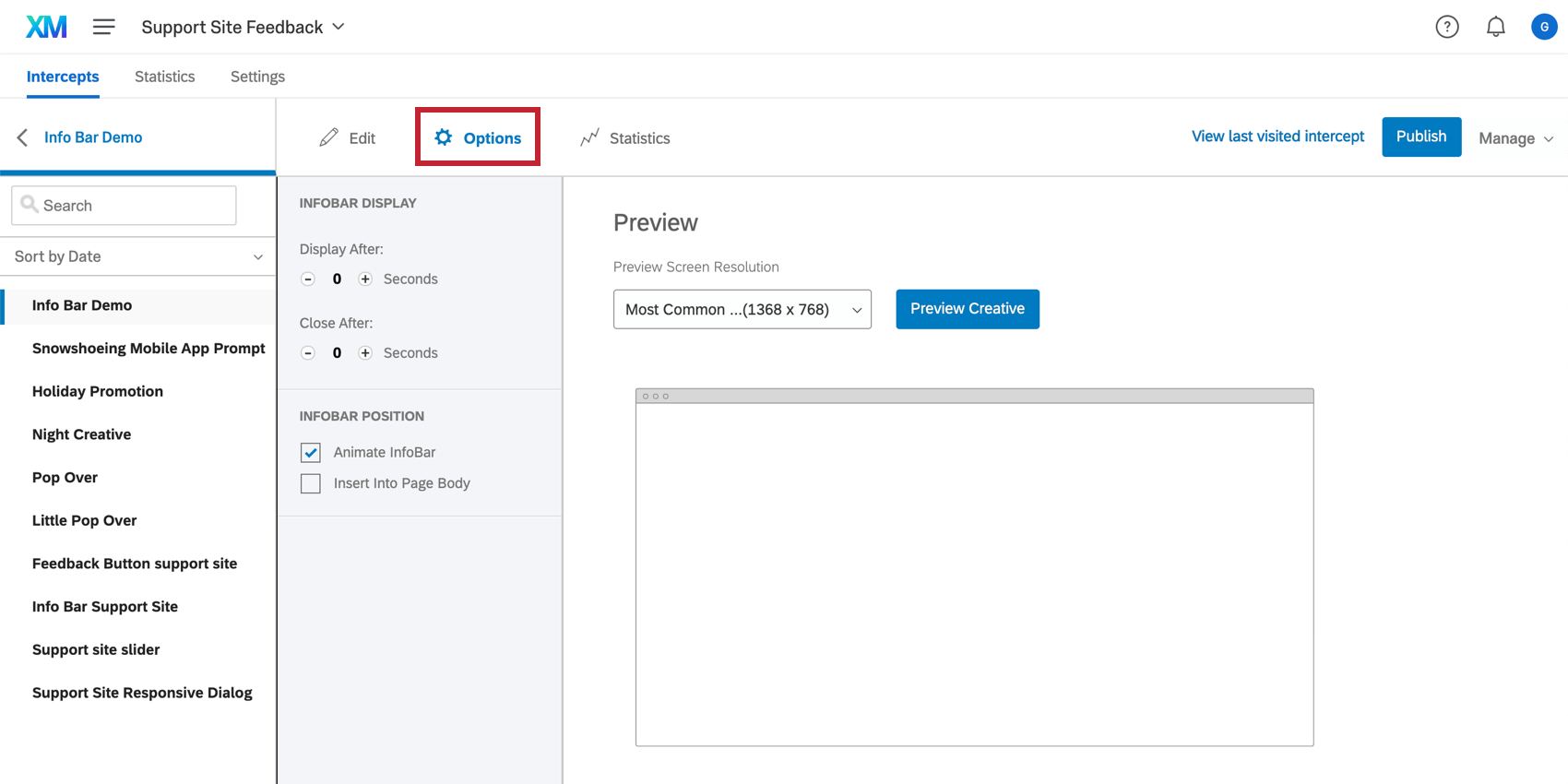
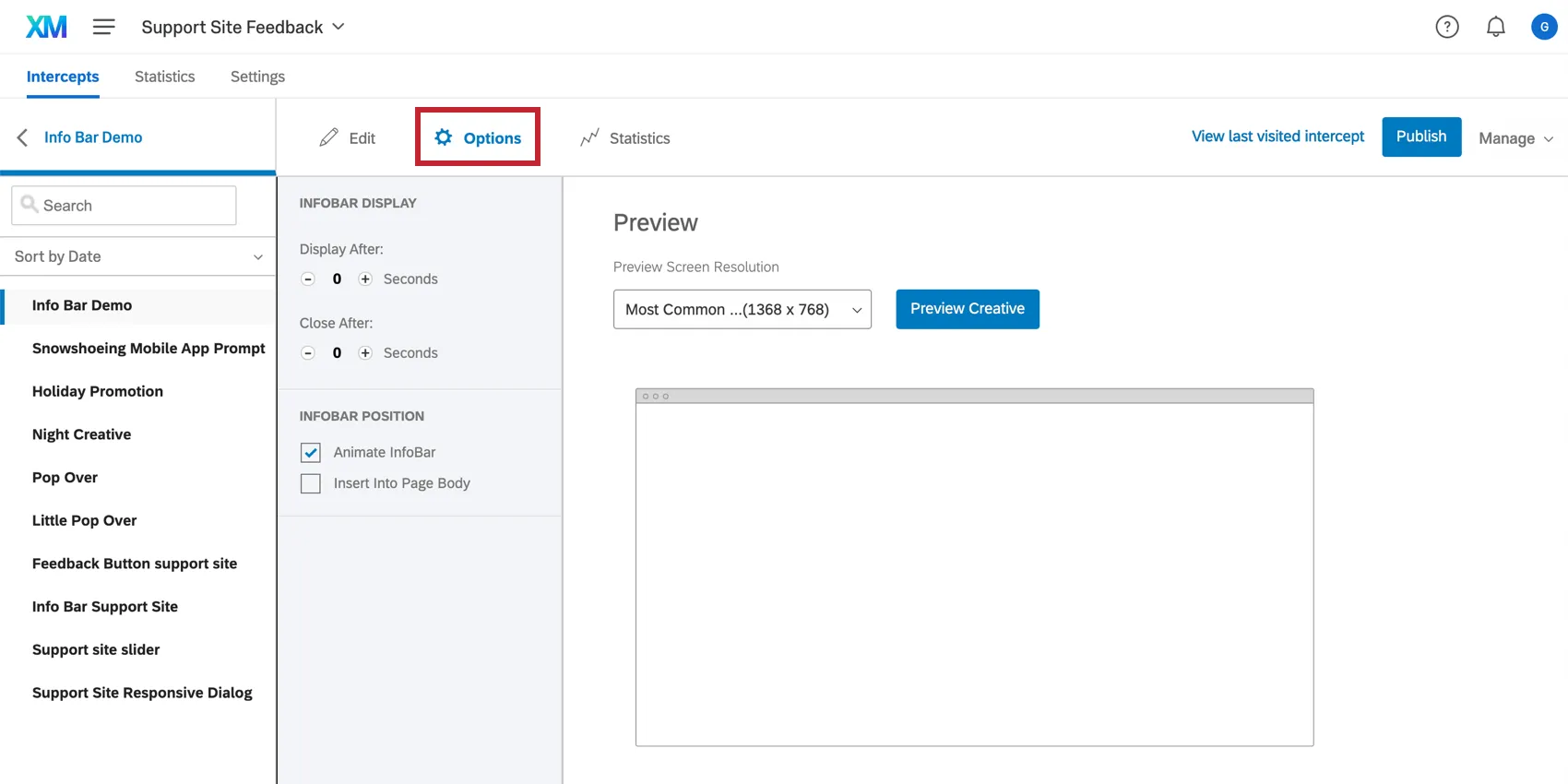
Each creative has their own set of options located under Options. For example, a Pop Over has animation settings and an Info Bar has settings for whether or not to cover existing content when sliding onto the page. This page will cover common options. For details on additional options available for each creative, refer to that creative’s support page.
Timing
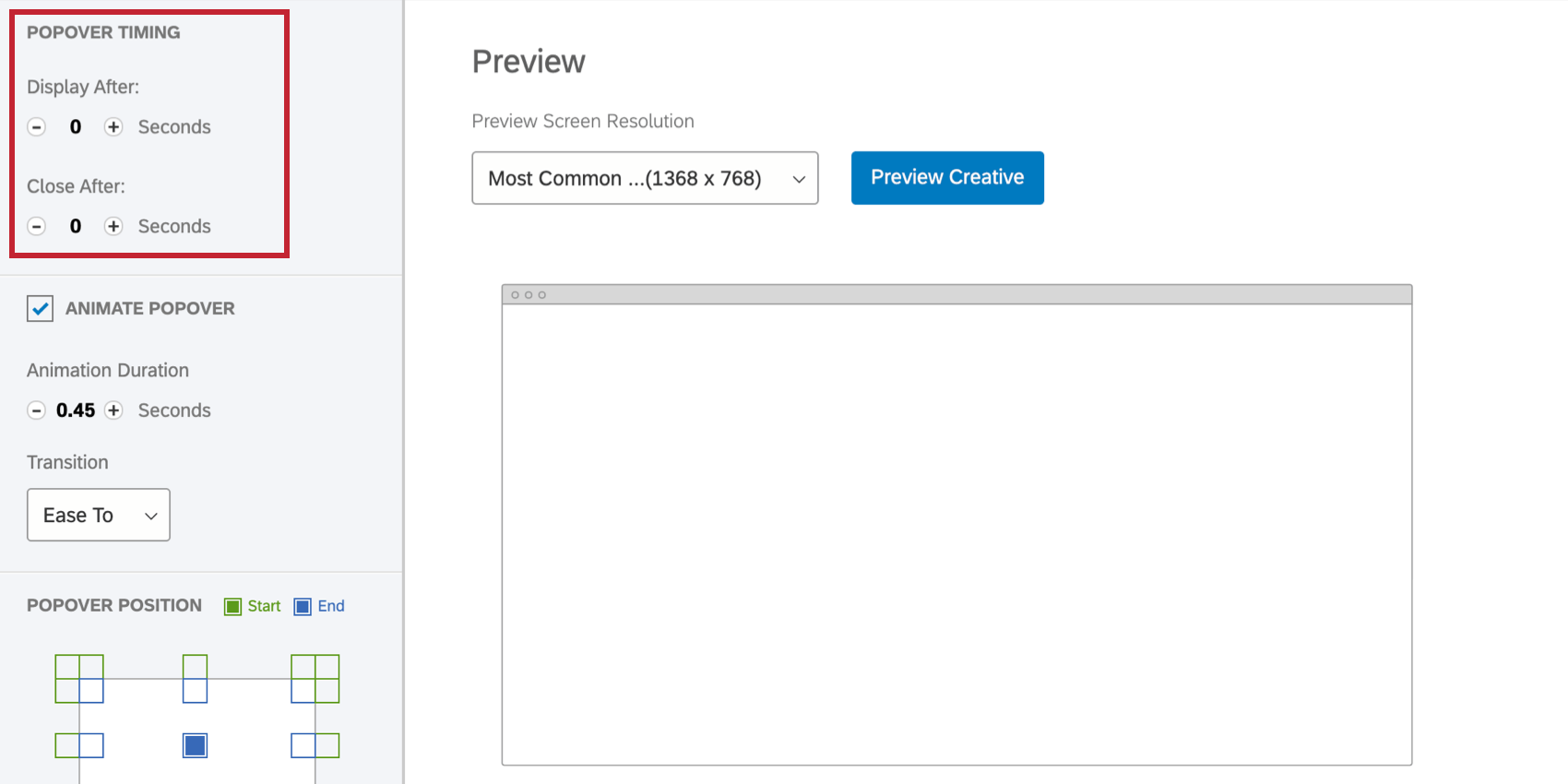
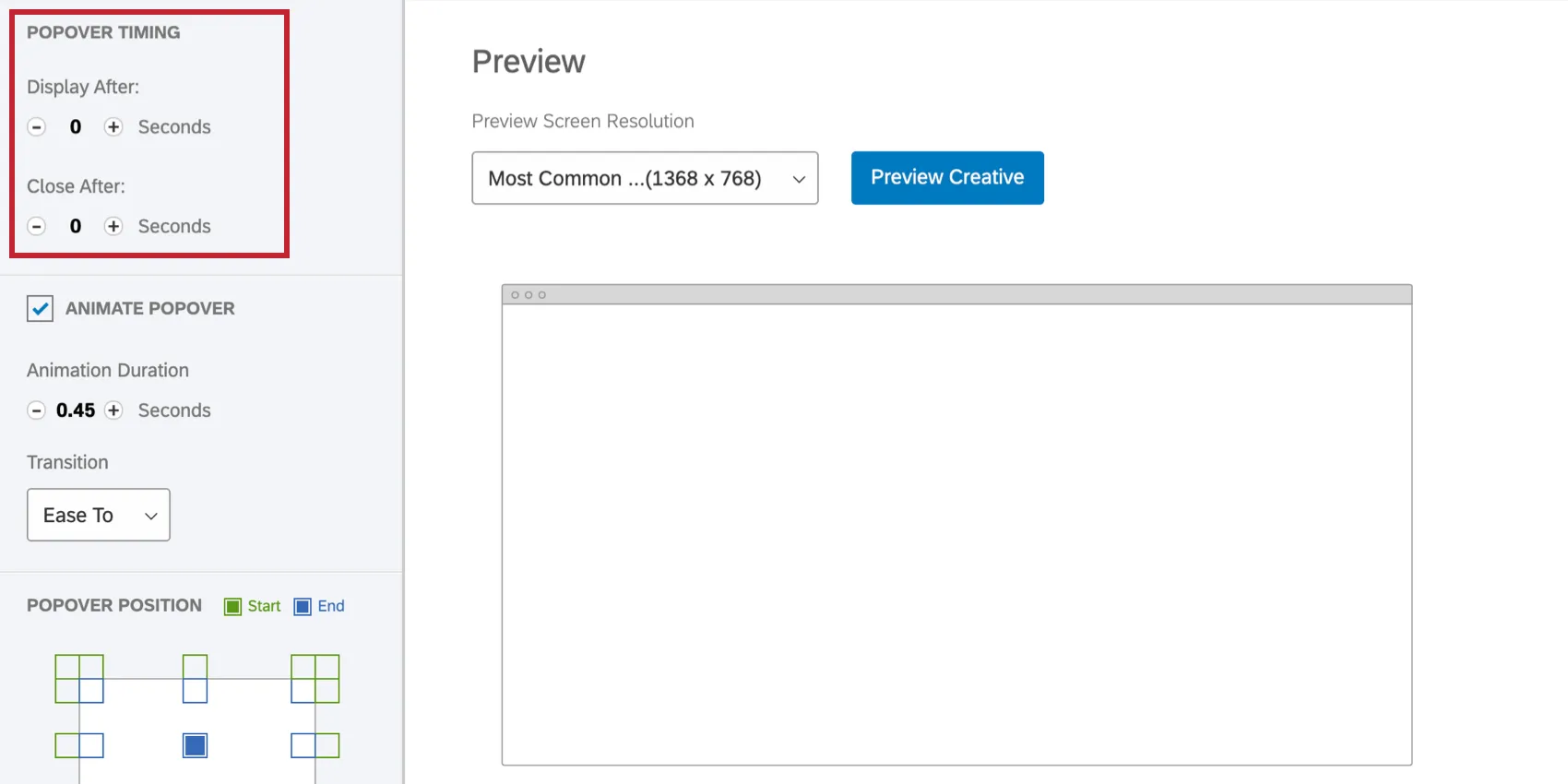
If you don’t want your creative to appear on the webpage until after a few seconds, you can adjust your Display After option.
Qtip: Displaying the creative right when the page loads may result in a jarring experience for the visitor. Consider adding a few seconds of delay to give the visitor a chance to get oriented.
If you’d like the creative to disappear after a certain amount of time, adjust your Close After option.
Qtip: Be careful with the Close After option if your creative has an Embedded Target. For example, if there is a survey embedded directly on the creative, you wouldn’t want to automatically close the Pop Over while the participant is responding!
Qtip: Want your visitors to get a countdown on how long they have until the creative closes? Check out the Time Until Close Timer Piped Text!
Position
The Position section allows you to map where you want the creative to appear on the page.
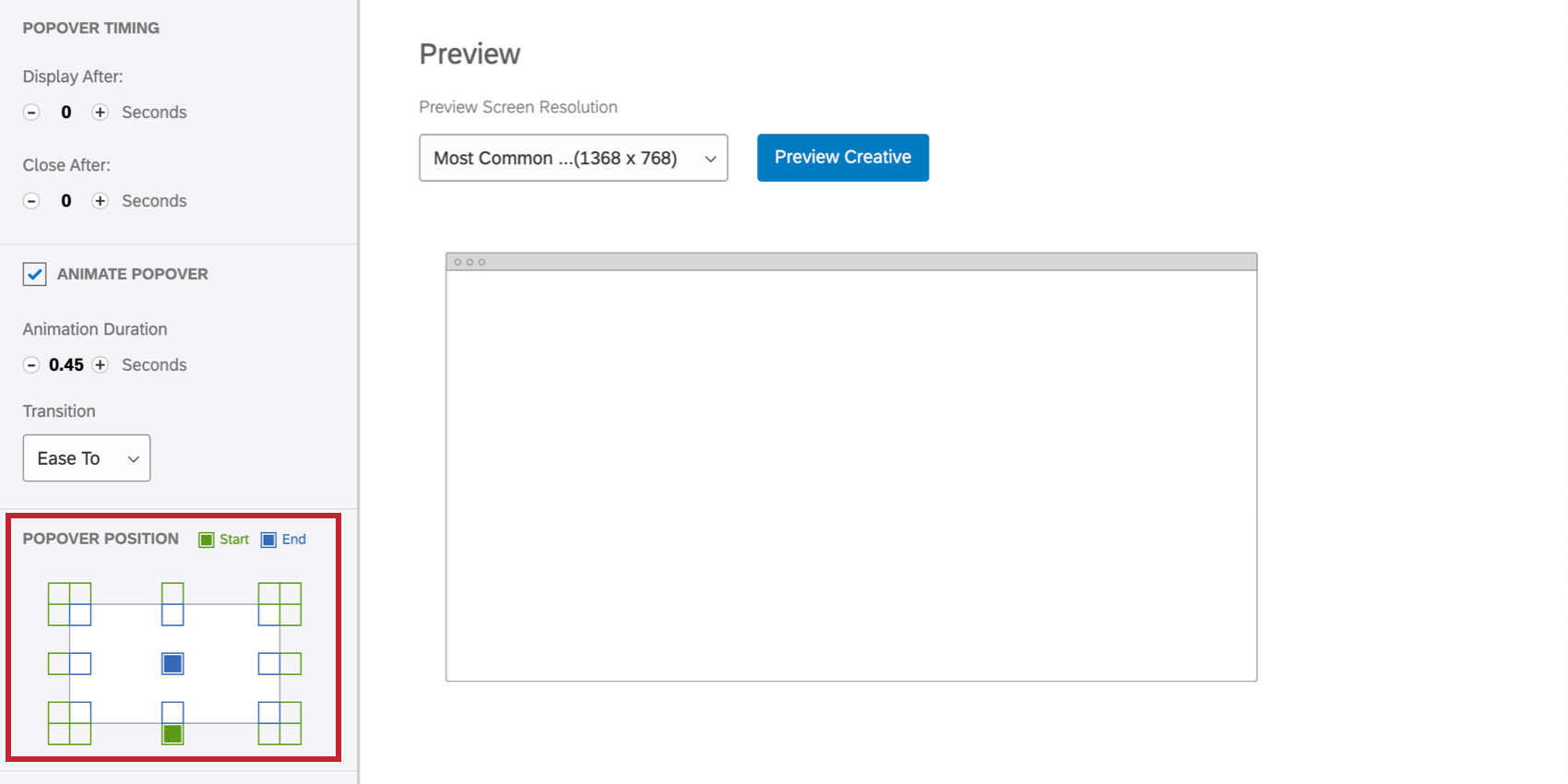
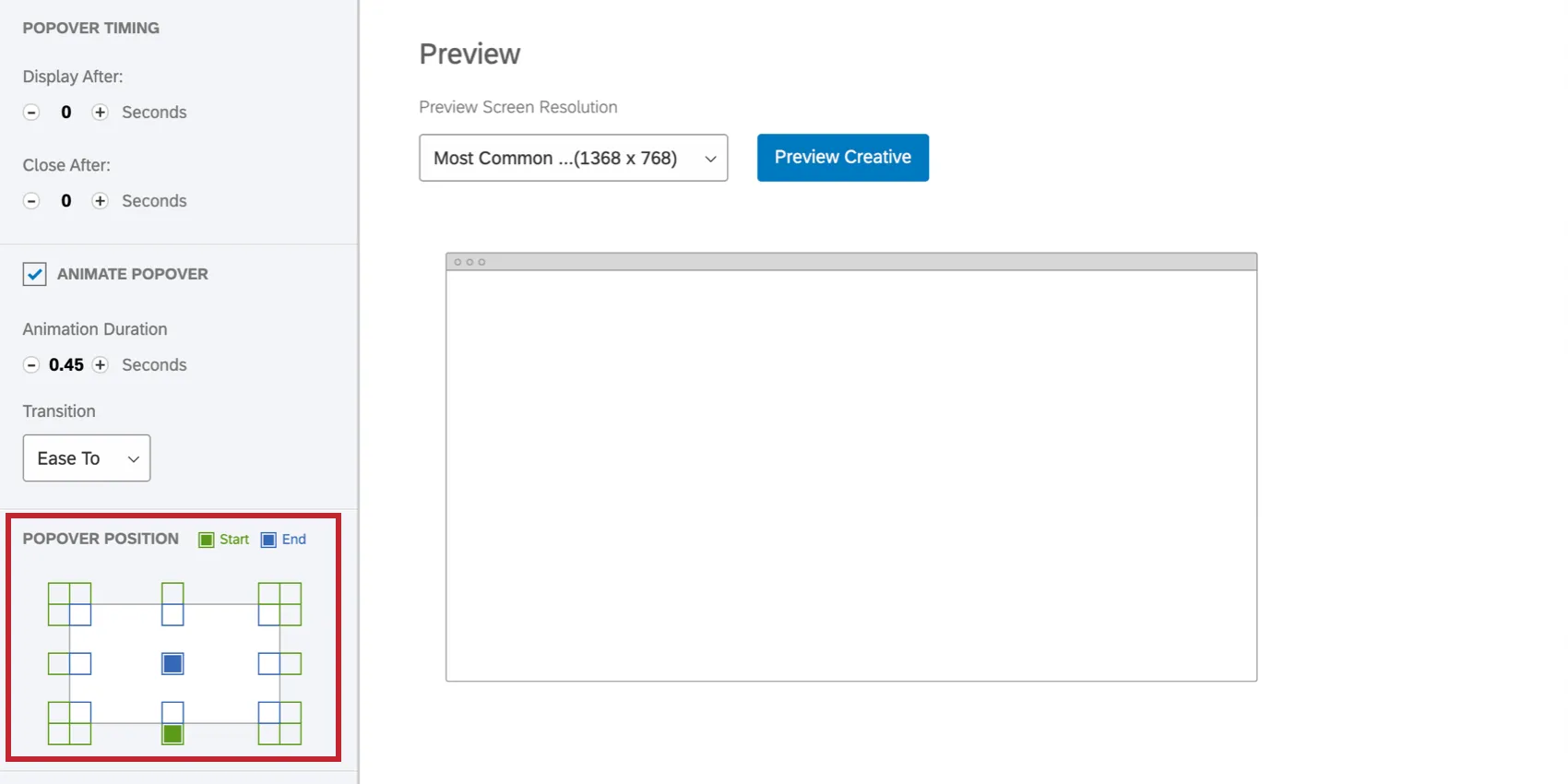
The boxes in blue are where the creative will end up on the screen.
If you are adding an animation, the green boxes are the position your creative will start from as it enters the screen.
Preview
A great way to test the animation, close, and other display options you’ve chosen is to use the Preview Creative feature on the center-right of the page.
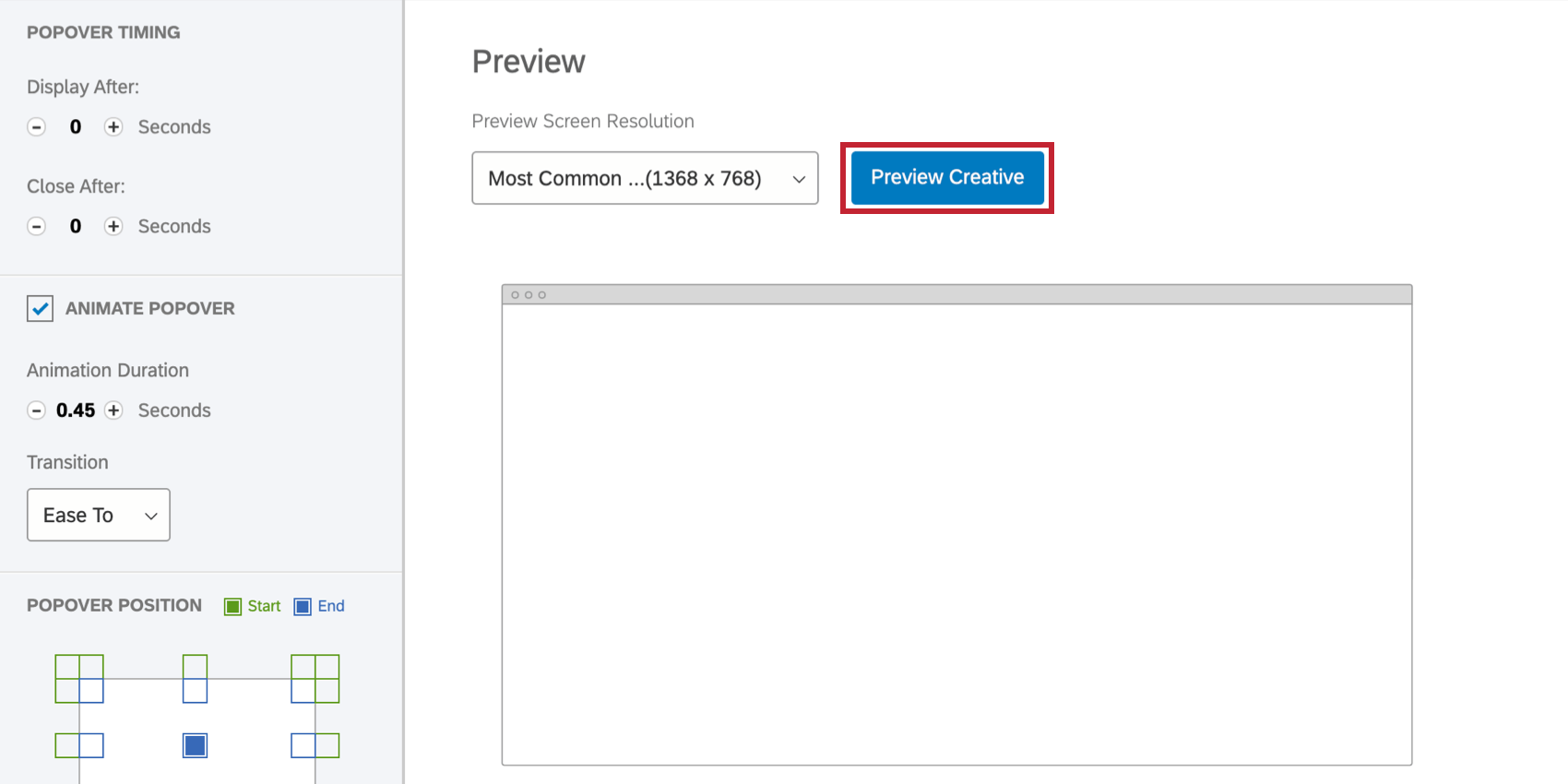
To adjust the screen size you’re previewing, click the Preview Screen Resolution dropdown. When you’re ready, click Preview Creative.
Qtip: Want to test your creative on a particular website? First, you need to set up your intercept. Then check out our page on the Test Intercept Section.
FAQs
I have built my intercept but would like to test it before activation. How can I do that?
I have built my intercept but would like to test it before activation. How can I do that?
That's great! Thank you for your feedback!
Thank you for your feedback!