

Mobile Notification Creative
What's on this page
Qtip: If you don’t have access to any of the features described on this page, reach out to your Account Executive. For more information about the differences between Digital Feedback and CustomerXM for Digital, see Digital Feedback vs. CustomerXM for Digital.

Attention: Mobile Notification Creatives require the use of the Mobile App SDK, which is set up with specific code created by Qualtrics. Qualtrics can only troubleshoot this code, not any custom code you add. Custom coding features are provided as-is and may require programming knowledge to implement. Our support team does not offer assistance or consultation on custom coding. You can always try asking our community of dedicated users instead. If you’d like to know more about our custom coding services, please contact your Qualtrics Account Executive.

About Mobile Notifications
Mobile notification creatives are part of the Mobile App SDK, also known as Mobile App Feedback Projects. Notifications can be used to prompt users to engage on feedback within or away from the app, which is especially relevant when you want to catch users as they are exiting the app.
Mobile notifications work by creating a banner-style in-app notification. Once the user clicks this, they will be taken out of the app to the linked survey in an external mobile browser.
Qtip: This feature is only supported on SDK versions 1.3 and greater.
Setting Up the Creative
Once you have access to this feature, the Mobile Notification is available alongside other Creatives.
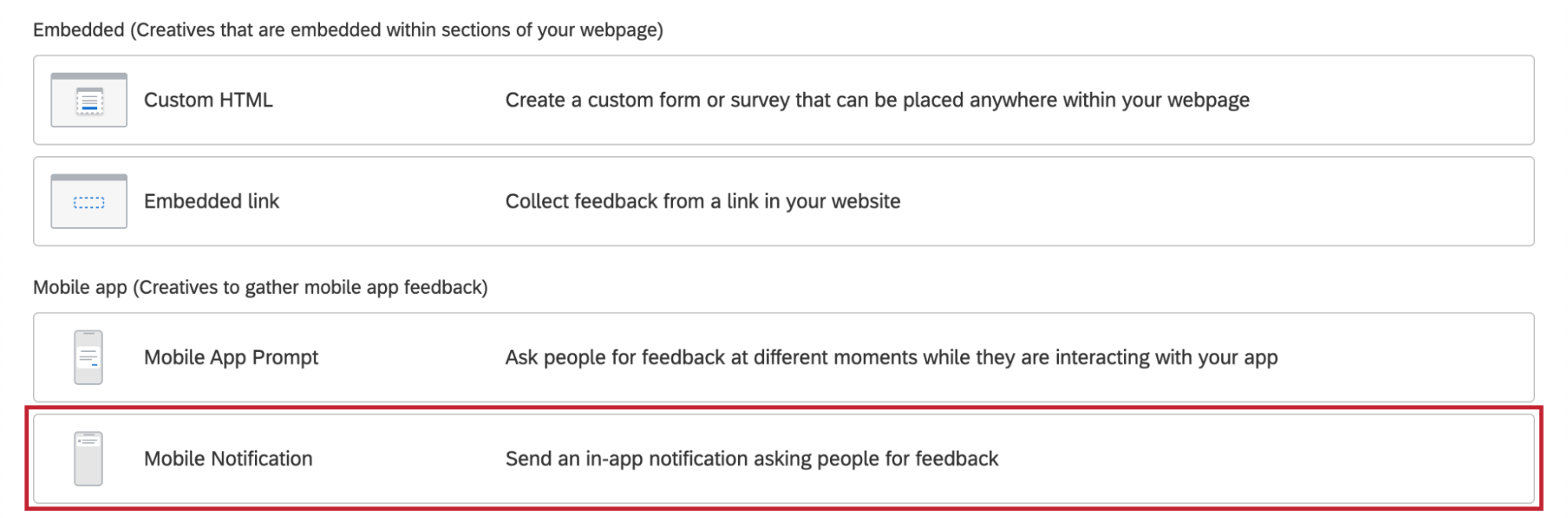
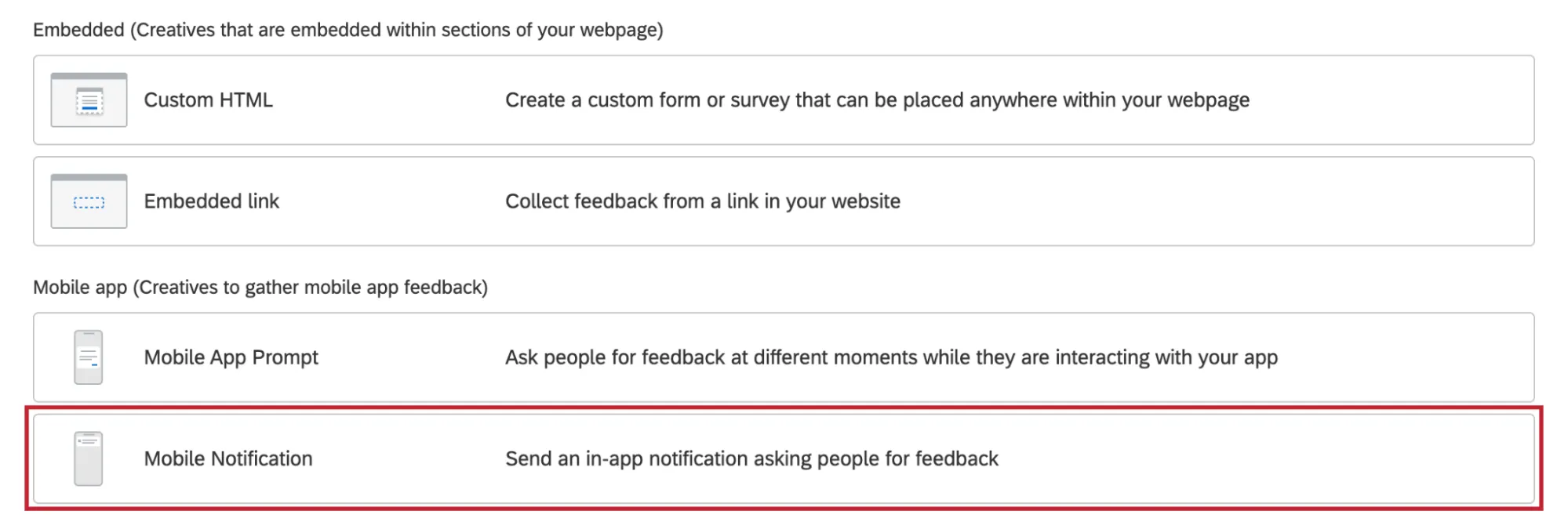
Once you click Create Creative, there are three options that you can customize: Title, Description, and Delay. Because these are banner-style notifications for mobile devices, there is a set style each operating system defines that Qualtrics cannot override, limiting color and font options.
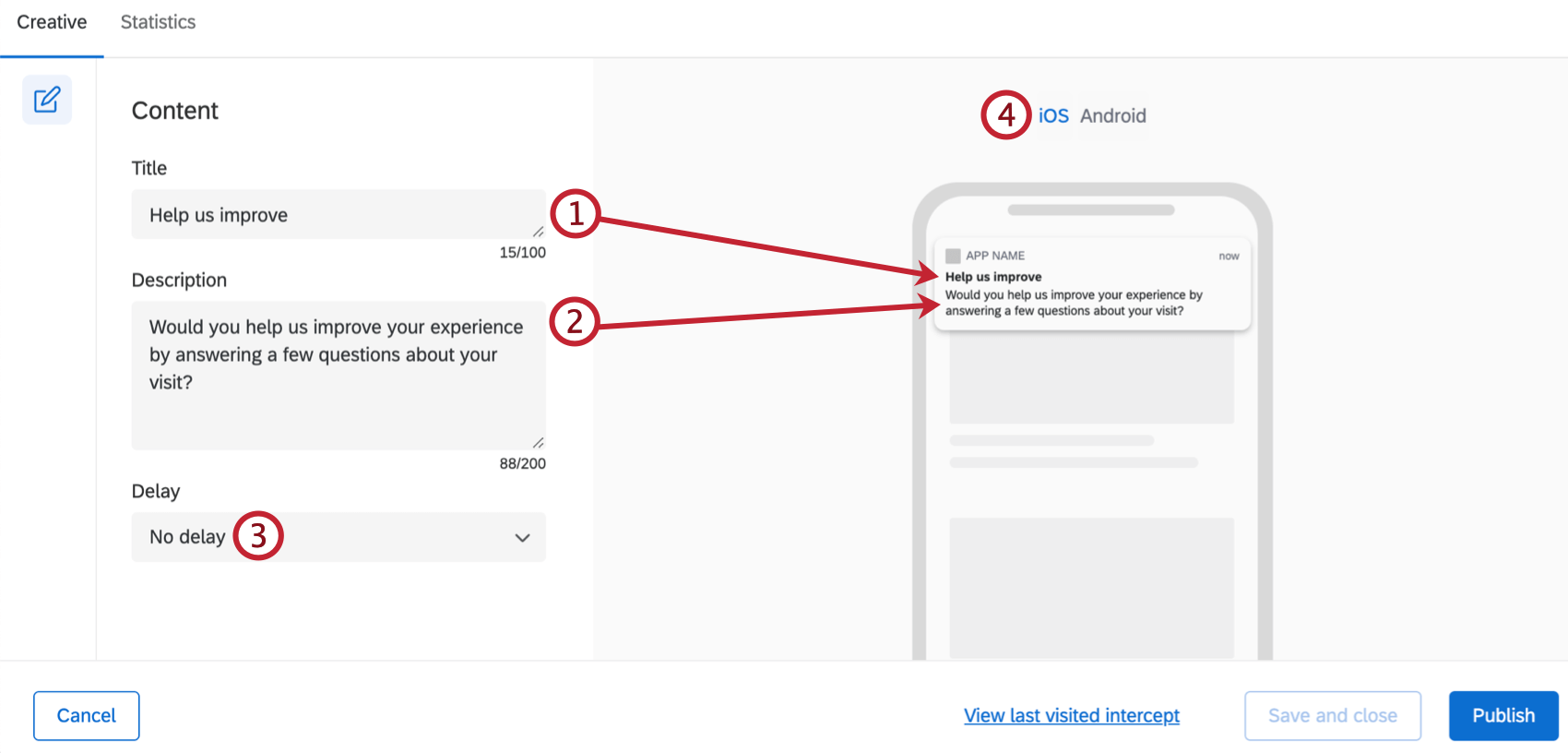
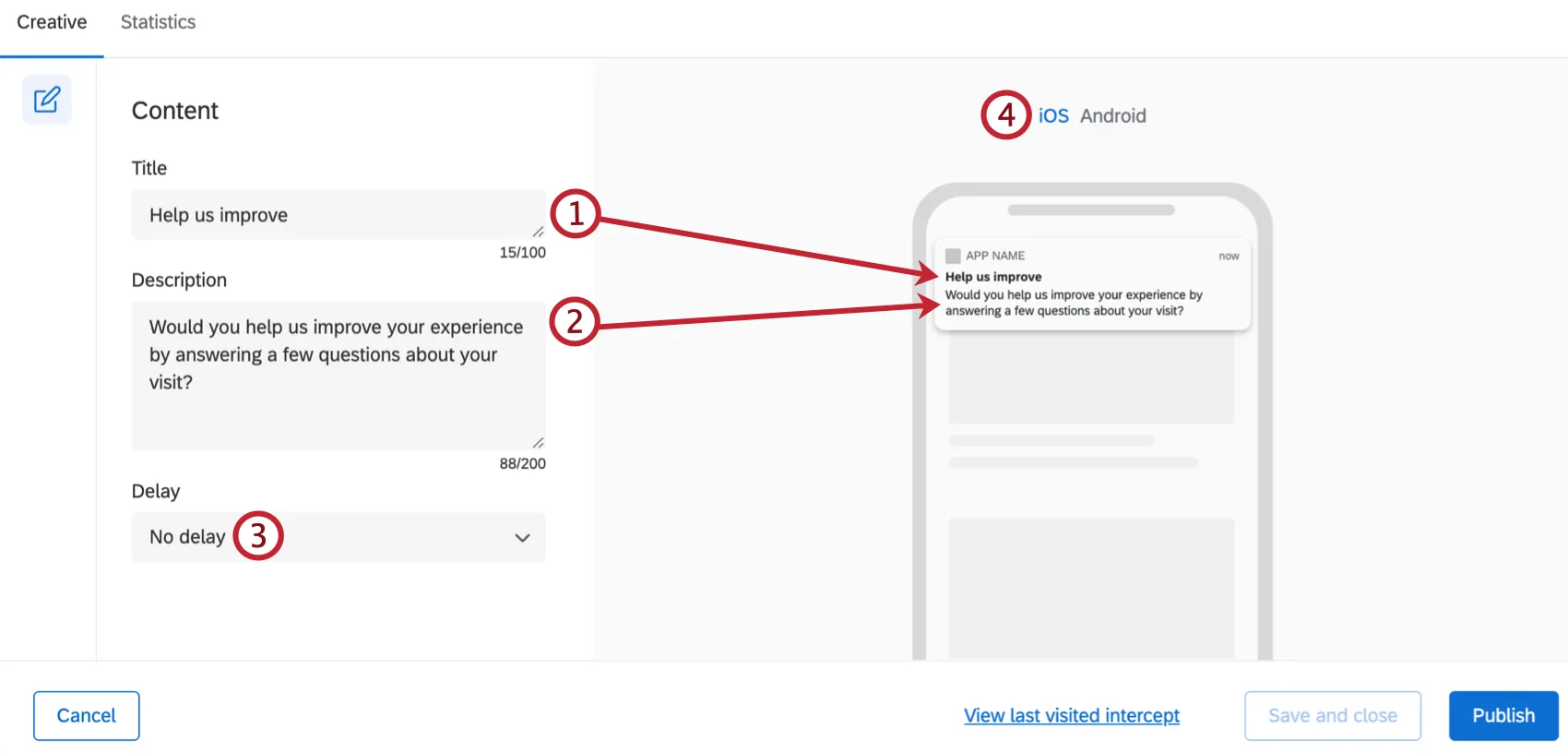
Qtip: The action that triggers the app is defined when setting up the mobile Intercept.
Save Creative and Publish Creative
Attention: When you have made changes to your mobile notification creative and want to leave the page, always click Save and close.
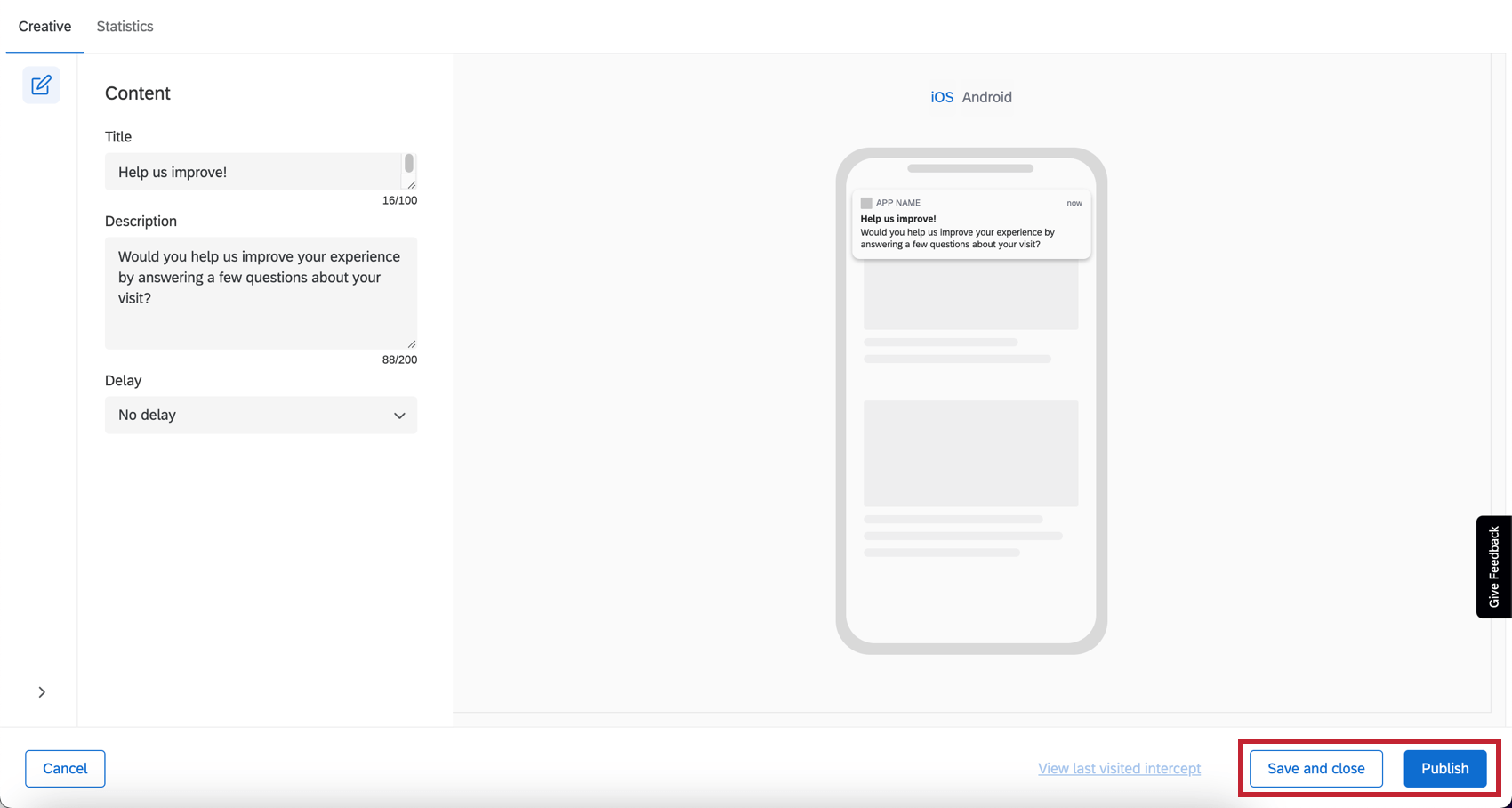
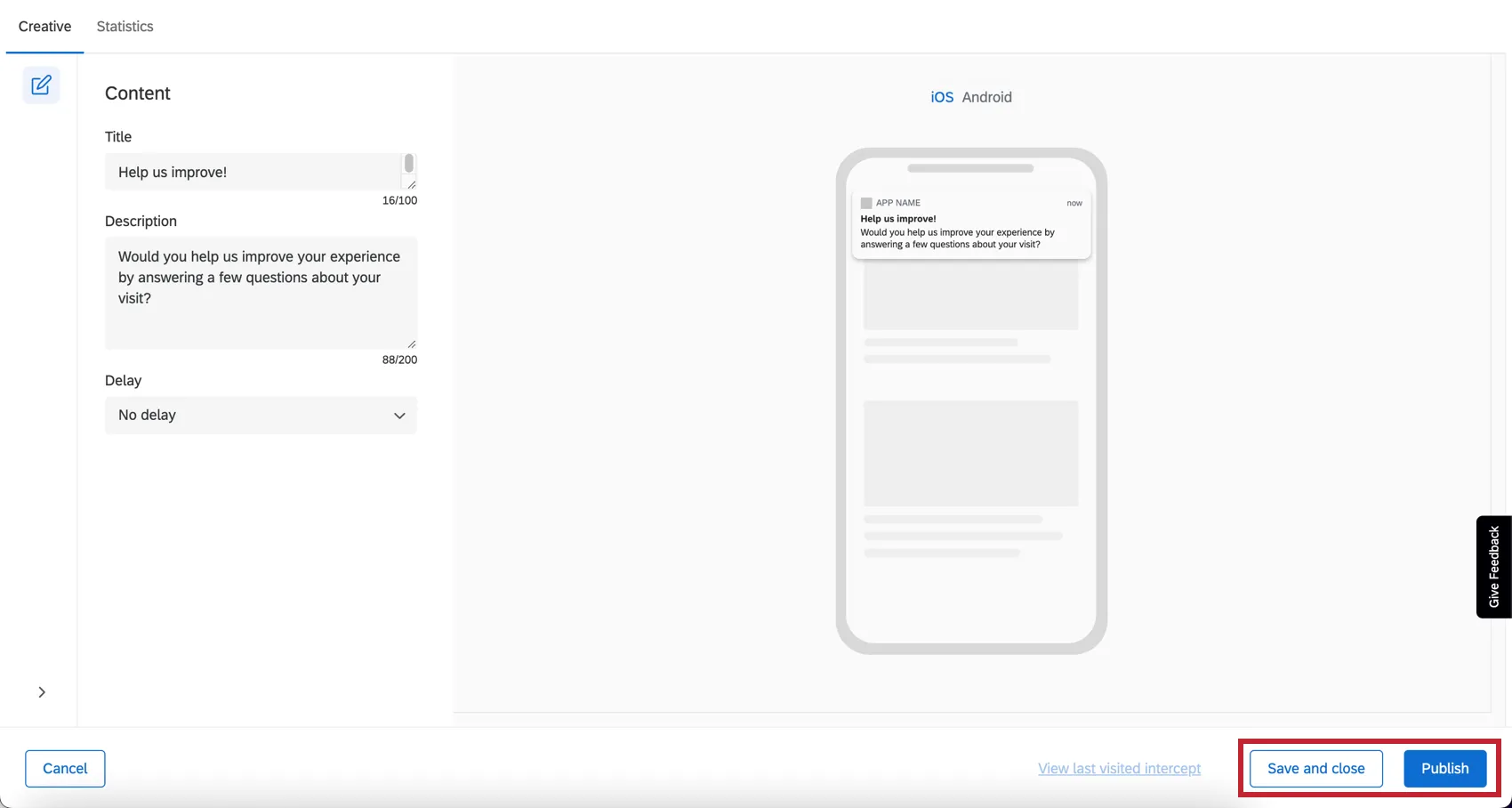
When you’re finished editing and would like your changes to appear on the app, click Publish in the lower-right.
Qtip: Click the arrow in the bottom left to display section labels. To display only the section icons, click Hide Labels.
Setting Up Intercepts & Integrating with a Mobile App
For information on how to set up the rest of the Mobile App SDK, see Mobile App Feedback Projects.
That's great! Thank you for your feedback!
Thank you for your feedback!