

Sprinklr Inbound Connector
Suite
Customer Experience
Product
Qualtrics
What's on this page
About the Sprinklr Inbound Connector
You can use the Sprinklr inbound connector to load social media data from Sprinklr into XM Discover.
Setting Up a Sprinklr Inbound Job
Qtip: The “Manage Jobs” permission is required to use this feature.
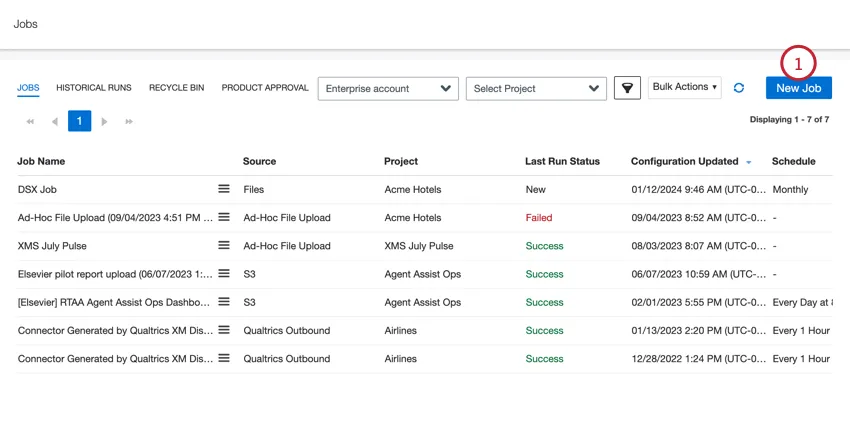
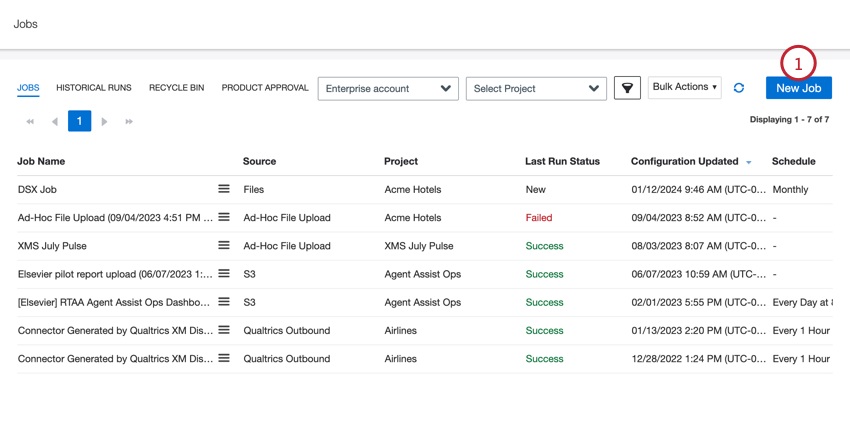
On the Jobs page, click New Job.
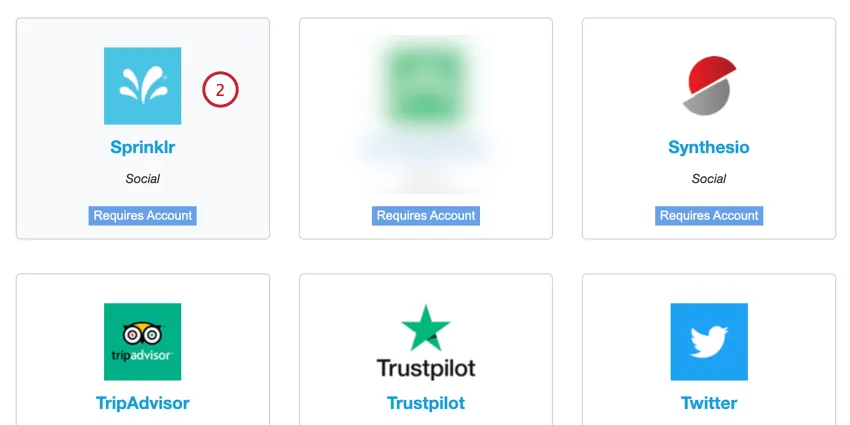
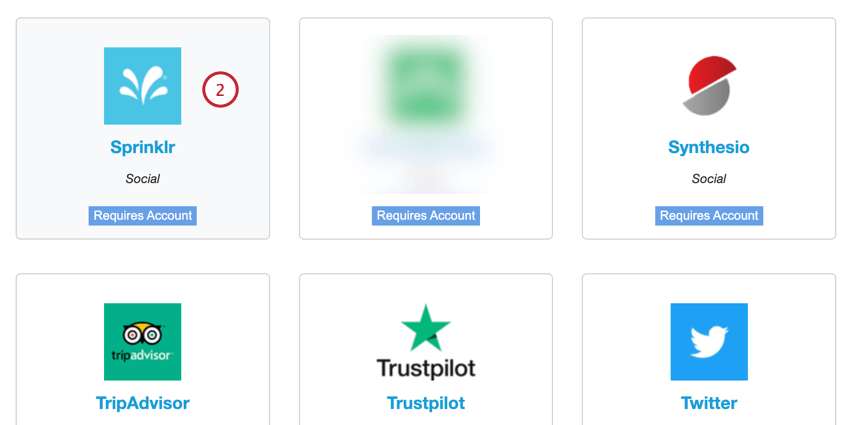
Select Sprinklr.
Give your job a name so you can identify it.
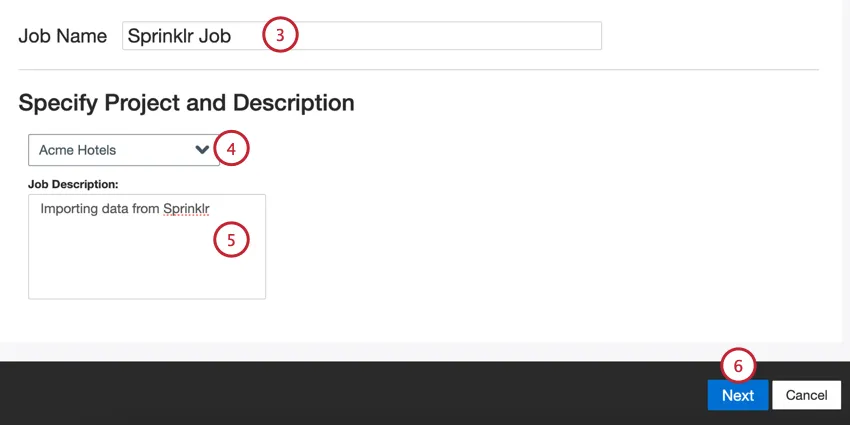
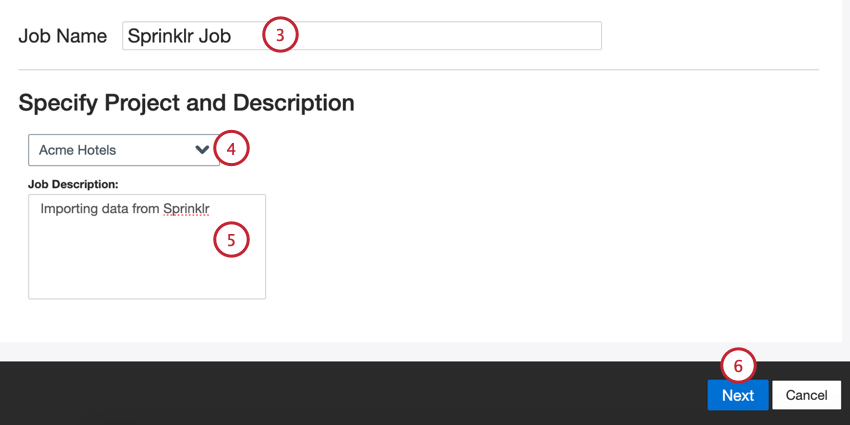
Choose the project to load data into.
Give your job a description so you know its purpose.
Click Next.
Choose the Sprinklr account to use, or select Add New to add a new one.
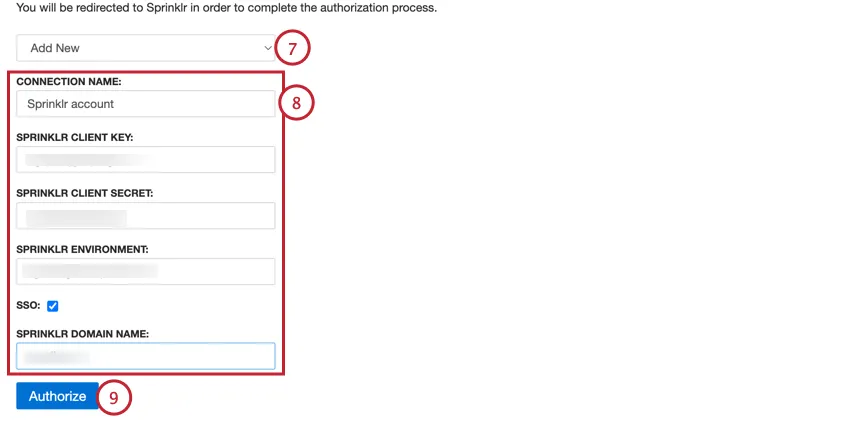
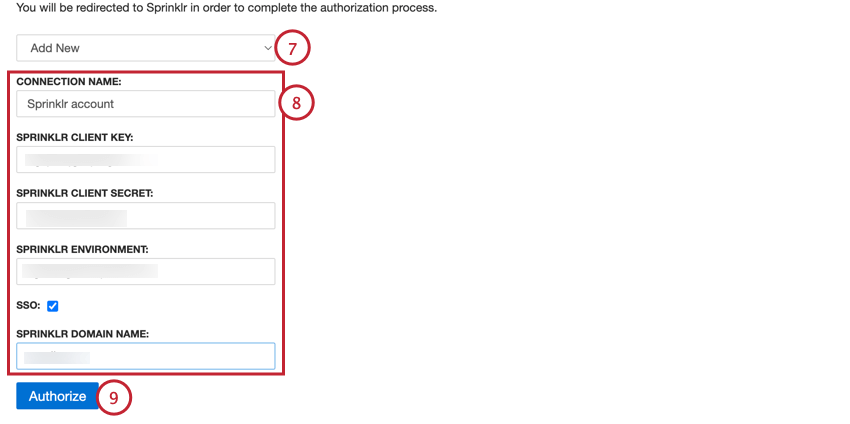
If adding a new account, enter the following information about your Sprinklr account:
- Connection Name: Give the connection a name so you can identify it.
- Sprinklr Client Key: The client key from your Sprinklr account.
- Sprinklr Client Secret: The client secret from your Sprinklr account.
- Sprinklr Environment: Your Sprinklr environment URL. Attention: This field is case sensitive. The environment value should be all lowercase.

- SSO: If you’d like to login via SSO, enable this box and then enter your organization’s Sprinklr production URL in the Sprinklr Domain Name. Qtip: See this Sprinklr support page for more information about using SSO for Sprinklr.

Click Authorize.
If you want your credentials to expire, then configure the following options:
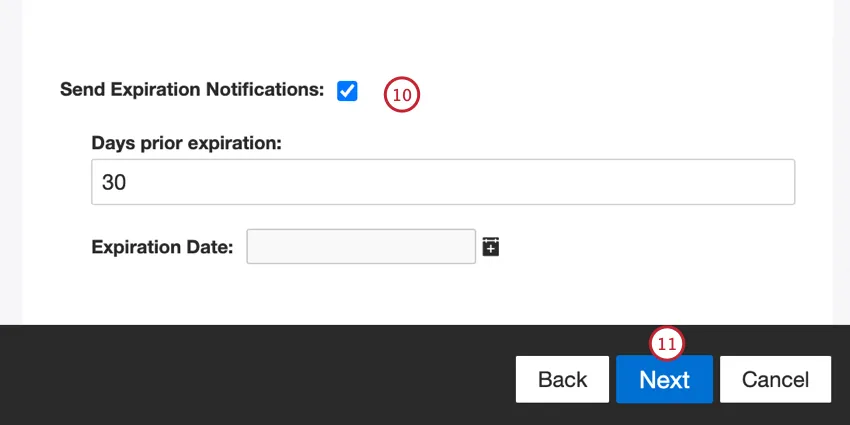
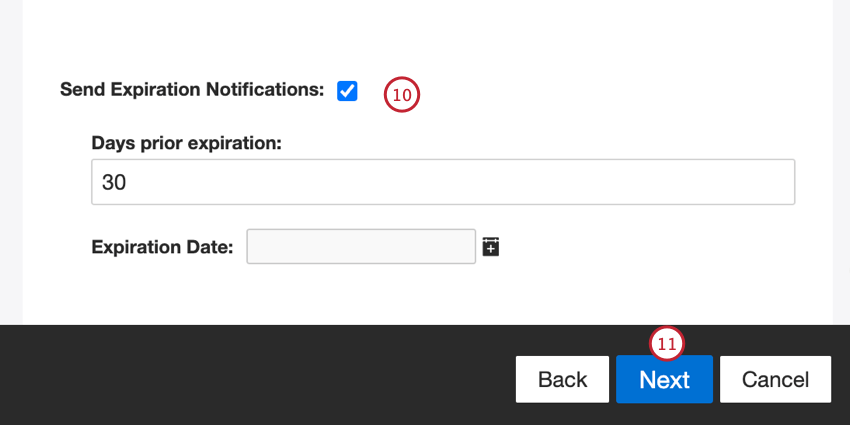
- Send Expiration Notifications: Select this option to allow your credentials to expire.
- Days prior expiration: If enabling expiration notifications, enter how many days you’d like to be notified before the expiration. You may enter a value between 1 to 100 days.
- Expiration Date: Set the date when the credentials will expire. Click on the box to open a calendar to pick the date.
Click Next.
Select 1 or more of the configured streams from your Sprinklr account. Selecting a dashboard will select all streams associated with that dashboard.
Qtip: After your job is created, you can change your selected streams with the job options menu.
Click Next.
If needed, adjust your data mappings. See the Data Mapping support page for detailed information on mapping fields in XM Discover. The Default Data Mapping section has information on the fields specific to this connector and the Mapping Conversational Fields section covers how to map data for conversational data.
Click Next.
If desired, you can add data substitution and redaction rules to hide sensitive data or automatically replace certain words and phrases in customer feedback and interactions. See the Data Substitution and Redaction support page.
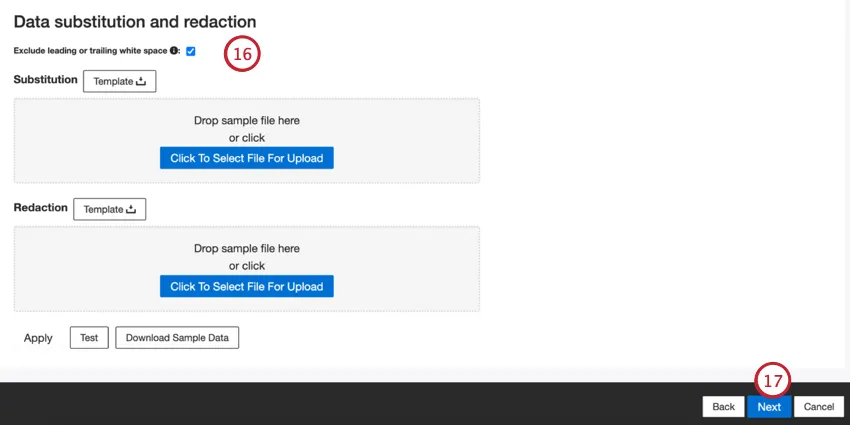
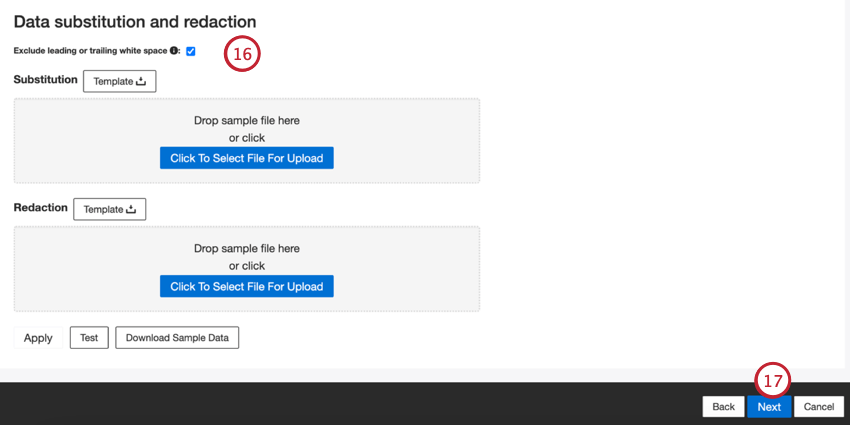
Qtip: Click Download Sample Data to download an Excel file with sample data to your computer.
Click Next.
If desired, you can add a connector filter to filter the incoming data to limit what data is imported.
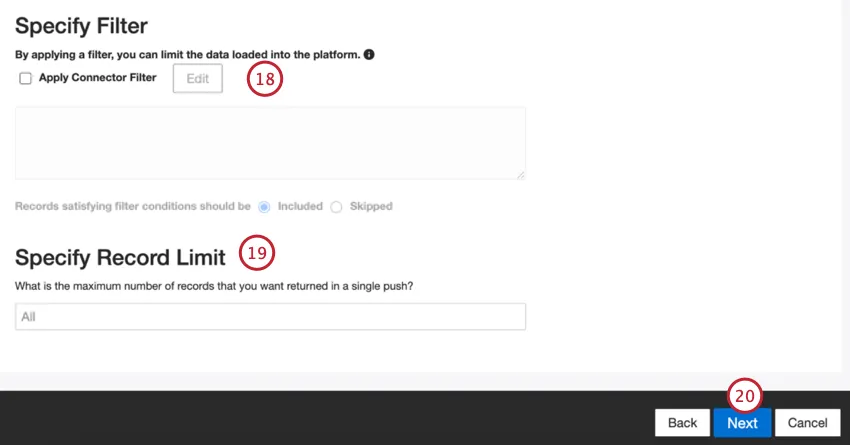
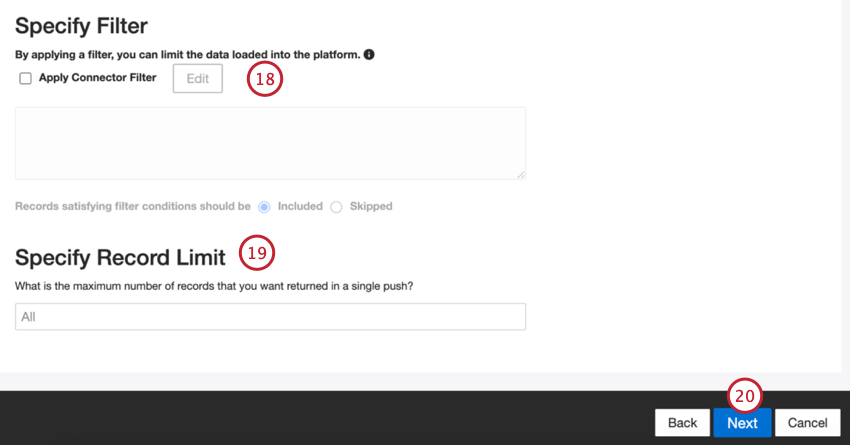
You can also limit the number of records imported in a single job by entering a number in the Specify Record Limit box. Enter “All” if you would like to import all records.
Qtip: For conversational data, the limit is applied based on conversations rather than rows.
Click Next.
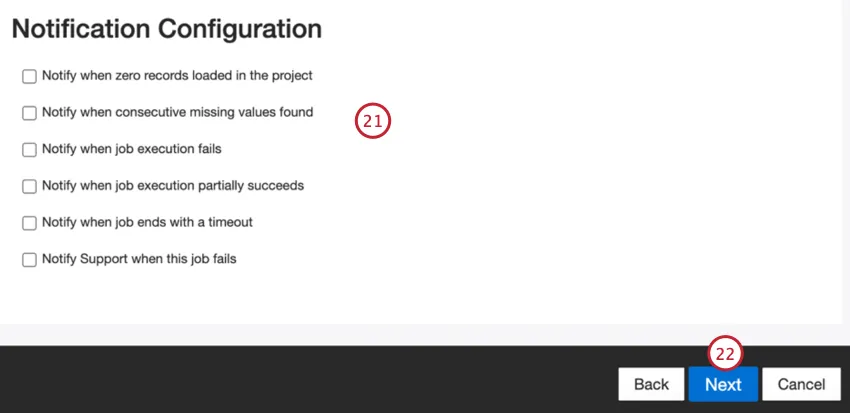
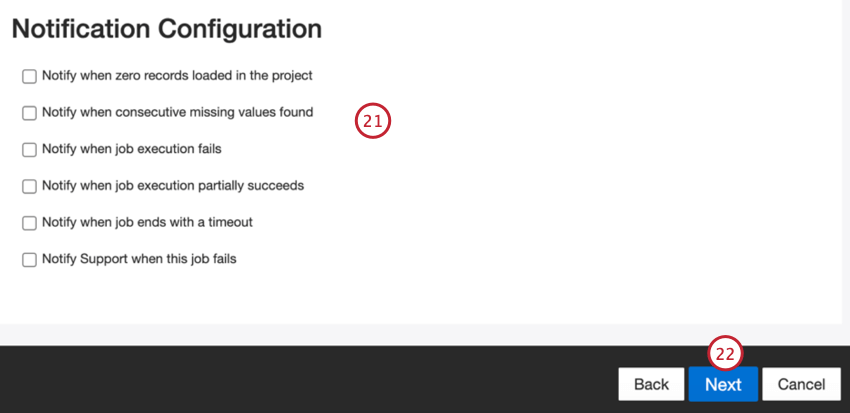
Choose when you’d like to be notified. See Job Notifications for more information.
Click Next.
Choose how duplicate documents are handled. See Duplicate Handling for more information.
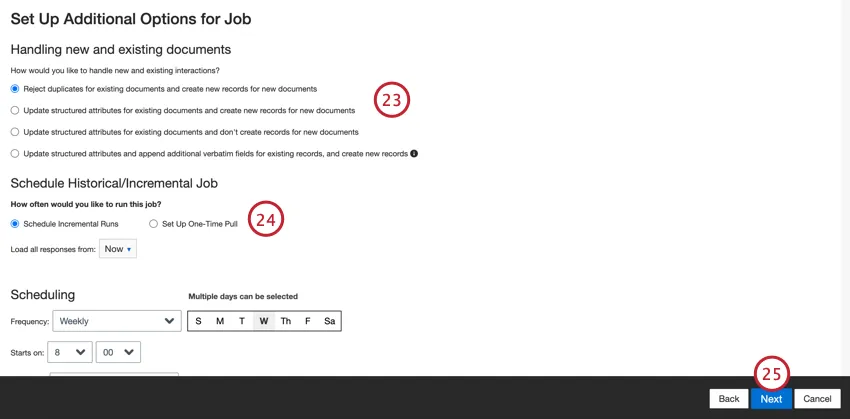
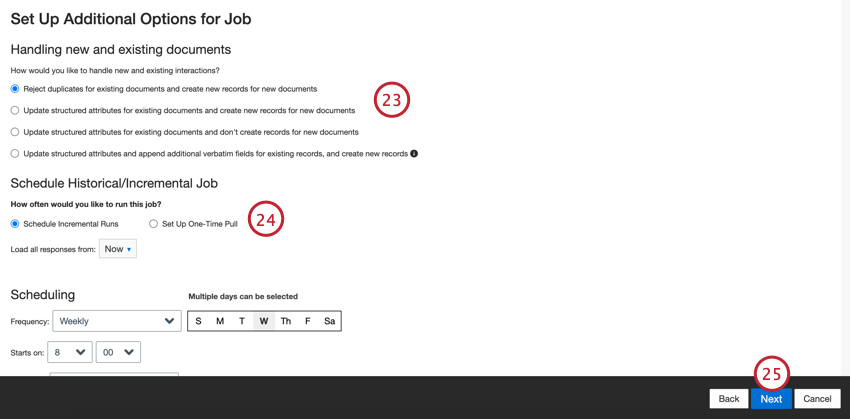
Choose Schedule Incremental Runs if you’d like your job to run periodically on a schedule, or Set Up One-Time Pull if you’d like the job to run just once. See Job Scheduling for more information.
Click Next.
Review your setup. If you need to change a specific setting, click the Edit button to be brought to that step in the connector setup.
Click Finish to save the job.
Default Data Mapping
This section contains information on the default fields for Sprinklr inbound jobs.
- natural_id: A unique identifier of a document. It is highly recommended to have a unique ID for each document to process duplicates correctly. For Natural ID, you can select any text or numeric field from your data. Alternatively, you can automatically generate IDs by adding a custom field. By default, XM Discover uses source IDs prefixed by the connector’s name via a custom transformation:Natural ID = Connector-name;Source-ID.
- document_date: The primary date field associated with a document. This date is used in XM Discover reports, trends, alerts, and so on. By default, this is mapped to the date field selected after specifying the SOQL query. You can choose one of the following options:
- responseTime (default): The date and time of when feedback was submitted
- If your source data contains other date fields, you can choose one of them.
- You can also set a specific document date.
- feedback_provider: Identifies data obtained from a specific provider. For Sprinklr uploads, this attribute’s value is set to “Sprinklr” and cannot be changed.
- source_value: Identifies data obtained from a specific source. This can be anything that describes the origin of data, such as the name of a survey or a mobile marketing campaign. By default, this attribute’s value is set to “Sprinklr.” Use custom transformations to set a custom value, define an expression, or map it to another field.
- feedback_type: Identifies data based on its type. This is useful for reporting when your project contains different types of data (for example, surveys and social media feedback). By default, this attribute’s value is set to “Survey”. Use custom transformations to set a custom value, define an expression, or map it to another field.
- job_name: Identifies data based on the name of the job used to upload it. You can modify this attribute’s value during the setup via the Job Name field that is displayed at the top of each page during the setup.
- loadDate: Indicates when a document was uploaded into XM Discover. This field is set automatically and cannot be changed.
Qtip: See Mapping Conversational Fields for information on how to map conversational data.
That's great! Thank you for your feedback!
Thank you for your feedback!