

Transforming Data (Connectors)
What's on this page
About Transforming Data in Discover
You can transform your incoming data before it is imported into XM Discover. This is useful if you need to clean your data or modify your data’s format.
To access data transformations:
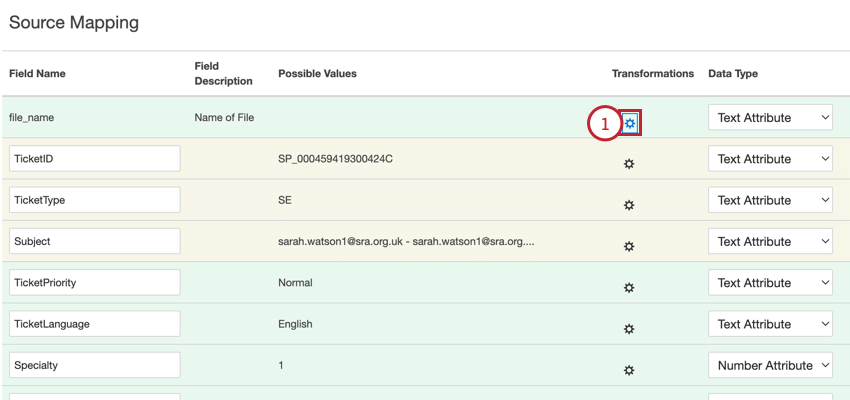
Qtip: If you want to update data transformations for an existing job, select Data Mapping from the jobs options menu.
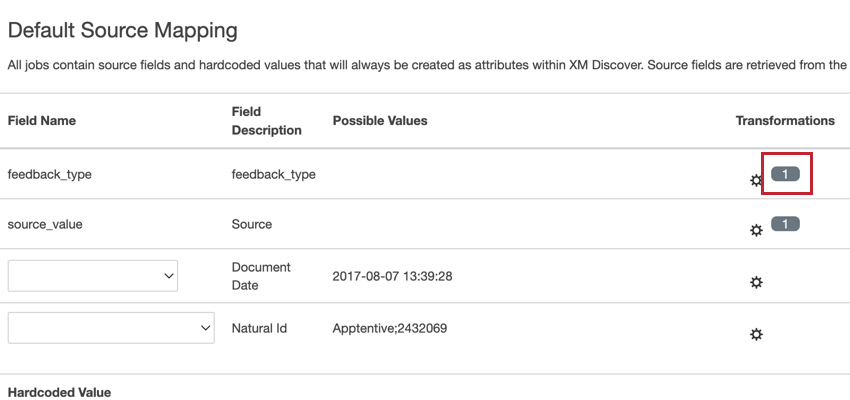
Attention: If the gear icon has a number next to it, that means there is already a transformation applied to the field. If you add a new transformation, it will replace the old one.

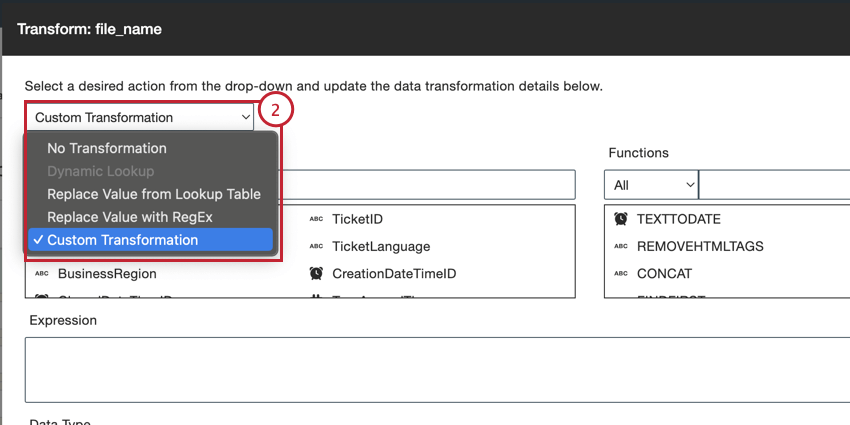
- No Transformation: Do not transform the imported field.
- Dynamic Lookup: This option is only available for lookup fields. When selected, this field will apply the latest lookup values for the field from the lookup table.
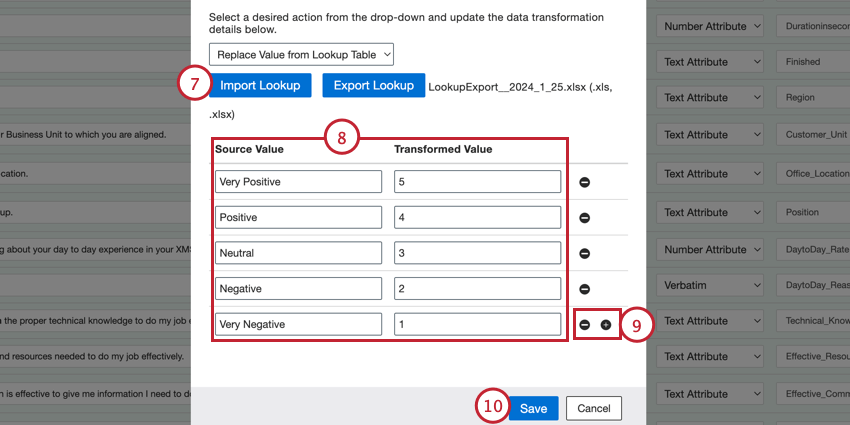
- Replace Value from Lookup Table: Define pairs of source values and replacement values.
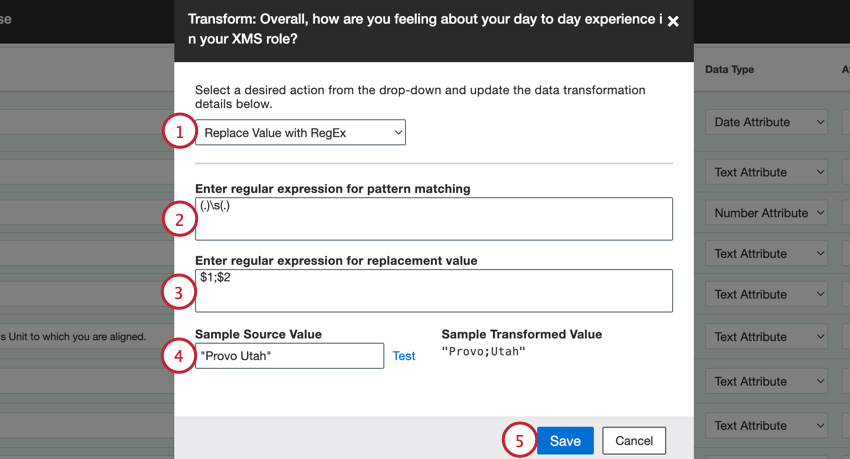
- Replace Value with RegEx: Define regular expressions (regex) for pattern matching and replacement values.
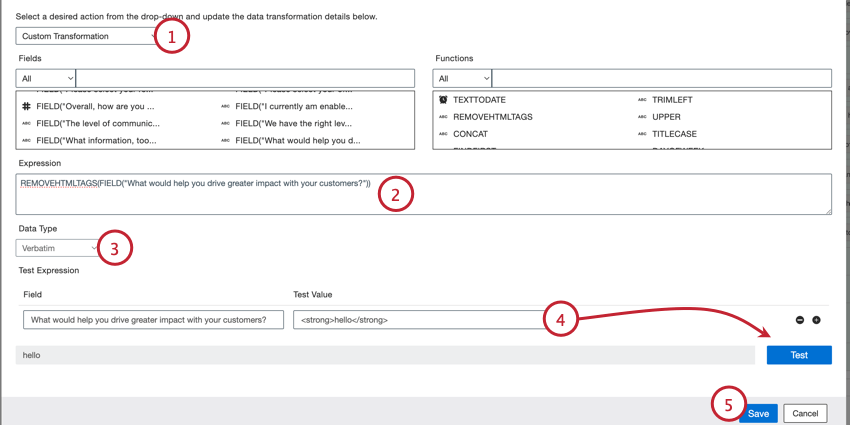
- Custom Transformation: Build your own transformation using different functions and expressions.
Attention: Transformations only apply to any new data that is imported in the future. Any historical data will not be impacted. To update historical data, retrieve data for the job.
Dynamic Lookup
This option is only available for data fields that reference a lookup table from the connected data source. You can specify a dynamic lookup expression so that the correct data is imported into XM Discover.
Example: For example, the expression DYNAMICLOOKUP(“QID15”, “10”) looks up the QID15 field in the data source and sends the tenth entry. Since this field corresponds to a survey question on a 1 to 10 scale, with 1 being Very Negative and 10 being Very Positive, this expression resolves to “Very Positive.”

Replace Value from Lookup Table
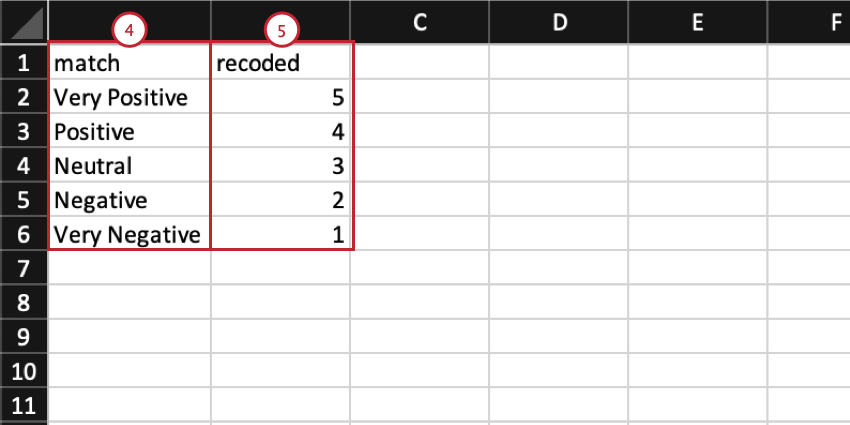
You can add lookups to any source field to have greater control over the exact values being sent to your XM Discover project. A lookup table lets you define source values to be replaced when saved in XM Discover.
Example: You can use this option to change the format of survey responses. For example, when uploading a service rating, you can switch between a numeric format (from 1 to 5) and a text format (from Very Negative to Very Positive) and vice versa.
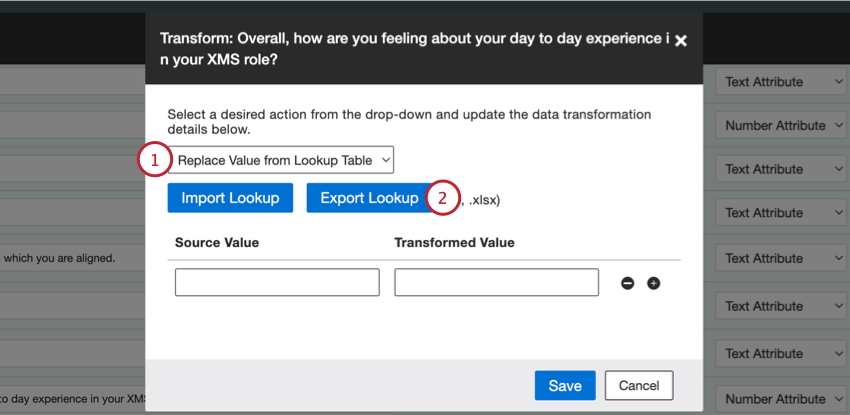
Qtip: We recommend adding lookups via a lookup file. If you’d like to add lookups manually, skip to step 8.
Replace Value with RegEx
You can replace incoming data values using regular expressions, or regex, allowing you to clean data prior to loading it into your XM Discover project.
Attention: Custom coding features are provided as-is and require programming knowledge to implement. Discover Support does not offer assistance or consultation on custom coding. You can always try asking our community of dedicated users instead. If you’d like to know more about our custom coding services, please contact your Discover Account Executive.
Custom Transformation
You can transform incoming data using your own custom expressions. Custom transformations enable many types of data manipulation, including changing date formats, joining fields, removing leading zeros, and more.
Qtip: Check out the Custom Transformation Examples section for some additional examples.
Automatically Generating Natural IDs
When you upload data to XM Discover, the documents may not contain an unique ID for you to use as the natural ID, which is an important field because it helps you identify duplicate documents. Your uploaded data must have an unique identifier to use as the natural ID. This section covers how to set a natural ID when mapping data by using custom transformations.
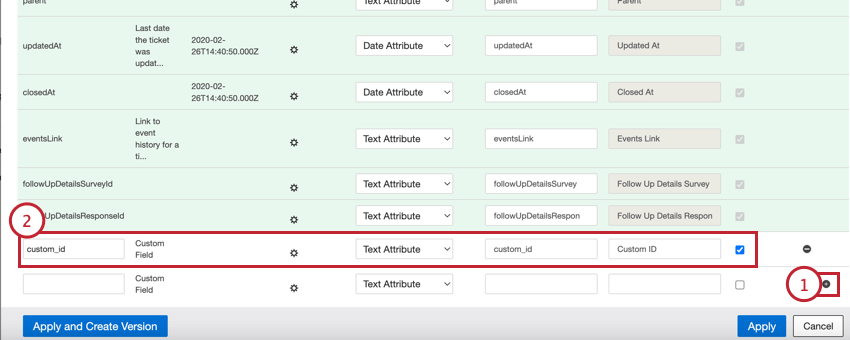
- Field Name: Provide the name for the field.
- Data Type: Select Text Attribute from the dropdown menu.
- Attribute Name: Leave it the same as “Field Name.”
- Attribute Display Name: If desired, enter a more user-friendly display name for the field.
- Reportable: Enable this checkbox. This must be selected so you can use the natural ID in reporting.
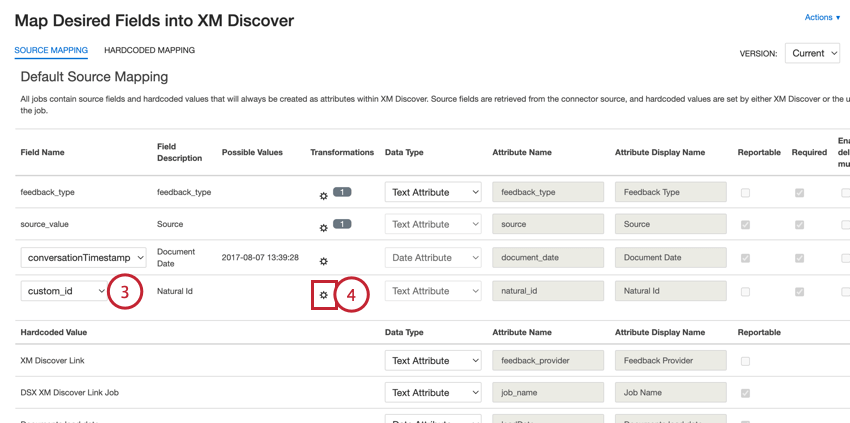
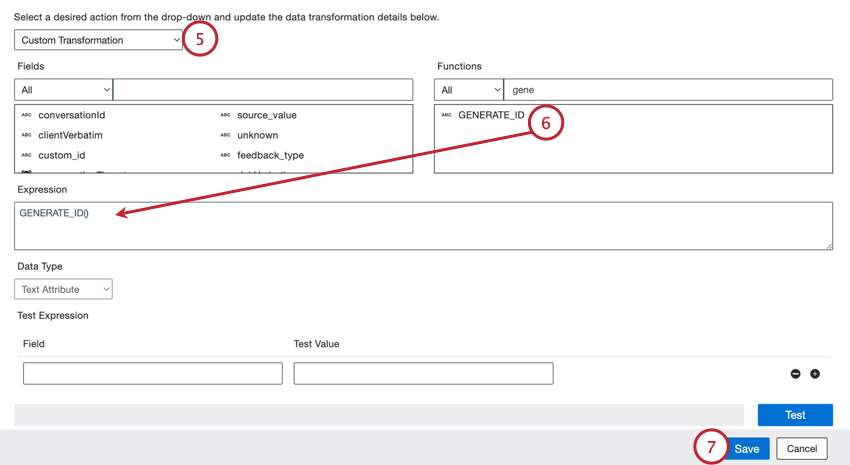
Qtip: Make sure you click Apply to save your mappings.
Now, your document will have a randomly generated ID when it is uploaded.
Setting a Specific Document Date
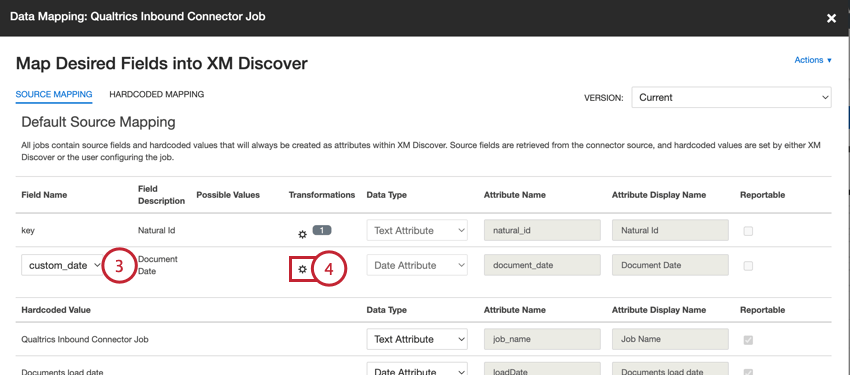
When you upload data to XM Discover, the documents may contain several date fields, or none at all. Your uploaded data must have a date field to use as the document date. This section covers how to set a document date when mapping data by using custom transformations.
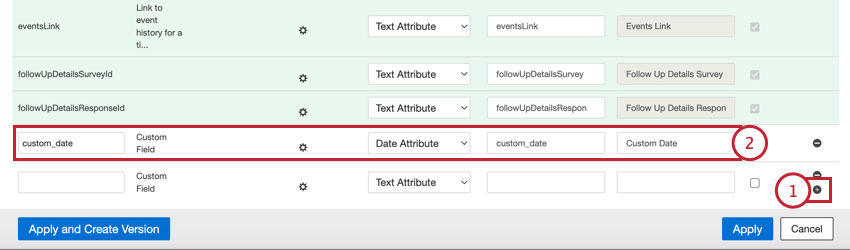
- Field Name: Provide the name for the field (for example, custom_date).
- Data Type: Select Date Attribute from the dropdown menu.
- Attribute Name: Leave it the same as “Field Name” (for example, custom_date).
- Attribute Display Name: If desired, add a more user-friendly display name for the field.
- Reportable: Enable this checkbox. This must be selected to document date is used in Discover reporting.
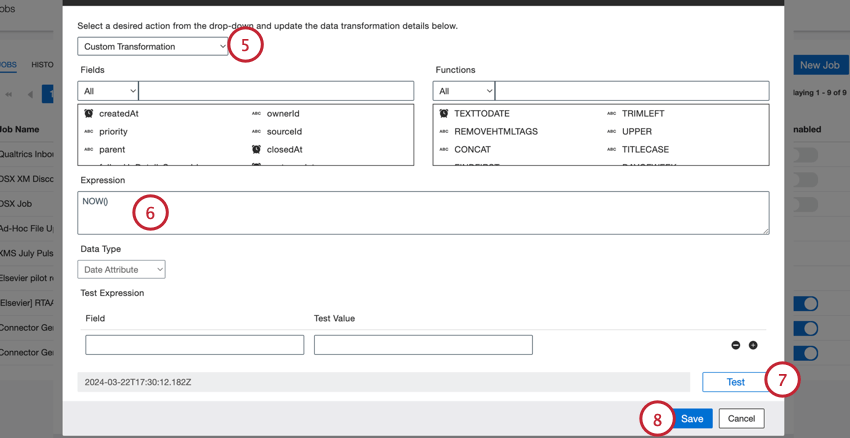
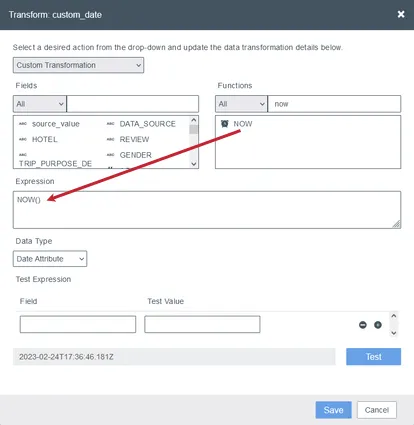
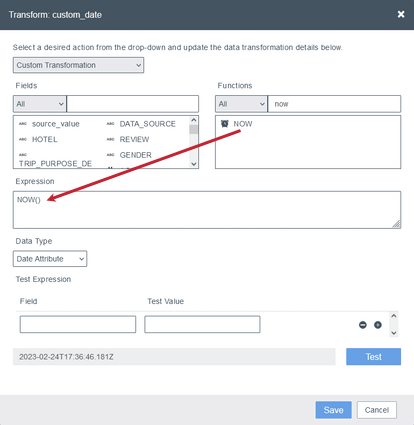
- Use load time: To use the date when the documents are uploaded into XM Discover, drag the NOW() function from the Functions section onto the Expression box.
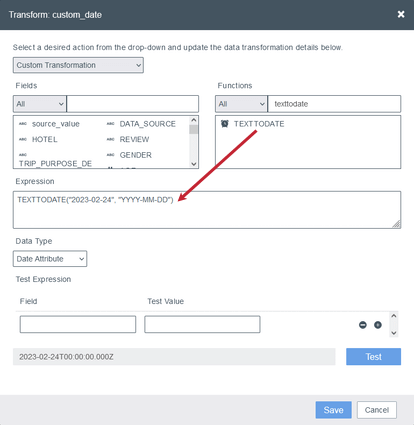
- Use hardcoded value: To use a specific date, drag the TEXTTODATE() function from the Functions section onto the Expression box and provide the date and the date format inside the parenthesis.
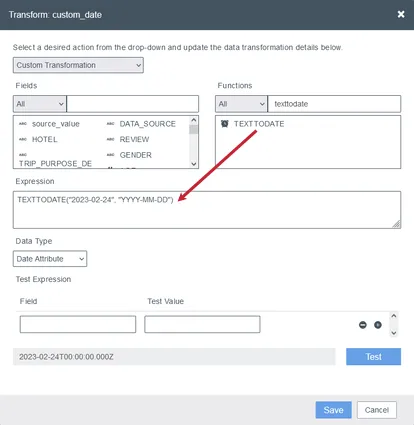 Qtip: In both cases, the resulting date will use the YYYY-MM-DDThh:mm:ssZ format.
Qtip: Make sure you click Apply to save your data mapping.
Custom Transformation Examples
This section covers some examples of how you can manipulate your data using custom transformations.
Assign a Custom Source Value
Goal: Assign a custom text value (“April Surveys”) to the “Source” attribute.
How: Apply the following transformation to the “Source” field (simply put the text value inside quotation marks):
Example:“April Surveys”
Change “Last Name,First Name” to “First Name Last Name”
Goal: Change the name format from “last name,first name” to “first name last name” and capitalize the first letter of every word.
How: Apply the following transformation to the name field:
PROPERCASE(REPLACEBYREGEXP(NAME, “(.*),(.*)”, “$2 $1”))
Example: “harris,george” becomes “George Harris”
Convert a Date from UTC to CST
Goal: Convert a date field from a UTC time zone to CST.
How: Apply the following transformation to the END_DATE field:
CONVERT_TO_TIMEZONE(END_DATE, “Etc/UTC”, “America/Chicago”)
Example: “2021-03-11 15:15:00” (London time) becomes “2021-03-11T09:15:00Z” (Chicago time).
Qtip: If the date field is specified in Unix epoch time, you need to convert it to the ISO 8601 format first.
Convert hh:mm:ss to Minutes
Goal: Convert time from the hh:mm:ss format to the number of minutes.
How: Apply the following transformation:
GETMINUTESBETWEEN(TEXTTODATE(“1970-01-01”, “YYYY-MM-DD”), CONCAT(“1970-01-01T”, MY_TIME))
Example: 12:12:30 becomes 732.5.
Convert Unix Epoch Time in Seconds to ISO 8601
Goal: Convert a Unix epoch timestamp in seconds to ISO 8601 date format.
Qtip: If your date comes as a number in milliseconds (like 1588253075000), you can use it as a date field without any transformations. Just map it as a date attribute, and it will work. However, if you need to change the time zone, you need to convert it to ISO 8601 first.
How: The following transformation does two things: it turns seconds into milliseconds and then turns the milliseconds into an ISO 8601 date:
NUMBERTODATE(TEXTTONUMBER(CONCAT(MY_DATE, “000”)))
Example: 1588253075 becomes 2020-04-30T13:24:35.000Z.
Derive Value Based on Whether Something Is in an Array
Goal: Check the state name and assign a “DMV Area” value if it matches any of the listed states. Otherwise, set as “Other States.”
How: Add a custom text field called AREA and apply the following transformation:
IF(LOWER(STATE) in [“md”, “dc”, “va”], “DMV Area”, “Other States”)
Qtip: Note that by using the LOWER function we made this condition case-insensitive, so both “dc” and “DC” will count as true in this case.
Example: STATE=”MD” becomes AREA=”DMV Area”
Extract Article Name from a Page Title
Goal: Extract the name of the article after the last “|” divider in a page title.
How: Apply the following transformation to the page title field:
TRIMRIGHT(MID(PAGE_TITLE,FINDLAST(PAGE_TITLE,”|”)+1,1000))
Example: “news|world|name of the article” becomes “name of the article”
Join First and Last Name into a Single Field
Goal: Combine FIRST_NAME and LAST_NAME fields into a new FULL_NAME field and capitalize the first letter of every word.
How: Add a custom text field called FULL_NAME and apply the following transformation:
PROPERCASE(CONCAT(FIRST_NAME, ” “, LAST_NAME))
Example: FIRST_NAME=”paul” LAST_NAME=”jones” becomes FULL_NAME=”Paul Jones”
Join Two Verbatims and Load Only the Combined Verbatim
Goal: Join two verbatim fields VERBATIM1 and VERBATIM2 into a new VERBATIM3 field and load only the combined verbatim into XM Discover.
How: Perform these steps:
Example: VERBATIM1=”The room was cozy.” and VERBATIM2=”Room service was nice.” becomes VERBATIM3=”The room was cozy. Room service was nice.”
Multi-Variable Rollup
Goal: Create a multi-variable rollup for answers to a single question that are split across several attributes. Suppose the dataset contains multiple “yes or no” attributes to indicate different levels of membership a customer may have:
- QID2_1 for Silver
- QID2_2 for Gold
- QID2_3 for Platinum
You can roll all the “yes” answers into a single new attribute to indicate the customer’s membership level.
How: Apply the following transformation:
TRIMRIGHT(CONCAT(IF(QID2_1==”Yes”, “Silver”, “”), IF(QID2_2==”Yes”, “Gold”, “”), IF(QID2_3==”Yes”, “Platinum”, “”)))
Example: QID2_1=”No”, QID2_2=”Yes”, and QID2_3=”No” becomes LOYALTY_LEVEL=”Gold”
Remove Leading Character
Goal: Remove the first character in a string.
How: Apply the following transformation:
REPLACEBYINDEX(MY_NUMBER, 1, 1, “”)
Example: “x00085524821587582371” becomes “00085524821587582371”
Trim Leading Zeros
Goal: Trim leading zeros in a number.
How: For a text value, apply the following transformation:
CONCAT(TEXTTONUMBER(MY_NUMBER), “”)
For a numeric value, apply the following transformation:
TEXTTONUMBER(MY_NUMBER)
Example: “000123456” becomes “123456”
That's great! Thank you for your feedback!
Thank you for your feedback!