

Filtering by Structured Data (Designer)
What's on this page
About Filtering by Structured Data
Use structured data attributes to filter feedback into models that categorize and display the most relevant information from your dataset. For information on creating and editing filters, see Filtering Data (Designer).
Qtip: Most structured filters are created by using attributes. For more information on creating and editing attributes in XM Discover, see Attributes.
Filtering by Sentiment
XM Discover uses sentiment analysis to determine the overall sentiment of feedback. Sentiment is available as a system attribute with pre-defined bands:
- Negative Sentiment: Feedback with a sentiment score of -5.0 to -1.0
- Neutral Sentiment: Feedback with a sentiment score of -0.99 to 0.99
- Positive Sentiment: Feedback with a sentiment score of 1 to 5.0
Qtip: You can create custom sentiment ranges using the sentiment system attribute. For example, _degreesentimentindex:[2.51 TO 5].
Filtering by Language
Use the following discover system attributes to filter by data type:
- CB Auto-detected Language ( _languagedetected ): The language feedback was submitted if your project uses automatic language detection.
- CB Processed Language ( _language ): The language feedback was submitted in. If the language is not supported by XM Discover, it will be marked as “OTHER”.
XM Discover is capable of recognizing and tagging data with over 150 languages using the Automatic Language Detection feature. Without automatic language detection, the following languages are available:
- Arabic
- Bengali
- Chinese (Simplified and Traditional)
- Dutch
- English
- French
- German
- Hindi
- Bahasa Indonesia
- Italian
- Japanese
- Korean
- Polish
- Portuguese
- Romanian
- Russian
- Spanish
- Swedish
- Tagalog
- Thai
- Turkish
- Vietnamese
Attention: Verbatims with less than 10 characters are tagged as English.

Filtering by Data Type
To filter feedback by the type of data that was submitted, use the following system attributes:
- Source ID ( _id_source ): The data source of the sentences.
- Verbatim Type ( _verbatimtype ): The name of the verbatim field that you would like to filter by. This is useful if you have multiple verbatim columns.
Example: Let’s say you have two verbatim columns: Review and Response. Create a rule for _verbatimtype:reviewto return a model that only displays data from the Review verbatim column.

Filtering by Content Type
For projects with content type detection enabled, use the following system attributes to filter feedback from ads, spam, and other non-actionable data:
- CB Content Type ( cb_content_type ): Whether documents are marked as contentful, meaning they contain content, or noncontentful.
- CB Content Subtype ( cb_content_subtype ): Groups documents marked as noncontentful into ads, coupons, article links, or “undefined”.
Example: If you would like to create a model that only categorizes contentful data, create a rule using the CB Content Type system attribute: cb_content_type:contentful.
Filtering by Sentence Type
XM Discover uses semantic analysis to identify intent that’s relevant to your analytics. These categories are used in the sentence-level system attribute: CB Sentence Type ( cb_sentence_type ). Analyzing the type of intent used in your data can help understand how the customer experience can be improved.
Click on the following types of sentences to see what is identified using the sentence type attribute:
Qtip: Sentences that do not match any of the sentence types are tagged as UNDEFINED.
Filtering by Word Count
Use the sentence word count or the document word count attributes to filter your data by the number of words in your sentence or record. The range set in these attributes is inclusive of values. If the word count is zero, the sentence/record either has no text or was loaded before the feature was enabled.
- CB Sentence Word Count ( cb_sentence_word_count ): Sentence-level attribute lets you filter data by the number of words in a sentence. Qtip: To view sentences with 10 words or less, use the range cb_sentence_word_count: [1 TO 10].

- CB Document Word Count ( cb_document_word_count ): Record-level attribute lets you filter data by the number of words in a record. This is also the sum of all sentence word counts. Qtip: To view records with 50 words or more, use cb_document_word_count: [50 TO 200].
Filtering by Sentence Quartile
The CB Sentence Quartile ( cb_sentence_quartile ) attribute identifies the part of the verbatim that a sentence follows into. The values are 1-4, with each section representing 25% of the verbatim’s length. If a record has multiple verbatims, there will be quartiles for each verbatim in the record.
Qtip: This attribute can be helpful if you want to focus on why customers are calling in, which is typically discussed in the first quartile ( 1 ) of the verbatim. Alternatively, if you are interested in how representatives are ending their calls, you can limit your reports to the last quartile ( 4 ).
Applying Sentence Quartile
If your historical data is missing sentence quartile data, you can add it to your data.
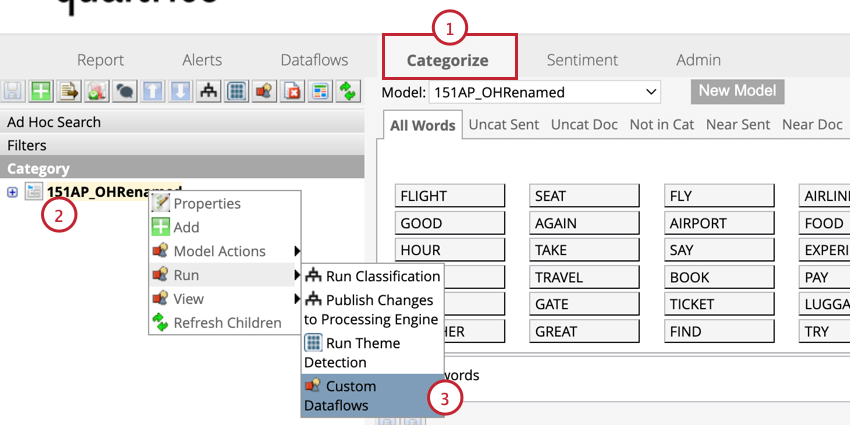
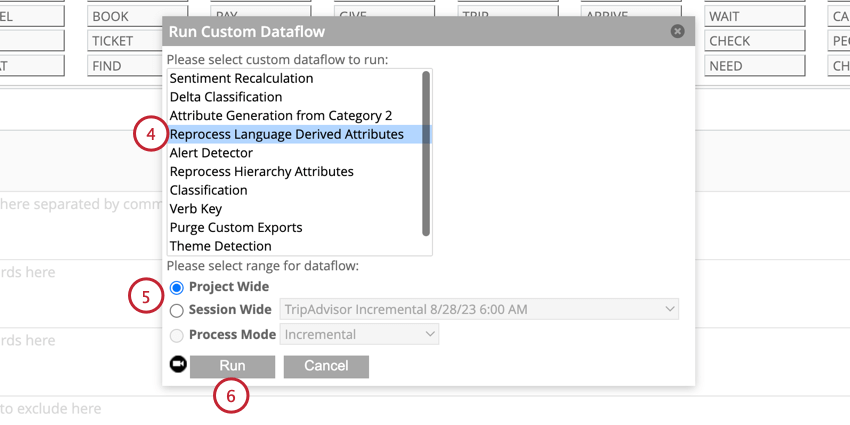
Filtering by Effort
CB Effort measures the level of effort expressed by customers during their experience. This attribute is available at sentence-level on a scale of -5 to 5, with -5 indicating the hardest experience and 5 indicating the easiest experience. The range is inclusive of values.
Qtip: To view sentences where the level of effort expressed is very high, you can use the range: cb_sentence_ease_score:[-5 to -3].
Qtip: CB Effort is only compatible with whole numbers.
Filtering by Loyalty Tenure
CB Loyalty Tenure lets you filter data by the length of time in years that a customer has used a service or owned a product. This attribute is available at sentence-level in sentences with the tenure sentence-type. The range is inclusive of values.
Example: The sentence “I’ve been a customer for 10 years” will return a Loyalty Tenure value of 10. To view sentences with tenure of up to 10 years, use the following range: cb_loyalty_tenure:[1 TO 10].
Filtering by Interaction Type
CB Interaction Type ( cb_interaction_type ) defines data by the type of XM interaction, which allows you to distinguish regular feedback from conversational data. This attribute is available at document, verbatim, and sentence levels.
Interaction type can have the following values:
- Chat: Conversational data from digital channels.
- Feedback: Regular feedback data (such as online mention, reviews, and so on).
- Survey: Response data from a survey.
- Voice: Conversational data from transcribed conversations on audio.
That's great! Thank you for your feedback!
Thank you for your feedback!