

Editing Books (Studio)
What's on this page
About Editing Books
After a book is created, you can change its properties and modify its tabs. Additionally, you can make quick changes to the dashboards within a book.
Qtip: To edit a book, a user must have an Edit Dashboard user permission and be granted the Can Edit sharing permission for the specific book.

Editing a Book
There are several ways to edit a book:
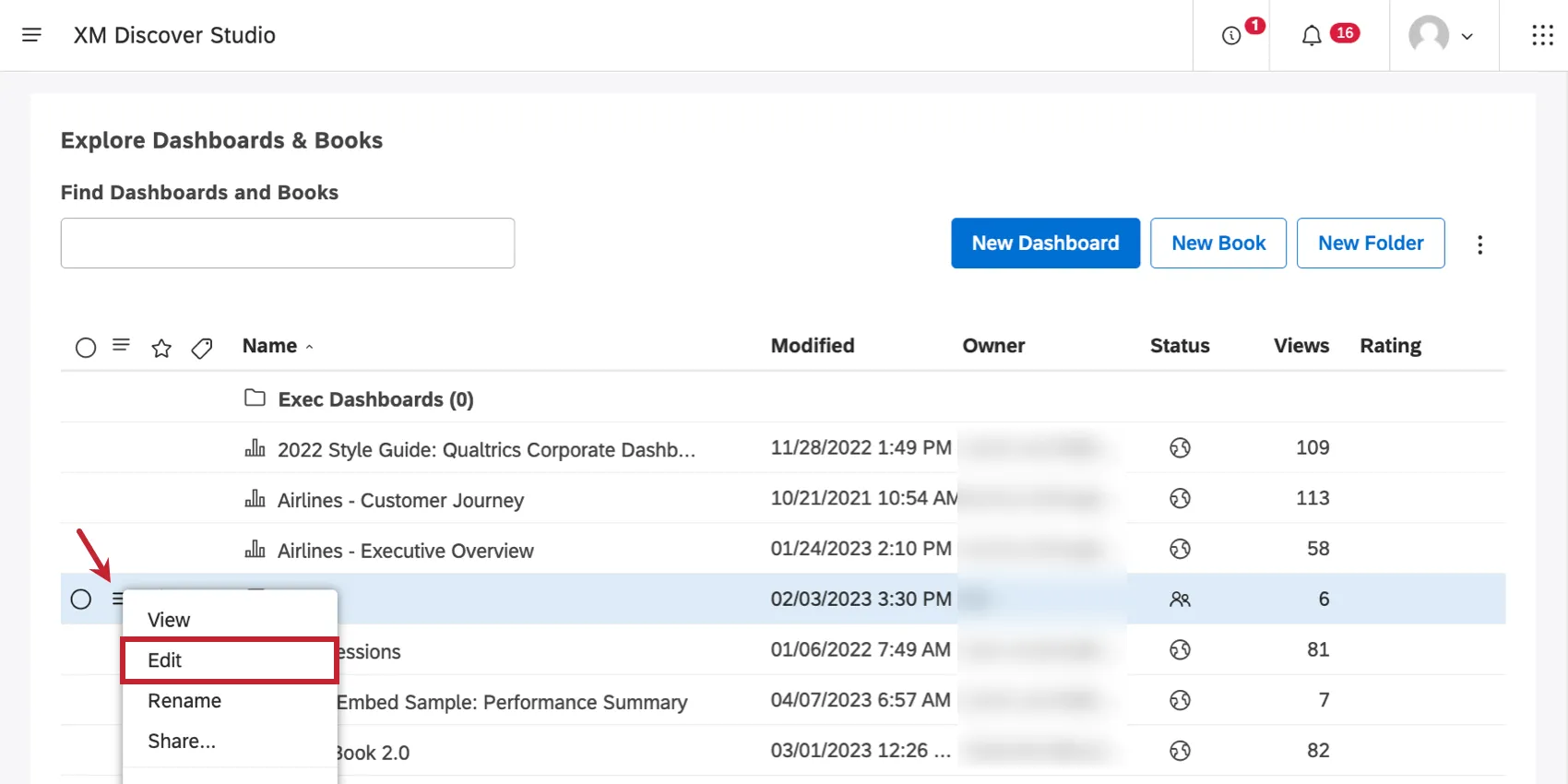
- On the Studio homepage, when you scroll down to Explore Dashboards & Books, click the menu next to a book and select Edit.
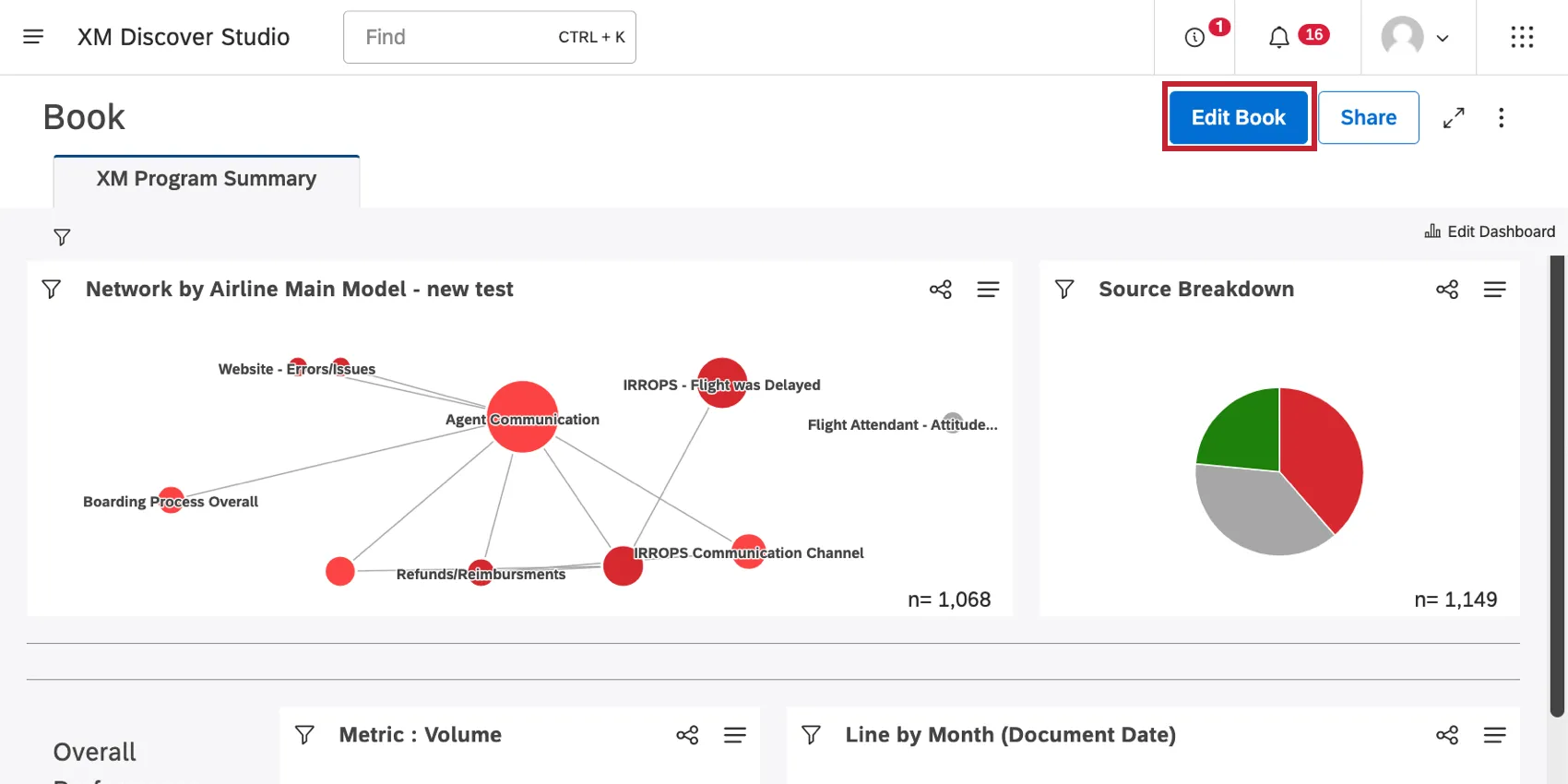
- When viewing a book, click the Edit Book button in the header.
Once you’ve chosen one of these options, you can edit the book’s name, description, tabs, dashboards, and all of the same settings you added when you created the book. See Creating Books for more details on the requirements for each of these fields, as well as guidance on adding and deleting tabs.
Editing Dashboards from Inside a Book
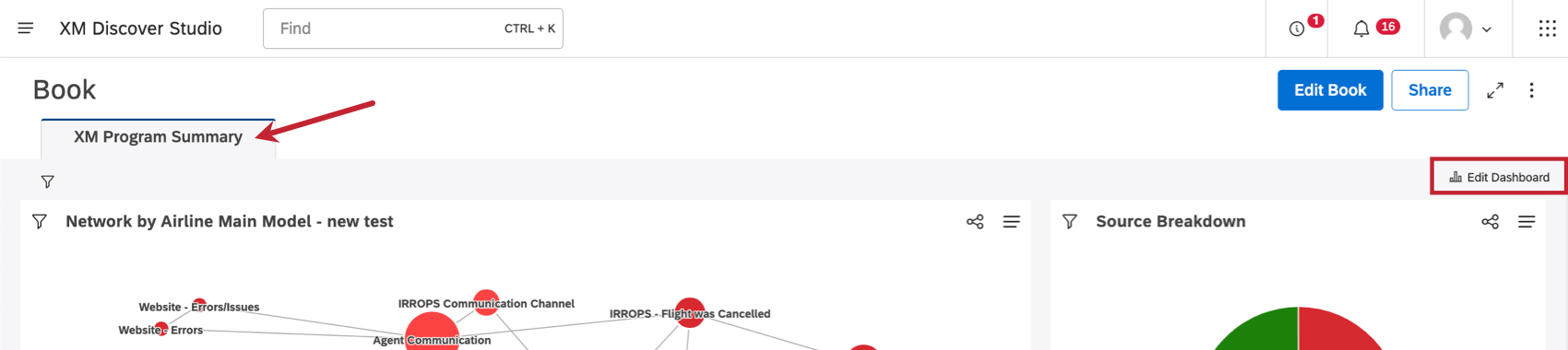
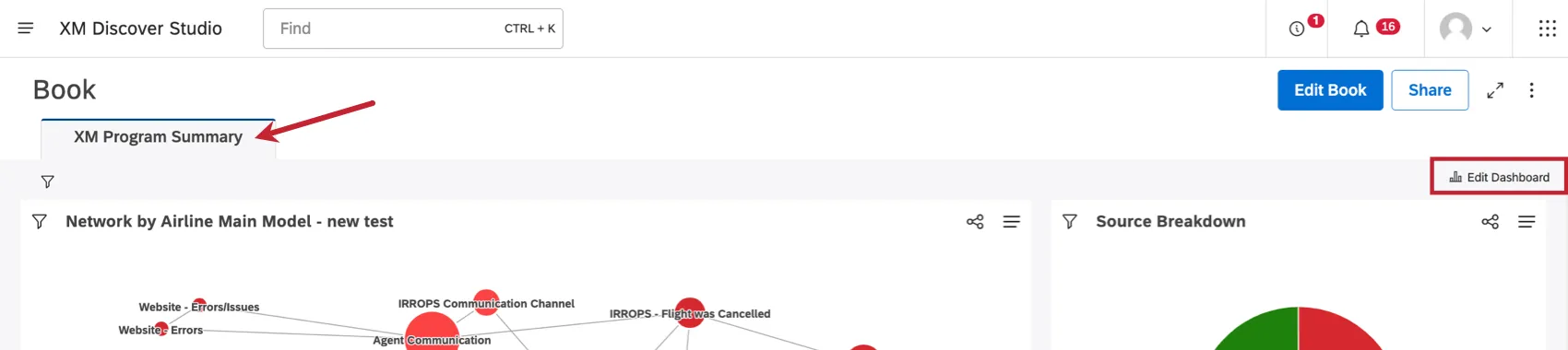
You can also edit a dashboard in a book. Click the tab the dashboard’s in, then click Edit Dashboard button. These changes will be reflected in the original dashboard, not just the book.
When modifying a dashboard from within a book, you have 2 save options:
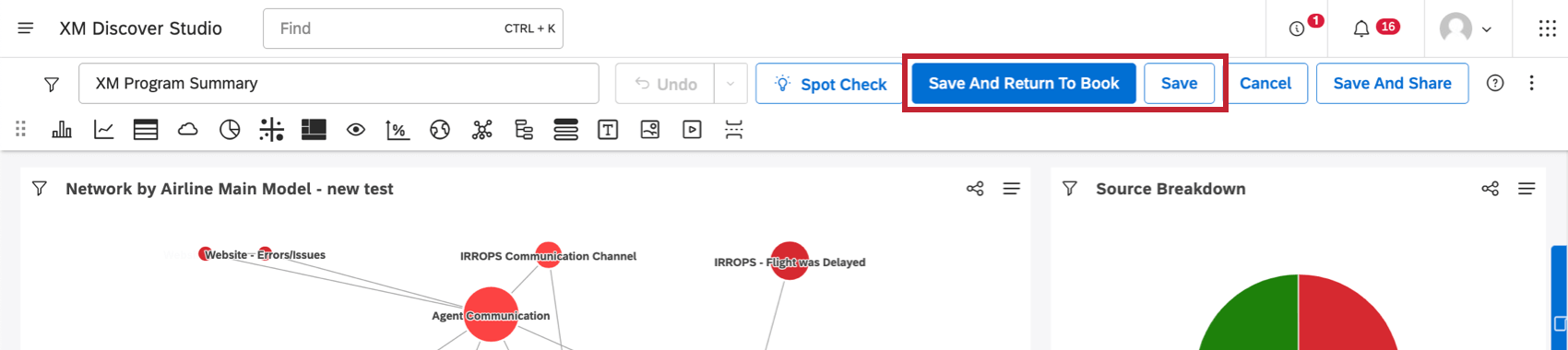
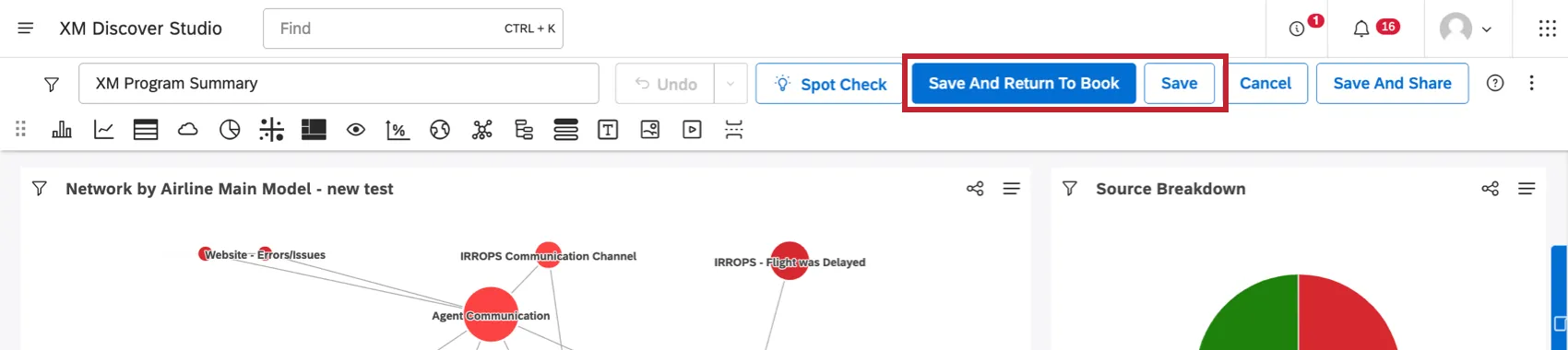
- Save And Return To Book: Save your changes and go back to viewing the book.
- Save: Save your changes and return to Studio’s homepage.
Which Dashboards Can Be Added to Books
Whether you can add a dashboard to a book depends on a combination of sharing permissions and ownership.
- A dashboard can be added to books by anyone who has Can Edit sharing permissions for the dashboard and if the dashboard owner indicated that editors can share the dashboard.
- If the dashboard owner has not indicated that editors can share the dashboard, editors cannot add it to any books.
- This also prevents the dashboard owner from adding it to shared books owned by other users.
- The owner of a dashboard can add it to their own books regardless.
Book Properties
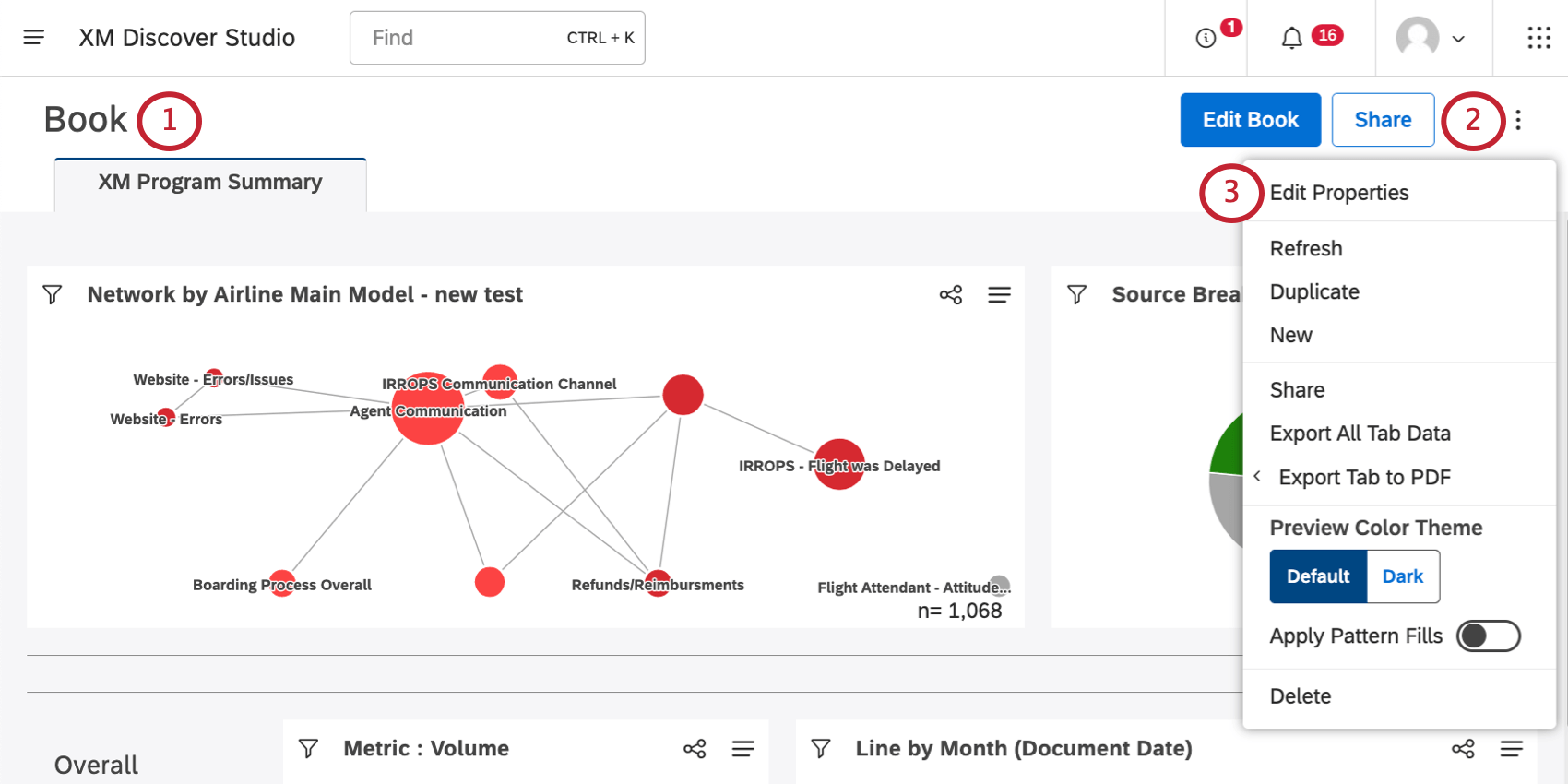
You can edit a book’s title, description, folder location, and owner at any time.
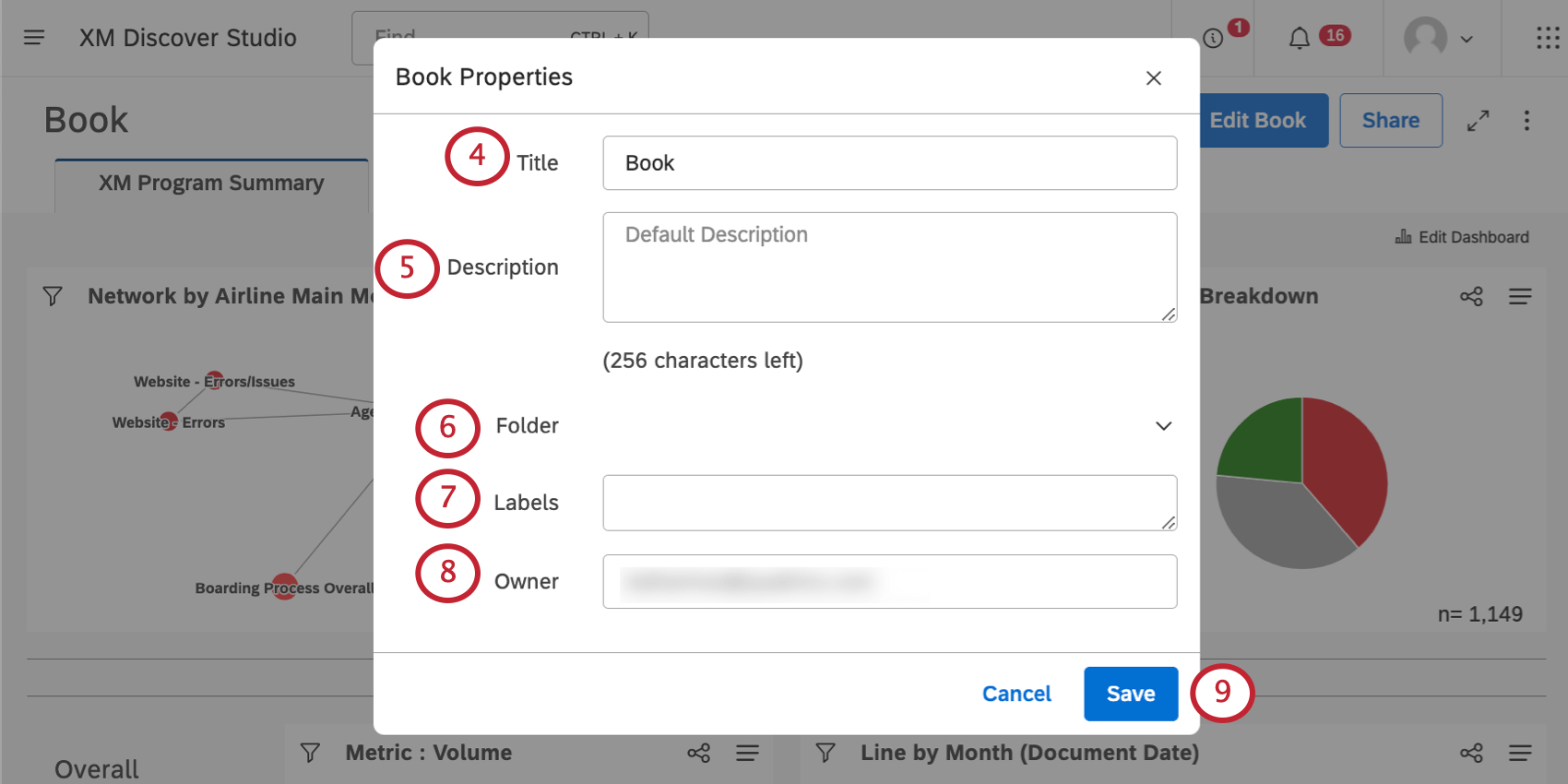
Qtip: Book titles must be unique.
Qtip: Descriptions are limited to 256 characters.
That's great! Thank you for your feedback!
Thank you for your feedback!