

Managing Project Category Models (Studio)
What's on this page
About Managing Project Category Models
On the Projects page in Studio, you can manage project category models, including filtering and sorting category models, setting report defaults for category models, and viewing model dependencies.
Qtip: For an overview of the Projects page, see Projects Page Overview.
The Models table on the Projects page displays a list of models available in the selected content provider’s project.
Accessing Project Category Models
For information on accessing project category models, see Accessing Project Attributes and Project Category Models.
Category Models Table Overview
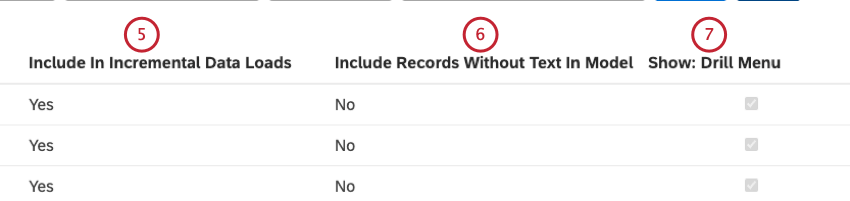
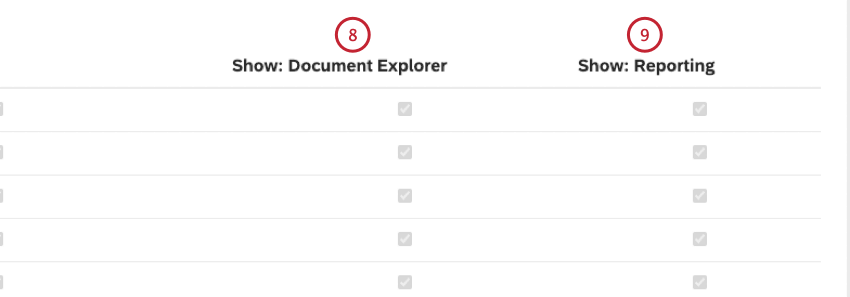
You can view a list of the category models available in the selected content provider’s project in the Models table on the Projects page. This table provides the following information:

Qtip: The Local Other bucket is a special node for sentences that match the parent topic, but none of its child topics.
Filtering Project Category Models
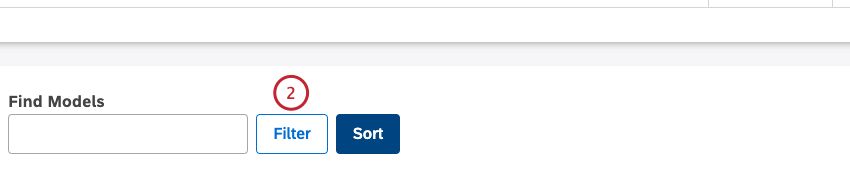
You can filter project category models by name and other parameters to narrow down the models list.
Qtip: Filters also apply to project category model export. Filtering selections are applied as long as you stay on the Models page. They get reset when you go to another page, sign out of Studio, or when your user session expires.
- Name: Select this condition to filter category models by name.
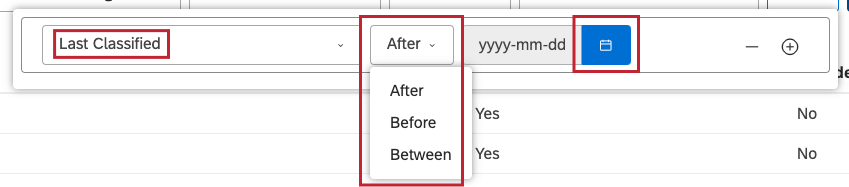
- Last Classified: Select this condition to filter category models by the date of their last classification run.
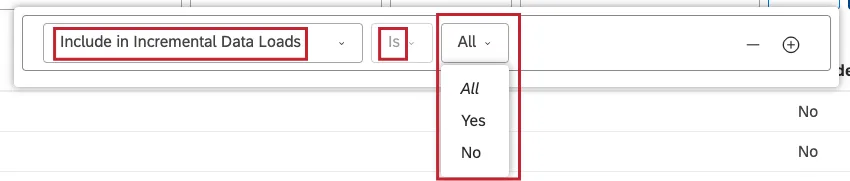
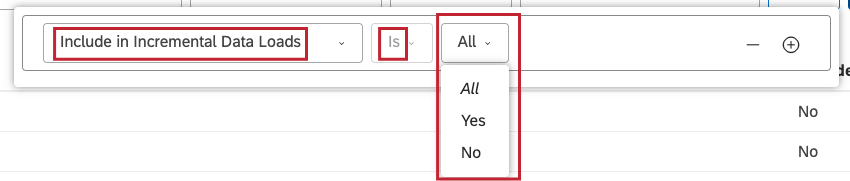
- Include In Incremental Data Loads: Select this condition to filter category models by whether they are set to run each time an incremental data upload is performed.
- Include Local Other: Select this condition to filter category models by whether sentences from the Local Other bucket are treated as classified into the parent node in reports.
- Include Records without Text In Model: Select this condition to filter category models by whether they include records without text.
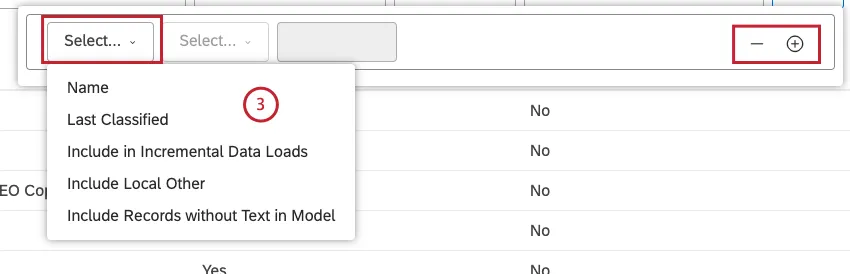 Qtip: Click the plus ( + ) button next to a condition to add another condition. Click the minus ( – ) button next to a condition to remove it.
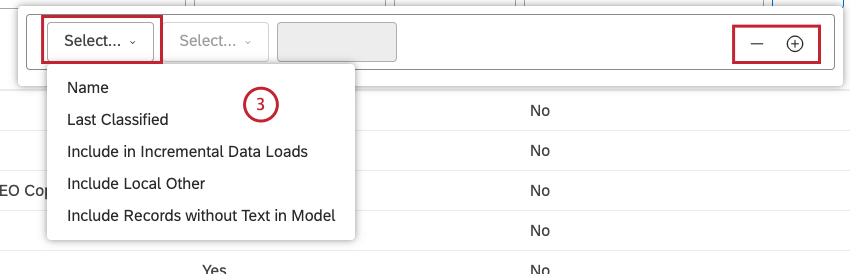
- Name: The operator is automatically set to Contains to include data containing a search query. Enter a category model name or part of it to filter by in the box on the right. Qtip: Filter conditions have an AND relationship.

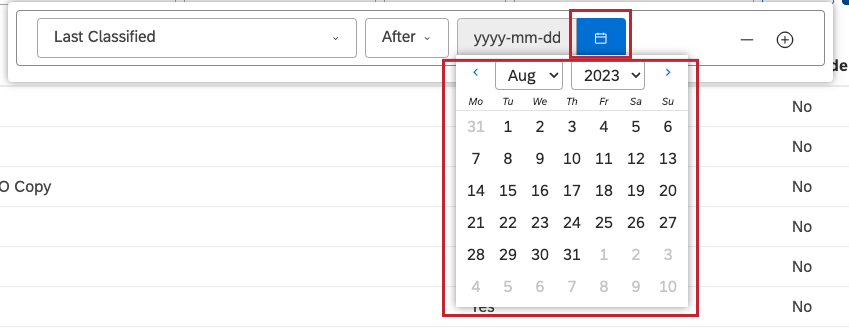
- Last Classified: Select 1 of the following operators: After (to show models classified after the date you specify), Before (to show models classified before the date you specify), or Between (to show models classified between the two dates you specify).
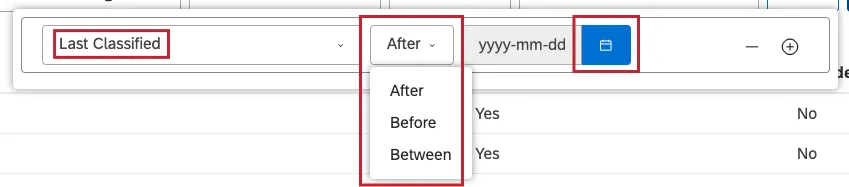
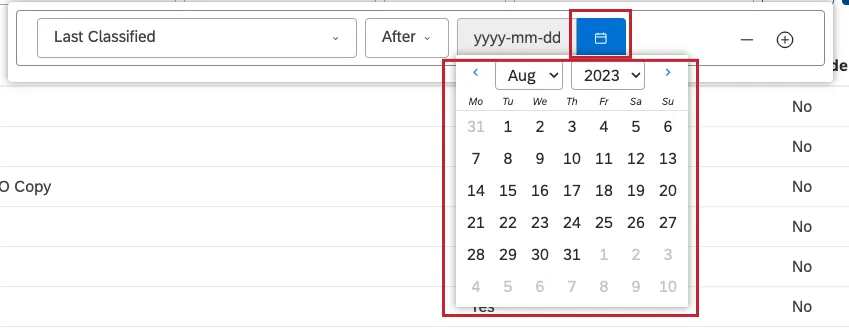
- Click the calendar icon and select dates from the calendar.
- If you select Include in Incremental Data Uploads or Include in Incremental Data Uploads as the filter condition, the operator is automatically set to Is. Select 1 of the following: All (to show all models included in incremental data loads), Yes (to show models included in incremental data loads) or No (to show models not included in incremental data loads).

Sorting Project Category Models
You can sort project category models by up to 3 columns in ascending and descending order.
Qtip: Sorting also applies to project models’ export. Sorting options are applied as long as you stay on the Models page. They get reset when you go to another page, sign out of Studio, or when your user session expires.

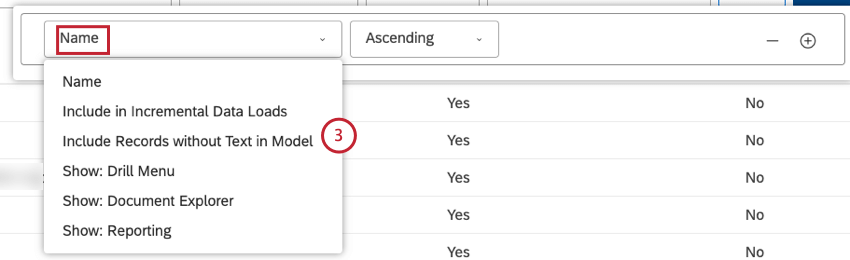
- Name: Sort category models by name.
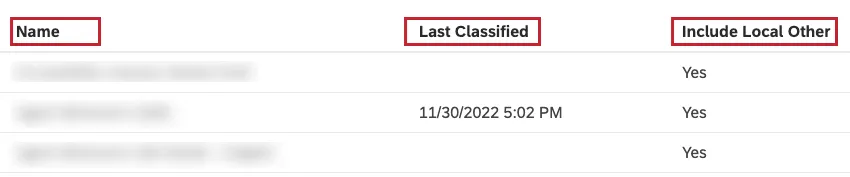
- Last Classified: Sort category models by the date and time of their last classification.
- Include Local Other: Sort category models by whether sentences from the Local Other bucket are treated as classified into the parent node in reports (Yes) or not (No).
- Include In Incremental Data Loads: Sort category models by whether they are set to run each time an incremental data upload is performed (Yes) or not (No).
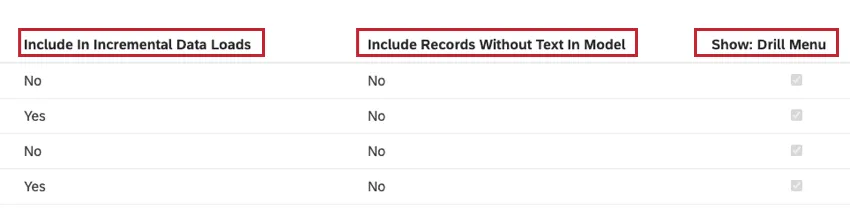
- Include Records Without Text In Model: Sort category models by whether they include records without text (Yes) or not (No).
- Show: Drill Menu: Sort category models by whether they appear in the drill menu when drilling in View mode. Qtip: The first condition is set to Name by default.
- Ascending: Text: A to Z, numbers: 0 to 9, dates: oldest to newest.
- Descending: Text: Z to A, numbers: 9 to 0, dates: newest to oldest.
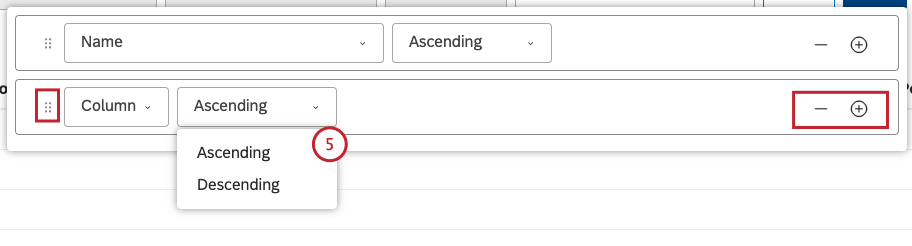
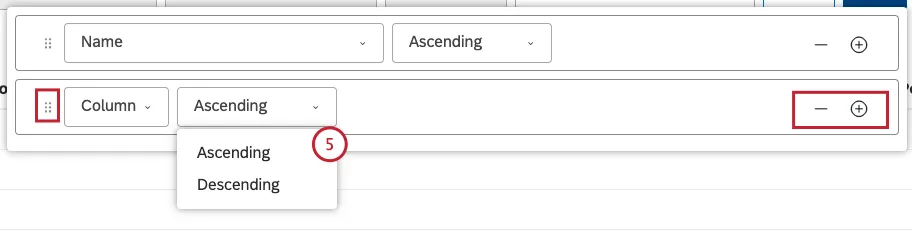 Qtip: If you wish, you can click the plus ( + ) button to add another condition. To remove a condition, click the minus ( – ) button.Qtip: If you specify several conditions, you can drag them up or down using the move icon. Sorting is applied in a top-to-bottom order.
Setting Reporting Defaults for Category Models
For information on setting reporting defaults for category models, see Setting Reporting Defaults for Attributes or Category Models.
Viewing Category Model Dependencies
For information on viewing category model dependencies, see Viewing Attribute or Category Model Dependencies.
Hiding Category Models
For information on hiding category models, see Hiding Attributes or Models.
Excluding Category Models From Content
For information on excluding category models from content, see Excluding Attributes or Category Models From Content.
Viewing Category Models Hidden via Group Access
For information on viewing category models hidden via group access, see Viewing Attributes or Category Models Hidden via Group Access.
Global Other Reporting
You can use Global Other reporting to analyze data that was not categorized into a category model. For more details, see the linked support page.
That's great! Thank you for your feedback!
Thank you for your feedback!