

Topic Hierarchy Generator in XM Discover
What's on this page
About the Topic Hierarchy Generator in XM Discover
The Topic Hierarchy Generator in XM Discover uses Artificial Intelligence (AI) to jumpstart text topic model creation. Using a diverse set of inputs including your unstructured customer data, topic use case, persona, industry, and additional context information, you can leverage AI to build a topic hierarchy, enabling you to identify the themes most important for your business use case.
Required Permissions
To use the topic hierarchy generator in XM Discover, your Qualtrics account must meet the following requirements:
- A linked Qualtrics Platform user account and an XM Discover user account.
- Your Qualtrics Platform account must have the AI Assisted Text Analytics user permission.
- Your XM Discover account must have a Configuration Analyst.
Using Generative AI to Build a Topic Hierarchy
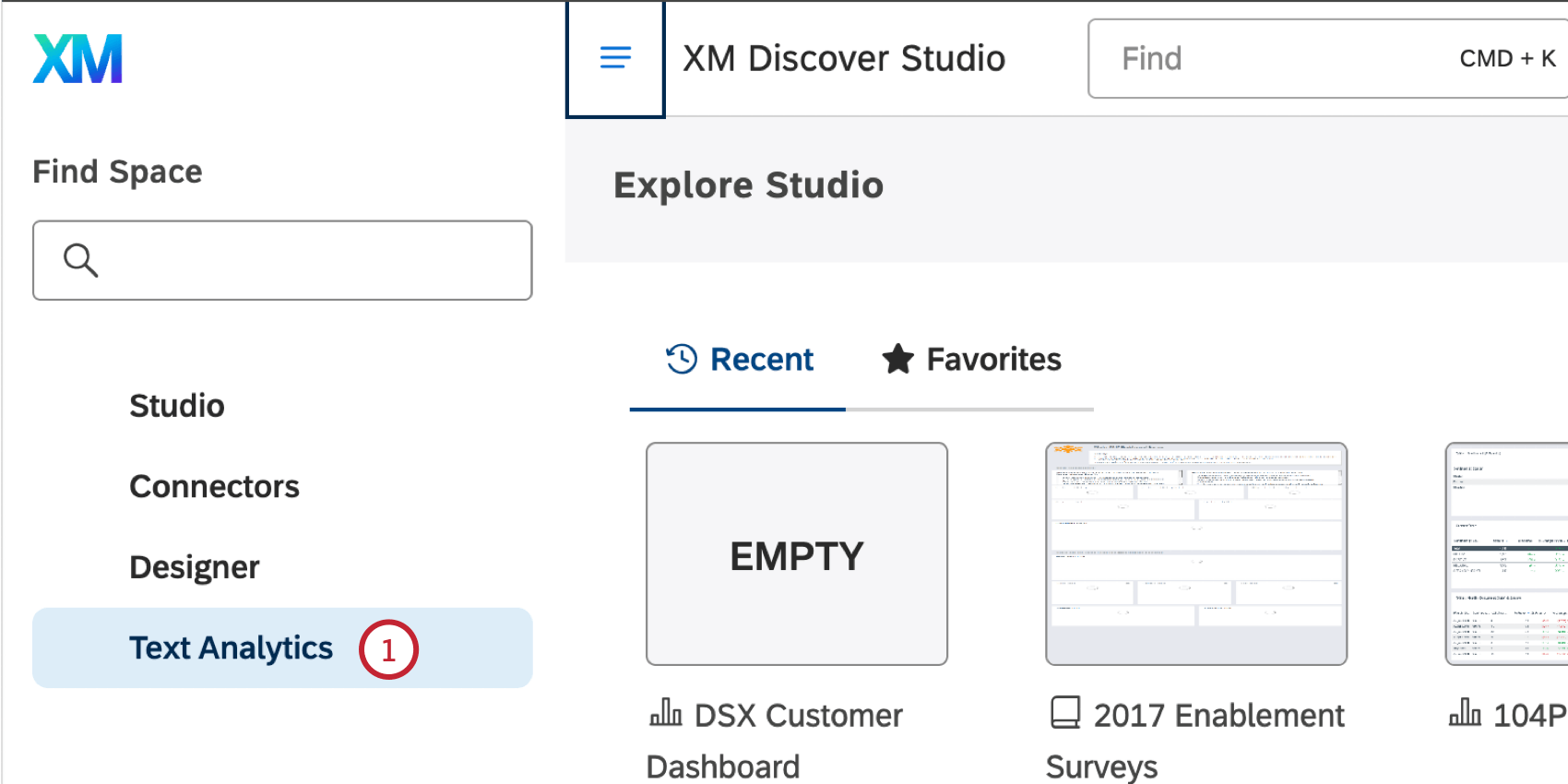
Qtip: If you receive a login error, manually log into your Qualtrics Platform account in a new tab, and then try again.
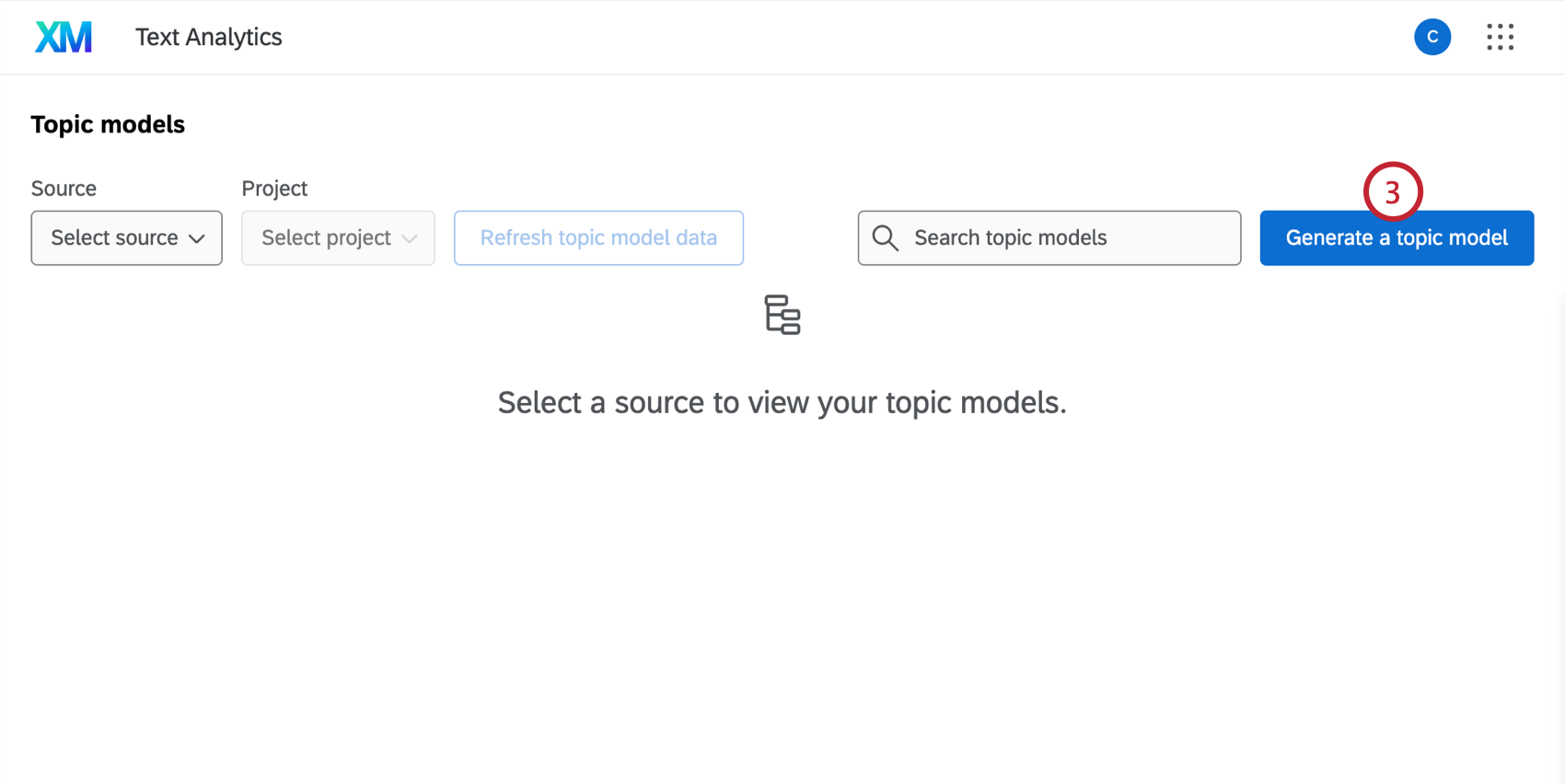
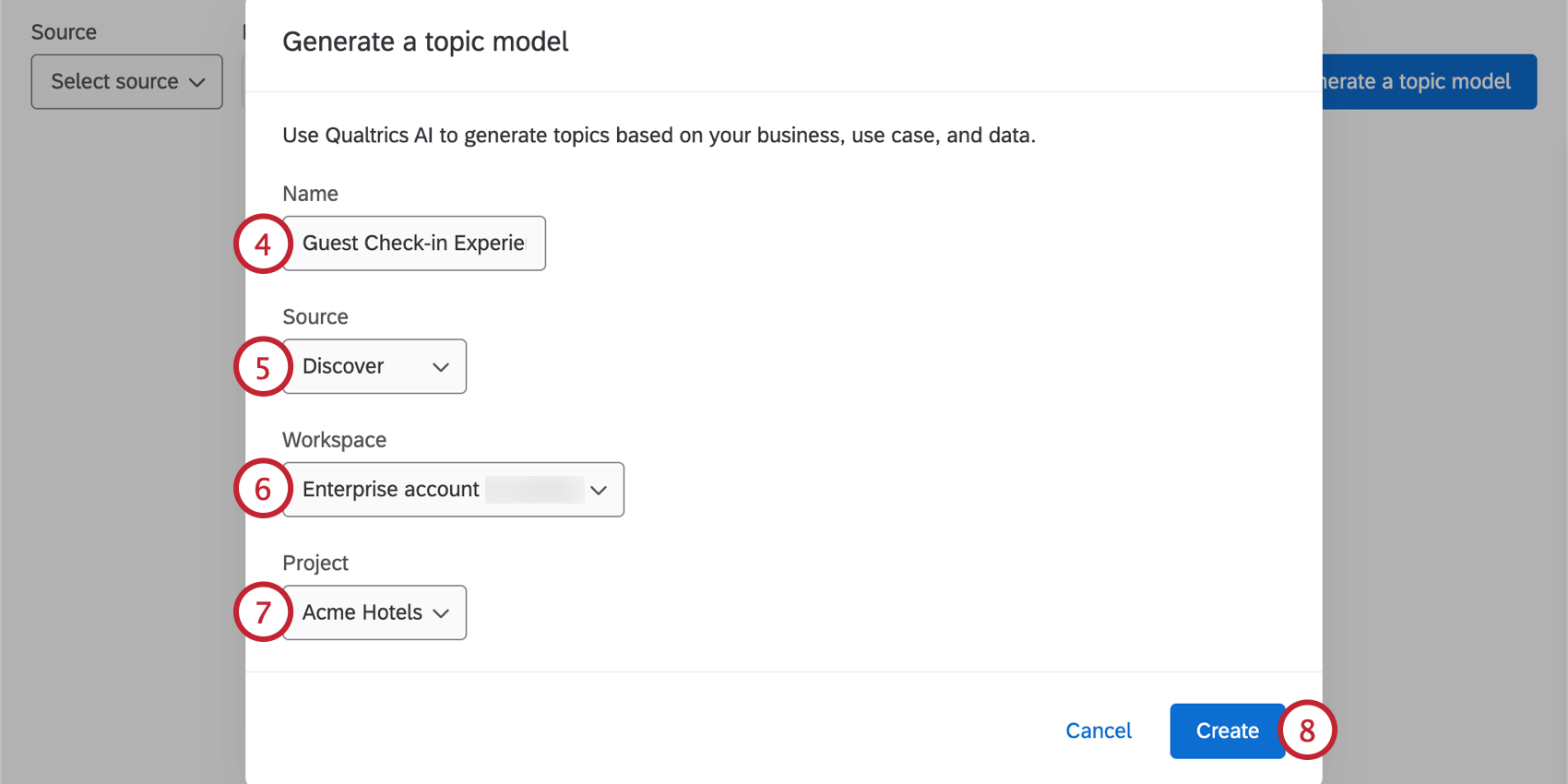
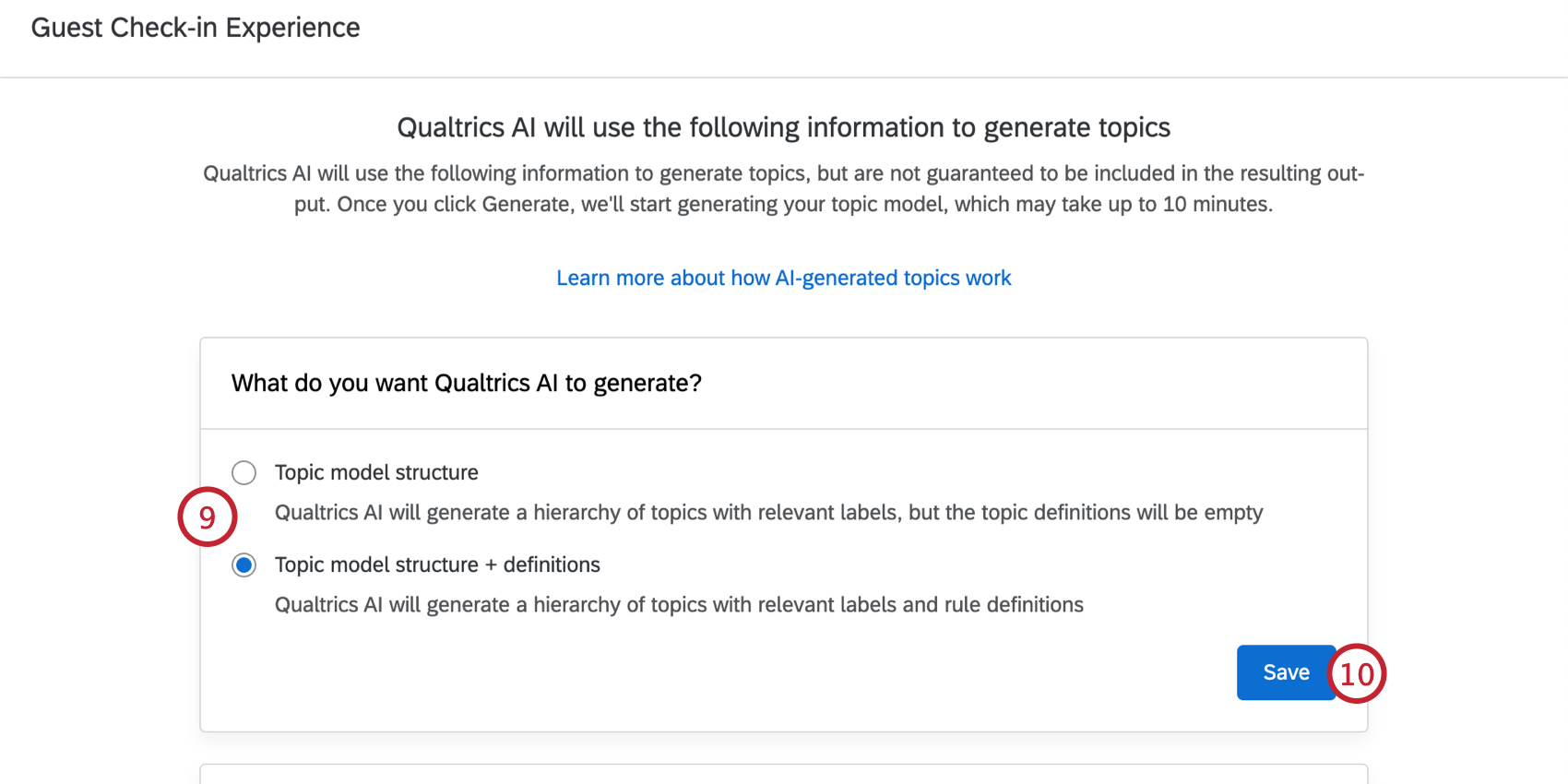
- Topic model structure: Generate a topic hierarchy with labels, but no rules for any topics.
- Topic model structure + definitions: Generate a topic hierarchy with labels and rule definitions for all topics. Qtip: The generated models are a starting point and can be further customized once saved to your project.

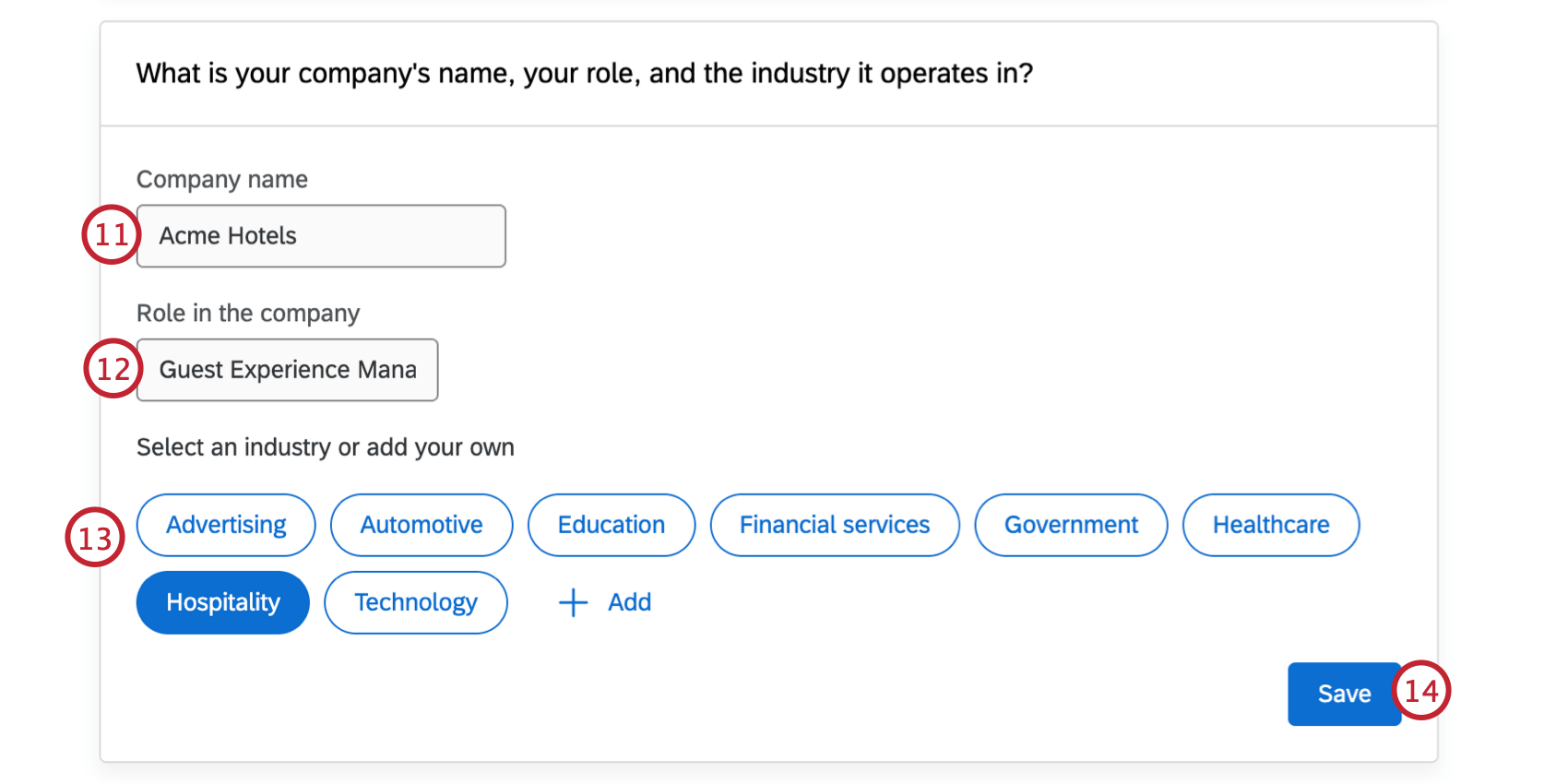
Qtip: If your industry isn’t listed here, you can click Add and then specify your industry in the text box.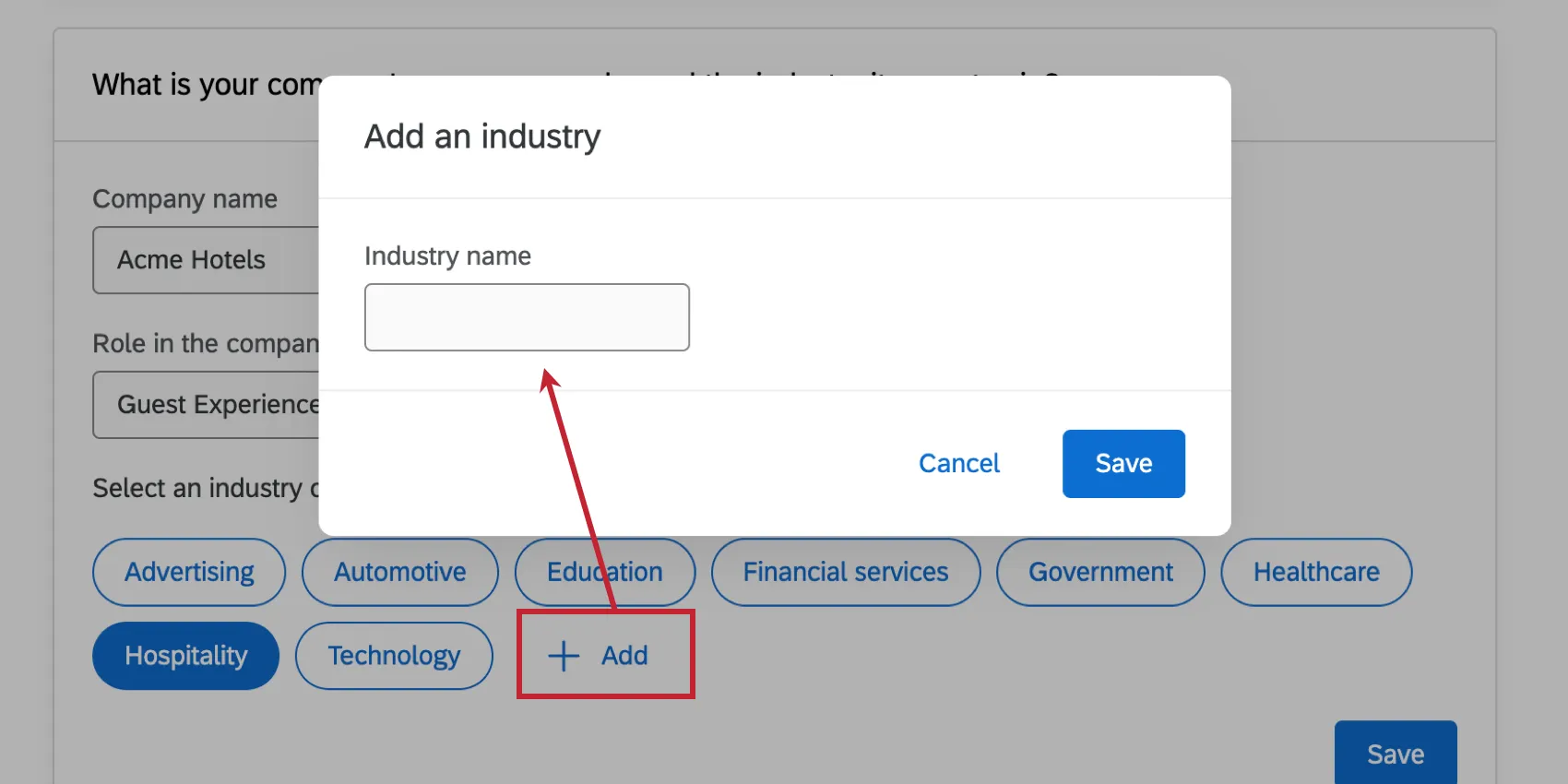
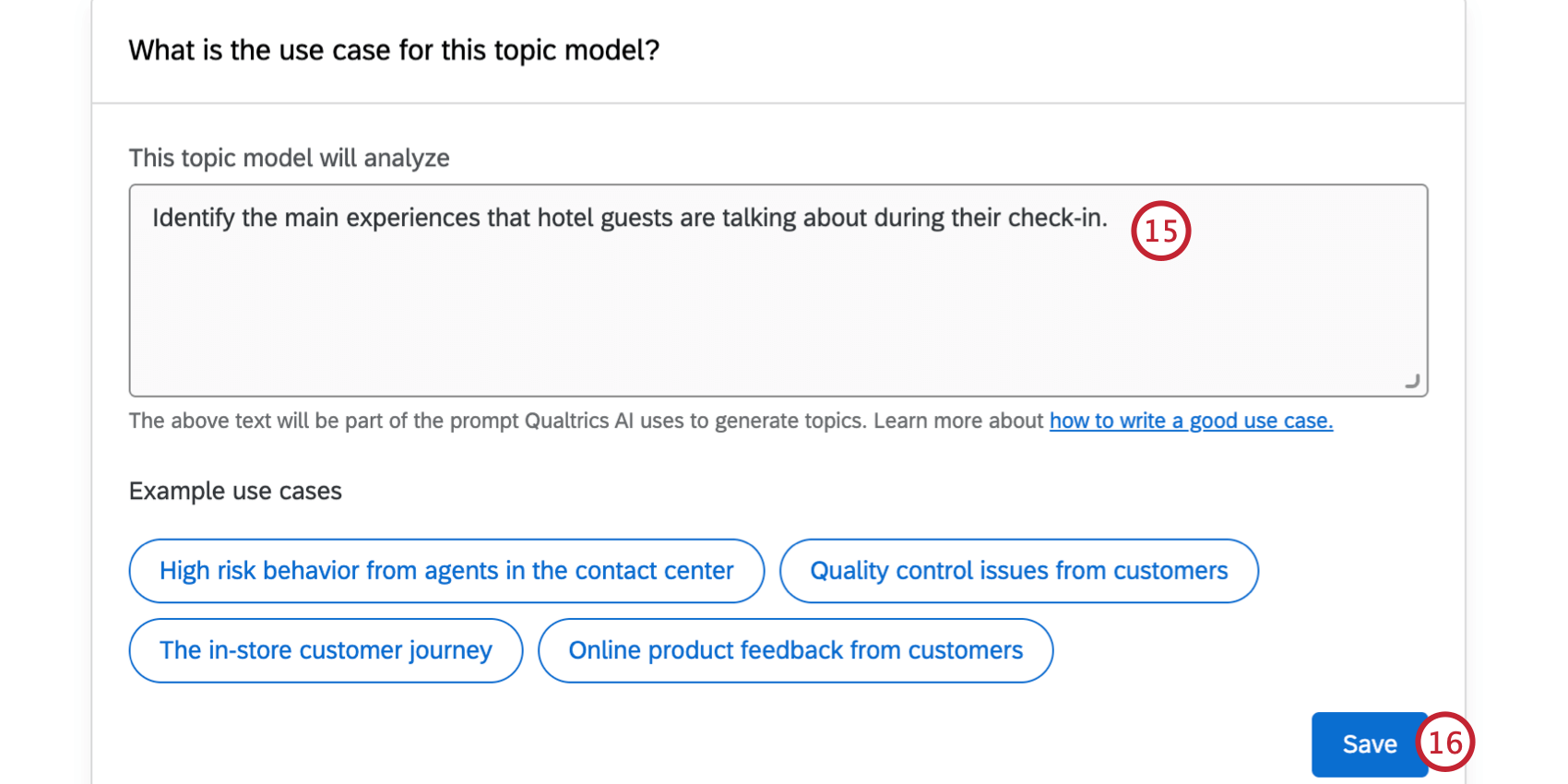
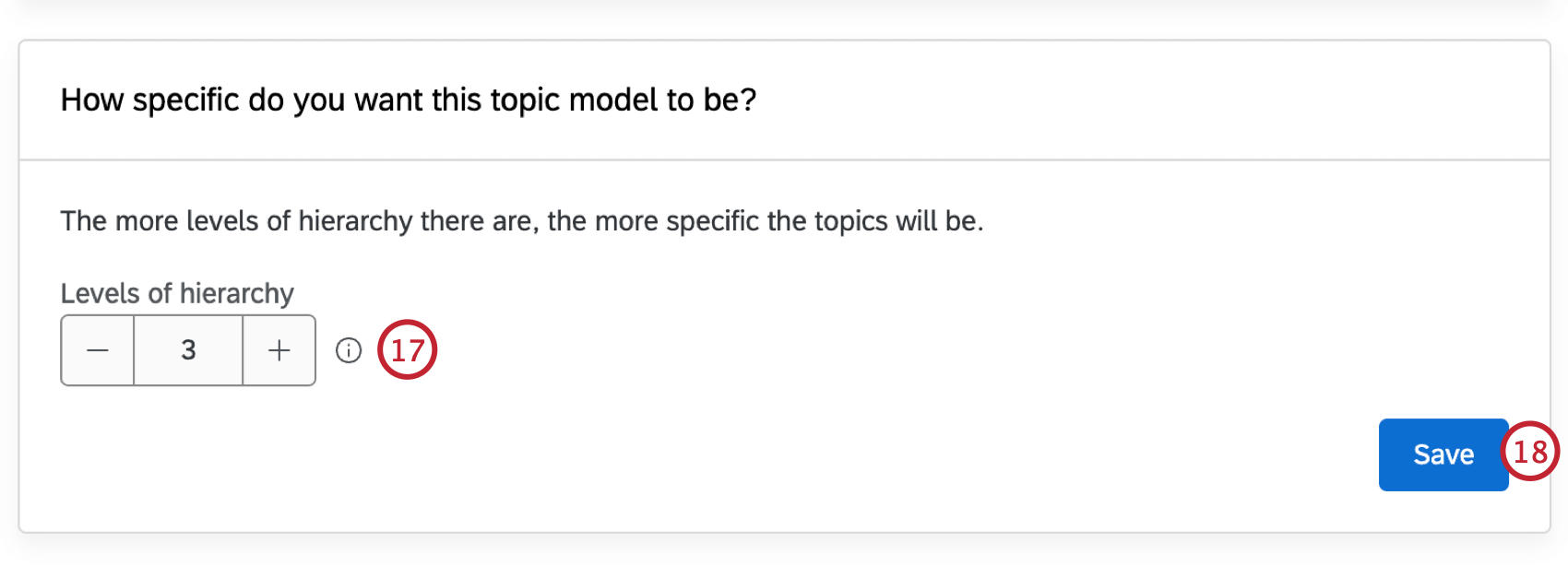
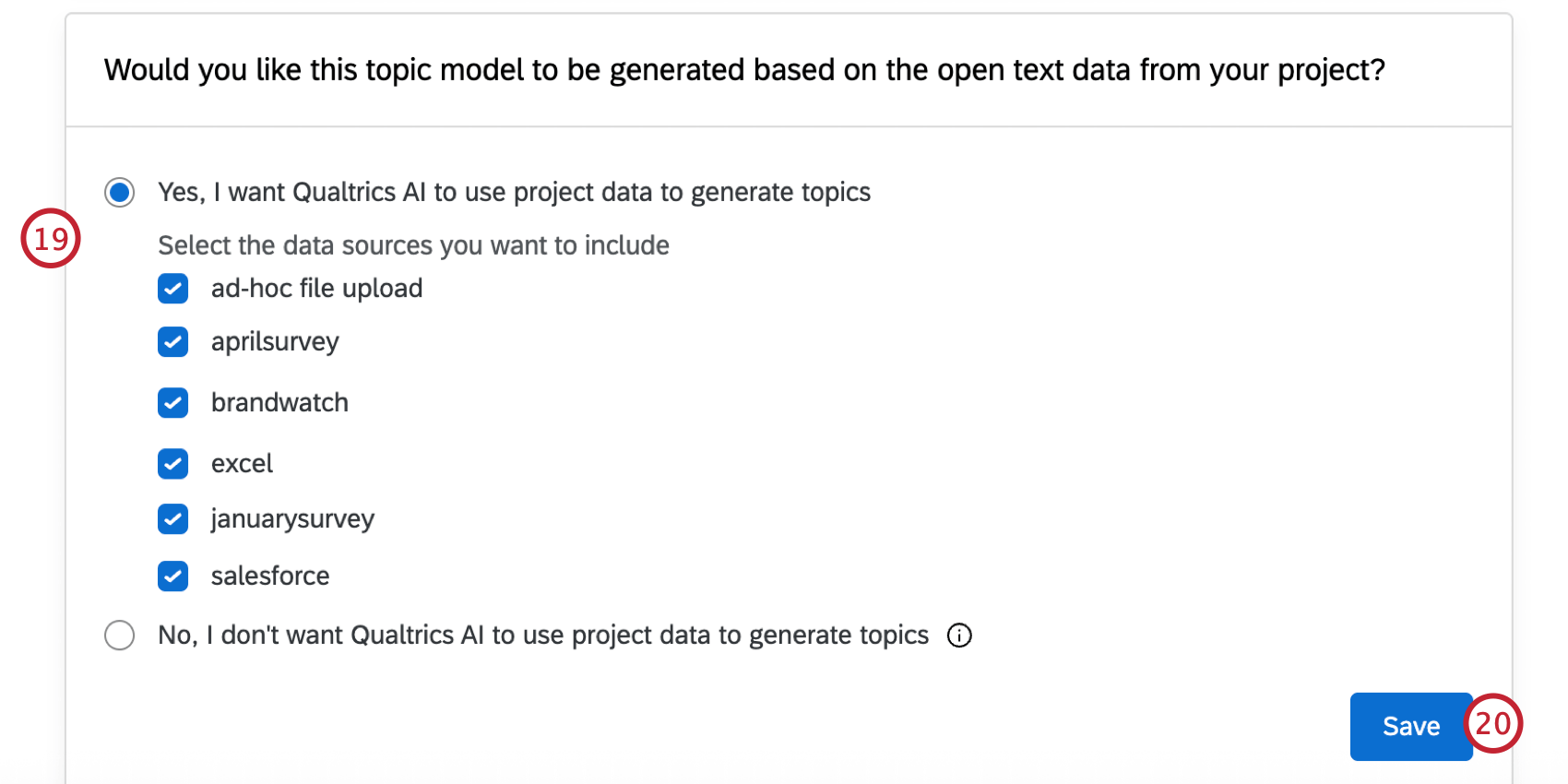
Qtip: Generally we recommend using your project data so the generated model is the most tailored to you.
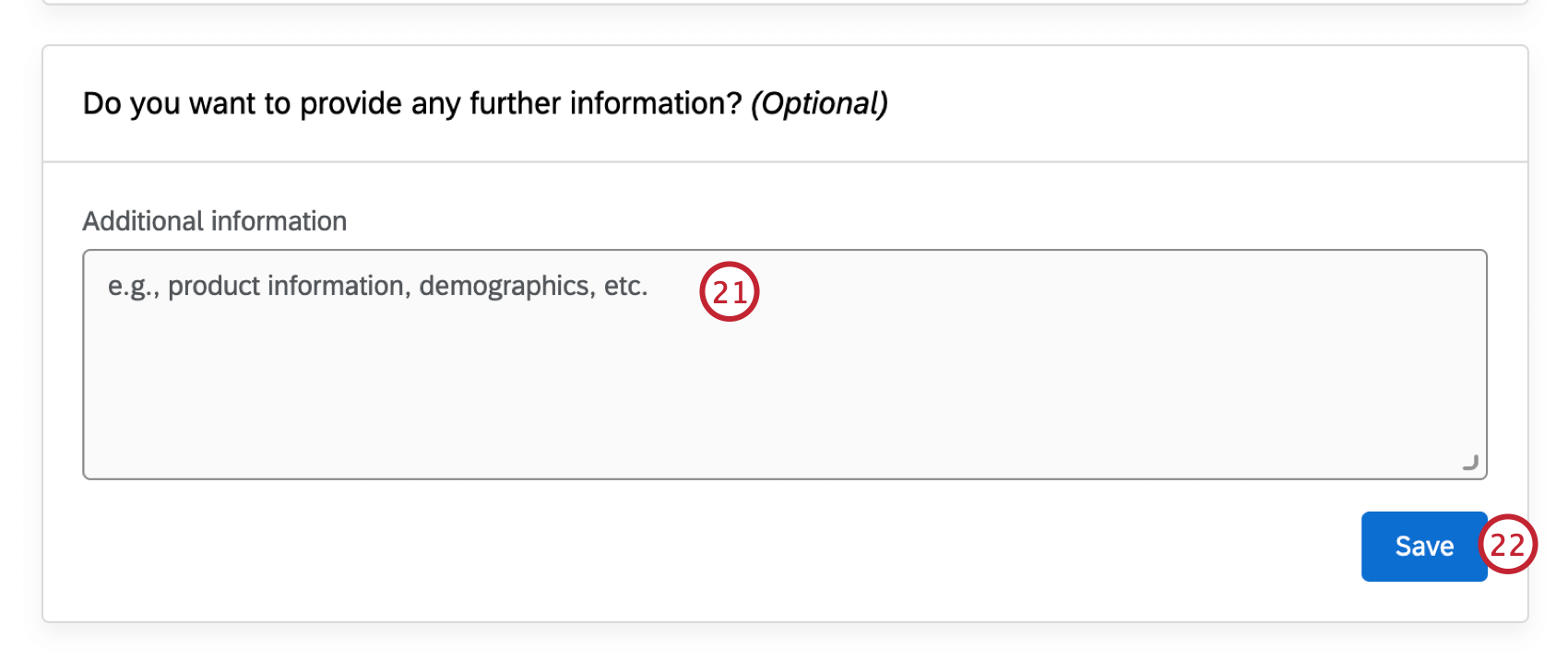
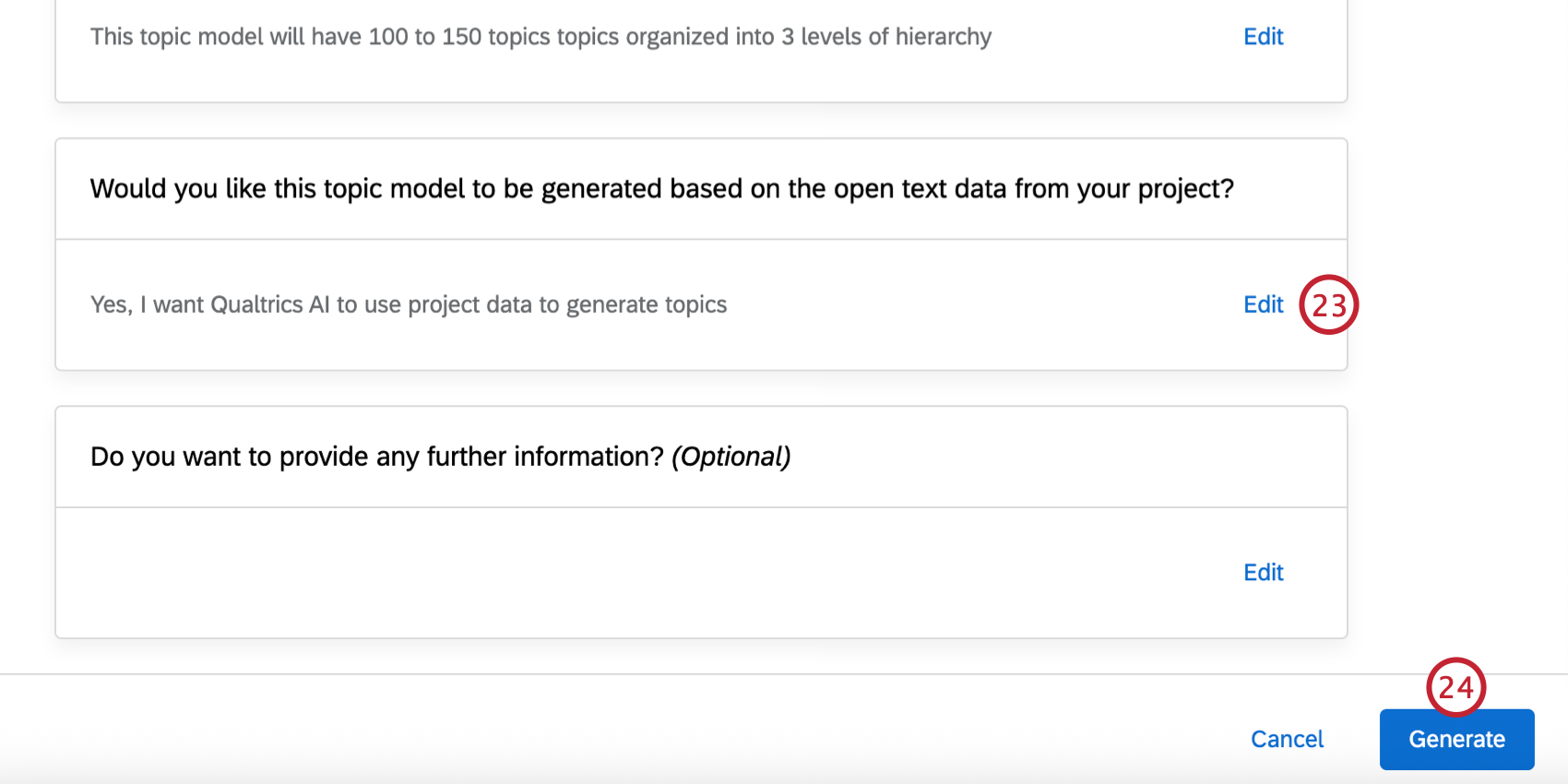
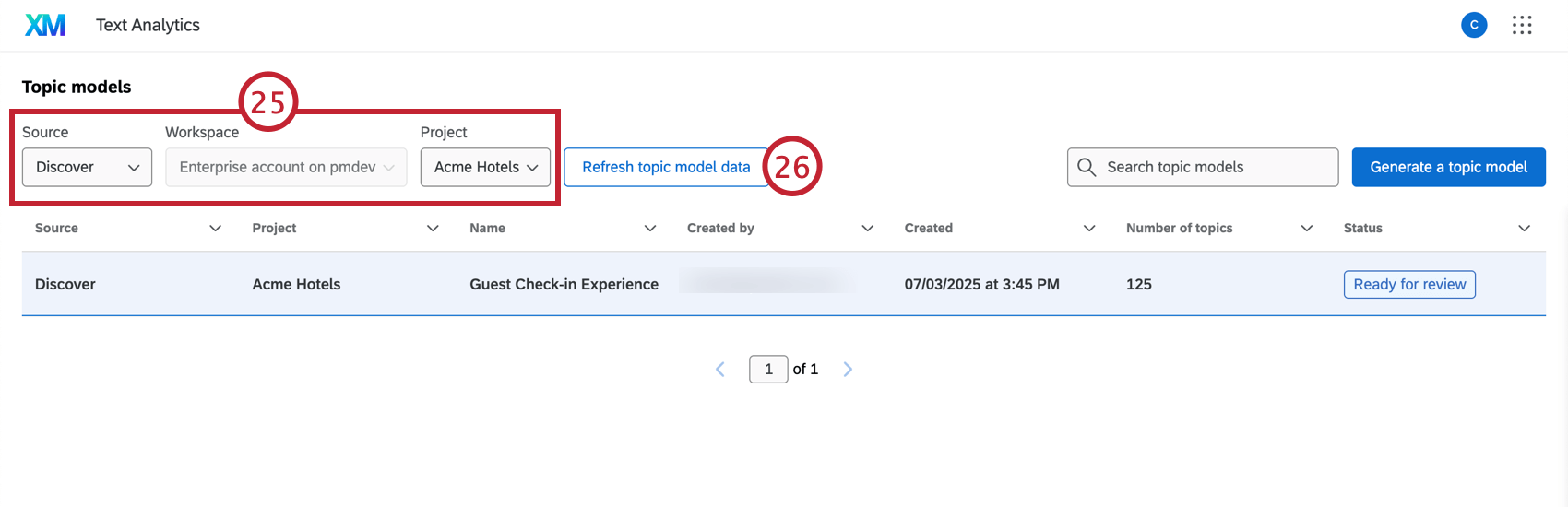
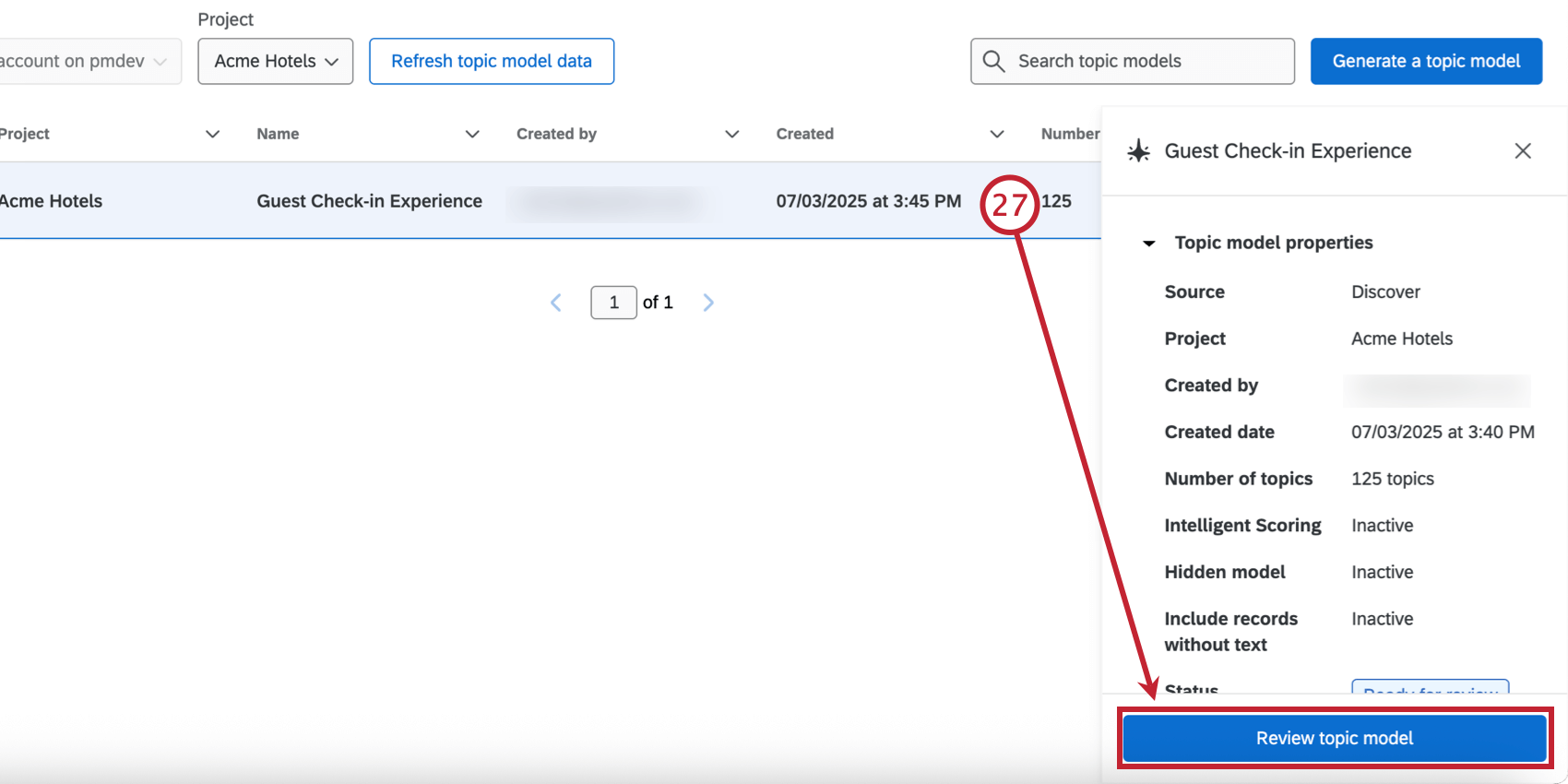
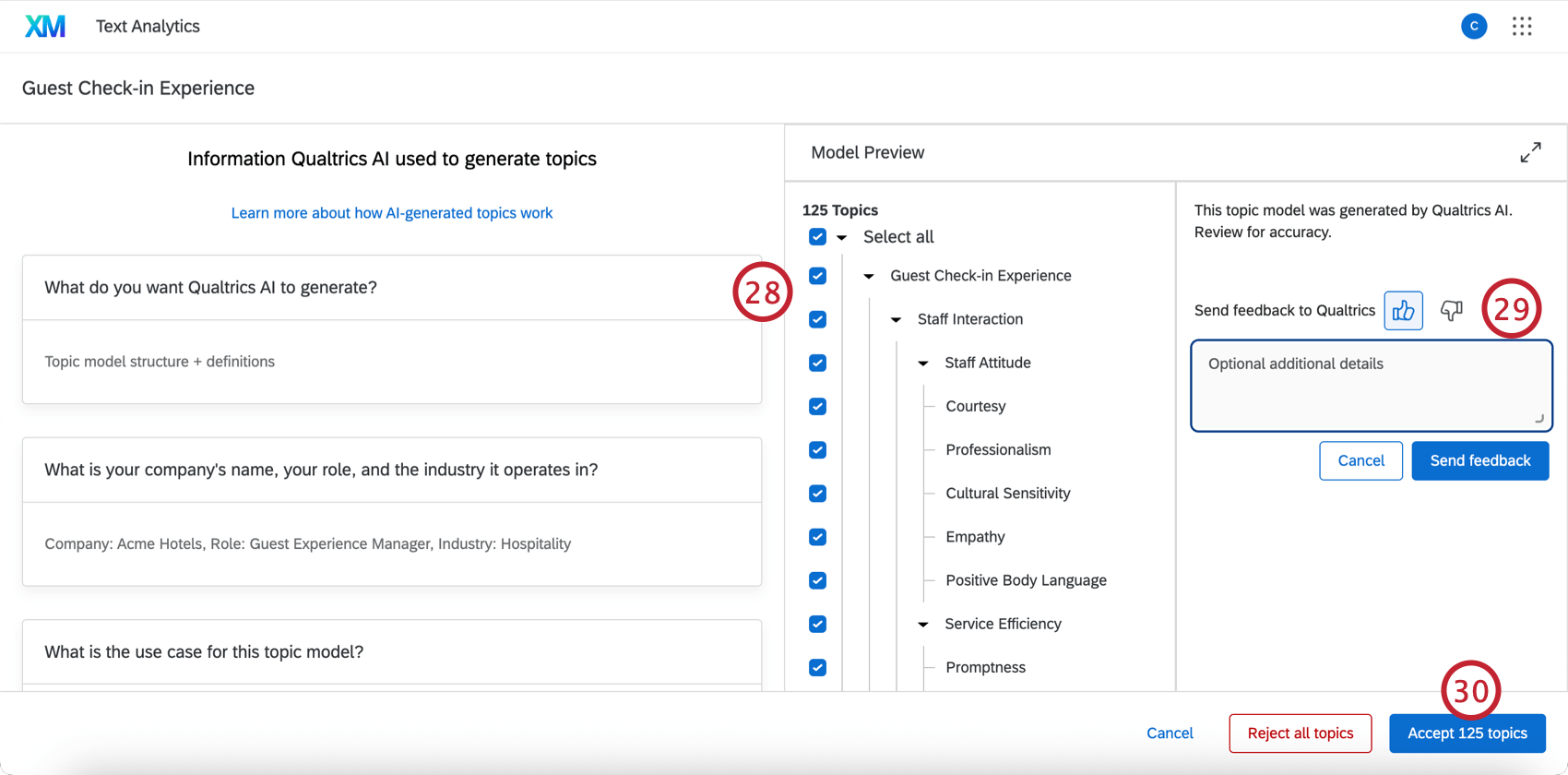
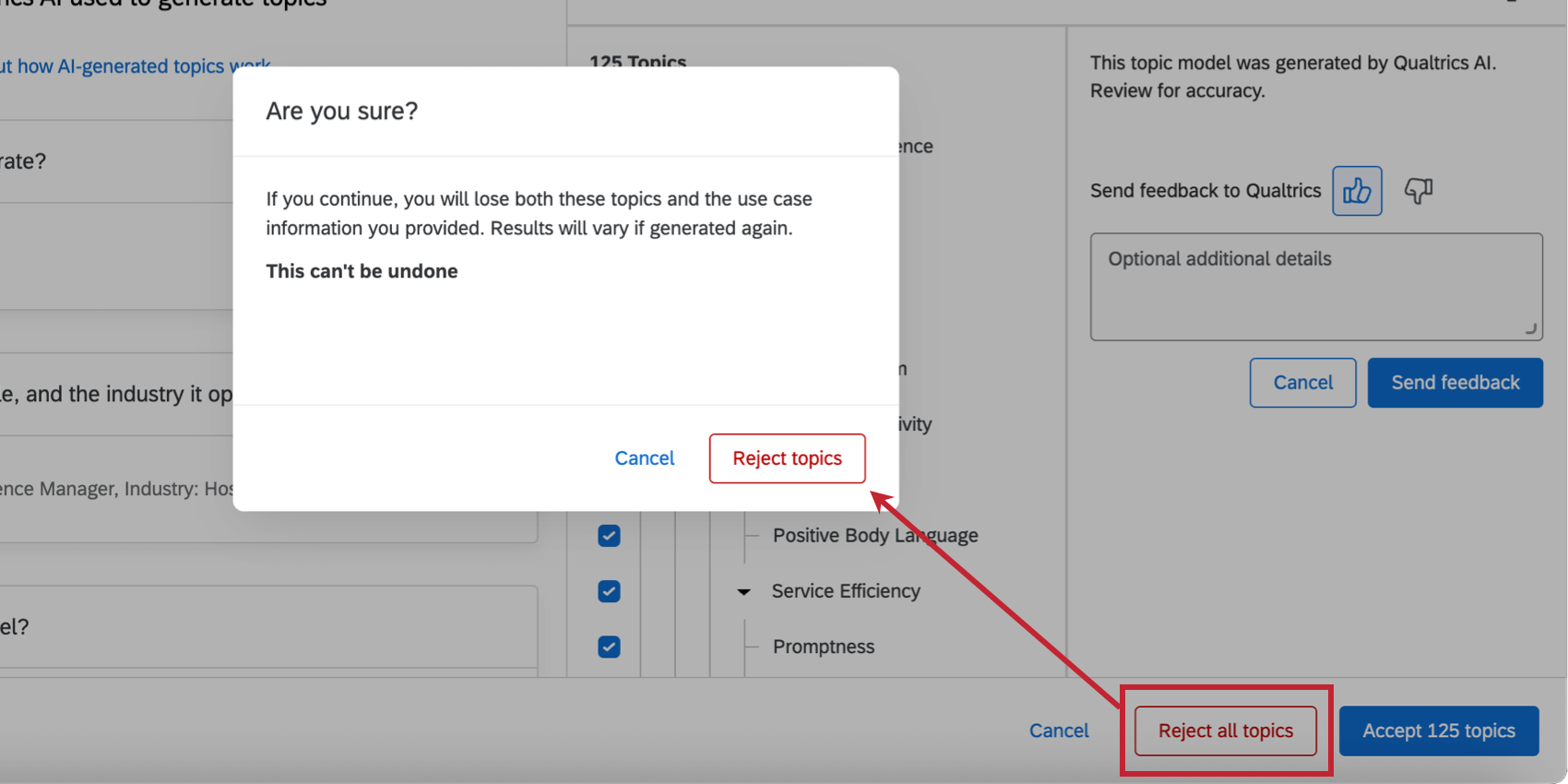
Qtip: If you do not want to save the model, click Reject all topics instead.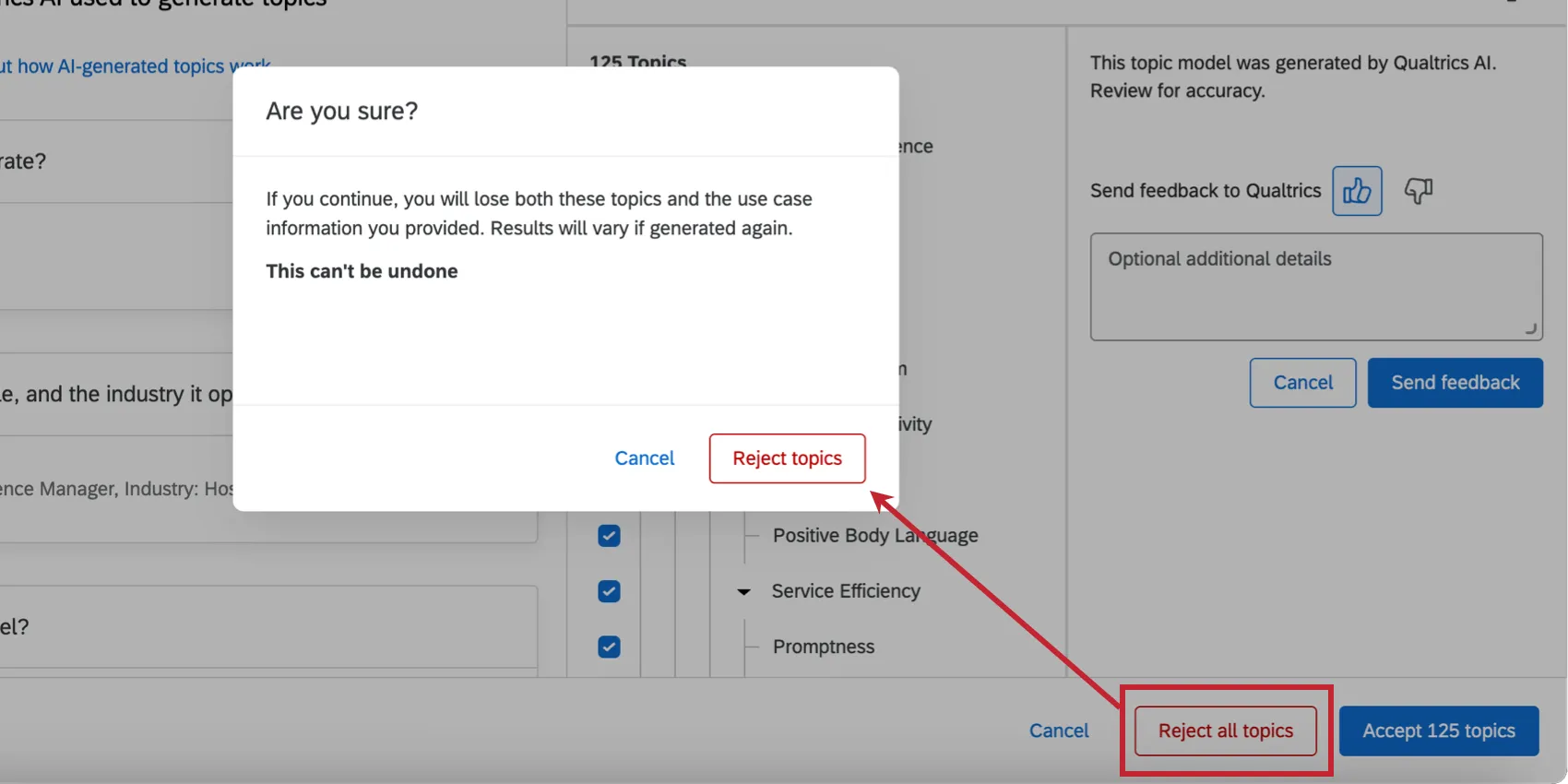
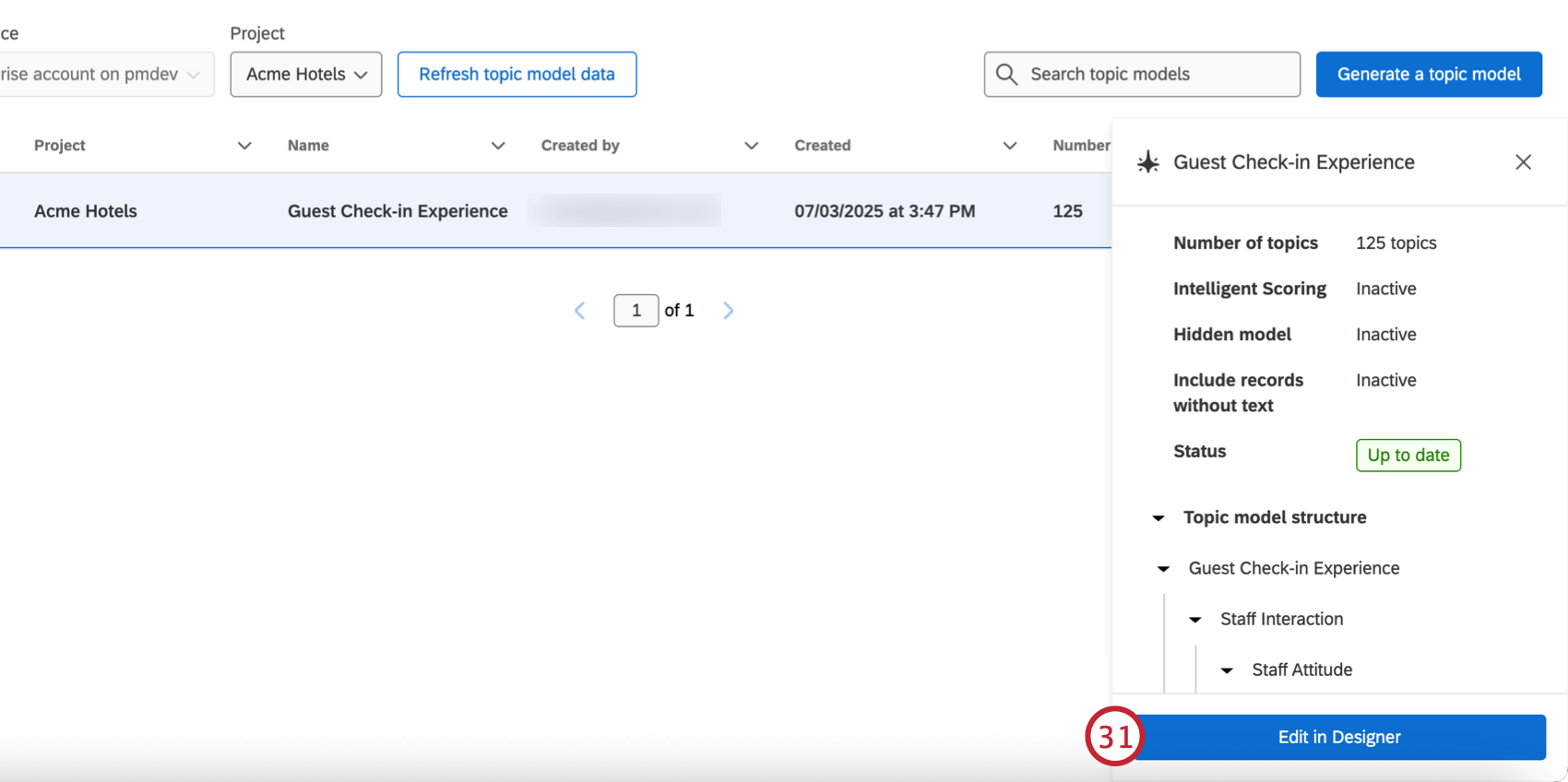
Qtip: If you’re having trouble finding the model in Designer, make sure the right project is selected, and then double check the topic model.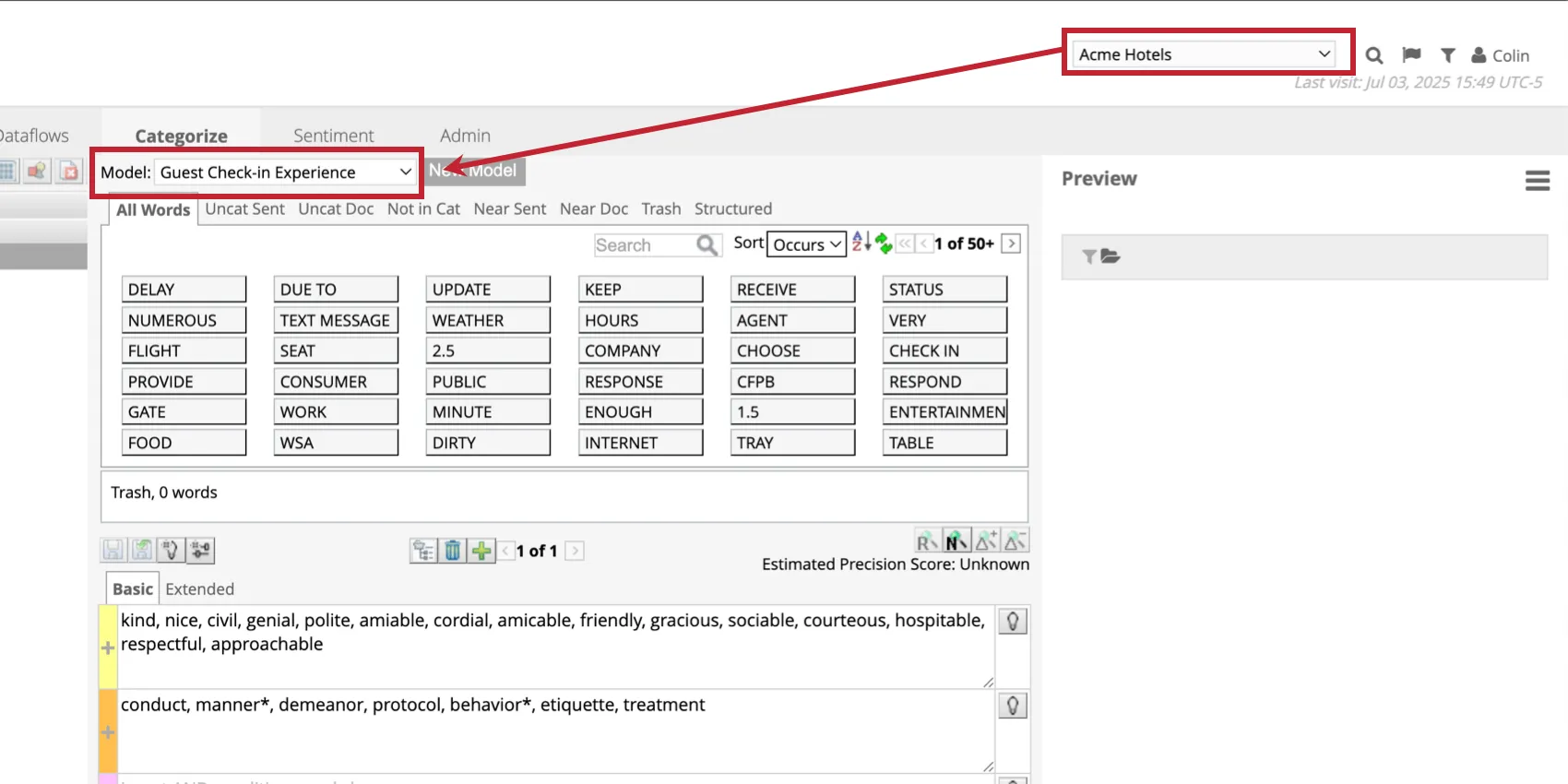
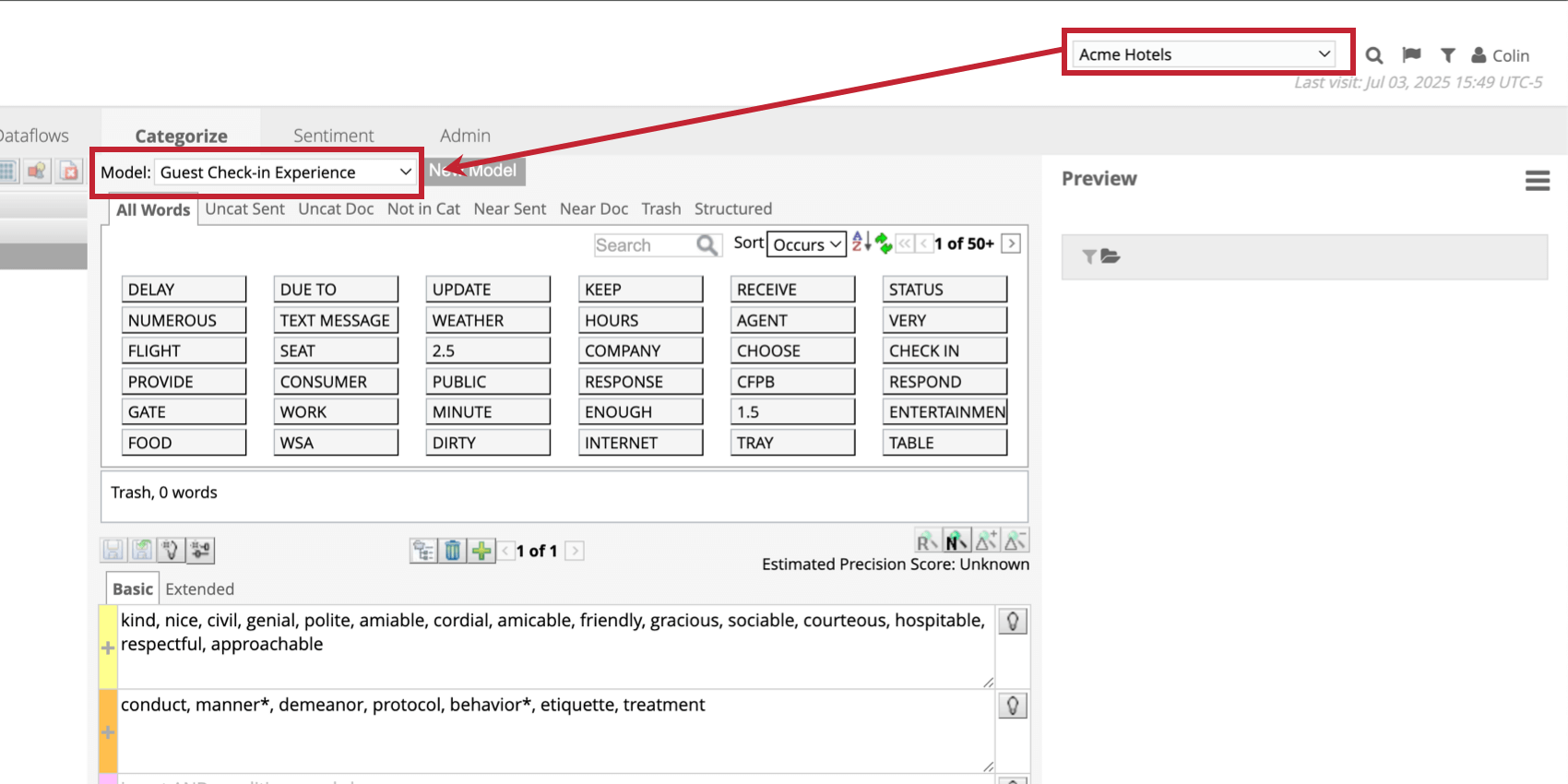
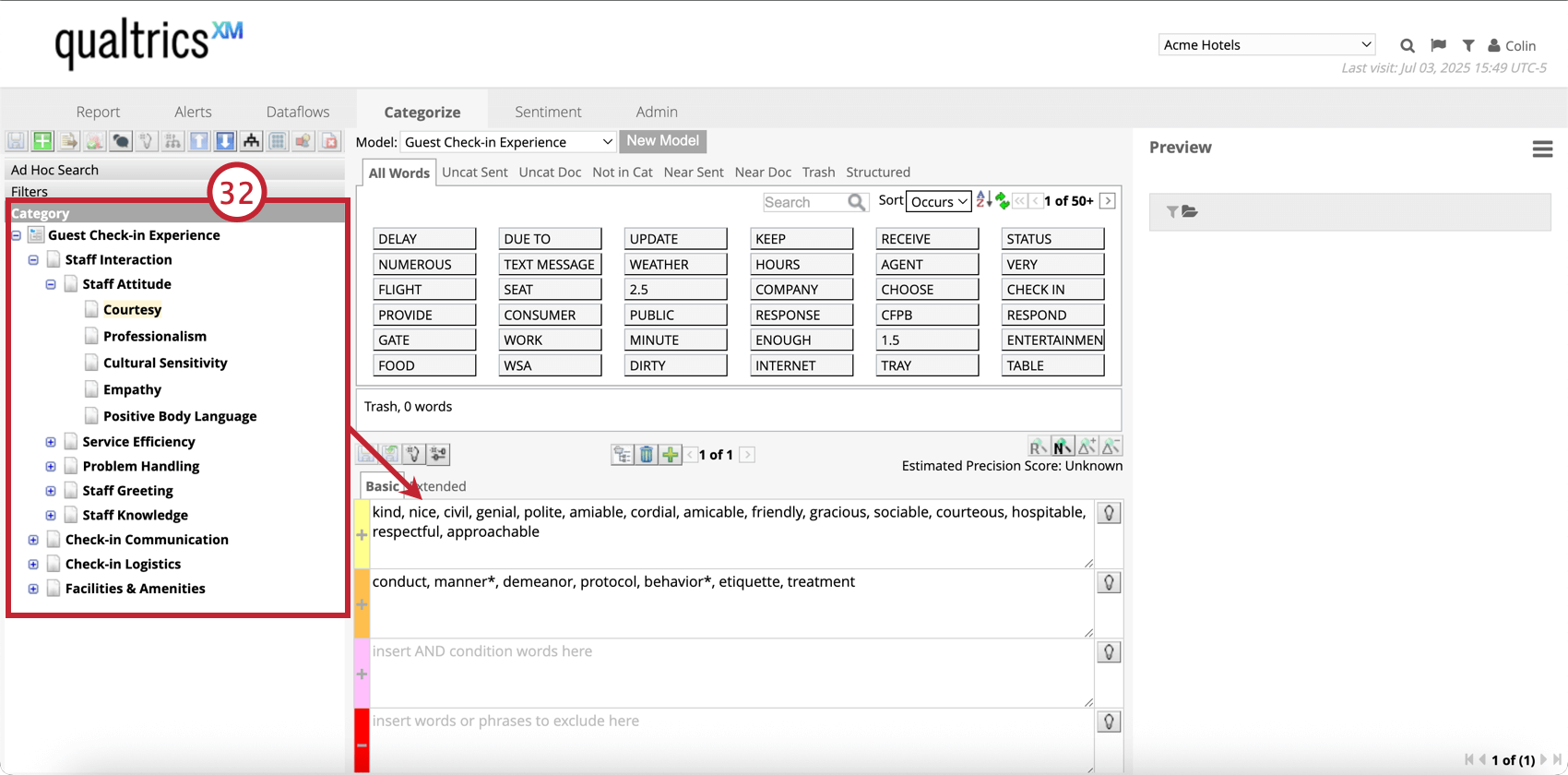
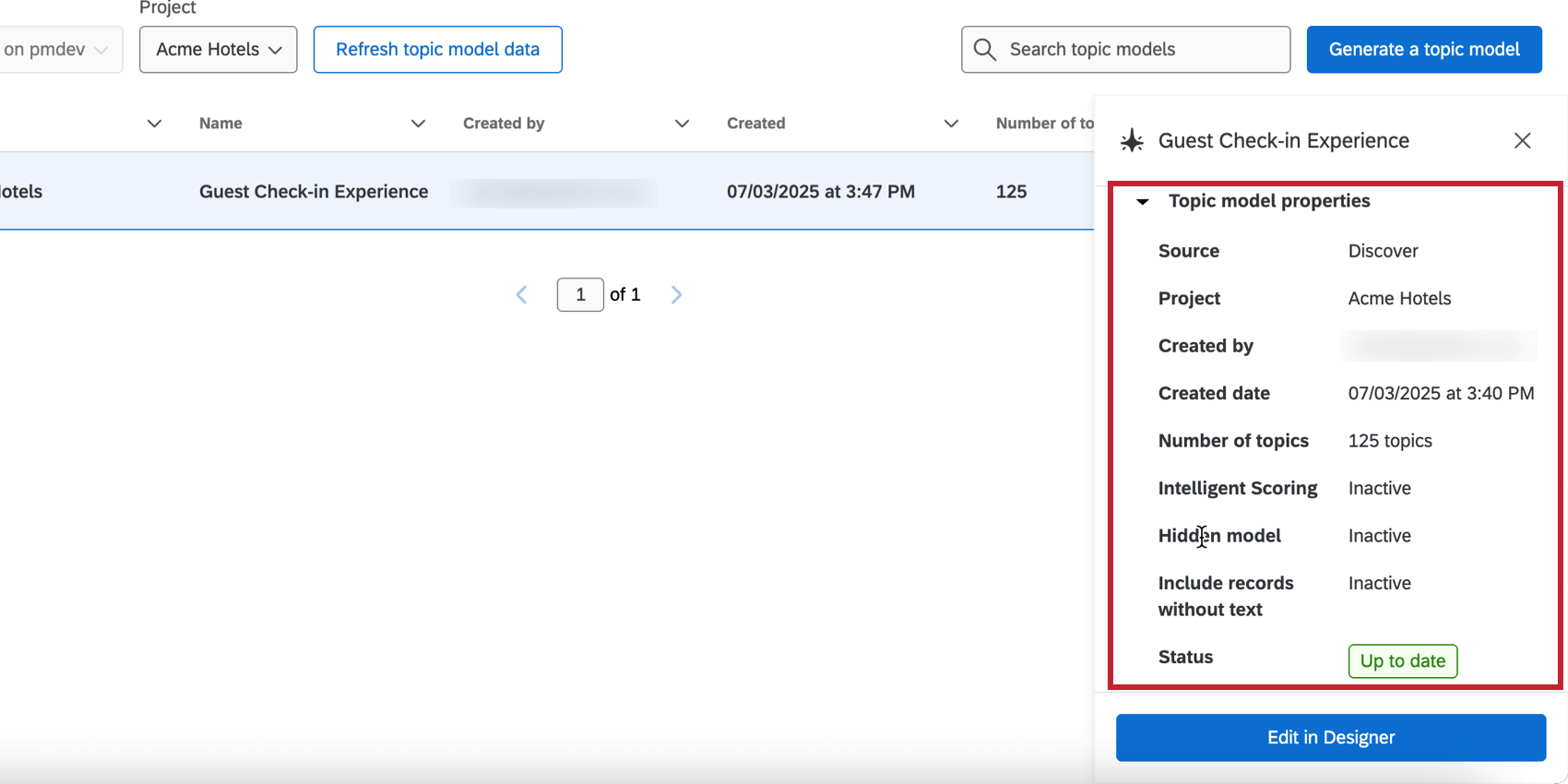
Qtip: The model information in the Text Analytics screen will stay up-to-date with any changes you make to the model.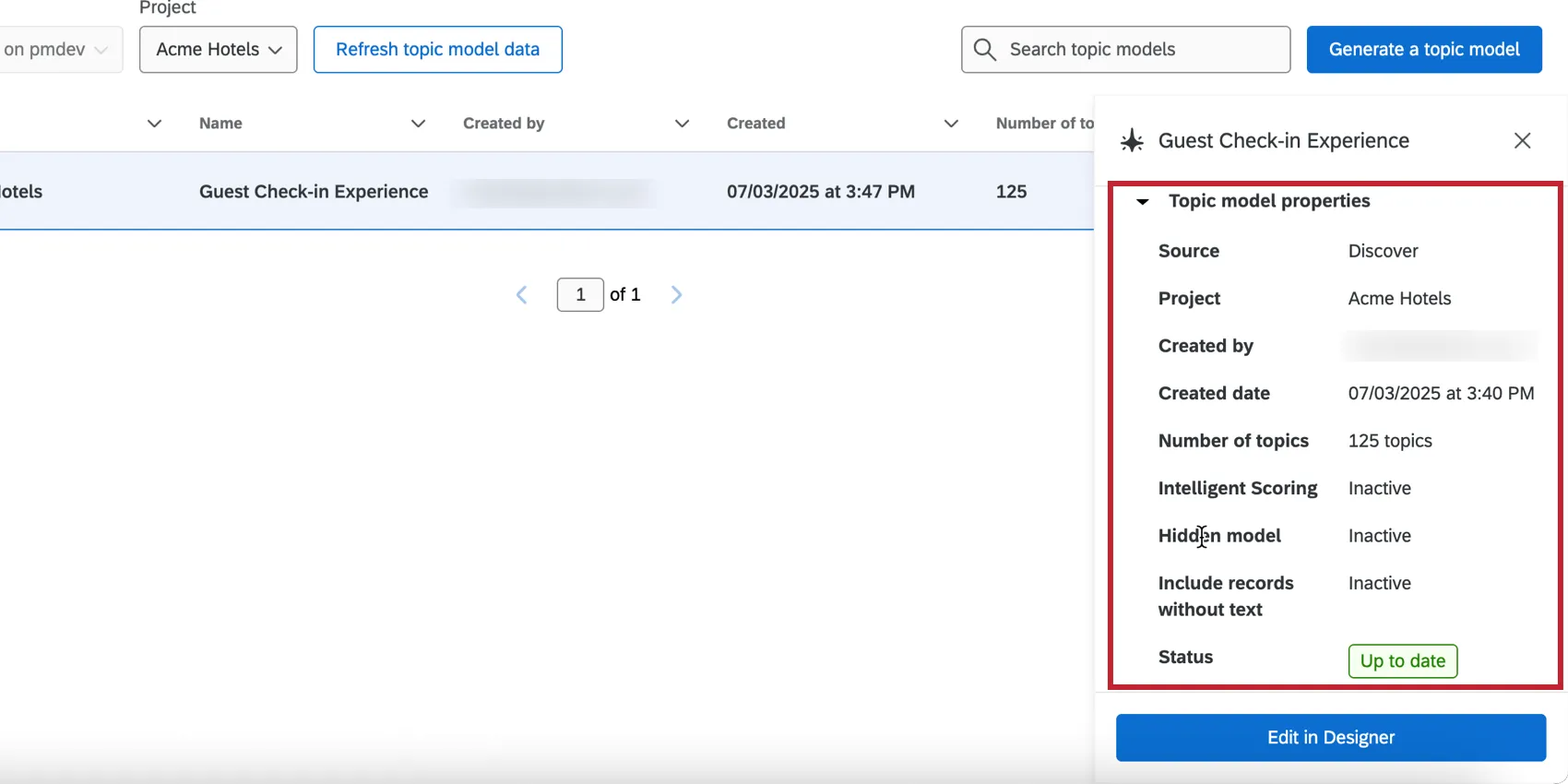
Video Walkthrough
Check out this video walkthrough on how to use AI to generate a topic hierarchy and audit your category model’s precision:
For questions and discussions about AI topics in XM Discover, visit the Qualtrics Experience Community AI Center, where you can connect with other Qualtrics users about all things AI.
That's great! Thank you for your feedback!
Thank you for your feedback!