

Pricing Study (Gabor Granger)
What's on this page
About the Gabor Granger Pricing Study
The Gabor Granger pricing study is a research tool that helps find out how much customers are willing to pay for your product. This guided solution identifies the best price point to maximize revenue by measuring customer willingness to pay and price sensitivity. It provides automated surveys, instant analysis, and clear reports to simplify pricing decisions and understand how price changes impact demand.

This program comes with 2 pre-configured parts:
Qtip: While elements of this solution can be edited using Javascript, we do not support modifications to the basic design of the survey. Qualtrics Support cannot offer assistance or consultation on solutions that are edited using custom coding.
Attention: This solution is not compatible with the New Survey Taking Experience.

What is Gabor Granger Analysis?
The Gabor Granger technique, which was developed by Andre Gabor and Clive Granger, is a pricing research tool that helps identify the best price point to maximize revenue. This guided solution uses the Gabor Granger technique to deliver 3 key outcomes:
What results does this study deliver?
There are two main outputs of the Gabor Granger pricing study:
Creating a Gabor Granger Pricing Study
See Creating Guided Solutions for a step-by-step guide on how to create this study from the Catalog. When you begin filling out the fields in the set up assistant, you will be asked to specify 3 items:
Example: Let’s say your minimum is $0 and your maximum is $100. If you want to know the likelihood that your respondents will purchase this product for $20 versus the likelihood that they will purchase it for $30 versus the likelihood that they will purchase it for $40 and so on, this number would be 10.

Qtip: If you want to add demographic questions to your study, select them at the bottom of the set up assistant. These questions will be asked before the pricing study begins.

Design of the Pricing Block
The pricing block is where the pricing research is conducted. Once respondents reach this part of the survey, they will see a range of prices and will be asked if they would be willing to pay those amounts for the product or service.

There are three main elements to the pricing block:
Number of Questions
The number of questions in the pricing block is calculated using the 3 values inserted into the setup assistant:
These values are put into this equation to determine the number of questions each respondent receives:
Number of questions = Math.ceil(Math.log2((MaximumPrice – MinimumPrice) / PriceTolerance))
Qtip: Every gabor granger study will have at least 4 questions. There is no maximum number of questions allowed for each study.
Initial Price
The first price shown to respondents is randomly selected within the middle third of the price range. For example, if the minimum price is 45,000 and the maximum price is 90,000, the starting price will range from 60,000 to 75,000.
Qtip: The final price could exceed the maximum price specified in the setup assistant. This is because prices can be shown outside of the range to ensure the study captures a full range of prices. This tends to show up when a user answers “yes” to all questions and the randomized starting price is on the higher end of the price range.
Loop and Merge Intervals
The study automatically generates price intervals by using the price range inserted in the set up assistant. These are used as the fields of the pricing block’s loop and merge.You can see these fields if you click the loop and merge icon in the pricing block of the survey builder.

The number of questions determines the number of price intervals generated.The price intervals are calculated using the following formula:
Interval_1 = (Price Range) / 4
Interval_2 = (Interval_1) / 2
Interval_3 = (Interval_2) / 2
Interval_4 = (Interval_3) / 2
When a respondent says yes to a price question, the current interval is added to the shown price. If they say no to a question, the current interval is subtracted from the shown price. The pricing block follows this pattern until the intervals are complete.
Qtip: Loop interval calculations are performed automatically and cannot be customized.
Qtip: There is currently no way to compare two products in the same Gabor Granger study as you can only have one pricing block per survey. Survey results from multiple Gabor Granger studies cannot be combined in the final report.
Reports and Dashboards
Reports
The Gabor Granger pricing study provides a report with graphs that illustrate the demand curve, revenue curve, and revenue maximizing price calculated for this study. This report relies on the price data field and is automatically updated as responses come in.

Qtip: Use the setup assistant’s recommended sample size to ensure meaningful results.
Dashboards
Attention: Dashboards are only created when you create a project with the type Pricing Study (Gabor Granger) (New and Improved).
In addition to the report that is created, you can also view your study data within a dashboard. The dashboard has the same information and visualizations as the report, but gives you access to the full editing capabilities of dashboards. You can also create additional widgets and share your dashboard with other users or stakeholders.
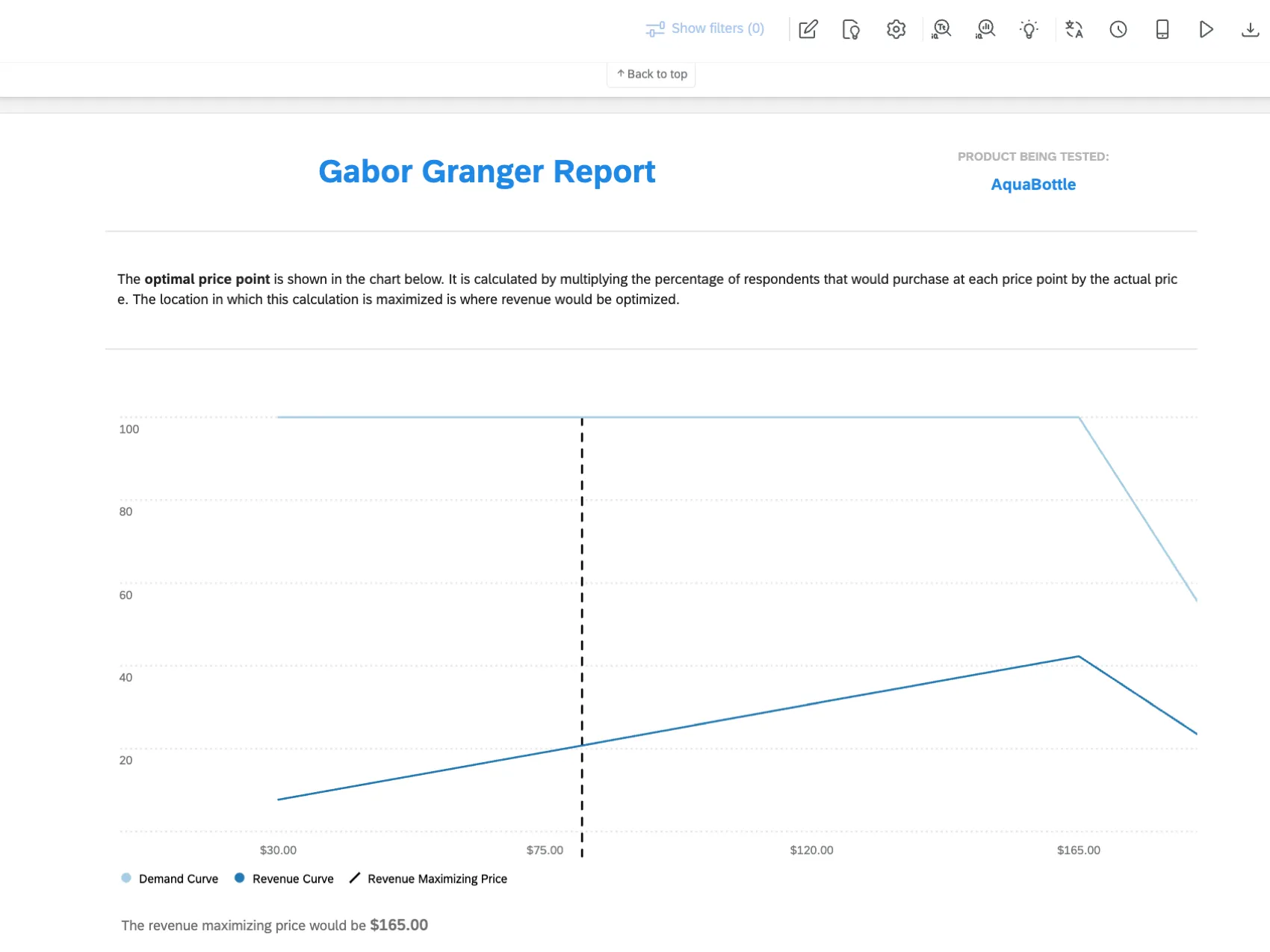
You can access this dashboard in 2 places:
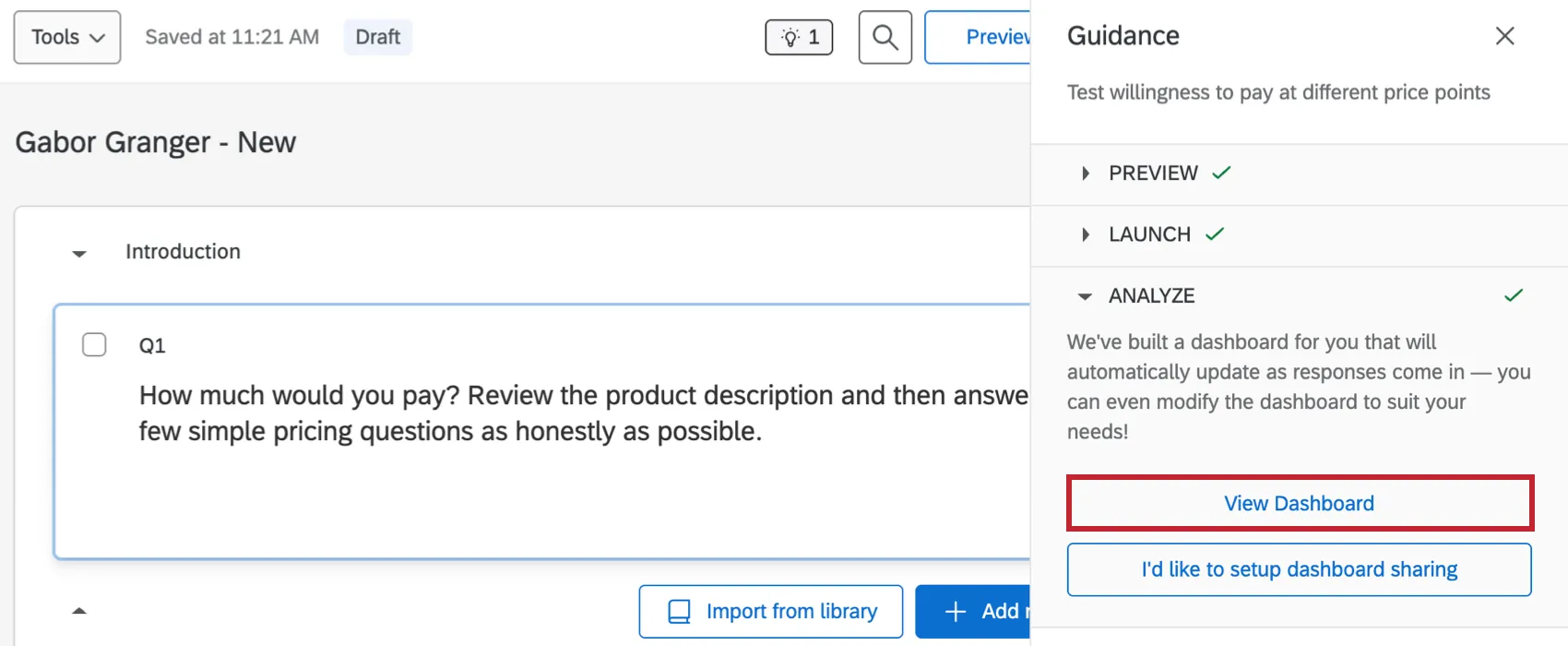
Within the project guidance: Within the guidance bar of your project, click ANALYZE and select View Dashboard.
From the projects page: Search for a dashboard project with the same name as your Gabor Granger project.

Pricing Buckets
After respondents complete the pricing block, the last agreed price of the responses are put into “buckets”, which are used to populate the graph.
Qtip: All responses with a price value greater than the maximum price inserted in the setup assistant will be put in the maximum price bucket. For example, if a respondent is willing to pay $100 but the maximum price is $80, they will be put in the $80 price bucket. All responses with a price value less than the minimum price will be ignored.
You can view these buckets from Data & Analysis by looking at the Price column in Pricing Data. Select lastagreedprice to view the last agreed price. For more information on pricing data, see Pricing Data Calculations.

Pricing Data Calculations
The Gabor Granger solution provides the following fields of pricing data. Each of these fields are updated throughout the respondent’s pricing block loop, and the final values are stored and used in the summary reports.

- Minprice: The lowest price that can possibly be shown. This is calculated at the beginning of the survey.
- Lastagreedprice: The last price that the respondent answered agreed to pay for. If the respondent answers “No” to every price, the value is set to “na”.
Price: The rounded version of the last agreed price. If the last agreed price is 17.5, the price will be 17.

Qtip: This field must be a Number variable type. Changing the variable type can invalidate your survey data.
Qtip: It is not possible to see the exact prices that were shown to respondents throughout the survey. The only pricing results delivered is the price field, which buckets users based on their willingness to pay.
That's great! Thank you for your feedback!
Thank you for your feedback!