

Courses (Course Evaluations)
What's on this page
About Courses in Course Evaluations
In the Courses section of the Directories tab within course evaluations, you can view and manage courses for your institution, create new courses, edit course data, and more. You can then select these courses when you distribute course evaluations, allowing you to gather insights and feedback about specific classes.
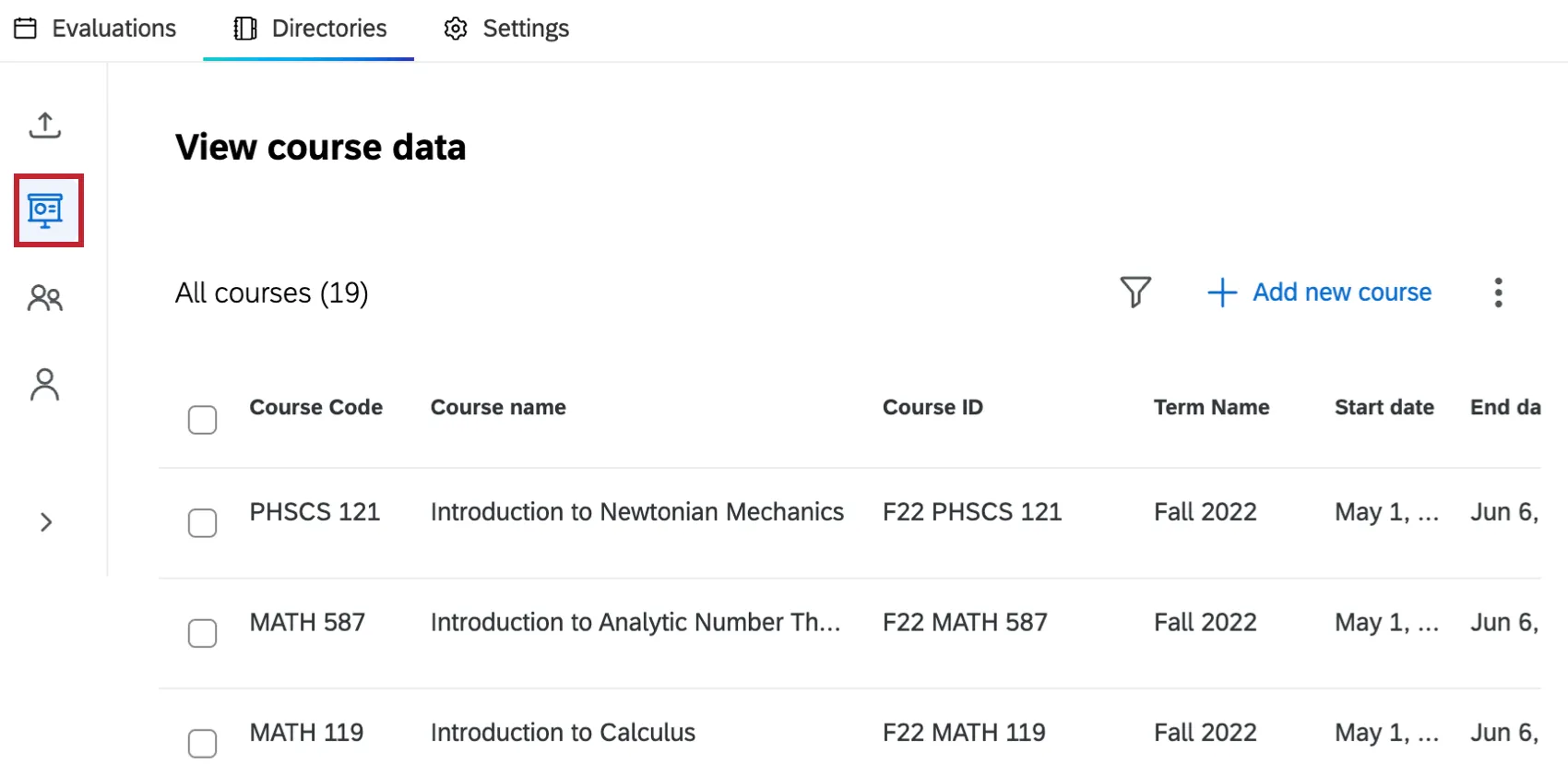
For more information on the Directories tab, see Directories Tab (Course Evaluations). For a course evaluations overview, see Course Evaluations Overview.
Adding New Courses
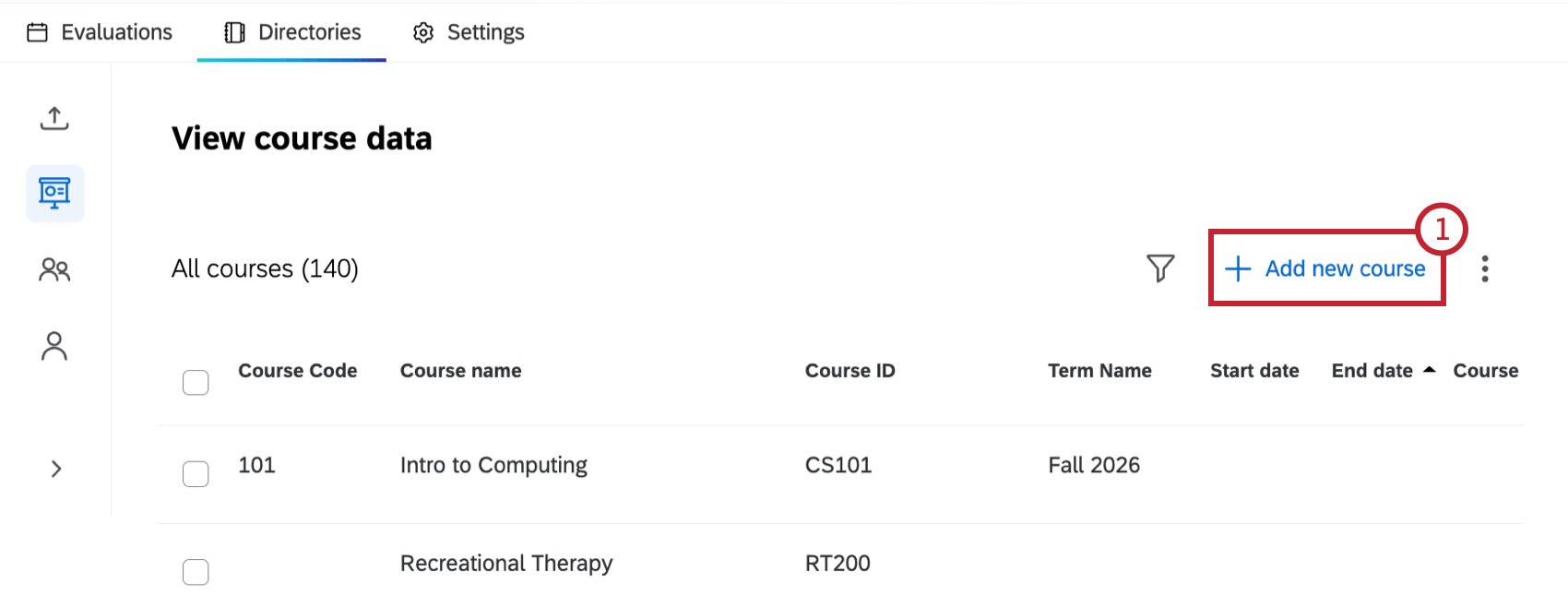
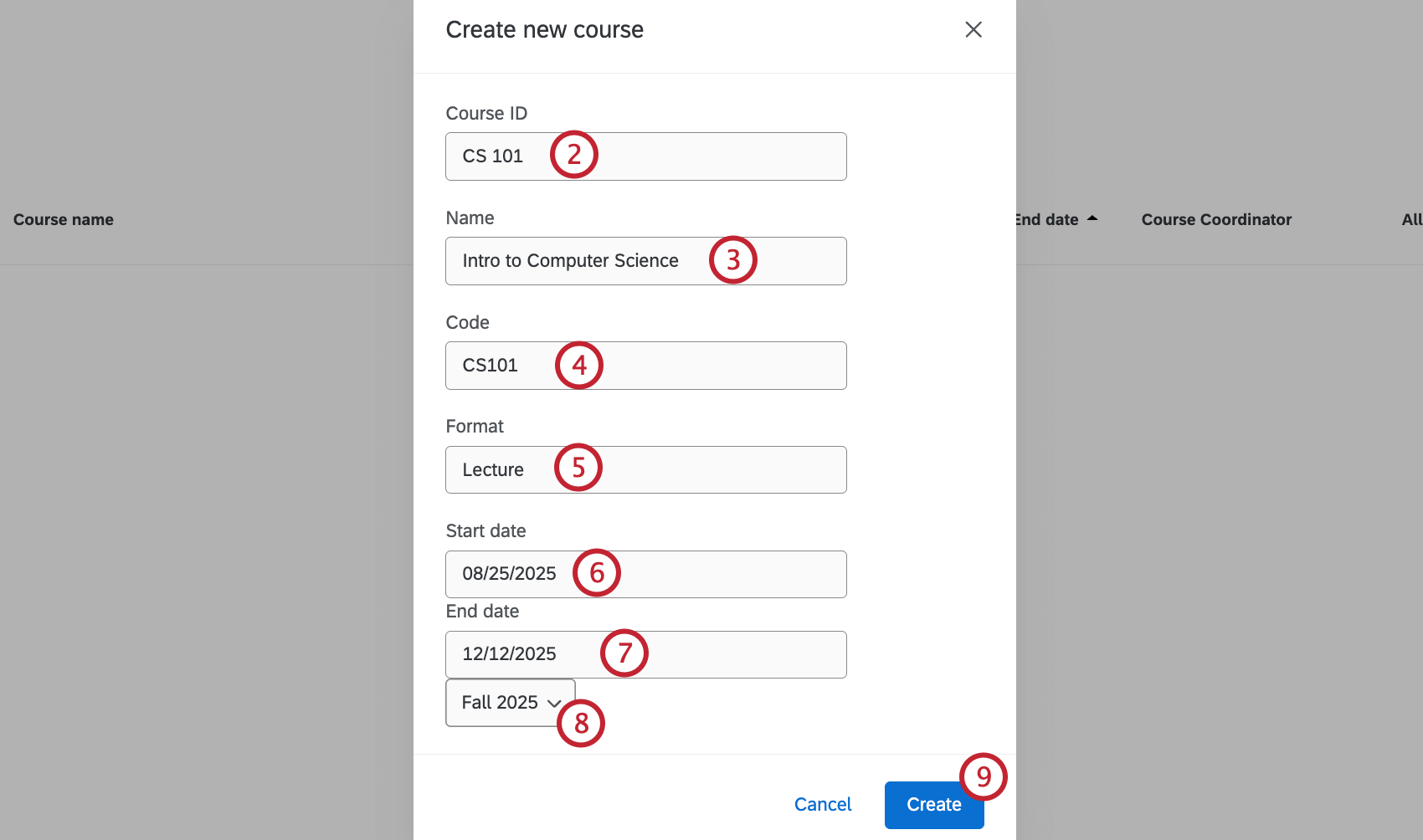
Attention: When adding a term, you can only select from terms you’ve previously uploaded within the Imports section. To select a term that is not currently in the dropdown, you’ll need to import a file with at least 1 course that has the desired term.

Viewing Existing Courses
After courses have been added for your organization, they will be displayed in a table. Use the arrow buttons at the bottom of the table to navigate between pages. Click a course to view additional information.
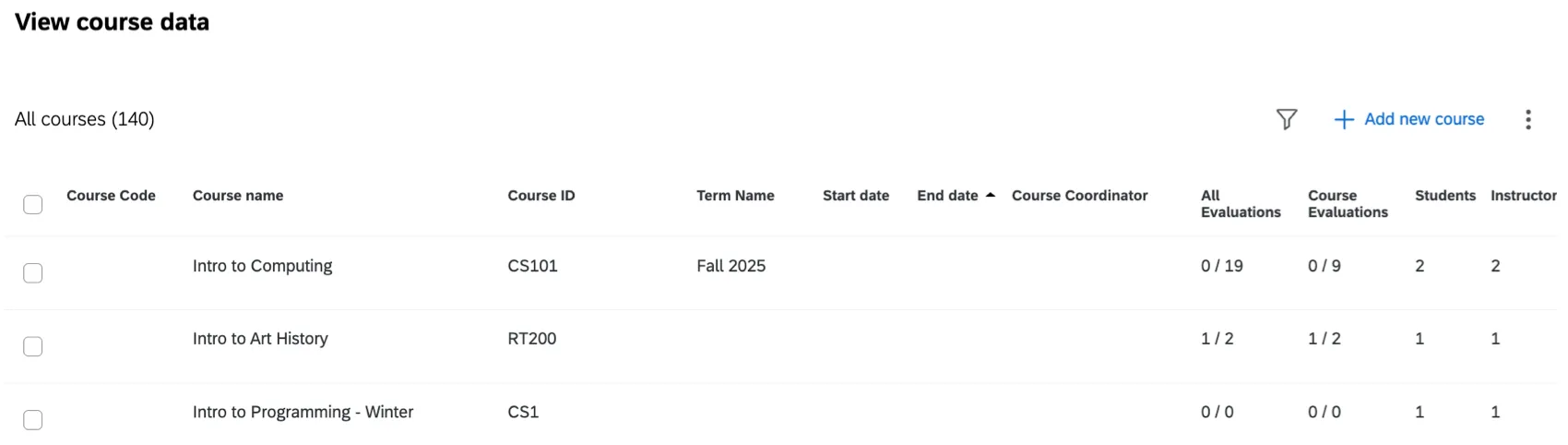
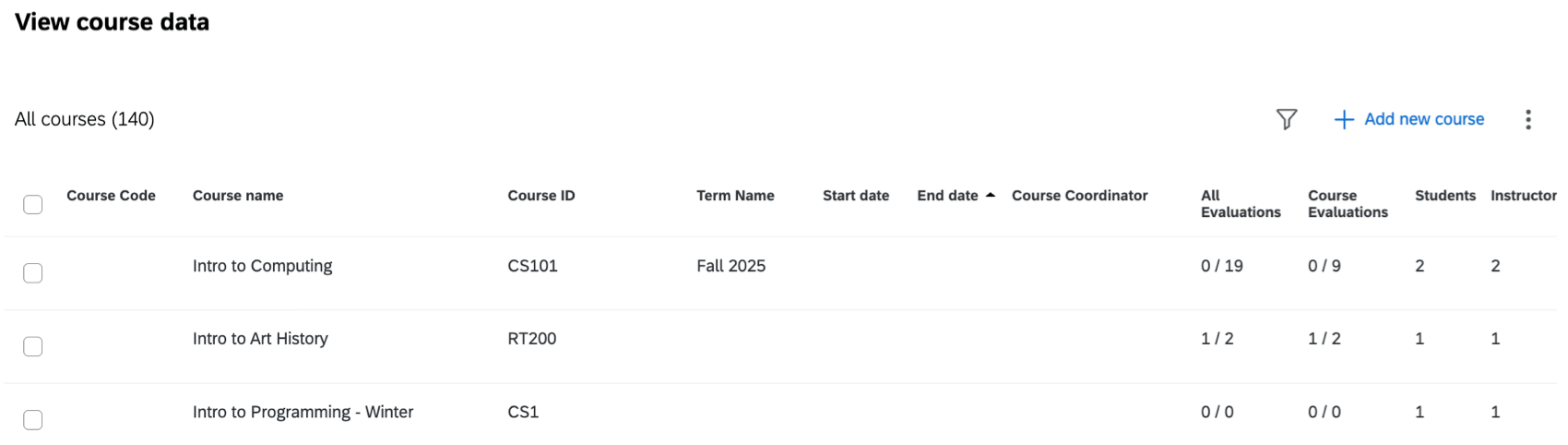
The following columns are included in the table:
- Course code: The unique code assigned to each course.
- Course name: The name of each course.
- Course ID: The ID of each course.
- Term Name: The term the course occurs in.
- Start date: Start date of each course.
- End date: End date of each course.
- Course Coordinator: The coordinator for the course.
- All Evaluations: The total number of evaluations received for the courses / the number of evaluations sent for the course. This includes both course evaluations and instructor evaluations.
- Course Evaluations: The number of evaluations received for the course / number of evaluations sent.
- Students: The number of students assigned the Course ID for the course. Qtip: Students have to be imported within the Imports section to have a Course ID assigned.

- Instructors: The number of instructors assigned the Course ID for the course. Qtip: Students have to be imported within the Imports section to have a Course ID assigned.
Editing and Deleting Courses
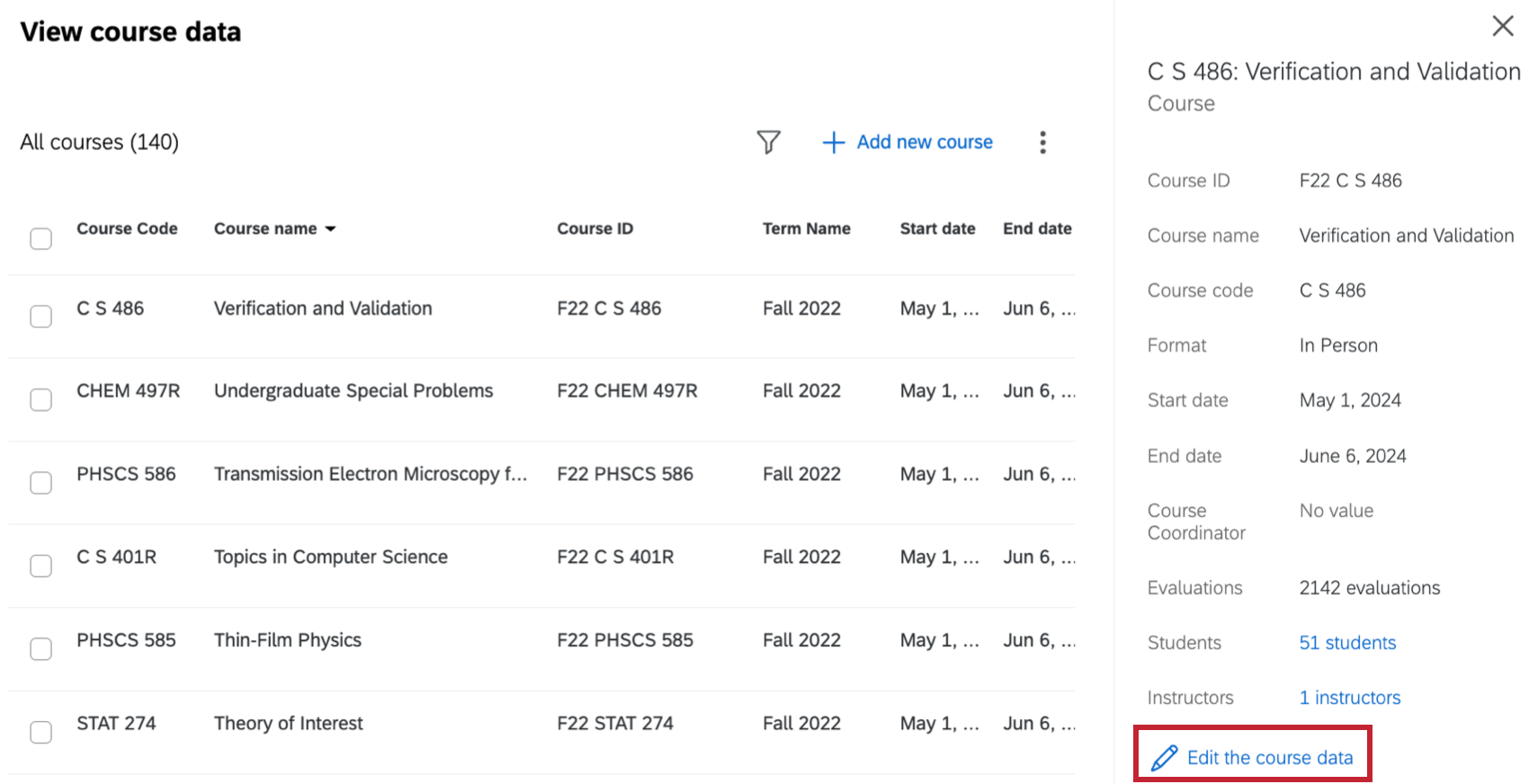
Select a course from the table and click Edit the course data to edit course information.
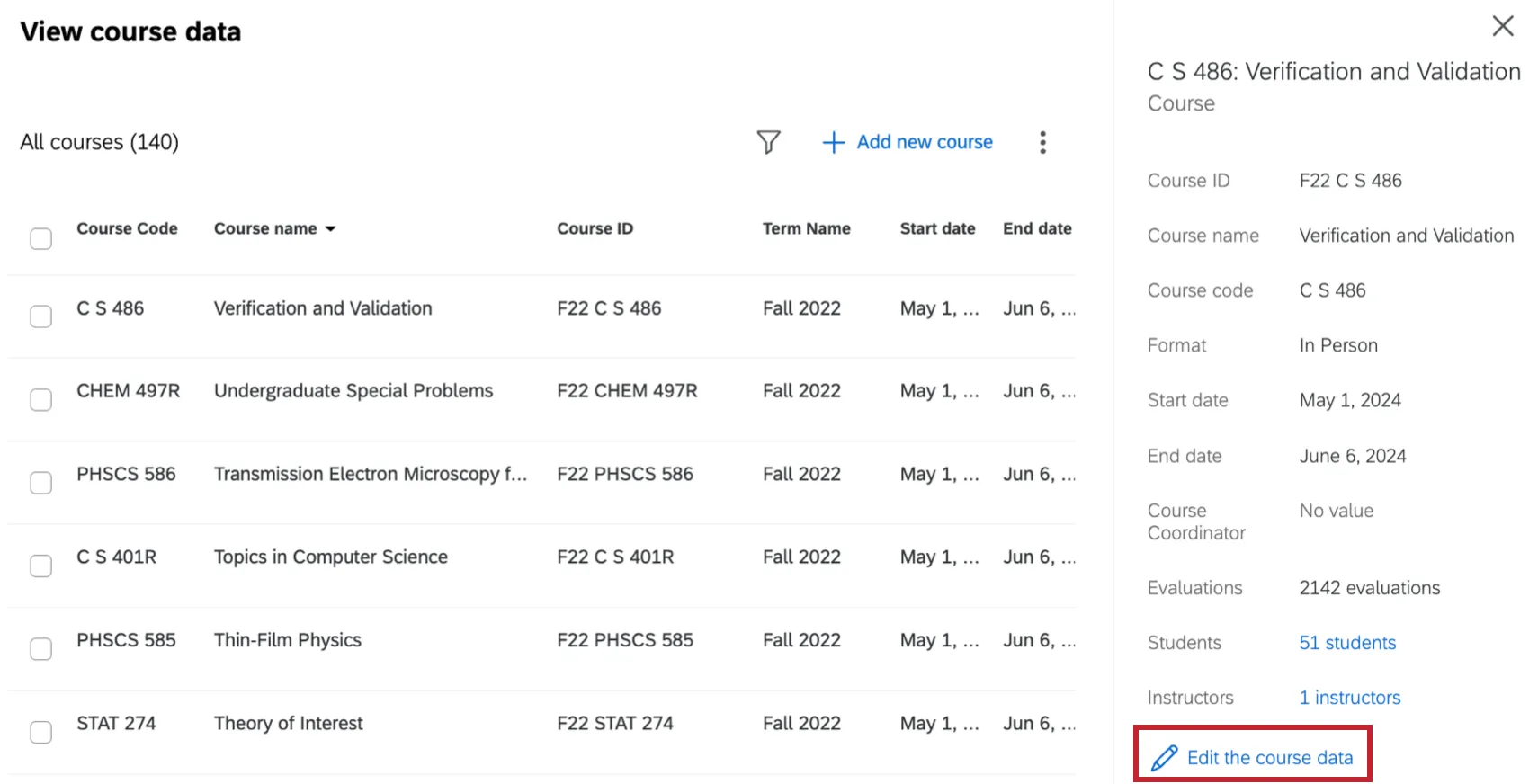
Attention: The following fields cannot be edited: Course ID, Evaluations, Students, and Instructors.
You can also click Edit embedded data to edit embedded data associated with this course. Embedded data can be added to courses when they are imported within the imports section of the Directories tab.
Example: To see if a course’s start time impacted students’ opinion of the course, you can create an embedded data field for “Start Time” and add the start time as a value for each course.

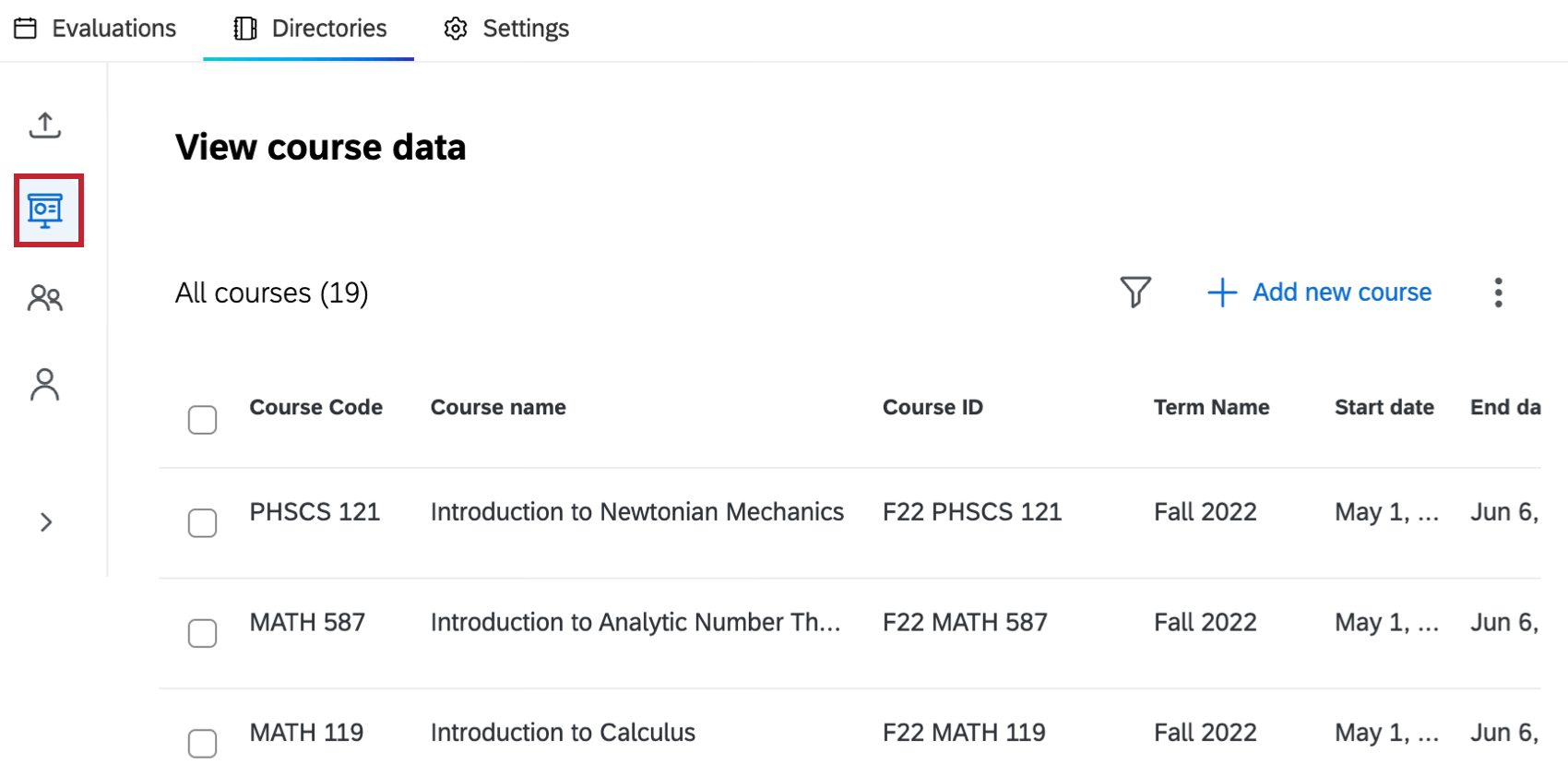
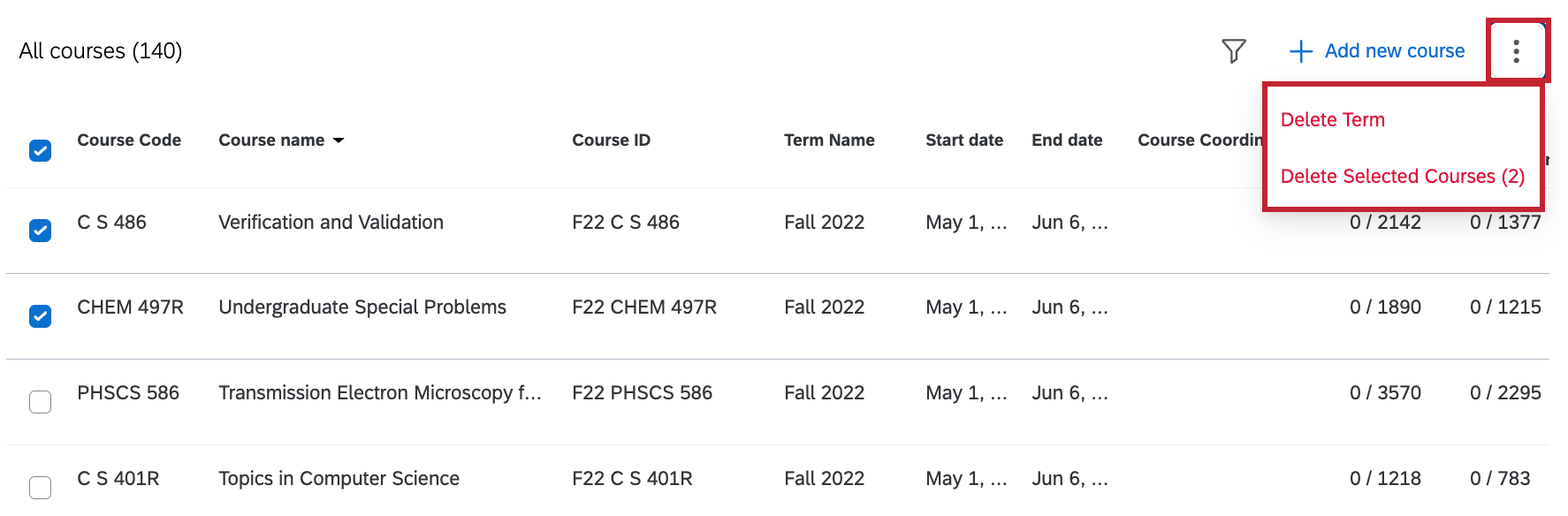
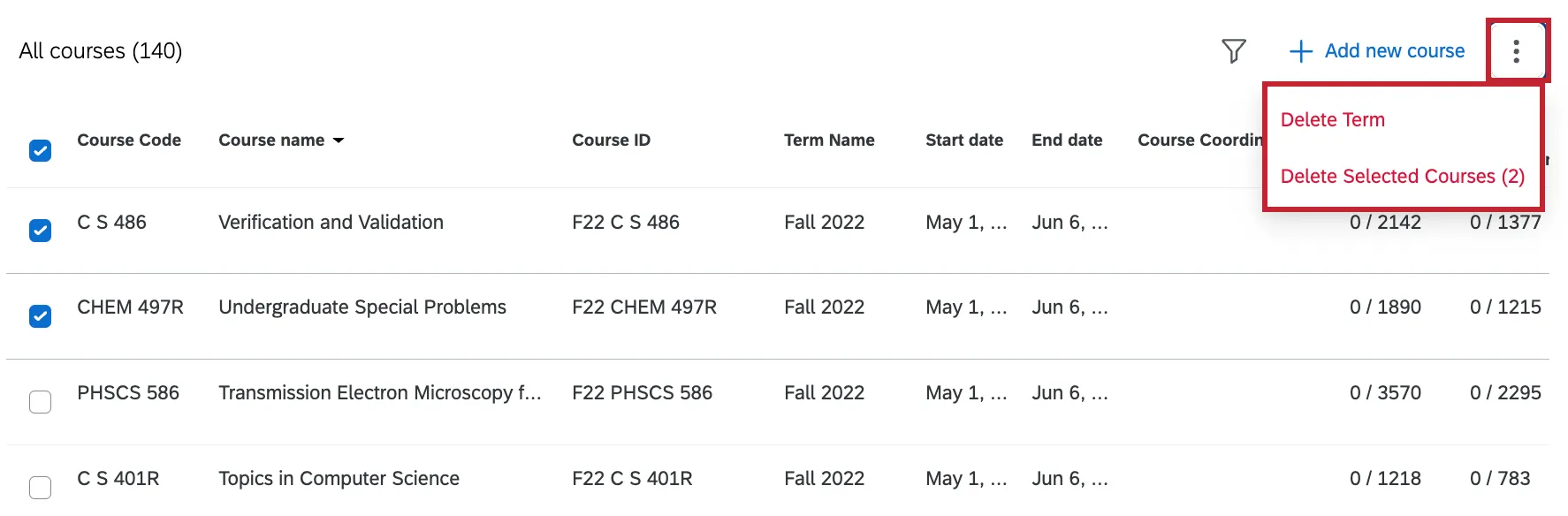
To delete a course, select a course or courses using the checkboxes, then click the 3 vertical dots and select Delete Selected Courses. Everything associated with the course will be removed, such as survey links, student enrollments, and teacher enrollments. You can also select Delete Term to delete all data associated with a specific term.
Qtip: This will not delete any students or teachers associated with the course from the directory.
Searching and Filtering Courses
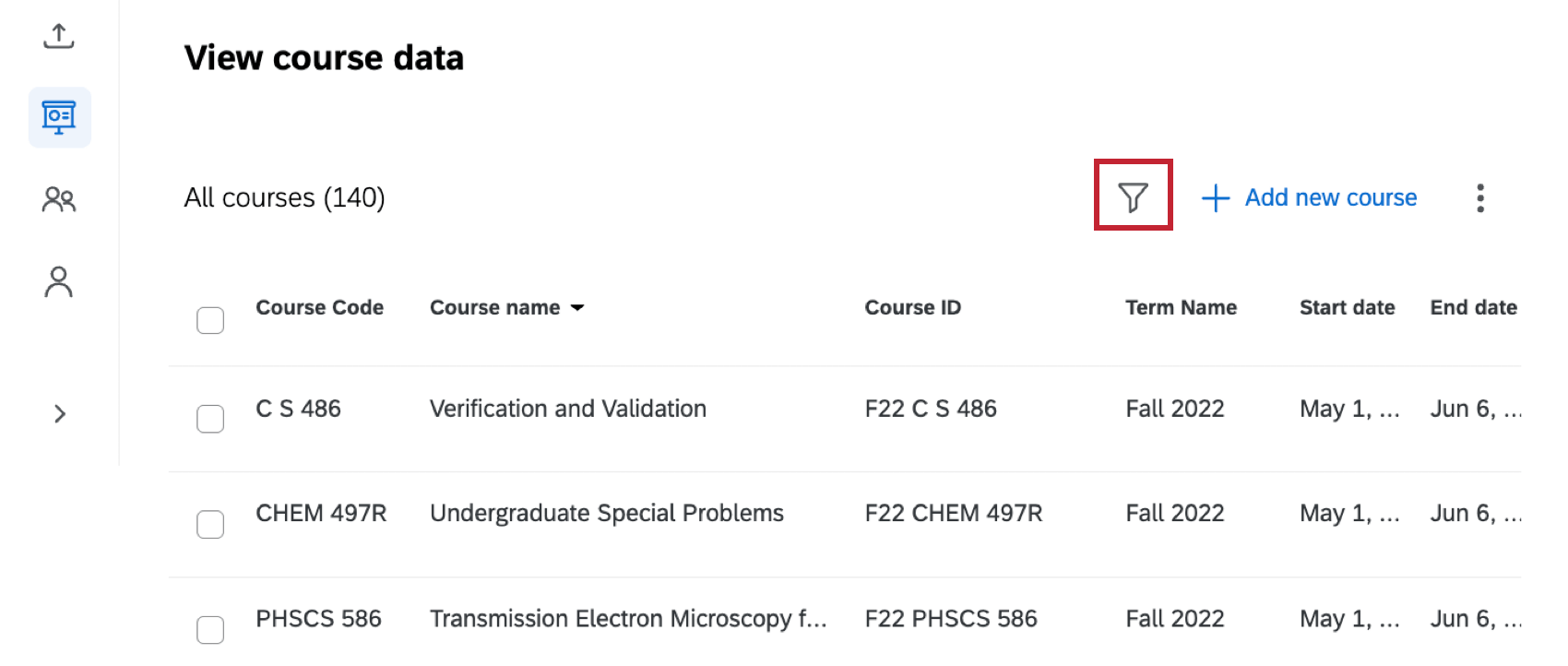
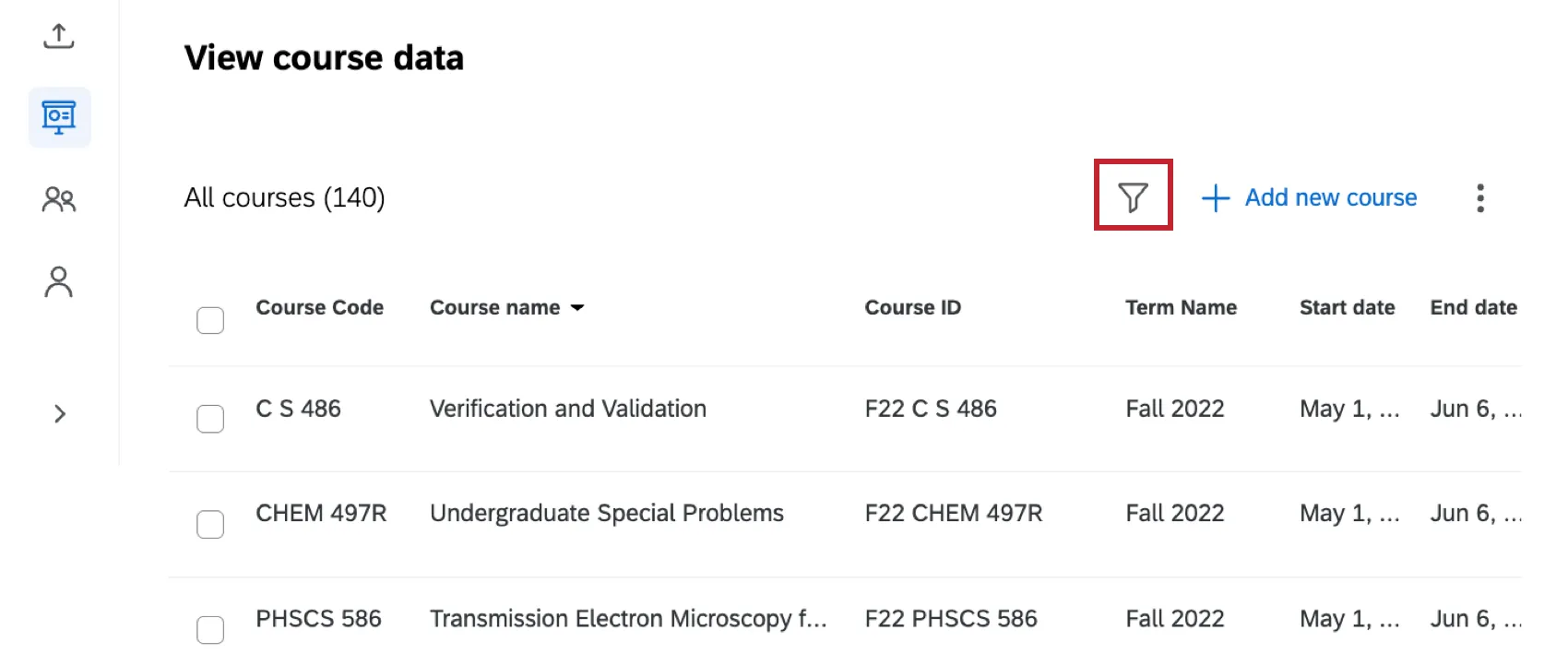
Click the filter icon to filter courses based on specific criteria. You can either filter by a single criteria or create condition groups to combine multiple criteria. Conditions can be created based on any field in the course data table. For more information on creating conditions, see Condition and Condition Sets.
Qtip: Condition sets are the same thing as condition groups.
That's great! Thank you for your feedback!
Thank you for your feedback!