

Instruction Messages (360)
What's on this page
About Instruction Messages
You can create instructional messages that display in the Participant Portal to guide your subjects on what tasks they have to complete, and by what due date.
These instructions can be set up in the Portal Configuration tab of your project.
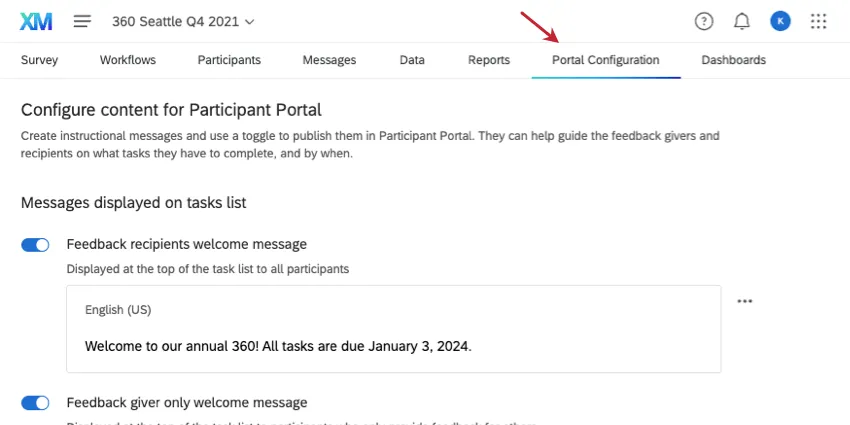
Creating Instruction Messages
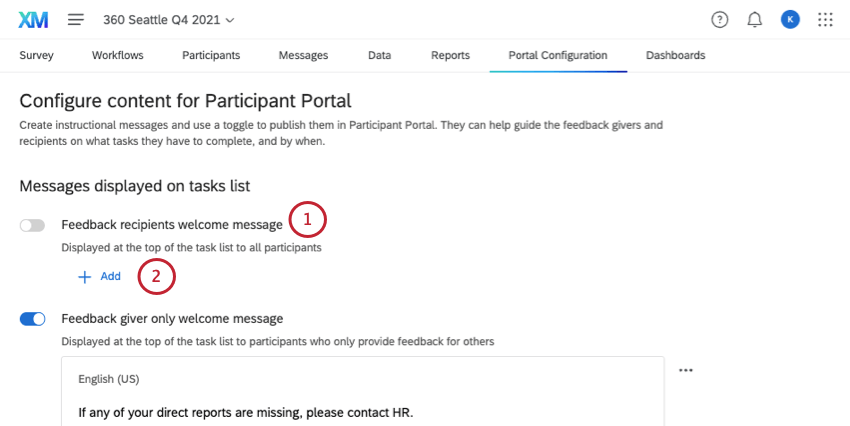
Qtip: Certain instruction messages may require that you enable specific features before you can use them. For example, you have to allow self reflections before you can add a self-reflection message. If you’re unsure, read the message type’s description.

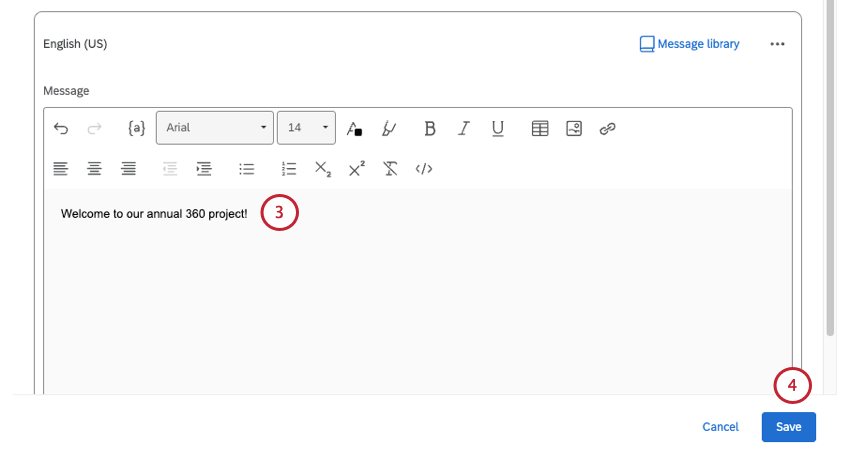
Qtip: Translating instruction messages is the same as these message translation steps.
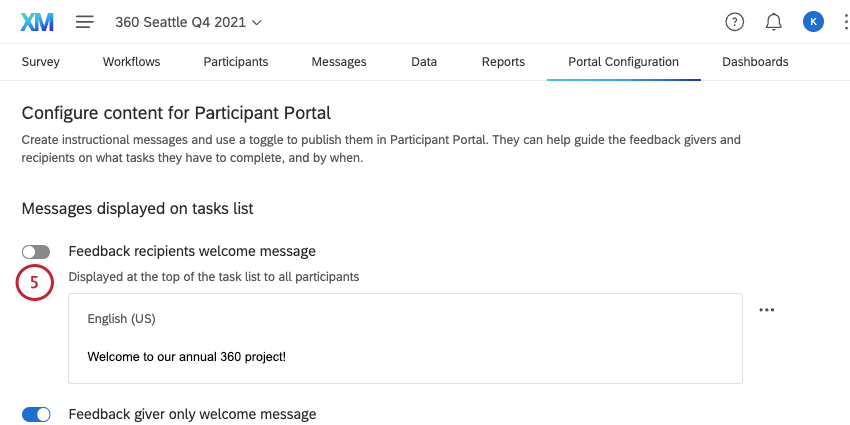
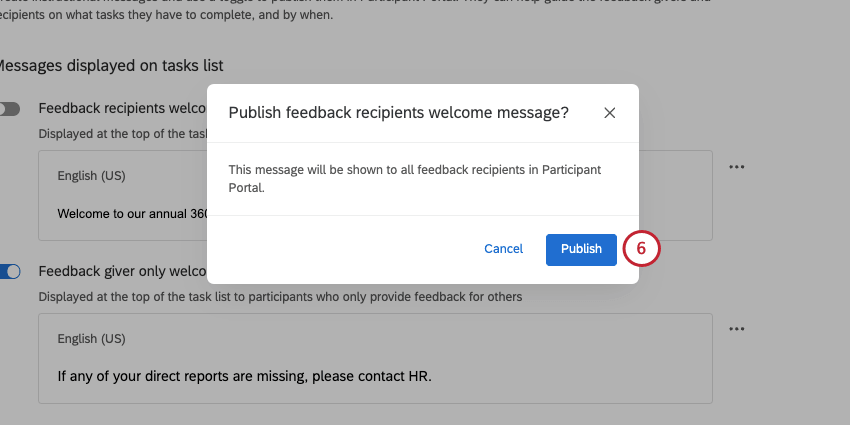
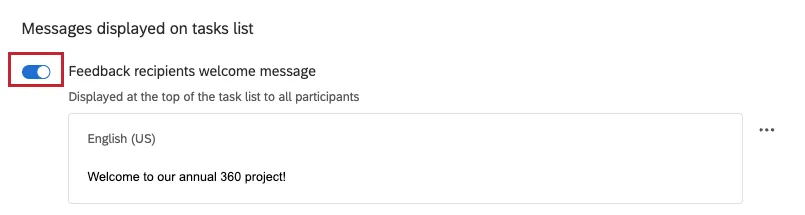
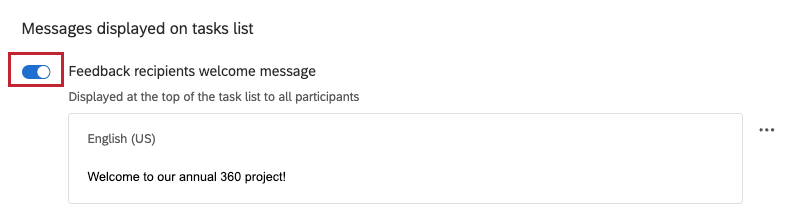
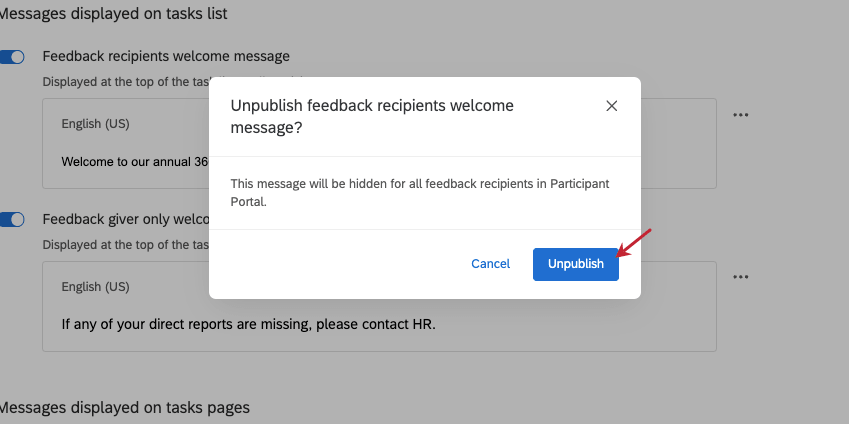
Qtip: If you don’t want the instruction message to be live anymore, click the toggle.
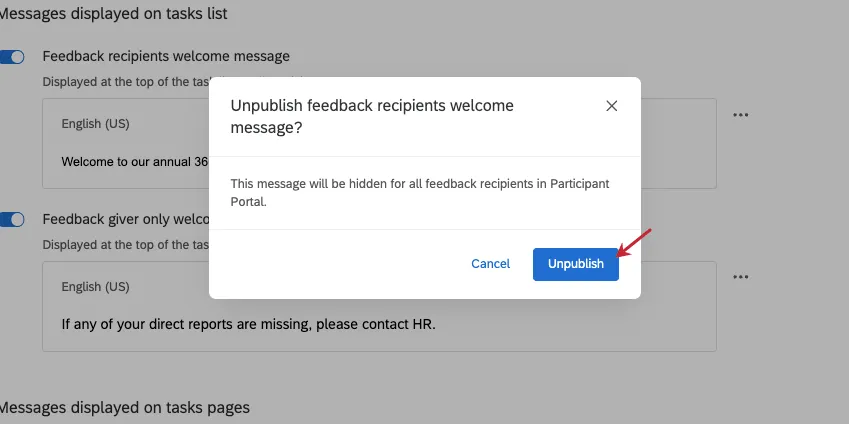
Click Unpublish, and your message will be hidden from the 360 portal. The toggle will turn gray to indicate the message isn’t live.
Editing and Deleting Instruction Messages
You can click the 3 dots next to a specific message to edit it or delete it completely.
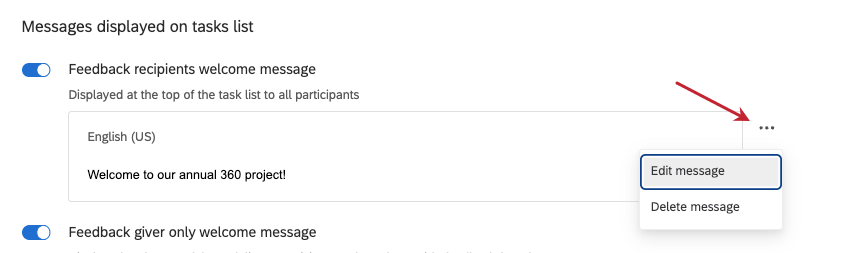

Edits do not change whether the message is published or not.
Once a message is deleted, it’s no longer published. Previously deleted messages cannot be recovered, so you will have to rewrite them from scratch.
Types of Messages
Feedback recipients welcome message
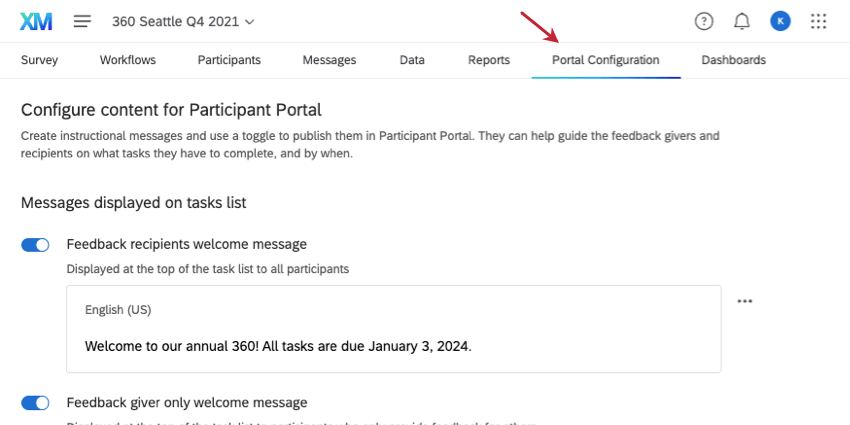
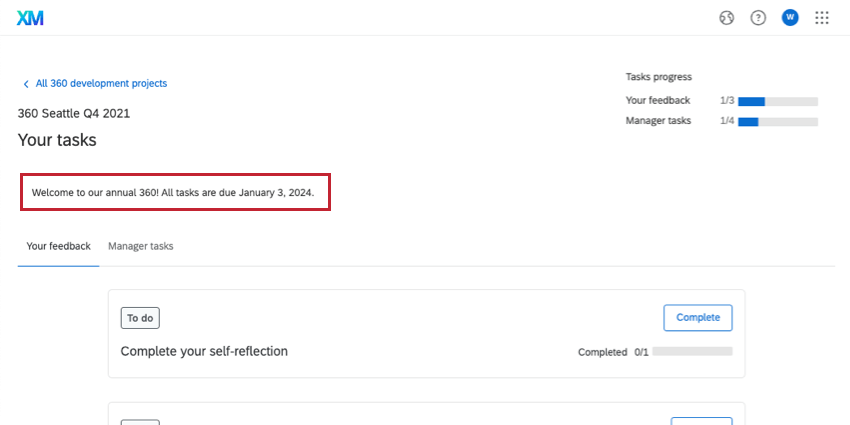
This welcome message will be displayed to anyone who is a subject (even if they are also an evaluator) when they log into their Participant Portal. It displays at the top of the home screen, like this:

Feedback giver only welcome message
This welcome message will be displayed to anyone who is an external evaluator when they log into their Participant Portal. This welcome message overrides the “Feedback recipients welcome message” described above.
Qtip: External evaluators are evaluators who are not also subjects. You can make an evaluator an external evaluator in the Participant Information Window. You can give them login credentials in Message Options.
This message displays at the top of the home screen, like this:
Self-reflection instruction message
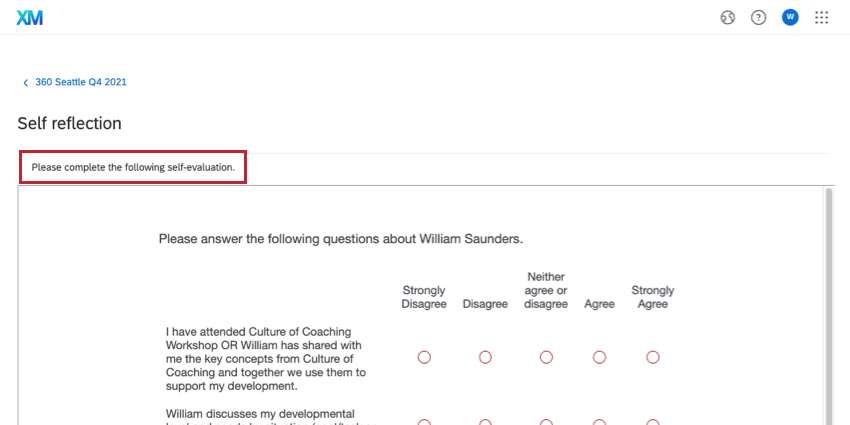
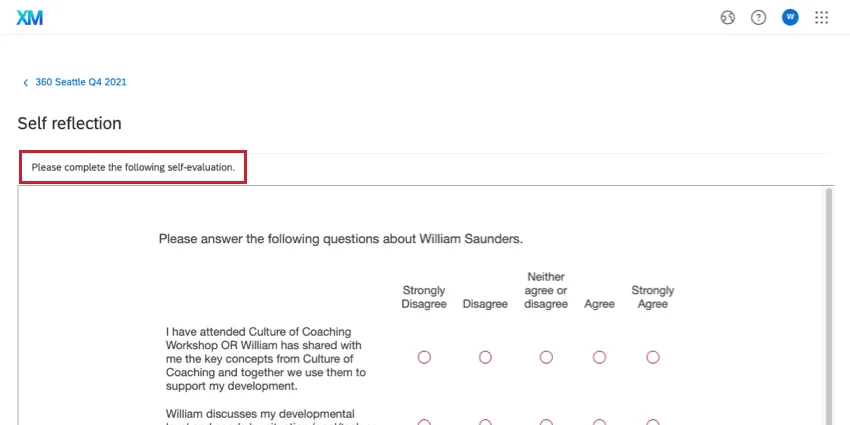
The Self-reflection instruction message appears above every page of the subject’s self-evaluation. This message can act as a floating set of instructions the subject needs to keep in mind throughout the survey.
Qtip: Learn how to enable self reflections in your project.
Request feedback instruction message
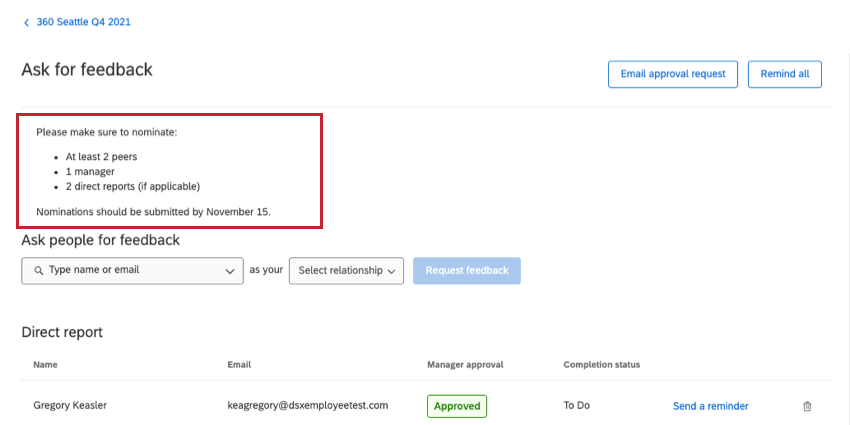
This message displays above the Ask for feedback section of the portal, where subjects nominate evaluators.
You can give subjects the ability to ask for unsolicited feedback through the Participants Options.
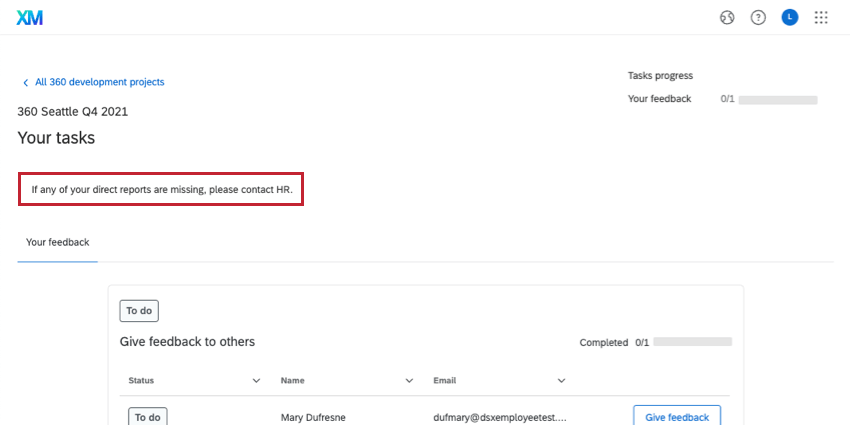
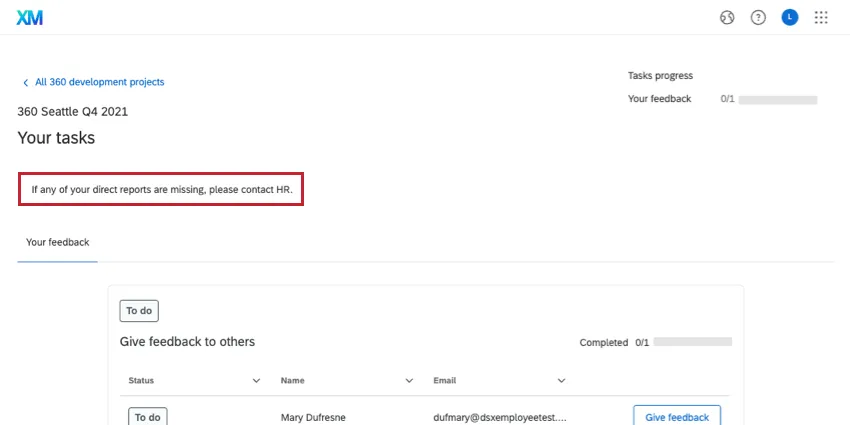
Give feedback instruction message
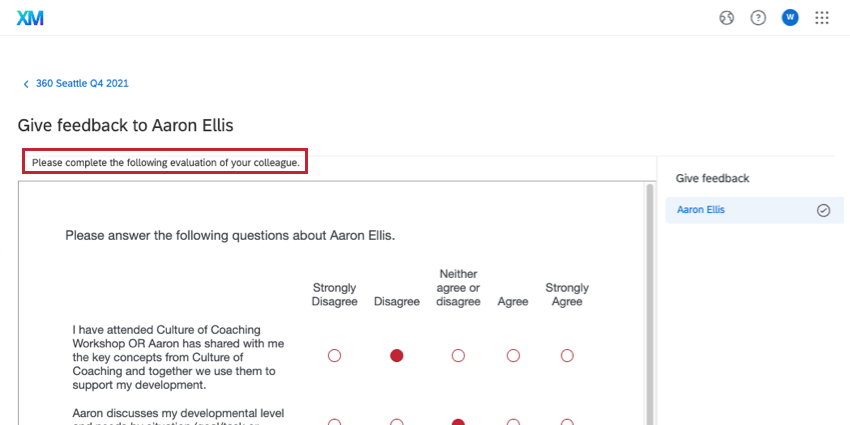
Evaluators will see this message at the top of every page of surveys where they evaluate a colleague. This message can act as a floating set of instructions the evaluator needs to keep in mind throughout the survey.
This message will not display for external evaluators with a direct link.
That's great! Thank you for your feedback!
Thank you for your feedback!