

Participant Information Window (360)
What's on this page
About the Participant Information Window
In the Participants tab of a 360 project, you can click on a participant to open a new window. This window contains information regarding the participant’s metadata, their relationships, who is evaluating them (feedback givers), and who they are evaluating (feedback recipients). Here you can perform various tasks and edit information for the selected participant.
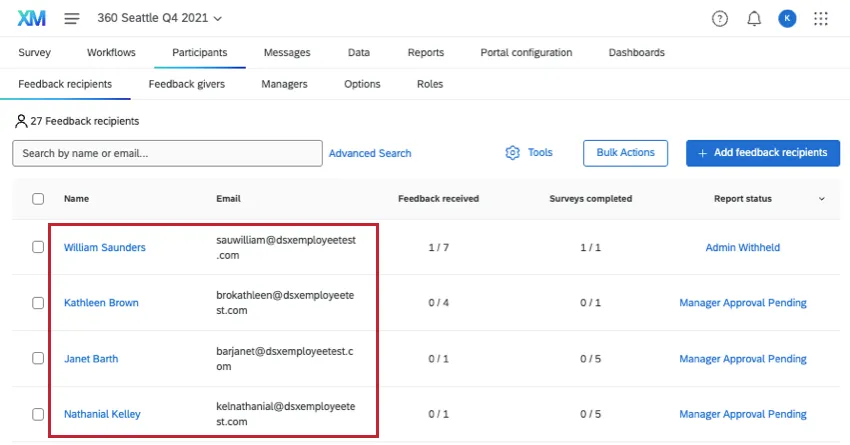
Editing Participant Information and Metadata
Edit Participant
This section contains information about the First Name, Last Name, Email, Unique Identifier, and Login Name for the participant. To edit a field, click it and type in the new value.
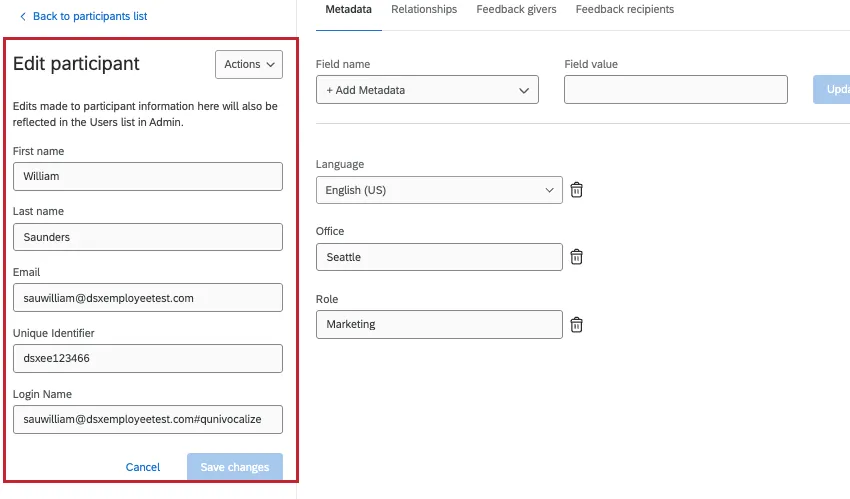
When you’re finished, click Save changes. Changes will reflect both in the Admin page and Employee Directory.
Qtip: You cannot have multiple participants with the same email address, even if they have different unique identifiers or usernames. If you try to change a feedback recipient’s email and get the "This email address is already in use" message, that means this person is already a feedback recipient in the project.

Qtip: If you try to add a participant with the same unique identifier as an existing participant, the existing participant will be updated with the new information you have uploaded.
Metadata
The Metadata section shows the information attached to the participant in this project. Here, you can also add, edit, and remove metadata.
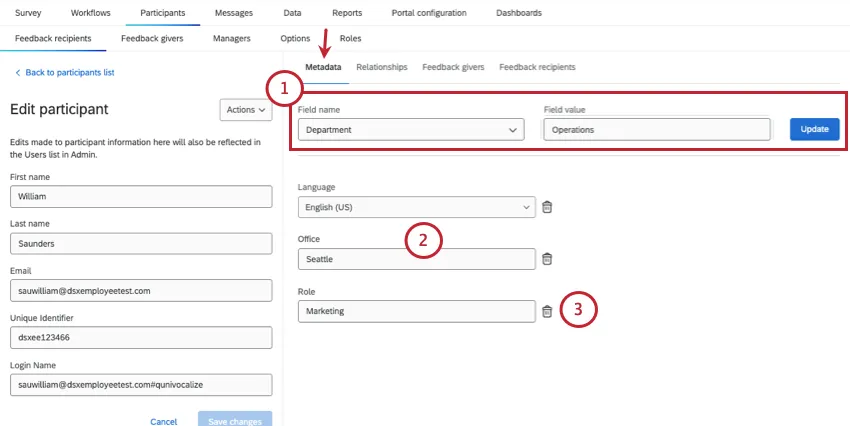
- To add metadata, select a field, define the value, and click Update.
- To edit or assign a value to a metadata field, click it and type in the new value.
- To remove a metadata field for a participant, click the trash icon.
Warning: Once a project is active, changes made to a participant’s metadata in the Participants tab will not reflect in the Employee Directory. Similarly, once a project is active, changes made to a participant’s metadata in the Employee Directory will not reflect in the Participants tab.

Actions
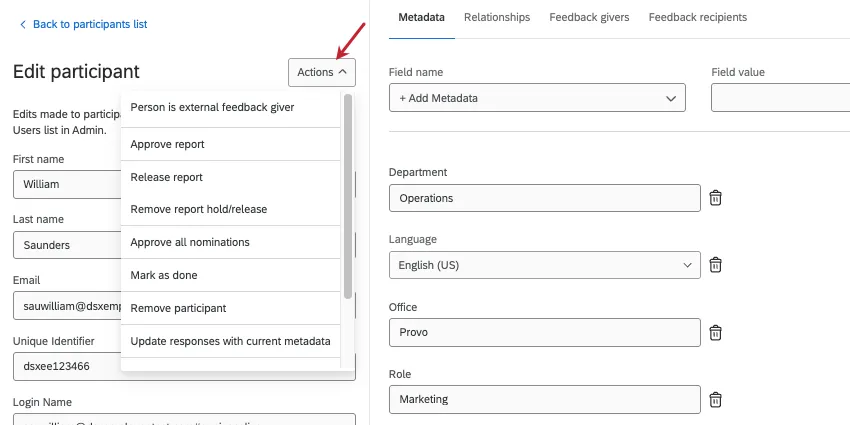
- Person is external feedback giver: Make the participant an external feedback giver. This means they will only give feedback, but won’t receive it. This option removes all the feedback provided for the participant and any outstanding feedback giver nominations they’ve made.
- Approve Report: This option will only appear if you have Manager/Administrator approves reports turned on in your Report Options. When these settings are turned on, feedback recipients cannot see their reports until they are approved. Here you can choose to approve a report so that it is released to them.
- Remove Report Approval: If you approved a report and need it to be hidden again, click Remove Report Approval.
- Release Report: For reports with release requirements that haven’t been met yet, you can release a report early.
- Hold Report: For reports with release requirements, you can prevent the report from being released when it’s ready.
- Remove Report Hold/Release: If you chose to hold or release a report despite the release requirements, this option reverses that selection.
- Mark as Done: Prevents further feedback being completed for this recipient, and prevents more emails from being sent to the feedback givers.
Qtip: Using the “Mark as Done” option will prevent the feedback recipient’s feedback givers from completing more assessments for them. This option will also stop the reminder emails from being sent to the feedback givers. However, if the feedback recipient still has assessments that they themselves need to complete for others, they will continue to get those feedback giver emails.
- Unmark as Done: Remove the “Done” status from the feedback recipient, allowing emails to be sent to the feedback givers again.
- Remove participant: Remove this participant from the project.
Warning: Removing the participant from the project deletes any response they’ve provided. If you want the participant to redo their response, send them a retake survey link instead of removing them and re-adding them.
- Update Responses With Current Metadata: Once a participant submits a response, their metadata information is recorded with their response and will not update automatically if you make changes later. If you need to make changes to a participant’s metadata after their response is submitted, first update the desired information and then select the Update Responses With Current Metadata option so the updated metadata information is pushed to the individual’s survey response.
- Invites and Reminders: Allows you to send an invite or reminder to the selected participant or their feedback givers. These messages will use the templates that are set in the Email Messages section of the Messages tab.
Qtip: Need to send a more customized message to one participant? When you send the invite or reminder from the Email Messages section, you can edit your message and then set a condition so that it only goes to a specified participant.
- Send Password Reset Email: Sends a password reset email to the selected participant. The email will be sent to the email listed for the participant under the Basic Information section to the left.
- View Distribution History: Will display the Mail History for the selected participant only.
Relationships Tab
Warning: Do not change existing relationships in this section. Do that in the Feedback givers tab of the participant window.
The Relationships tab displays all the relationships the participant is in on the directory level. It also displays the current relationships they have with their feedback givers.
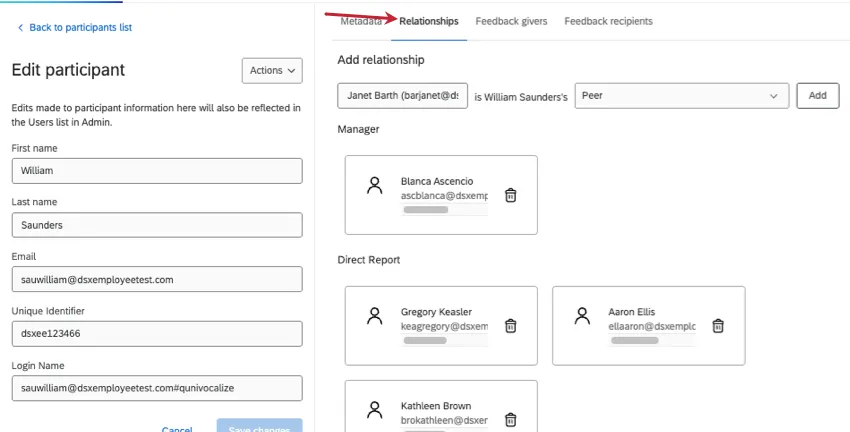
To add a new relationship, type in the name of an existing participant, select their relationship, and click Add. This will only add them to the directory level – if you want to add a participant as a feedback giver in this project, add them in the Feedback givers tab instead.
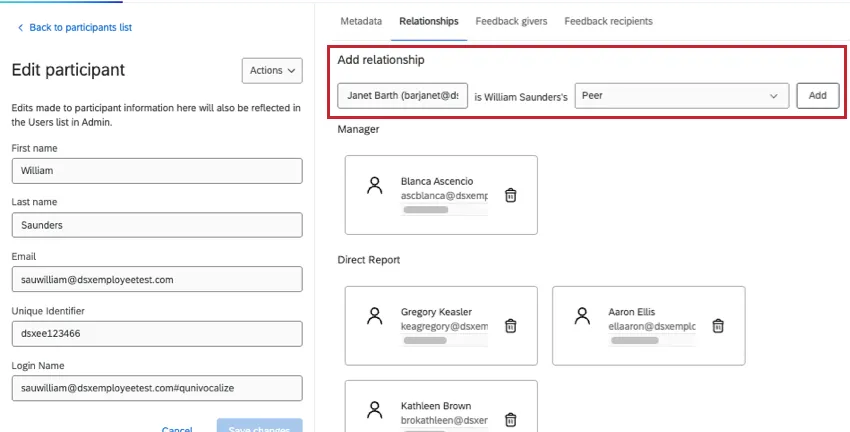
Qtip: This is a great way to add managers who can approve and view reports, but who cannot provide feedback on participants.
Feedback Givers and Feedback Recipients Tabs
- Feedback givers tab: Or evaluators. This is a list of all of the participants who are going to evaluate the participant you’re currently viewing.
- Feedback recipients tab: Or subjects. This is a list of all of the participants that the person you’re currently viewing is going to provide feedback for.
Qtip: Unsolicited feedback givers will not appear in the Feedback givers tab of the feedback recipient’s participant information window.
Change the relationship between the feedback recipient and the feedback giver. Once you change this relationship, be sure to click Actions and select Update Response With Current Metadata.
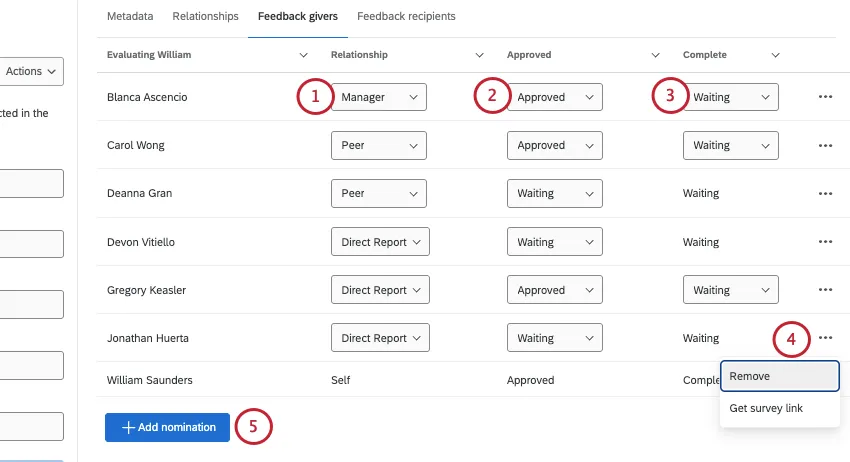
Qtip: Be careful when changing relationships! If a relationship is changed while a feedback giver is in the middle of writing their response, their response in progress will be removed. You can add this response in progress back by switching the relationship back to what it was.
This column will only appear if managers must approve nominations. Here, you can approve or change the status for nominations.
This column shows whether the feedback has been completed yet.
Click the 3 dots for additional options.
Remove: Remove any completed feedback from the feedback recipient. This relationship will disappear from the Feedback recipients/Feedback givers tab.
Get Survey Link: This only appears for incomplete assessments and self-reflections.
Click Add Nomination to add another feedback giver. Search an existing participant by name.
FAQs
Who assigns relationships in a 360?
Who assigns relationships in a 360?
Depending upon the Participants Options enabled for the 360 project, a feedback recipient (subject) and/or manager can assign relationships to feedback givers (evaluators).
Managers can assign relationships if Managers may choose evaluators is turned enabled.
Feedback recipients (subjects) can only assign relationships if Subjects nominates evaluators and the sub option Allow subjects to select relationships are both enabled.
Please note that the relationships selected when nominating feedback givers are only used to categorize the response and do not provide the feedback giver with additional project permissions. Feedback givers that are selected with a "manager" relationship will not be assigned into the manager role automatically and will not be able to perform manager-related tasks. Only a project administrator can define managers for users added to the 360 project.
Administrators (e.g., those with project-creation capabilities) can always assign relationships. Administrators can change relationships even after assessments have been submitted. This is done by clicking on the person’s name in the Feedback recipients section, viewing the Feedback givers list, clicking on the relationship, and selecting the new relationship from the list.
How can you assign a manager to someone without the manager being also assigned as a feedback giver?
How can you assign a manager to someone without the manager being also assigned as a feedback giver?
It is easy to assign a manager to feedback recipients without the manager being assigned as a feedback giver. You will need to add the manager to each applicable feedback recipient:
- Go to Participants.
- Go to the Feedback recipients section.
- Click on the name of the feedback recipient.
- Click on the Relationships tab of the Participant Information Window.
- In the Search bar, type the name or email address of the person you’d like to add as a manager. The search bar will return a list of people from the directory that match the search.
- Select the appropriate individual.
- For relationship, choose Manager.
How can I make my report available to my managers? Subjects?
How can I make my report available to my managers? Subjects?
When are 360 reports released?
When are 360 reports released?
When I create participants, are there any metadata limits I should consider?
When I create participants, are there any metadata limits I should consider?
That's great! Thank you for your feedback!
Thank you for your feedback!